You type a sentence, press a button, and a few seconds later a picture appears that did not exist a minute ago. That is the appeal of the Playground image generator, and it is why millions of people opened it in the first place. Then the limits show up. A queue here, a daily cap there, a licensing question you did not expect. If you are trying to get real work done, those walls matter more than the logo on the website.
This article lays out what Playground offers, what its free tier reportedly allows right now, which free online alternatives deliver more room to experiment, and the prompts that produce sharp, believable pictures. You will also find a step by step walkthrough for Playground v2.5, a model you can run today on PicassoIA.
What the Playground Image Generator Does

Playground is an online canvas for making pictures from text. You write a description, choose a style or model, and the service returns several candidates. Beyond plain generation, it has leaned into editing: you can drop a picture into a canvas, mask a region, and ask the system to repaint it. That mix of creation and touch up work made it popular with social media creators, small shop owners and people building mood boards.
Where the Name Comes From
The name is shared by a company, a website and a family of research models. The best known open model from the team is Playground v2.5, a text to image model tuned for aesthetic quality at 1024 pixel resolution. It was trained to favor rich color, pleasing contrast and balanced framing, which is why its outputs often feel "finished" without much prompt effort. That model is not locked behind the website, and Playground v2.5 1024px Aesthetic is available on PicassoIA.
Who Uses It Most
Typical users fall into three groups:
- Casual creators who want a quick wallpaper, avatar or party invitation.
- Marketers and shop owners who need product backdrops and social posts.
- Hobbyists who compare prompts and styles for fun.
All three groups run into the same friction sooner or later: the free tier ends before the idea does.
Free Tier Limits in 2026
Here is the honest answer: the numbers have moved around, and different sources disagree. Older reviews describe a very generous free allowance of up to 1,000 images per day. More recent reports point to tighter rules, with a rolling cap of roughly 10 images every 3 hours on the free plan, and one usage tracker logging a July 2026 change that reduced both the generation window and the number of downloads allowed per day. Some listings still show a few hundred images per day. Treat any single figure with caution and check the pricing page on Playground's own site before you plan a project around it.
What Seems Consistent
Across the sources, a few points show up repeatedly:
| Topic | What is reported |
|---|
| Free generations | Capped on a rolling window, commonly cited as about 10 per 3 hours |
| Downloads | Reduced in mid 2026 according to a usage tracker |
| Paid plans | Roughly $12 to $15 per month for Pro, $36 to $45 per month for Pro Plus, depending on billing period |
| Queue speed | Free users can wait longer at busy hours |
| Commercial rights | Described differently by different sites |
💡 Tip: If a number looks too good to be true, check the date on the article. Pricing and limits for image tools change several times a year, and reviews rarely get updated.
Why Caps Hurt Prompt Work
Good images are rarely the first attempt. A strong prompt usually needs four to ten tries: adjust the lighting, swap the lens, change the subject distance. With a cap of 10 images every three hours, a single idea can eat your entire allowance. That is the real cost of a limit, and it is the main reason people look elsewhere.
Free Online Alternatives That Work
Switching tools is easier than it sounds, because the skill that matters, writing a clear description, carries over from one generator to the next. These are the options worth trying on PicassoIA, each with a different strength.
Seedream 4.5 for Sharp 4K Detail
Seedream 4.5 is a strong pick when you want large, crisp pictures with accurate textures. Skin, fabric, stone and wood all hold up when you zoom in, and it follows long prompts faithfully. For portraits and product shots, it is a dependable first choice.
Nano Banana Pro for Editing Plus Creation
Nano Banana Pro handles both text to image and edit style requests. If you liked the canvas side of Playground, this is the closest in spirit: upload a picture, describe the change, and get a revised version. The lighter Nano Banana is useful when you only need a quick edit or a rough layout.
Imagen 4 for Photorealism
Imagen 4 is built for natural looking photographs, with believable light and accurate skin tones. When speed matters more, Imagen 4 Fast trims waiting time, and Imagen 4 Ultra pushes detail further for hero pictures.
Flux Schnell and SDXL Lightning for Volume
When you need to test many prompt variations in a short time, fast models are your friend. Flux Schnell and SDXL Lightning 4Step return pictures in a few seconds, so you can run a dozen drafts before choosing which direction deserves a slower, higher quality pass.
Side by Side Comparison
💡 Tip: Run the same prompt through two or three models. Each one reads a description slightly differently, and the winner is often a surprise.
Prompts That Actually Work
A good prompt reads like a shot list. It says who or what is in the frame, where they are, how the light behaves, and which lens captured it. Vague prompts such as "beautiful woman, nice background" invite generic results. Specific prompts give the model something to hold on to.
The Five Part Formula
Use this order and you will rarely go wrong:
- Subject and action: who is doing what.
- Environment: where the scene takes place, with two or three concrete objects.
- Light: direction and quality, such as "soft window light from the left".
- Camera: lens, angle and depth of field, such as "85mm f/1.8, eye level".
- Texture and mood: film grain, fabric weave, skin pores, a calm or energetic tone.
Portrait Prompt Example
A woman in her thirties reading by a rain streaked window in a small apartment, wearing an oatmeal wool sweater, a ceramic mug on the sill, soft grey daylight from the right, 85mm f/1.8 lens, shallow depth of field, visible skin pores and wool fibers, Kodak Portra 400 film grain, quiet mood.
Landscape Prompt Example
Low mist over a pine valley at sunrise, a narrow gravel road curving toward distant hills, warm side light breaking through the clouds, 24mm lens, wide angle, dew on grass in the foreground, subtle film grain, natural color.
Words That Help and Words That Hurt
| Helps | Hurts |
|---|
| "soft window light from the left" | "good lighting" |
| "85mm f/1.8, shallow depth of field" | "professional camera" |
| "linen shirt with visible weave" | "nice clothes" |
| "Kodak Portra 400 film grain" | "high quality, 8k, masterpiece" repeated five times |
Filler tags rarely add quality. Concrete nouns and measurable camera terms do.
Product Shots Without a Studio
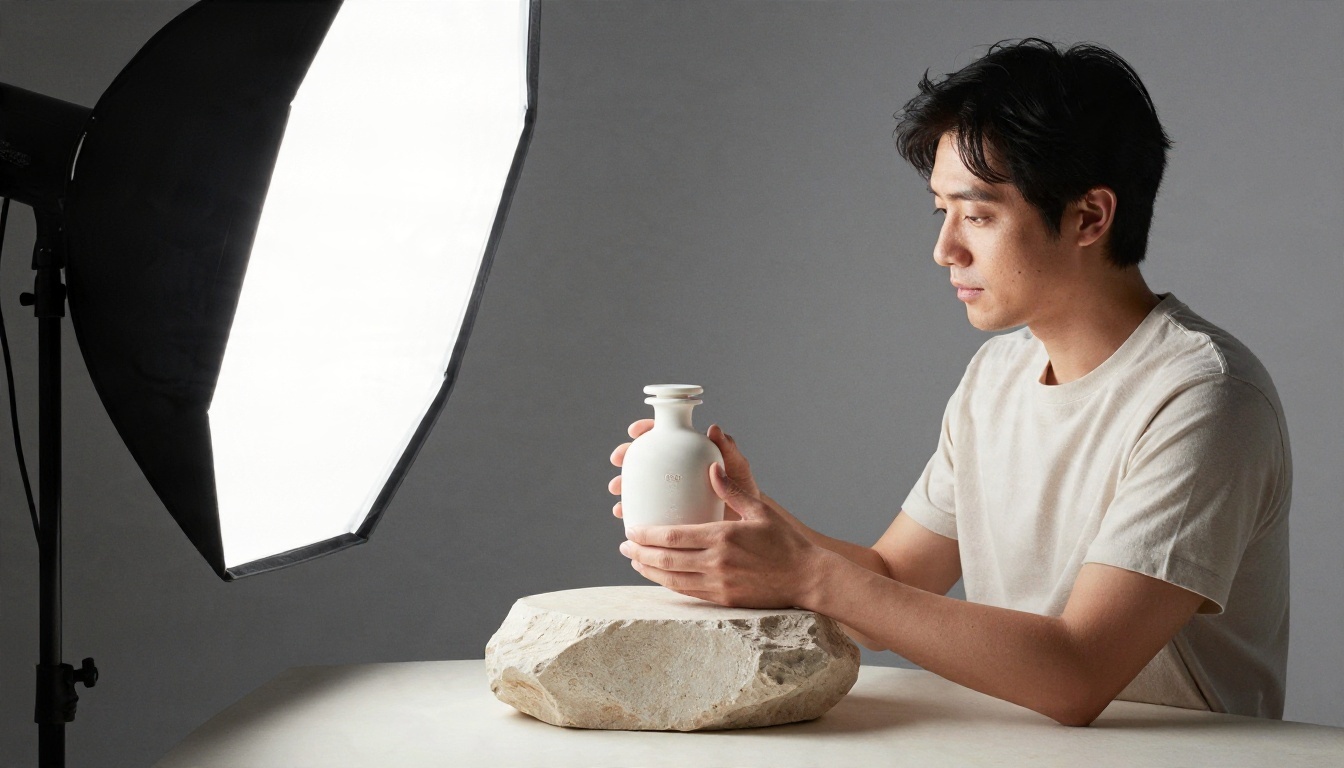
Shop owners are one of the biggest groups using image generators, and product backdrops are where the free caps hurt most. A single listing can need a hero shot, a lifestyle shot and a flat lay.
A Reusable Product Template
Swap the bracketed parts and keep the rest:
[Product] on a [surface: pale stone, walnut table, linen cloth], [two supporting props], soft directional light from the left, gentle shadow falling to the right, 50mm lens, shallow depth of field, crisp surface texture, neutral background, natural color.
Keep Backgrounds Simple
Busy backgrounds steal attention and can warp small details. Ask for a plain seamless backdrop first. If you need a lifestyle setting later, generate it in a separate pass and compare.
💡 Tip: Generate three background options with a fast model such as Flux Schnell, then rerun only the winning prompt on a sharper model for the final image.
How to Use Playground v2.5 on PicassoIA
If you like the look of Playground's output, you can run the model itself without the website's caps. Playground v2.5 1024px Aesthetic is on PicassoIA and works like any other text to image tool there.
Step by Step
- Open the model page. Go to the Playground v2.5 page on PicassoIA.
- Write your prompt. Use the five part formula from the previous section. One or two sentences is plenty.
- Add a negative prompt if the form offers one. Short is best: "blurry, distorted hands, extra fingers, watermark".
- Set the size. The model was tuned for 1024 pixel output, so stay near that resolution for the cleanest results.
- Adjust guidance. A moderate guidance value keeps the model faithful without making colors harsh. If images look oversaturated, lower it a little.
- Generate and compare. Run two or three variations by changing the seed, then keep the one with the best framing.
Parameter Tips
- Seed: Lock the seed when you want to test how one prompt change affects the picture. Change it when you want variety.
- Guidance: Too high gives stiff, over contrasted pictures. Too low drifts away from your description.
- Steps: More steps rarely help beyond the default range, so spend your time on the prompt instead.
- Aspect ratio: Square or near square sizes work well for portraits. Use wider sizes for landscapes and banners.
When to Switch Models
Playground v2.5 shines for stylized, attractive pictures. If you need strict photographic realism or small readable text, move to Imagen 4 or Seedream 4.5 and reuse the same prompt.
Commercial Use and Licensing Questions
Whether you can sell or advertise with a generated image is the question people ask second, and it is the one with the least consistent answers online. Different review sites describe the free plan of Playground in different ways, from "commercial use allowed on all tiers" to "free tier excluded". Since rules can change, read the current terms on the official site before using any generated picture in a paid campaign.
A Practical Checklist
- Read the terms of the exact tool and plan you used, not a summary of them.
- Keep a record of the prompt, the model and the date for each image you publish.
- Avoid prompts that name living artists, brands or recognizable people.
- Be cautious with logos and readable text inside images. Generators sometimes produce lookalike marks.
- When a client is involved, tell them the image was generated, and agree on usage rights in writing.
💡 Tip: Make a small folder for each project that stores the final image, the prompt and a screenshot of the model page. It takes a minute and saves arguments later.
Common Mistakes to Avoid
Most disappointing results trace back to a handful of habits. Fix these and your hit rate climbs fast.
Stuffing the Prompt
A hundred adjectives do not equal a better picture. Models pay attention to the clearest ideas, and a cluttered prompt hides them. Cut anything that does not describe something you could actually see in a photograph.
Ignoring the Light
Lighting does more for realism than any other single phrase. Name the direction, the softness and the time of day. "Overcast afternoon light from a large window on the left" beats "cinematic lighting" every time.
Changing Five Things at Once
If you adjust the subject, the lens, the light, the location and the seed together, you will not know which change helped. Alter one variable per run. With fast models this costs seconds, not minutes.
Burning the Free Allowance on Drafts
On a tool with a tight cap, do your rough drafting somewhere else. Use a fast model to settle composition, then spend your limited quality generations on the final version.
Expecting Perfect Hands and Text
Hands, fine print and small signs are still the weakest areas for most generators. Frame hands partly out of the shot, hold objects naturally, or choose a model known for accuracy, then fix small flaws with an editing pass.
Start Creating Your Own Images

You do not have to pick one tool and live inside its limits. The better approach is to treat generators like lenses: each one has a character, and the best results come from knowing which to reach for. A fast model for ideas, a sharp model for finals, an editing model for fixes, and a style model like Playground v2.5 when you want pictures that simply look good out of the box.
Here is a simple plan for your first session on PicassoIA:
- Write one prompt using the five part formula.
- Run it on Playground v2.5, Flux Schnell and Seedream 4.5.
- Compare the three, pick the winner, and change only one detail in the next round.
- Save the prompt that worked as your personal template.
When you want more choices, browse the full catalog at picassoia.com/en/all-models, which also includes models for upscaling, background removal and video. Open PicassoIA, paste in one of the prompts from this article, and see how far a single sentence can go.


