Most designers hear "AI" and immediately think about automation replacing their job. The reality is far less dramatic and far more useful. AI image generation right now is a workflow accelerator, a rapid prototyping tool, and an ideation engine that fits between your existing software and your creative instincts. This article breaks down exactly how it works, which tools are worth your time, and how to integrate AI into real design work without the hype.
What AI Actually Does for Designers
The honest answer: it generates images from written descriptions, at speed. You type what you want to see, and within seconds a model produces a visual that would have taken hours to source, shoot, or illustrate. That's the core of it.
But the quality gap between models is significant. A general-purpose model from two years ago will give you something usable but imprecise. The current generation, specifically models like Flux 2 Pro and Imagen 4, can produce results that a client genuinely can't distinguish from a stock photograph.
It's a Speed Tool, Not a Replacement
AI doesn't replace creative direction, visual taste, or client relationships. What it replaces is the gap between having an idea and having a visual representation of that idea. That gap used to cost days: writing a brief, sourcing references, commissioning a photographer, waiting for edits. Now it costs minutes.
💡 Think of it this way: AI is to visual creation what calculators were to arithmetic. The calculator didn't make mathematicians irrelevant. It made them faster.
The designers getting the most out of AI are the ones who treat it as a tool in the same category as their camera, their drawing tablet, or their stock library. It's a resource. How you use it is still entirely on you.
Where It Fits in Your Workflow
The practical insertion points are specific:
- Mood board generation: Instead of spending 45 minutes on Pinterest, you generate 12 tightly art-directed images in 10 minutes
- Client presentation visuals: Placeholder images that feel real, not stock-photo generic
- Product mockup backgrounds: Generate exactly the setting you need instead of licensing an imperfect one
- Concept iteration: Test 6 visual directions for a campaign before committing to production
- Asset creation: Brand imagery, hero shots, editorial illustrations, social content

Text-to-Image: From Brief to Visual in Seconds
The fundamental interface of AI image generation is the text prompt. You write a description, the model produces an image. Simple in concept, but the difference between a mediocre output and a genuinely useful one comes down to how you write that description.
Writing Prompts That Work
The single biggest mistake designers make with prompts is writing like they're describing something for a human. AI models respond best to structured, specific, layered descriptions.
A weak prompt: "A woman in a coffee shop"
A strong prompt: "A woman in her late 30s with cropped dark hair, wearing an oversized cream linen blazer, seated at a corner table in a sunlit Parisian cafe, morning light streaming through condensation-covered windows, 35mm film grain, Kodak Portra 400, f/2.0 shallow depth of field, ceramic espresso cup on the table, ultra-realistic skin texture"
The strong version specifies subject details, environment, lighting source, camera characteristics, and mood. Every additional specific detail constrains the model toward what you actually want.
Four elements that consistently improve results:
| Element | Example |
|---|
| Lighting direction | "Soft morning light from left window" |
| Camera lens | "85mm f/1.4 shallow depth of field" |
| Film stock | "Kodak Portra 400 grain" |
| Surface texture | "Brushed linen, visible weave detail" |

The Models Worth Knowing
Not all models are built for the same output. Here's how the major ones break down for design work:
For photorealism: Flux 1.1 Pro Ultra produces 4-megapixel photorealistic images with extraordinary detail fidelity. This is what you reach for when the output needs to look like a real photograph.
For speed and iteration: Flux Schnell generates in seconds. Use it for rapid ideation rounds when you're testing 10 different directions.
For text in images: Ideogram v3 Quality is the standout choice. AI-generated text in images has historically been terrible. Ideogram solved it.
For 4K creative output: Seedream 4 delivers 4K images with strong color depth, particularly good for editorial and fashion-adjacent work.
For style variety: Recraft v4 handles both photorealistic and illustrative outputs, making it useful when a project requires visual consistency across different asset types.
How to Use Flux Dev on PicassoIA
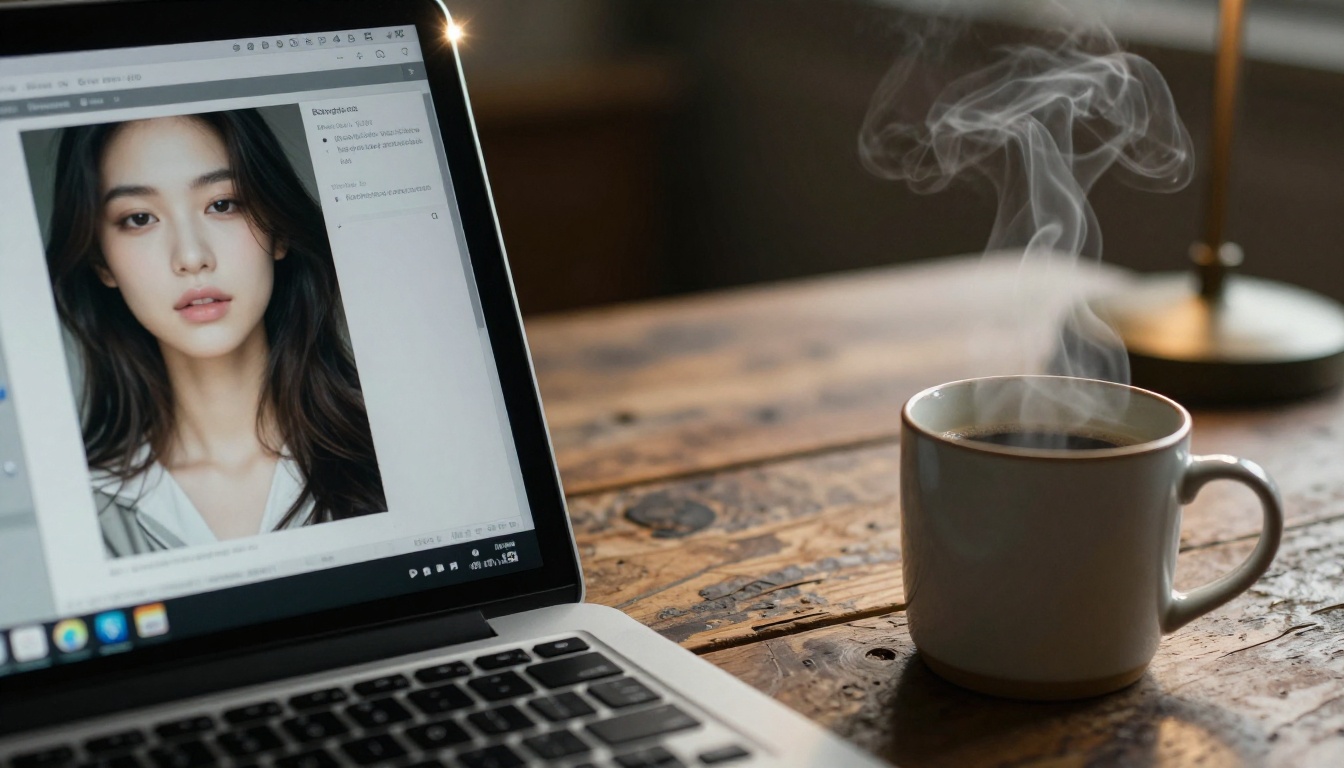
Flux Dev is one of the most capable open models available for designers who want photorealistic output with strong prompt adherence. Here's how to use it on PicassoIA.
Step-by-Step Walkthrough
-
Go to Flux Dev on PicassoIA and open the generation interface.
-
Write your prompt using the structured format: subject + environment + lighting + camera + texture. Be specific. A 40-word prompt will almost always outperform a 10-word one.
-
Set the aspect ratio to match your intended use. For social headers use 16:9. For portraits use 9:16. For editorial, try 4:3.
-
Run the first generation and assess the output. Look for: correct subject interpretation, lighting quality, and compositional accuracy.
-
Iterate from there. If the lighting is wrong, add "soft diffused backlight from right" to your prompt. If the subject is off, describe them more precisely. Two or three iterations typically gets you to a usable result.
-
Download your image and bring it into your existing workflow in Figma, Photoshop, or whatever you work in.
Parameters That Change Everything
Most designers use AI image tools at their defaults and wonder why results feel generic. These specific settings make a substantial difference:
- Prompt Upsampling: Expands your prompt automatically, often catching details you forgot to include. Worth enabling for first-pass ideation.
- Seed control: Once you find an output you like, lock the seed and vary the prompt incrementally. This preserves what's working while improving what isn't.
- Guidance scale: Higher guidance makes the output more literally match your prompt. Lower guidance introduces more creative interpretation. For tight briefs, push guidance higher.
💡 Pro tip: Save prompts that work. Build a personal prompt library the same way you'd maintain a swipe file. Your best prompts become reusable templates.
Image Editing Without Photoshop Hours
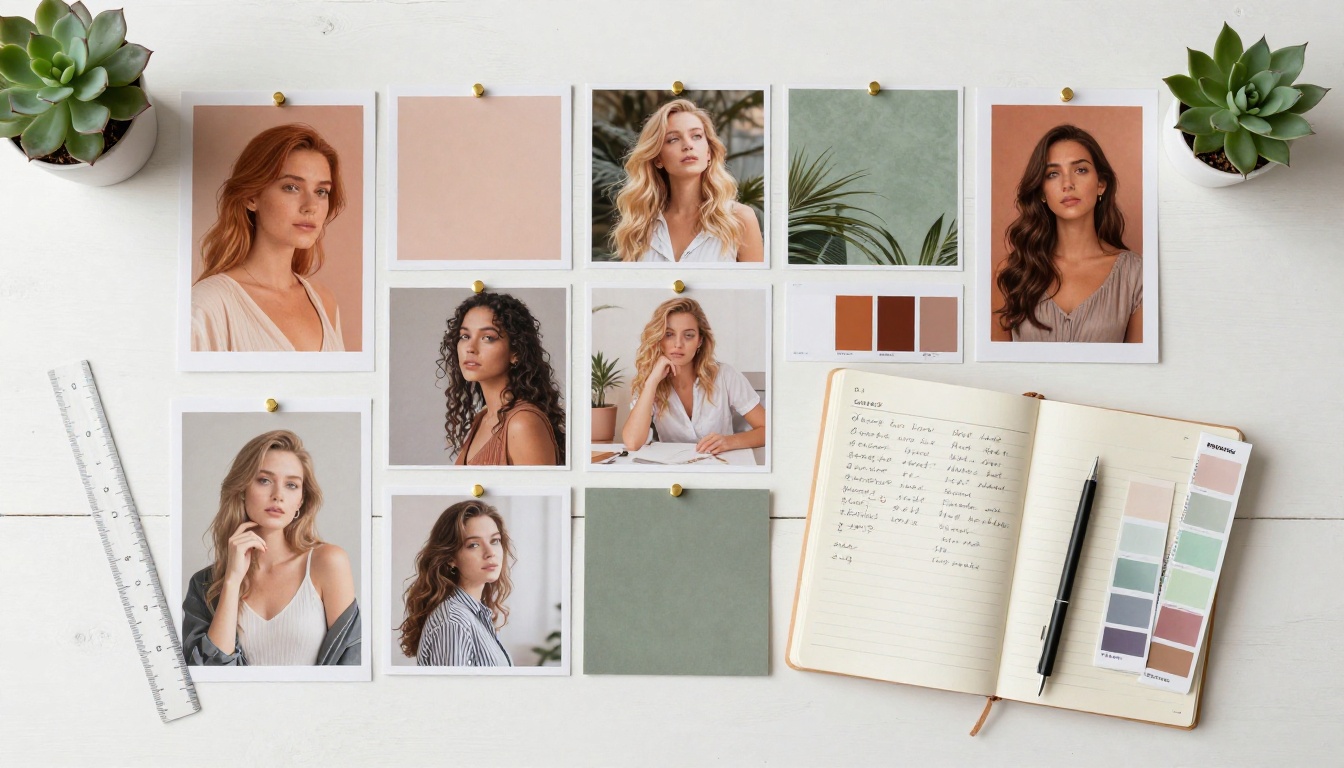
Generating from scratch is only part of the picture. Some of the most useful AI capabilities for designers are the editing tools: changing what's already in an image, extending its canvas, or replacing specific elements.
Inpainting and Outpainting
Inpainting lets you select a region of an existing image and replace it. Removed the wrong object in a photo? Brush over it, describe what should be there instead, and the model fills it in while matching the surrounding lighting and texture. The PicassoIA Image Editor Pro handles this without generation limits, which makes it practical for production work rather than occasional experiments.
Outpainting extends the canvas beyond the original image boundaries. You have a campaign hero shot that's too tight for a billboard crop? Outpaint the sides and let the model extrapolate the scene. It's not perfect every time, but it's faster than reshooting.
Object Replacement and Prompt-Based Edits
Flux Kontext Pro takes a different approach to editing: you feed it an existing image and describe the change you want in natural language. "Replace the red bag with a black leather briefcase." "Change the jacket to dark navy." It reads the image, applies your edit, and outputs a modified version. For product work and lifestyle imagery, this cuts reshooting entirely.
Flux Kontext Max extends this with support for more complex multi-element changes and higher output resolution.
SVG and Vector Generation for Brand Work
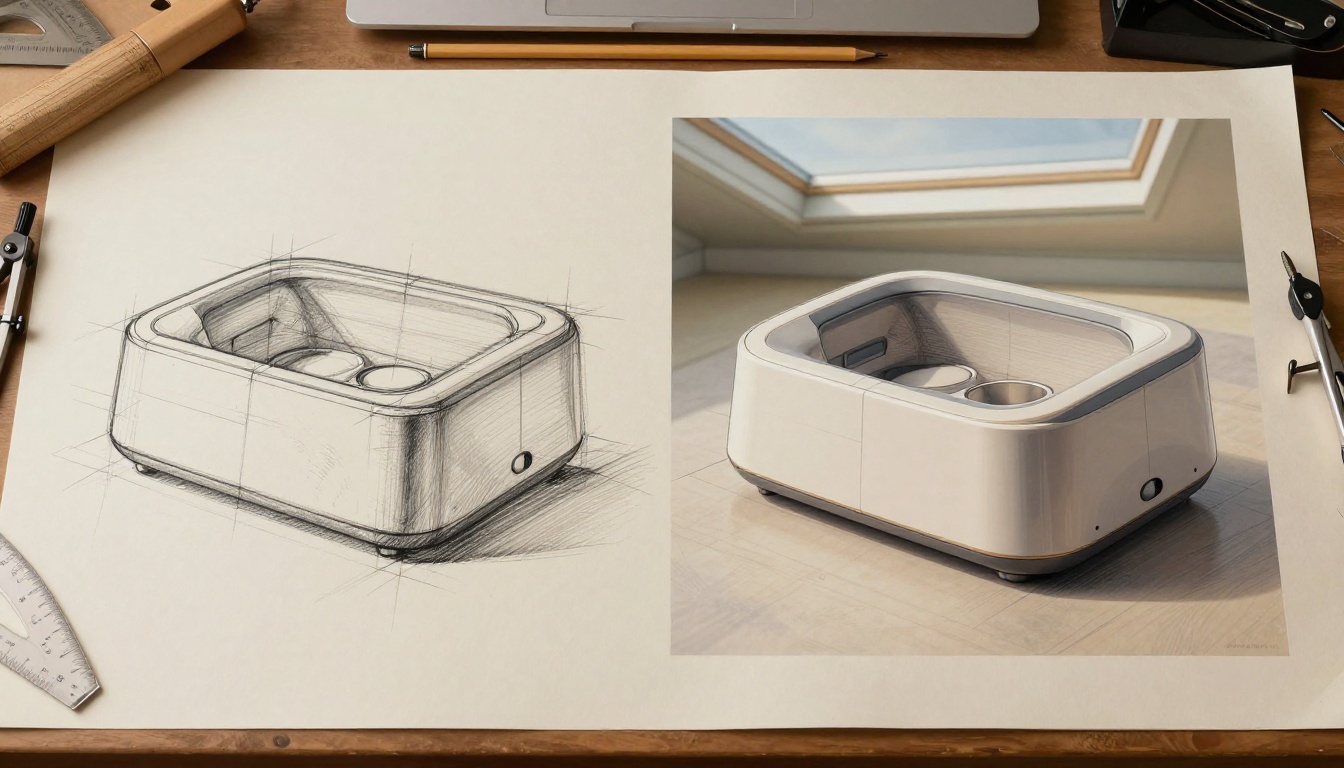
For years, the limitation of AI image tools was that they produced raster outputs. Logos, icons, and illustrations needed to stay in vector format to be scalable. That limitation is now largely gone.
When Recraft Changes the Game
Recraft v4 SVG generates production-ready SVG files directly from text prompts. You describe a logo concept, an icon set, or an illustration, and get out a clean vector file that imports directly into Illustrator or Figma without rasterization.
The Recraft v4 Pro SVG variant adds more granular style control and larger output complexity, which matters when you need an icon system rather than a single mark.
Logo and Icon Workflows
The practical workflow for brand mark ideation with SVG generation:
- Describe the concept broadly: "Minimal geometric logo mark for a sustainable architecture firm, single continuous line, no text"
- Generate 4-6 variants
- Pick the direction that resonates, refine the prompt to tighten it
- Take the strongest SVG output into Illustrator for final cleanup
- The AI handles the rough concepts; you handle the refinement
This cuts the concept-to-first-presentation time dramatically without removing the designer's hand from the process.
AI in Real Design Workflows
Mood Boards in 10 Minutes
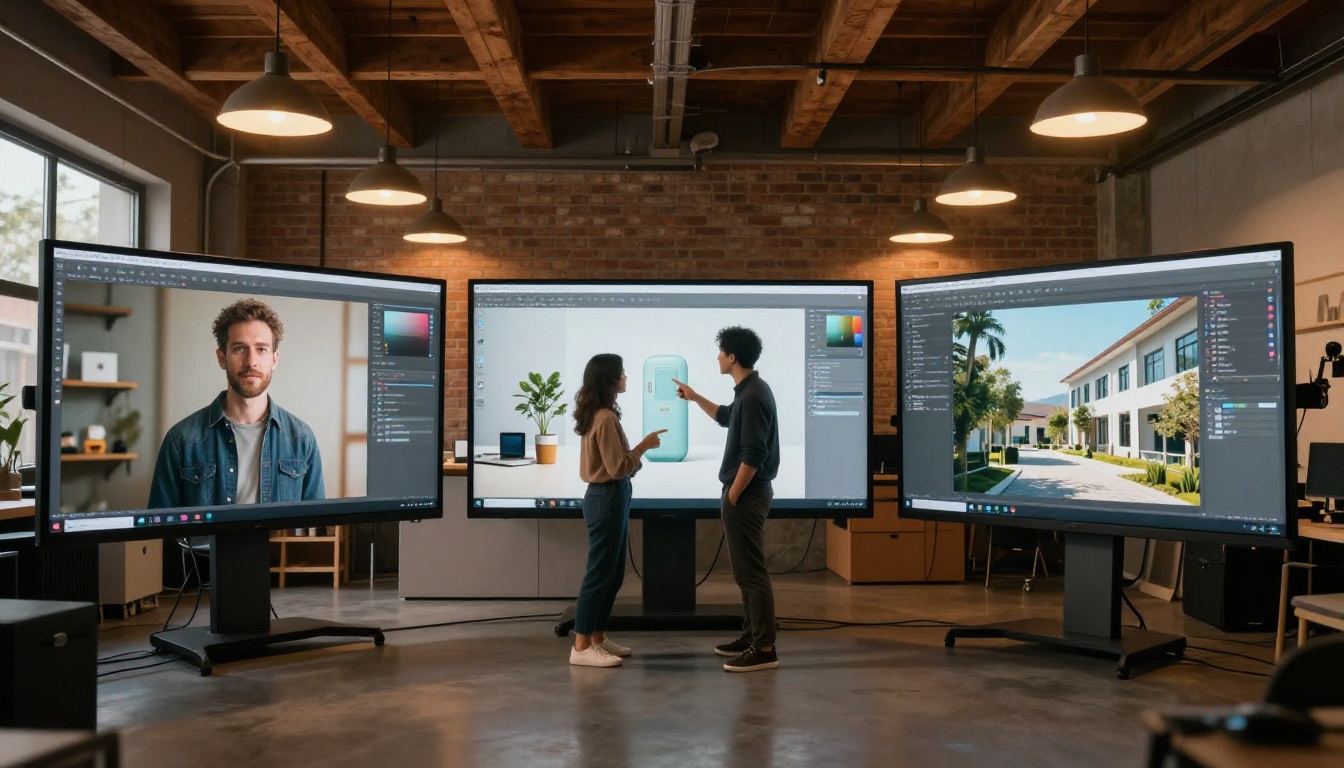
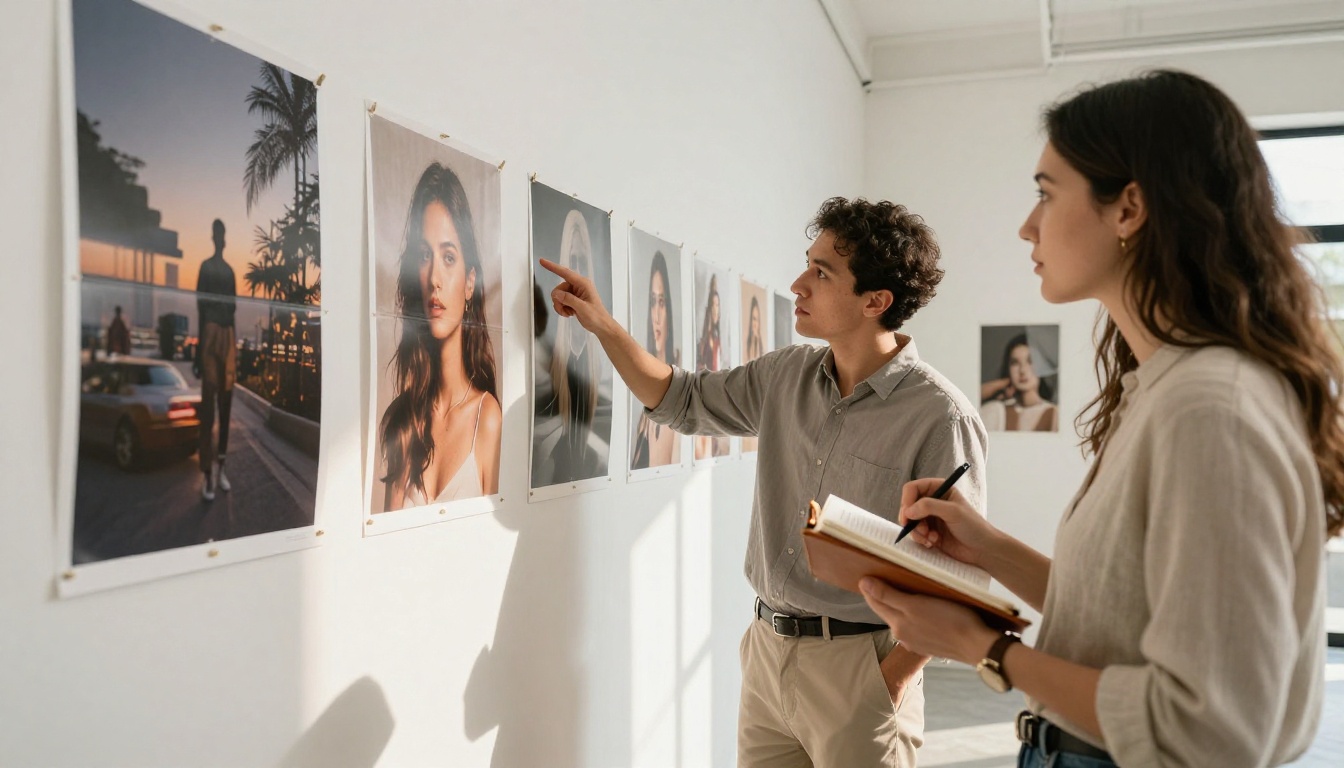
The traditional mood board process: open 12 browser tabs, screenshot images, arrange them in InDesign or Figma, source attributions. AI mood board creation: write 8 targeted prompts that describe the visual territory you're exploring, generate, export, arrange. The images are exactly what you envisioned because you described them. No compromises from stock library limitations.
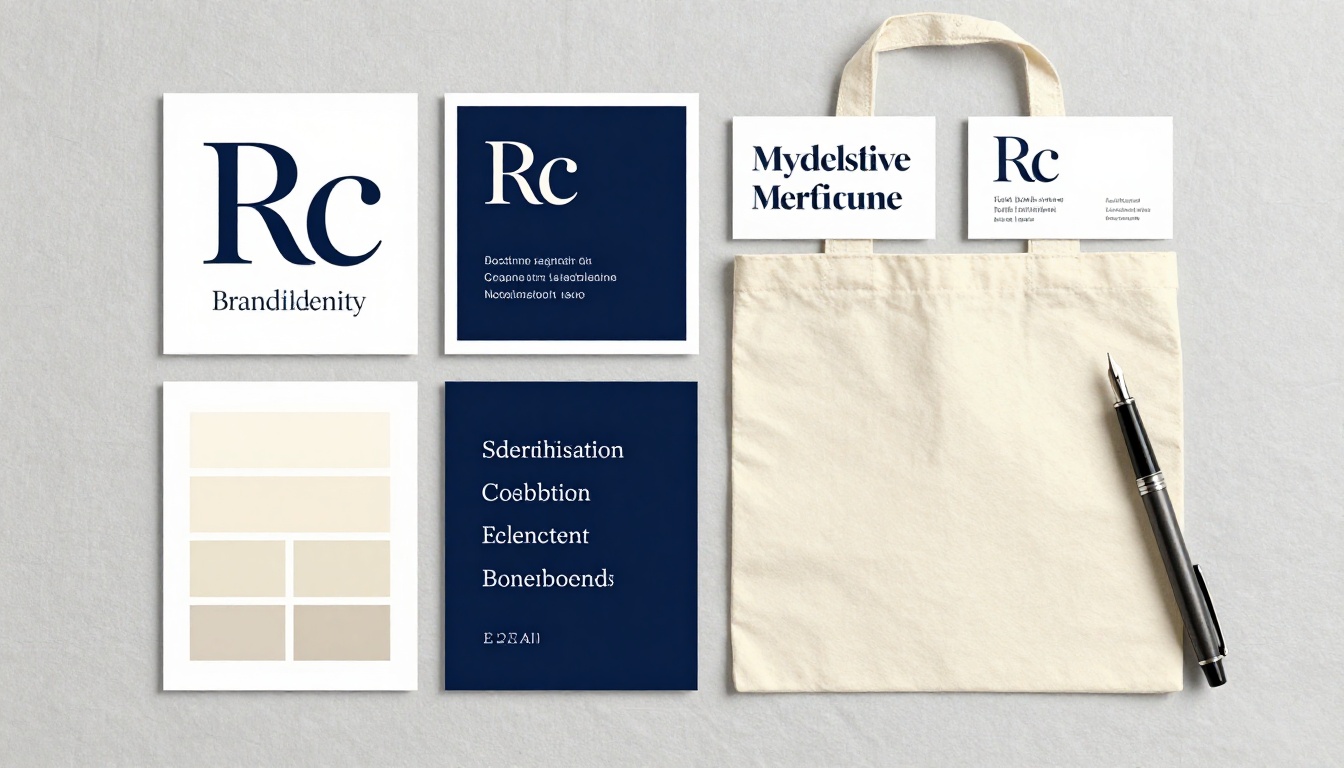
For a brand refresh project, this means showing clients images that already reflect the proposed direction, not approximations of it.
Product Mockups That Convince Clients
The product photography problem: a client has a product that doesn't exist yet, or exists only as a prototype, and needs visuals for investor decks, landing pages, or early marketing.
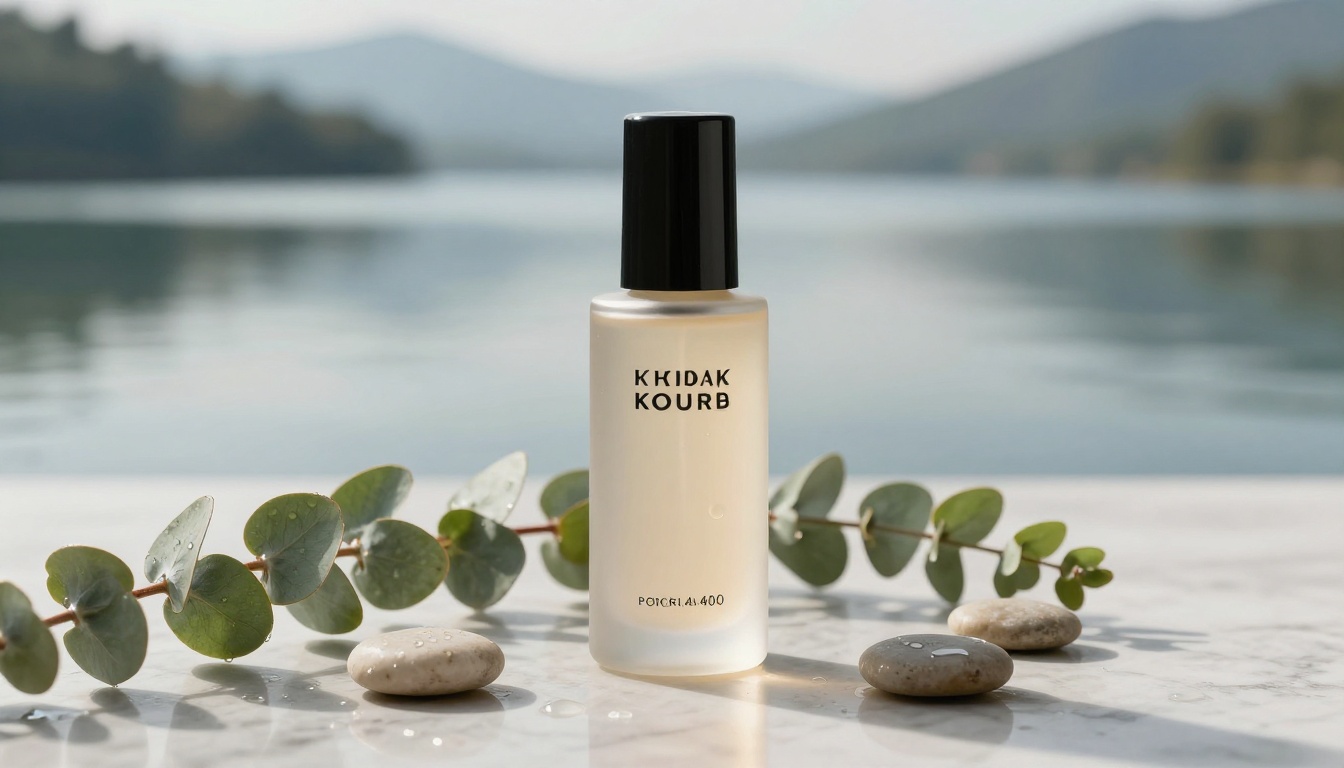
With Flux 2 Pro, you generate the setting and context around a product description in photorealistic quality. With PicassoIA Image Editor Pro, you can composite a product photo into an AI-generated scene seamlessly. The result looks like a production shoot at a fraction of the cost.
3 Mistakes Designers Make with AI
Taking the First Output as Final
The first generation is a starting point. Treat it the way you'd treat a rough sketch: something to react to, not something to deliver. The real value of AI tools is in iteration speed: you can run 10 variations in the time it would take to communicate one round of changes to a traditional photo production team.
Designers who get strong results consistently run 5 to 10 iterations per final image. Each round tightens the prompt based on what the previous output got right and what it got wrong.
Writing Vague Prompts
"A professional setting with good lighting" is not a prompt. "A corner office interior with floor-to-ceiling glass walls, late afternoon directional sun casting long rectangular shadow patterns across a polished concrete floor, single Eames chair visible in foreground, 28mm wide angle, Kodak Portra 400 grain" is a prompt.
The more you specify, the more control you have. Vague prompts produce generic outputs because the model fills the gaps with statistical averages from its training data. Specific prompts constrain those gaps toward your intent.
Delivering Without Upscaling
Most AI models generate at base resolution. Delivering those directly to clients or production often means insufficient resolution for print or large-format use. The solution is super-resolution, which PicassoIA offers across its platform, upscaling outputs 2x or 4x while adding texture detail and sharpness.
💡 Always run final deliverables through super-resolution before sending to clients. The quality difference between a base-resolution AI image and a properly upscaled version is significant at print sizes.
Start Creating on PicassoIA
PicassoIA brings together over 90 text-to-image models in a single interface, from fast iterators like Flux Schnell to high-fidelity production tools like Flux 2 Max and creative standouts like Imagen 4 Fast. You don't need to commit to one model or one subscription: the platform lets you switch between tools depending on what the project needs.
If you're starting out, the recommendation is simple: pick one project you're already working on, generate three images for it using Flux Dev, and see where the output lands. That hands-on experiment will clarify how AI fits your workflow better than any amount of reading about it.
The designers who've integrated AI most effectively aren't the ones who replaced their process. They're the ones who added it as one more precise tool, used for specific jobs at specific moments, operated with the same intentionality they bring to every other part of their work.
All the models referenced in this article are available at picassoia.com/en/all-models. Start with one, iterate fast, and build from there.


