The Prompt Mistakes That Ruin AI Images (And How to Fix Them)
Every time your AI-generated image comes out wrong, a broken prompt is almost always behind it. This article breaks down the most damaging prompt mistakes people make with text-to-image generators, from vague descriptions to missing lighting details, and gives you tested fixes for each one.
Every generator you sit down with, whether Flux Dev, Flux Schnell, or Stable Diffusion, takes what you type and builds an image from it, word by word, token by token. The output is only as good as what you put in. That sounds obvious. But most people still write prompts like grocery lists and then wonder why the results look like fever dreams.
The prompt mistakes that ruin AI images are rarely dramatic. They are quiet, small, and completely fixable. This article walks through seven of the most damaging ones and shows you exactly what to change.
Why Your Prompts Keep Failing
The Gap Between Imagination and Output
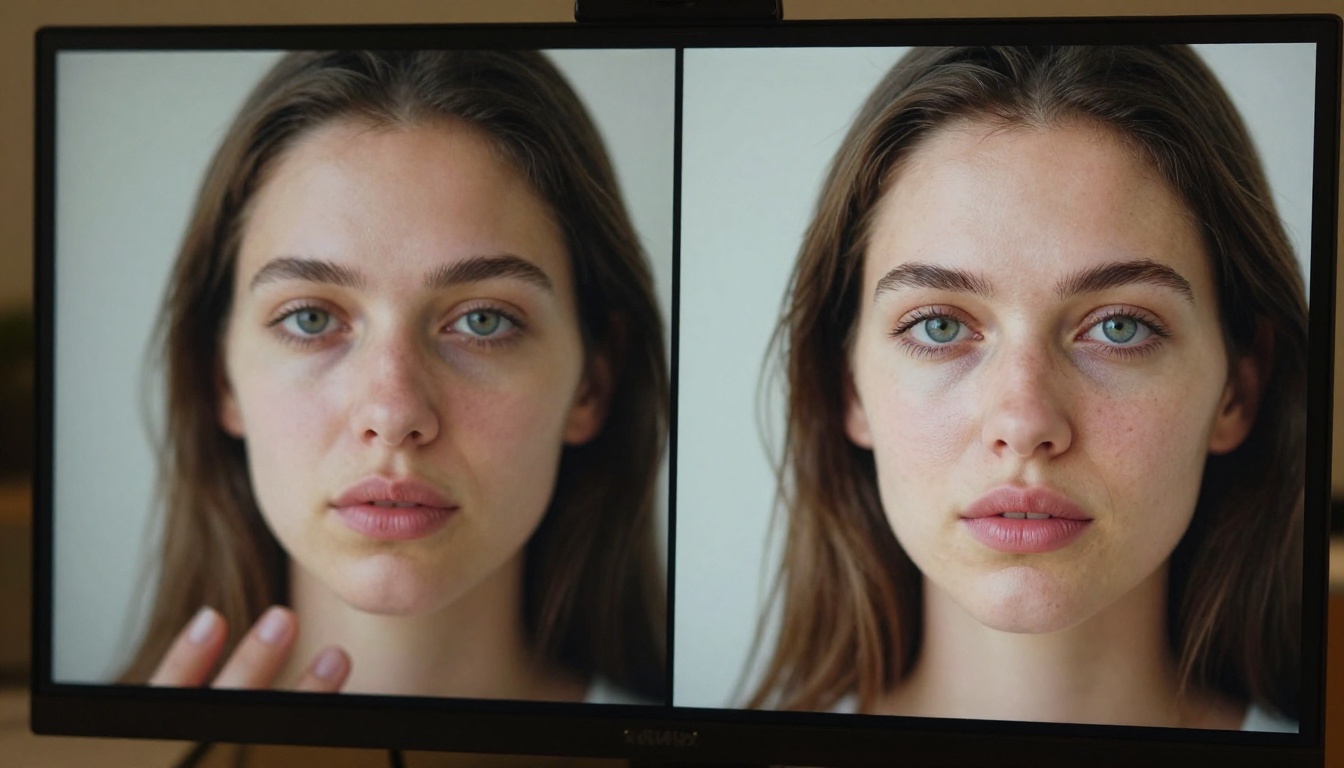
You have a clear picture in your head. A woman standing in golden hour light, wearing a white linen shirt, hair catching the breeze, warm and photographic. You type "woman in sunset light" and get something muddy, stiff, and obviously AI-made. The gap is not in the model's capability. It is in the translation.
Text-to-image models process language statistically. Every word in your prompt carries a weight, and the model balances those weights to produce an output. When your prompt is thin, the model fills the blanks with its most common training associations. That is where generic results come from.
What the AI Actually Reads
Think of your prompt as a signal with noise. Every vague word adds noise. Every specific word sharpens the signal. "Beautiful woman" is almost pure noise. "A 28-year-old woman with green eyes and natural auburn hair, standing on a beach at golden hour, wearing a loose white linen shirt, hair moving slightly in the wind, 85mm portrait lens, f/1.6, Kodak Portra 400" is almost pure signal.
The difference in output quality between those two prompts is not subtle. It is dramatic.
Mistake 1: Being Too Vague
What Vague Looks Like
Vague prompts are the most common reason AI images disappoint. They look like this:
"a person in a city"
"beautiful landscape"
"cool portrait"
"futuristic building"
None of these give the model enough to work with. "A person" collapses into an average of thousands of faces. "Beautiful landscape" gives the model complete freedom, which sounds good but usually produces something boring and predictable.
💡 The test for vagueness: If you could describe ten wildly different images with the same prompt, the prompt is too vague.
The Fix: Add Layers of Specificity
Break your subject down into four layers:
Layer
Vague
Specific
Subject
"a woman"
"a 30-year-old woman with freckles and short dark hair"
Setting
"outdoors"
"standing on a cobblestone street in Lisbon at noon"
Mood
"nice light"
"harsh overhead midday sun casting short sharp shadows"
Fill all four layers and your results will improve on the first generation.
Mistake 2: Ignoring Lighting in the Prompt
Why Lighting Changes Everything
Lighting is the single most powerful variable in any photograph. It determines mood, depth, color temperature, and whether skin looks alive or plastic. AI models trained on photography data understand lighting references deeply, because photographers have spent 150 years cataloging exactly how to describe it.
When you skip lighting in your prompt, the model defaults to a flat, ambient-lit output. It is not wrong, it is just uninspired. The moment you add a specific lighting description, the image gains dimension.
How to Describe Light Like a Photographer
Use these patterns in your prompts:
Direction: "morning light from the left", "backlit by setting sun", "overhead noon sun"
Color temperature: "warm golden hour", "cool blue twilight", "neutral studio daylight"
Source: "single window to the right", "candlelight only", "open shade on a cloudy day"
💡 Combine direction + quality + temperature for maximum control. "Soft golden backlight from the left, warm 3200K, hazy atmosphere" gives the model three useful constraints instead of one.
Mistake 3: Forgetting Camera and Lens Details
The Power of "85mm f/1.8"
Photographers know that the lens you use changes the entire visual character of an image. A 24mm wide-angle shot feels expansive and slightly distorted. An 85mm portrait shot feels intimate, with the background compressed into smooth bokeh. A 100mm macro shot reveals textures invisible to the naked eye.
AI image models trained on photography data have absorbed these associations. When you include lens information in your prompt, you are not just adding words. You are activating a set of learned visual characteristics.
Try these in your next prompt:
24mm wide angle, f/8, deep focus for environmental or architectural shots
85mm, f/1.4, shallow depth of field, soft bokeh for portraits
100mm macro, f/2.8 for extreme close-ups with texture detail
Angle and Distance Matter Too
Camera angle is equally powerful:
Angle
Visual Effect
Low angle (looking up)
Subject appears powerful, dominant
Eye level
Natural, documentary feel
High angle (looking down)
Subject appears small, context-heavy
Aerial / overhead
Graphic, abstract, pattern-focused
Dutch tilt
Tension, unease
Add distance too: "close-up", "medium shot", "wide establishing shot". These three words change composition completely.
Mistake 4: Stacking Conflicting Style Tags
When More Is Less
There is a popular belief that longer prompts with more style tags produce better images. "Photorealistic, oil painting, watercolor, anime, cinematic, HDR, 8K, masterpiece" gets typed in and the user wonders why the output looks confused and muddled. It is because those style tags conflict.
"Photorealistic" and "anime" pull the model in opposite directions. "Oil painting" and "cinematic photography" are technically incompatible. The model tries to satisfy all of them and ends up satisfying none.
💡 The style stack rule: Pick one primary style and one supporting modifier. Two conflicting primaries produce mud.
How to Build a Clean Style Stack
Choose your style anchor first, then support it:
Photorealistic photography: RAW photo, 8K, photorealistic, Kodak Portra 400, film grain
Cinematic still: cinematic color grading, anamorphic lens flare, 2.39:1 aspect ratio, film print
Documentary: photojournalism, natural light, handheld feel, 35mm street photography
Do not mix these. Pick one lane and stay in it. The cleaner your style stack, the more coherent the output.
Mistake 5: Skipping Negative Prompts
What Negative Prompts Do
Negative prompts tell the model what to exclude. They are available in Stable Diffusion and other models that support classifier-free guidance. When you do not use them, you are telling the model: "I have no preferences about what does not appear in this image."
The result is that common AI artifacts, extra fingers, merged faces, blurry backgrounds, and unexpected text patterns all show up without any constraint to filter them out.
A Starter Negative Prompt Template
Copy this and adapt it for your use case:
blurry, out of focus, low quality, watermark, text, logo, extra limbs, extra fingers, deformed hands, distorted face, cartoon, illustration, CGI, 3D render, anime, oversaturated, noise, grain, duplicate, ugly, bad anatomy
Add style-specific exclusions on top:
For portraits: add bald, double chin, asymmetrical eyes
For landscapes: add buildings, people, artificial light
For product shots: add shadows on product, cluttered background, reflections
💡 On Flux Dev, higher guidance values make the model follow both positive and negative prompts more strictly. At guidance 3.5 or above, your negative prompt becomes a genuine filter.
Mistake 6: Ignoring Aspect Ratio and Composition
Composition vs. Cropping
Many people generate images in 1:1 square format and then crop them for their intended use. This breaks composition. A portrait should be generated at 2:3 or 9:16. A landscape background should be generated at 16:9 or 21:9. A social media post might need 4:5.
When you generate at the wrong aspect ratio and crop, you lose information the model placed there intentionally. The model builds its composition for the canvas you give it. Cropping throws away part of that decision.
The Right Ratio for Your Subject
Use Case
Best Ratio
Portrait, social post
2:3 or 9:16
Website hero image
16:9 or 21:9
Product shot
1:1 or 4:3
Instagram square
1:1
Print poster
3:4 or 2:3
Flux Schnell supports 11 aspect ratios and Flux Dev covers the same range. On PicassoIA, you set your ratio before generation so the model builds the right composition from the start, not after the fact.
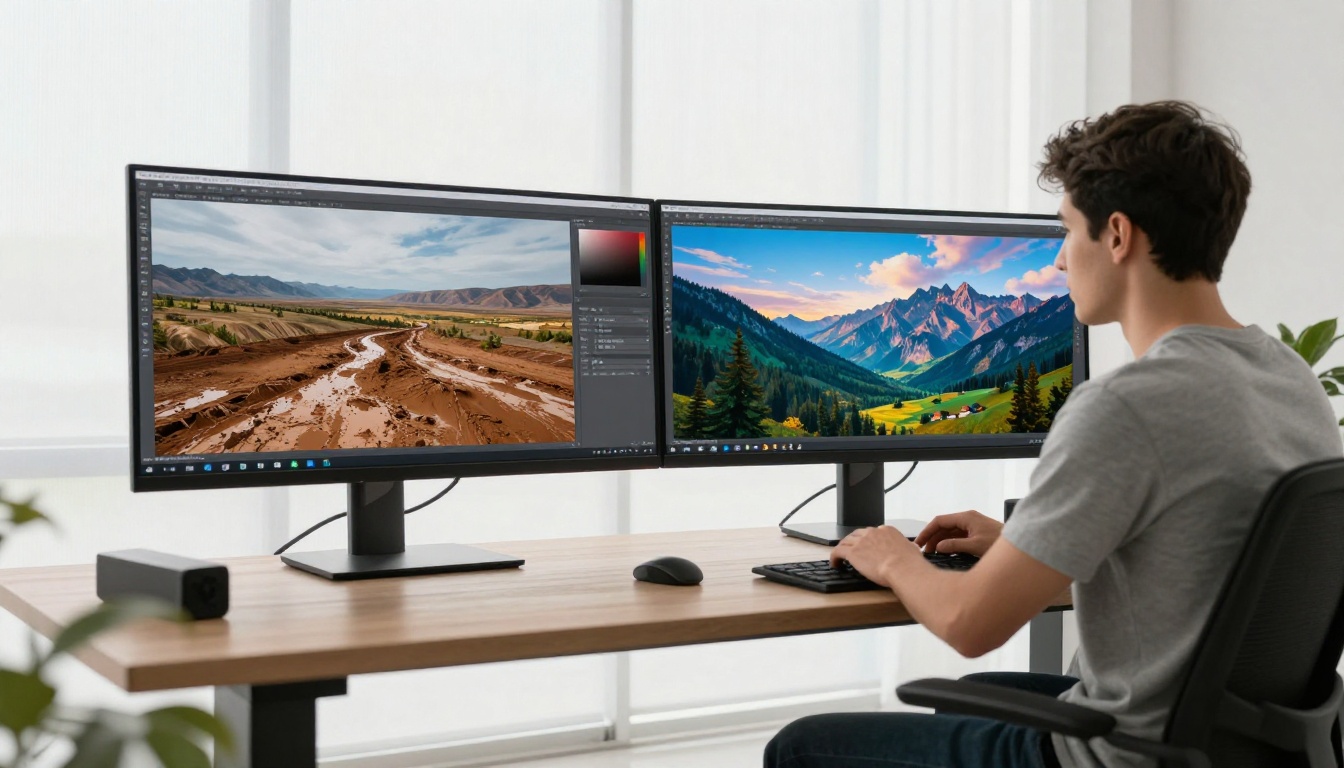
If your output still does not fill the frame as needed, the Real ESRGAN super-resolution model upscales your result 4x while preserving detail, giving you room to work before any final crop.
Mistake 7: Not Using Seeds for Consistency
Why Your Results Jump Around
Every time you run a prompt without a fixed seed, the model starts from a different random noise pattern. That means identical prompts can produce radically different images on consecutive runs. If you find a result you like, you cannot reproduce it without the seed. And if you are trying to build a consistent visual series, you have no anchor point.
Most people treat every generation as a fresh lottery ticket. That approach works for early exploration but fails completely for production work.
Locking In a Direction with Seeds
When you get a result that moves in the right direction, write down the seed immediately. Then iterate by making small changes to the prompt while keeping the seed fixed. This gives you a controlled, reproducible path forward.
On Flux Dev, you set the seed directly in the generation parameters. Generate at a fixed seed with slightly different lighting descriptions, adjust the guidance value, or swap out one style modifier at a time. Every change is legible because only one variable moved.
💡 Think of seed control as version control for your generations. It separates someone exploring from someone producing.
How to Use Flux Dev on PicassoIA
Flux Dev is one of the most capable text-to-image models available on PicassoIA, running at 12 billion parameters and outputting 1-megapixel images that hold up under close inspection. Here is a step-by-step workflow that applies everything covered in this article.
Step 1: Set Your Aspect Ratio First
Before writing a single word of your prompt, open the aspect ratio selector and set it to match your intended output. 16:9 for widescreen, 2:3 for portrait, 1:1 for social. The model builds its composition for the canvas it is given.
Step 2: Write Your Prompt in Four Layers
Subject: Who or what is the main focus, with specific physical details
Setting: Where the scene takes place, with real-world location specificity
Lighting: Direction, quality, and color temperature
Technical: Lens focal length, aperture, film stock, style modifiers
Stack them into a single natural-language prompt. Do not use commas to separate unrelated concepts across all four layers or the model treats them with equal weight.
Step 3: Dial in Guidance
The guidance parameter controls how strictly the model follows your prompt. Lower values (around 2-3) give the model creative latitude. Higher values (above 4) pin the output tightly to your words. For a heavily-specified prompt, start at 3.5. For looser creative prompts, try 2.5.
Step 4: Fix Your Seed, Then Iterate
Run the generation once. If the direction is right but not perfect, note the seed and run again with a small change. Adjust one thing at a time: the lighting description, the lens focal length, or a single adjective. Each change teaches you what that variable actually does in context.
Step 5: Upscale When Needed
If your output needs to scale up for print or high-resolution display, run it through Real ESRGAN on PicassoIA. The 4x upscaler sharpens fine detail and reduces compression artifacts, producing a larger file without visible quality loss.
The Prompt That Actually Works
After everything above, here is what a well-constructed prompt looks like in practice. Compare these two:
Weak prompt:
"a beautiful woman at sunset"
Strong prompt:
"A 28-year-old woman with natural auburn hair standing on a rocky coastline at golden hour, warm backlight from the right side creating rim lighting on her hair, wearing a loose off-white linen shirt, looking slightly off-camera with a calm expression, 85mm f/1.4 portrait lens, shallow depth of field with ocean background bokeh, Kodak Portra 400 film grain, photorealistic RAW 8K photography"
The second prompt is longer, yes. But it is not longer because it uses more adjectives. It is longer because it covers all four layers: subject, setting, lighting, and technical. Every word earns its place.
The prompt mistakes that ruin AI images are not about creativity or talent. They are about information. The model can only work with what you give it. Give it more, and it gives you more in return.
Create Better Images Right Now
Every skill discussed in this article is available to test on PicassoIA today. Open Flux Dev and run your next prompt with a specific lighting description you have never used before. Try Flux Schnell for rapid iteration across a dozen variations in a single session. And when your images need higher resolution for print, run them through Real ESRGAN and get a 4x upscale in seconds.
PicassoIA gives you over 90 text-to-image models with no credit caps and no generation quotas. That means you can apply every fix in this article, test every variation, and build the prompt discipline that consistently produces images worth keeping. Start at picassoia.com/en/all-models and pick the model that fits your next project.