Typing "Qwen Image Edit 2.1 NSFW" into a search bar usually means one thing: you want to change a photo, swap an outfit, adjust a pose or build a glamour look, and you are tired of refusals. Before you spend an evening hunting for a download, here is what is actually going on. The edit model people call 2.1 is not a version Alibaba's Qwen team published under that name, and the model that carries the label is not on PicassoIA. The good news is that you can get the same kind of editing results today, free online, with tools that are built for it.
This article sorts the myths from the facts, shows what uncensored editing results look like when they stay tasteful, and gives you prompts you can paste straight into an editor. Everything here is non-explicit glamour: bikinis, lingerie fashion, boudoir lighting, and adults only.
What "Qwen Image Edit 2.1" Really Means
The versions that exist
Qwen's image editing line started with the original Qwen Image Edit, then moved to the 2509 update, then to 2511, released in late December 2025. The 2511 release focused on character consistency and folded several popular community LoRAs into the base weights. I could not find any official release called 2.1. When people write "2.1", they usually mean one of three things:
- The 2509 build, sometimes nicknamed "Plus" by hosting platforms.
- The 2511 build, which many tutorials treat as the "improved" edition.
- A community checkpoint or LoRA bundle with its own version number, unrelated to the Qwen team's numbering.
💡 Quick check: if a download page claims to host "official Qwen Image Edit 2.1 NSFW", treat it with suspicion. No official uncensored release exists, and I found no dedicated adult release from the Qwen team.
Where it stands on PicassoIA
Qwen Image Edit 2.1 is not on PicassoIA, and it should not be treated as an available model here. Two sibling versions are, and they are different models: Qwen Image Edit 2511 and Qwen Image Edit Plus. Later sections show which tool to pick for adult-leaning glamour work.
Why the NSFW tag follows it around
Qwen's edit models are open-weight, which means the community can fine-tune them. That is why Hugging Face repackages, FP8 conversions and LoRA files appear with NSFW tags. The official releases, though, ship with ordinary behavior, and hosted APIs usually add their own moderation on top. Some even return a flag for every output that tripped an adult-content check. So "uncensored" depends on who runs the model and how, not on the version number.
What Uncensored Editing Actually Looks Like
Let us be precise about the word. In practice, searchers want an editor that does not refuse swimwear, lingerie, boudoir or bare-shoulder portraits, while still respecting a basic line: no explicit sexual content. That is the line this article follows, and it is the sweet spot for most glamour, fashion and creator workflows.
Outfit swaps that hold together
The most requested edit is the outfit change. A good editor keeps the face, pose and lighting fixed and replaces only the clothing, with fabric that follows the body's folds.
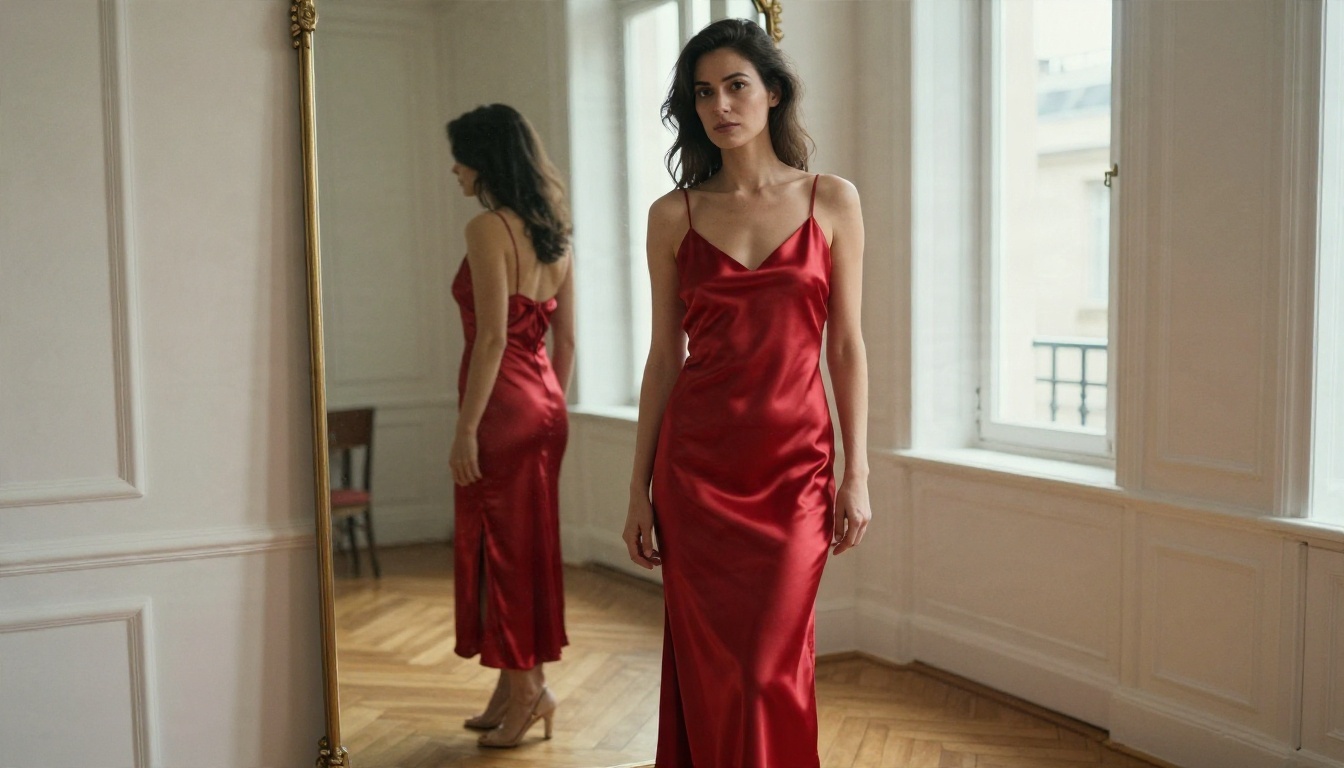
Look at how the satin catches the window light and how the reflection stays coherent with the herringbone floor. Weak editors smear fabric edges or break the mirror reflection. Strong ones keep both intact.
Face consistency across edits
Qwen's 2511 update earned its reputation here. When you change the outfit, background or lighting, the face should stay the same person. Drift is the number one reason edits look "off".
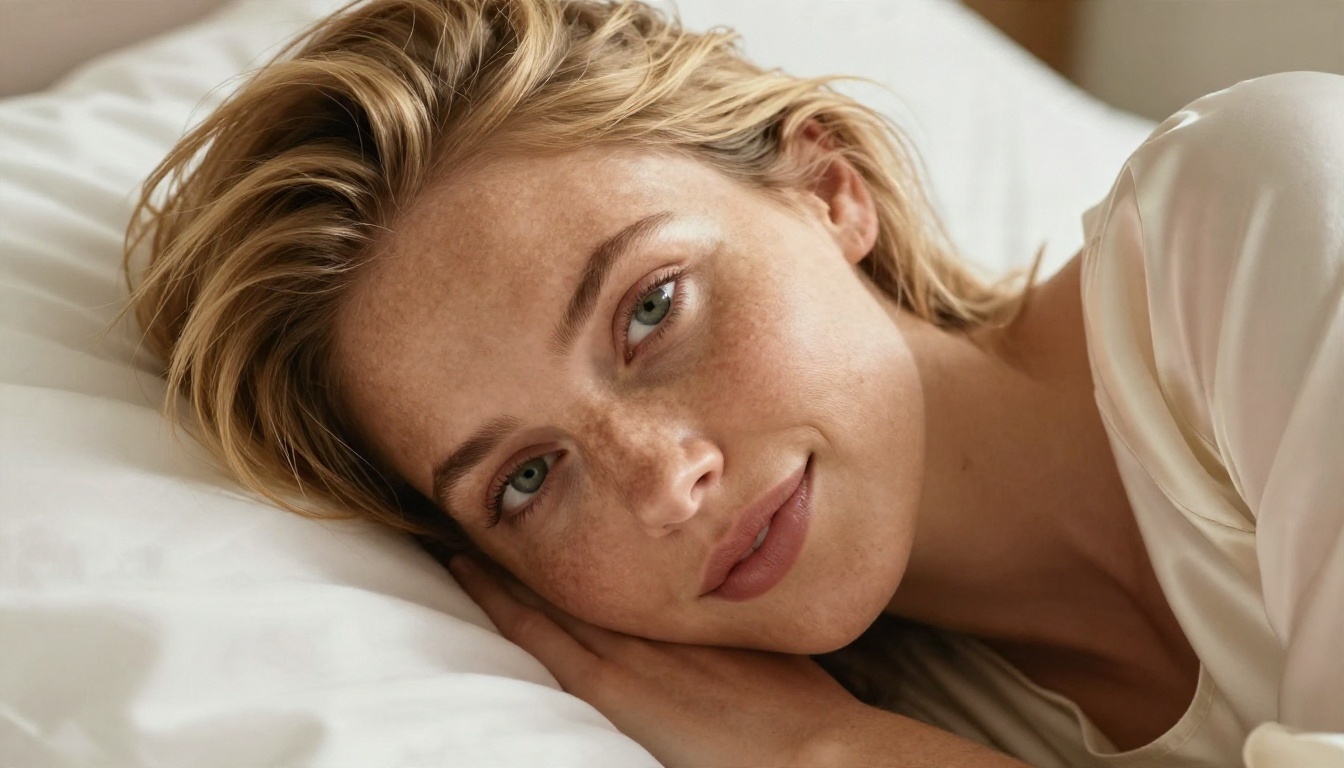
Freckle placement, eyebrow shape and the small asymmetry in a smile are what your eye reads as identity. Test any editor by running the same photo through five edits and comparing those three details.
Swimwear and location changes
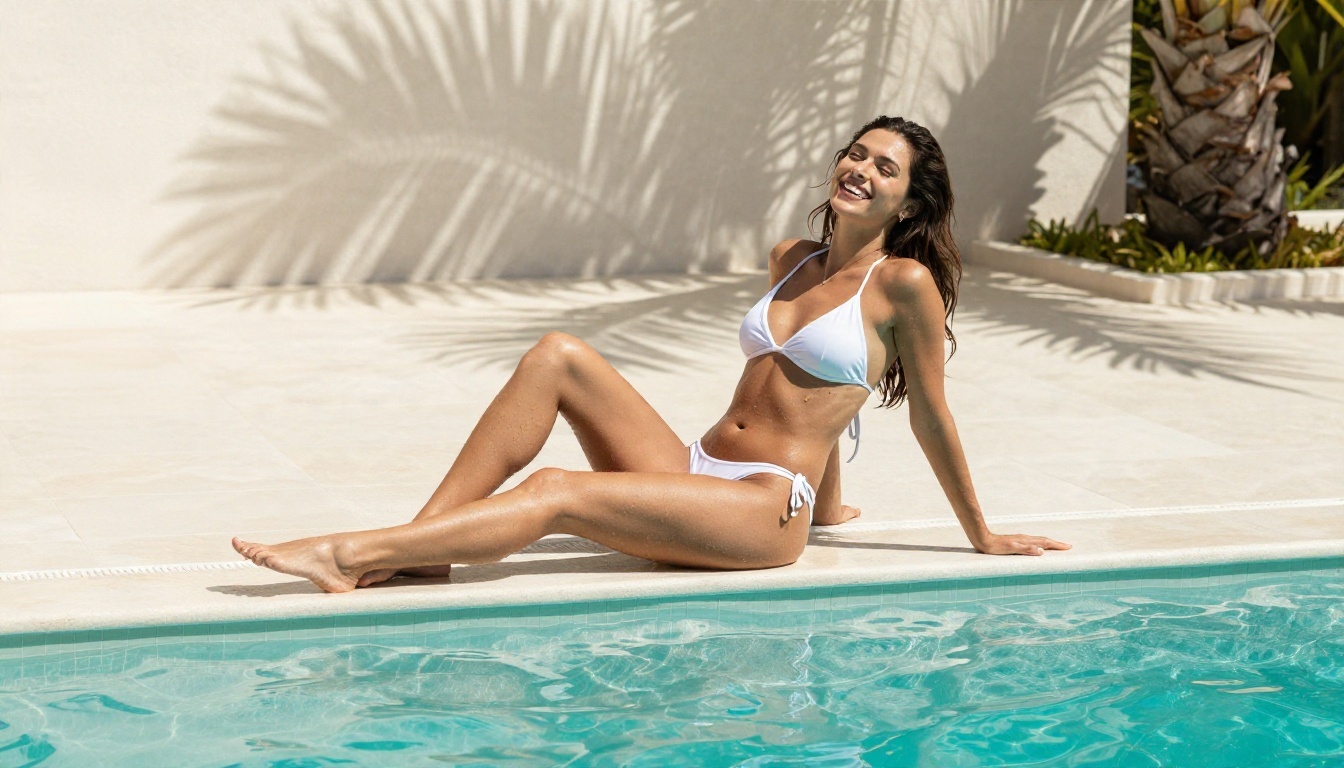
Moving a subject to a beach, pool or villa is another popular job. The hard part is not the scenery but the light: skin needs warm backlight, wet reflections and the right shadow direction.
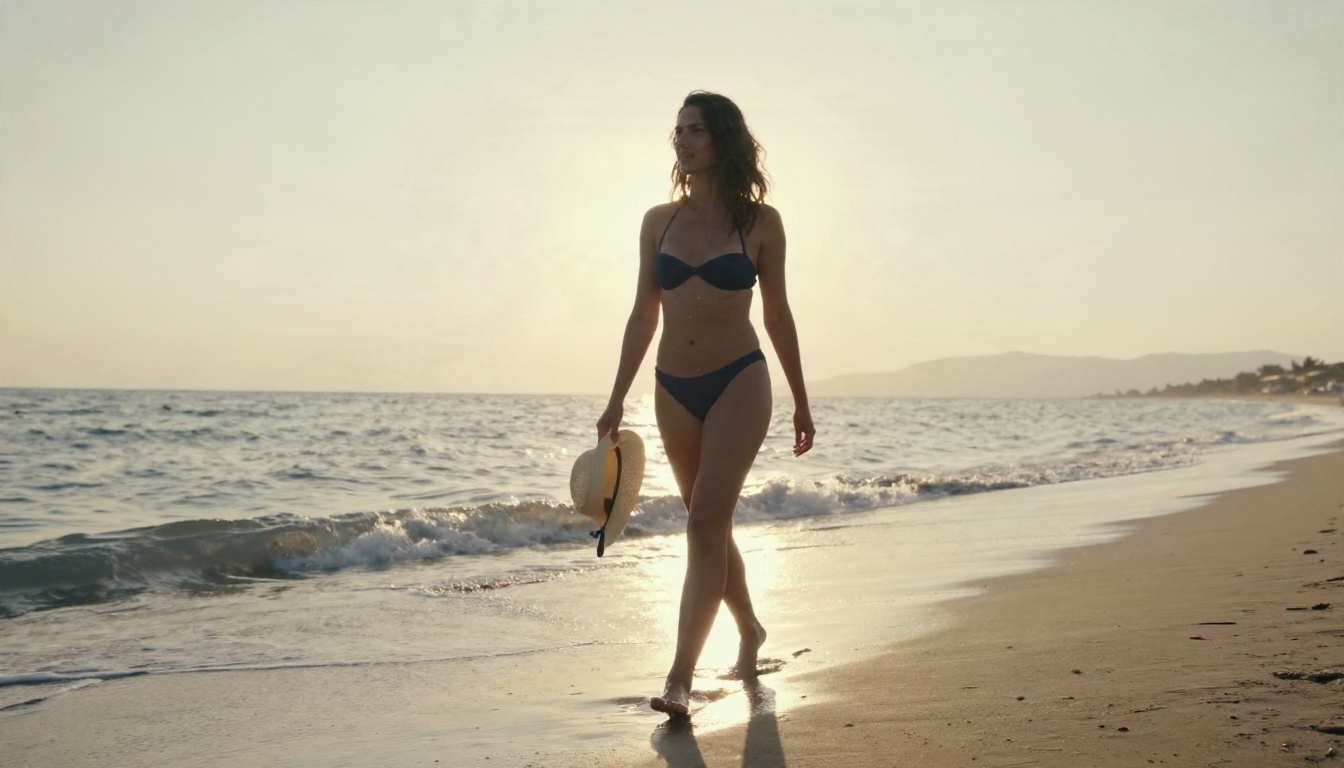
💡 Tip: when you change a location, always describe the light too. "Golden hour sun low from the right, wet sand reflecting the sky" does more than "beach background".
Uncensored Results Without the Mess
Boudoir and lingerie fashion
Boudoir work is the biggest use case behind the NSFW search. Soft window light, white linen, lace and silk. It is suggestive without being explicit, and it is exactly what magazines and brand shoots publish.
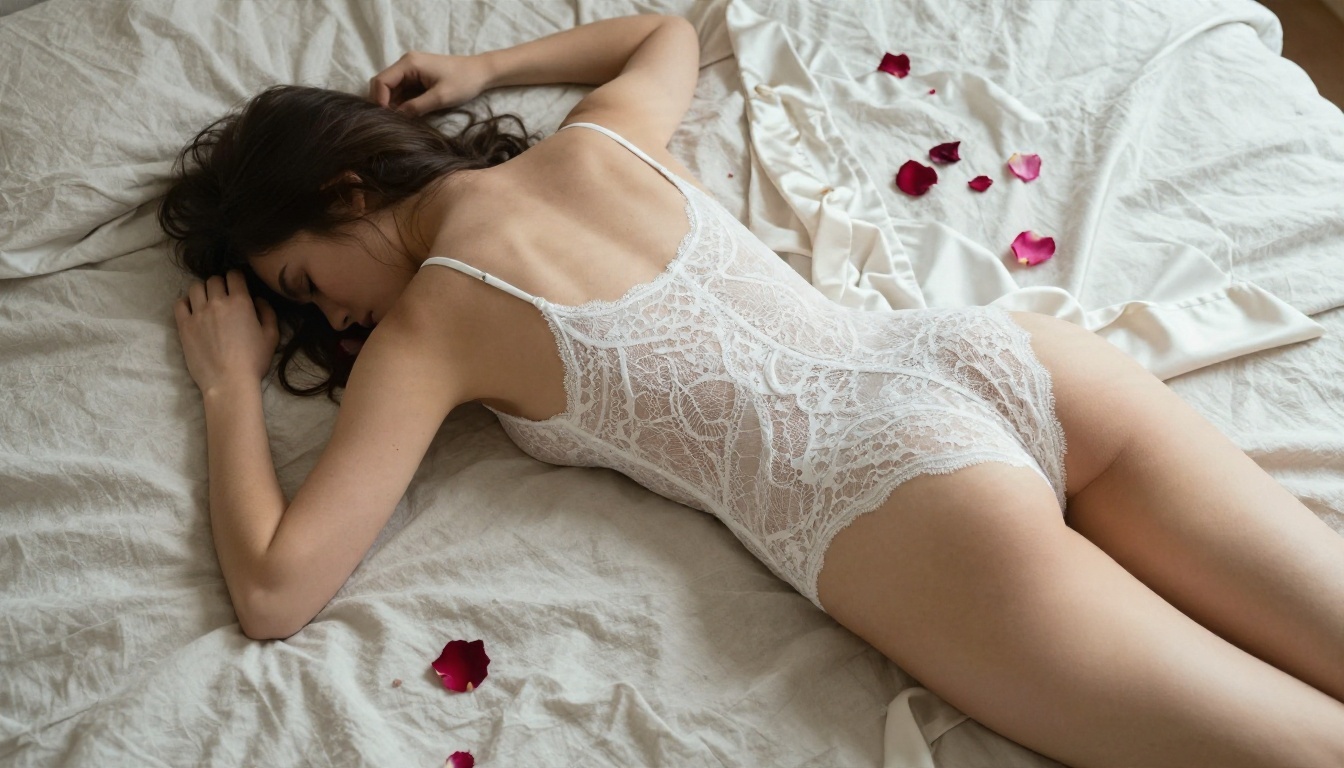
An overhead angle like this one is a good stress test. The model has to keep the anatomy believable, the lace weave readable and the sheet folds natural, all from a camera position that gives it no easy shortcuts.
Moody, low-key portraits
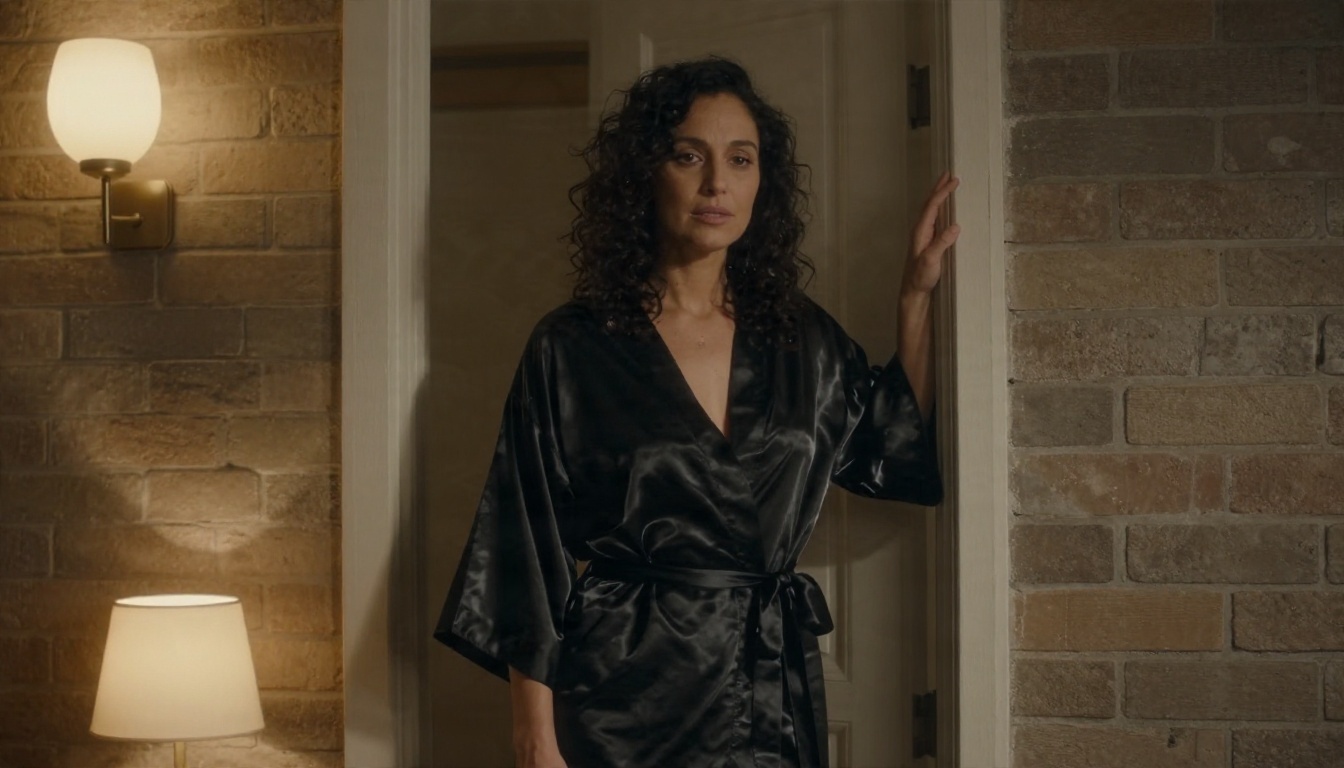
Edits get harder when the scene is dark. A single tungsten lamp, a brick wall and a satin robe leave very little room for errors. Skin tone, glossy fabric highlights and shadow falloff all have to agree.
Comparison of common edit types
| Edit type | Difficulty | What usually goes wrong | What to specify |
|---|
| Outfit swap | Medium | Fabric edges, strap shapes | Fabric name, color, fit |
| Location change | Medium | Wrong light direction | Sun position, time of day |
| Pose adjustment | Hard | Hands, limb proportions | Exact hand and arm placement |
| Lighting change | Medium | Flat, pasted-on look | Key direction, softness, color |
| Hair and makeup | Easy | Color bleeding onto skin | Length, color, texture |
| Body retouch | Hard | Warped backgrounds | Keep background lines straight |
Free Online Use Without a Download
Why local installs frustrate people
Running an open-weight edit model yourself means a high-memory GPU, a ComfyUI workflow, model files in the tens of gigabytes, and a pile of LoRAs that may or may not match your version. Many people give up after the third error message. A browser editor skips all of that.
What "free" should mean
Be careful with the word. Many sites advertise free edits and then add watermarks, daily caps or hidden queues. A real free option has three traits:
- No watermark on the output.
- No tiny daily limit that stops you after two tries.
- No forced upload of your photo to a gallery you did not agree to.
💡 Rule of thumb: edit only photos of adults who have agreed to it, and never upload someone else's photo to alter it without permission. That protects them and it protects you.
The Best Alternatives on PicassoIA
Since Qwen Image Edit 2.1 is not on PicassoIA, here are the models to use for similar results today, in the order I would try them. For adult-leaning, non-explicit glamour work, start at the top.
1. Seedream 4.5
Seedream 4.5 is the first model I would reach for. It produces sharp, photographic skin, handles swimwear, lingerie fashion and boudoir scenes without constant refusals, and it renders in up to 4K. It also accepts reference images, so you can use it for edits as well as fresh generations.
2. PicassoIA Image Editor Pro
PicassoIA Image Editor Pro is the one to pick for the edit workflow itself: upload a photo, describe the change, and get a result. Its big advantage is unlimited generations, which matters because good edits rarely land on the first attempt. When a single outfit swap takes six tries, a cap is what ruins the session.
3. Qwen Image Edit 2511
Qwen Image Edit 2511 is the closest relative of the model people are searching for. It is strong on character consistency and multi-image edits. It is a separate model with its own moderation behavior, so test a few prompts before relying on it for a project.
4. Qwen Image Edit Plus
Qwen Image Edit Plus covers the 2509-style workflow, which is the build many people mean when they say 2.1. It handles multi-image inputs well, such as one image for the person and another for the outfit.
Quick comparison
| Model | Best for | Strength | Pick it when |
|---|
| Seedream 4.5 | Glamour and boudoir | Photographic skin, 4K | You want the best first result |
| Image Editor Pro | Photo edits | Unlimited generations | You iterate a lot |
| Qwen Image Edit 2511 | Identity consistency | Stable faces | You need the same person across edits |
| Qwen Image Edit Plus | Multi-image edits | Outfit plus person blending | You combine several references |
How to Get Similar Results on PicassoIA
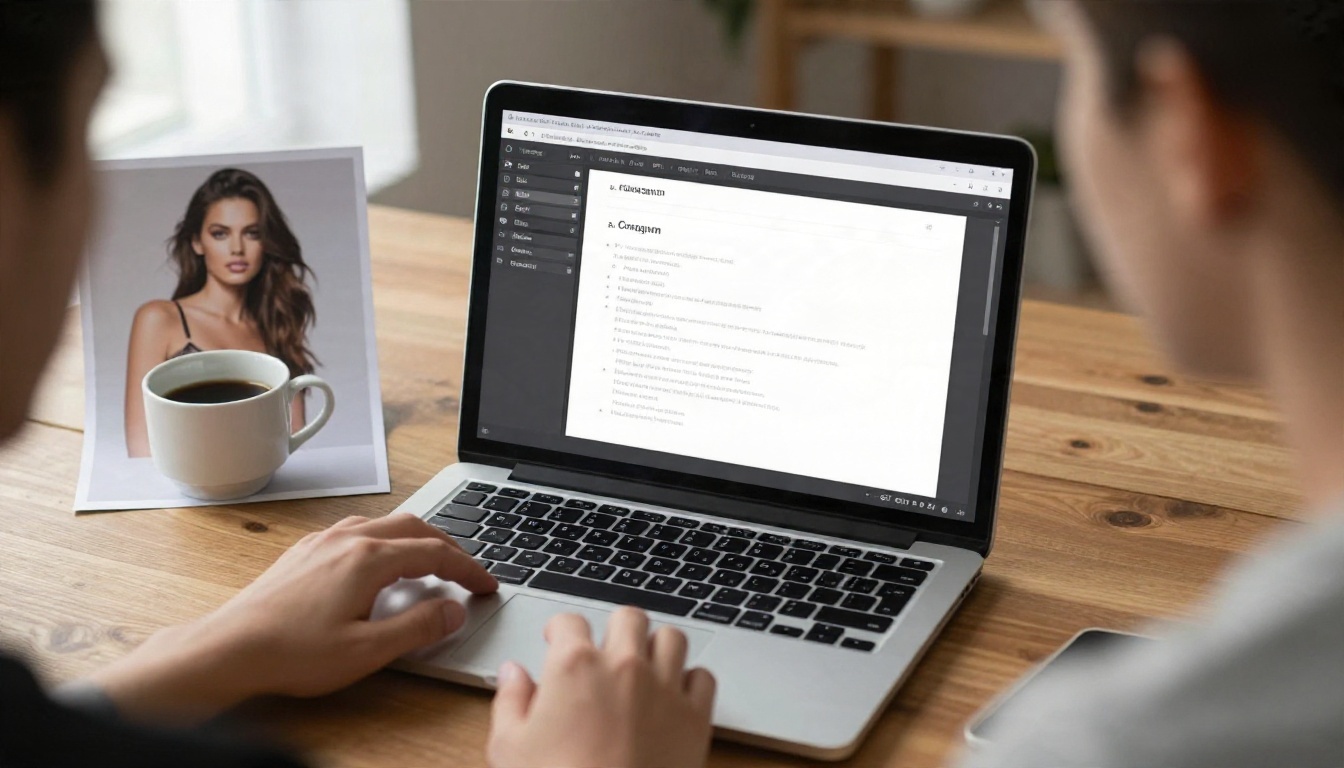
This walkthrough uses PicassoIA Image Editor Pro, the best match for the edit-and-iterate workflow that the Qwen search is really about.
Step by step
- Open the model page for Image Editor Pro and sign in.
- Upload a clear source photo. Use a sharp image with the face fully visible and the light coming from one direction.
- Write one change per prompt. "Change the dress to a black lace bralette and silk shorts" works better than three changes at once.
- Name the light. Add "soft morning light from the left, 85mm lens, shallow depth of field".
- Generate, compare, repeat. Because generations are unlimited, run four or five variations and keep the best.
- Chain your edits. Take the winning image and feed it back in for the next change, such as the background or hair.
Parameter tips
- Keep prompts under 60 words. Long prompts make editors drop details at the end.
- Use "keep the same face and pose" as the first sentence when you only want to change clothing.
- Say what to preserve. "Preserve skin texture, freckles and background" prevents the over-smoothed plastic look.
- Pick Seedream 4.5 for fresh scenes. If you want to build an image from a text description rather than edit a photo, switch to Seedream 4.5.
Prompts You Can Copy Today
Outfit and styling prompts
| Goal | Prompt |
|---|
| Swimwear swap | Keep the same face and pose. Change the outfit to a navy bikini with thin straps. Preserve skin texture and soft golden hour light from the right. |
| Boudoir look | Keep the same person. Dress her in a black lace bralette and high-waisted silk shorts, sitting on white linen, soft window light from the left, 85mm lens. |
| Satin robe | Replace the clothing with a black satin robe loosely tied at the waist. Keep the background and the warm lamp light. |
| Evening dress | Change the outfit to a red satin slip dress with a low back, mirror reflection kept natural. |
Scene and light prompts
| Goal | Prompt |
|---|
| Beach scene | Move the subject to a quiet Mediterranean beach at golden hour, wet sand reflecting the sky, low sun backlighting her hair. |
| Hotel morning | Place her in a sunlit hotel bedroom with sheer curtains, rumpled white sheets and warm plaster walls. |
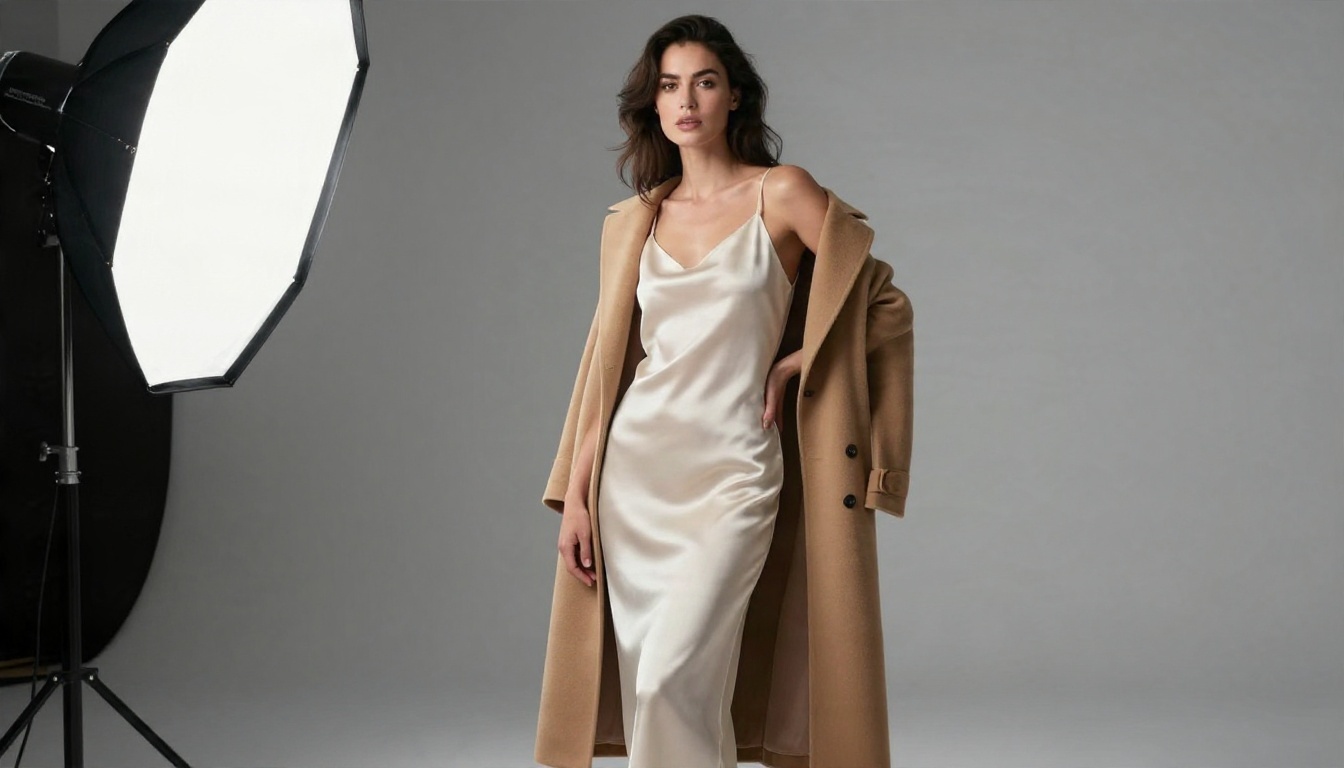
| Studio look | Seamless warm grey backdrop, large softbox from camera left, subtle reflector on the right, fashion editorial framing. |
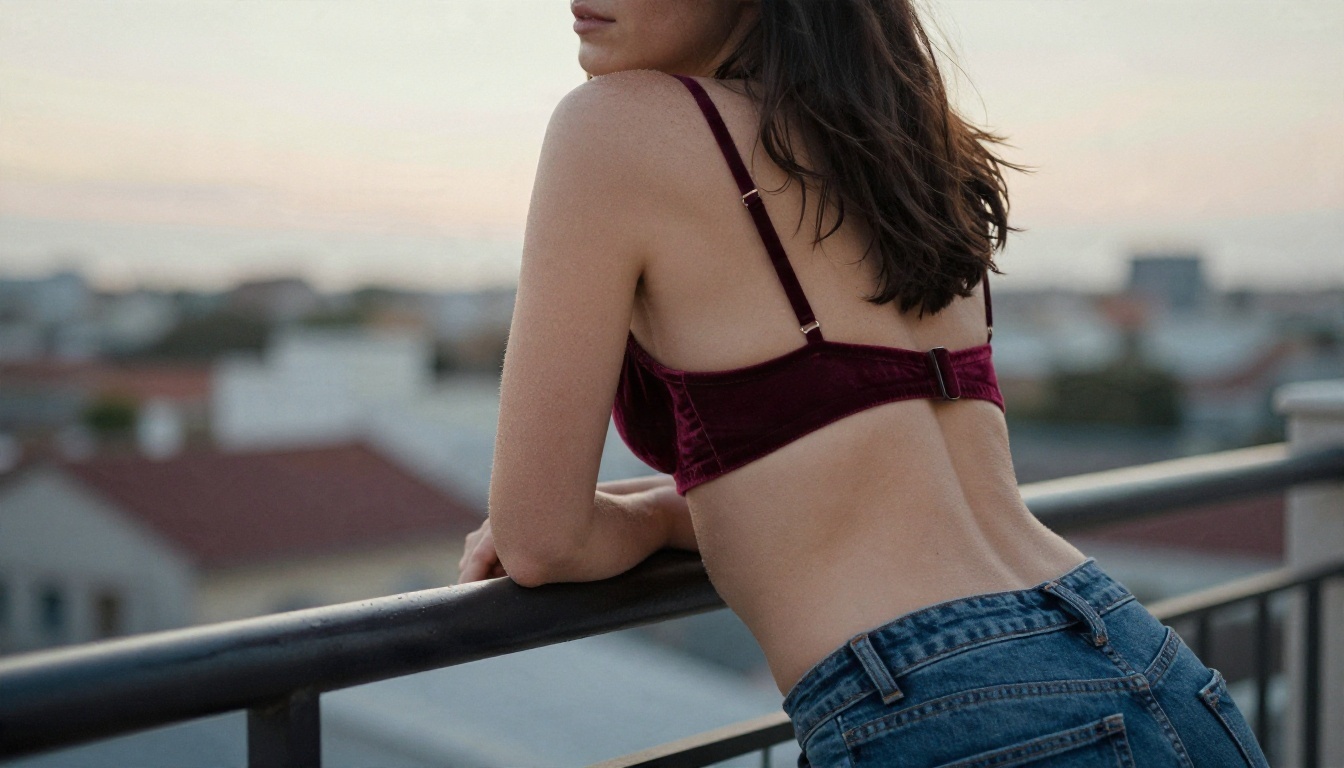
| Dusk balcony | City rooftops softly blurred at dusk, warm last light on the right, cool sky tone on the left. |
Prompt formula that works
Use this order every time: subject to preserve, then the change, then the light, then the lens, then the mood. For example: "Keep the same face. Change the outfit to an ivory silk slip dress. Soft softbox light from the left, 85mm lens, shallow depth of field, calm editorial mood."
💡 Tip: add a camera and film reference such as "Kodak Portra 400, fine grain". It pushes the result toward photography and away from the smooth, airbrushed look.
Common Mistakes That Ruin Edits
Asking for too much at once
Outfit, pose, location and lighting in a single prompt is the fastest way to a messy result. Change one thing, keep the winner, then change the next.
Ignoring the source photo
An edit can only be as good as its input. A blurry, low-contrast or heavily compressed photo gives the model nothing to hold onto. If your source is soft, run it through a super resolution tool first.
Forgetting the light direction
If the original light comes from the right and your prompt places the subject under a sun on the left, the result looks pasted on. Match the light, or describe a new light for the whole scene.
Chasing "uncensored" instead of quality
The loudest searches focus on filters, but the images that look best are rarely about pushing a boundary. They look good because of lighting, fabric detail and a believable face. A tasteful editor with no refusals and a strong model beats a so-called uncensored tool that produces warped anatomy.
Skipping consent
Only edit images of adults who have agreed to it, ideally yourself, a hired model or a character you created. Do not use these tools on photos of real people who have not consented. That is a firm line, not a suggestion.
Start Creating Your Own Edits
You do not need a special download, a GPU or a version number that does not exist. Open PicassoIA Image Editor Pro, upload a photo and run a few unlimited generations. If you want to build a scene from scratch, try Seedream 4.5. For consistent faces across several edits, add Qwen Image Edit 2511 to your rotation.
Pick one prompt from the tables above, change one detail, and compare the results side by side. That loop of edit, compare and adjust is where good images come from. When you want to see the rest of the lineup, browse every available model at picassoia.com/en/all-models and find the one that fits your style.


