Most people who search for an R18 image generator hit the same three walls: tools that refuse half of what they type, free plans that run out after four images, and results that look like plastic dolls instead of photographs. None of that is inevitable. The right model, a clear prompt structure and about six settings decide whether you get a flat, waxy render or a frame that looks like it came from a glamour shoot.
This article lays out what the R18 label means, which free online options are worth your time, the prompt formulas that produce tasteful, photorealistic adult-themed images, and the settings that fix the usual problems. Everything here stays on the suggestive, non-explicit side: lingerie, swimwear, boudoir mood, magazine glamour.
What R18 Really Means in AI
R18 is shorthand that came out of Japanese media ratings. It marks content meant for adults only, 18 and over. In AI image circles it became a loose tag for anything from swimwear and lingerie portraits to fully explicit work. That wide range is the source of most confusion, because a tool that is fine with "bikini on a beach" may block "satin robe in a hotel suite" for no clear reason.
The Three Levels People Mean
When someone says "R18 generator," they usually mean one of these:
| Level | Typical content | What the tool needs |
|---|
| Suggestive | Bikinis, swimwear, sleepwear, fashion glamour | Any decent photorealistic model |
| Boudoir and lingerie | Lace, satin, sheer fabrics, intimate mood | A model with relaxed filters on adult themes |
| Explicit | Pornographic material | Not covered here |
This article stays in the first two rows. They are where the best photographic results live anyway, because the craft is in light, fabric, skin texture and mood, not in shock value.
Why Filters Block Harmless Prompts
Safety filters work on words and on the generated pixels. A prompt containing a handful of trigger words can be refused before any image is made, and a clean prompt can still be blocked if the output looks too revealing. I hit this myself while building this article: a lace bralette prompt was rejected by one generator, while the same scene with a satin camisole passed without trouble. Small wording and clothing changes often matter more than the scene itself.

Free Online Options That Work
Free is a spectrum. Some tools give you a handful of credits each day, some give you a one-time trial, and a few give you effectively unlimited generations. For adult-themed work, where you often need 20 or 30 attempts to land one great frame, the difference is huge.
What "Free" Usually Hides
Before you pick a tool, check these four things:
- Daily or monthly cap. Four free images a day is a demo, not a workflow.
- Watermarks. Some free plans stamp every output, which makes it useless for any real project.
- Filter strictness. A free tier with aggressive filtering wastes credits on blocked prompts.
- Resolution. Many free plans cap output at a size too small to print or crop.
💡 Tip: Test any new generator with the same three prompts: a swimwear beach shot, a satin sleepwear portrait and a hotel lounge scene. How it handles those tells you more than any feature list.
Models Worth Trying on PicassoIA
For photorealistic adult-themed work, start with Seedream 4.5. It renders skin with real pores, handles satin and lace convincingly, and responds well to lighting language like "soft window light from the left." It is also fast, which matters when you are iterating.
Next, try the PicassoIA Image Editor Pro. Its big advantage is unlimited generations, so you can run 50 variations of a prompt without watching a credit counter. It works as both a generator and an editor, so you can change an outfit, a background or a lighting mood on an image you already like.
After those two, these models are worth keeping in your rotation:
| Model | Best for | Link |
|---|
| Seedream 4.5 | Skin texture, fabric, natural light | Open |
| PicassoIA Image Editor Pro | Unlimited tries, edits and variations | Open |
| Flux Dev | Clean photographic realism | Open |
| Flux 2 Klein 9B Base LoRA | Styled looks with LoRA control | Open |
| Z Image Turbo | Very fast drafts | Open |
| Qwen Image 3 Pro | Detailed portraits | Open |
💡 Tip: Skip models that advertise strict content policies if your goal is glamour or boudoir work. You will burn through attempts on refusals.
Prompts That Produce Tasteful Results
Good adult-themed images are not made with explicit words. They are made with photographic language. The more you sound like a photographer briefing an assistant, the better the result looks.
The Five-Part Prompt Formula
Every strong prompt in this style follows the same skeleton:
- Subject and pose. Who, wearing what, doing what.
- Environment. Where the scene happens, with two or three real objects.
- Lighting. Direction, quality and time of day.
- Camera. Lens, aperture and angle.
- Texture and grain. Skin, fabric, film stock.
Here is a working example:
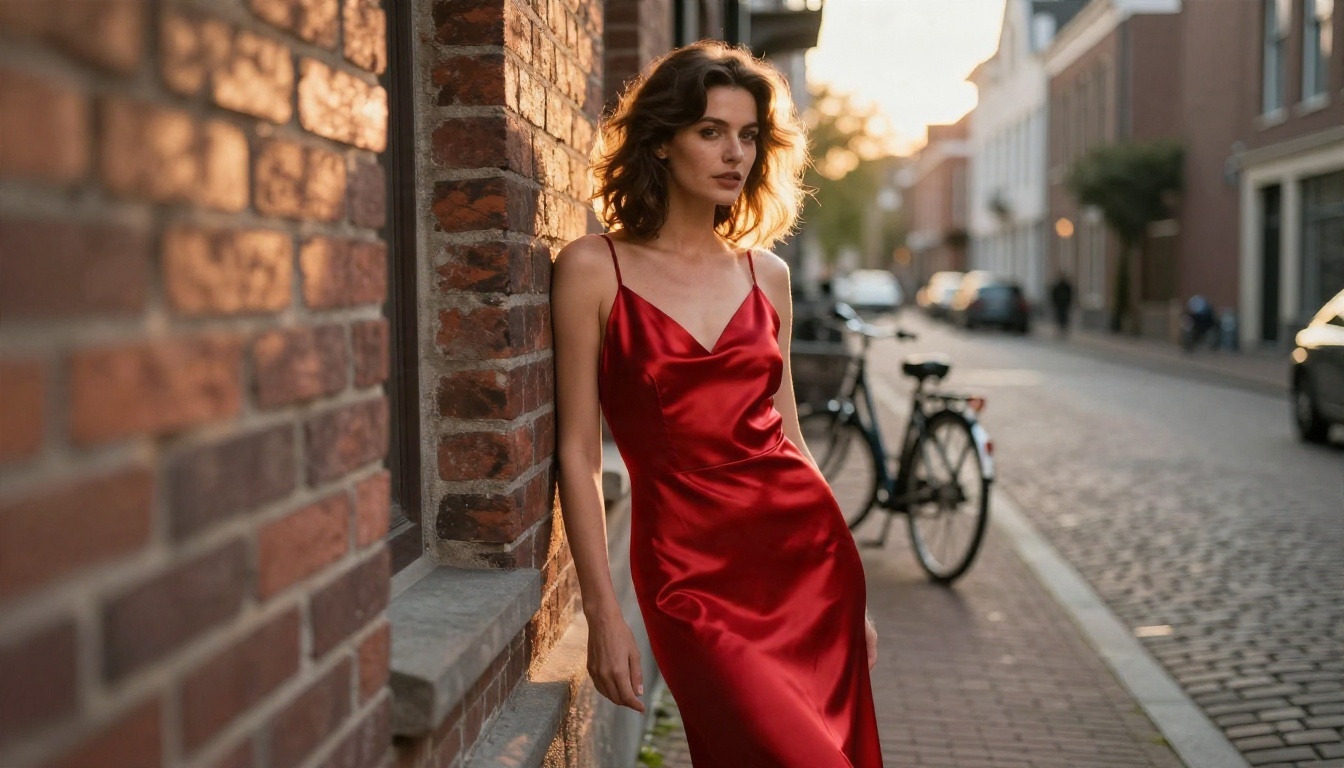
A woman in a red satin slip dress leaning against a vintage brick wall at golden hour on a quiet European street, warm sunset backlight creating rim light on her hair, cobblestones and a parked bicycle behind her, 35mm f/1.8 lens, low angle, visible fabric sheen and brick texture, Kodak Portra 400 film grain, photorealistic.
Words That Help and Words That Hurt
Some words push a model toward realism. Others push it toward cartoon plastic.
| Use these | Avoid these |
|---|
| soft window light, rim light, golden hour | perfect, flawless, ultra smooth |
| visible pores, fine freckles, peach fuzz | airbrushed, doll-like |
| 85mm f/1.8, shallow depth of field | 8K masterpiece, trending |
| Kodak Portra 400, film grain | digital art, 3D render |
| satin, lace, linen, velvet | glowing, neon, cyberpunk |
Flattery words like "perfect" and "masterpiece" are the single most common reason for waxy skin. Real photographs have texture, so ask for it.
Prompt Examples by Scene
Here are four starting points you can paste and adjust:
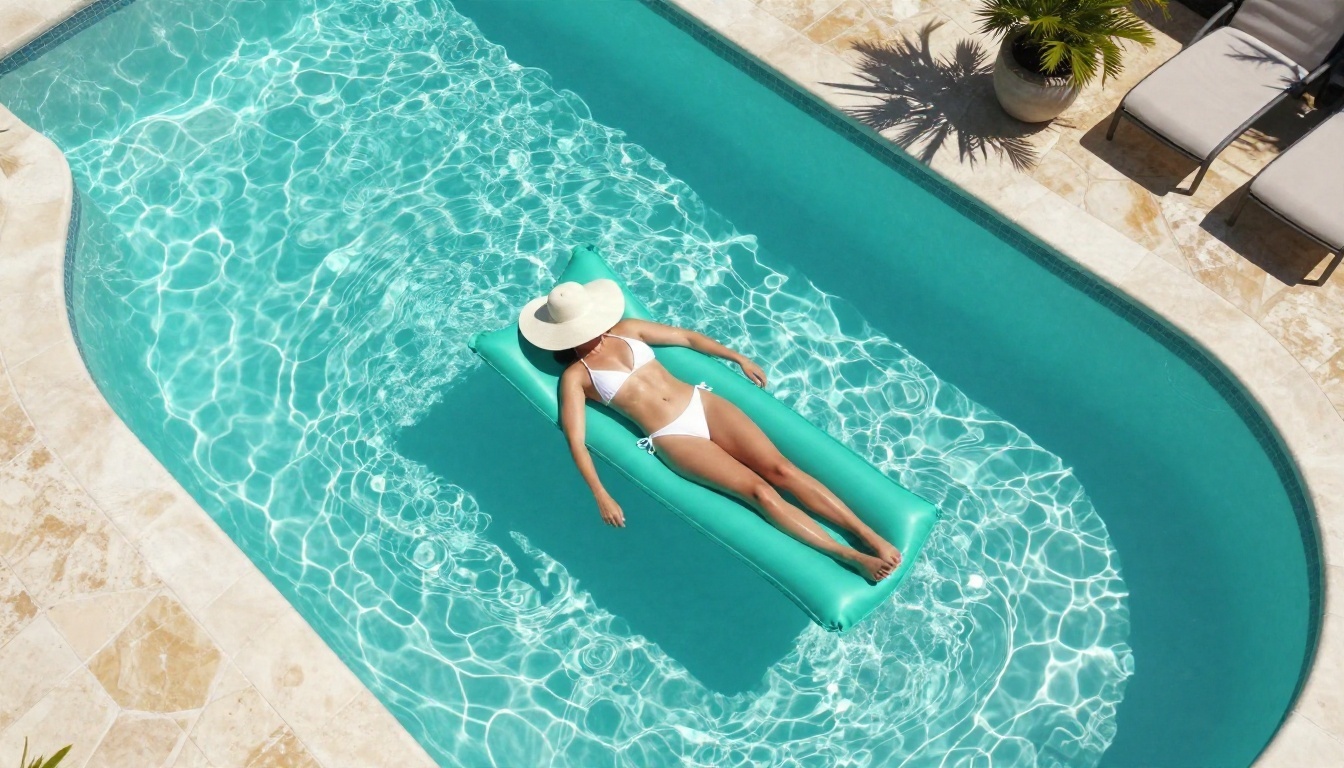
- Pool day: Aerial view of a woman in a white bikini on a teal pool float, sun hat tilted, caustic ripples, stone terrace with palms, harsh midday sun, 24mm lens, wet skin sheen.
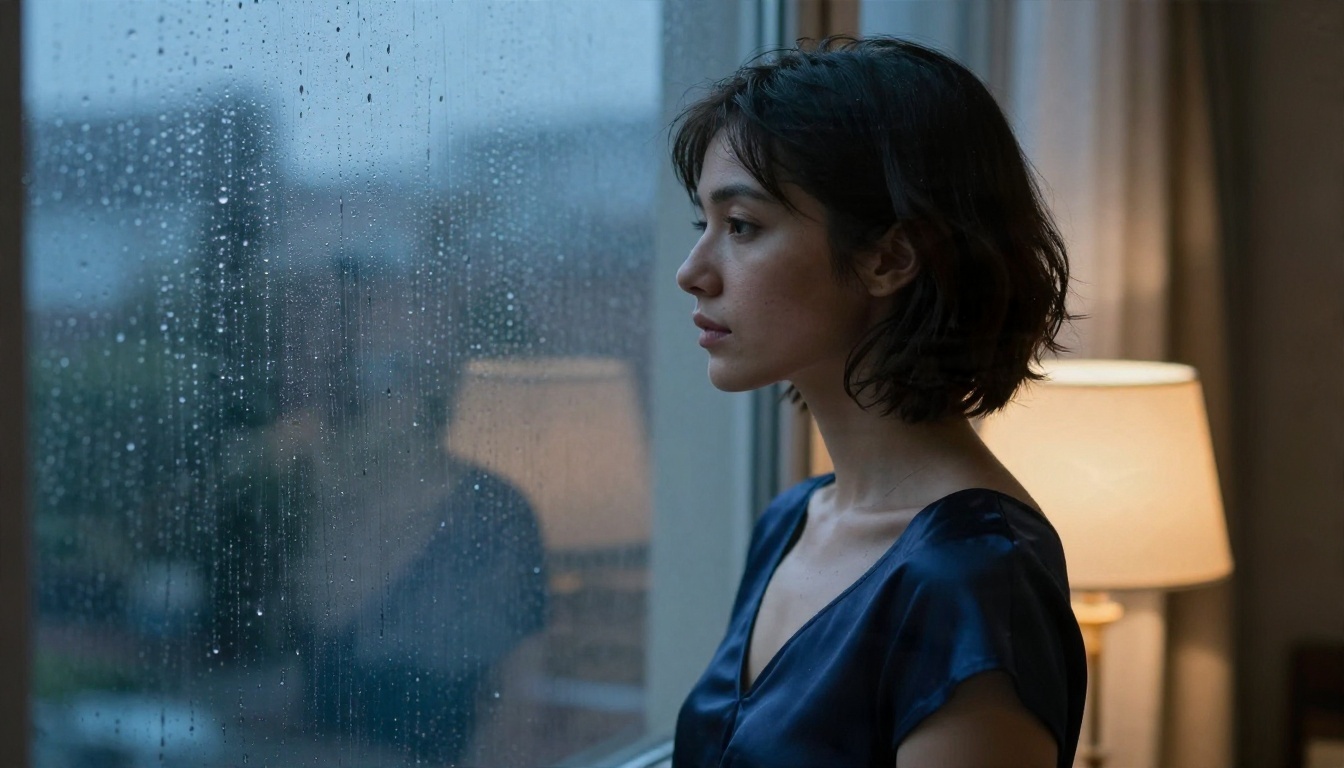
- Sleepwear portrait: Side profile of a woman with a short dark bob in a navy satin camisole at a rain-streaked window, cool dusk light mixed with warm lamp light, 85mm f/1.4.
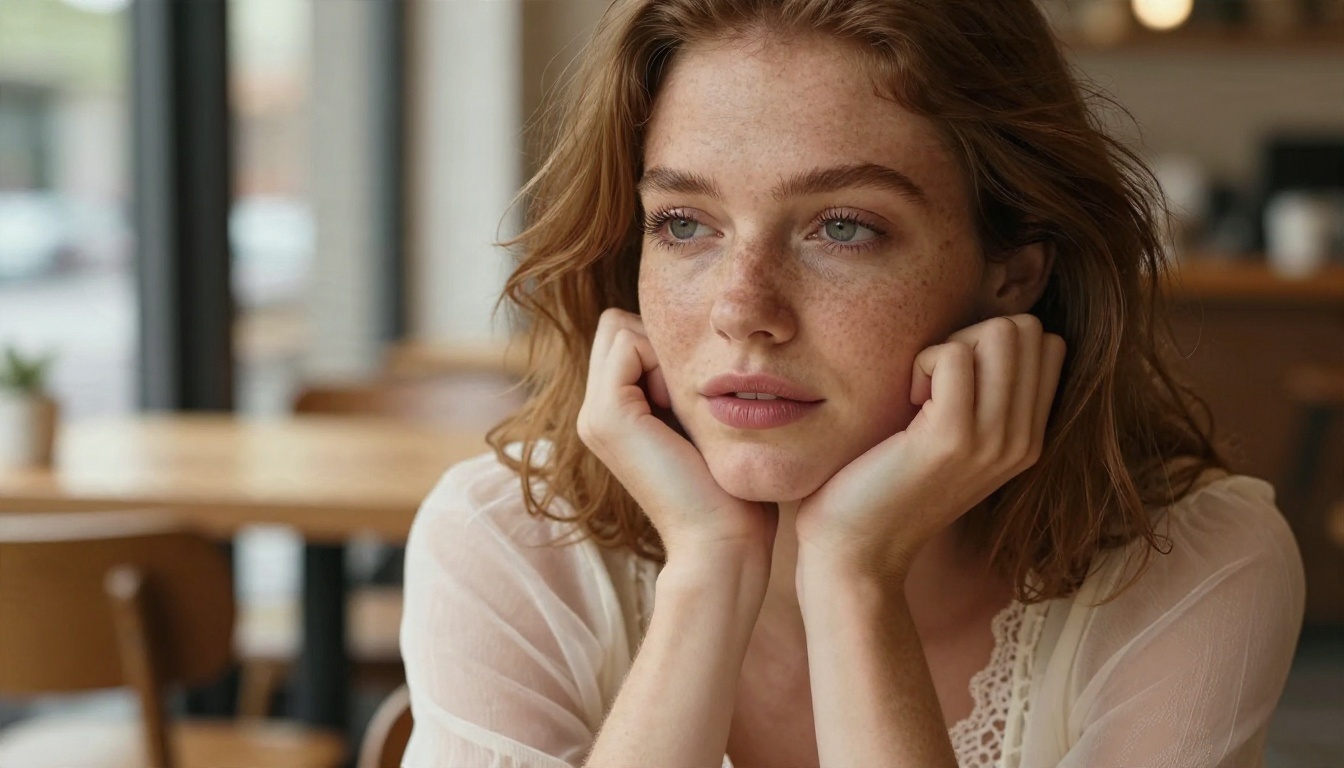
- Cafe mood: Close-up of a freckled woman with auburn hair in a sheer ivory blouse, cheek resting on her hand, soft daylight from the right, 100mm f/2, blurred wood interior.
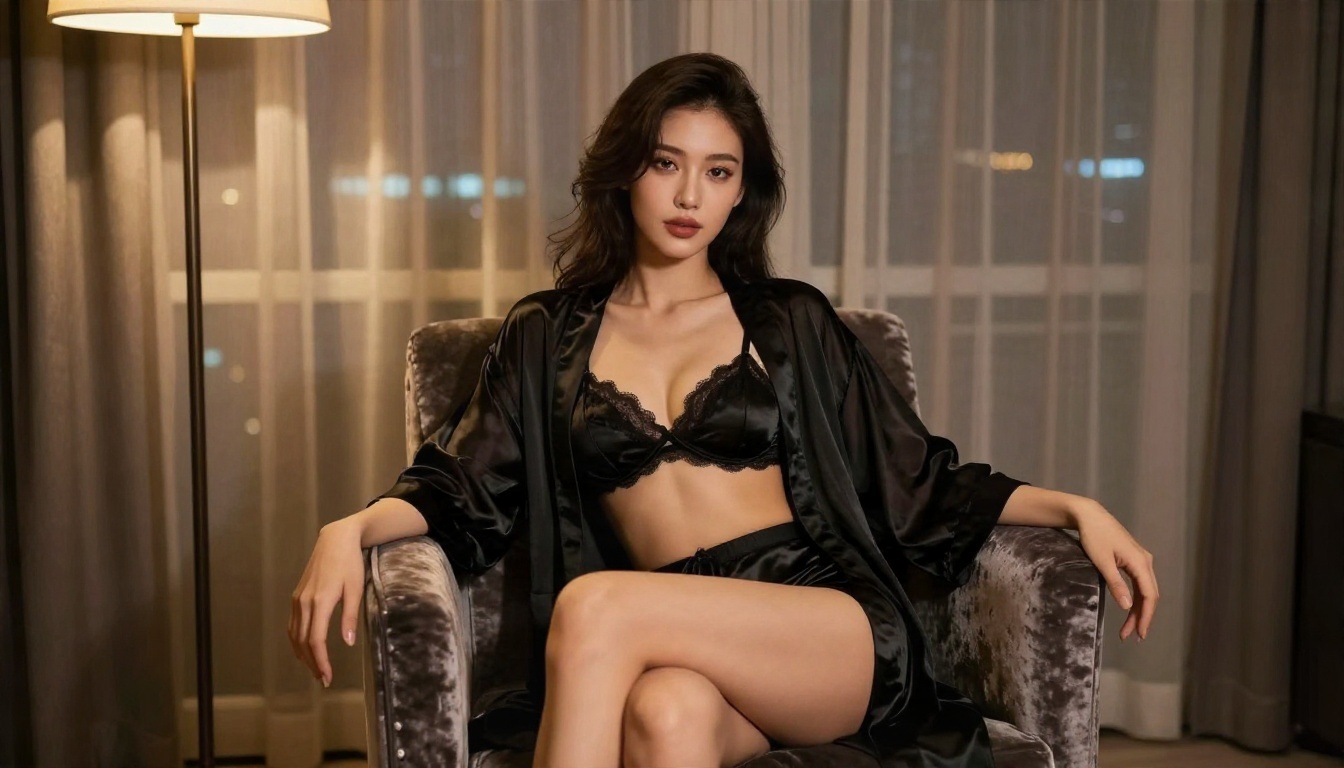
- Hotel suite: Woman in black satin loungewear and a sheer robe on a velvet armchair, warm lamp light from camera right, city glow through curtains, 50mm f/1.8.
Settings Worth Changing
Prompts get the attention, but settings quietly decide whether the image is crisp or mushy. These are the ones that matter most.
Resolution and Aspect Ratio
Generate at the largest size the model supports comfortably. For wide scenes and landscape-oriented portraits, 16:9 gives you room for environment and lighting. For single-subject fashion looks, 3:4 or 2:3 feels more like a magazine page. Pick the ratio before you generate, because cropping later wastes pixels.
Guidance, Steps and Seeds
Not every model exposes every control, but when they do, here is what to touch:
| Setting | Starting value | What it does |
|---|
| Guidance scale | 3 to 5 for Flux style, 6 to 8 for others | Higher follows the prompt harder but can look stiff |
| Steps | 28 to 40 | More steps add detail, with diminishing returns after 40 |
| Seed | Random, then lock | Lock a seed once you like a composition, then tweak the prompt |
| Batch size | 2 to 4 | More options per run, faster selection |
💡 Tip: When you find a frame you love, lock the seed and change only one thing at a time: the outfit, the light direction or the lens. That is how you build a consistent set instead of a random pile.
Negative Prompts That Actually Help
If a model supports negative prompts, keep them short and practical: extra fingers, distorted hands, blurry, low resolution, plastic skin, text, watermark. Long negative lists tend to confuse the model more than they help.
Lighting Is the Biggest Lever
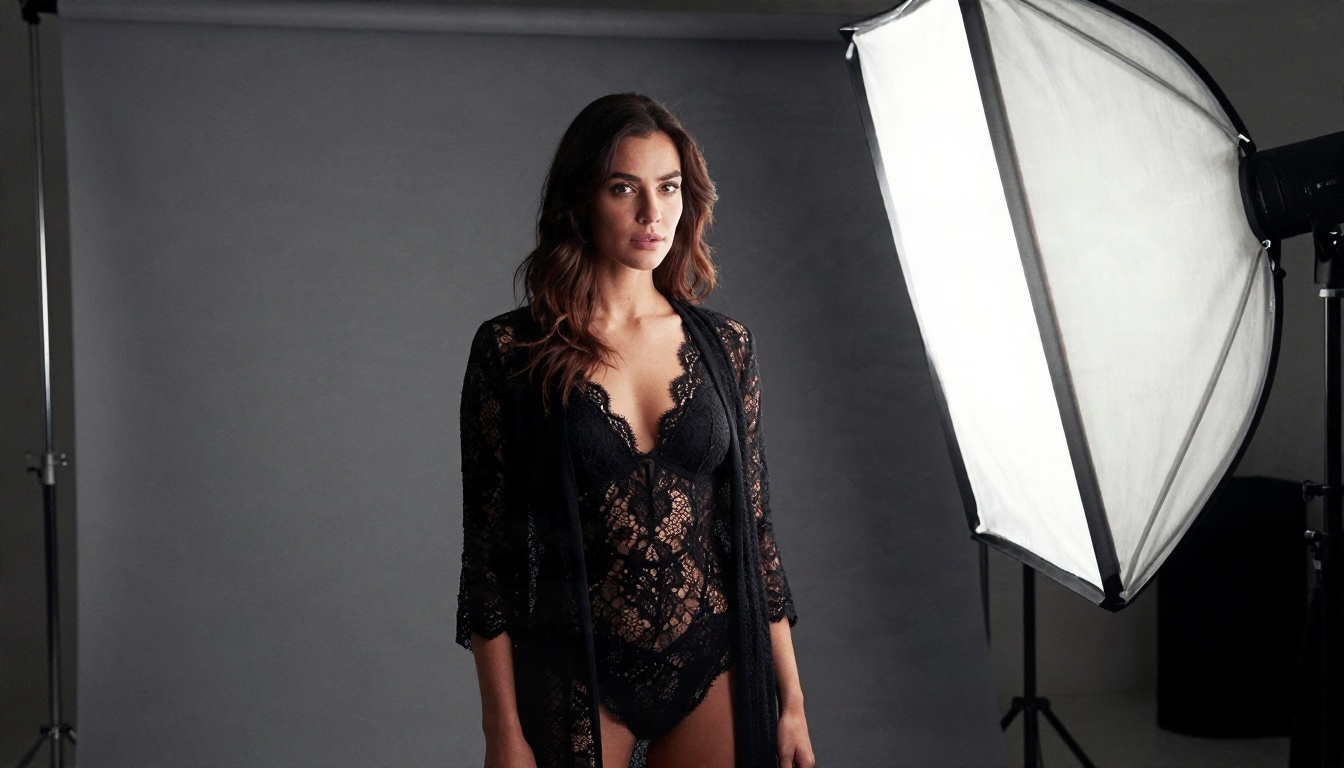
If you change only one thing in your prompts, change the lighting. A single phrase like "softbox camera right with gentle falloff" or "low sun from behind with rim light" separates a snapshot from an editorial frame. Here is a quick reference:
| Light | Mood | Good for |
|---|
| Soft window light | Calm, intimate | Sleepwear, bedroom, cafe |
| Golden hour backlight | Warm, romantic | Street, beach, outdoor glamour |
| Softbox studio light | Polished, editorial | Lingerie and fashion looks |
| Dusk plus lamp light | Moody, cinematic | Hotel and apartment scenes |
| Harsh midday sun | Bold, high contrast | Pool and swimwear |
How to Use Seedream 4.5 on PicassoIA
Seedream 4.5 is the best first stop for this style because it gives natural skin and fabric detail without much fuss. Here is the workflow I use.
Step by Step
- Open the model page. Go to the Seedream 4.5 page on PicassoIA and open the generator.
- Write your prompt with the five-part formula. Subject, environment, lighting, camera, texture. Aim for 50 to 80 words.
- Choose the aspect ratio. Use 16:9 for scenes, 3:4 for portraits.
- Set the output size. Pick the highest option offered for sharper skin and fabric.
- Generate a small batch. Run two to four images so you can compare faces, hands and light.
- Pick one and iterate. Keep the wording that worked, change only one element and rerun.
- Refine in the editor. Send your favorite to the PicassoIA Image Editor Pro to adjust an outfit, a background or the light, with unlimited tries.
Parameter Tips
- Keep prompts descriptive and calm. Seedream 4.5 responds better to scene detail than to adjective stacks.
- Mention lens and lighting every time. It stabilizes the look between runs.
- If a face looks soft, add "sharp focus on the eyes, fine skin texture."
- If the result feels too posed, add a small action: adjusting a sleeve, glancing over a shoulder, holding a coffee cup.
💡 Tip: Use Seedream 4.5 for your hero images and the Image Editor Pro for rapid-fire variations. Together they cover both quality and volume.
Fixing Common Problems
Even good models trip over the same things. Here are the fixes that work.
Waxy Skin and Flat Faces
Remove words like "perfect" and "flawless." Add "visible pores, fine freckles, soft peach fuzz, natural skin texture." Mention film grain. A camera line such as "85mm f/1.8, Kodak Portra 400" nudges the model toward a photographic look.
Hands, Fingers and Fabric Oddities
Hands remain the weak spot of most generators. Three habits help:
- Give the hands something simple to do, such as holding a cup or resting on a knee.
- Avoid crossed or interlaced fingers in the prompt.
- Generate a batch, pick the cleanest, and fix small flaws with the editor.
Fabric can also glitch, especially lace and sheer layers. Ask for "realistic fabric weave with slight creasing" and keep the garment description to one or two details.
Blocked Prompts and Refusals
If a generator refuses a prompt, do not just retry it. Try these in order:
- Swap the garment: camisole for bralette, slip dress for bodysuit.
- Move the focus to the setting and the light, and shorten the body description.
- Switch models. Filter strictness differs a lot, and a model with relaxed filters on adult themes will save you time.
Inconsistent Results Between Runs
Lock the seed, keep the same camera line, and reuse your lighting phrase word for word. For a series, change one variable per run. That gives you a consistent look across a whole set.
Rules for Responsible Use
Adult-themed generation comes with firm lines. These are non-negotiable, and every reputable tool enforces some version of them.
Non-Negotiable Boundaries
- Adults only. Every subject must be clearly an adult. Never describe or imply a minor.
- No real people. Do not generate images of real individuals, celebrities or people you know without their consent. That includes face swaps.
- No explicit material. Keep it suggestive and artistic: swimwear, lingerie, boudoir mood.
- No deception. Do not present AI images as photographs of real people.
Keeping Your Work Safe to Share
Label AI images as AI-generated when you post them. Check the rules of each platform before uploading, because many restrict adult-themed content even when it is non-explicit. Store your originals privately and share only what you are comfortable with.
A Workflow That Saves Credits
Draft quickly, then polish slowly. A pattern that works well:
- Draft 8 to 10 options with a fast model like Z Image Turbo.
- Pick the best composition and copy its prompt.
- Re-run it in Seedream 4.5 for final quality.
- Make small edits in the Image Editor Pro without worrying about limits.
Make Your First Batch Today
You now have the full recipe: a model that suits the style, a five-part prompt, a small set of settings worth touching, and fixes for the usual problems. The fastest way to get good at this is to run a lot of images and change one thing at a time.
Open Picasso IA, start with Seedream 4.5 for your hero shots, then use the PicassoIA Image Editor Pro for unlimited variations and edits. Paste one of the prompts above, adjust the lighting phrase, and compare the results side by side. If you want to try other models, the full list is at picassoia.com/en/all-models.
Pick a scene, write your first prompt, and see what the light does to it.


