Most AI video tools start from a blank prompt, and that is exactly why the same woman never looks the same twice. Her face shifts between clips, the bikini changes color, the pool becomes a different pool. Reference to video fixes that by letting you upload the people, outfits and places that must appear, then building a brand-new scene around them. For suggestive, glamour-style content, that consistency is the difference between a clip that feels like a real photo shoot and one that looks like a random generation. This article walks through the free models worth using, the prompts that hold a character together, real examples by scene, and the limits you will run into.
💡 Quick scope note: everything here is about non-explicit, suggestive content: swimwear, lingerie-style fashion, boudoir lighting, glamour portraits. Explicit material is not the goal, and it is not what these workflows are built for.
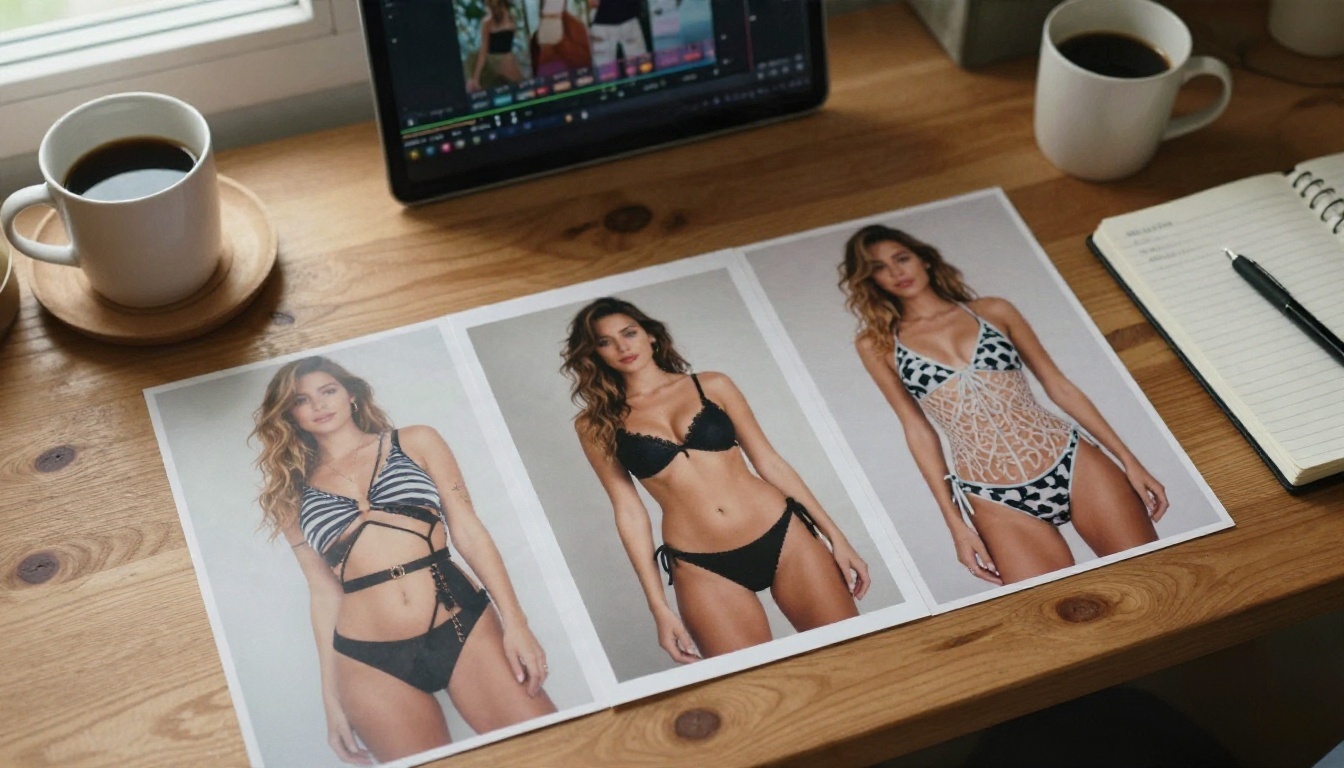
What Reference to Video Means
References are not first frames
In classic image-to-video, your photo becomes the opening frame and the model animates it. Reference to video works differently. Your images are identity anchors. The woman in Image 1 can walk into the room from Image 2 wearing the outfit from Image 3, filmed from an angle that none of your photos show.
That is a big shift for glamour work. You can keep one face and one swimsuit while changing the beach, the camera angle, the time of day and the action. You can also add a reference video so the new clip copies a camera move or a motion, and an audio file so a character speaks or sings with lip sync.
Why adult creators use it
Three reasons come up again and again:
- Character continuity. A recurring model, mascot or persona needs the same face across dozens of clips.
- Outfit control. Swimwear, robes and evening dresses stay recognizable instead of drifting.
- Faster iteration. One good photo set replaces hours of prompt tweaking.
💡 Only use reference photos of yourself, of people who gave clear permission, or of fully AI-generated characters. Never upload someone else's photos without consent.
Free Models Worth Trying
Build the image set first
A reference video is only as good as the stills behind it. For suggestive glamour images, start with Seedream 4.5. It produces sharp, photorealistic skin and fabric, handles bikinis, silk and lace without fuss, and is fast enough to build a full reference set in one sitting.
Then move to PicassoIA Image Editor Pro. It offers unlimited generations, which matters when you need 8 to 10 consistent views of one character: front, three-quarter, profile, full body, close-up. Use it to change an outfit, fix a hand, correct the background or relight a shot without starting over.
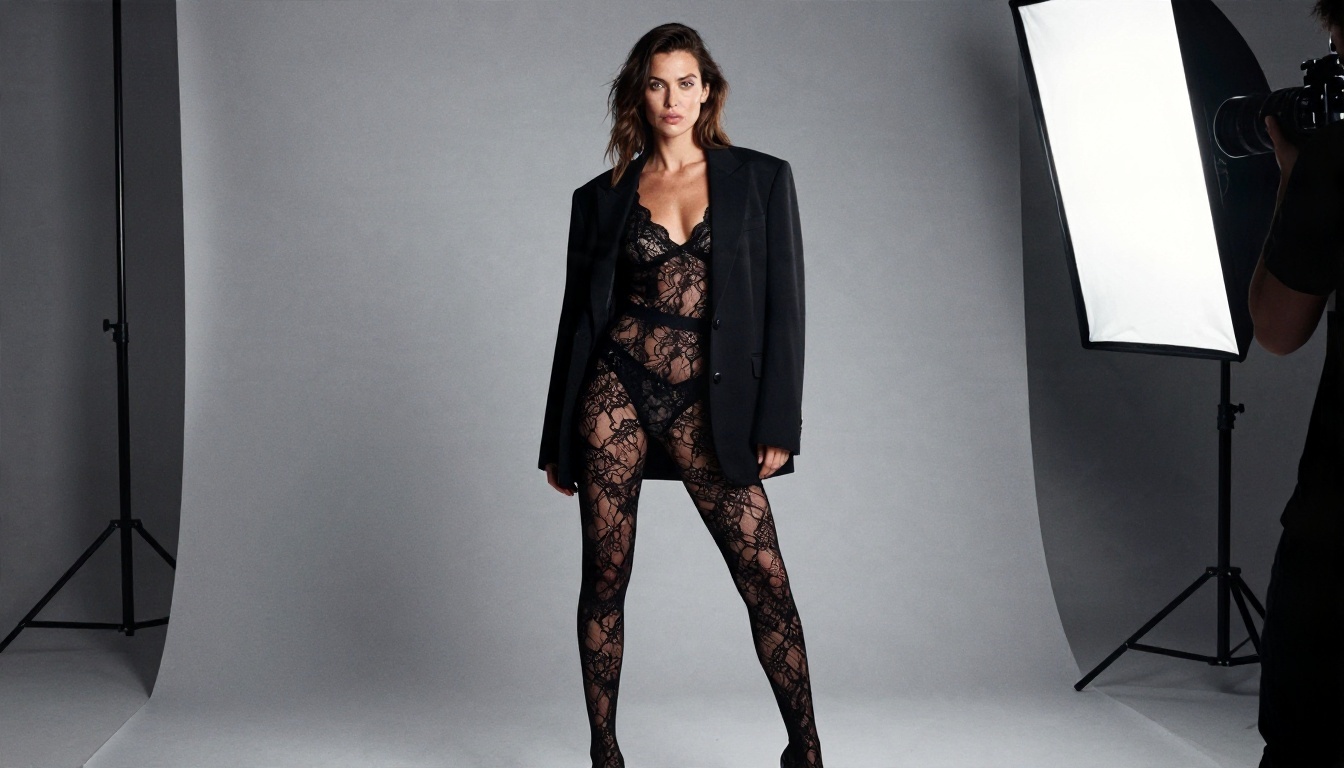
💡 One character, several views. For a single person, upload each angle as its own reference image. A face-only reference gives the model nothing to go on when the camera pulls back to a full-body shot.
Reference to video models
Once the stills are ready, two models on PicassoIA are built specifically for this job:
Ref2Video is the one to try first because it is free and unlimited for Infinite members, and for Elite members at 480p and at 720p up to 5 seconds. Bruma is the pick when you need longer shots or 1080p delivery.
Free options compared
| Model | Input | Max length | Resolution | Free and unlimited |
|---|
| Ref2Video | Up to 9 images, video, audio | 15 s | 480p, 720p | Infinite; Elite at 480p and 720p up to 5 s |
| Bruma Reference to Video | Up to 10 images, video, audio | 30 s | 480p to 1080p | Check the model page for your plan |
| Seedance 2.5 Lite | Text or one image | 10 s | 480p, 720p | Elite and Infinite |
| PicassoIA Video | Text or one image | 5 s | Standard | Free and unlimited |
When one image is enough
If you do not need identity control across many shots, plain image-to-video is simpler. Seedance 2.5 Lite and PicassoIA Video both animate a single photo into a short clip. Wan 2.7 I2V and Grok Imagine Video 1.5 are other image-to-video options worth testing. Treat these as animation tools: the photo is the first frame, and you cannot change the scene around it.
Prompts That Actually Work
A formula that holds
Prompts for reference models follow a different logic than text-to-video. Name your references by position, then describe the scene, the motion and the sound.
Template: Image 1 [what she does] in [location from Image 2], wearing [outfit from Image 3]. [Camera move]. [Light]. [Sound].
A few rules that save credits:
- Name references explicitly. Write "Image 1", "Image 2", "Video 1", "Audio 1". Vague wording like "the woman" forces the model to guess.
- One action per clip. Walking, turning, laughing. Not all three.
- State the camera. Slow dolly-in, handheld follow, static tripod.
- Describe light by direction. "Golden sunlight from camera left" beats "nice lighting".
- Mention sound. Waves, wind, soft music. The audio is generated alongside the picture.
Five prompts to copy
1. Beach walk
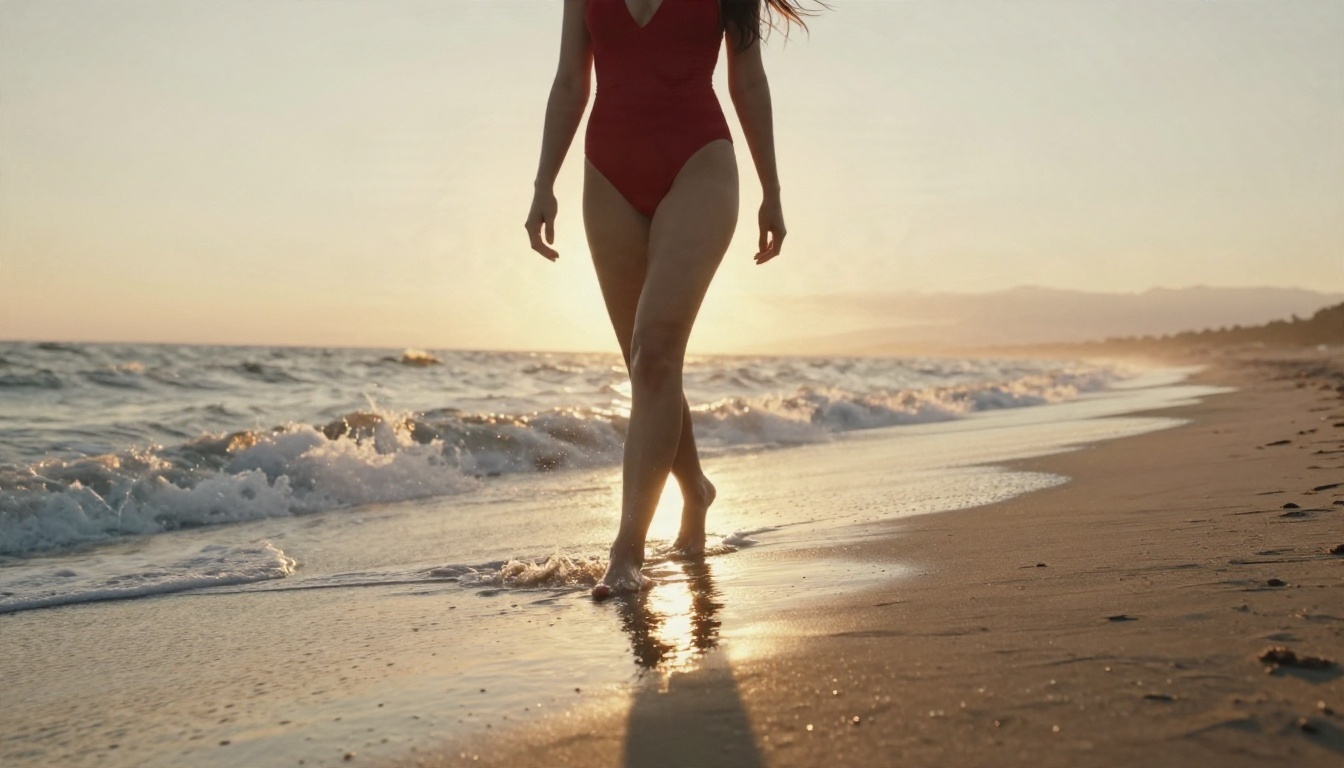
Image 1 walks barefoot along the shoreline at sunset in the red swimsuit from Image 2, waves washing over her ankles. Low-angle tracking shot moving backward in front of her. Warm golden backlight. Sound of gentle surf and wind.
2. Poolside lounge
Image 1 lies on a linen sunbed beside the infinity pool from Image 2 and slowly lifts her sunglasses to look at the camera. Slow dolly-in from the foot of the sunbed. Soft afternoon sun from camera left. Light water sounds and distant birds.
3. Window portrait
Image 1 leans against the window frame in the black satin slip dress from Image 3 and turns her head toward the glass. Static close-up, shallow depth of field. Cool daylight from the left. Quiet room tone.
4. Hotel morning
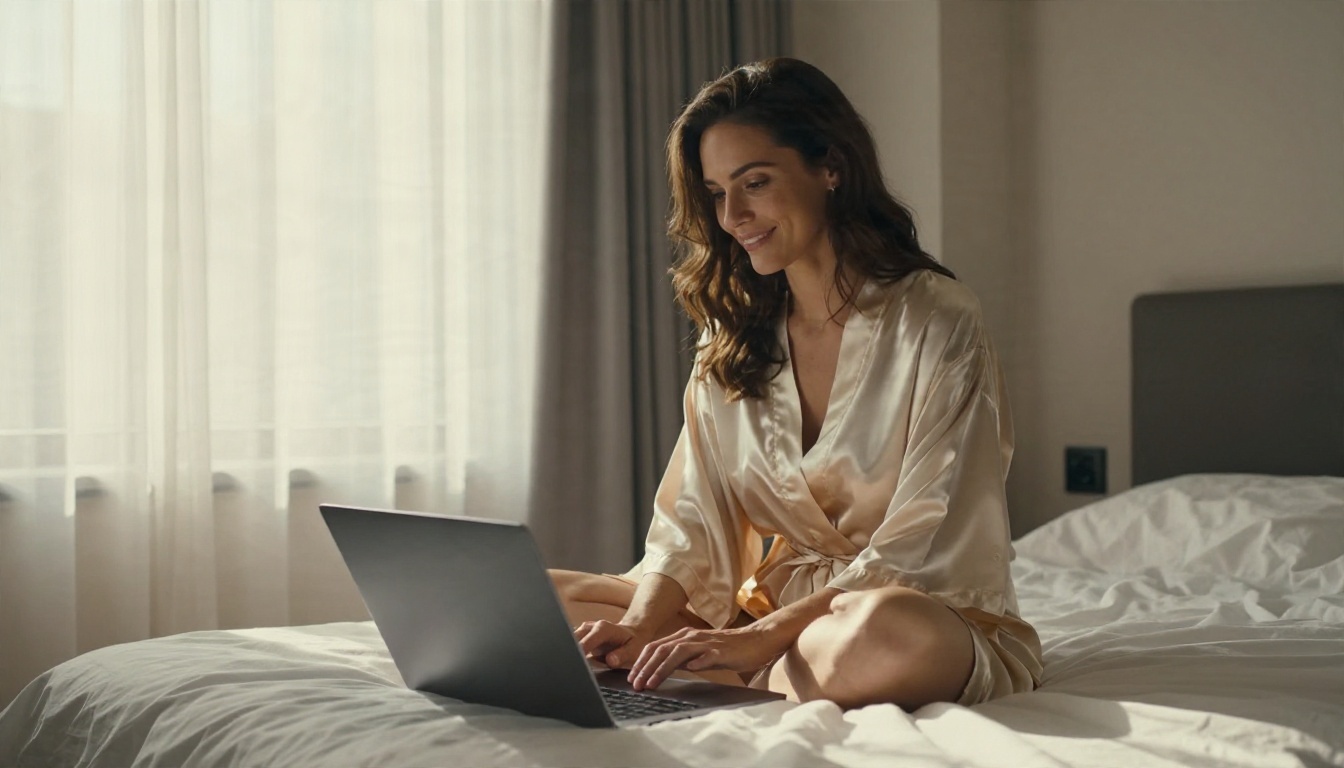
Image 1 sits on the bed in the champagne robe, opens a laptop and smiles at the screen. Handheld medium shot, slight natural sway. Morning light through sheer curtains. Soft fabric and keyboard sounds.
5. Yacht deck
Image 1 stretches on the white yacht deck from Image 2 in the black bikini from Image 3, then sits up and shades her eyes. Aerial shot slowly circling. Bright midday sun. Wind and rope creaks.
💡 Keep prompts under roughly 80 words. Longer prompts tend to bury the reference instructions.
Real Examples by Scene
Poolside and beach
Water scenes are the strongest test of consistency. Wet skin, moving hair and shifting reflections all stress the model. The best results come from references that already show the lighting you want: a reference photo shot at golden hour tells the model what the skin and swimwear should look like under that light.
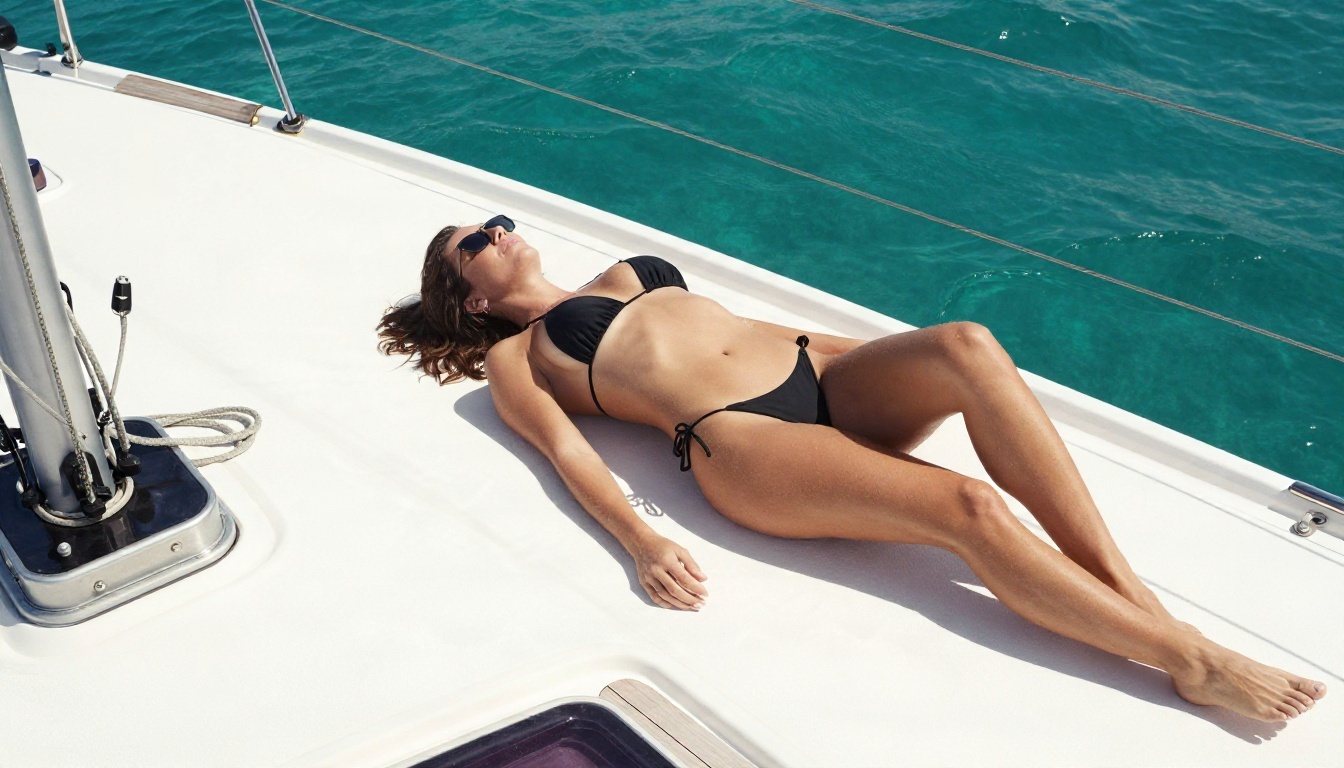
What works well here:
- Aerial and overhead shots. Fewer facial details, so drift is less visible.
- Simple swimwear. Solid colors keep their shade better than busy prints.
- Slow camera moves. A gentle orbit or dolly-in beats fast action.
Interiors and window light
Indoor boudoir scenes rely on soft, directional light. A single window, one lamp, a sheer curtain. These are easy to describe and easy for the model to hold steady. Close-ups reward you with fine skin texture, but they also expose any identity drift, so use at least two close-up references of the face.
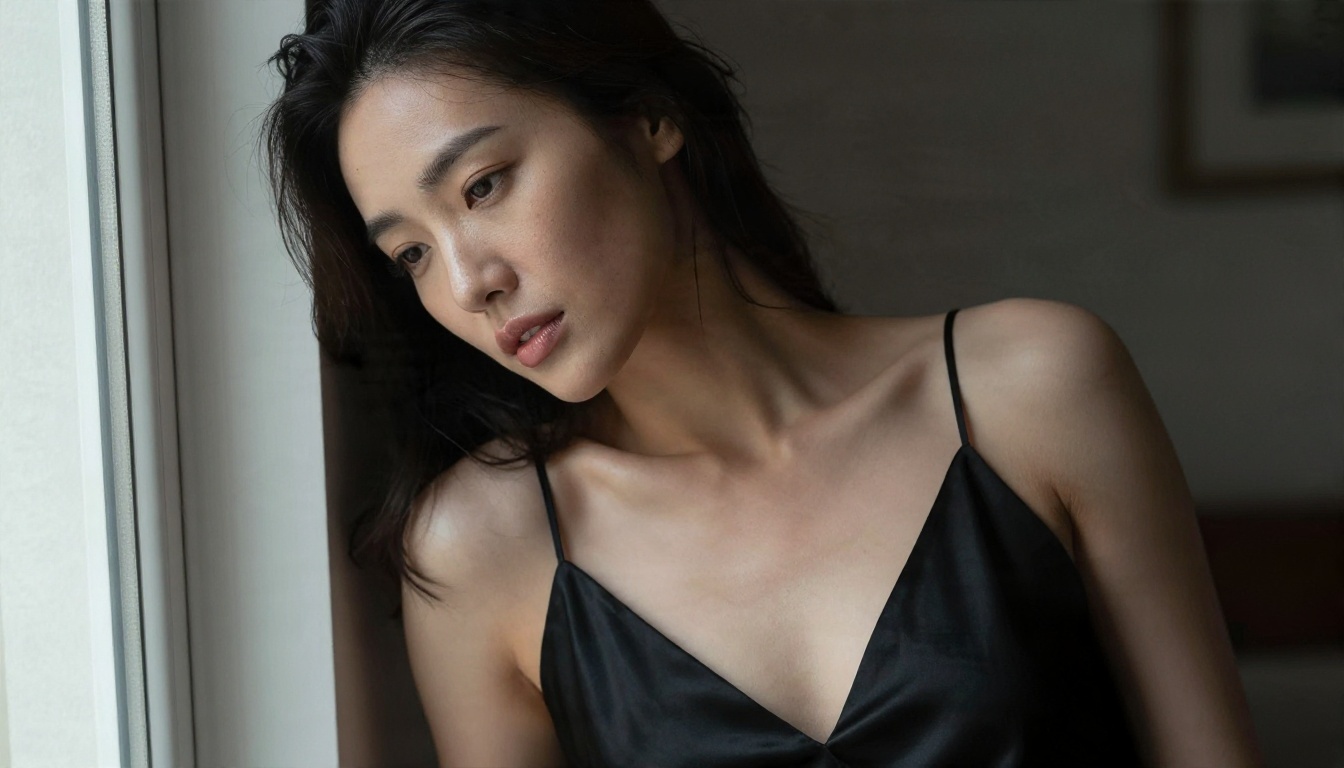
What works well here:
- Satin, silk and lace. Fabrics with clear highlights read well in motion.
- Small gestures. A head turn, a breath, a hand through the hair.
- Muted palettes. Black, cream, champagne and deep red.
How to Use PicassoIA Reference To Video
Here is the full workflow with PicassoIA Reference To Video, from blank page to finished clip.
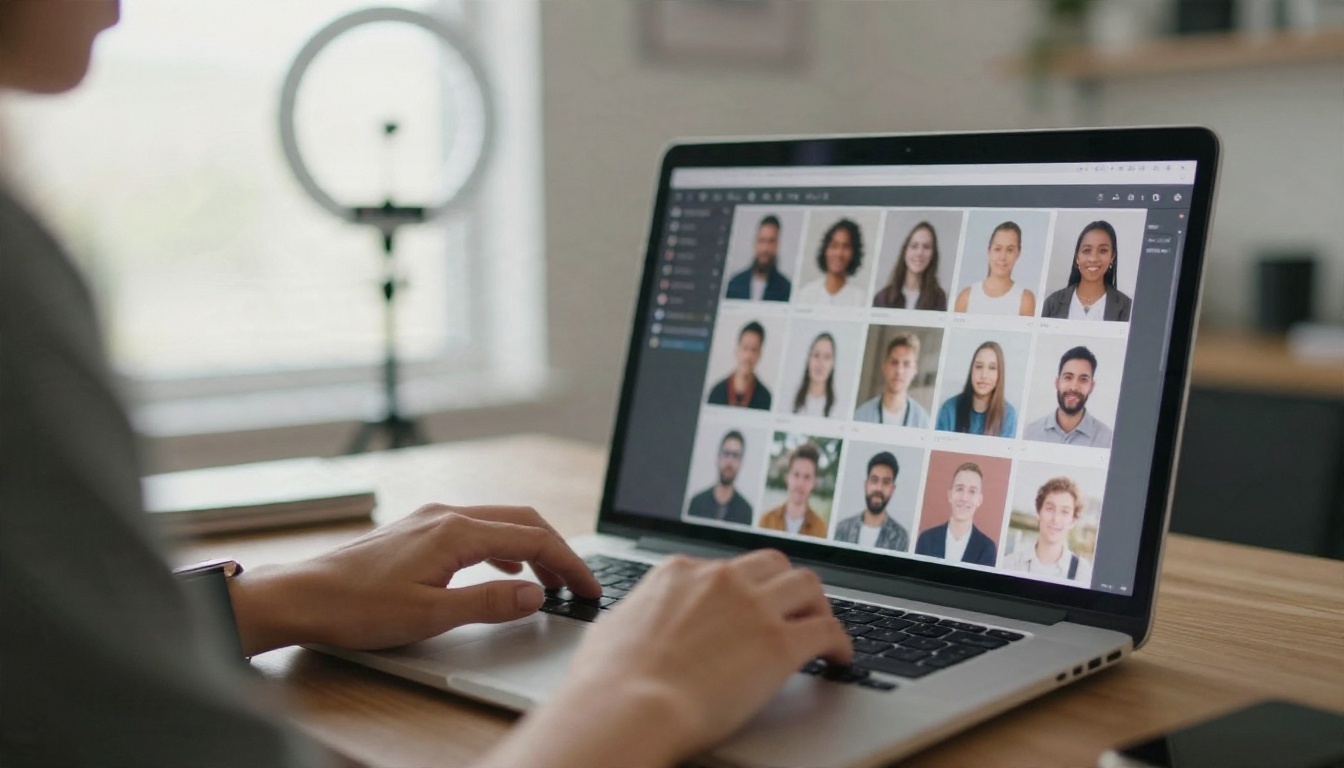
Step by step
- Prepare 3 to 9 images. Generate them with Seedream 4.5 or edit them in Image Editor Pro. Include face views, a full-body shot, the outfit and the location.
- Open the model page and upload the images in the order you plan to reference them.
- Write the prompt with "Image 1", "Image 2" and so on, using the template above.
- Optional: add a reference video. Use a short clip with the camera move or motion you want. Refer to it as "Video 1".
- Optional: add audio. A voice or music file. Refer to it as "Audio 1".
- Set resolution and duration. Start with 480p and 5 seconds for drafts.
- Generate, review, adjust. Change one thing at a time: the prompt, then the references, then the seed.
- Render the final version at 720p once the draft looks right.
Parameter tips
| Parameter | Recommendation |
|---|
| Resolution | 480p for tests, 720p for the final clip |
| Duration | 5 seconds for lip sync and tight consistency, up to 15 for scenes |
| Aspect ratio | 9:16 for social, 16:9 for web and trailers |
| Video strength | High to copy camera and timing closely, medium or low for looser results |
| Seed | Lock it once you like a result, then change only the prompt |
| Save audio | Turn it off if you plan to add your own soundtrack later |
💡 If a clip drifts, the fix is almost always in the references, not the prompt. Add a better face view before you rewrite anything.
For longer shots, Bruma Reference to Video follows the same steps with up to 10 images, clips up to 30 seconds and 1080p output.
The Real Limits
Content boundaries
Be clear on what to expect. These tools are suited to suggestive, non-explicit work: swimwear, glamour, boudoir styling, implied intimacy. Content filters differ from model to model and can change, so a prompt that passes on one model may be refused on another. If a clip is blocked, simplify the wording and lean on styling and mood rather than explicit detail. Never use real people's likeness without their consent, and never depict anyone under 18.
Length, resolution and lip sync
| Limit | What to expect |
|---|
| Reference images | 9 in Ref2Video, 10 in Bruma |
| Clip length | Up to 15 seconds in Ref2Video, up to 30 in Bruma |
| Resolution | 480p or 720p in Ref2Video, up to 1080p in Bruma |
| Lip sync | Most exact in clips of 5 seconds or less |
| Free tier | Unlimited only on eligible plans, and 720p beyond 5 seconds can cost credits on Elite |
Common mistakes
- Only one face photo. The model invents everything else. Upload several angles.
- Style mixing. A film-grain reference and a glossy studio reference confuse the look. Keep the set consistent.
- Too much action. Running, spinning and changing outfits in one clip breaks identity first.
- Skipping drafts. Rendering a 15-second 720p clip before testing a 5-second 480p one wastes credits.
- Ignoring hands and fabric. Check them in the draft; they drift before faces do.
Start Building Your Own Clips
The workflow is simple once you have done it once: build a small, consistent photo set, upload it as references, write one clear action, and render a short draft. Begin with Seedream 4.5 for the stills, refine them in PicassoIA Image Editor Pro with its unlimited generations, then bring them to life in Ref2Video. Uncensored creative freedom within sensible boundaries, plus fast renders, makes the whole pipeline practical for creators who need volume.
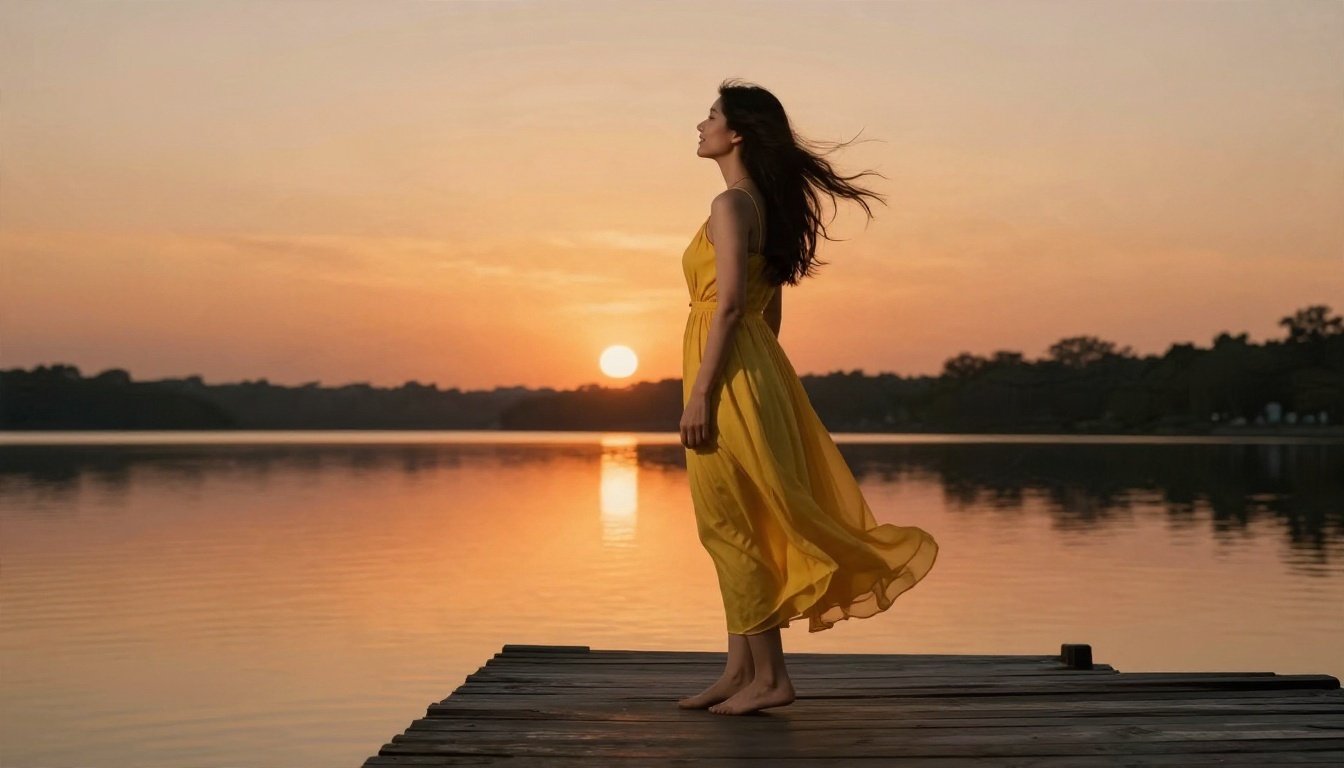
Pick one character, one outfit and one location, and make your first 5-second clip today. When you want to try other models for images, video or editing, browse everything at picassoia.com/en/all-models.


