Every video creator has been there: you sit down to edit a 20-minute recording and realize 40% of it is "um," "uh," "like," "you know," and a trail of half-formed sentences. Cutting those manually, frame by frame, used to eat entire afternoons. AI changes that entirely. Modern speech-to-text engines now produce word-level timestamps, which means software knows exactly when every filler word starts and ends in your audio. What used to take three hours now takes three minutes.
This article breaks down exactly how filler word removal with AI works, which tools handle it best, and how to build a repeatable workflow, whether you are a solo YouTube creator, a podcast producer, or a corporate video team cleaning up interview footage.
What Counts as a Filler Word
Not every pause is a problem. But there is a specific category of spoken habits that consistently makes video content feel unprepared, slow, and hard to watch. Knowing exactly what to target is the first step.
The Usual Suspects
The most common filler words and sounds that AI tools are trained to detect include:
- Voiced hesitations: "um," "uh," "er," "ah"
- Filler phrases: "you know," "I mean," "kind of," "sort of," "basically," "literally"
- False starts: sentences that begin, stop, and restart with slightly different wording
- Long unnatural pauses: silence gaps over 1-2 seconds that break speech rhythm
- Repeated words: "it's, it's kind of like..."
💡 Pro tip: The average person inserts a filler sound roughly every 2-3 sentences. In a 10-minute video, that can mean 60-80 individual cuts waiting to happen.
Why They Actually Hurt You
Filler words do not just sound unprofessional. They actively damage how viewers perceive your credibility. Studies on presentation perception consistently show that speakers with high filler-word frequency are rated lower on competence and authority, even when the content itself is strong.
For video specifically, each "um" also means dead audio time. On platforms where viewers skip within the first 5 seconds of boredom, a slow, filler-heavy intro is a direct hit to your watch time metrics. Advertisers, clients, and audiences all respond better to tight, confident speech, and the difference between an edited and unedited recording is immediately audible.

How AI Actually Detects and Removes Them
The process behind AI filler word removal is not complex when you break it down. It combines two technologies that have matured enormously in the last two years: speech recognition and word-level timestamp alignment.
Step 1: Transcription Comes First
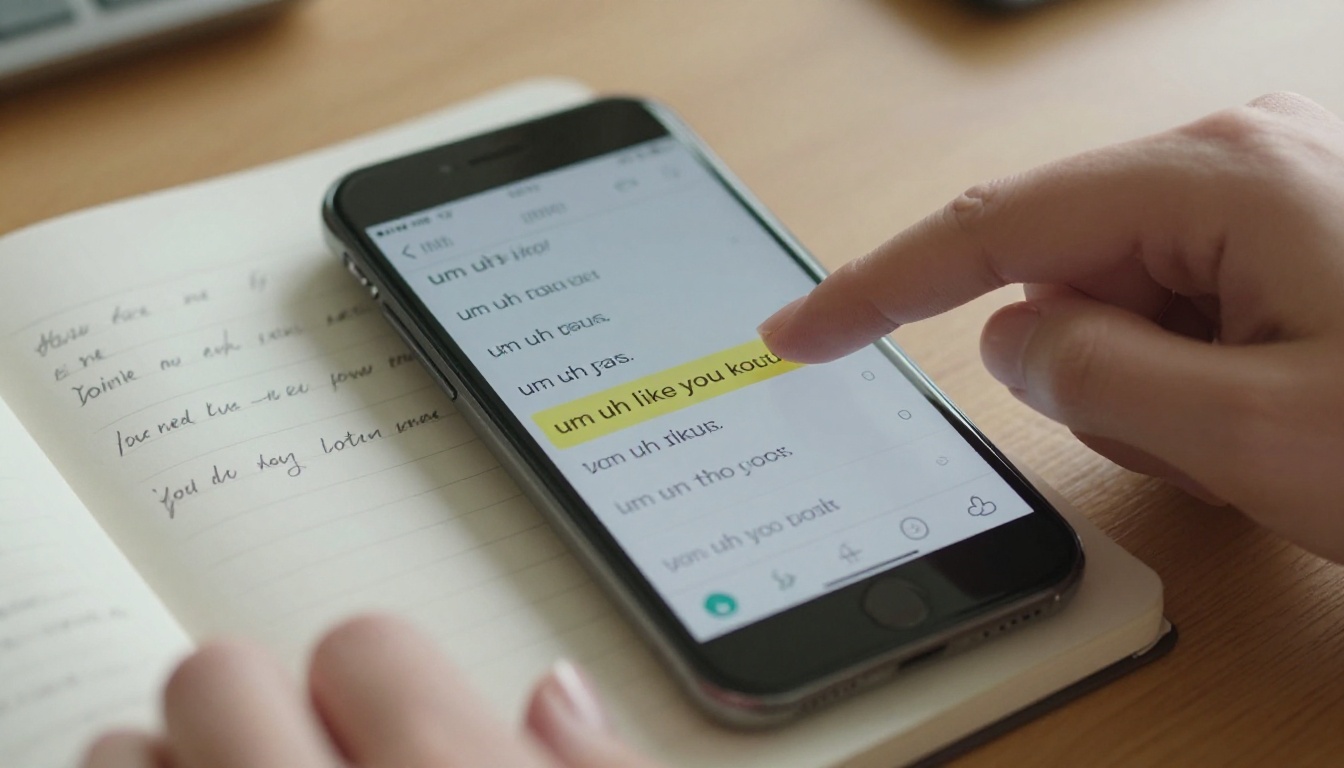
Before any filler word can be removed, the AI needs to know what was said and exactly when. This is where speech-to-text models come in. Tools like GPT 4o Transcribe do not just return a block of text. They return a timestamped transcript where each word has a start time and end time in milliseconds.
So "um" at 00:02:14.3 to 00:02:14.7 becomes a precise audio segment that a cutting algorithm can target directly. No manual scrubbing required.
Granite Speech 4.1 2B by IBM takes a similar approach and works especially well with multilingual content, handling six languages while still producing word-level timing data. For creators working across languages, this is a significant advantage in building a consistent audio cleanup workflow.
Word-Level Timestamps Are the Secret
Not all transcription is equal. Traditional transcription returns a wall of text. What you need for filler removal is word-level transcript alignment, where every single word in the output is tied to a millisecond-precise position in the audio file.
Once you have that, a script or an AI tool can do the following automatically:
- Scan the transcript for every flagged filler word
- Look up its start and end timestamp
- Queue that segment for deletion
- Join the surrounding audio cleanly with the specified padding
The result is an audio track with every "um" and "uh" surgically removed, with the surrounding words stitched together naturally, preserving the intended meaning and flow of every sentence.
The Two Main AI Methods
There are two distinct approaches to AI filler word removal, and they suit different workflows. Knowing which one to use depends on how much control you want over the final edit.
Transcript-Based Auto-Cutting
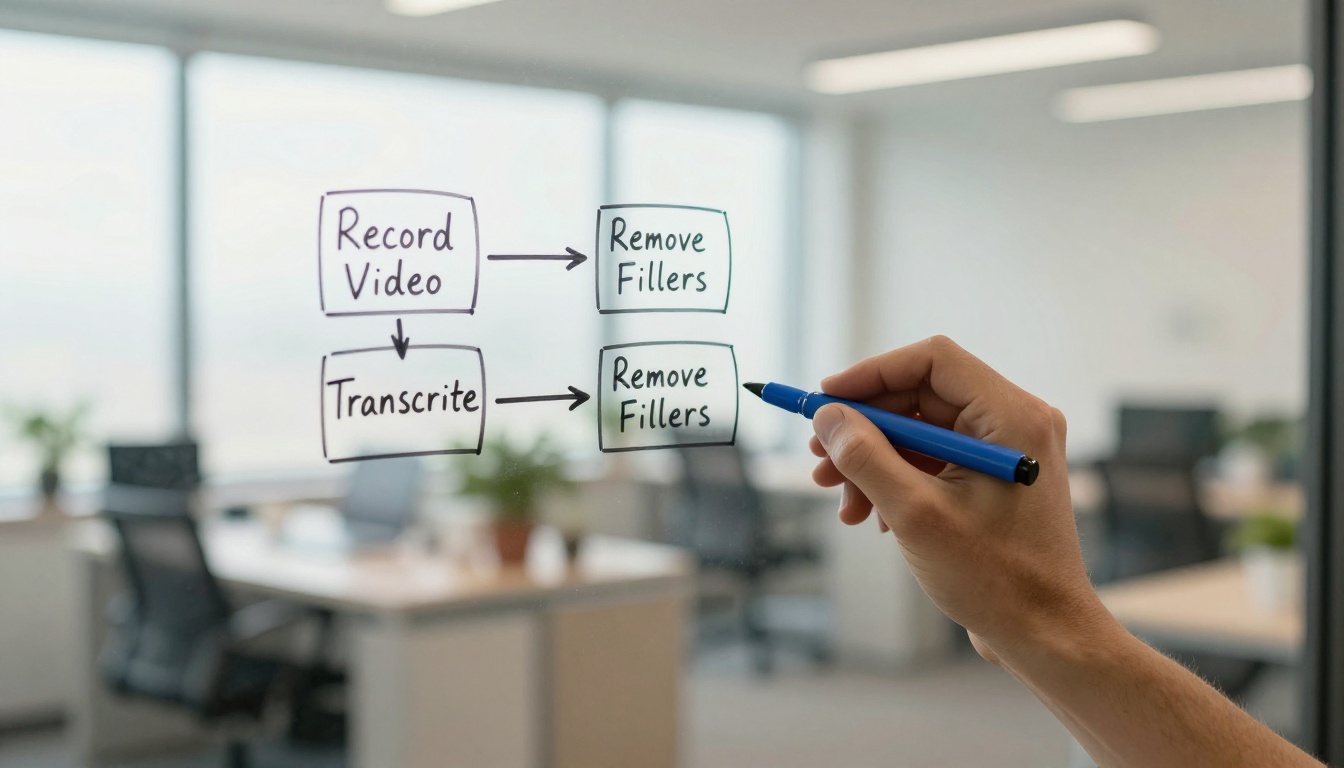
This is the fastest method. You upload your video, the AI transcribes it, flags every filler word in the transcript, and you click a button to delete them all at once. Some platforms let you review each cut before confirming.
The advantage is speed: a 20-minute video with 80 filler words can be cleaned up in under 5 minutes. The downside is that automatic cutting occasionally joins two words too tightly, creating an unnatural rhythm. Most tools include a small padding parameter, usually 50-100ms, to prevent this. Setting it correctly is the difference between natural-sounding speech and a robotic staccato delivery.
Text-Driven Video Editing
A more surgical approach: you use a text-based video editor, edit the transcript like a document, and the video updates to match. Delete a word in the text, and the corresponding video frame is cut automatically.
Lucy Edit 2 by Decart works exactly this way. It renders your video timeline as editable text. Highlight "um" in the transcript, hit delete, and that spoken moment disappears from the video. This method is slower than auto-cut but gives you full creative control over which cuts feel natural and which ones would disrupt the conversational flow.
Wan 2.7 Videoedit takes this further with instruction-based editing, where you type a command like "remove all hesitation sounds" and the model interprets and executes that across the entire timeline.

How to Transcribe Your Video on PicassoIA
Since transcription is the backbone of the entire workflow, getting it right is critical. PicassoIA provides direct access to the best speech-to-text models available, without separate subscriptions or API keys.
Using GPT 4o Transcribe
GPT 4o Transcribe is one of the most accurate speech-to-text models available for English-language content. Here is how to use it for filler word removal:
- Extract the audio from your video first. Use Extract Audio on PicassoIA to pull a clean MP3 or WAV from any video file.
- Upload to GPT 4o Transcribe and request a word-level timestamped transcript.
- Copy the output, which includes precise start and end times for every word.
- Identify filler words by reviewing manually or running a search across the transcript text.
- Mark the timestamps of every flagged word before moving to the cutting step.
💡 Efficiency tip: For videos under 15 minutes, GPT 4o Transcribe typically returns a complete timestamped result in under 60 seconds.
Alternatively, GPT 4o Mini Transcribe is a cost-effective option for high-volume or longer recordings where budget per-minute matters. It trades a small margin of accuracy for significantly faster and cheaper processing, making it ideal for daily podcast production pipelines.
What to Do with the Output
The transcript is your edit blueprint. You have two paths from here: take it into a text-based video editor, or use the timestamps to manually trim specific segments using Trim Video on PicassoIA.
For creators comfortable with a bit of technical workflow, you can also export timestamps as a JSON list and feed them to an automated cutting script. This is how many high-volume podcast editors process daily episodes without touching a timeline manually.
Editing the Cut: Text-Based Video Tools
After transcription, the second step is turning the transcript edit into actual video cuts. Text-based video editing is now the fastest path from raw recording to polished output.
Lucy Edit 2: Edit by Typing
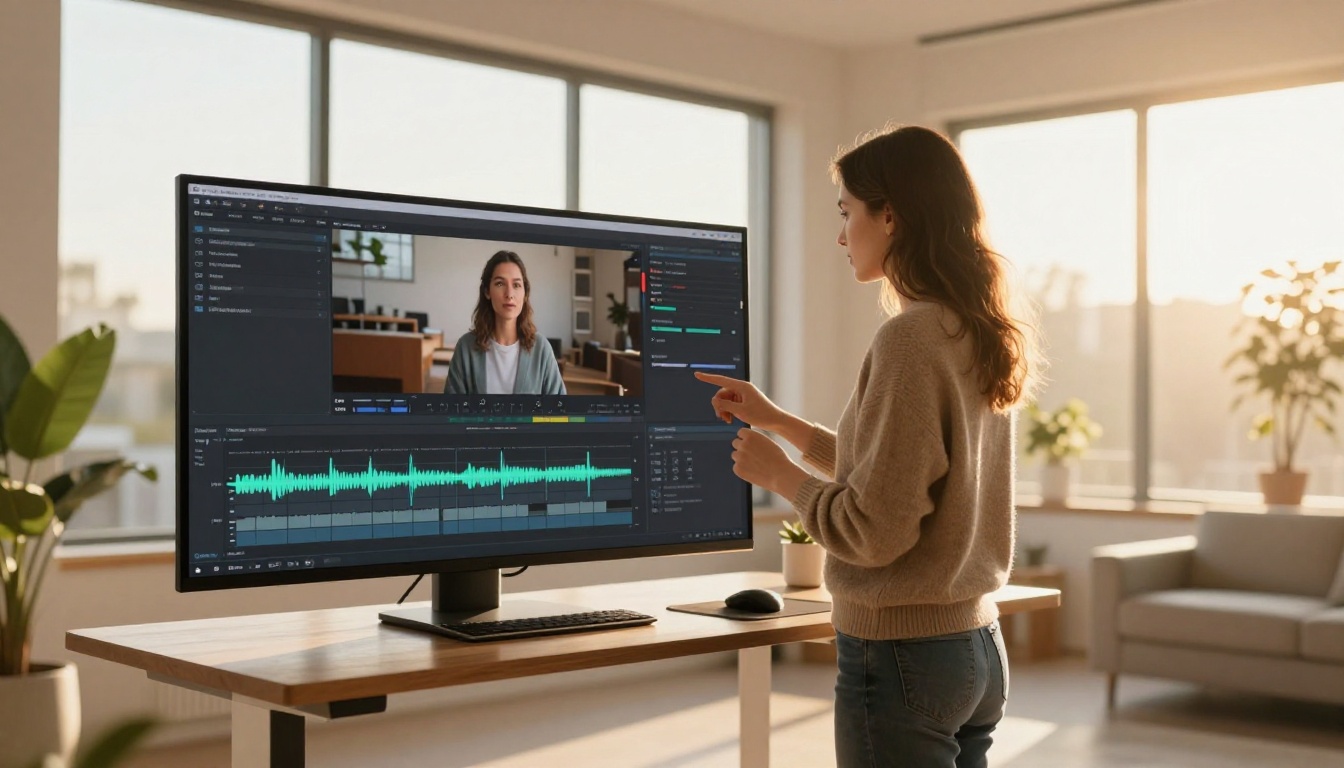
Lucy Edit 2 is purpose-built for this use case. Once you load your video, it displays the full transcript as editable text alongside the video timeline. The editing experience feels more like working in a document than using a traditional video editor:
- Select any word or phrase in the transcript
- Press delete to remove that spoken segment from the video
- The surrounding clips automatically close the gap
- Playback updates in real time to preview the cut
For filler word removal, this means you can scan the text visually, highlight every "um" and "uh," and remove them all in a single editing pass without ever touching the timeline scrubber.
Wan 2.7 Videoedit: Instruction-Based Cuts
Wan 2.7 Videoedit handles this differently. Instead of editing text manually, you type an instruction and the AI interprets it. For filler word cleanup, a prompt like "cut all instances of um, uh, and you know from the audio" is enough for the model to process the video and return a cleaned version.
This is especially useful for creators who want a hands-off first pass before doing any manual refinement. The time savings are substantial on long-form content over 30 minutes.
Filler word removal is not one-size-fits-all. Different content types have different tolerances and different editing priorities.
For YouTube Creators
Speed matters most. Turnaround between recording and publishing is often 24-48 hours. The best workflow: auto-transcribe with GPT 4o Transcribe, run an auto-cut pass with a text-based editor, then do one manual review playback to catch any awkward joins. Total time saved: 60-80% compared to frame-by-frame manual editing.
After cleanup, add captions using Autocaption to improve accessibility and watch time. Clean audio makes caption sync significantly more accurate, and a well-captioned video retains viewers who watch without sound.
For Podcast Editors
Audio quality is everything in podcasting. A single "um" slipping through is not a disaster, but 40 of them across a 60-minute episode signals unprepared guests and sloppy production.
For podcasts, GPT 4o Mini Transcribe is cost-effective for high-volume processing. Run the transcript through a filler detection pass, export the cut list, and apply it to the audio file. Then use Video Audio Merge to reattach the cleaned audio to your video recording cleanly.
For Corporate Video Teams
Corporate use cases often involve interview footage, training videos, or executive presentations. The stakes are different here: you need to preserve natural speech rhythm even after removing fillers, because overly choppy edits look unprofessional in a different way.
The recommendation: use Lucy Edit 2 for its visual transcript interface, which lets editors review each cut in context before committing. Add padding around cuts of 80-100ms to avoid the robotic splice effect that makes edited speech immediately obvious to a trained ear.

3 Mistakes That Slow Down Your Edit
Even with good AI tools, these three errors consistently cause problems and require time-consuming fixes after the fact.
1. Removing every filler without context
Not every filler word signals weak content. A natural "you know" in conversational dialogue sometimes functions as a connector between ideas. Removing 100% of them can make speech sound robotic or over-produced. Review your transcript before mass-deleting: some should stay.
2. Skipping the padding adjustment
When two words are stitched together with zero gap, the result sounds like one continuous word with no breath between them. Most AI cutting tools default to zero padding. Set it to 50-80ms as a starting point and adjust by ear after previewing the cut.
3. Using low-accuracy transcription
If the transcription model misidentifies words or loses timing accuracy, your cuts land on the wrong frames. Always use a high-accuracy model like GPT 4o Transcribe or Gemini 3 Pro for precision editing tasks.
| Mistake | Result | Fix |
|---|
| Removing every filler | Robotic, unnatural speech | Review context before deleting |
| Zero padding on cuts | Words blend unnaturally | Set 50-80ms buffer |
| Low-accuracy transcription | Cuts land on wrong frames | Use GPT 4o or Gemini 3 Pro |
Your Next Video Should Sound Different
The gap between a raw recording and a polished, professional video is almost entirely in the audio cleanup. Filler words are the easiest thing to fix, and AI makes it faster than any manual method ever could.
Start with your next recording. Transcribe it with GPT 4o Transcribe on PicassoIA, load the output into Lucy Edit 2, and run one transcript-based cleanup pass. Most creators report their first AI-cleaned video takes under 15 minutes from upload to export.
Once you hear the difference, manual filler cutting will feel like a relic of a slower era.
From there, check what else PicassoIA's video tools can do for your content: upscale footage with Real ESRGAN Video, add contextual sound effects with Thinksound, or add polished word-level captions with Autocaption. A full post-production workflow in one platform.