That perfect photo you took at the Colosseum, at your friend's wedding, or on a quiet beach, has a problem: a stranger staring directly into the camera from just over your shoulder. It happens to everyone. And for years, fixing it meant either accepting the ruined shot or paying someone with serious Photoshop skills. AI has changed that completely.
Today, removing photobombers from pictures is a task that takes seconds, not hours. The results are seamless. The background fills in naturally. And you do not need to know anything about layers, masks, or clone stamps to get it done.

Why Photobombers Are So Hard to Fix Manually
Removing an unwanted person from a photo sounds straightforward until you actually try it. The real challenge is not selecting the person, it is what happens to the background where they stood.
If someone is in front of a complex background, like a crowd, a detailed building facade, or a natural landscape, manually reconstructing that background requires expertise. You need to understand perspective, lighting, texture, and color matching. A human editor can do it, but it takes time and money.
The Old Way vs. the AI Way
| Method | Time Required | Skill Needed | Cost |
|---|
| Manual Photoshop editing | 30 min to 2 hours | High | $30-$150 per image |
| Basic eraser tools | 10-20 min | Medium | Free but poor results |
| AI-powered removal | Under 60 seconds | None | Free or low cost |
The difference is not just speed. AI tools analyze the entire image context. They understand what the background should look like based on surrounding pixels, perspective cues, and millions of trained examples. The fill-in is not guesswork. It is inference.
How AI Actually Removes Photobombers
The technology behind AI photobomber removal combines two main approaches: object segmentation and inpainting.
Object Segmentation
The AI first identifies the photobomber as a distinct object in the image. Modern segmentation models can detect human figures with remarkable precision, distinguishing the person from objects they are holding, shadows they cast, and reflections they appear in. This step creates a precise mask around the unwanted subject.
Inpainting: Filling the Gap
Once the mask exists, an inpainting model takes over. It looks at the surrounding pixels to reconstruct what the background should look like behind the removed figure. For simple backgrounds like a clear sky or a plain wall, this is trivial. For complex scenes like a busy street or a natural landscape, the AI draws on deep training to generate a believable continuation of the background.
💡 The best results come from photos where the photobomber does not occupy more than 30-40% of the frame. When someone takes up too much of the image, even the best AI has less background context to work with.
Why Some Photos Are Harder Than Others
Not every photobomber removal goes smoothly. Several factors affect output quality:
- Overlap with main subjects: If the photobomber is physically in contact with your subject, shadows and edges become entangled.
- Background complexity: A detailed brick wall is easier to reconstruct than a crowd of moving people.
- Lighting consistency: A photobomber who is in strong directional light casts shadows that also need to be removed.
- Image resolution: Higher resolution images give the AI more pixel data to work with, producing cleaner fills.
The AI photo editing space has exploded with options. Here is an honest breakdown of what is out there and when each approach makes sense.
Dedicated Removal Tools
Some tools are built specifically for object removal. They offer a simple interface: upload, paint over the unwanted area, click remove. These work well for straightforward cases but struggle with complex backgrounds.
General AI Image Editors with Inpainting
More powerful options are found in platforms that offer full inpainting capabilities. With inpainting, you select the area to remove and the AI reconstructs the background. This gives you more control and better results for complex scenes.
On Picasso IA, the Qwen Image Edit Plus model handles object removal through natural language prompts. You can literally type "remove the person in the background" and the model understands what you mean. For more structured editing with precise masking control, BRIA Fibo Edit offers a robust inpainting workflow that excels at background reconstruction.
Background Removal as a Starting Point
Sometimes removing the background entirely is a valid first step, especially when you want to composite your subjects into a new image. The BRIA Remove Background model on Picasso IA does this with clean, precise cutouts that preserve hair and fine edge details.
💡 Background removal + compositing is a powerful workflow: Remove the background, place subjects on a new or reconstructed background, and you completely sidestep the photobomber problem.

How to Remove Photobombers on Picasso IA
Picasso IA gives you multiple paths depending on the complexity of your photo. Here is the most effective workflow for common photobomber scenarios.
Step 1: Open the Right Model
For text-guided removal, navigate to Qwen Image Edit Plus on Picasso IA. This model accepts an input image and a text instruction, making it the most accessible option for non-technical users.
Alternatively, if you want pixel-level masking control, open BRIA Fibo Edit which lets you paint directly over the area you want removed.
Step 2: Upload Your Photo
Upload the original image. Keep the file at its original resolution when possible. Higher resolution means more data for the AI to reconstruct the background accurately.
Step 3: Describe or Mask the Problem Area
For text-guided models: Write a clear, specific instruction. Instead of "remove the person," try "remove the man in the red jacket standing in the background on the left side." Specificity dramatically improves accuracy.
For masking models: Use the brush tool to paint over the photobomber. Paint slightly beyond their edges to catch any motion blur or shadow they cast.
Step 4: Generate and Compare
Run the generation. Most Picasso IA models produce results in under 30 seconds. Compare the output carefully, especially around the edges of where the person was standing.
Step 5: Refine if Needed
If the first result has small artifacts or inconsistencies, run the generation again. AI models have inherent randomness, and a second or third attempt often produces a cleaner result. You can also use Qwen Image Edit Plus again to fix small remaining issues with a targeted instruction like "fix the background texture near the center."
Common Mistakes That Ruin Photobomber Removal
Even with great AI tools, bad inputs produce bad outputs. These are the mistakes that consistently cause problems.
Selecting Too Tight
When you mask or select a photobomber, do not trace exactly along their outline. Leave a 10-15 pixel buffer around them. This ensures the AI also removes any shadows, halos, or subtle color contamination their presence caused.
Ignoring Shadows
A photobomber in bright sunlight casts a shadow. If you remove the person but leave the shadow, the image will look wrong immediately. Always check for cast shadows and include them in your selection.
Using Low-Resolution Compressed Images
JPEGs that have been compressed multiple times carry artifacts. When the AI tries to reconstruct a background from heavily compressed data, those artifacts get amplified. Use the highest quality version of your image whenever possible.
Not Checking Edge Quality
After removal, zoom in to 100% and inspect the edges of where the person was. Look for unnatural color transitions, blurred areas, or repeating texture patterns. These are signs the reconstruction was not clean and need another pass.
💡 Before and after zoomed comparison is not optional. What looks fine at thumbnail size can have obvious artifacts at full resolution.

Realistic Expectations by Photo Type
Not all photobomber situations are equal. Here is what you can realistically expect from AI removal across different scenarios.
Simple Background Photobombers
Situation: A stranger walks into a shot with a clear sky, ocean, or plain wall behind them.
AI Performance: Excellent. Near-perfect reconstruction almost every time.
Difficulty: Low
Mid-Ground Crowd Photobombers
Situation: Someone stands out in a crowd but the background is other people.
AI Performance: Good. The AI will reconstruct a plausible crowd behind them, though specific individuals in the background may shift slightly.
Difficulty: Medium
Complex Architecture Backgrounds
Situation: A photobomber stands in front of detailed stonework, windows, or repeating patterns.
AI Performance: Variable. Repeating patterns are actually easier because the AI can tile or extend them. Irregular, complex structures are harder.
Difficulty: Medium to High
Tight Group Shots
Situation: The photobomber is wedged between your intended subjects.
AI Performance: Challenging. The AI needs to reconstruct both background and the edges of your subjects in the same region.
Difficulty: High
Full-Frame Photobombers
Situation: Someone takes up 50%+ of the frame, directly in front of your subject.
AI Performance: Poor. There is simply not enough background context for the AI to infer what should be there.
Difficulty: Very High
Beyond Removal: Using AI to Fix the Whole Photo
Once the photobomber is gone, you often notice that the photo has other issues you had accepted because they seemed unfixable. AI tools on Picasso IA can address those too.
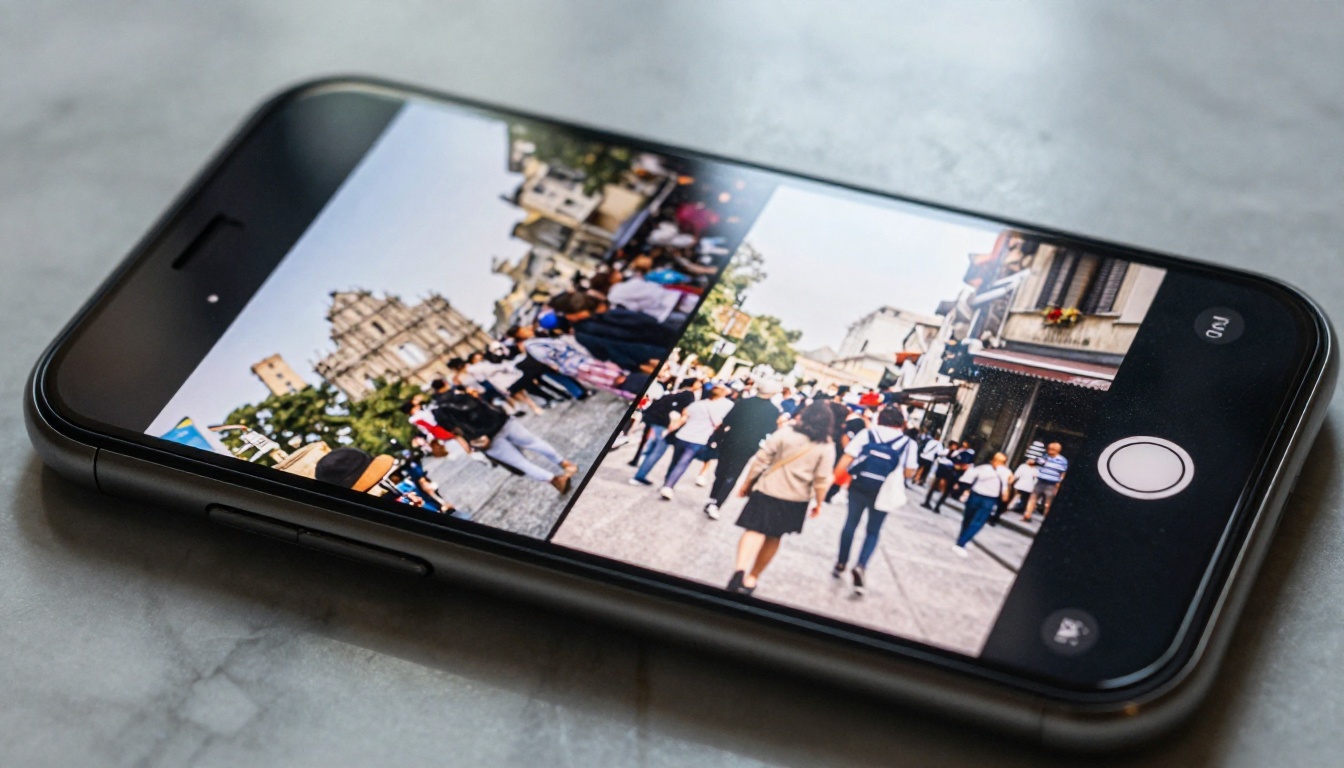
The Seedream 4.5 model can generate entirely new versions of a scene based on your cleaned-up photo. If the background fill does not look quite right, using a generative model to reimagine the entire background while keeping your subjects intact is a legitimate advanced technique.
For images that are blurry or low-resolution, combining photobomber removal with AI super-resolution produces dramatically better final results. Picasso IA offers super-resolution models that upscale images 2x to 4x while sharpening details, which means you can fix the photobomber problem and upgrade the overall quality in the same editing session.
💡 Batch editing tip: If you have a burst of photos from the same scene, all with the same photobomber, you can apply the same mask and prompt to each image in sequence. The background reconstruction will vary slightly between attempts, so choose the best result from each.
When to Call in a Human Editor
AI is not magic. There are specific scenarios where a professional human editor will outperform any AI tool currently available:
- Wedding photos where every pixel matters and the photobomber overlaps with the bride or groom
- Commercial photography where legal liability around modified images is a concern
- Photos with complex reflections of the photobomber in water, glass, or mirrors
- Images where the photobomber is partly behind your subject and reconstruction requires artistic judgment
For personal photos, travel memories, and social media content, AI handles 90% of real-world cases well enough that you will be completely satisfied with the result.

Try It on Your Own Photos
The best way to see what AI photobomber removal can do is to run it on a photo that has been sitting in your camera roll because a stranger ruined it. Every photo you thought was unsalvageable is a candidate.
Picasso IA puts these tools directly in your browser with no software installation required. Start with Qwen Image Edit Plus for text-guided removal, or try BRIA Remove Background if you want to rebuild the scene entirely around your subjects.
The photo you almost deleted might be your best shot of the trip. Give the AI a chance to prove it.


