Reusable Prompt Templates for Image Models That Actually Work
A detailed breakdown of how reusable prompt templates work across AI image models. Includes ready-to-use templates for portraits, landscapes, product shots, and architectural scenes, plus step-by-step setup instructions for Flux Schnell and Stable Diffusion on PicassoIA.
Writing a prompt from scratch for every image you need is one of the quietest drains on creative time there is. You remember a combination that worked last week but can't reconstruct it. You hit on a lighting phrase that makes portraits look alive, then lose it three sessions later. Reusable prompt templates fix that. They are structured, variable-ready text blocks you build once and reuse across every run, on any model, without starting over.
Why Templates Beat One-Off Prompts
The Iteration Tax
Every prompt you write from scratch costs you two things: time and consistency. The time part is obvious. The consistency problem is less talked about. When you assemble a prompt on the fly, you leave out modifiers you usually include, you phrase the lighting differently, you forget to specify the lens. The result might be fine, but it won't match last week's output, and that matters the moment you need a series of images that feel cohesive.
The iteration tax compounds fast. Say you generate thirty images in a session. If each one requires four attempts to land a usable result because you're improvising your prompts, you've done 120 generations to get 30. Templates cut that ratio dramatically. A well-built template with tested components routinely hits on the first or second run.
What "Reusable" Actually Means
A reusable prompt template is not just a saved prompt. It is a structured text block with clearly defined variable positions that you swap out while leaving the working scaffolding in place. The subject changes. The environment changes. The mood modifiers might change. But the lighting formula, the camera specification, the quality anchors, and the negative prompts stay constant because you've already proven those components work.
Think of it the way a cooking recipe works. The method is fixed. The ingredients are variables. You don't re-invent how to caramelize onions every time you make soup.
The Anatomy of a Good Template
Not every prompt template is built the same. The ones that hold up across hundreds of runs share three structural layers.
Subject, Scene, Lighting
The first layer defines what is in the frame. This splits into three parts: the subject (who or what), the environment (where), and the lighting (how the light behaves). Each part should be specific enough to give the model reliable direction but generic enough to accept substitution.
A weak version looks like this: a woman in a city, good lighting
A template version looks like this:
[SUBJECT], [SCENE], volumetric [LIGHT DIRECTION] from [LIGHT SOURCE], [ATMOSPHERE]
When filled: a woman in her thirties in casual clothing, standing on a rain-wet urban sidewalk at night, volumetric blue-white light from the left street lamp, cold mist in the mid-ground
The model has enough to work with. The variables in brackets are what you swap per image.
Camera Angle and Lens
Most people skip this layer. That is why their outputs look inconsistent. The camera specification controls the perspective, the depth of field, and the crop. Once you decide on a lens range and angle for a particular use case, lock it into the template.
Portraits: 85mm f/1.8, slight below-eye-level angle, shallow depth of field
Landscapes: 24mm wide-angle, slight downward angle, maximum depth of field
Product shots: 50mm f/2.8, eye-level, soft studio lighting
These specs travel with the template as fixed components. They define the look of the entire series.
Negative Prompts as a Filter
Negative prompts are the underrated half of a template. They tell the model what to avoid. For photorealistic work, a standard negative block removes most of the artifacts that break immersion:
cartoon, anime, illustration, digital art, CGI, 3D render,
plastic skin, oversaturated, watermark, text, logo, blurry,
distorted proportions, extra limbs, missing fingers
Set this block once and attach it to every template in a category. It is invisible in the output but essential to why your results look clean.
💡 Tip: Keep a master negative prompt list in a text file. Copy it into every new template. Update it whenever you find a new artifact to exclude.
Ready-to-Use Templates by Category
Below are four tested templates across the most common image categories. Each works on both Flux Schnell and Stable Diffusion.
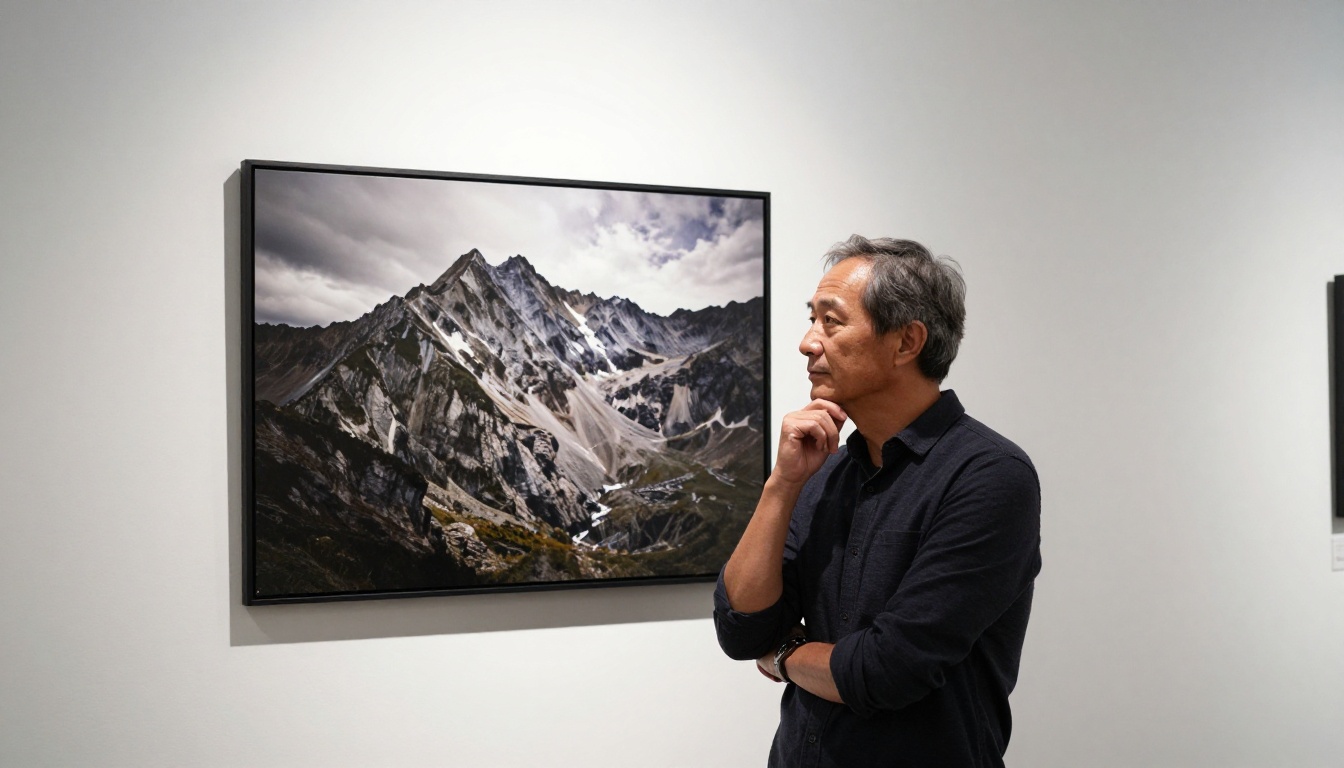
Portrait Templates
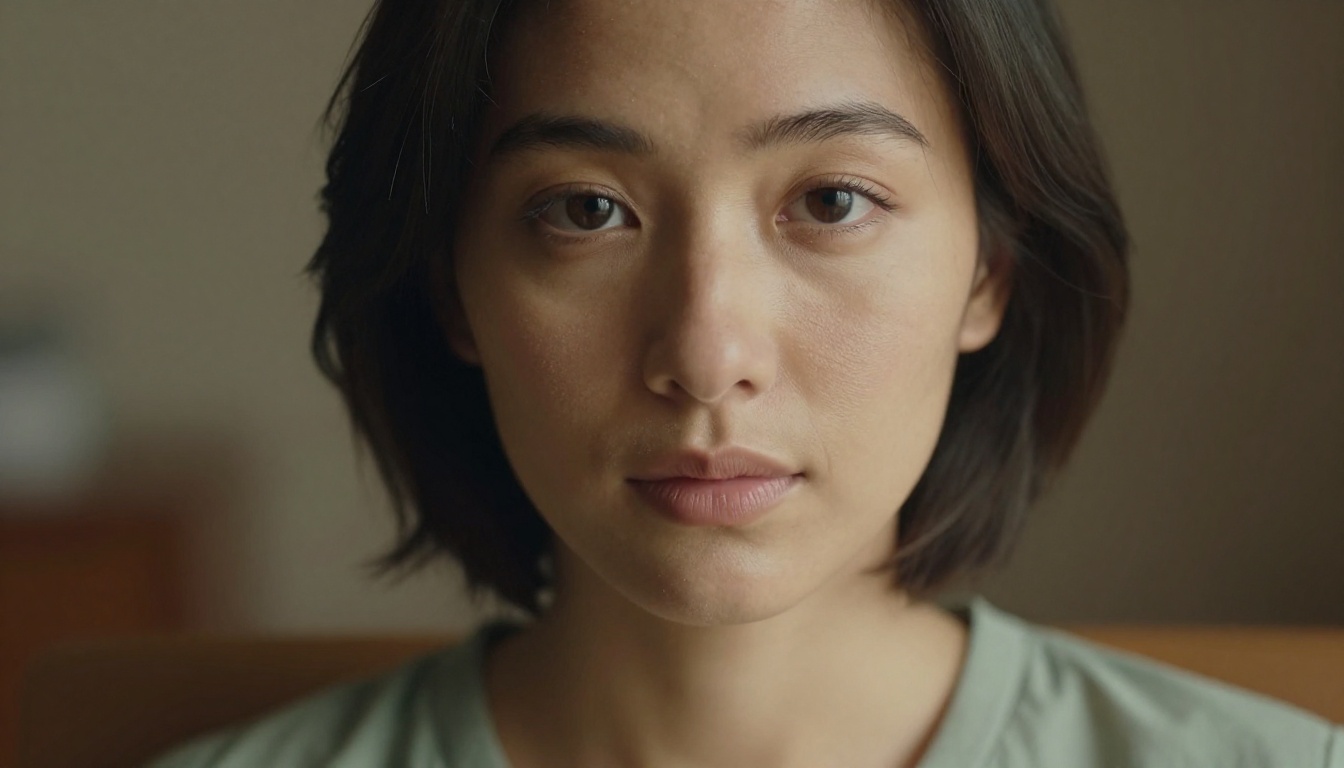
[SUBJECT DESCRIPTION], [EMOTIONAL TONE OR EXPRESSION],
shot from [ANGLE] angle, [LIGHT SOURCE] light from [LIGHT DIRECTION]
creating [LIGHTING STYLE] on the face,
background blurred to [BACKGROUND DESCRIPTION] bokeh,
85mm f/1.8 lens, visible skin texture, natural hair detail,
Kodak Portra 400 film grain, RAW 8K photorealistic portrait,
no retouching, no skin smoothing
Swap [SUBJECT DESCRIPTION] for any person description. Swap [LIGHTING STYLE] for Rembrandt, split, butterfly, or loop. The rest holds.
Landscape and Nature
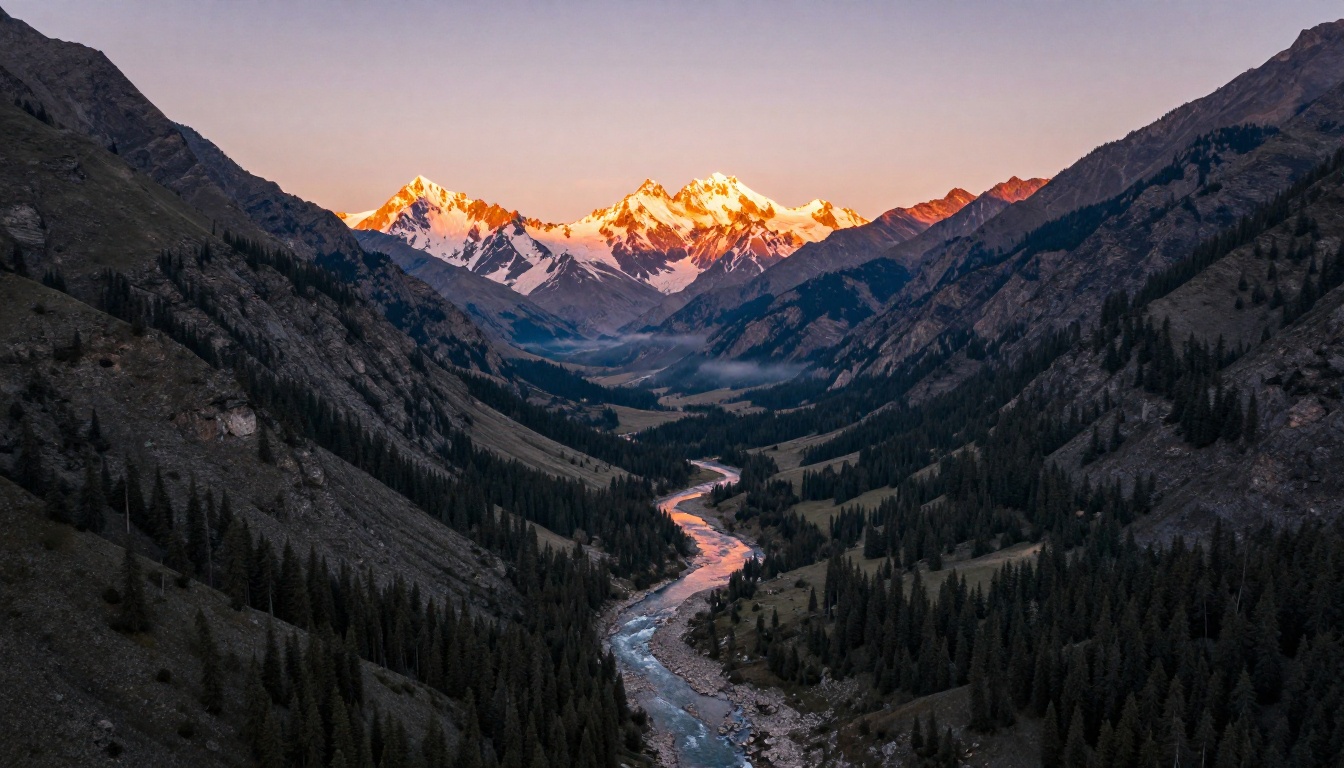
[SHOT TYPE] shot of [LANDSCAPE TYPE], [TIME OF DAY],
[FOREGROUND ELEMENT] in sharp focus with [TEXTURE DETAIL],
[BACKGROUND ELEMENT] receding into [ATMOSPHERIC CONDITION],
[LIGHT QUALITY] light from [DIRECTION],
24mm wide-angle lens, full depth of field,
Kodak Portra 400 color grading, RAW 8K photography,
no digital enhancement or saturation boost
Time of day is your primary variable here. The same template at golden hour, blue hour, and midday produces three completely different moods from identical terrain.
Product Photography
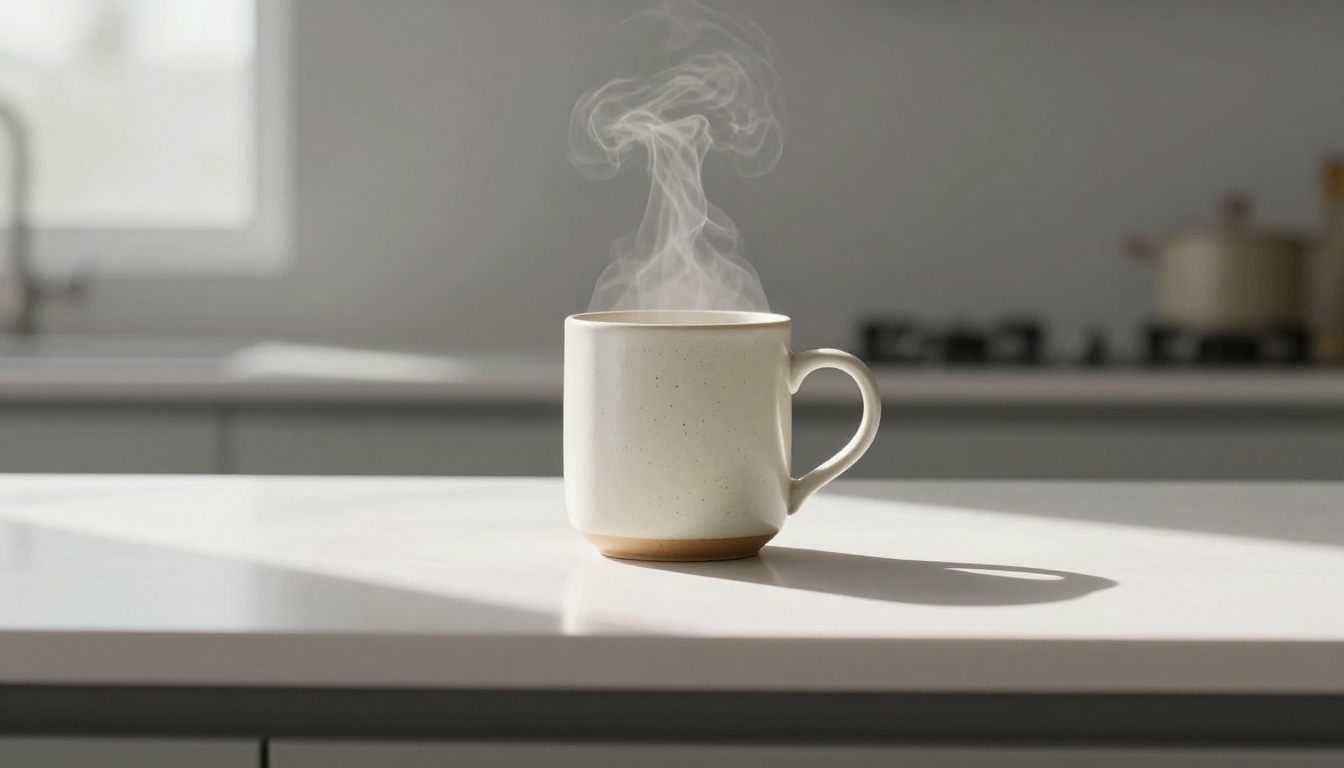
[PRODUCT NAME AND DESCRIPTION] on [SURFACE MATERIAL] surface,
[LIGHT SOURCE TYPE] light from [DIRECTION] creating [SHADOW STYLE],
[BACKGROUND COLOR OR TEXTURE] background,
50mm f/2.8 lens, eye-level angle,
ultra-sharp product surface texture including [MATERIAL DETAIL],
RAW 8K product photography, no digital manipulation
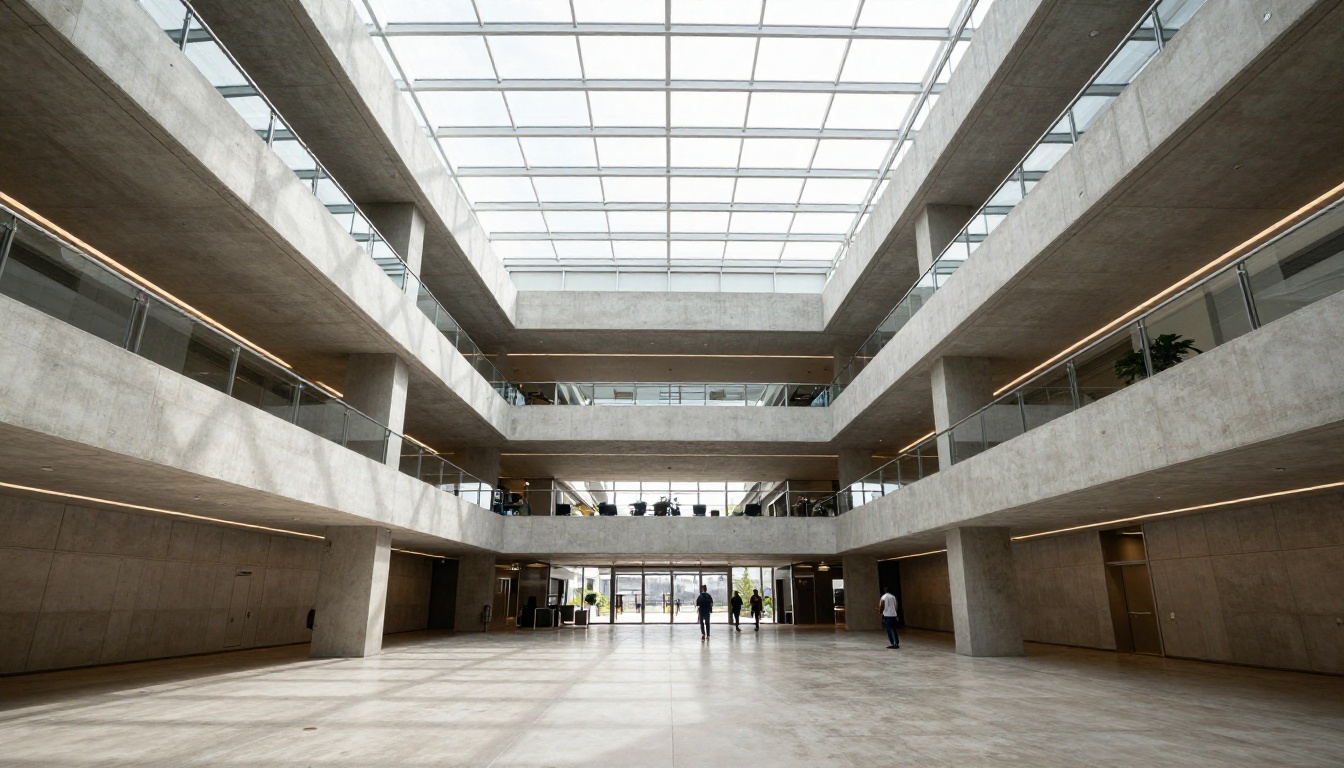
Architectural Scenes
[ANGLE] shot of [ARCHITECTURAL SPACE],
natural [LIGHT SOURCE] from [DIRECTION] casting [SHADOW TYPE]
on [SURFACE MATERIAL],
[HUMAN ELEMENT IF ANY] in background for scale,
16mm wide-angle lens, perspective distortion,
sharp [FOREGROUND MATERIAL TEXTURE] in foreground,
RAW 8K architectural photography, cool grey and warm white tones
How to Run Templates on Flux Schnell
Flux Schnell is built for speed. Four denoising steps, under five seconds per image, no credit caps on PicassoIA. That speed makes it ideal for template testing: run the same template ten times with minor variable substitutions and see which version wins before committing to longer-run models.
Paste your template into the prompt field with all variables filled in
Set Aspect Ratio to 16:9 for landscape outputs or 4:5 for portrait
Leave Go Fast enabled for speed-mode rendering
Set Output Format to PNG for maximum fidelity, or WebP for smaller files
Set Output Quality to 90-100 for final deliverables
Generate and review the result
Because Flux Schnell runs so fast, you can afford to run six to eight variations per template slot and pick the strongest one. No other model makes iteration this affordable.
Seeds for Reproducibility
Once you hit a result worth preserving, copy the Seed value from the output. Pasting that same seed back into the next run with a slightly modified prompt gives you controlled variation: same composition, different details.
This is how a template becomes a branching system. One seed becomes the trunk. Each prompt variation is a branch from it.
Using Templates with Stable Diffusion
Stable Diffusion on PicassoIA responds differently to templates than Flux does. It gives you more manual control through explicit parameters, and that control pairs naturally with a structured template approach.
Guidance Scale Settings
The guidance scale determines how literally the model interprets your prompt. A scale of 7-8 follows your text closely. A scale of 4-5 gives the model more creative latitude, which sometimes produces results the template didn't anticipate.
For template-based work where consistency is the goal, stay in the 7-8 range. When you want to see what the model contributes when given breathing room, drop to 5 and compare the outputs.
Scheduler Pairings
Scheduler
Steps
Best For
DPMSolverMultistep
30
General photorealistic work
K_Euler_Ancestral
50
Fine texture and skin detail
DDIM
20
Fast template variable testing
K_Euler
40
Landscape and wide-angle scenes
💡 Tip: Add the scheduler and step count as notes at the top of each template file. When you share a template, the recipient needs those settings to replicate your results.
Variables and Placeholders
The difference between a saved prompt and a real template is the presence of explicit variable slots. Variables are the parts you intend to change. Everything else is fixed infrastructure.
The Swap Method
Mark every variable in your template with brackets and a label: [SUBJECT], [SCENE], [TIME OF DAY], [LIGHT SOURCE]. Before each run, fill every bracket. Do not leave one empty. An unfilled bracket is an instruction to the model that it sometimes interprets literally and sometimes ignores, and both outcomes break your consistency.
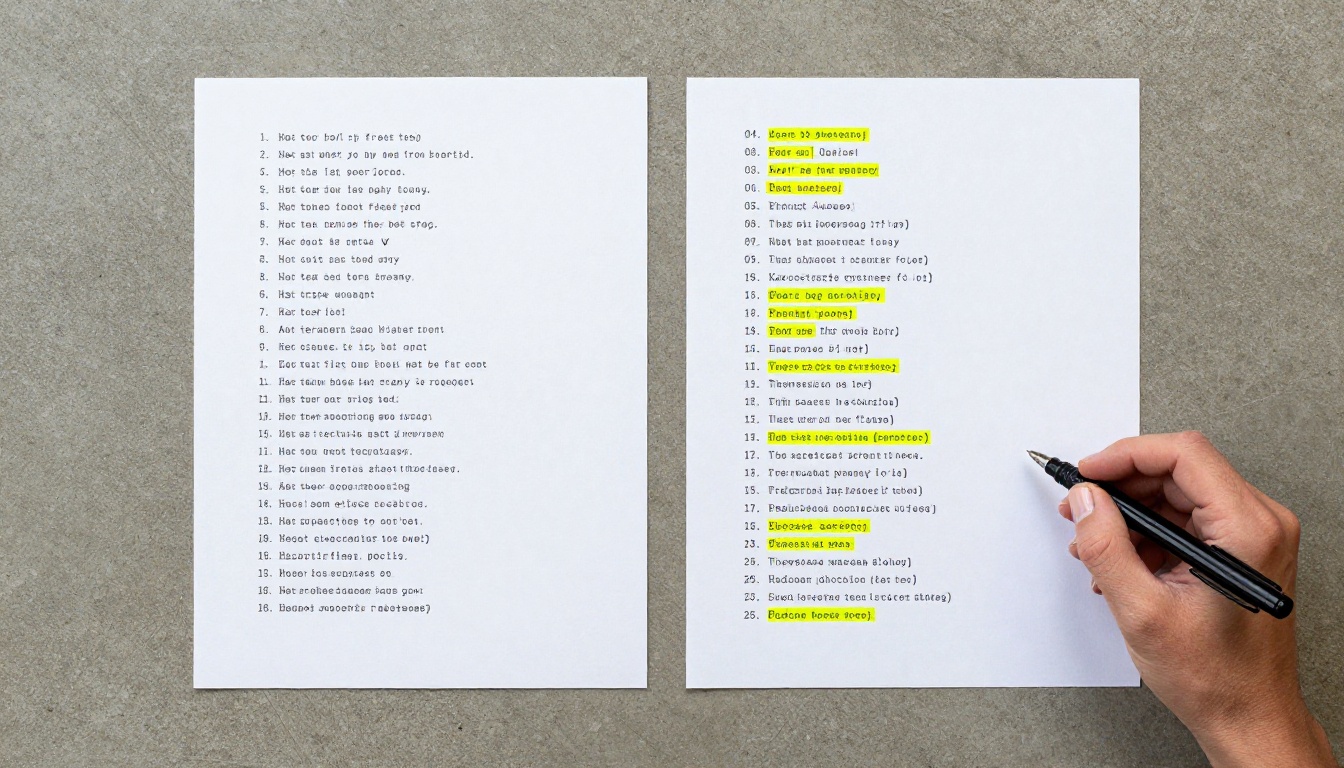
A simple swap sheet helps: a two-column table where the left column lists all the variables in your template and the right column holds the value for this specific run. Fill the right column, do a find-and-replace into the prompt field. Takes thirty seconds.
Style Modifiers as Plug-ins
Style modifiers are interchangeable components you slot into a fixed position in the template. They control the overall feel without touching the structure.
Common modifier sets:
Photorealism anchors: RAW 8K, Kodak Portra 400, film grain, no digital manipulation
Cinematic mood: anamorphic lens flare, cinematic color grade, wide color gamut
Editorial photography: editorial lighting, fashion magazine color palette, professional retouching
Documentary: photojournalism style, natural available light only, handheld camera feel
Pick one set per template category and hard-code it into the template. Do not mix sets in the same template. Each set has its own visual language, and mixing them produces incoherent results.
Building Your Own Library
A template library becomes valuable when organized for fast retrieval, not just storage. These two principles keep it usable as it grows.
Organize by Mood, Not Topic
The instinct is to organize by subject: Portraits, Landscapes, Products. That works until you need a moody portrait and a bright portrait and both portrait templates are filed in the same folder with nothing to tell them apart.
Organize by mood instead. A mood is a combination of lighting quality, color temperature, and atmosphere that defines how an image feels. Common mood categories:
Warm and intimate: golden hour, tungsten, close framing
Cold and spare: overcast, blue tones, wide negative space
High contrast dramatic: side lighting, deep shadows, tight crop
Soft and neutral: diffused light, muted palette, medium framing
Any subject fits any mood. Your library becomes a matrix: pick a subject template, pick a mood modifier set, combine them. You get consistent output across any topic without rebuilding anything from scratch.
When to Retire a Template
Templates degrade over time. Model updates change how specific phrases are interpreted. Negative prompts that once blocked cartoon artifacts stop working after certain model checkpoints. A template that produced solid results six months ago may now produce mediocre ones.
The signal is when a template consistently requires two or more revision runs to reach a usable image. Audit it: update the negative prompts, replace deprecated modifier phrases, test the lighting description against current model behavior.
Retire templates that take more than three attempts to produce any usable output. The scaffolding is broken. Build a replacement using what you gathered from the old version.
Start Generating on PicassoIA
The fastest way to put these templates to use is to paste one from this article into Flux Schnell on PicassoIA and run it unmodified first. See what the model produces from the fixed scaffolding alone. Then swap one variable. Run it again. Compare the two outputs side by side.
That comparison shows you where the template is working and where your variable descriptions need more specificity. After five or six runs like that, you will have a version that consistently lands in your target range without any guesswork.
For longer, more detailed outputs, Flux Dev accepts the same template structure with its 28-50 inference step range delivering finer detail at the cost of slightly longer generation time. Both models are available without credit caps on PicassoIA, so you can iterate freely until the template performs exactly how you need it to.
Browse all available text-to-image models at picassoia.com/en/all-models and find the one that fits your current project.