If you have never generated an AI video before, Seedance 2.0 is one of the most forgiving places to begin. It handles the parts that usually trip up newcomers: audio, motion coherence, and resolution. You type a description, adjust a few settings, and within minutes you have a clip that would have taken hours to produce any other way.
This article walks through everything you need to know on your first day with Seedance 2.0. Not theory. Not a laundry list of features. Actual steps, with real prompt examples and parameter choices that produce consistently good results.
What Seedance 2.0 Actually Does
Seedance 2.0 is a text-to-video model built by ByteDance. You provide a written description of a scene, and the model generates a video clip that matches it. The current version produces footage at up to 1080p, with motion that holds up across the full duration of the clip without the typical drift or distortion you see from older models.
What makes the "2.0" designation meaningful is not just resolution. It is the architecture behind how the model processes motion sequences. Earlier versions of the Seedance family would sometimes lose subject consistency mid-clip. A person's face would shift slightly. A walking motion would stutter. Seedance 2.0 addresses these problems directly, producing noticeably smoother output even on complex scenes.
The model supports both cinematic and casual visual styles. Whether you want a slow pan across a mountain landscape or a close-up of someone making coffee, the model handles both without requiring you to switch between different specialized tools.
Built-In Audio Changes Everything
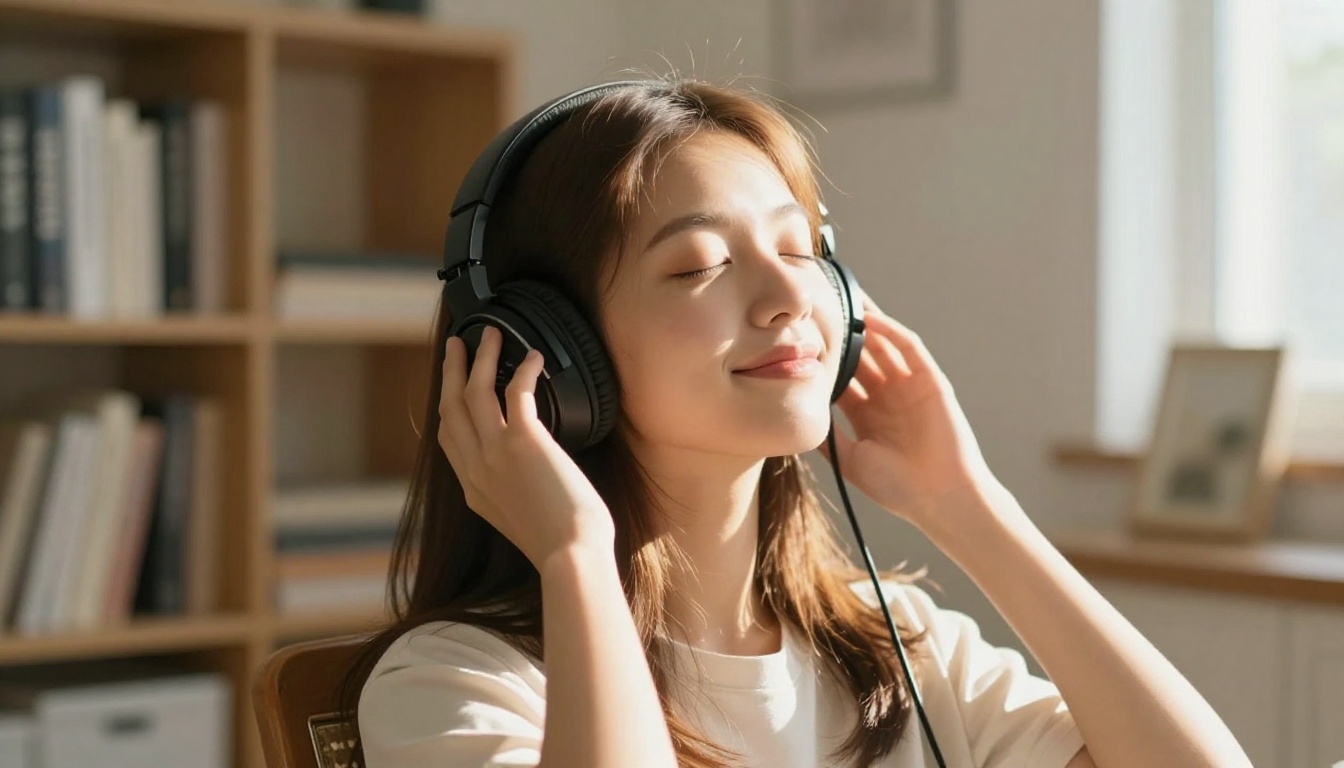
One of the most immediately useful things about Seedance 2.0 is that it generates audio alongside the video. Not just background music. Actual synchronized sound: ambient noise, object sounds, and in some cases speech-adjacent audio that fits the scene.
For beginners, this matters because it removes an entire production step. With most other text-to-video models, you generate a silent clip and then find or generate audio separately. With Seedance 2.0, the audio arrives with the clip. A beach scene comes with waves. A city street comes with traffic. A person clapping produces an actual clap sound.
💡 Tip: If you want specific audio characteristics, describe them in your prompt. "Soft jazz background" or "wind sounds in an open field" will influence the generated audio, not just the visuals.
The audio is not always perfect on first generation. Busy scenes with multiple sound sources can produce muddy audio. But for most beginner use cases, it is far better than silence.
How It Compares to Seedance 1.5 Pro
Before Seedance 2.0, the most capable version in the family was Seedance 1.5 Pro. If you have used that model before, here is what actually changed:
| Feature | Seedance 1.5 Pro | Seedance 2.0 |
|---|
| Max Resolution | 720p | 1080p |
| Built-in Audio | Partial | Full |
| Motion Coherence | Good | Excellent |
| Subject Consistency | Moderate | High |
| Prompt Complexity | Medium | High |
The practical difference: prompts that produced inconsistent results with Seedance 1.5 Pro tend to work much better with Seedance 2.0. More complex scenes, longer clips, and multi-element compositions all benefit from the updated architecture.
For speed-focused use cases, there is also Seedance 2.0 Fast, which trades some output quality for faster generation times. It uses the same prompt structure and interface.
Writing Your First Seedance Prompt
Prompt quality is the single biggest variable in your output quality. The model cannot read your mind. It can only work with what you give it. Beginners almost always start with prompts that are too short and too vague.
The Anatomy of a Good Prompt
A strong Seedance prompt contains four distinct elements:
- Subject: Who or what is in the frame. Be specific about appearance, age, clothing, position.
- Action: What is happening. Static scenes are less engaging. Describe movement explicitly.
- Environment: Where it takes place. Lighting, setting, time of day.
- Style: The visual feel. Camera angle, film stock, mood.
A weak prompt: "A woman walking in a city."
A strong prompt: "A woman in her thirties wearing a red coat walks briskly along a wet cobblestone street in Paris, evening golden hour light reflecting on the pavement, shot at 35mm from a low angle, film grain, cinematic."
The second version gives the model enough information to make consistent choices across every frame. The first version forces the model to fill in gaps with whatever seems plausible, which means inconsistency.
5 Prompt Templates That Work
These templates can be filled in directly with your specific content:
Template 1: Person plus Action
"[Description of person] [action verb plus what they are doing] in [specific location], [lighting condition], [camera angle], [visual style]."
Template 2: Nature Scene
"[Landscape type] with [specific elements], [time of day], [weather or atmosphere], [camera movement], [film style]."
Template 3: Product Showcase
"[Product] on [surface or environment], [lighting setup], close-up shot, 85mm macro lens, photorealistic, 8K."
Template 4: Urban Scene
"[City environment] at [time of day], [type of motion in scene], [weather], [camera angle], [mood descriptor]."
Template 5: Atmospheric
"[Abstract concept or atmosphere] visualized through [specific visual elements], [color palette], slow motion, [camera style]."
💡 Tip: Add motion cues like "slow pan," "slow zoom in," "camera holds steady," or "slow tracking shot" to control how the camera moves. Without these cues, the model chooses motion on its own, which sometimes works and sometimes does not.
How to Use Seedance 2.0 on PicassoIA
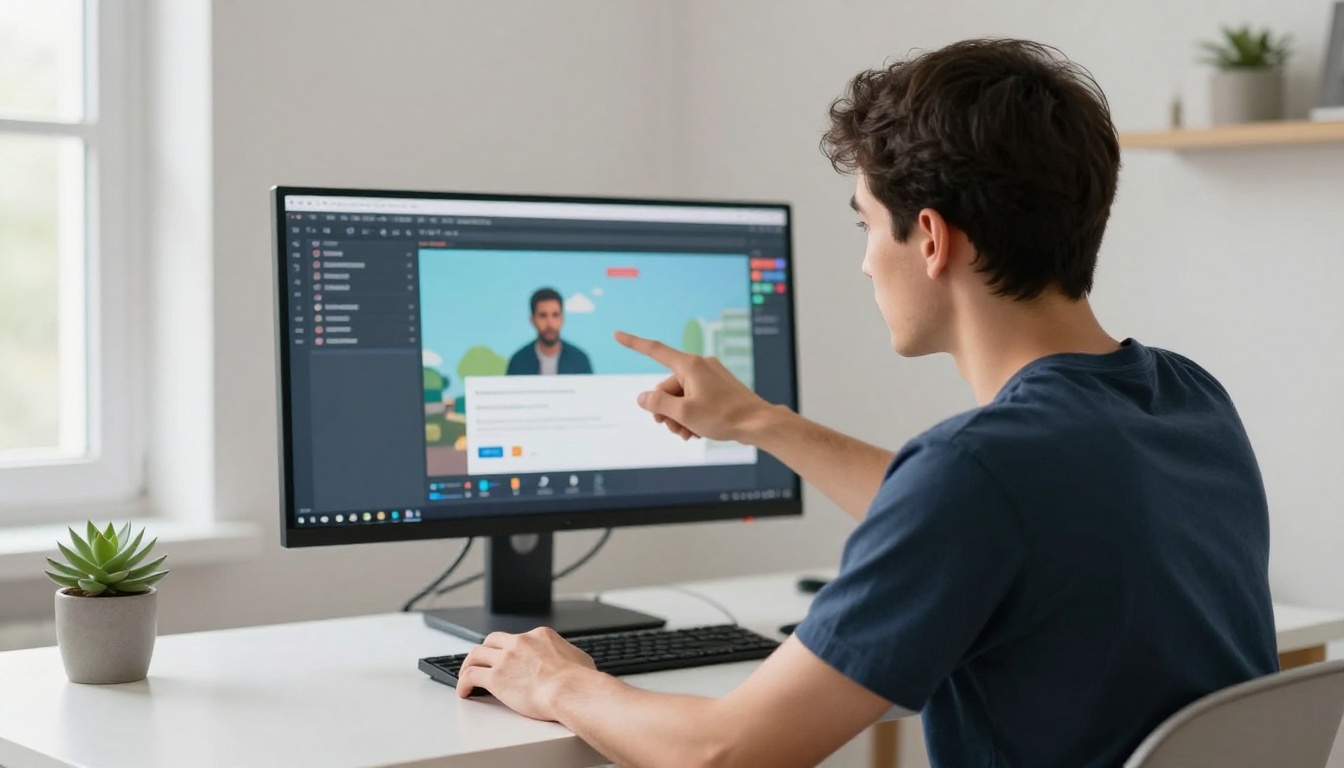
PicassoIA gives you direct access to Seedance 2.0 without requiring any API setup or technical configuration. Here is how the workflow looks from your first visit to your first generated clip.
Step 1: Open the Model Page
Go to the Seedance 2.0 model page on PicassoIA. You will see the input field at the top of the page, along with the parameter controls below it. If you want faster output at slightly lower quality, the Seedance 2.0 Fast variant is also available and uses the same interface.
Step 2: Write Your Prompt
Click into the main text field and write your prompt. Start with something simple if this is your first time: a single person doing a clear action in a specific place. Avoid trying to cram multiple scenes or transitions into your first attempt.
A good starting prompt for practice: "A man in his forties pouring coffee in a bright modern kitchen, morning light from a large window, medium shot, photorealistic, warm tones."
You can also use the negative prompt field to exclude things you do not want. "Blurry, distorted faces, text, watermark" are all worth excluding by default.
Step 3: Set Your Parameters

This is where most beginners spend too little time. The default settings will produce usable output, but adjusting parameters significantly improves results:
Duration: Start with 5 seconds. Longer clips give the model more time to develop movement, but they also give it more time to drift from your original prompt. Once you are comfortable with 5-second outputs, try 10 seconds.
Resolution: Set to 1080p for final output. Use 720p when you are prototyping quickly and do not need full quality.
Aspect Ratio: Choose based on where the video will be used:
- 16:9 for YouTube, desktop, horizontal social media
- 9:16 for Instagram Reels, TikTok, vertical stories
- 1:1 for square posts
Seed: Leave this empty for variety. If you generate a clip you like and want a variation that is similar, copy the seed number from that generation and use it as a starting point.
Step 4: Generate and Review
Click generate and wait. Generation time varies based on clip length and current server load, but most clips complete in under two minutes. When the clip appears, review it before downloading:
- Does the subject look consistent from the start of the clip to the end?
- Is the motion natural or does something drift, float, or distort?
- Does the audio match the visual content?
If something is off, adjust the prompt before re-generating. Specific adjustments make a bigger difference than vague ones. "More realistic face" is vague. "Shot at 85mm f/1.8, natural skin texture, soft side lighting" is specific and actionable for the model.
The Parameters That Matter
Most AI video tools have more settings than you need to think about on day one. For Seedance 2.0 specifically, these are the parameters that actually change your output meaningfully.
Duration and Resolution
Duration and resolution are your two highest-impact settings. A 10-second 1080p clip takes significantly more time and compute to generate than a 5-second 720p clip. For experimentation and prompt testing, use short clips at lower resolution. Reserve 1080p for clips you intend to actually use.
Duration also affects storytelling. Short clips (3 to 5 seconds) work well for social content and loops. Longer clips (7 to 10 seconds) allow for motion arcs: a camera slowly moves through a scene, or a person completes an action from start to finish.
💡 Tip: Generate a 5-second prototype first. Only spend the extra time on a 10-second clip once your prompt is producing the right visual style and subject.
Aspect Ratio and Motion
Your aspect ratio choice should be driven by platform, not preference. A 16:9 clip posted as a vertical story will be cropped and look wrong. A 9:16 clip embedded in a horizontal YouTube video will have black bars. Choose the ratio that fits the platform before you generate.
For motion, your prompt language directly controls what Seedance 2.0 does with the camera:
- "camera slowly pans left" produces a lateral pan
- "slow zoom into subject" produces a push-in
- "camera holds steady" reduces camera movement
- "handheld style" adds subtle realistic camera shake
- "smooth drone shot" produces aerial-style stable movement
Common Mistakes Beginners Make

These are the patterns that produce weak output most consistently, along with the specific adjustments that fix each one.
Prompts That Are Too Vague
Vague prompts produce generic output. The model fills in unspecified details with whatever is statistically common for that type of scene, which means forgettable results. "A sunset" produces a generic sunset. "A wide shot of the California coast at golden hour, warm orange light on ocean waves, cliffs in the background, 24mm lens, slow pan left" produces something specific and cinematic.
The fix is simple: add one specific detail to every category (subject, location, lighting, camera). Four more words in each area can completely transform the output.
Ignoring Motion Descriptions
This is the single most common beginner mistake. Most people write prompts that describe a static image, not a video. The model does its best to add motion, but without instruction it defaults to minimal movement, which makes clips feel lifeless.
Every prompt should answer: what is moving in this scene? Is the camera moving? Is the subject moving? Is something in the environment moving? If the answer is "nothing," your clip will feel like a slowly degrading photograph rather than a video.
Skipping Audio Context
Since Seedance 2.0 generates audio automatically, most beginners ignore the audio entirely. This is a missed opportunity. You can influence the audio output by describing sonic elements in your prompt:
- "Sounds of rainfall on a glass window" will produce rain audio
- "Busy cafe background noise" will produce ambient cafe sounds
- "Quiet forest, birds in the distance" will produce natural ambient audio
The audio is generated from the same prompt as the video, so descriptive audio cues feed directly into what the model produces.
Seedance 2.0 vs Other Video Models
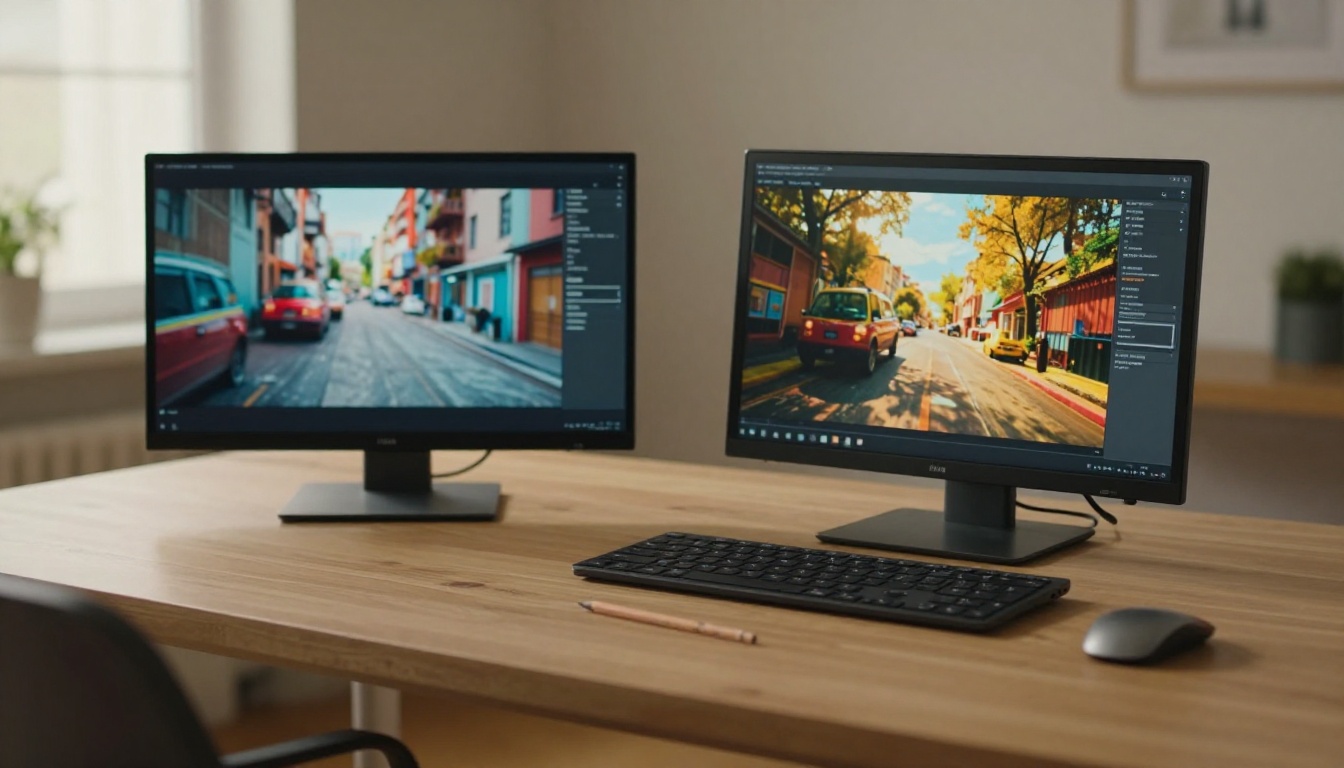
Seedance 2.0 is not the only strong option for text-to-video. Here is how it compares to other well-regarded models available today:
For beginners specifically, Seedance 2.0 wins on accessibility. It responds well to plain language prompts, tolerates less-than-perfect prompt structure, and delivers audio without extra steps. More advanced models like Veo 3 and Sora 2 tend to shine when you already know exactly what you want and how to ask for it precisely.
If speed matters more than quality at any given moment, Seedance 2.0 Fast is the same model family at reduced output resolution. Use it for prototyping and switch to the full version for final output.
What You Can Actually Build

Here are specific, concrete categories of content that Seedance 2.0 produces well on the first or second attempt.
Social Media Content
Short clips for Instagram Reels, TikTok, or YouTube Shorts are where Seedance 2.0 is most immediately useful for beginners. A 5 to 8-second clip in 9:16 ratio with a single clear subject produces ready-to-post content without any post-production beyond an optional caption overlay.
Good starting prompts for social:
- Product on a clean surface with soft studio lighting
- Person in a lifestyle scenario relevant to a brand identity
- Atmospheric nature or urban scene that sets a specific mood
Product Showcases
If you are selling something, Seedance 2.0 can generate product-adjacent video content. A prompt describing your product type (skincare bottle, clothing item, tech accessory) in a well-lit styled environment produces clips suitable for ads or landing pages.
The model does not generate video from actual product images in text-to-video mode. For that, you would need an image-to-video workflow using a model like Kling v2.6. But for generic product environment clips, text-to-video works well and fast.
Short Story Clips
Narrative micro-content, short clips that tell a small visual story in 5 to 10 seconds, works well with Seedance 2.0 because the model maintains subject consistency across the clip duration. A person picking up a coffee cup and taking a sip, a dog running across a sunny field, a street musician playing on a rainy corner: these tight narrative moments are where the model's motion coherence really shows.
Start Generating Today
The most useful thing you can do after reading this is open Seedance 2.0 and run three prompts. Not one. Three. The first one teaches you the interface. The second one teaches you what the model does with your first attempt's feedback. The third one is where you start to understand what the model is actually capable of.
PicassoIA gives you access to Seedance 2.0 alongside over 100 other video models, so you can try Seedance 2.0 Fast for quick tests, compare output with Kling v2.6 or Veo 3, and find what fits your specific workflow without switching platforms.
The learning curve is shorter than you think. Most people produce something they are genuinely pleased with within their first hour of focused experimentation. Your first clip is waiting.


