The Seedance 2.0 Settings That Matter Most for Better AI Video
A practical breakdown of every Seedance 2.0 setting that actually affects your video output, from prompt construction and motion intensity to resolution choices and seed control. Stop guessing and start generating videos that match exactly what you intended.
The gap between a good AI video and a forgettable one usually isn't the model. It's the settings. Most people spend five minutes writing a prompt and zero minutes thinking about everything else, then wonder why their clips look generic or stuttery. Seedance 2.0 changed what's possible in text-to-video generation, but only for the people who understand what to actually adjust.
This isn't a settings tour. This is a breakdown of which controls move the needle and which ones are mostly noise.
What Seedance 2.0 Actually Does
Before touching any parameter, you need a clear picture of what's happening under the hood. Seedance 2.0 from ByteDance isn't just a text-to-video model: it's a full pipeline that includes built-in audio synthesis, temporal coherence modeling, and resolution-aware generation. That combination changes how settings interact with each other.
Built-in Audio Changes the Equation
Previous video generation models treated audio as an afterthought. Seedance 2.0 generates audio natively, synchronized to visual motion. This means your prompt influences not just what you see but what the model infers for sound. A prompt describing crashing waves will produce different audio behavior than one describing a quiet library, even if the visual framing is similar.
Tip: If you want clean silent video, add "no ambient sound, silent scene" to your negative prompt. Leaving it unspecified lets the model decide, and results vary considerably.
Resolution and Duration Defaults
Seedance 2.0 defaults to 1080p at 16:9. The model was trained with this resolution as primary, which means outputs at this setting tend to have better temporal stability. Dropping to 720p often reduces generation time significantly but can introduce more motion artifacts in high-detail scenes.
Default clip duration sits at 5 seconds. That's intentional. The model maintains coherence better over shorter windows, and most professional workflows use short clips that get composited in post. Going to 10 seconds increases the chance of subject drift, particularly with human figures.
Prompt Writing: Your Most Powerful Setting
The prompt field isn't a setting in the traditional sense, but it functions as the highest-impact variable in the entire workflow. Get this wrong and no slider saves you.
Sentence Structure That Works
Seedance 2.0 responds well to subject-action-environment structure. Not a list of adjectives. Not a fragile wish list. A clear statement of what is happening.
Bad: beautiful woman, beach, sunset, cinematic, 4K, professional
Good: A woman in a white sundress walks slowly along the shoreline at sunset, waves lapping at her feet, warm backlight outlining her silhouette, camera moves from wide to medium shot
The second version gives the model a physical event, an environment, lighting information, and camera behavior. Each of those elements maps to a different part of the generation pipeline.
Tip: Include the camera movement explicitly. Seedance 2.0 responds to phrases like "slow dolly forward," "static wide shot," "handheld tracking shot," and "aerial pullback." Without this, camera behavior is unpredictable across generations.
Motion Words That Actually Respond
Not every motion descriptor lands equally. These phrases have consistent behavior in Seedance 2.0:
slow motion triggers frame interpolation at reduced apparent speed
subtle movement or gentle motion reduces the motion intensity inference
fast-paced or dynamic action pushes toward higher motion magnitude
camera holds still or locked off camera suppresses camera drift
Avoid vague terms like "cinematic" or "high quality" at the start of the prompt. They consume token space without directing behavior. Put descriptive quality terms at the end if you use them at all.
The Resolution and Aspect Ratio Debate
Resolution and aspect ratio are two separate decisions that affect each other. Most people treat them as one setting, which causes problems downstream.
16:9 vs 9:16 vs 1:1
Ratio
Best For
Trade-off
16:9
Landscape, cinematic, travel
Default training distribution, best coherence
9:16
Social vertical, portrait subjects
Less training data, more drift risk
1:1
Product, editorial, square platforms
Compression artifacts on fast motion
The model was trained primarily on 16:9 footage. That distribution advantage is real: outputs at 16:9 show better edge coherence and less subject warping, especially with human figures in motion.
If you need 9:16 for social content, use Seedance 2.0 with simpler compositions. Busy scenes with multiple subjects at vertical ratio tend to fall apart after the second second.
When to Go 1080p vs 720p
1080p is worth the extra generation time when:
The subject has fine detail (hair, fabric, water texture)
You're planning to crop or reframe in post
The clip is a hero shot that will be seen at full resolution
720p is the smarter choice when:
You're iterating rapidly and testing prompt variations
The output will be compressed for social anyway
You're generating many clips for a longer edit
Tip: Prototype at 720p, then regenerate your best-performing prompt at 1080p. This cuts iteration time without sacrificing final output quality.
Motion Intensity: The Most Misused Slider
Motion intensity is the setting that separates experienced users from beginners. It controls the magnitude of movement the model introduces, both for subjects and for the camera. Most new users push it up and wonder why their clips look shaky or incoherent.
Low Motion for Portraits and Headshots
For portrait work, a beauty shot, or any scene where a human face is the primary subject, keep motion intensity low. The model struggles to maintain facial feature consistency under high motion, especially for eye contact and lip shape. Setting motion intensity to 30-40% produces subtle ambient movement (hair, background elements) without distorting the face.
This is especially relevant for anyone using Seedance 2.0 to animate portrait-style imagery. Lower motion paired with a specific camera instruction like "slow push in" gives you movement without chaos.
High Motion for Action and Nature Scenes
Action footage, ocean waves, crowd scenes, and wildlife all benefit from higher motion settings. At 70-90%, the model generates more aggressive frame-to-frame changes that read as natural for these subject types.
The risk at high motion is temporal incoherence: objects change shape, colors shift between frames, or the subject partially disappears. To counter this, be more specific in your prompt about what the moving elements are. "Waves crashing on rocky shore" at high motion works. "Ocean scene" at high motion produces something chaotic.
Negative Prompts in Seedance 2.0
The negative prompt field is where most users leave easy quality on the table. Seedance 2.0 responds strongly to negative prompting for both visual style and motion characteristics.
What to Include Every Time
A reliable baseline negative prompt for most outputs:
This baseline addresses the most common failure modes: limb distortion, facial drift, flickering frames, and unintended style shifts toward illustrated or animated aesthetics.
Common Mistakes That Break Coherence
Contradicting your positive prompt: If your prompt says "fast-paced action," adding "no motion" to negatives sends conflicting signals that degrade output quality.
Overloading the negative field: More than 20-25 concepts in the negative prompt starts to suppress things you actually want. Be surgical, not comprehensive.
Ignoring the negative prompt entirely: Even leaving in just "blurry, distorted faces, flicker" materially improves consistency across most outputs.
Tip: Match your negative prompt to your subject type. For human subjects, prioritize "distorted faces, morphing limbs." For landscapes, prioritize "grain, oversaturated, cartoon." Specificity beats generic lists every time.
Seed Values and Reproducibility
The seed setting is easy to overlook until you generate something you love and can't recreate it.
How to Lock a Good Output
Every generation runs on a random seed unless you set one explicitly. When you find an output you want to iterate on, copy the seed from that result before changing anything else. Same prompt, same seed, same settings produce the same output. Change one variable at a time from there.
This is how you actually iterate rather than spin the wheel repeatedly hoping to recapture something that worked.
When to Randomize vs Fix the Seed
Scenario
Seed Strategy
Exploring a new prompt concept
Random
Refining a result you like
Fixed
Testing motion intensity changes
Fixed
Testing prompt phrasing variations
Random
Final delivery generation
Fixed from best test run
A fixed seed is not creative restriction. It's version control for your generation workflow.
Duration Settings and Clip Planning
Clip duration is not just a length preference. It's a creative and technical decision that affects everything from coherence to file size to edit flexibility.
5-Second vs 10-Second Clips
Five seconds is Seedance 2.0's sweet spot. The model was built around this window, and temporal coherence peaks here. For most use cases, especially social content, product videos, or b-roll, 5-second clips are the right default.
Ten seconds is possible and sometimes necessary, but subject drift becomes a real risk past the 7-second mark. If your subject involves a human face or a specific branded object, the 10-second output may show shape changes you can't use professionally.
Building Longer Sequences
The professional approach to long-form content with Seedance 2.0 is not generating one long clip. It's generating 5-second clips with matching seeds and overlapping visual context, then cutting them together in post.
Use the same seed across a sequence, vary the camera instruction slightly between clips, and maintain consistent scene descriptions. This produces a cohesive series of clips that cut together without jarring style shifts.
Tip: Write a master scene description and use it as the base for all clips in a sequence. Only modify the camera movement and action verb for each new clip. Consistency in the scene description is what keeps the visual language coherent across the edit.
How to Use Seedance 2.0 on PicassoIA
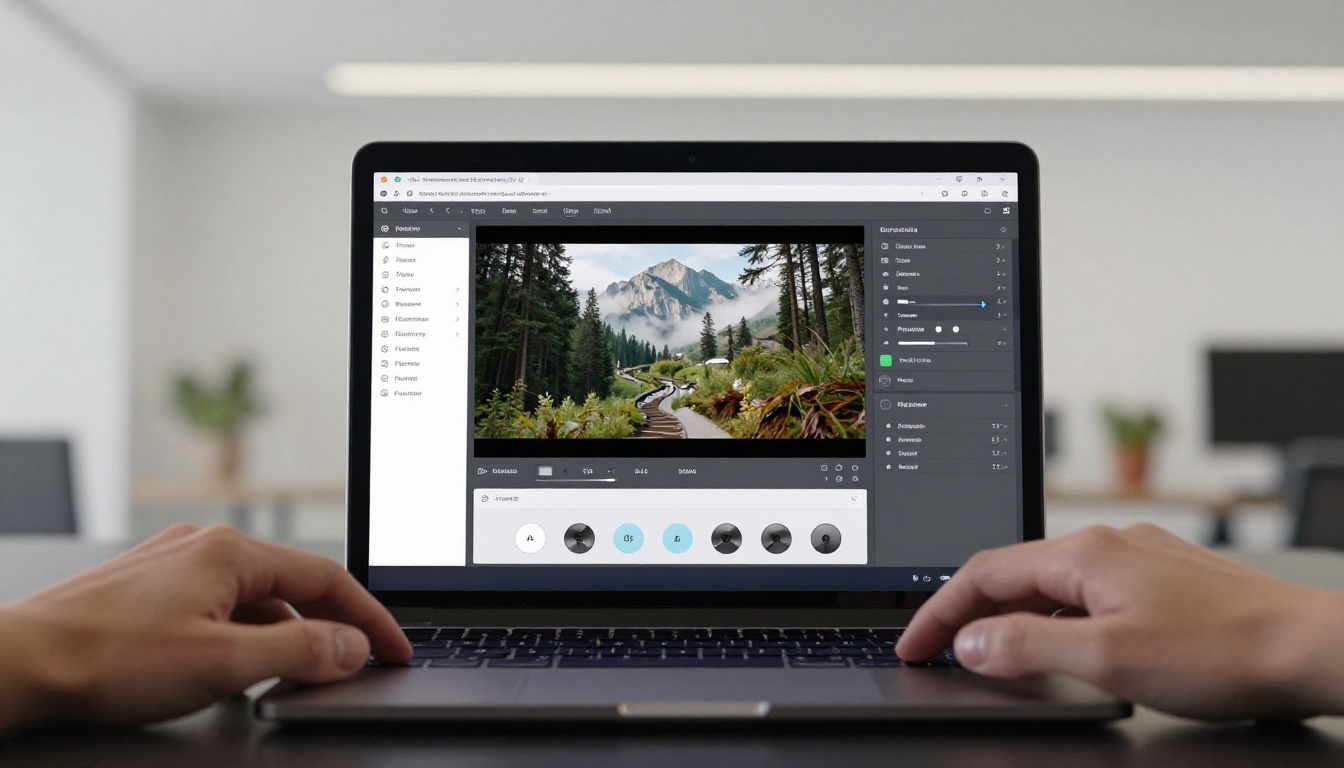
Seedance 2.0 is available directly on PicassoIA, which gives you a clean interface for applying everything covered above without managing API calls or local compute.
Step 2: Write your prompt using subject-action-environment structure. Include a camera movement instruction.
Step 3: Set your aspect ratio. Start with 16:9 unless you have a specific platform requirement.
Step 4: Set resolution to 720p if iterating, 1080p for final delivery.
Step 5: Adjust motion intensity. For human subjects, stay under 50%. For action and nature, push to 70-80%.
Step 6: Add your negative prompt baseline. At minimum: blurry, distorted faces, flicker, cartoon.
Step 7: Set a specific seed if you're refining a result. Leave random for initial exploration.
Step 8: Generate. Review the output for temporal consistency in the first and last second, where drift most commonly appears.
Other Models Worth Comparing
If Seedance 2.0 doesn't fit a specific brief, PicassoIA has strong alternatives in the same category. Seedance 2.0 Fast trades some quality for significantly faster output times, which is worth it during rapid prototyping phases. Kling v3 Video handles cinematic camera movements particularly well. Veo 3 from Google is the strongest option for native audio-video synchronization at scale.
Each model has different sensitivities to the same settings. A motion intensity value of 70% means different things in Seedance 2.0 versus Kling. Treat your settings knowledge as model-specific and recalibrate when switching between them.
Put These Settings to Work
The Seedance 2.0 settings that matter most are specific, not numerous. Prompt structure, motion intensity, aspect ratio, negative prompts, and seed control account for the vast majority of quality variance in your outputs. Most people ignore four of those five.
Pick one scene concept. Write a proper prompt with subject, action, environment, and camera movement. Set motion intensity deliberately based on what the scene actually contains. Add a baseline negative prompt. Fix your seed the moment you see something promising.
PicassoIA puts Seedance 2.0 and over 100 other video generation models in one place, with an interface built for fast iteration. That's where real output quality comes from: not a single perfect prompt, but informed iteration with the right parameters dialed in from the start. Try your first generation now and see how far a well-configured prompt actually takes you.