Thumbnails and channel art have a quiet power over whether content gets clicked. A sharp, well-composed image signals quality before a viewer reads a single word. Seedream 5 Lite is a text-to-image model built to output at 2K and 3K resolution from plain text descriptions, and it has specific capabilities that make it worth considering for anyone who creates visual assets at scale. This article walks through what the model actually produces, how to prompt it for thumbnail work, and how to use it step by step on PicassoIA.
What Seedream 5 Lite Actually Outputs
Seedream 5 Lite is a model from ByteDance that turns a text description into a finished image at 2048px (2K) or 3072px (3K). Those numbers matter for thumbnail work because platforms like YouTube display thumbnails at 1280x720 pixels but store and serve them at higher resolutions. An output at 2K gives you headroom for cropping, resizing, and adding text overlays without the result looking compressed when the platform reprocesses it.
The model applies built-in reasoning to multi-part prompts. When you describe a complex scene with specific lighting, subject positioning, and background context, the output reflects those details rather than collapsing everything into a generic composition. For thumbnail work, that means you can describe the specific frame you want instead of generating and rejecting outputs until something usable appears.
The Resolution Argument for Thumbnails
Most AI image tools output at 512px or 1024px. That works fine for concept drafts but creates visible quality loss when you scale up to YouTube's 1280x720 minimum recommendation or Spotify's 3000x3000 album art requirement. Seedream 5 Lite's 2K default puts you above the YouTube threshold with room to spare, and the 3K option takes you to a resolution that prints cleanly on physical materials as well.
💡 Tip: Use the 3K setting when you need a single image that works across both YouTube (widescreen) and Spotify or Apple Music (square format). You can crop from 3K without losing sharpness at any platform size.
What Changes at 2K vs. Lower Resolutions
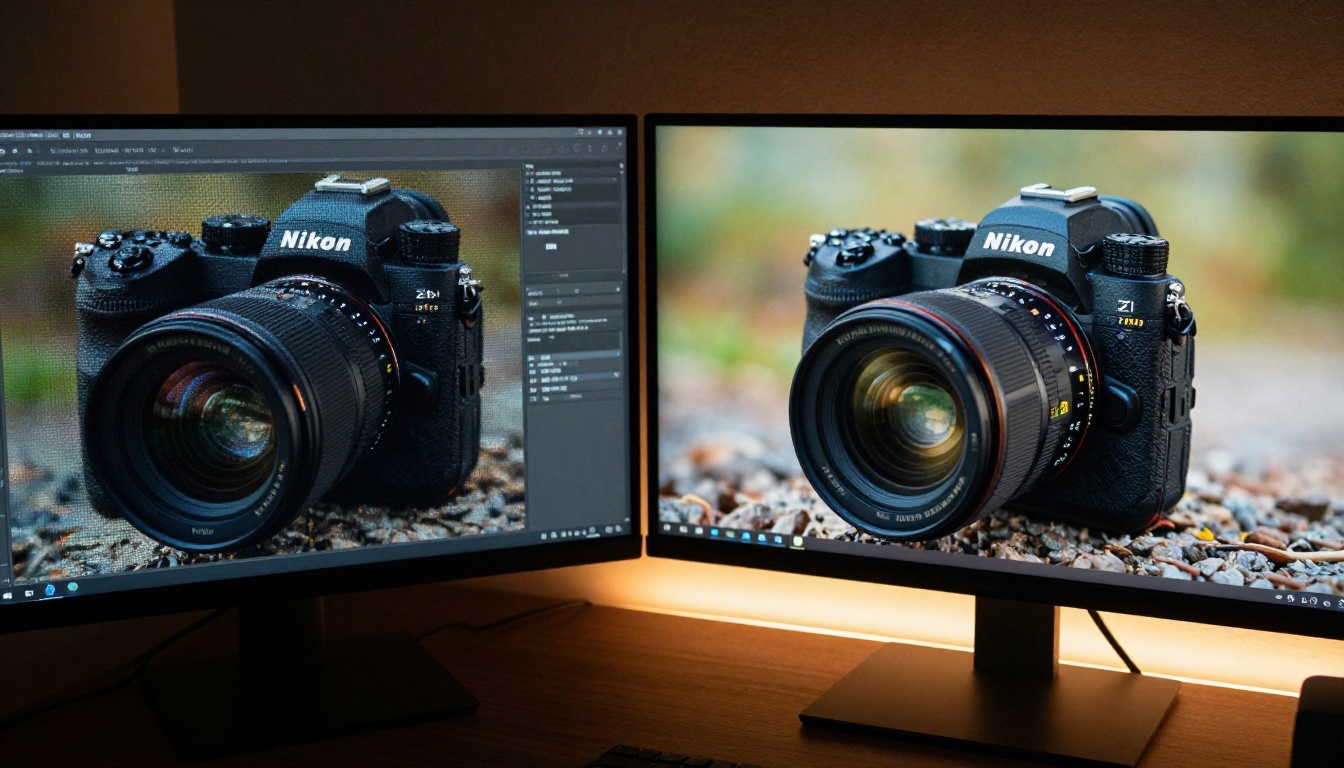
The practical difference between 1024px and 2048px output shows up in two places: texture fidelity and text readability. At 2K, fine surface details, fabric textures, and facial features render with enough information that they hold up after JPEG compression on upload. Text overlays you add in post production also look cleaner because you are starting from a crisper base layer. The jump from 1024px to 2048px is not incremental. It is the difference between an image that looks acceptable at full size and one that holds up at every size the platform might render it.
How Prompts Work With This Model
Writing prompts for thumbnail generation is different from writing prompts for general image creation. Thumbnails need a clear focal point, readable contrast between foreground and background, and enough visual tension to work at small display sizes. Seedream 5 Lite's built-in reasoning interprets complex descriptions well, but the structure of your prompt still shapes the output significantly.
Describe the Hierarchy First
The model interprets multi-part prompts by applying reasoning to the description, so the order you write your prompt in matters. Lead with the primary subject and their position, then describe the background, then specify lighting, then camera and mood. This hierarchy mirrors how the model allocates visual weight in the output.
A prompt structure that works:
- Subject + position + action
- Background environment + depth
- Lighting direction + color temperature
- Camera angle + lens focal length
- Mood or atmosphere
Example: "A confident male entrepreneur standing slightly left of center, direct gaze toward camera, wearing an open-collar navy shirt, background a softly blurred modern office interior with large windows, volumetric afternoon light from the right creating a warm rim light on his shoulder, 85mm f/1.8 portrait lens, slight upward camera angle, focused determined expression"
That level of detail produces a result that works as a thumbnail without significant editing.
3 Prompt Types That Convert
| Prompt Type | Best For | What to Include |
|---|
| Portrait-led | Talking-head thumbnails | Eye contact direction, emotional expression |
| Scene-setting | Travel, food, lifestyle | Specific location detail, time of day |
| Product-focused | Reviews, unboxings | Clean background, dramatic side lighting |
💡 Tip: Avoid vague words like "exciting" or "dramatic" in isolation. Instead, describe what those moods look like physically. "Jaw slightly open, eyes wide, hands raised to face" communicates surprise better than "surprised face" alone, and gives the model concrete visual information to work with.
Why Specificity Beats Style Keywords
Generic style keywords like "cinematic" or "professional" produce inconsistent results because they mean different things depending on context. Specific technical descriptions produce consistent results because they describe objective visual properties. "Volumetric morning light from the left at 45 degrees, warm color temperature around 3200K, soft shadow falloff on the right side of the subject's face" is more reliable than "dramatic lighting." The model has enough reasoning capacity to translate technical photographic descriptions into accurate visual outputs.

Reference Images Change the Output
One of the more useful capabilities in Seedream 5 Lite for creators who already have a visual identity is the reference image input. You can upload between one and fourteen photos and the model steers toward their style, subject, or composition without requiring manual editing afterward to replicate the look.
Upload Your Brand Assets
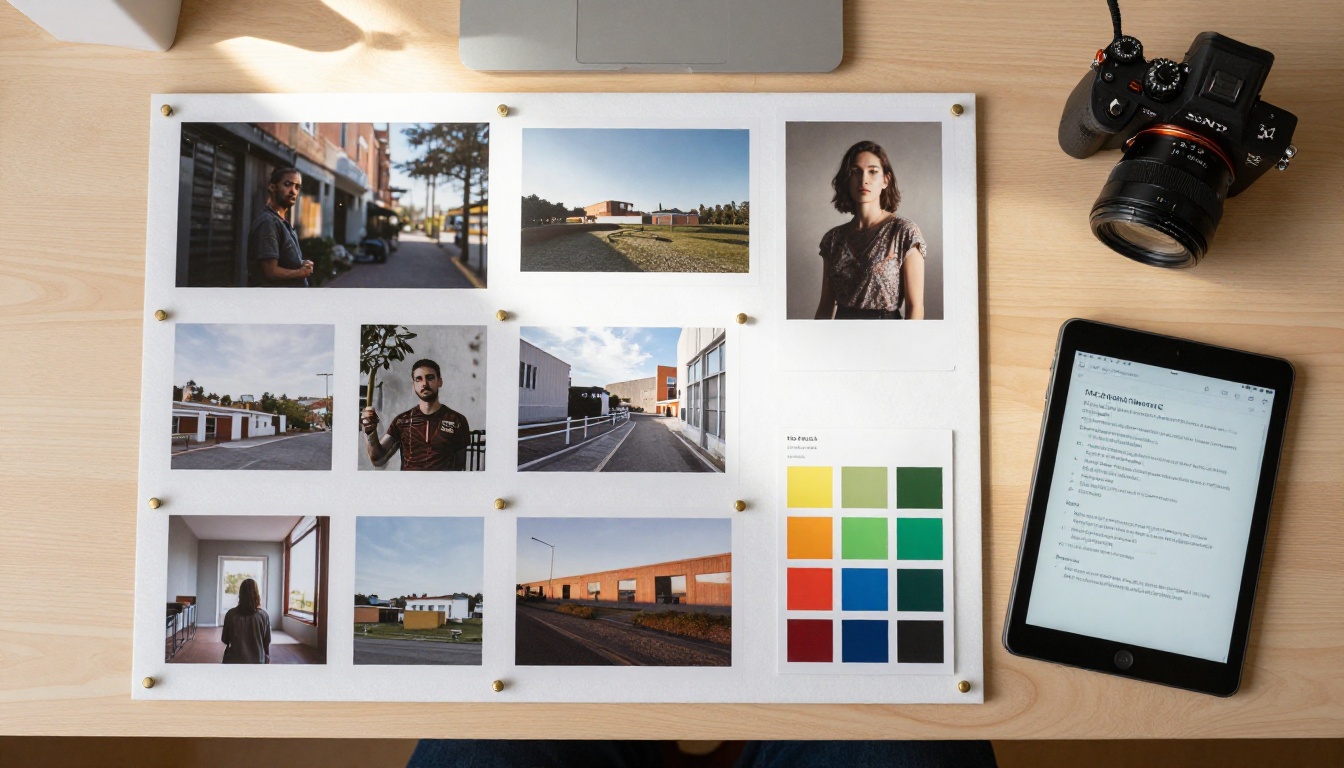
If you have an existing thumbnail style, a color palette, or a specific lighting look you use consistently across your channel, upload two to four examples as reference images alongside your prompt. The model picks up the shared visual language and applies it to the new output.
This removes the step of generating a base image and then manually adjusting colors, contrast, and grading in a separate editor. With reference inputs, much of that visual alignment happens at generation time. For creators who publish on a consistent schedule, this is a significant time reduction per asset.
Keeping a Consistent Look Across a Series
Content creators who produce episodic content often need thumbnails that look related without being identical. Seed your reference set with three to four images from previous episodes and describe the new subject in the prompt. The outputs will carry the same visual language even when the subject matter changes from episode to episode.
The reference feature also works for brand kit consistency. Upload your brand color palette as a reference alongside a subject description, and the model will try to incorporate those tones into the new output. This is particularly useful for podcast channels that use a consistent visual treatment across episode art.
💡 Tip: Keep your reference set consistent per series. Mixing references from different visual styles produces averaged outputs rather than coherent ones.
How to Use Seedream 5 Lite on PicassoIA
Seedream 5 Lite on PicassoIA runs in the browser without installing anything. Here is the full process for generating thumbnails:
Step 1: Open Seedream 5 Lite on PicassoIA.
Step 2: Type your prompt in the text field. Write at least 40 words for best results. Include subject, environment, lighting direction, and camera details as described in the prompting section above.
Step 3: Set the Size to 2K for most thumbnail work. Choose 3K when you need a single image for both landscape and square formats, or when the final asset will be printed.
Step 4: Set the Aspect Ratio to match your platform:
16:9 for YouTube thumbnails or widescreen blog headers9:16 for YouTube Shorts, Instagram Reels, or TikTok1:1 for Spotify, Apple Music, or social media profile images4:3 for older platform formats or presentation slides
Step 5: If you have reference images, upload one to fourteen photos using the Image Input field. These steer the model toward your established visual style.
Step 6: Set Sequential Image Generation to auto if you need multiple related outputs for a series. The model will generate up to fifteen connected images in a single session without additional prompts.
Step 7: Click Generate. Most 2K outputs complete in 35 to 50 seconds depending on scene complexity.
Step 8: Download in PNG for editing workflows that need lossless quality before adding text or other layers. Use JPEG for direct platform upload when no further editing is planned.
Settings That Matter
| Setting | Recommended Value | Why |
|---|
| Size | 2K | Headroom above platform minimums |
| Aspect Ratio | 16:9 or 1:1 | Match your platform requirement |
| Output Format | PNG | Preserves quality before adding text |
| Sequential Generation | auto | Needed for episodic series |
| Max Images | 5 to 10 | Enough variation for A/B testing |
Thumbnail Design Principles Worth Keeping
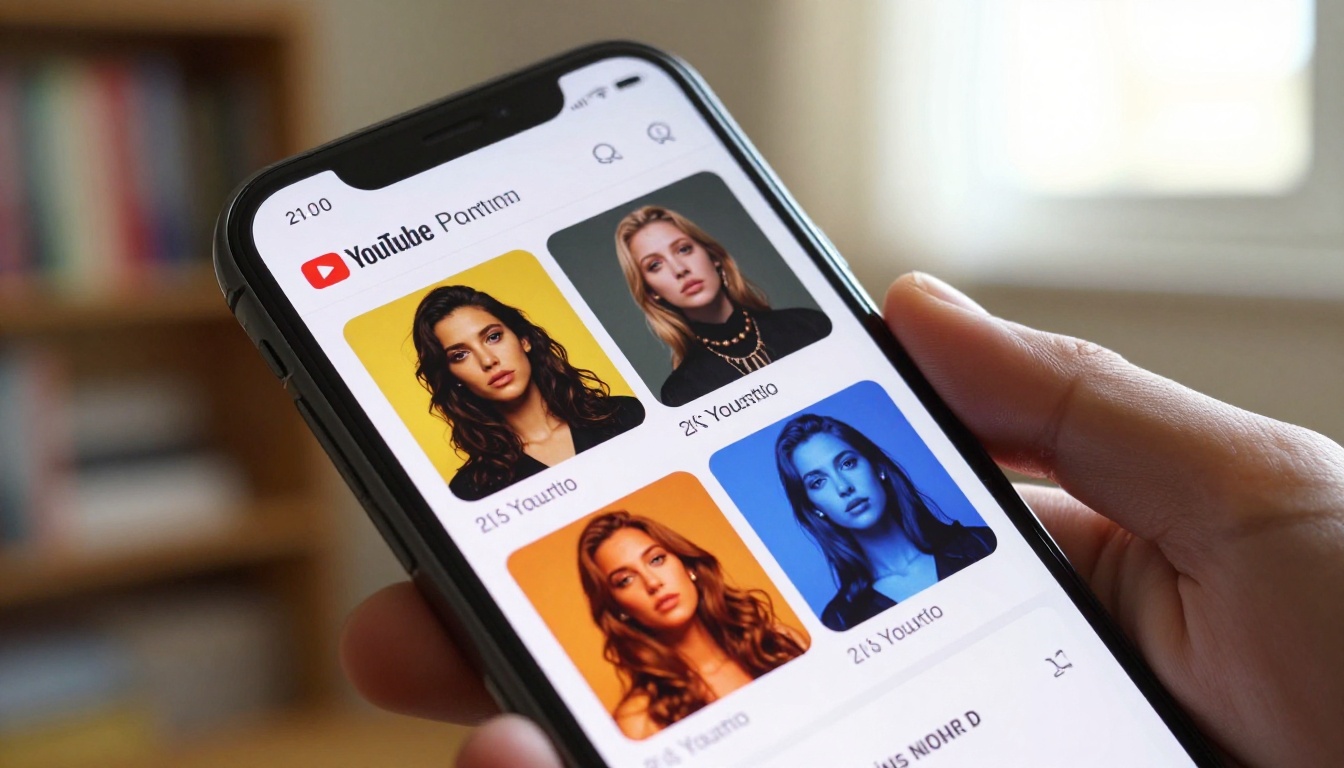
Generating a high-resolution image is the first step. The image still needs to work as a thumbnail, which means it must hold up at 240x135 pixels, the size YouTube renders in search results. A full-resolution image that loses its focal point at thumbnail size is not a usable thumbnail, regardless of how sharp it looks at full dimensions.
Color, Contrast, and Focal Point
Three factors that consistently drive high click-through rates in thumbnails:
- High contrast between subject and background. Describe this directly in your prompt: "subject lit with bright frontal light against a darker blurred background." The model will build the separation into the output, giving you a thumbnail that reads clearly at small sizes.
- Single clear focal point. Thumbnails with multiple competing subjects perform worse than those with one obvious visual entry point. Your prompt should specify one primary subject with everything else at a lower visual priority.
- Color temperature contrast. Warm subject on a cool background, or the reverse, creates natural visual tension that reads at small sizes. Describe this explicitly: "warm tungsten lighting on subject, cool blue-tinted window light in background."
Text Placement on AI-Generated Images
Most thumbnails carry a text overlay. When prompting for a thumbnail base image, account for where the text will sit by leaving deliberate negative space in the composition:
- Top or bottom third: Describe sky or ground area the model can leave open: "wide clear sky in the upper third of the frame with minimal cloud detail"
- Left or right panel: Describe a neutral area: "softly blurred neutral dark background in the left 30% of the frame"
- Corner safety zone: Avoid placing the primary subject in the corners, where platform UI often overlaps.
💡 Tip: Generate at 3K when you plan to add text overlays. The extra pixels give you cleaner anti-aliasing on text in Photoshop or Canva, especially at smaller font sizes.
Sequential Generation for Content Creators
The sequential generation feature in Seedream 5 Lite produces up to fifteen related images in a single session. For thumbnail creators, this has two specific use cases: A/B testing variation sets and visual series production.
Build a Matching Series Fast
When you need thumbnail variations for A/B testing, or a visual set for a multi-part series, enable sequential generation with auto mode. The model decides how many related images to produce based on your prompt's description. Describe the consistent elements (same subject, same background style, same lighting setup) and indicate what should vary (expressions, focal lengths, or angles).
A prompt that works for sequential thumbnail sets:
"A food blogger presenting different dishes, same kitchen background with warm morning light from the left, same 35mm camera angle, same Kodak Portra color grade, expression changes with each dish from curious to delighted to satisfied, dishes vary per image"
The result is a set of thumbnails that look related without being identical. Each image is ready for A/B testing independently while maintaining enough visual consistency that they read as belonging to the same channel.
When to Use Sequential vs. Single Generation
Use single generation when you need one thumbnail for a specific video and have a clear, detailed prompt. Use sequential generation when you are building out a backlog, testing multiple compositions, or creating a series where visual consistency matters. Sequential mode also works well for generating multiple aspect ratio variants of the same composition if you describe the subject positioning in ratio-neutral terms.

After You Generate
Generating the image is the start of the workflow, not the end. Here is what typically comes next:
Text overlays: Add in Canva, Adobe Express, or Photoshop. Use a 2K PNG as your base layer. The title-safe area is the center 80% of the frame, which keeps text clear of UI elements on most platforms.
Platform sizing: YouTube accepts 1280x720 (minimum) to 2560x1440 (maximum). A 2K output at 16:9 from Seedream 5 Lite is 2048x1152, which fits that range without upscaling. Spotify and Apple Music require 3000x3000 for album art, which is why the 3K setting is worth using for music-platform assets.
Batch workflows: For a backlog of twenty thumbnails, use sequential generation with auto mode and a structured prompt that specifies what varies between images. You can get fifteen images in one session, then run a second session for the remaining five. The entire batch takes under twenty minutes.
Quality check at small size: Before uploading, view the thumbnail at 240x135 pixels. If the focal point is clear and the primary subject is readable at that size, the image will perform well in search results and recommended feeds.
File organization: Name files with the video title and variant letter before uploading. Keeping the PNG originals archived locally means you can generate new text overlay versions later without returning to the model.
Start Creating With Seedream 5 Lite
If you create content at any scale, a 2K AI image generator removes a significant friction point from the visual asset workflow. You stop relying on stock photography that competitors also use, stop paying for custom photography sessions for every video, and stop producing thumbnail drafts at resolutions that compress badly on platform upload.
Seedream 5 Lite is available on PicassoIA directly in the browser, with no software to install and no account required to try it. Type your first prompt, set the output to 2K, and download a ready-to-use image in under a minute.
Start with a portrait thumbnail: describe your subject, the lighting direction, and the background, and see what the model produces at full resolution. If you need a series, enable sequential generation and describe the consistent elements alongside what should vary between images. If you have existing channel art you want to match, upload it as a reference and describe the new subject.
PicassoIA also includes upscaling tools for pushing outputs beyond 2K when print or large-format display is the target, and background removal for isolating subjects after generation. The workflow from prompt to published thumbnail can run entirely in a single browser session.
Open Seedream 5 Lite on PicassoIA and type your first thumbnail prompt.