ByteDance has released two text-to-image models under the Seedream name that look, at first glance, like a straightforward upgrade path. Seedream 4.5 came first. Seedream 5 Lite followed. The assumption is that 5 Lite is the better model. In several ways it is. In one important way, it is not. Knowing where each model wins changes which one you should be running for any given project.
This breakdown covers resolution, prompt reasoning, reference image support, batch generation, speed, and the practical cases where each model delivers the better result.
What These Two Models Actually Are
The "Lite" label matters
The word "Lite" in Seedream 5 Lite signals something specific. It is not the flagship Seedream 5 model. It is a reduced-weight variant from the Seedream 5 generation, built to run faster and handle complex reasoning tasks without requiring the full compute load of the top-tier release. ByteDance positions it as a capable everyday model rather than a maximum-output powerhouse.
Seedream 4.5, despite the lower version number, sits in a different position. It is the most capable release from the 4.x generation and targets the highest raw resolution output in that family. The 4K ceiling on that model is a headline feature that 5 Lite does not match.
Two different goals
These models were not built to do the same job at different quality levels. They reflect different priorities. 4.5 prioritizes raw pixel density. 5 Lite prioritizes prompt fidelity on complex instructions. The practical effect is that the right model depends on your specific use case, not simply on which number is higher.

Resolution Ceiling: The Biggest Surprise
4K in 4.5, 3K in 5 Lite
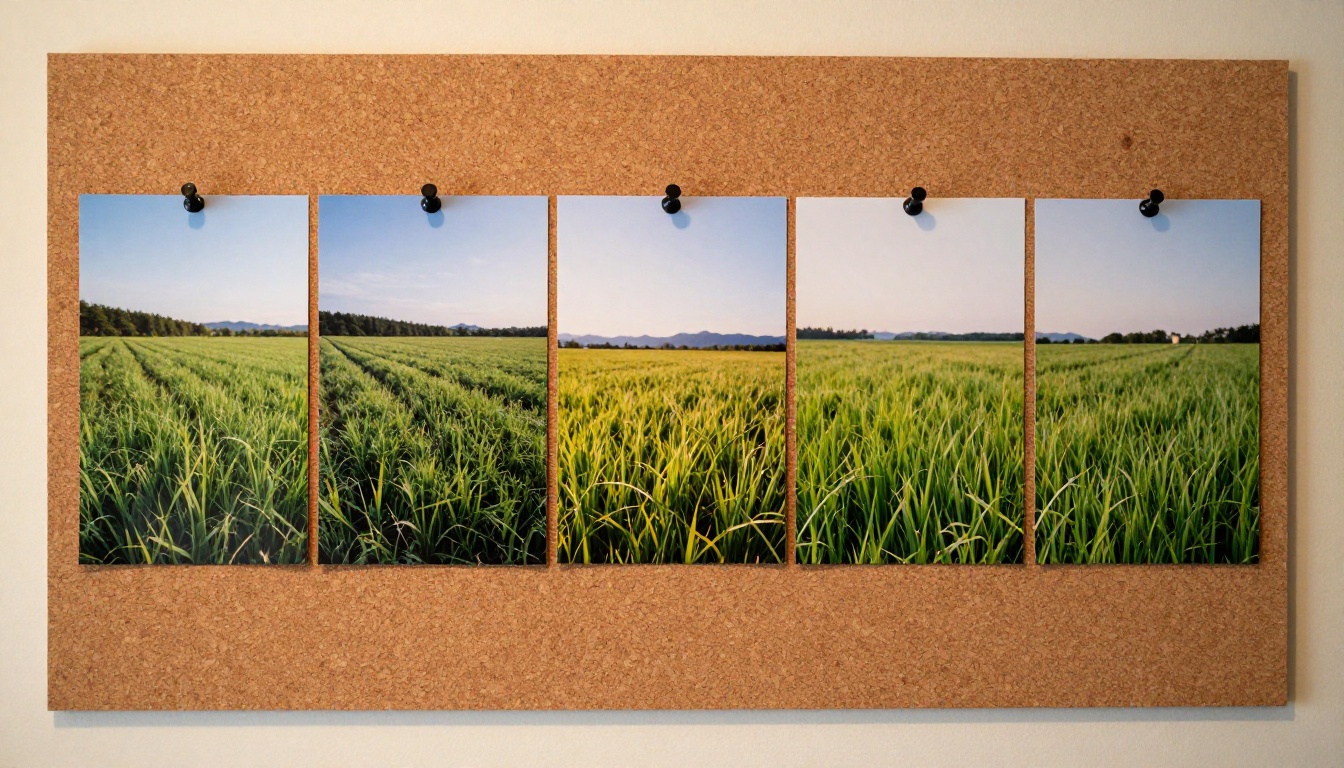
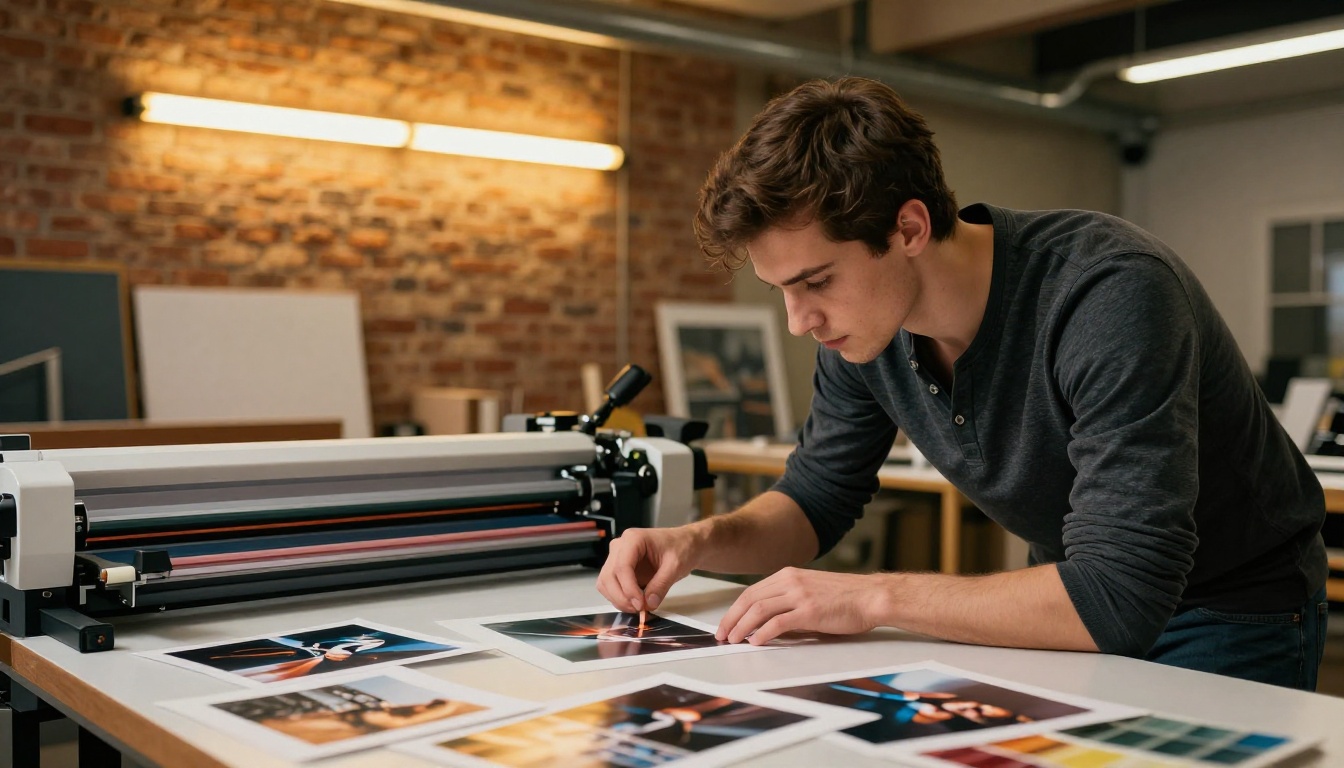
This is the detail most users miss. Seedream 4.5 outputs at 2K (2048px) or 4K (4096px). Seedream 5 Lite outputs at 2K (2048px) or 3K (3072px). The newer model generation tops out at 3K, not 4K. If you are producing images for large-format print, high-resolution displays, or textures used in 3D workflows, that 1000-pixel gap between 3072px and 4096px is significant.
A 4K image from Seedream 4.5 at 4096x4096 pixels delivers roughly 16.7 megapixels of image data in a single generation pass. A 3K image from Seedream 5 Lite delivers approximately 9.4 megapixels. For web, social media, and standard display output the difference is invisible. For billboard-scale or large print work, it is not.
💡 When resolution is the priority: Use Seedream 4.5 and select the 4K output option. For anything displayed below 27 inches at standard viewing distances, 2K from either model is more than sufficient.
Custom dimensions in 4.5
Seedream 4.5 includes a custom dimension mode that lets you set a specific width and height anywhere between 1024 and 4096 pixels. This matters for workflows that require non-standard output sizes: texture maps for 3D work, background plates at specific crop ratios, or assets sized to match an existing design system. You type the exact pixel values you need and the model delivers at those dimensions.
Seedream 5 Lite works from a fixed list of nine aspect ratios without custom pixel control. You choose 16:9, 9:16, 1:1, and so on. That covers the vast majority of creative use cases but leaves out the precision sizing that some professional workflows require.
Prompt Reasoning: Where 5 Lite Steps Ahead
Built-in multi-part prompt interpretation
The defining capability of Seedream 5 Lite is what ByteDance describes as built-in reasoning. The model applies an internal interpretation layer to your prompt before generating the image. When you write a long, multi-clause description with several subjects, specific spatial relationships, lighting conditions, and material details, 5 Lite works through those components systematically.
The practical effect: a complex prompt written exactly as you think it produces an image that reflects your intent more faithfully. With older models, the further you push a prompt from standard phrasing, the more likely you are to get something that only partially matches. 5 Lite narrows that gap noticeably.
What this means for complex scenes
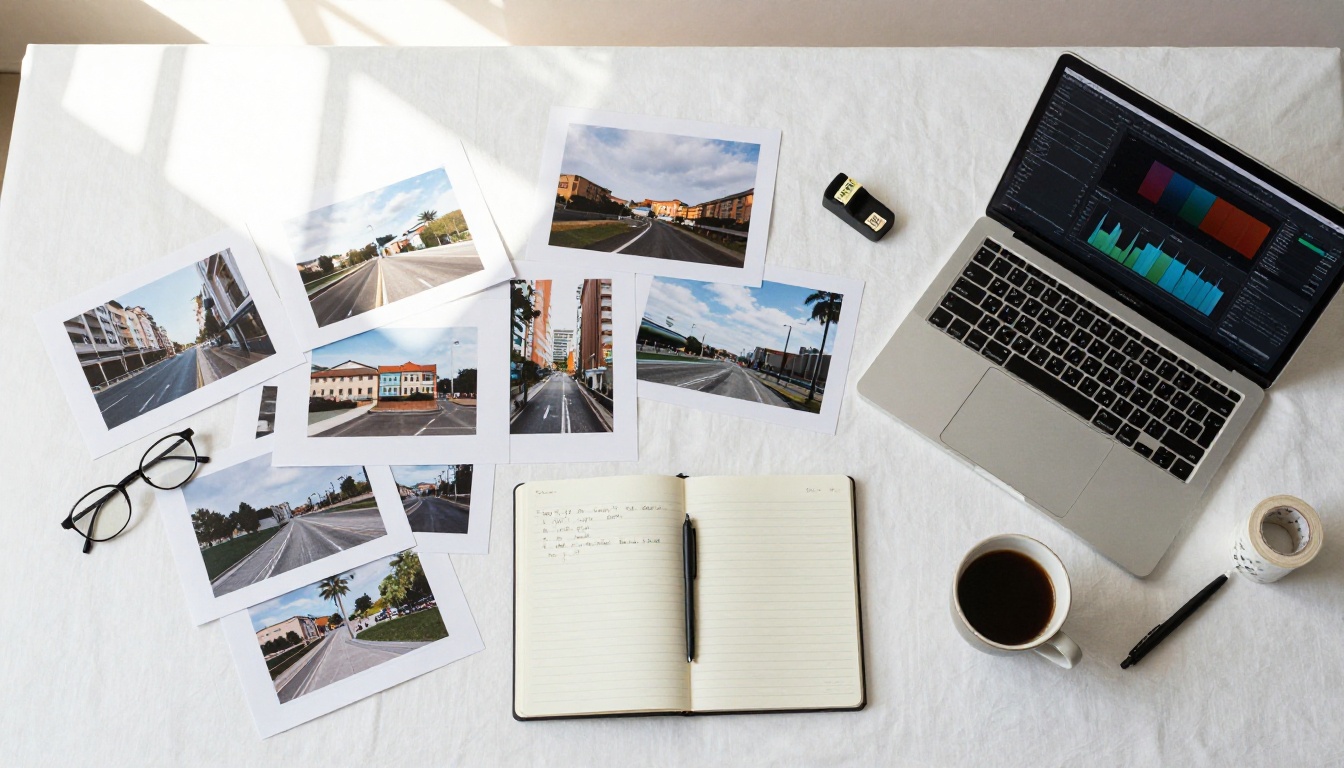
Consider a prompt describing a woman in a specific outfit standing in a rain-soaked alley with a neon sign visible in the background, shot at a specific focal length, with described lighting from a specific angle. Seedream 4.5 will produce an image. Seedream 5 Lite is more likely to honor all the conditional details in that description rather than averaging them into a generic approximation.
For product photography workflows where your prompt needs to specify background texture, lighting direction, surface material, and product orientation simultaneously, 5 Lite's reasoning capability reduces the number of regeneration passes you need to get a usable result.
💡 Prompt tip for 5 Lite: Write prompts in full sentences with clear spatial and lighting conditions. The reasoning layer is optimized for descriptive text, not comma-separated keywords. "A woman standing near a window with morning light falling across her left shoulder" outperforms "woman, window, morning light, portrait."
Reference Images and Batch Generation
How reference input works in both models
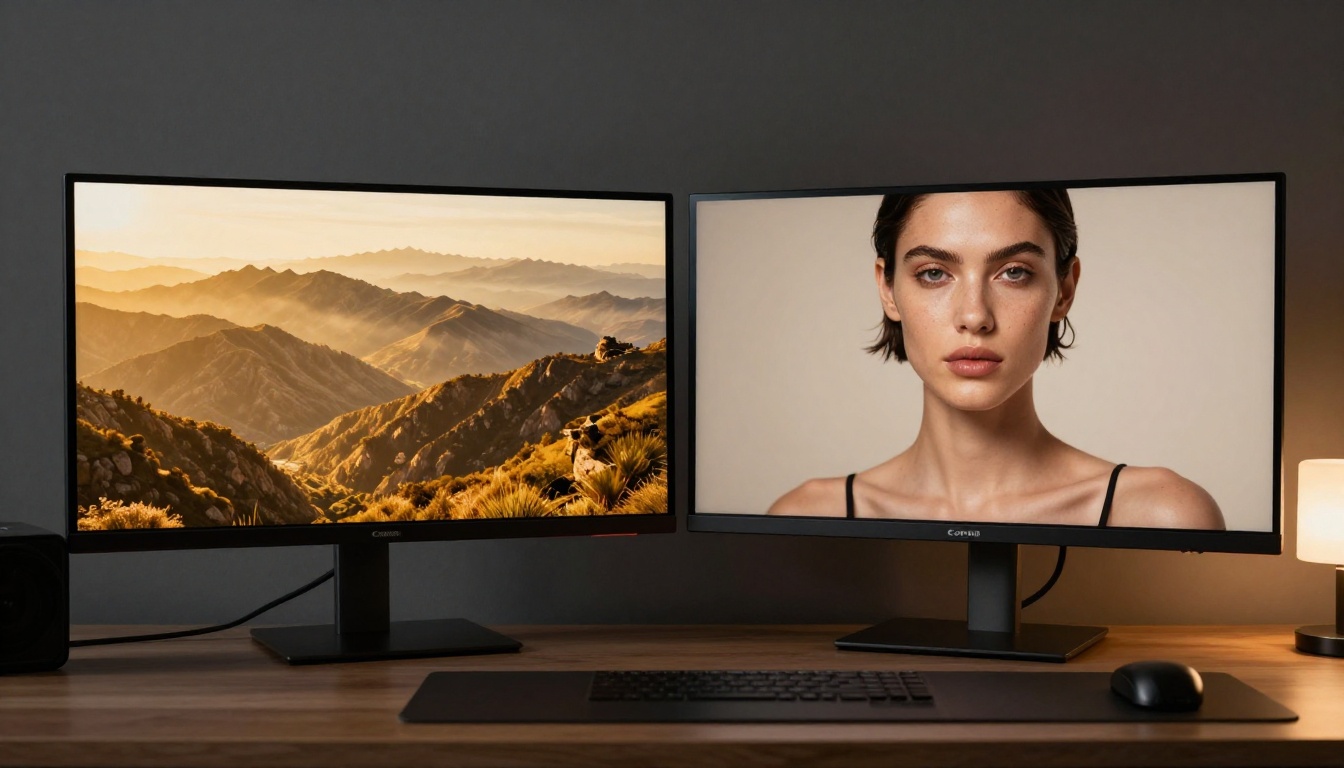
Both Seedream 4.5 and Seedream 5 Lite accept between 1 and 14 reference images as input. You upload photos to steer the style, subject, or composition of the output without retouching software. Drop in a product shot and describe a different background. Upload a portrait and specify a different outfit. Both models respond to this input mode and deliver editing-level control from a text prompt combined with a reference.
The mechanics are the same across both versions. The difference is that 5 Lite applies its reasoning layer on top of the reference, meaning the prompt describing how to modify or extend the reference image is interpreted with greater fidelity. With 4.5, straightforward reference modifications work reliably; complex transformations described in multi-clause prompts may require more iteration.
Sequential image generation
Both models support sequential generation up to 15 images in a single session. Set the mode to "auto" and the model decides whether to produce a set of related images from a single prompt. This is useful for character variation sets, scene progressions, product color variants, and any project requiring a visually consistent batch.
The main difference in practice is generation time per image. Sequential generation multiplies the time cost. Given that Seedream 5 Lite takes longer per image on complex prompts, a 15-image sequential batch on 5 Lite will run considerably longer than the same batch on Seedream 4.5 with a straightforward prompt.
Generation Speed: Real Numbers
Generation time varies significantly by prompt complexity and output resolution. Based on documented outputs, here is the realistic range for each model:
| Model | Simple Prompt | Complex Prompt | Max Resolution |
|---|
| Seedream 4.5 | ~15 seconds | ~62 seconds | 4K (4096px) |
| Seedream 5 Lite | ~37 seconds | ~71 seconds | 3K (3072px) |
The floor on Seedream 4.5 is noticeably lower. For rapid iteration on simple prompts, 4.5 cycles through results faster. For complex prompts where you are writing detailed scene descriptions, the gap between the two narrows and the quality output from 5 Lite often reduces the total number of generations you need to reach a usable result.
💡 Speed vs. accuracy tradeoff: If you are running 20 quick variations to find a composition direction, use Seedream 4.5. Once you have the composition and want to execute a detailed final version, switch to Seedream 5 Lite.
Feature Comparison at a Glance
| Feature | Seedream 4.5 | Seedream 5 Lite |
|---|
| Max resolution | 4K (4096px) | 3K (3072px) |
| Resolution options | 2K, 4K, Custom | 2K, 3K |
| Custom pixel dimensions | Yes | No |
| Built-in prompt reasoning | No | Yes |
| Reference image input | 1-14 images | 1-14 images |
| Sequential generation | Up to 15 images | Up to 15 images |
| Aspect ratios | 9 options | 9 options |
| Output formats | PNG, JPEG | PNG, JPEG |
| Safety checker toggle | Yes | No |
| Simple prompt speed | ~15s | ~37s |
| Complex prompt speed | ~62s | ~71s |
| No watermark | Yes | Yes |
When to Pick Each Model
Use Seedream 4.5 when
- Your workflow requires 4K output for print, large-format display, or texture mapping
- You need custom pixel dimensions to match a specific design system or asset pipeline
- You are iterating quickly on simple or medium-complexity prompts and need fast turnaround
- You want to run large sequential batches of 15 images without extended wait time
- You need the safety checker disabled for specific editorial or artistic contexts
Use Seedream 5 Lite when
- Your prompts are long and multi-part, describing complex scenes with multiple subjects, specific lighting conditions, and spatial relationships
- You are working on reference-based editing and need a reference combined accurately with a detailed modification prompt
- Output resolution of 3K is sufficient for your final delivery format, such as web, social, or standard print
- You want to reduce iteration cycles on complex prompts and get closer to your intent on the first or second generation
💡 The practical workflow: Use Seedream 4.5 for fast iteration and high-resolution final delivery. Use Seedream 5 Lite when you are describing something specific and complex and need the model to actually read what you wrote.

How to Use Seedream 5 Lite on PicassoIA
Seedream 5 Lite is available to run directly in your browser with no account or coding required. Here is how to get your first image in under two minutes.
Step 1: Open the model page
Go to Seedream 5 Lite on PicassoIA. The interface loads with a prompt field at the top and generation settings below.
Step 2: Write your prompt
Type your description in the prompt field. Write in full sentences rather than comma-separated keywords. Include:
- Subject: who or what is in the image
- Environment: where the scene takes place
- Lighting: direction, quality, and color of the light
- Composition: camera angle or viewpoint if relevant
Example: "A ceramic bowl filled with fresh figs and a halved pomegranate, placed on a slate surface, photographed from directly above, lit by soft diffused natural light from a north-facing window, with visible water droplets on the fruit skin."
Step 3: Select resolution
Choose 2K for web and social output. Choose 3K for print or high-resolution delivery. If you are unsure, 2K is the faster option and sufficient for most digital use.
Step 4: Set aspect ratio
Select the ratio that matches your output format. 16:9 for landscape, 9:16 for mobile or portrait, 1:1 for square social content. If you are using reference images, set the ratio to "match input image" and the model matches the dimensions of your upload automatically.
Step 5: Add reference images (optional)
Click the image input section and upload between 1 and 14 reference photos. The model uses these to steer the style or subject of the output. Combine a reference with your text prompt to describe modifications or place the subject in a new environment.
Step 6: Enable sequential generation (optional)
Switch sequential image generation to "auto" and set the max images value. The model decides whether a single image or a related set best answers your prompt. Useful for character variations or scene progressions from a single session.
Step 7: Generate and download
Click generate. The model processes for 30 to 70 seconds depending on prompt complexity. Once complete, download your image in PNG or JPEG format. No watermarks are added to the output.

How to Use Seedream 4.5 on PicassoIA
Seedream 4.5 follows the same interface flow with two additional options worth noting.
Select 4K resolution for maximum detail
Under the size selector, choose 4K to output at 4096px. This is the standout feature of the model. Use it when the final deliverable will be printed large, displayed on a high-density screen at close range, or used as a source file for further editing where detail in the original matters.
Use custom dimensions for precision sizing
Set the size to custom and enter specific width and height values between 1024 and 4096 pixels. This option exists only in Seedream 4.5. It is useful when you need assets at exact pixel dimensions for a design system, a web layout with fixed image slots, or 3D textures sized to power-of-two values.
Rapid iteration at 2K
For fast concept exploration, select 2K and run multiple prompt variations quickly. Seedream 4.5 at 2K on simple prompts returns results in approximately 15 seconds, making it the faster option for early-stage ideation before committing to a final 4K render.
Start Generating Now
Both models are live on PicassoIA and free to run in your browser without any setup. Open Seedream 5 Lite and write your next detailed scene description to see how the reasoning layer handles complex prompts. Open Seedream 4.5 and push it to 4K to see what the resolution ceiling actually looks like at full size.
The comparison only makes sense after you have run both. Each model responds differently to the same input. PicassoIA gives you access to both without cost or code, so the fastest way to know which fits your workflow is to test them back to back on the same prompt and compare the results directly.
Try Seedream 5 Lite and Seedream 4.5 on PicassoIA today. Your first prompt is already better than any benchmark.


