Most people using Seedream 5.0 get decent results but leave a lot of quality on the table. The difference between a flat, generic AI image and one that looks genuinely photographic comes down to a handful of specific decisions: how you write the prompt, which settings you touch, and when you decide to upscale versus regenerate. This article covers the practical side of all three, with specific techniques you can apply immediately.
What Makes Seedream 5.0 Different
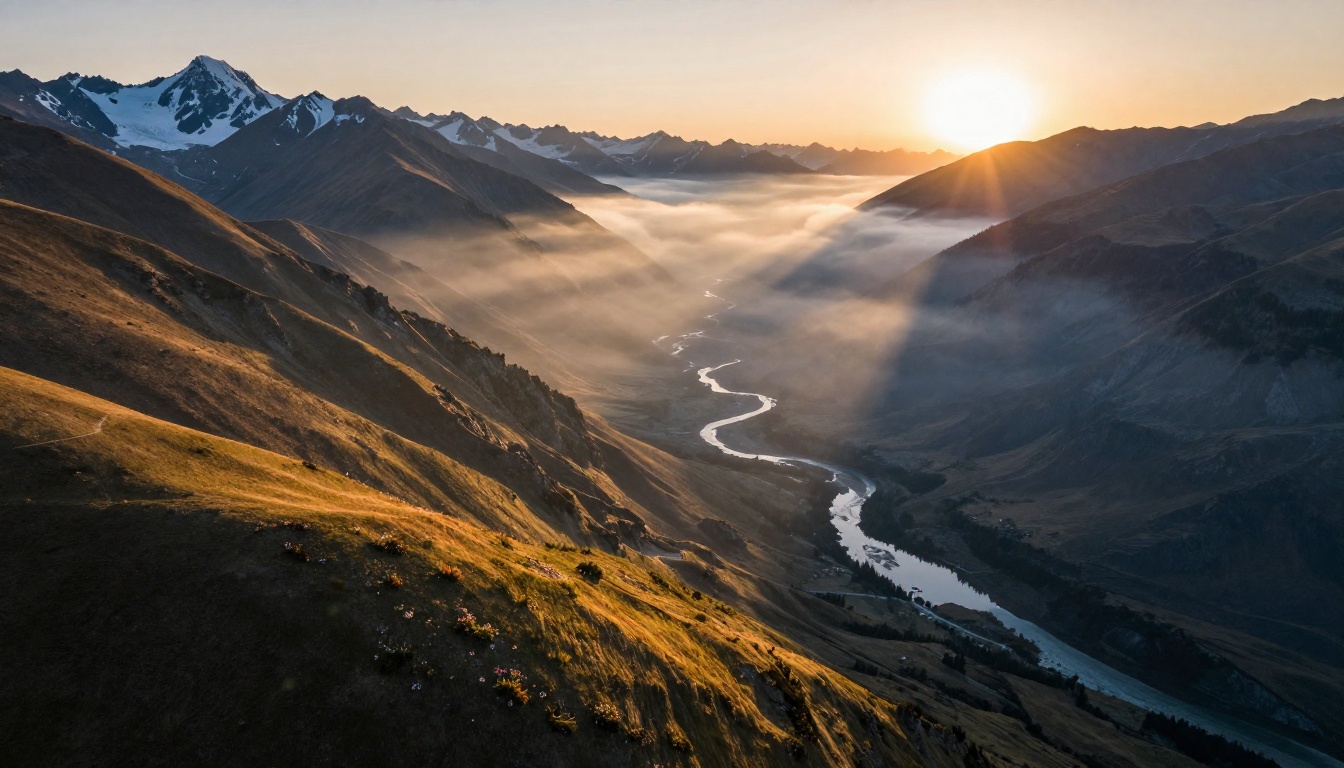
Seedream 5.0 is ByteDance's most capable image generation model to date. Compared to earlier versions like Seedream 4 and Seedream 4.5, the fifth generation shows noticeably stronger understanding of compositional language, more accurate texture rendering, and significantly better handling of photorealistic lighting conditions.
Speed Without Sacrificing Detail
One of the things that separates Seedream 5.0 from many alternatives is that it does not force a trade-off between speed and output quality. The model produces high-fidelity results in generation times that are competitive with faster models like Flux Schnell. For production workflows where you need volume without sacrificing realism, that matters considerably.
Prompt Sensitivity at Scale
The prompt-following capability in Seedream 5.0 is genuinely improved over prior versions. Where earlier generations would sometimes ignore specific compositional instructions like camera angle or lighting direction, the newer model acts on them reliably. This means your detailed prompts actually pay off rather than getting blended into a generic average of competing interpretations.
Writing Prompts That Produce Sharp Results
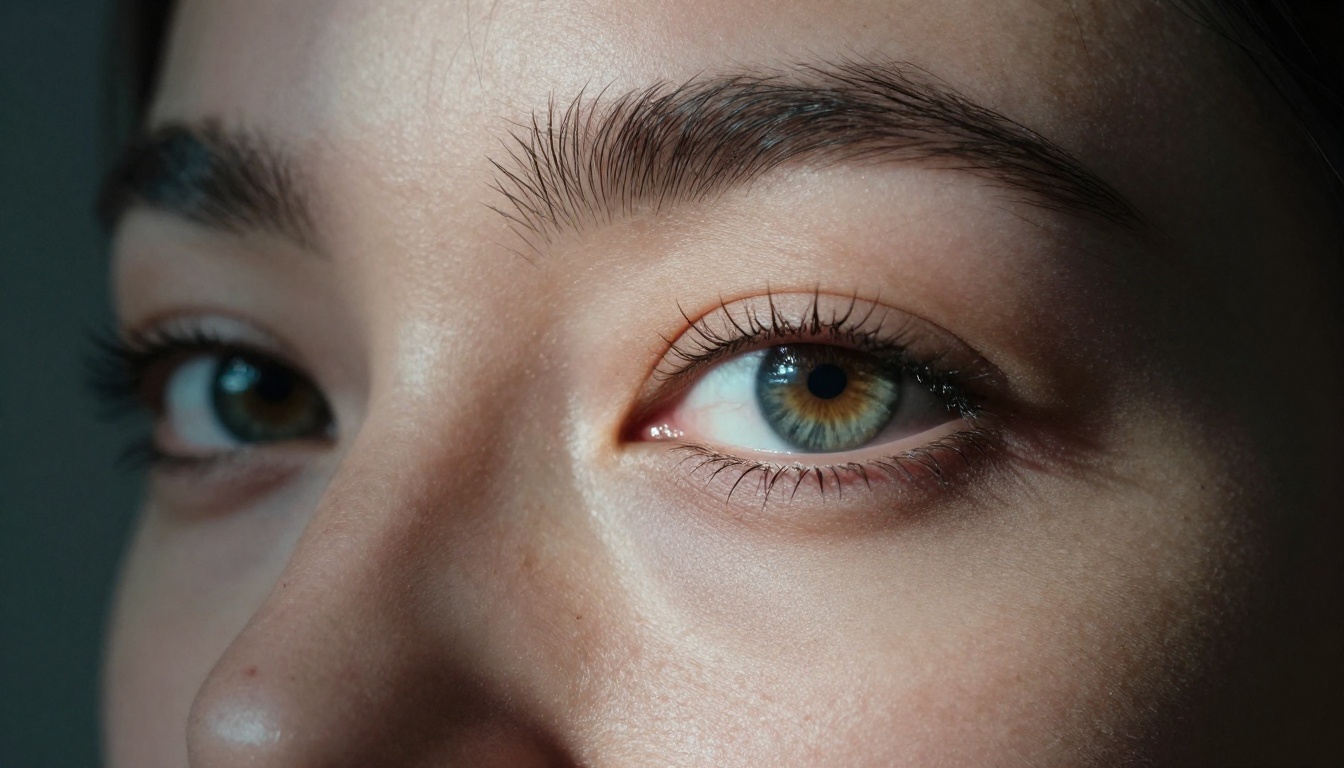
This is where most users leave quality behind. A vague prompt produces a vague image. Seedream 5.0 rewards specificity, and the structure of that specificity matters more than the length of the prompt itself.
The Anatomy of a Strong Prompt
Think of a prompt as four layered components built in sequence:
- Subject and action: Who or what, doing what, in what position
- Environment and context: Where the subject is, what surrounds it
- Lighting conditions: Direction, quality, color temperature, source type
- Camera and technical details: Lens focal length, aperture, film stock or sensor style
A weak prompt: "a woman in a café"
A strong prompt: "a young woman sitting at a marble café table, morning backlight from tall arched windows creating rim lighting on her hair, shallow depth of field, 85mm f/1.4, Kodak Portra 400 film grain, RAW 8K photography"
The second version activates different processing in the model and produces a fundamentally different class of output. Every component is doing specific work.
Camera and Lens Descriptors That Work
These specific terms consistently improve photorealism in Seedream 5.0:
| Term | Effect |
|---|
85mm f/1.4 | Portrait compression, creamy background blur |
24mm wide angle | Environmental context, slight edge distortion |
100mm macro f/2.8 | Extreme close-up, paper-thin focus plane |
35mm f/2 street | Natural field of view, subtle vignette |
50mm f/2.8 | Neutral, closest to human eye perspective |
tilt-shift 90mm | Product photography precision, selective focus plane |
Adding a specific focal length tells the model what kind of perspective compression and depth of field to simulate. It is one of the highest-leverage single additions you can make to any prompt, regardless of subject matter.
Lighting Terms That Actually Translate
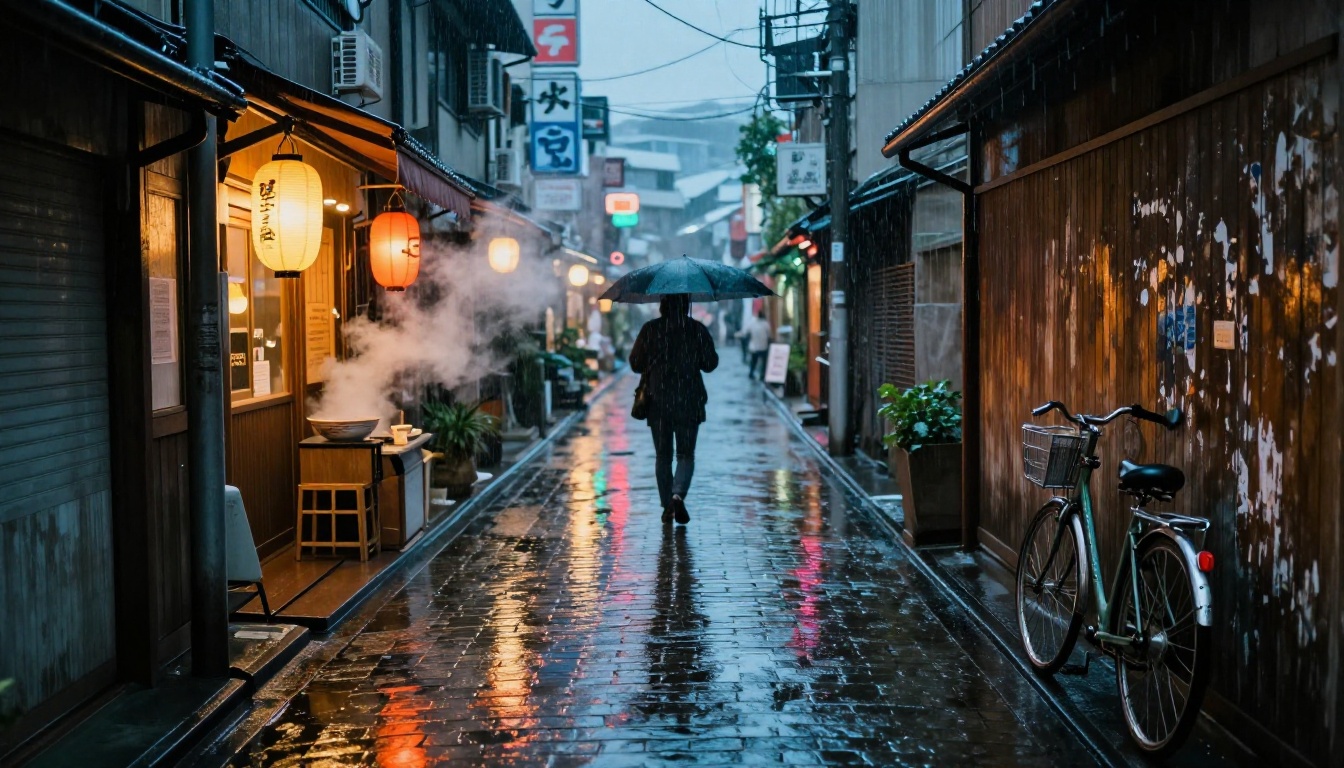
Not all lighting language performs equally in Seedream 5.0. These terms produce consistent, reliable results across most subject types:
- "Volumetric morning light from the left": Creates directional sunrays with atmospheric depth
- "Single key softbox from upper right": Clean studio portrait lighting with a defined shadow fall
- "Overcast diffused light": Eliminates harsh shadows, ideal for close-up detail work
- "Golden hour backlight": Warm rim lighting effect that wraps around subjects
- "Chiaroscuro side lighting": High-contrast dramatic single-source illumination
- "North window natural light": Cool, even, shadow-free light classic for flat-lay product work
💡 Avoid vague lighting terms like "good lighting" or "well-lit." Seedream 5.0 interprets these as generic studio conditions without any distinctive quality or direction.
Settings That Change Everything
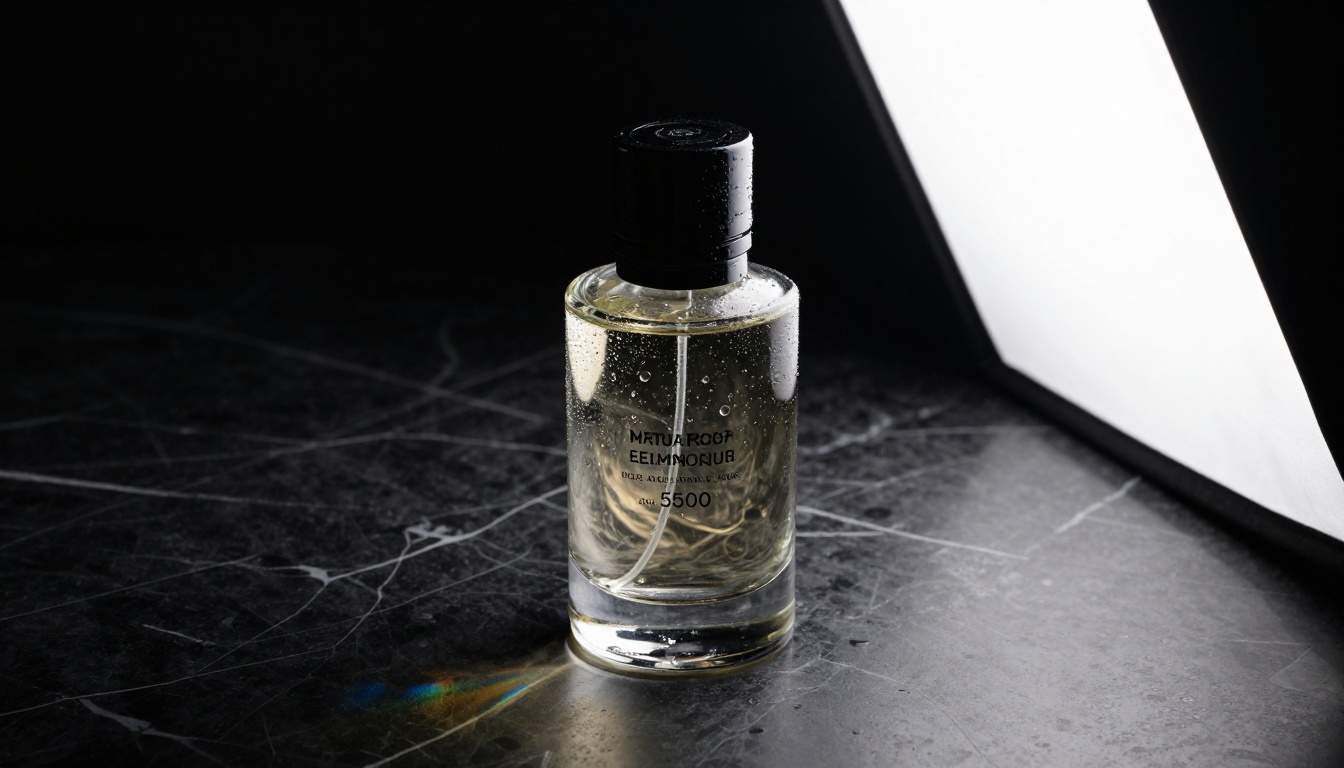
The prompt is only half the equation. Getting the most from Seedream 5.0 also means understanding the settings that shape how the model interprets and renders what you describe.
CFG Scale and Why It Matters
CFG (Classifier-Free Guidance) scale controls how strictly the model follows your prompt. Too low and the model gets creative in ways you did not ask for. Too high and outputs become oversaturated and artificially crisp in unnatural ways.
For Seedream 5.0 specifically:
- CFG 5-6: Loose, creative, good for abstract or impressionistic compositions
- CFG 7-8: Balanced, recommended for most photorealistic work
- CFG 9-11: Strict prompt adherence, but watch for over-saturation artifacts
- CFG 12+: Usually diminishing returns, artifacts increase noticeably
The sweet spot for photographic realism is 7 to 8. Go above that only when you need precise detail placement and are working with a well-structured, conflict-free prompt.
Sampling Steps: The Right Range
More steps do not always mean better results. After a certain threshold, additional steps produce marginal improvements at the cost of generation time and credits.
For Seedream 5.0:
- 20-25 steps: Fast preview quality, acceptable for drafts and iteration
- 28-35 steps: Standard quality, solid for most production outputs
- 40-50 steps: High-fidelity detail, with diminishing returns beyond this point
The standard 30-step range gives you approximately 90% of the possible quality at roughly half the cost of 50-step runs. Unless you are making a final production image, 28-35 is the practical target.
Seed Values for Consistency
Every generation uses a random seed by default. When you find a composition you like, note the seed number and reuse it with modified prompts. This lets you iterate on a specific visual direction without randomizing the entire result each time.
This is particularly useful for:
- Portrait consistency across a visual series
- A/B testing prompt changes on the same base composition
- Iterating on lighting or styling without losing a strong pose or expression
How to Use Seedream on PicassoIA
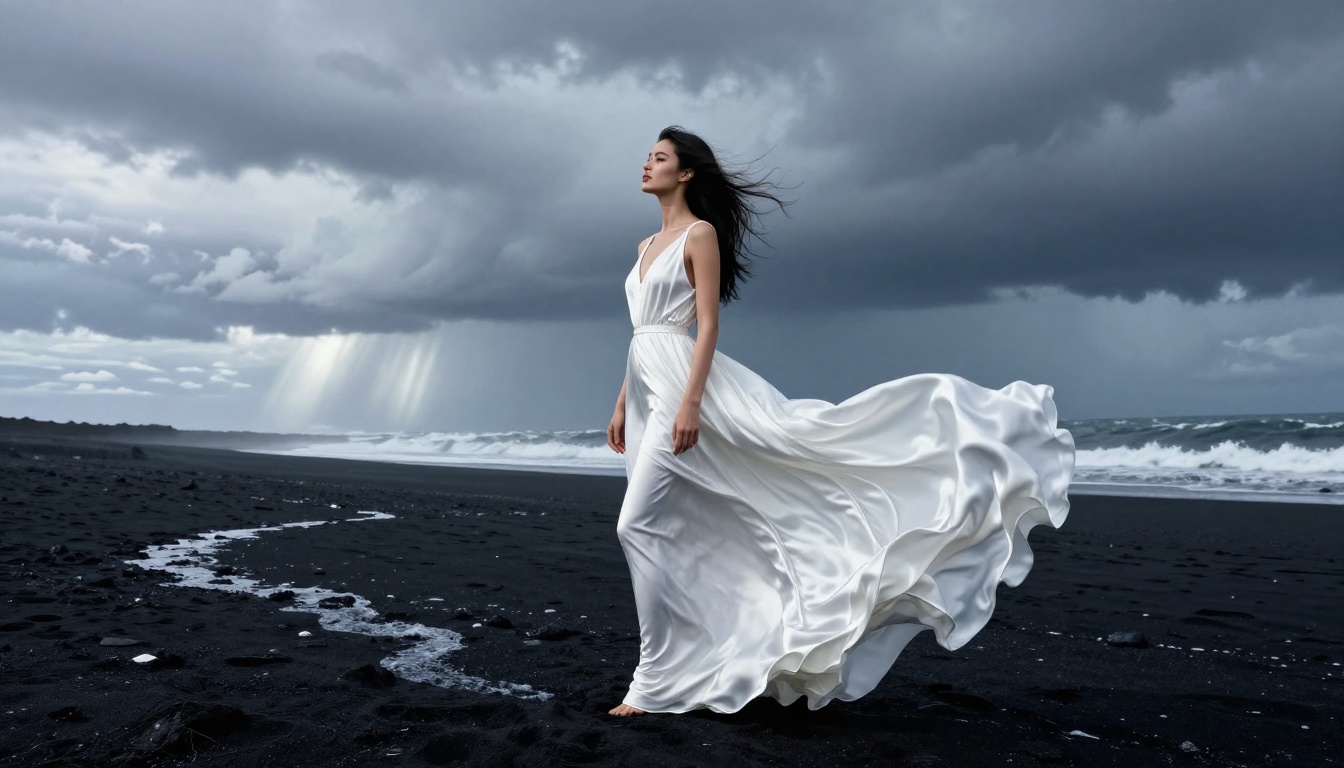
PicassoIA offers direct access to the full Seedream model family, including Seedream 4.5 and Seedream 5 Lite, with no local setup or GPU required. The platform runs everything server-side, so generation quality does not depend on your hardware at all.
Step-by-Step Image Generation
- Open the Seedream model you want to use on picassoia.com
- Paste your prompt using the four-layer format: subject, environment, lighting, camera specs
- Set aspect ratio to 16:9 for landscape photography, 9:16 for portrait, 1:1 for social content
- Adjust CFG scale to 7-8 for photorealistic outputs
- Set steps to 30-35 for standard quality
- Generate and note the seed number if the result is strong
- Iterate by modifying one variable at a time: prompt element first, then lighting, then CFG
Changing too many variables simultaneously makes it impossible to know what drove an improvement. Isolate one change per generation cycle.
Comparing Versions: Seedream 4.5 vs 5.0
| Feature | Seedream 4.5 | Seedream 5.0 |
|---|
| Prompt following | Strong | More precise |
| Skin texture detail | Good | Noticeably improved |
| Lighting accuracy | Solid | More directional control |
| Generation speed | Fast | Comparable |
| Background coherence | Good | Fewer artifacts |
| Text in images | Weak | Improved, still imperfect |
If you have prompts that performed well in Seedream 4.5, they will generally produce better results in 5.0 without modification. The newer model does not require fundamentally different prompting strategies.
Getting Sharper Details in Close-Up Shots

Portrait and macro photography are where Seedream 5.0 particularly shines, but getting razor-sharp micro-detail requires specific prompt choices.
Subject Focus Techniques
For portrait close-ups, these prompt elements reliably improve detail rendering:
"individual pores visible on skin surface""fine eyelash detail, each lash defined""iris texture with complex color variations""fabric weave texture clearly visible""hair strands catching rim light individually"
These micro-detail descriptors push the model toward high-frequency detail preservation rather than the smooth averaging it defaults to without guidance.
For macro subjects like flowers, metals, or food textures:
"surface texture visible under magnification""light refraction through water droplets""grain structure of material clearly visible""fine surface scratches and natural wear patterns"
When to Upscale vs Re-generate
This is a practical decision that saves significant time in production workflows.
Upscale when:
- The composition and subject are exactly right
- Only resolution or fine detail is the limiting factor
- You want to preserve a specific seed, pose, or expression
Re-generate when:
- Structural errors exist (distorted anatomy, incorrect proportions)
- The lighting direction is wrong at a fundamental level
- Subject placement conflicts with the environment
For upscaling generated images, models like HiDream L1 Fast and HiDream L1 Full on PicassoIA provide 2x-4x resolution boosts while preserving the original composition. Super-resolution models add detail intelligently rather than interpolating pixels, making them significantly better than a simple resize for photographic work.
💡 If you are unsure whether to upscale or re-generate, ask: "Is the problem about resolution, or about what is in the image?" Resolution problems are upscale candidates. Content problems require re-generation.
3 Common Mistakes and How to Fix Them
Overcrowded Prompts
The most frequent issue in Seedream 5.0 outputs is prompt overloading. When you try to specify too many competing elements simultaneously, the model has to average or drop some of them. The result is an image that partially matches each element but nails none of them.
The fix is prioritization. Decide what the single most important visual element is and build outward from there. A prompt with five well-integrated elements beats one with fifteen competing ones every time.
Wrong Aspect Ratios
Using a square 1:1 ratio for a subject that is inherently horizontal, or a 16:9 landscape ratio for a tight portrait, creates compositional tension the model resolves awkwardly. Always match your aspect ratio to the subject's natural orientation before adjusting any other setting.
Models like Flux Kontext Max and Flux Pro also support flexible aspect ratios on PicassoIA if you want to compare outputs across different models using the same prompt structure.
Ignoring Negative Prompts
Seedream 5.0 supports negative prompts, and they are consistently underused. While positive prompts define what you want, negative prompts prevent the model from defaulting to common failure patterns.
A practical negative prompt for photorealistic work:
"cartoon, illustration, 3D render, CGI, digital art, painting, sketch, anime, watercolor, oversaturated, overexposed, blurry, low quality, deformed anatomy, extra limbs"
This single addition removes an entire category of unwanted outputs before they ever get generated, with no cost to generation time.
Workflows That Speed Up Your Process
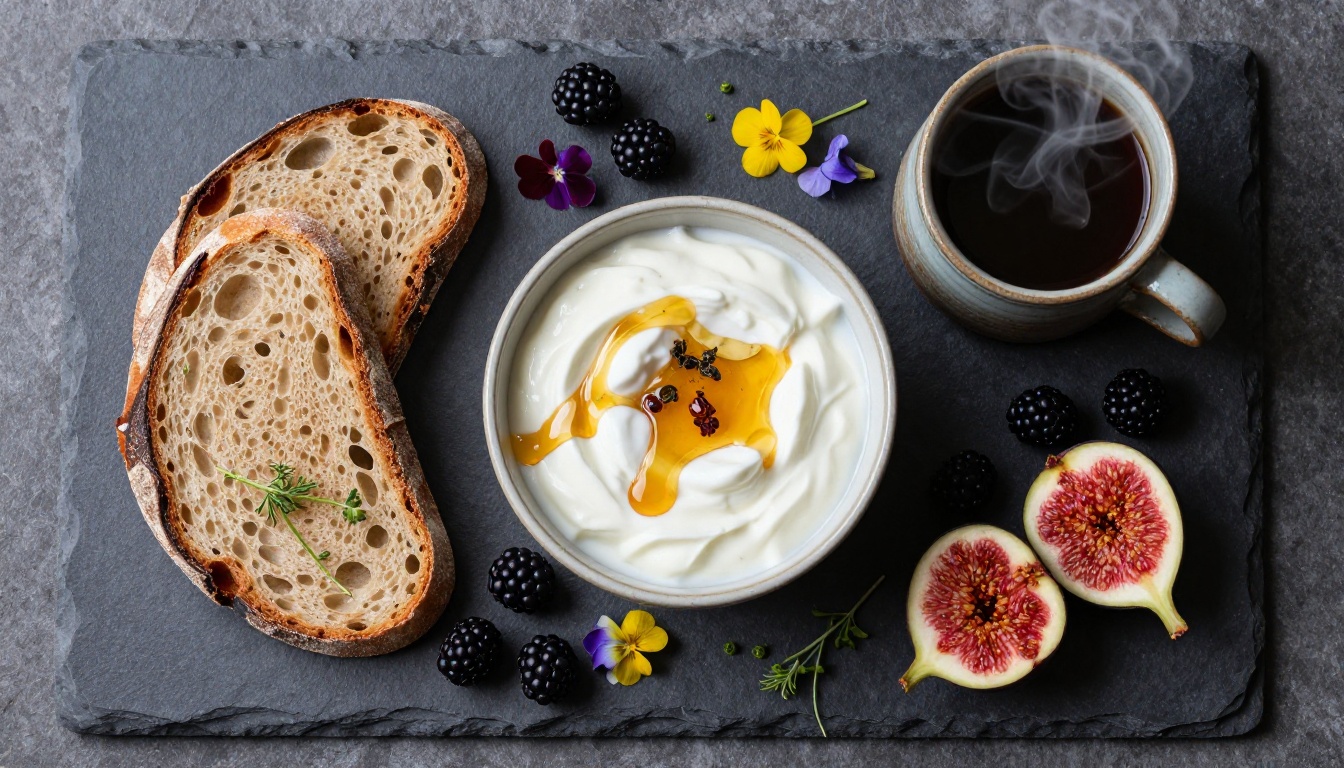
Batch Prompting Strategies
Once you have a prompt structure that works, systematically vary single elements to generate a consistent visual series efficiently without starting from scratch each time.
Start with a base prompt, then create variations by changing:
- Lighting condition (morning, golden hour, overcast, studio key light)
- Camera angle (eye level, low angle, aerial, close-up)
- Subject position or action (seated, standing, in motion)
- Background environment (urban, natural, interior, minimal)
This approach creates a coherent visual series where each image feels connected without being identical. It is significantly faster than writing each prompt from scratch and produces more internally consistent results.
Using Reference Images Effectively
Models with image-to-image capability, like Flux Kontext Dev and Flux Kontext Pro, let you upload a reference image and guide generation toward a specific compositional style, color palette, or subject. This is particularly useful when you have a strong real-world reference photo that captures the mood you want but need a generated version adapted to your specific context.
💡 For portrait series, using the same reference face image with different prompt environments is an efficient way to build consistent character presence across multiple scenes.
Comparing Models for Different Use Cases
Different subjects benefit from different models. Here is a practical breakdown for common use cases available on PicassoIA:
Start Creating Your Own Photos
The gap between a generic AI image and a genuinely photographic one is not about having access to better tools. It is about knowing which specific inputs drive which specific outputs, and applying that knowledge consistently.
Seedream 5.0 gives you a model that responds to detailed prompt structure, acts on technical photography language, and produces photorealistic textures when you give it the right inputs. The practical starting point: write one structured prompt today using the four-layer format. Subject, environment, lighting, camera specs. Set CFG to 7, steps to 30, aspect ratio matched to your subject. Generate five variations by changing only the lighting term each time. You will see immediately how much that single variable affects the final output.
PicassoIA has Seedream 5 Lite alongside the rest of the Seedream family and over 90 text-to-image models available at picassoia.com/en/all-models. You can run generations without local setup, test different models on the same prompt in minutes, and access upscaling tools like HiDream L1 Fast within the same platform. That combination of breadth and speed makes it the practical choice for anyone serious about AI photo quality.


