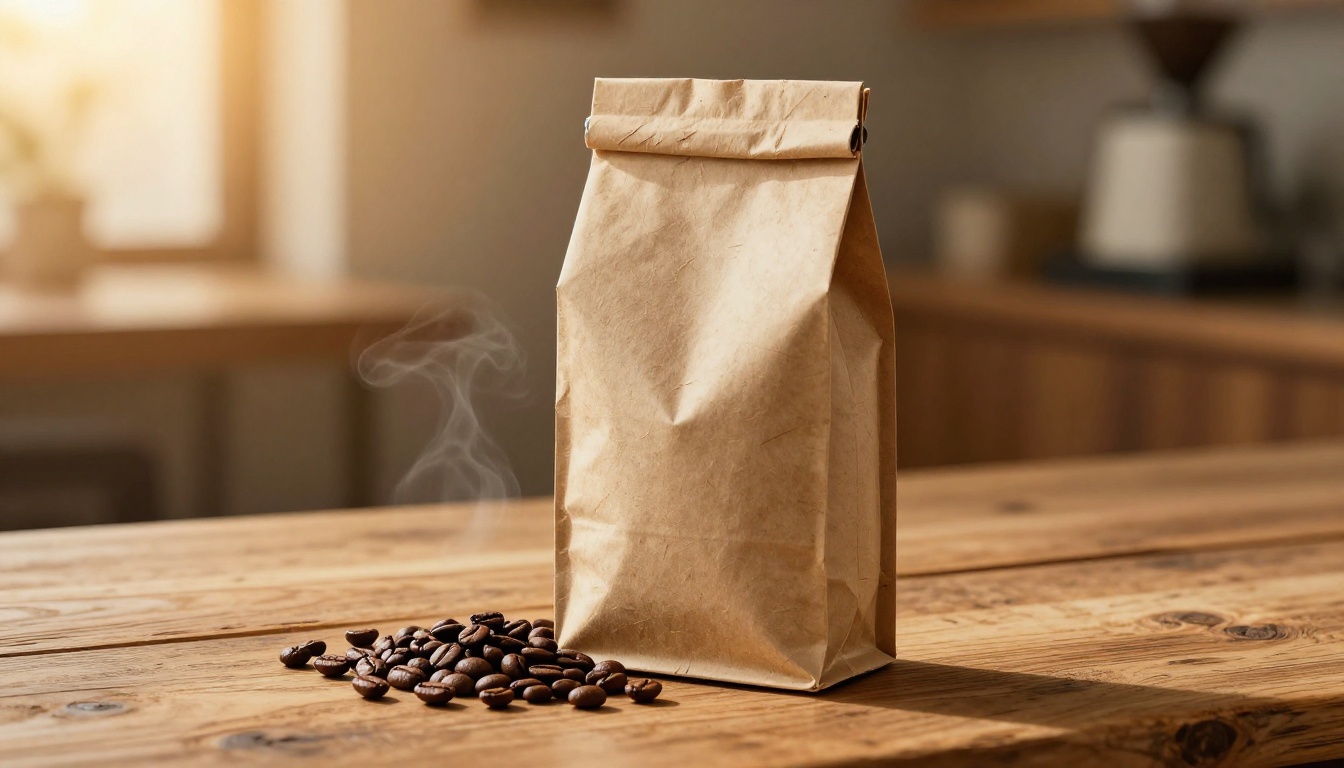
Hiring a professional photographer used to be the only path to product photos that actually convert. Studio booking, lighting equipment rental, editing turnarounds: it all added up quickly, often running $500 to $2,000 per session for a handful of usable shots. That entire process now collapses into a 15-minute workflow you can run from any browser.
This is not about replacing creativity. It's about removing the friction between a product idea and a polished, sales-ready image. Once you understand the three-stage process (generate, clean, upscale), you can produce consistent commercial-grade product photography for anything you sell, whether it's beauty, apparel, electronics, food, or home goods, without a single piece of studio equipment.
Why Most Product Photos Fall Short
The Real Cost of a Bad Shot
Bad product photography does not just look unprofessional. It costs money in a specific, measurable way. Research consistently shows that 67% of online shoppers say image quality is very important when deciding whether to buy. A blurry shot with a cluttered background or flat lighting communicates risk to a buyer who cannot touch or hold the product. They leave.
The problem is rarely the product itself. It's how it's presented. A $12 candle in a well-lit minimal environment reads as a $45 candle. The same object photographed on a kitchen counter with mixed lighting struggles to move at any price.
What Buyers Actually Scan For
Eye-tracking research on e-commerce product pages shows shoppers spend the first 0.5 seconds scanning for two things: overall shape clarity and surface texture. They want to understand what the product is made of before their brain processes price, reviews, or copy.
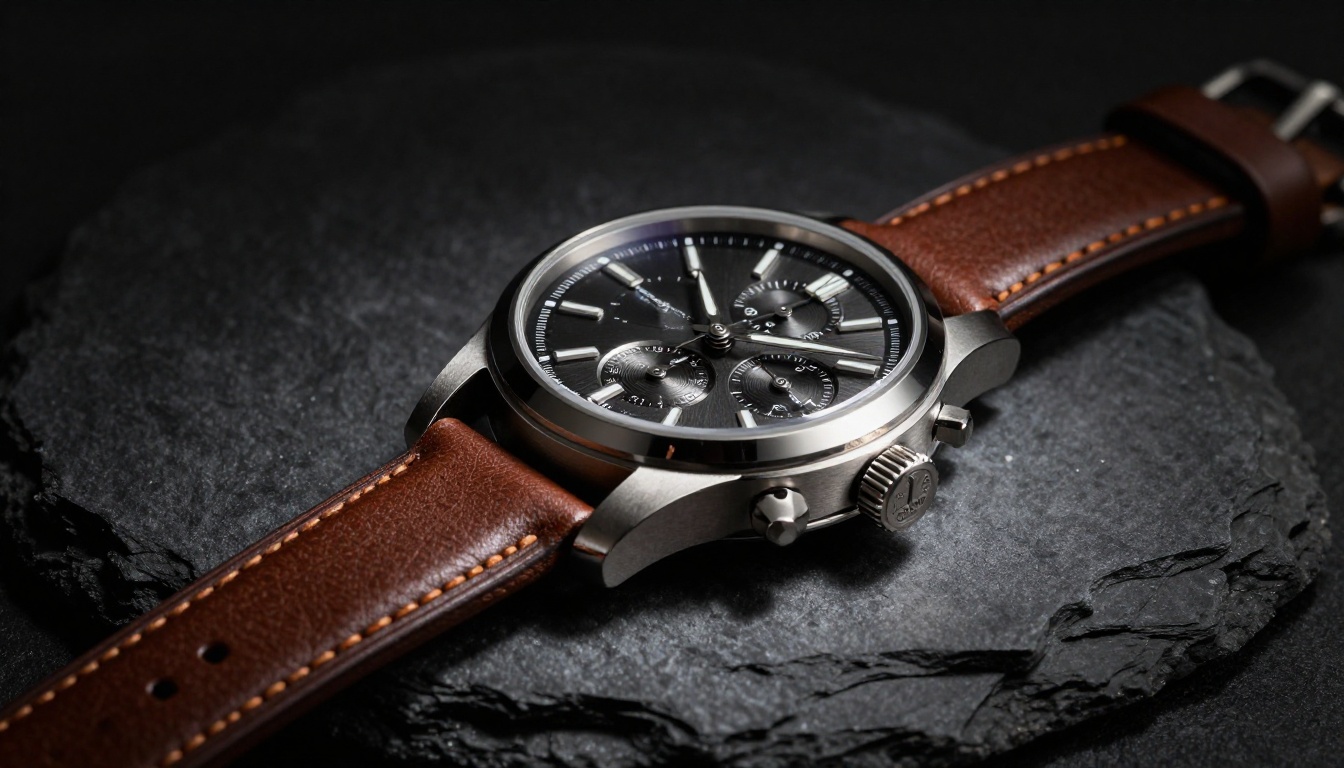
This means product photography needs to do one thing above everything else: make the material feel real. Leather should show grain. Glass should catch light the way real glass does. Fabric should drape with weight. When you write AI image prompts correctly, you encode all of this texture language directly into the output.
The 4-Step AI Product Photo Workflow
This workflow runs in sequence. Each stage builds on the previous one, and skipping a step always shows in the final image.
Step 1: Write a Prompt That Sets the Scene
The prompt is the single most important variable. Weak prompts produce weak images regardless of how capable the model is. Strong prompts give the AI everything it needs: subject, surface, light source, camera lens, atmosphere, and texture description.
A product photography prompt follows this structure:
Subject + Surface/Environment + Light Direction + Camera Angle and Lens + Material Details + Style Tag
A weak prompt: "skincare bottle on white background"
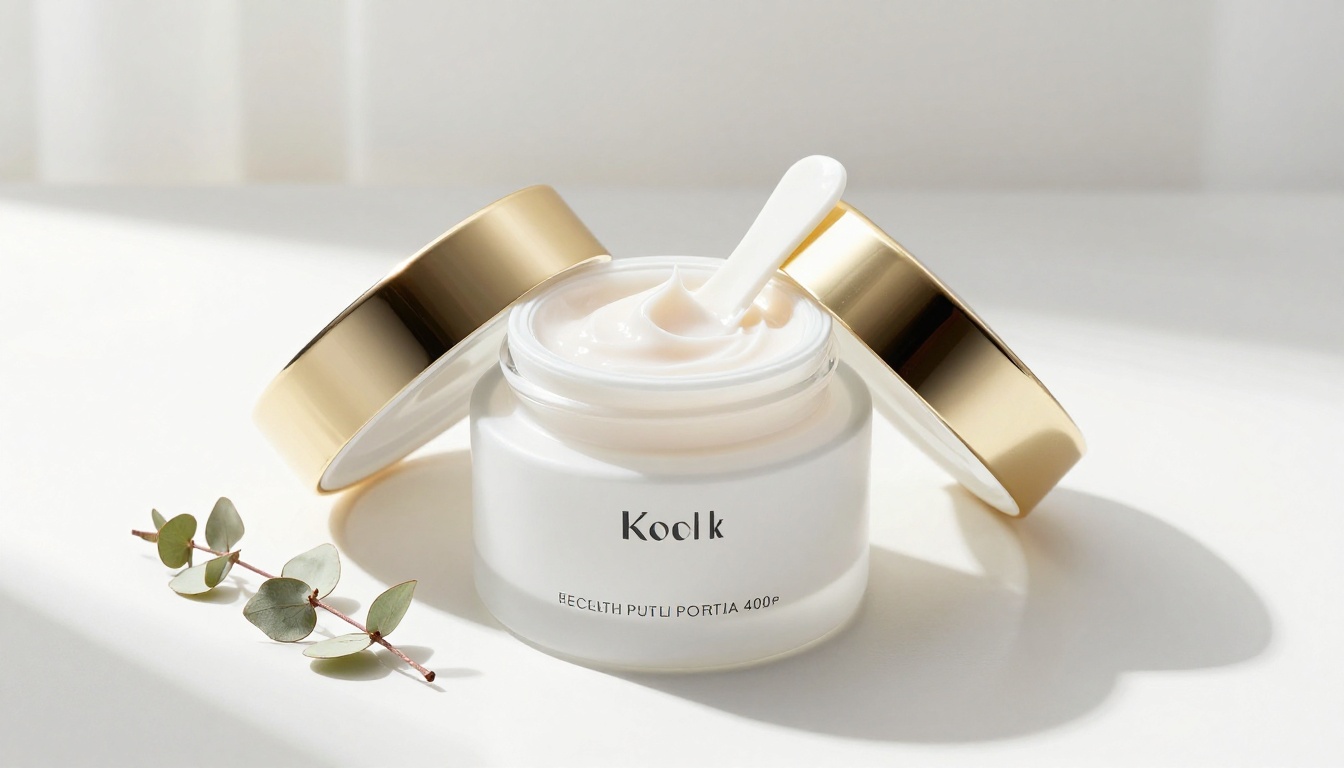
A strong prompt: "Glass skincare serum bottle with gold dropper cap, resting on white Carrara marble, soft diffused window light from the right casting a subtle shadow, 85mm lens f/2.0, condensation droplets on the glass surface, photorealistic commercial beauty photography, Kodak Portra 400 film grain, 8K RAW"
The output quality difference between these two approaches is significant. The first gives the AI almost nothing to work with. The second encodes material, light direction, lens behavior, texture, and artistic reference all at once.
Step 2: Generate Your Base Image
With a solid prompt, run it through P-Image on PicassoIA. P-Image is optimized for photorealistic RAW-style photography outputs and handles complex lighting scenarios and material textures far better than general-purpose generators.
💡 Tip: Generate 2-3 variations of the same prompt with different seeds. You will often find one composition that works much better than the others. The extra generations are minimal in cost and the upside is significant.
Step 3: Remove the Background
Once you have a strong base image, background treatment depends on your use case. For marketplace listings on Amazon, Etsy, or Shopify, a clean transparent or white background is often required. For lifestyle-style content, you may want to swap the background for something more contextual.
Remove Background by Bria handles this in one pass. It produces clean edge detection even on complex shapes like jewelry, transparent bottles, or products with fine details like mesh or fur.
Step 4: Upscale to Final Resolution
The final step is resolution. AI-generated images typically output at usable web resolution, but for print, large-format advertising, or marketplace listings with high-res zoom features, you need more pixels. Running your image through Clarity Pro Upscaler adds genuine detail, not just pixel interpolation, producing images that hold up under close inspection.
Writing Prompts for Product Shots
The Anatomy of a Product Photo Prompt
Every element in your prompt earns its place. Here is a breakdown of what matters most:
| Prompt Component | What It Controls | Example |
|---|
| Subject description | Object identity and material | "faceted crystal perfume bottle" |
| Surface/placement | Product context and support | "on raw white oak plank" |
| Light source | Mood, shadow, depth | "volumetric morning light from the left" |
| Camera angle | Composition and perspective | "low-angle 30-degree shot, 85mm f/1.8" |
| Texture language | Material authenticity | "leather grain, pebbled finish, matte coat" |
| Style tag | Model guidance | "photorealistic, 8K RAW, Kodak Portra 400" |
Lighting That Sells
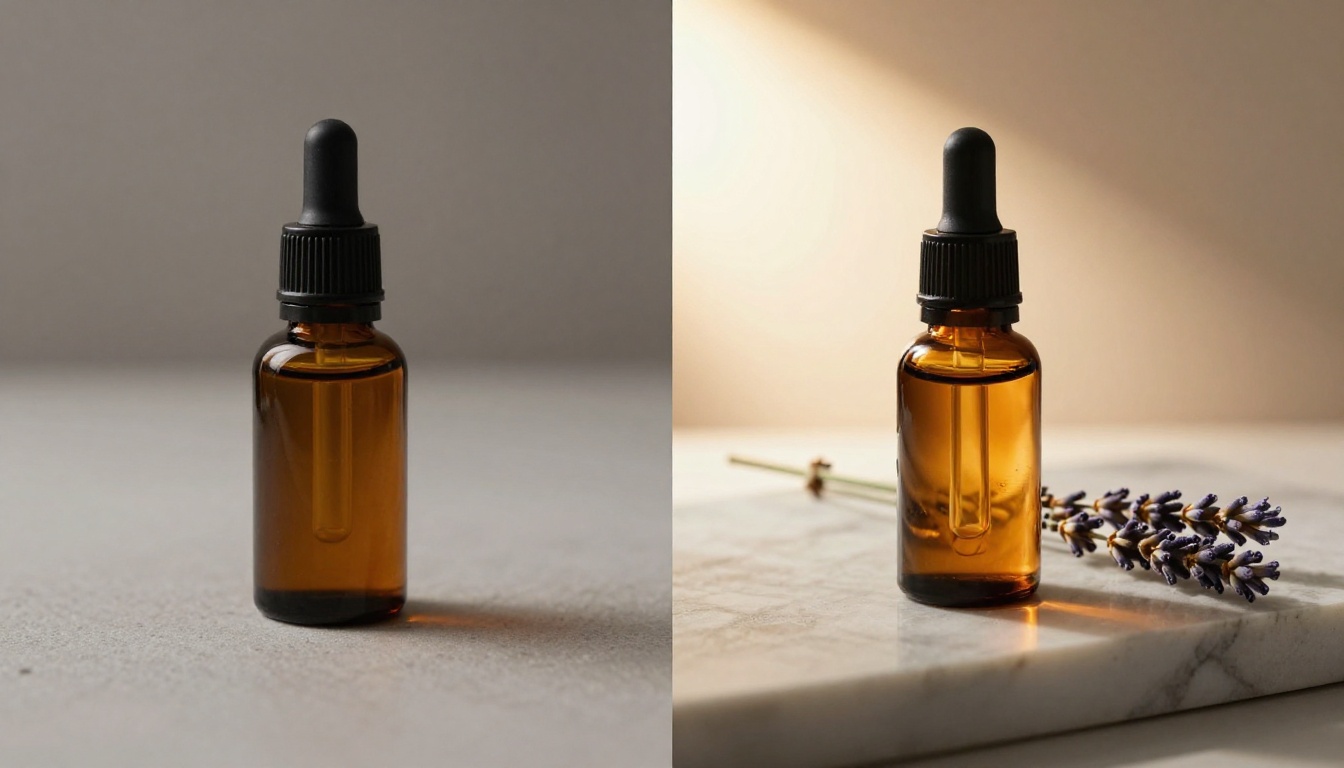
Lighting direction changes everything. Front-lit images look flat and low-budget. Side-lit images reveal texture and depth. Backlit images create a premium halo effect that works especially well for transparent containers, perfume bottles, oils, and beverages.
Three lighting approaches worth knowing:
- Side lighting (most versatile): Specify "single primary light from the left" or "right" to push shadows across the product surface, making textures pop.
- Backlight halo: Write "warm backlight from rear-left creating rim lighting on edges." Works beautifully for glass products and beverages.
- Overhead soft light: "Diffused light from directly above, no harsh shadows." The standard for overhead flatlay shots where even illumination matters most.
Backgrounds That Convert
Background choice is not aesthetic, it's strategic. Different platforms and product types have different requirements.
💡 White backgrounds convert best on marketplace listings where buyers compare products side-by-side. They remove visual noise and let the product stand on its own.
💡 Lifestyle/contextual backgrounds perform better on social media and brand websites where you're selling an experience, not just a product.
For lifestyle backgrounds, describe the environment directly in your prompt rather than generating it separately. "On a weathered oak kitchen counter with morning light streaming through a window" costs nothing extra in your prompt and results in an image that already tells a complete visual story.
How to Use P-Image on PicassoIA
PicassoIA's P-Image model is purpose-built for photorealistic outputs. Here is how to get the best results for product photography specifically.
Setting Up Your First Shot
- Go to P-Image on PicassoIA
- Set aspect ratio to 16:9 for banner or hero shots, or 1:1 for square marketplace listings
- Paste your full structured prompt (subject + surface + light + camera + texture + style)
- Toggle prompt upsampling to ON: this lets the model interpret and expand your prompt intelligently
- Generate 2-3 seeds to compare compositions before committing to one
Parameters That Matter Most
- Aspect ratio: Match your end-use format from the start. Cropping a 16:9 image for a square thumbnail always sacrifices important composition.
- Seed: Save the seed number from your best result. Reusing it generates consistent lighting and composition across a product range, which matters significantly for catalog consistency.
- Prompt depth: Prompts under 30 words routinely underperform prompts over 60 words for product photography, because the model needs surface and light information to output realistic material texture.
Background Removal Done Right
When to Use a White Background
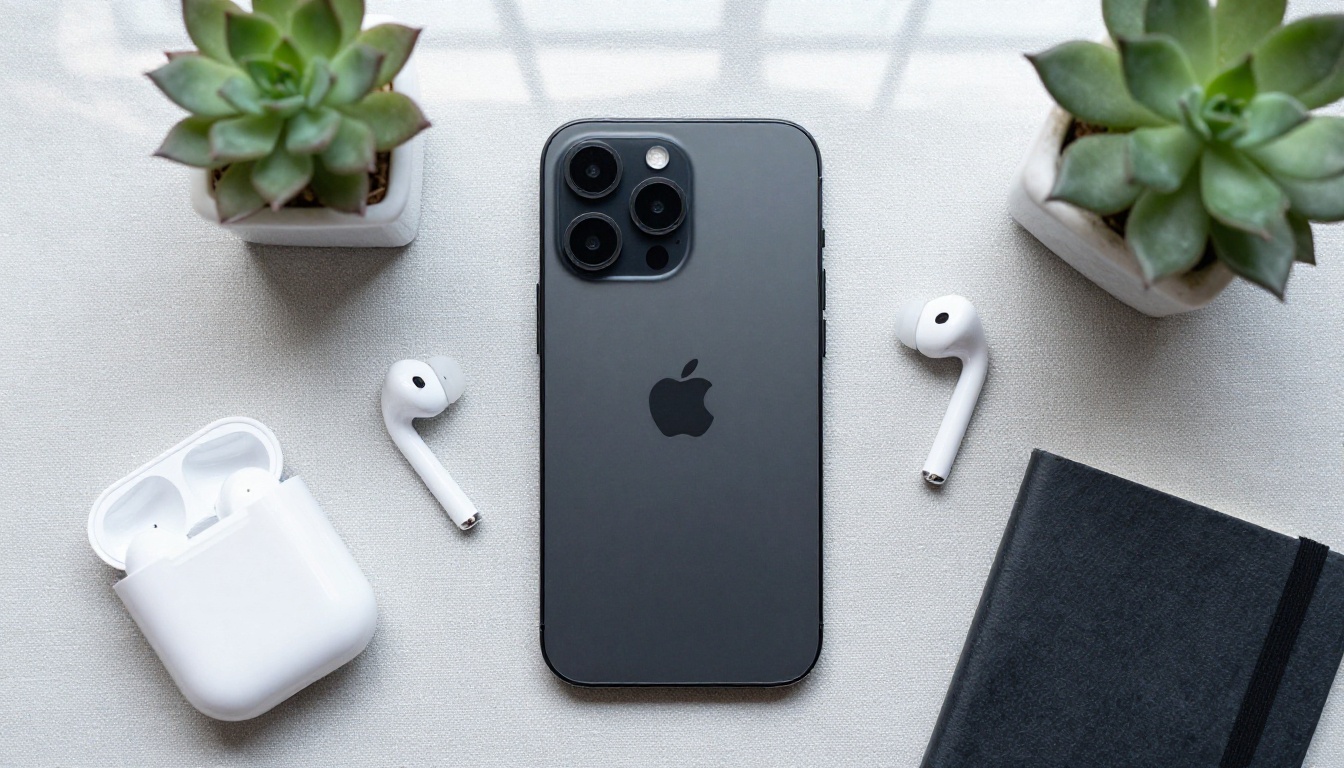
White background images are required by many major marketplaces. Amazon requires them for main product images. Etsy strongly recommends them. Shopify themes are built around them. The Bria Remove Background tool handles this automatically after you have generated your base image.
The steps:
- Generate your product on a simple light background in P-Image. Avoid pure black, as it creates edge detection problems.
- Upload the result to Remove Background
- Download the PNG with transparent background
- Place on pure white in your image editor or export directly for your listing
Lifestyle Shots vs Clean Cuts
Not everything needs a white background. Lifestyle shots, where the product appears in a real-world context, often outperform clean cuts for social content, email campaigns, and brand advertising. The decision comes down entirely to where the image appears.
A useful rule: if the image answers "what is this product?", use white. If it answers "what is this product for?", use lifestyle.
You can generate both versions from a single session. Start with the lifestyle version by describing the full environment in your prompt, then run it through Remove Background to create the marketplace version. Two assets, one prompt session.
Upscaling for Print and Web
Which Upscaler Fits Your Need
PicassoIA has several upscalers, each with different strengths. Choosing the right one depends on your output format and final use.
4x vs 6x: When Resolution Matters
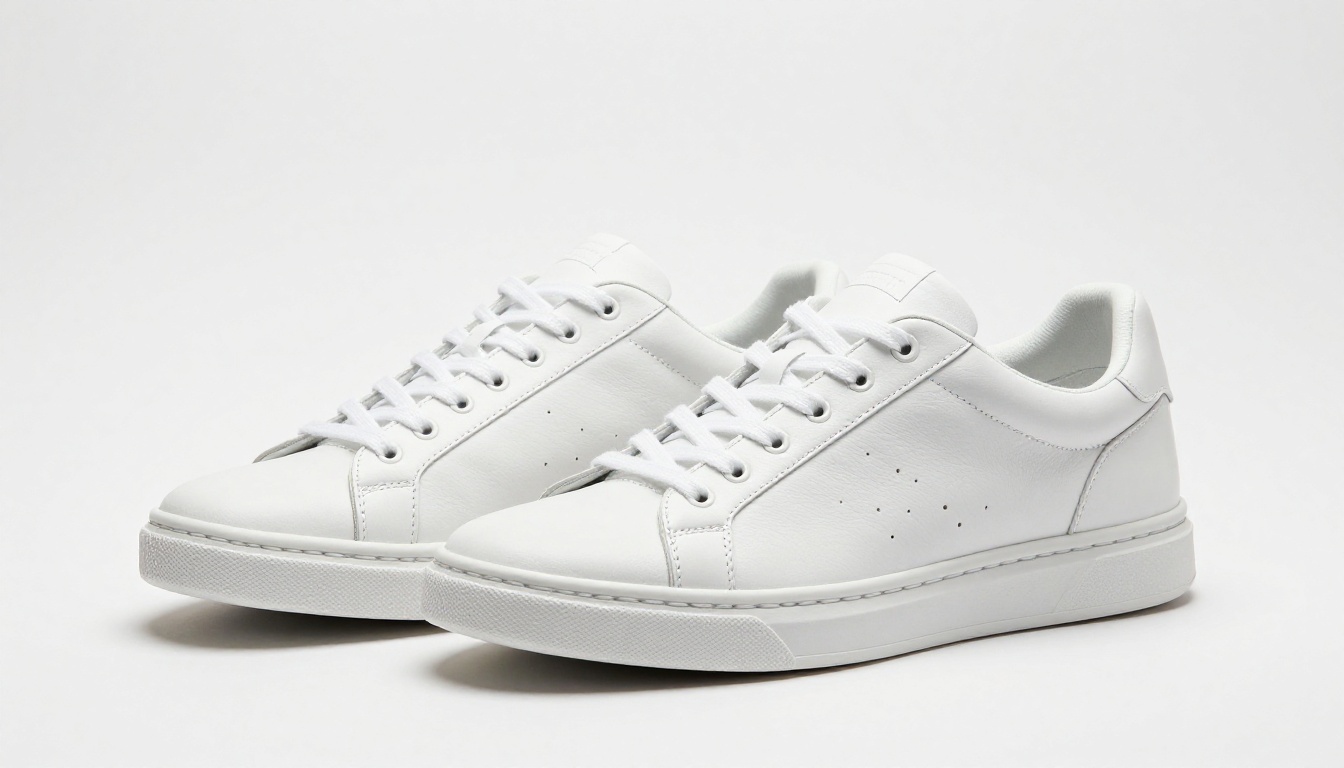
For web use, including product listings, email banners, and social images, 4x upscaling from a base AI image is more than sufficient. A 1024x576 base image at 4x becomes 4096x2304, which exceeds any current display's PPI requirement with room to spare.
For print, including product catalogs, trade show signage, and packaging proofs, you want maximum resolution. Topaz Image Upscale at 6x gets you there. A 1024x576 base at 6x yields 6144x3456 pixels, which prints cleanly at 300 DPI on a 20-inch wide format.
5 Product Types and Their Best Settings
Different product categories need different prompt strategies. Here is what works specifically for the five most common e-commerce product types.
Beauty and Skincare
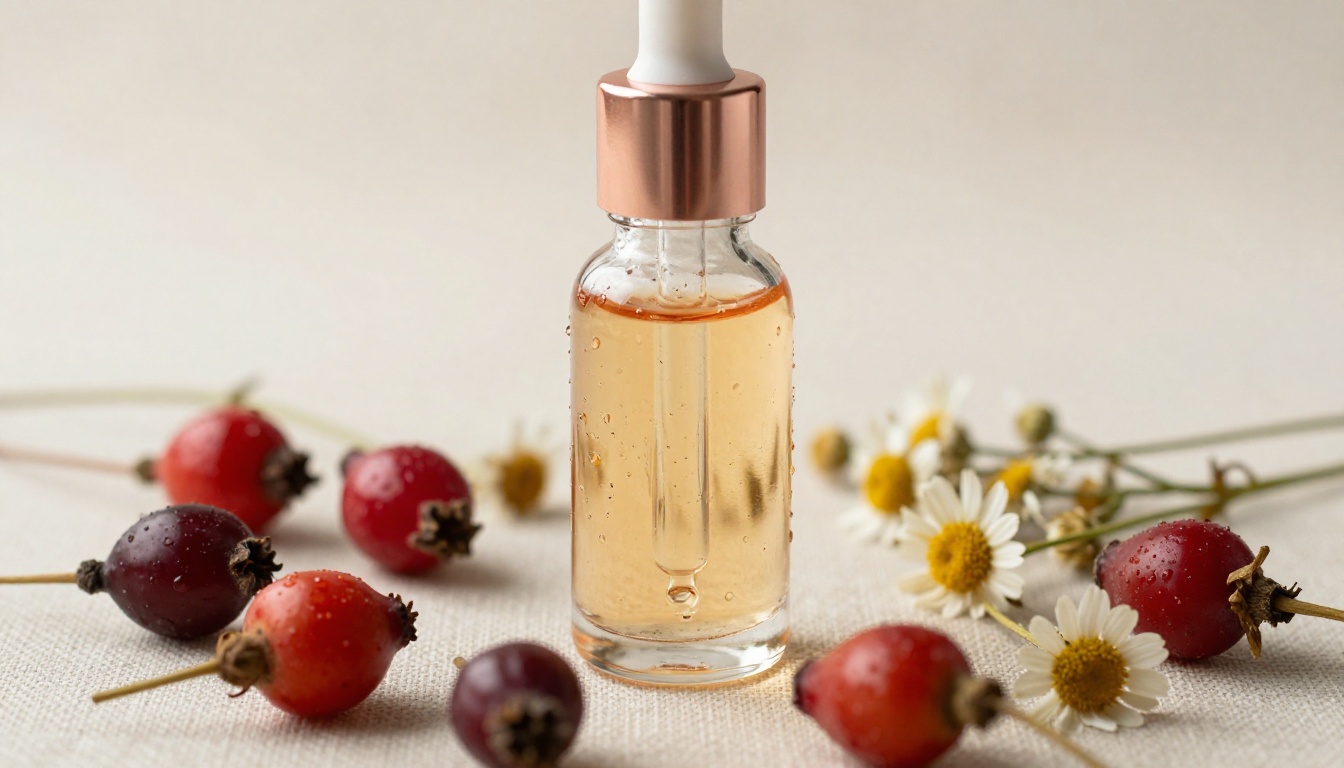
Skincare benefits from soft, high-key lighting and botanical prop styling. The goal is making the formula feel premium through its packaging alone.
Prompt words to include: "soft overcast window light, 90mm macro, condensation droplets, botanical elements, linen surface, beige tones, photorealistic beauty photography"
Best combination: P-Image for generation + Clarity Pro Upscaler for final resolution
Electronics and Gadgets
Electronics need precise edge definition and a setting that puts the product in use-context. Flatlay works well for accessories. A lifestyle angle works for hero shots.
Prompt words to include: "clean grey linen surface, 35mm f/4 overhead, soft diffused daylight, neutral accessories, no screen glare, photorealistic commercial tech photography"
Best combination: P-Image + P-Image Upscale for fast delivery
Food and Beverage
Food photography has its own rules: warmth matters, context matters, and freshness cues like steam, moisture, and condensation are critical signals of quality.
Prompt words to include: "warm golden backlight, cafe ambiance in background blurred, 50mm f/2.8, condensation on glass, steam rising softly, Kodak Portra 400"
Best combination: P-Image with prompt upsampling ON + Bria Increase Resolution
Apparel and Accessories
Fashion products need to show material drape and texture. Making fabric feel like real fabric requires explicit texture language in the prompt.
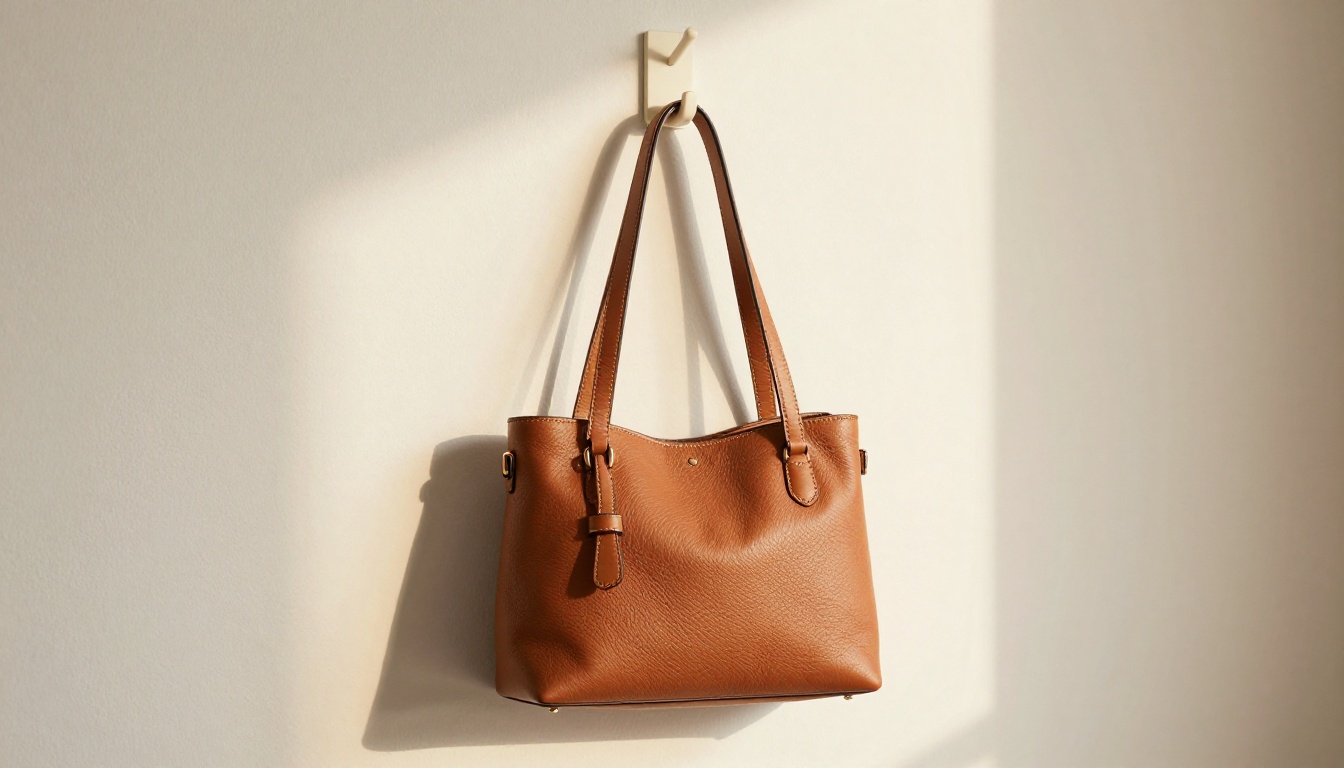
Prompt words to include: "natural leather grain, pebbled finish, stitching detail visible, warm afternoon light from upper right, 85mm f/2.0, hanging or flat lay composition"
Best combination: P-Image + Bria Remove Background for marketplace-ready clean cut
Home Goods and Furniture
Scale and material authenticity are the two hardest problems with home goods. Ceramic needs to look like it has physical weight. Wood grain needs to feel real. A room context is often non-negotiable for this category.
Prompt words to include: "morning light through sheer curtains, glaze texture and speckle detail, 85mm f/2.2, blurred warm interior background, home editorial photography"
Best combination: P-Image + Topaz Image Upscale for print use

Start Shooting with PicassoIA
At this point, you have everything needed to run the full workflow: a structured prompt approach, the right models for each stage, and category-specific settings for five of the most common product types.
The only thing left is to actually run it. Pick one product. Write a 60-word prompt using the structure above. Generate three variations using P-Image. Remove the background with Bria Remove Background. Upscale the winner with Clarity Pro Upscaler. See what it looks like in your listing.
Most sellers who run this workflow once never go back to booking studio sessions for standard catalog shots. The quality ceiling is high, the cost is a fraction of traditional photography, and the turnaround is minutes, not days.
PicassoIA has the full toolkit to take a product from a plain description to a polished commercial shot. All three stages, generation, background removal, and upscaling, run in the same platform. No file juggling between apps, no quality loss from format conversions, and no extra cost for separate tools.
Start your first shot at picassoia.com/en/all-models. The workflow takes 15 minutes from first prompt to finished image.