It is Sunday evening, the laundry is folded, and you still have five lessons to turn into slides. You know what you want to teach. What you do not have is the two hours it takes to turn that plan into clean, readable, good-looking slides. That gap is exactly where a slideshow generator AI for teachers earns its place. You type a topic, a grade level and a few constraints. A draft deck appears in under a minute. You spend your time fixing and shaping it, not staring at a blank first slide.
This article shows how that works in practice. You will see which kinds of free tools exist, a repeatable workflow for lesson slides, prompts you can copy and paste, and how to make original photographic visuals so your slides stop looking like everyone else's.
💡 Quick answer: Use a text AI to write the outline and slide copy, a slide app to lay it out, and an image model to create the pictures. Review everything before it reaches students.
Why Teachers Use Slide Generators

The Time Problem
Lesson prep is the invisible half of the job. A typical teacher builds slides for several classes a day, often in the evening, often for topics they have taught before but need to refresh. Formatting eats a surprising share of that time: aligning text boxes, hunting for a usable picture, shrinking a paragraph into three bullets.
An AI slide generator attacks that formatting and drafting work. It does not replace your judgment about what your class needs. It replaces the mechanical part that comes before judgment.
What AI Actually Does Well
After testing the usual suspects, a pattern shows up. AI is strong at:
- Structuring a topic into a logical order of five to fifteen slides
- Rewriting dense textbook language at a lower reading level
- Generating quiz questions, exit tickets and discussion starters
- Suggesting visual ideas for each slide
- Translating a deck into another language for multilingual classrooms
It is weaker at local context, your school's curriculum wording, and facts that changed recently. Treat the output like a draft from a capable but hurried teaching assistant. Check dates, formulas and names.
Free tools change plans and limits often, so check each tool's current terms before you build a routine around it. The categories below stay stable even when the names and prices move.
Text-to-Deck Tools
These are the closest thing to a one-click slideshow generator. You paste a topic or a document and the tool produces a full deck with layouts and placeholder images. Gamma, Canva's Magic Design, and SlidesAI are well-known examples. Most offer a free tier with a cap on the number of generations or exports. They are great for a first draft and for decks that will be seen on screen rather than printed.
Tools Inside Your Existing Apps
If your school already runs Google Workspace or Microsoft 365, the built-in assistants in Google Slides and PowerPoint may be the easiest route. Your files stay in the system your school already approved, and sharing works the way it always has. Availability for free and education accounts varies, so ask your IT lead what is switched on for your account.
Teacher-Focused Platforms
Platforms such as MagicSchool and Curipod are built around classroom tasks. They tend to include rubrics, interactive polls and student-facing activities next to the slides. If you want more than a static deck, this is the category to test.
Comparing Free Tool Types
| Tool type | Best for | Typical free limit | Watch out for |
|---|
| Text-to-deck apps | Fast first drafts | Limited credits or exports | Generic stock-style visuals |
| Built-in assistants | Staying inside school systems | Depends on your account | Fewer layout options |
| Teacher platforms | Interactive lessons | Free tier with caps | Content locked to the platform |
| Chat model plus slide app | Full control over wording | Often generous | More manual copy and paste |
| Image models | Original visuals | Varies by model | Needs a clear prompt |
The last two rows are the combination I recommend if you want results that feel like your own teaching, and not a template. The next section shows how.
A Five-Step Lesson Slide Workflow
Start With the Objective
Before you open any tool, write one sentence: "By the end of this lesson, students can ___." Everything the AI makes should serve that sentence. If a slide does not support it, delete it.
Give the AI that sentence word for word. It is the single most useful line in any prompt.
Get the Outline First
Ask for an outline, not a finished deck. An outline is cheap to change. A finished deck with 14 designed slides is annoying to change. Review the order, remove anything off topic, and only then ask for slide copy.
For outlines, a strong general model works well. On PicassoIA you can use GPT 5.6 Luna for quick drafts, Claude Sonnet 5 when you want more careful wording, or Gemini 3.5 Flash for speed.
Turn the Outline Into Slides
Once the outline is right, ask for slide copy with firm limits: a maximum number of words per slide, one idea per slide, and a speaker note for each. Paste the result into your slide app or feed it to a text-to-deck tool.
Add Visuals and Check Everything
Replace generic pictures with images that match your lesson. Then read the deck as a student would. Is every slide readable from the back of the room? Is the vocabulary right for the age group? Are the facts correct?
💡 Rule of thumb: One idea, one picture, under 25 words per slide. If a slide needs more, split it.
Prompts You Can Copy Today

Replace anything in brackets with your own details. The more specific you are about grade, time and format, the less editing you do later.
The Outline Prompt
Act as an experienced [grade] [subject] teacher. Create a [number]-slide outline for a [length]-minute lesson on [topic]. The learning objective is: "[objective]". Include a hook slide, three explanation slides with one example each, a check-for-understanding slide, and a closing recap. List each slide as a title plus one sentence describing its purpose.
The Slide Copy Prompt
Using the outline above, write the text for each slide. Rules: maximum 25 words per slide, plain language for [age] year olds, one idea per slide. For each slide add a one-line image suggestion and two sentences of speaker notes in a friendly teacher voice.
The Quiz and Exit Ticket Prompt
Write five multiple-choice questions and two short-answer questions based on this lesson. Include the correct answers and a one-sentence explanation for each. Make two questions target common misconceptions about [topic].
The Differentiation Prompt
Rewrite slides [numbers] for students reading two grade levels below. Keep the same ideas, shorten sentences, define any difficult word in brackets, and add a simple sentence starter students can use to answer the check question.
Quick Prompt Cheat Sheet
| Goal | Add this phrase to your prompt |
|---|
| Shorter slides | "Maximum 20 words per slide" |
| Better hooks | "Start with a surprising question or a real-world story" |
| Younger audience | "Use short sentences and everyday examples" |
| Discussion time | "Add a turn-and-talk prompt on slides 3 and 6" |
| Fewer errors | "Flag any fact you are unsure about" |
That last line is worth using every time. Models will often tell you where they are guessing if you ask.
Make Your Own Slide Visuals
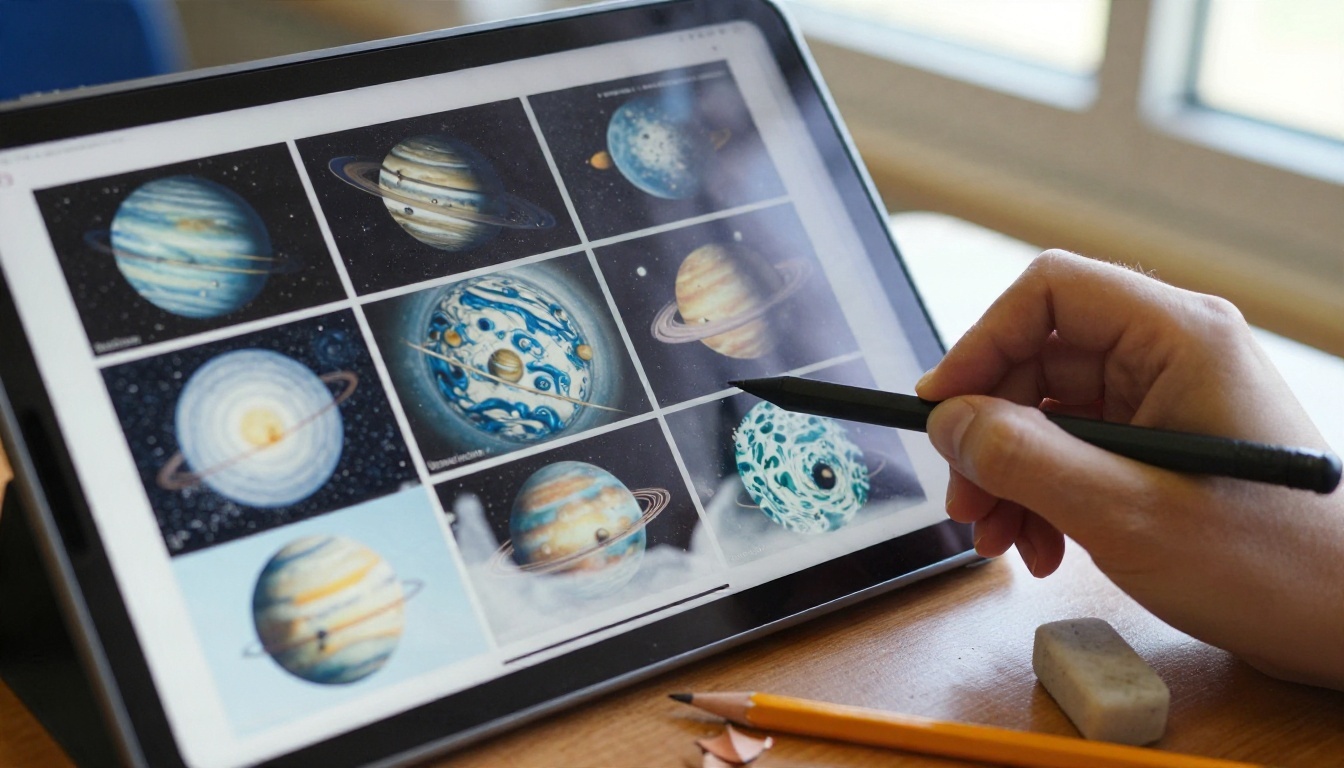
Stock photos are fine until your whole department uses the same ones. An AI image model lets you ask for precisely what the lesson needs: a cross-section of a volcano, a market street in ancient Rome, a kitchen scene for a fractions problem.
Photo Visuals That Match the Lesson
On PicassoIA, Nano Banana Pro and Seedream 4.5 both produce sharp, realistic pictures that look good on a projector. Qwen Image 3 is another solid option for photorealism. A simple structure for a visual prompt:
- Subject: what the picture shows
- Setting: where it happens
- Light: natural window light, overcast, golden hour
- Camera feel: wide shot, close-up, top-down
- Rule: "no text in the image"
That last rule matters. Image models still make spelling mistakes in generated text, so add labels and captions in your slide app, where you control the spelling.
Clean Cutouts and Sharper Pictures
Two small tools save a lot of frustration. Remove Background gives you a clean cutout so a subject sits neatly on a colored slide. Real ESRGAN upscales a small picture four times so it stays crisp on a large classroom display. If you also need a quick cutout from a product-style photo, Product Cutout does that too.
Voiceover for Flipped Lessons
If you record lessons for absent students or flipped homework, a speech model can read your speaker notes aloud. Gemini 3.1 Flash TTS supports many languages, and v2 Multilingual is useful when families speak different home languages. Always listen through once before sharing, since names and technical words can be pronounced oddly.
💡 Tip: Keep a single prompt style across a unit so every picture shares the same lighting and mood. It makes a deck look designed rather than assembled.
Subject Ideas That Work
Science and Math
Science slides benefit from visuals that students cannot easily photograph: cell structures, weather systems, planetary scale. Ask the text model for a step-by-step explanation with one worked example, then generate one clean illustration-style photo or diagram reference per concept. For math, ask the model to produce three worked examples that increase in difficulty, and check every calculation yourself.
History and Social Studies
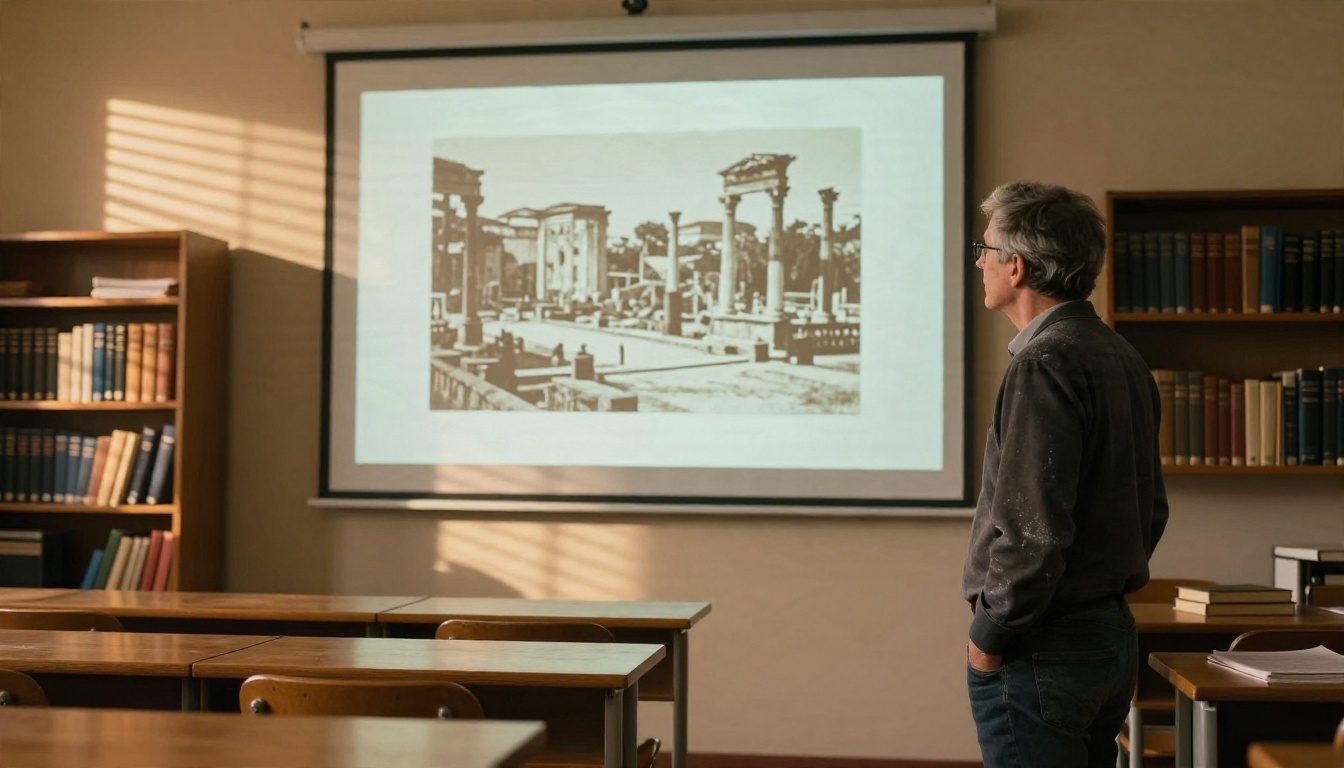
A history deck lives on context. Ask for a short timeline slide, a primary-source question slide, and a "two perspectives" slide. Generated scenes can set the mood, such as a market, a harbor or a council meeting. Label them clearly as reconstructions, not historical photographs, so students never mistake them for evidence.
Languages and Literature
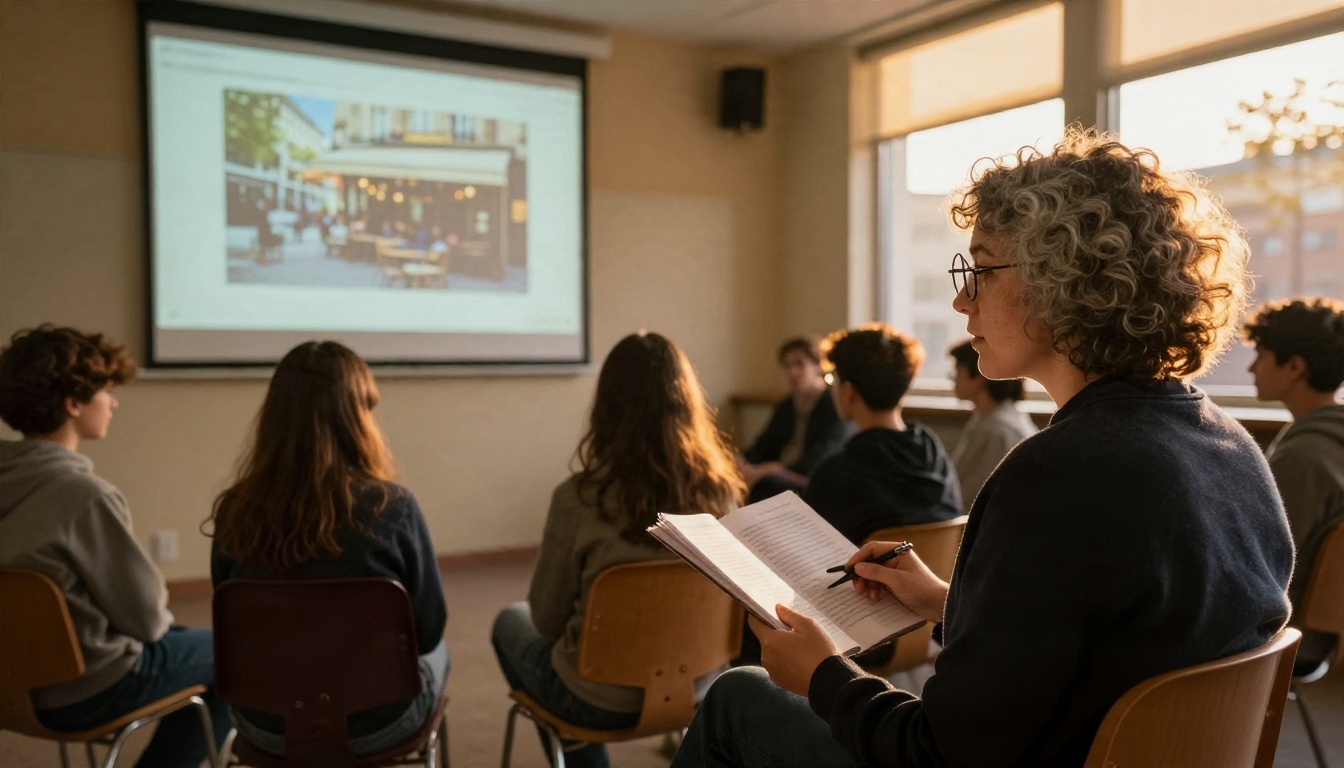
For language classes, ask for slides built around a scene: a cafe, a train station, a family dinner. Then prompt the model for vocabulary lists, short dialogues at two difficulty levels, and speaking prompts. Pair that with text to speech to model pronunciation for self-study.
Collaborating With Colleagues

AI drafts are easy to share, which makes them a good starting point for a department meeting. One teacher builds the unit outline, another adapts the slides for a different class, a third writes the assessment. Everyone edits the same structure, and nobody starts from zero.
Mistakes to Avoid
Trusting the First Draft
AI writes confident text, including when it is wrong. Dates shift, formulas get mixed up, and quotes get invented. Read every slide and verify anything a student might repeat as fact.
Overloading Slides
Generators love bullet points. A slide with six bullets is a handout, not a slide. Cut to one idea, then move detail into your speaker notes or a separate worksheet.
Ignoring Student Privacy
Never paste student names, grades, or personal details into a public AI tool. Describe situations in general terms instead, such as "a student who struggles with fractions". Follow your school's policy on which tools are approved, and tell students when material was drafted with AI. A short note on a slide is enough.
💡 Checklist before class: facts checked, reading level right, no student data used, image text spelled correctly, slide readable from the back row.
Make Your Next Slides Today
You do not need to change how you teach to use any of this. Start with one lesson you already know well. Write the objective, ask a text model for an outline, tighten the slide copy, and replace the weakest stock photo with an original one. If the result saves you even thirty minutes, repeat it next week.
Picasso IA puts the pieces in one place. Draft your outline with a language model, create photorealistic lesson visuals with an image model, clean them up with background removal and upscaling, and record a voiceover when you need one. Pick a topic from tomorrow's timetable, try the prompts above, and see how a plain slide turns into one your students actually look at. You can browse everything on offer at picassoia.com/en/all-models.


