Sora 2 Pro landed without much ceremony, but the videos it produces stop people mid-scroll. OpenAI's most capable text-to-video model outputs up to 1080p HD footage with natural motion physics, temporal consistency across extended scenes, and native audio sync that most competing AI video tools are still struggling to match. The problem for new users is not the interface. It is the gap between what you type and what you actually want to see. Most beginners spend their first sessions producing blurry, jittery clips because nobody explained how the prompt structure, duration choices, and resolution settings work together.
This article closes that gap. You will know exactly how to write your first prompt, which settings to choose, what separates Sora 2 Pro from every other model available right now, and the five errors that consistently derail beginners who never quite figure out why their videos disappoint.
What Sora 2 Pro Actually Is

Sora 2 Pro is not just a video generator. It is a world-simulation engine that happens to output video. That distinction matters because it changes how you should prompt it.
Most early text-to-video AI systems treated prompts like image generation: describe a scene, get a clip. Sora 2 Pro processes prompts more like a director interpreting a script. It reasons about physics, lighting continuity, object permanence, and spatial relationships between elements. A person walking across a room does not slide or snap, they actually walk, with weight shift, shadow movement, and environmental interaction.
Beyond the marketing
The real differentiator in Sora 2 Pro is temporal coherence. That means objects, people, and environments stay consistent across the full duration of a clip, not just frame to frame. In earlier models, a red cup on a table might disappear at the 3-second mark. In Sora 2 Pro, it stays there, reflects light correctly, and casts a proper shadow throughout.
For beginners, this means you can write longer, more complex scene descriptions without watching the output fall apart halfway through.
The Pro vs. standard gap
The standard Sora 2 model handles short clips at lower resolutions well. The Pro tier unlocks longer duration support, 1080p output, improved motion detail, and more reliable prompt adherence for complex multi-element scenes. If you are producing content for social media, YouTube, or client work, the Pro version is the one worth using.
Your First Video in 5 Steps
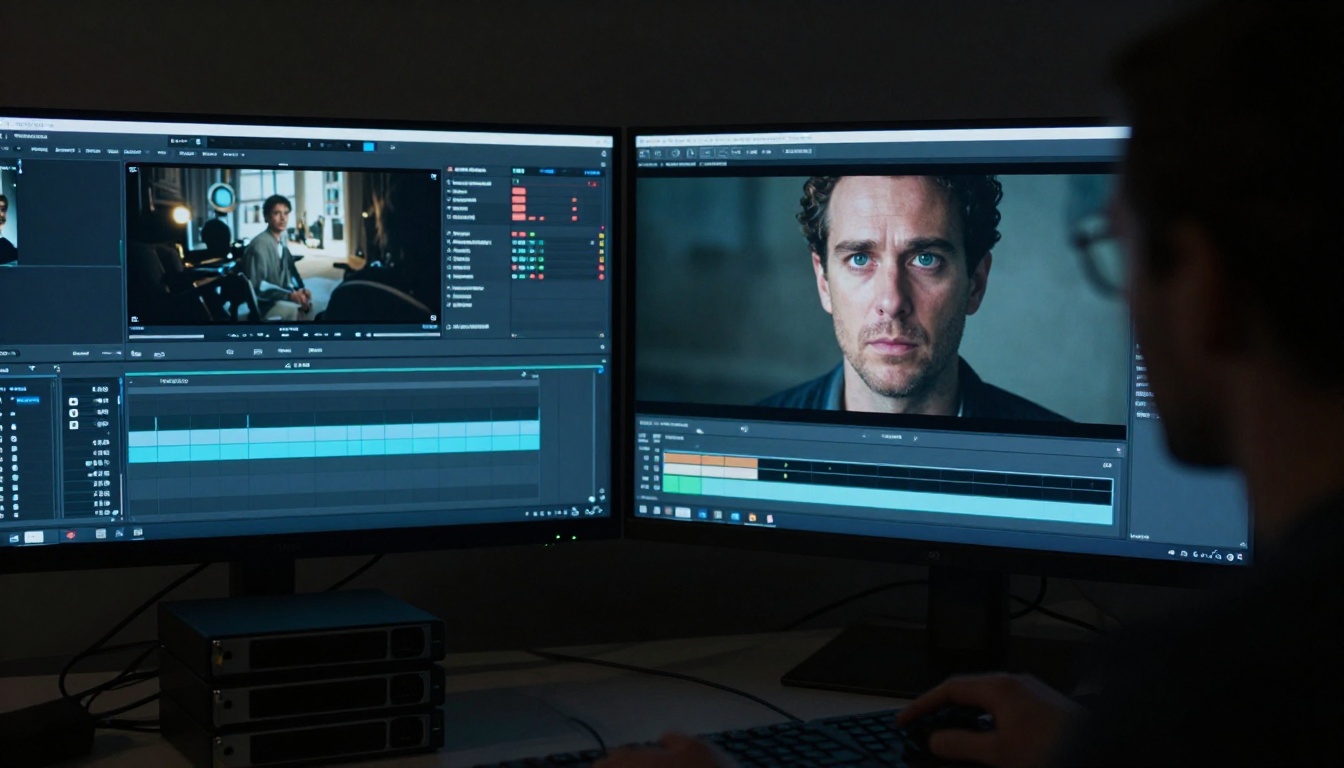
Most people overthink their first generation. Here is the fastest path to a usable clip.
Write a single clear subject
Do not describe a world. Describe one thing doing one thing. "A golden retriever running through a sunlit wheat field in slow motion" will outperform "a beautiful scene of nature with animals and light and movement." One subject, one action, one environment.
Add a camera instruction
Sora 2 Pro responds well to camera language. Adding "low-angle tracking shot" or "aerial drone descending slowly" changes the entire character of the clip. Beginners who skip this get static, flat-feeling footage. Camera instructions cost you nothing and add significant production value.
Set duration intentionally
Start with 5-second clips. They generate faster, cost fewer credits, and give you a read on whether your prompt is working before you commit to a longer generation. Once you have a look you like, scale up to 10 or 15 seconds.
Choose your resolution
1080p is not always the right answer. If you are testing a concept or iterating quickly, 480p delivers results faster and at lower cost. Save 1080p for final outputs. More on this in the resolution section below.
Iterate without rewriting
If the output is close but not quite right, do not start from scratch. Change one element at a time: the camera angle, the lighting description, or the subject action. This gives you a clear read on which variable is affecting the output.
Prompts That Actually Work

Prompt engineering for AI video is its own skill, and it is genuinely different from prompting image generators. The core difference: video prompts need to describe motion, not just appearance.
The 3-part formula
Every strong Sora 2 Pro prompt has three components:
| Component | What to Include | Example |
|---|
| Subject | Who or what, and what they are doing | "A woman in a red coat walking" |
| Environment | Where, time of day, weather, atmosphere | "along a rain-soaked cobblestone street at dusk" |
| Camera | Shot type, movement, lens feel | "handheld close follow shot, shallow depth" |
Combine them: "A woman in a red coat walking along a rain-soaked cobblestone street at dusk, handheld close follow shot, shallow depth of field, warm streetlamp glow."
That one sentence will produce a dramatically better result than five sentences of vague description.
Lighting as a first-class element
Lighting is the single biggest lever beginners leave on the table. Adding "golden hour backlight," "overcast diffused daylight," or "single practical lamp source" shifts the emotional register of a clip completely. Sora 2 Pro interprets lighting language with impressive accuracy, so use it specifically.
What not to write
💡 Avoid abstract adjectives. Words like "beautiful," "stunning," "amazing," and "cinematic" are underspecified. Replace them with concrete descriptions: "warm amber backlight from the left," "muted desaturated tones," "overexposed white sky."
Generic prompts produce generic results. The more specific your language, the more specific the output.
Negative directions still matter
While Sora 2 Pro does not always expose a formal negative prompt field, you can still direct away from unwanted elements by being explicit in your positive prompt. "Smooth camera movement, no cuts, no text overlays, no lens flare" signals clearly what you do not want.
Resolution and Duration: What to Pick
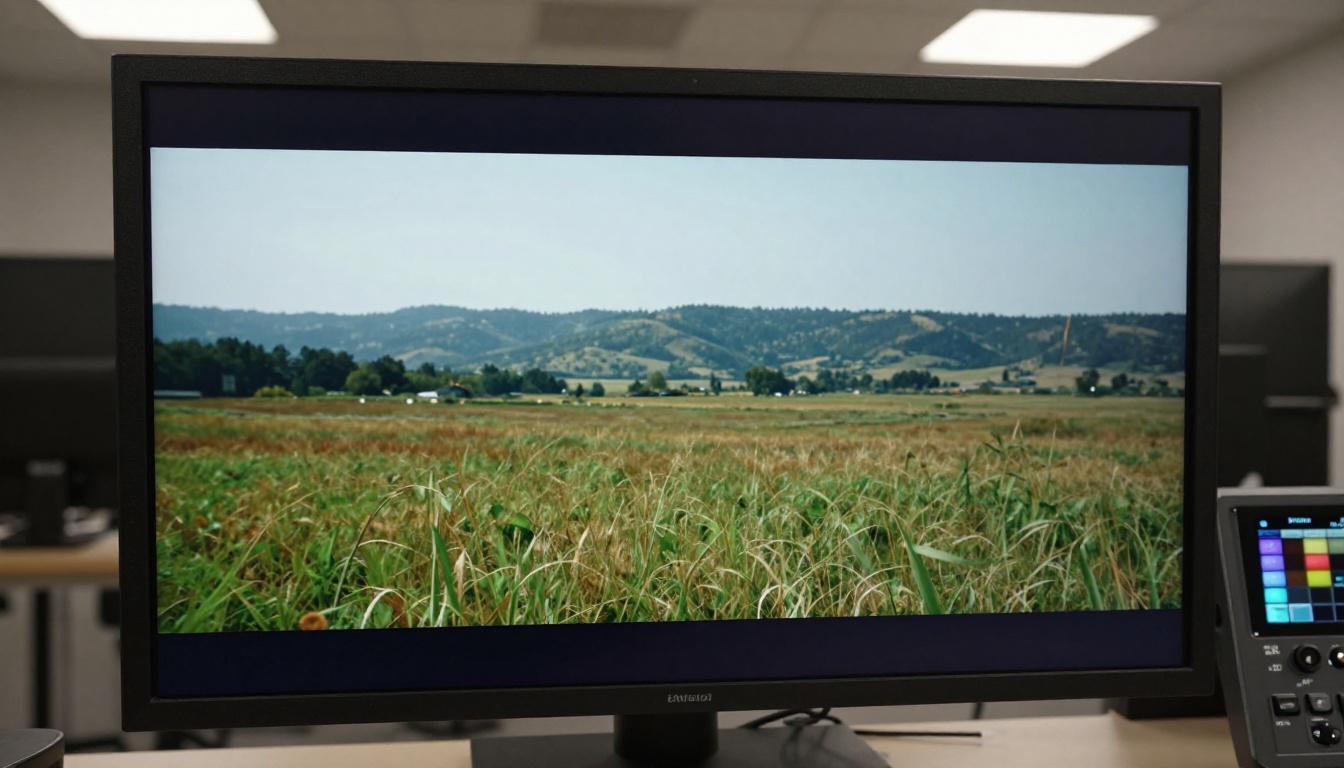
These two settings have a bigger impact on generation time and quality than any single prompt choice. Understanding the tradeoff saves beginners significant time and wasted credits.
When 480p is the right call
480p is not a downgrade. It is a prototyping tool. Use it when:
- You are testing a new prompt for the first time
- You need a quick preview of a motion idea
- You are generating multiple variations to choose from
- Speed matters more than final quality
480p clips generate in a fraction of the time of 1080p, which means you can iterate through five versions in the time it takes to render one high-resolution output.
When to commit to 1080p
Use 1080p when:
- The prompt is proven and you are producing final output
- The clip will appear on screen larger than a phone
- You need detail in faces, textures, or environmental elements
- The video will be used in a production where quality is visible
💡 Production workflow: Do your entire creative development process at 480p, then do a single 1080p render of your best version. This approach cuts your generation costs dramatically.
Duration sweet spots
| Duration | Best For |
|---|
| 3-5 seconds | Social media cuts, b-roll snippets |
| 6-10 seconds | Scene establishes, product showcases |
| 10-15 seconds | Short narrative sequences |
| 15+ seconds | Longer storytelling, music video sections |
Longer clips are not always better. A perfectly composed 5-second clip often has more impact than a 15-second clip where the motion runs out of interest at the 8-second mark.
How to Use Sora 2 Pro on PicassoIA

Sora 2 Pro is available directly through PicassoIA, which means you can access it without a separate OpenAI subscription. Here is how to get your first clip generated.
Step-by-step walkthrough
1. Go to the model page
Navigate to the Sora 2 Pro model on PicassoIA. You will see the input form and settings panel on the same screen.
2. Write your prompt
Use the 3-part formula from the section above. Start simple: one subject, one action, one environment, one camera note.
3. Set duration
Use the duration slider. If this is your first generation, set it to 5 seconds. You can always go longer once you know the look is working.
4. Choose resolution
Select 480p for testing, 1080p for finals. The toggle is clearly labeled in the settings panel.
5. Hit generate
Generation time for a 5-second 480p clip typically runs 30-90 seconds depending on server load. A 10-second 1080p clip can take 3-5 minutes.
6. Review and iterate
Play the clip in the built-in preview. If the motion or composition is not what you wanted, adjust one element of your prompt and regenerate. Do not rewrite everything.
Tips for faster results
- Keep prompts under 80 words for the cleanest adherence
- Use scene-specific language rather than genre labels ("a narrow Paris alley at 11pm" beats "an atmospheric European setting")
- Avoid multiple competing subjects in one scene for your first generations
- Save your best-performing prompts in a text file for reuse
💡 PicassoIA also has Sora 2 available if you want a faster, lighter version for quick tests before committing to the Pro model.
Sora 2 Pro vs. the Competition

Knowing when to use which tool matters more than brand loyalty. Here is an honest breakdown of how Sora 2 Pro stacks up against the other major AI video generation models available today.
The real differences
| Model | Strength | Best For |
|---|
| Sora 2 Pro | Temporal coherence, physics, long clips | Final outputs, complex scenes |
| Kling v2.6 | Cinematic motion, strong aesthetic | Artistic, mood-driven clips |
| Veo 3 | Native audio generation | Clips with integrated sound |
| Hailuo 02 | Speed, 1080p output | Rapid prototyping, social content |
| LTX 2 Pro | 4K resolution, sharp detail | High-detail product shots |
| Seedance 2.0 | Built-in audio, versatility | Content with ambient sound needs |
When to switch models
Use a different model when speed is the only variable that matters. Hailuo 02 and Sora 2 standard both generate faster and still produce quality content for social-media scale outputs. Reserve Sora 2 Pro for situations where output quality is the deciding factor.
For clips that need native audio without a separate step, Veo 3 and Veo 3.1 from Google are worth a look. For maximum resolution on product or commercial work, LTX 2.3 Pro delivers 4K output that Sora 2 Pro currently does not match.
5 Mistakes Beginners Always Make

These are the errors that show up in beginner generations across every AI video platform, and they are all fixable in under two minutes.
1. Prompting for vibes instead of specifics
"Beautiful cinematic video of a city at night" is a vibe, not a prompt. Specify the street, the weather, the angle, the time, and what is actually happening. Sora 2 Pro rewards precision.
2. Generating at 1080p for every test
Prototyping at full resolution wastes time and credits. Every experienced AI video creator iterates at low resolution and only renders finals at full quality.
3. Rewriting the whole prompt after one bad result
If 80% of the output is what you wanted, change the 20% that did not work. Scrapping the whole prompt and starting fresh throws away what was already working.
4. Ignoring motion language
Still-photography language describes appearance. Video requires motion. "Walking briskly," "slowly rotating," "panning left," "descending from aerial view" are all motion instructions that Sora 2 Pro uses directly. Leave them out and the motion in your clip will be flat and directionless.
5. Using multiple competing focal points
"A crowded market with people, food stalls, animals, and colorful banners" gives the model too many anchors to maintain coherently. Pick one or two focal elements and build the rest as background context.
Prompt Structures Worth Bookmarking
These prompt templates work reliably across multiple sessions. Copy, modify, and build on them.
For product showcase:
"[Product] on a [surface material] surface, [light source] from [direction], slow 360-degree orbit, macro lens, shallow depth of field, no background distractions"
For environmental establishing shot:
"Aerial drone shot descending slowly over [location] at [time of day], [weather condition], no people, [specific color palette], smooth movement"
For portrait or character:
"[Subject description] [action verb] through [environment], [camera type] following from [position], [lighting description], natural movement, film grain"
For abstract motion:
"[Material or substance] [motion verb], extreme close-up, [lighting], [speed descriptor], seamless loop, no camera movement"
💡 Save these as text snippets. The best AI video creators treat prompt templates the same way developers treat code snippets: reusable components that save time and produce consistent results.
One final tip on iteration
The fastest way to improve at Sora 2 Pro is to run the same core prompt with one variable changed each time. Camera angle one generation, lighting the next, duration after that. This methodical approach builds intuition for how the model interprets language far faster than randomly experimenting with completely new prompts each time.
Start Creating Your First Video Now

The gap between a beginner and someone who consistently produces impressive AI video is not talent or technical knowledge. It is prompt discipline and iteration habits. Both of those are things you build in your first ten generations.
Sora 2 Pro is available on PicassoIA right now, alongside over 100 other text-to-video models including Kling v3, Veo 3.1, LTX 2.3 Pro, and Pixverse v6. Having access to multiple models from one platform means you can compare outputs, find the model that matches your visual style, and switch tools when a specific project demands it.
Write your first prompt. Keep it simple. Iterate fast. The quality of your generations will compound with every session.


