You already have the photo. The pose is right, the face is right, the light is almost right. What you want is a different outfit, a warmer sunset, a beach instead of a hallway, and you want it in about ten seconds without opening a heavy editor. That is exactly what spicy AI image to image does: it takes your existing picture, reads a short text instruction, and rebuilds the scene with a glamour, swimwear or boudoir mood while keeping the subject recognizable.
This article walks through what the technique really is, which free online editors are worth your time, a step by step workflow, prompt formulas you can paste today, and the mistakes that ruin otherwise good edits. Everything here stays on the suggestive, non-explicit side: think bikinis, satin, lace, golden light and editorial attitude.
What Spicy Image to Image Means
"Spicy" in this context is simply shorthand for glamour and sensual styling. It covers swimwear shoots, boudoir portraits, evening looks and flirty lifestyle photography. The "image to image" part tells you the input is a photograph, not an empty text box.
How It Differs From Text to Image
A text to image model invents everything from scratch. You describe a woman on a beach and the model decides her face, her hair, her pose and the camera angle. Nice for inspiration, useless when you need a specific person or a specific composition.
Image to image flips the order. You supply the structure, the model supplies the changes. The result keeps the original pose, proportions and identity while you rewrite clothing, background, color grading or mood.
Why Creators Prefer It
Consistency is the big reason. If you run a fashion page, a swimwear brand mock-up or a personal photo archive, you need the same face across many scenes. Image to image gives you that control, and it also saves hours: one decent reference photo can become a whole set of beach, rooftop and studio looks.
💡 Quick rule: the closer your source photo is to the final look (lighting direction, camera angle, framing), the better the result. The model edits, it does not read your mind.
Free Online Editors Compared
Plenty of sites advertise a free spicy editor. Most hide the limits behind a signup wall, a watermark or a tiny daily quota. Here is how the options stack up on the things that actually matter.
| Option | Strength | Typical limit | Best for |
|---|
| Seedream 4.5 | Sharp 4K detail, strong skin and fabric texture, faithful to the source | Generous free access | Final quality glamour edits |
| PicassoIA Image Editor Pro | Unlimited generations, uncensored workflow, quick iteration | None on generations | Testing many prompt variations |
| Seedream 4 | Reliable composition, good color | Free tier | Second opinion on a scene |
| Flux Kontext Fast | Very fast, instruction style edits | Free tier | Small tweaks, quick outfit swaps |
| Qwen Image Edit Plus | Precise object and clothing changes | Free tier | Targeted edits |
| P Image Edit | Sub-second edits | Free tier | Rapid drafts |
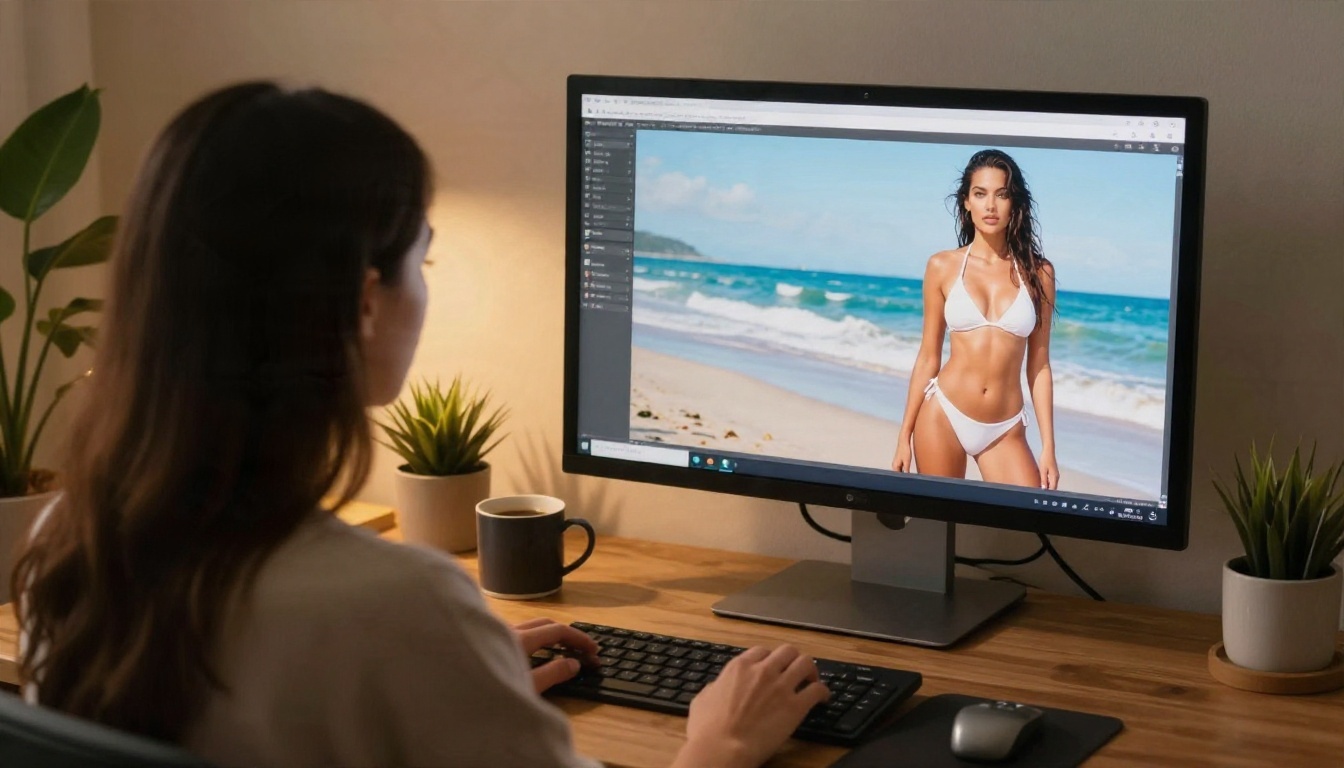
What to Look For in an Editor
Four things separate a useful tool from a frustrating one:
- Identity retention. The face in the output should still be recognizable. If it drifts, move on.
- Texture quality. Skin should have pores and fine hair, not a plastic smoothness. Fabric should show weave, lace and satin sheen.
- Prompt obedience. When you ask for a red halter bikini, you should not get a blue one.
- No hidden walls. Watermarks, forced signups and credit meters that drain after two tries waste your time.
Unlimited Beats "Free With Limits"
A single edit is rarely the final one. Realistically you will run five to fifteen variations: tweak the outfit color, soften the light, shift the background. A tool that caps you at three tries per day forces you to settle. That is why a workflow with an unlimited editor for experimenting and a high fidelity model for the final render is the smartest setup.
How to Use Seedream 4.5 on PicassoIA
Seedream 4.5 is the model I reach for first when I want a photographic, glamour grade result from a reference photo. It handles skin, fabric and light with a level of detail that older models miss, and it supports reference image input so your subject stays put.
Step by Step Workflow
- Open the model page. Go to the Seedream 4.5 page on PicassoIA.
- Upload your reference photo. Pick a sharp image where the face is clearly visible and the pose is the one you want to keep. Avoid heavy filters or blur.
- Write a focused prompt. Describe only what should change. Example: "Change the outfit to a black satin bikini, keep the same face and pose, soft golden hour light from the left, beach background."
- Set the aspect ratio. Match the source (16:9 for landscape, 3:4 for portrait) so nothing gets cropped awkwardly.
- Generate and compare. Run two or three versions. Keep the one where the face and hands look most natural.
- Refine. Feed the best result back in as a new reference and make a second small change, like adjusting the background or the hair.
Parameter Tips That Matter
| Setting | Recommended | Why |
|---|
| Reference strength | Medium to high | Keeps face and pose from drifting |
| Prompt length | 25 to 60 words | Short enough to stay clear, long enough for lighting |
| Resolution | Highest available | Skin and lace texture need pixels |
| Number of outputs | 2 to 4 | Lets you pick the best hands and eyes |
💡 Pro tip: name the light source and direction ("soft window light from the right"). Lighting words do more for realism than any adjective about beauty.
Iterate With Image Editor Pro
Once you have a direction you like, switch to PicassoIA Image Editor Pro for rapid variations. Because generations are unlimited, you can change one detail at a time: bikini color, hair length, sunset versus overcast, indoor versus outdoor. It is uncensored in the sense that it does not refuse ordinary glamour and swimwear requests, and it is fast enough that you stay in a creative flow instead of waiting. When one version clicks, you can take it back to Seedream 4.5 for a polished final pass.
Prompts That Work
Good prompts for spicy image to image are boring in structure and rich in detail. You describe the change, the light, the lens feel and the texture. You do not write a novel.
The Basic Formula
[What to change] + [What to keep] + [Light] + [Setting] + [Photographic feel]
| Part | Example |
|---|
| What to change | "Replace the dress with a red halter bikini" |
| What to keep | "keep the same face, hairstyle and pose" |
| Light | "warm late afternoon sun from the right" |
| Setting | "turquoise Mediterranean cove behind her" |
| Photographic feel | "85mm lens, shallow depth of field, Kodak Portra 400 grain" |
Outfit Swap Prompts
Copy and adapt these:
- "Change her outfit to a white crochet bikini, keep the face and pose identical, soft beach light, natural skin texture."
- "Dress her in a black satin slip with thin straps, keep the hairstyle, warm lamp light from the left, hotel room background."
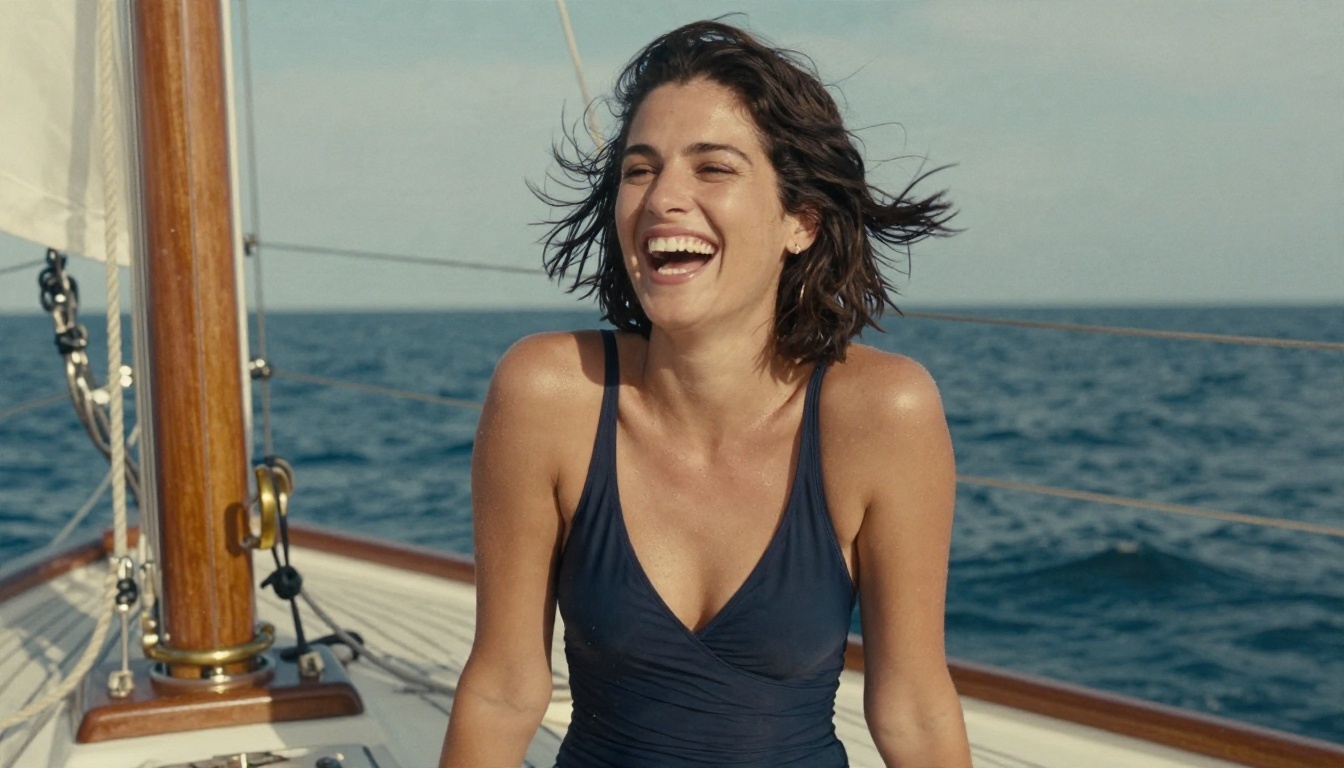
- "Replace the top with a navy one piece swimsuit, keep everything else unchanged, sea breeze in the hair, hazy sunlight."
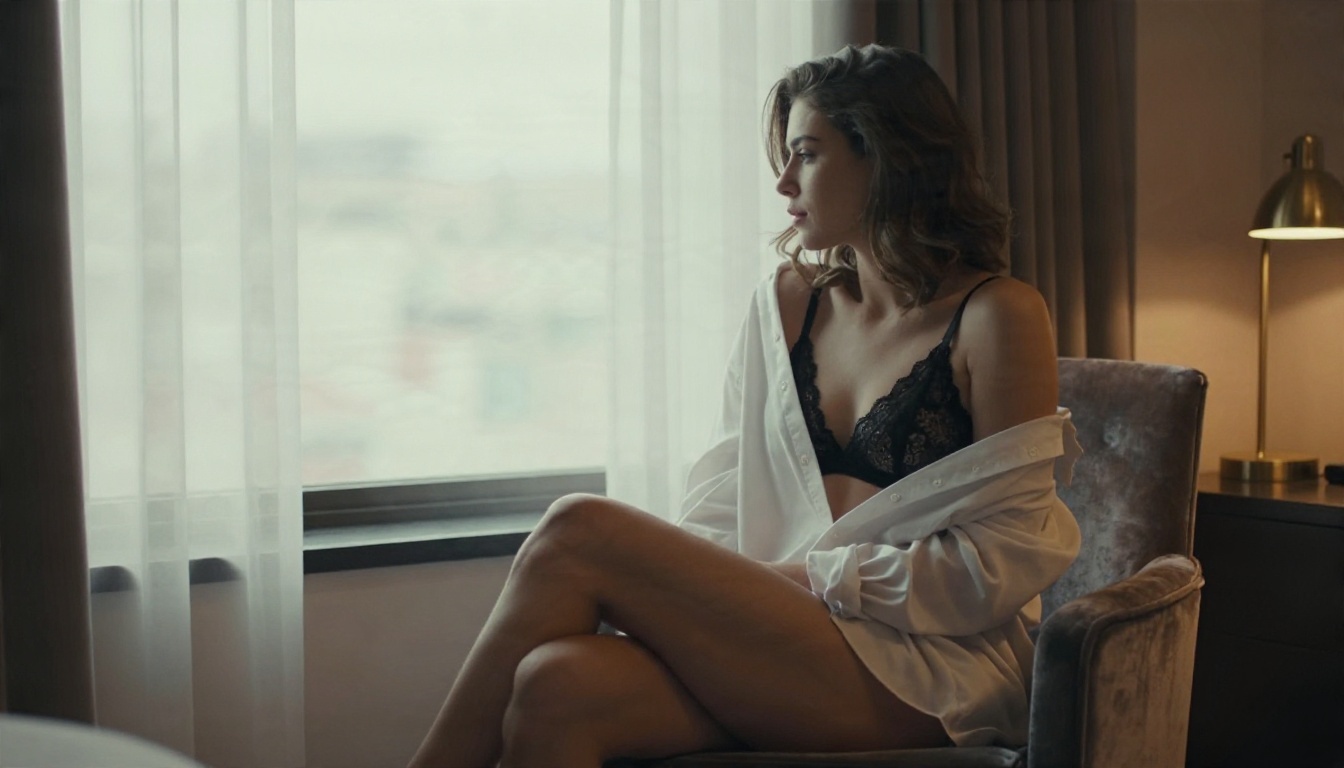
- "Swap the jacket for an open white linen shirt over a black lace set, window light from the right, tasteful boudoir mood."
Scene and Light Prompts
Sometimes the clothes stay and the world around them changes:
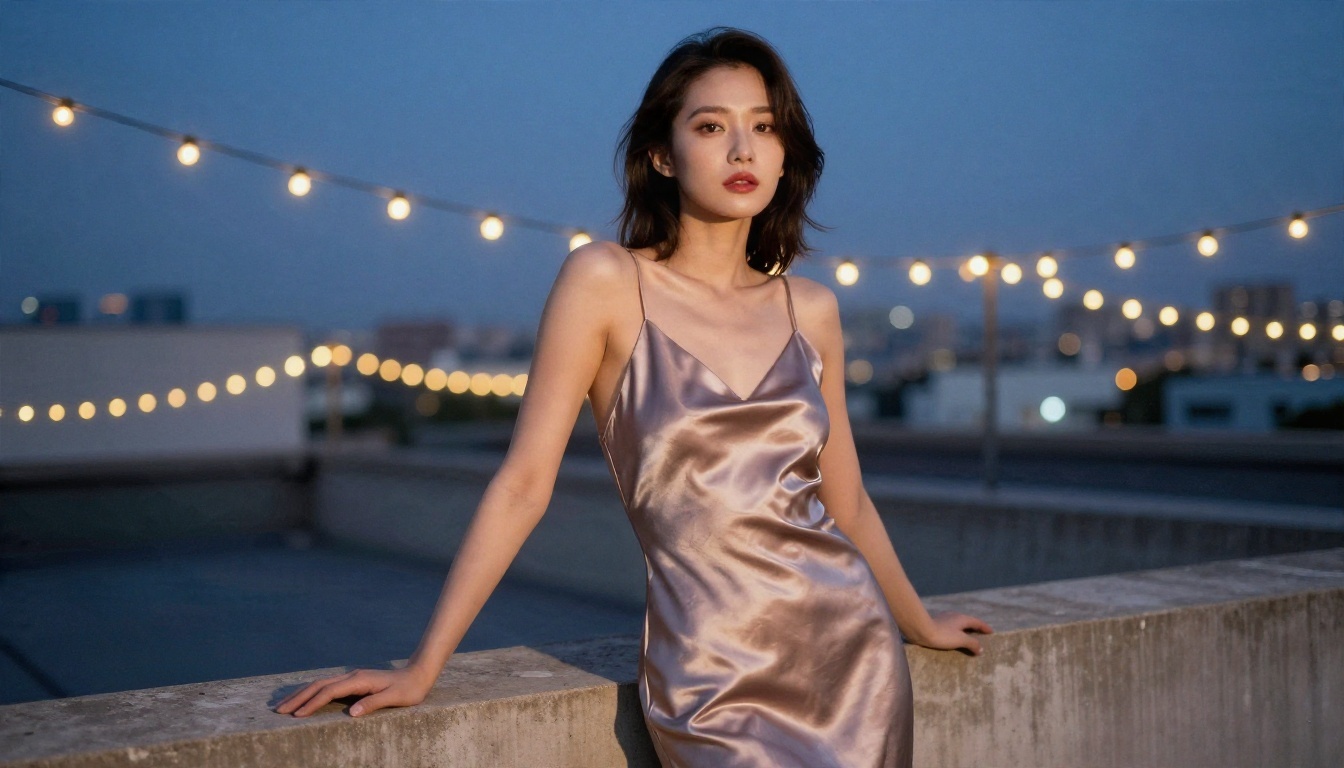
- "Move the subject to a rooftop at blue hour with warm string lights, keep outfit and pose."
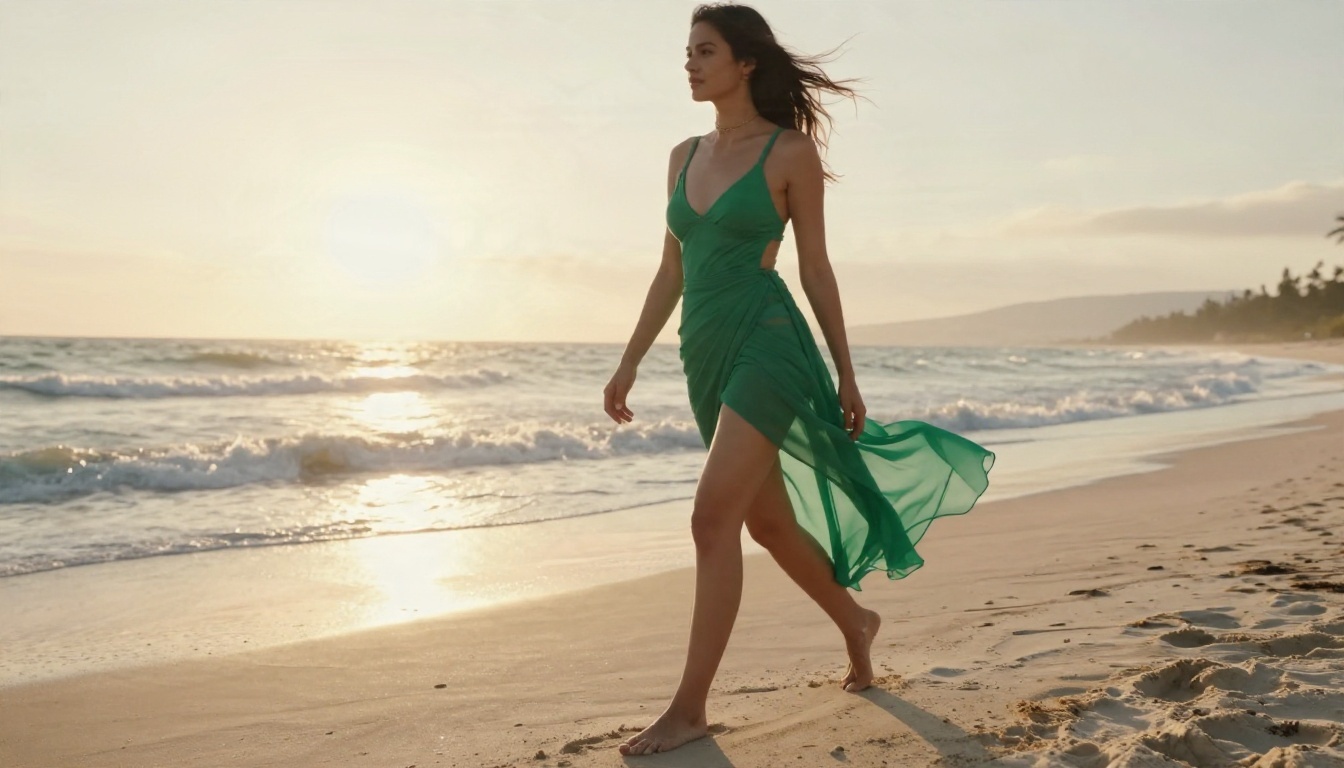
- "Change the background to a white sand beach at sunrise, keep the subject exactly as is, soft pink light."
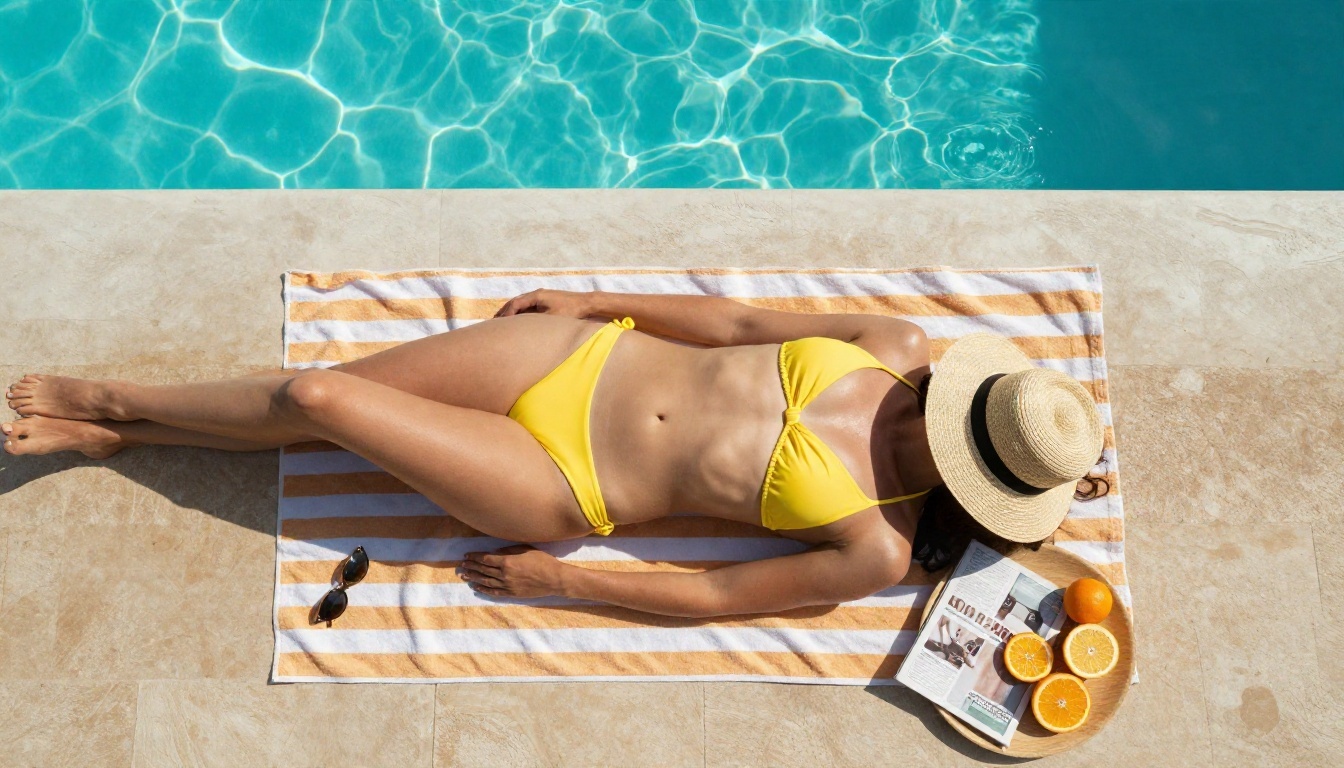
- "Place her by an infinity pool in hard midday sun, crisp shadows, sunglasses and a straw hat."
Pose and Mood Prompts
Image to image preserves pose by default, but you can nudge expression and mood:
- "Soften the expression into a relaxed half smile, eyes toward the camera."
- "Make her glance over her shoulder with a calm, confident look."
- "Add wind to the hair and a candid laugh, as if caught between two shots."
💡 Tip: change one thing per prompt when the face matters. Stacking five edits at once is the fastest way to lose likeness.
Examples by Style
Prompts are easier to trust when you can see the kind of output they aim for. These are the main looks people request, with what makes each one work.
Beach and Poolside Glamour
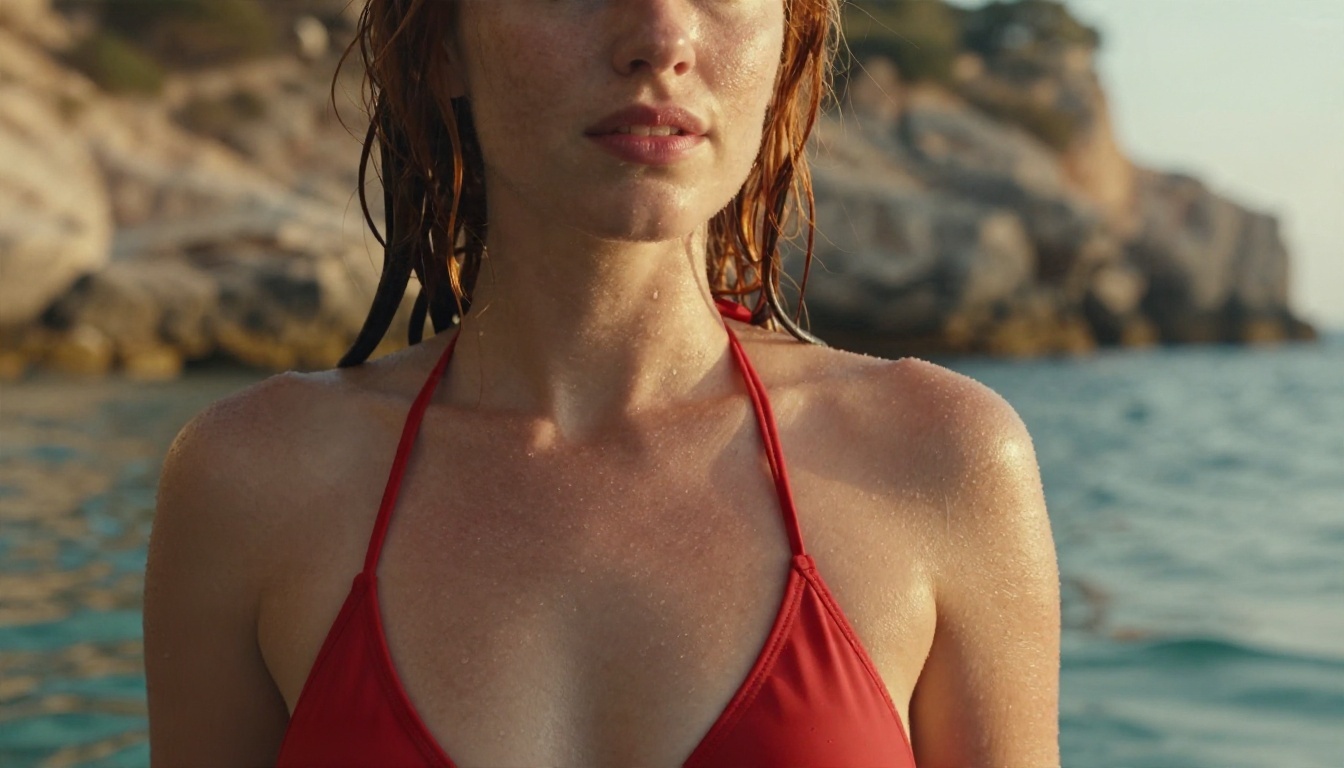
This is the most popular category. The formula is simple: hard or golden sun, visible water or sand, a swimsuit with a clear color, and a face that stays sharp. Wet hair, water droplets and a faint sheen on the shoulders sell the realism. A low angle makes the figure look taller and the horizon dramatic, while a top down angle works well for lounging poses by a pool.
Boudoir and Hotel Room Editorials
Here the mood comes from soft, diffused window light and warm shadows. Lace, satin and an oversized shirt are the recurring props. Keep the background restrained: a velvet chair, a brass lamp, a rumpled bed. A shallow depth of field blurs the clutter and pushes attention to the subject.
Evening and Rooftop Looks
A satin slip dress, a city skyline softened into bokeh and string lights give you a flirty, cinematic evening. The trick is to mention the light on the face ("warm light from string lights on her cheek") so the subject does not look pasted onto the background.
Candid Travel Style
Not every spicy edit needs a studio vibe. A navy one piece on a sailboat deck, wind in the hair, a genuine laugh: this kind of image feels like a vacation photo and tends to perform better on social feeds than stiff poses.
Before and After Comparisons
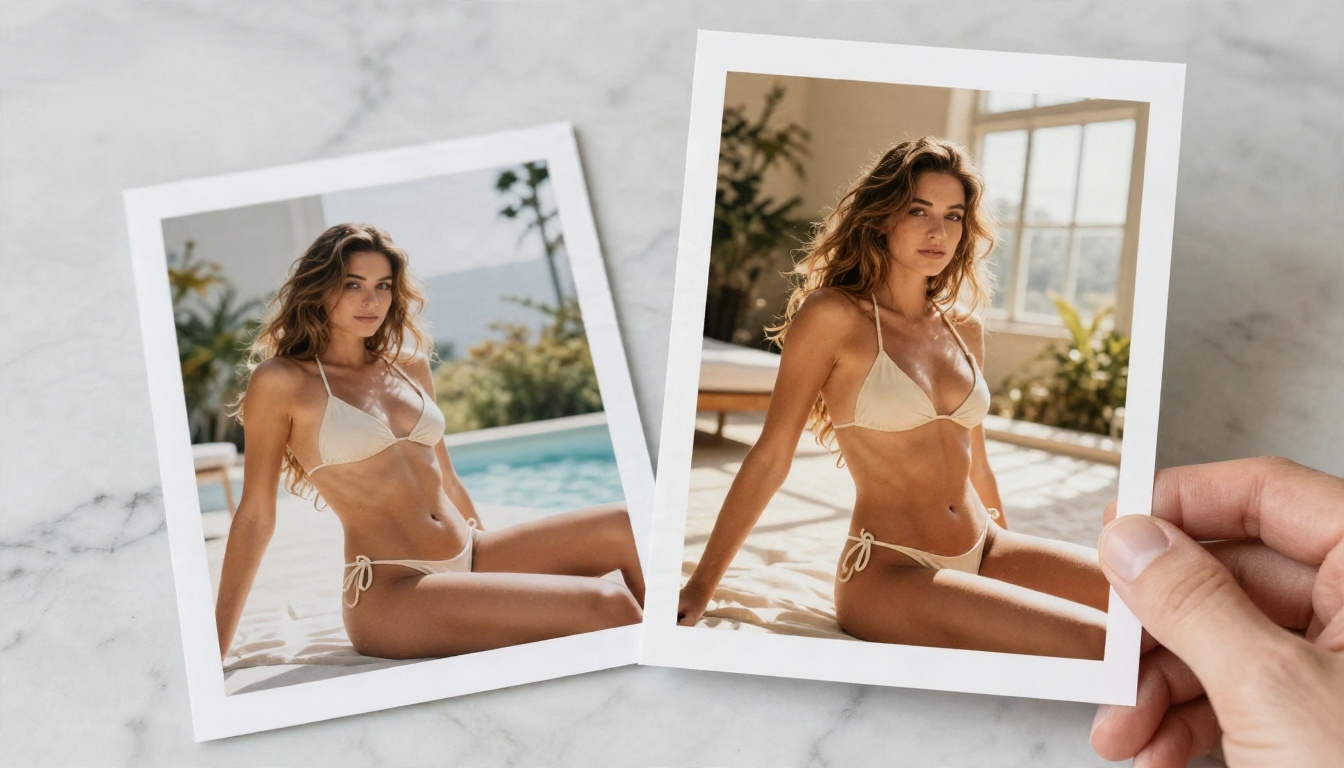
Many creators post side by side comparisons: a plain phone snapshot on the left and the graded, restyled version on the right. They are easy to produce with image to image because the pose and framing match exactly. Just keep the original lighting direction in mind when you write the prompt, or the comparison will look unnatural.
Fix Problems Before They Show
Even strong models stumble on certain details. Knowing where they fail saves you rerolls.
Hands and Fingers
Hands are the classic weak spot. If the source photo has hands in a complicated position, the output may bend a finger. Fix it by choosing a reference where the hands are visible and simple, or by generating three to four outputs and keeping the cleanest one.
Face Drift
If the face changes between input and output, your prompt is asking for too much. Reduce the number of edits, raise the reference strength, and add "keep the same face and hairstyle" explicitly. Qwen Image Edit Plus is a strong second option for edits that must leave the face untouched.
Plastic Skin
A glossy, airbrushed look appears when the prompt asks for "perfect skin" or "flawless". Do the opposite: request "natural skin texture, visible pores, fine freckles, subtle peach fuzz". Real photographs are not smooth, and your edit should not be either.
Lighting That Does Not Match
When the subject is lit from the left and the new background shows sun on the right, the eye notices instantly. Always state the light direction and keep it consistent between the subject and the scene.
Common Mistakes to Avoid
| Mistake | What happens | Better approach |
|---|
| Vague prompts like "make it hot" | Random, generic result | Name outfit, light and setting |
| Low resolution source | Soft, muddy output | Use the sharpest photo you have |
| Five changes at once | Face and pose drift | One or two changes per pass |
| Ignoring the aspect ratio | Awkward crops | Match the source ratio |
| Accepting the first output | Missed better versions | Generate 3 to 4 and compare |
| Overloaded style words | Cartoon or artificial look | Stick to photographic terms: lens, film, light |
💡 Remember: photographic vocabulary gives photographic results. Words like "85mm", "f/1.8", "window light" and "film grain" push the model toward realism far more than words like "stunning" or "ultra detailed".
Keep It Safe and Respectful
Glamour editing is only fun when everyone involved is comfortable with it. A few ground rules keep your work on the right side of both common sense and platform policies.
Only Edit Photos You Have the Right to Use
Use your own pictures, images of models who agreed to be edited, or photos you generated yourself. Do not run photos of private individuals, classmates, colleagues or celebrities through a glamour prompt without their clear consent. It is disrespectful, and in many places it is also illegal.
Stay Non-Explicit
Everything in this article is about suggestive, tasteful styling: swimwear, lingerie, satin, evening looks. Keep your prompts in that lane. It produces better looking images, travels better across social platforms and avoids content that gets accounts flagged.
Label AI Edits When You Publish
If you post edited images, say they are AI assisted. Audiences respond better to honesty, and it avoids confusion when a photo looks more polished than reality.
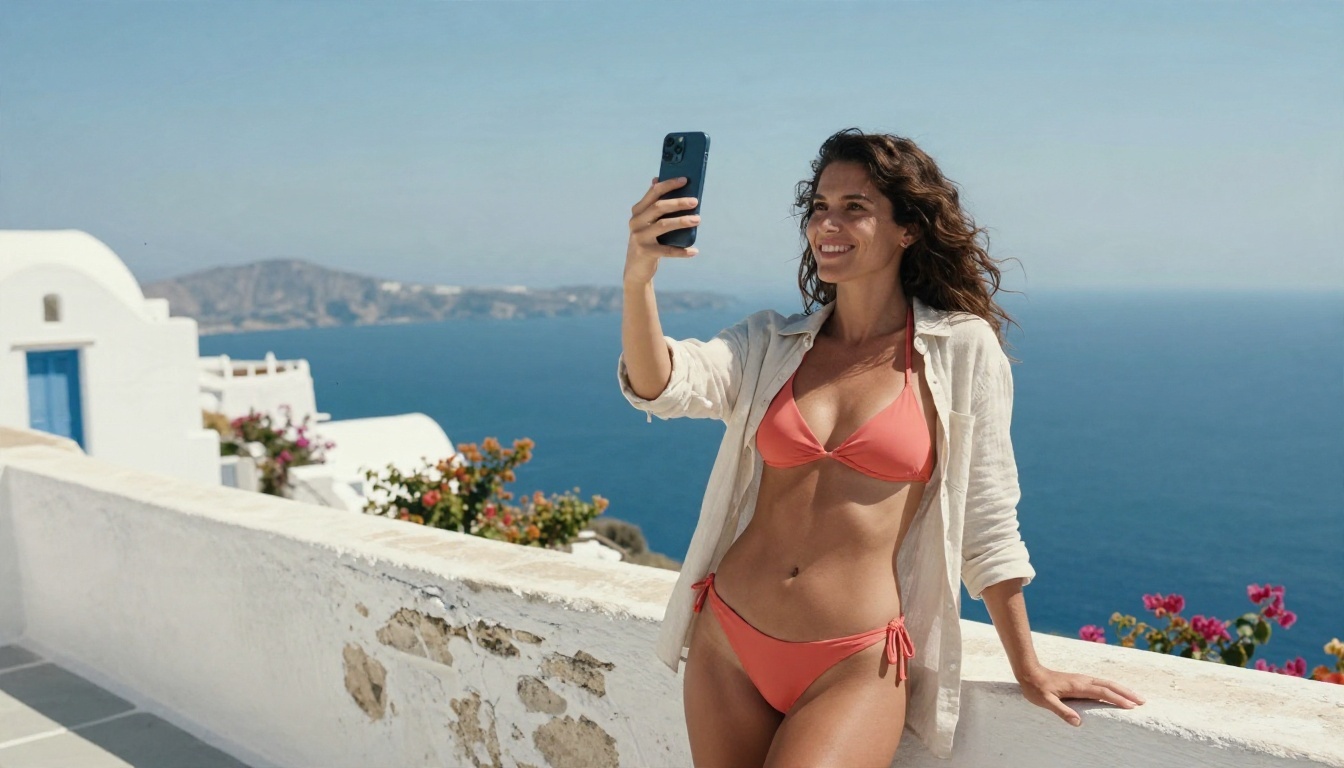
Pick the Right Model for the Job
Different edits call for different tools. Use this as a quick decision table.
A practical routine looks like this: draft with Image Editor Pro until the idea works, polish with Seedream 4.5, then tidy up small details with a targeted editor.
Start Creating Your Own
You do not need a studio, a model or a retouching budget. You need one clear photo, a prompt that names the change and the light, and a model that respects both. Open Seedream 4.5, upload your reference, try one of the outfit or scene prompts above, and see how close the first result gets. Then move to PicassoIA Image Editor Pro and push the idea further with unlimited variations, switching colors, light and settings until the picture looks like something a photographer would have taken.
Want to try other engines too? Browse the full catalog at picassoia.com/en/all-models and test the same photo and prompt across several models. Pick your favorite, keep your prompts specific, and start building your own set of spicy AI image to image edits today.


