The gap between recording a voice and making video lips move in sync used to require a studio, a skilled animator, and days of painstaking work. AI lipsync collapses that into seconds. Models trained on millions of hours of talking-head footage now analyze audio phonemes frame by frame, warping the geometry of a face to match each sound with sub-pixel precision. The result is a talking video that looks like it was shot that way.
This matters well beyond content creation for fun. Product teams are dubbing demos into a dozen languages in an afternoon. Educators are translating recorded lectures without re-shooting anything. Podcasters are building talking-head channels from audio files alone, no camera setup required. Once the friction drops to nearly zero, the use cases stack up fast.

How AI Lipsync Actually Works
Traditional dubbing replaces the audio track and hopes the audience tolerates the mismatch. AI lipsync does the opposite: it reads the new audio and reshapes the face to match it.
The process breaks down into three stages:
- Phoneme extraction — the model parses the audio into distinct phoneme units, the smallest units of sound in speech. Each phoneme corresponds to a specific mouth shape.
- Face detection and landmark mapping — the model identifies facial landmarks around the jaw, lips, teeth, and chin on every single frame.
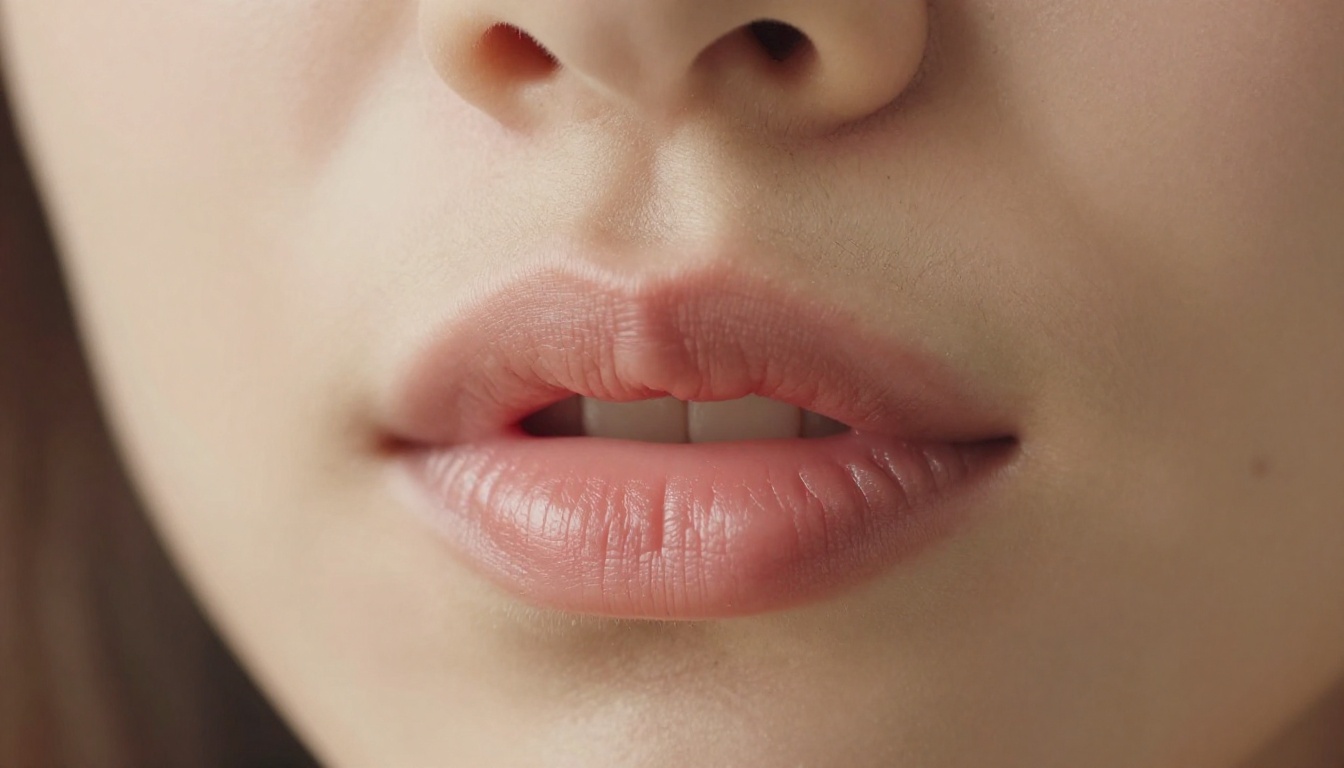
- Pixel-level warping and blending — the lip region is warped to match the target phoneme shape and blended back into the surrounding face, preserving skin texture, lighting, and existing motion.
💡 The best models handle head movement, partial occlusion (a hand crossing the face mid-sentence), and even glasses or facial hair without losing sync accuracy.
The output is a video where every frame of mouth movement matches the new audio, regardless of what the original video actually showed.
The Two Workflows That Matter
Before picking a tool, decide which workflow you are actually running. The models optimized for each are different enough that picking the wrong one will cost you quality.
Workflow A: Voice-swap on existing video. You have a video where someone is already speaking. You want to replace the voice (different language, different speaker, or an AI-generated voice) and have the lips match the new audio. This is the classic dubbing pipeline.
Workflow B: Animate a still image or silent video. You have a photo or a video with no speaking, and you want to add a voice track that makes the subject appear to talk. This is the talking avatar pipeline.
| Feature | Voice-swap on video | Talking avatar |
|---|
| Input required | Video file plus new audio | Image or video plus audio |
| Processing complexity | High (must match existing motion) | Moderate |
| Best models | Lipsync 2 Pro, Lipsync Precision | Omni Human 1.5, Fabric 1.0 |
| Most common use case | Dubbing, localization | Marketing, social content, education |
| Output feel | Matches original video | Fully generated motion |
Both workflows are supported across the models covered here. The choice of model matters more than most people expect when they first start.
Pick the Right Lipsync Model
The lipsync category on PicassoIA has twelve models, each with a specific strength. Here is how the main ones differ so you can make a fast decision.
Speed vs. precision
Lipsync Speed by HeyGen processes video fast, making it the right pick when you have a high volume of clips or need quick preview iterations. Lipsync Precision by HeyGen trades processing time for tighter frame-level accuracy, which becomes critical in close-up shots where even a single-frame desync is immediately visible.
General-purpose sync
Lipsync 2 by Sync is built specifically for voice-to-video synchronization. It handles a wide range of input video quality and maintains consistency across longer clips without drifting. For work that demands the highest accuracy, Lipsync 2 Pro adds sub-phoneme correction that becomes visible when you play back at full resolution on a large screen.
React 1 by Sync is the newest option in this family. It handles rapid speech, overlapping dialogue, and unusual speaking rhythms better than earlier versions, which makes it worth trying on fast-paced content or anything with a non-native speaker's accent patterns.
Talking avatar specialists
Omni Human 1.5 by ByteDance excels at animating still photos into fully realistic talking videos. The model generates not just lip movement but natural head bobbing, blinking, and micro-expressions that make the output feel genuinely alive. Fabric 1.0 by Veed takes a similar approach with a smoother motion style that works particularly well for professional or corporate content where subtle animation is preferred over expressive movement.
P Video Avatar specializes in creating looping avatar videos from a single reference image, useful for building a consistent presenter persona across many videos without ever re-recording.
Multilingual dubbing tools
Video Translate by HeyGen integrates translation, voice generation, and lipsync in one pipeline covering 150+ languages. For pure audio replacement across phonetically complex languages, Kling Lip Sync by Kuaishou handles rapid, tonal languages that trip up models trained primarily on English phoneme patterns. Pixverse Lipsync is optimized for short-form video formats and outputs directly in dimensions suited for vertical content.
Generate the Voice First
If you are working with a pre-recorded voice or an existing audio file, you can skip this section entirely. But if you need to generate the voice from text, AI text-to-speech has reached a quality level where the output is genuinely hard to distinguish from recorded human speech in a controlled listening environment.
The workflow is straightforward: generate audio first, then feed it into the lipsync model.
ElevenLabs V3 produces extremely natural-sounding speech with accurate emotion and pacing. It is particularly strong at spoken narration and longer-form dialogue where pacing and breath patterns need to feel human. For multilingual output at consistent quality, ElevenLabs v2 Multilingual supports 30+ languages while maintaining the same voice identity across all of them.
Minimax Speech 2.8 HD is the choice when you need studio-quality audio that will be used in a professionally produced video. The HD tier captures subtle breath patterns and vocal resonance that cheaper models flatten out.
For voice cloning, Qwen3 TTS lets you supply a short voice sample and generate speech that sounds like the same speaker. Chatterbox by Resemble AI adds emotion control, letting you specify whether the output should sound excited, calm, authoritative, or conversational, which changes the lipsync output significantly because emotional speech has very different mouth geometry than flat recitation.
For speed at scale, Flash v2.5 by ElevenLabs generates audio in near real-time, which is useful when you are processing batch content or iterating through many script variations rapidly.
How to Use Lipsync 2 on PicassoIA
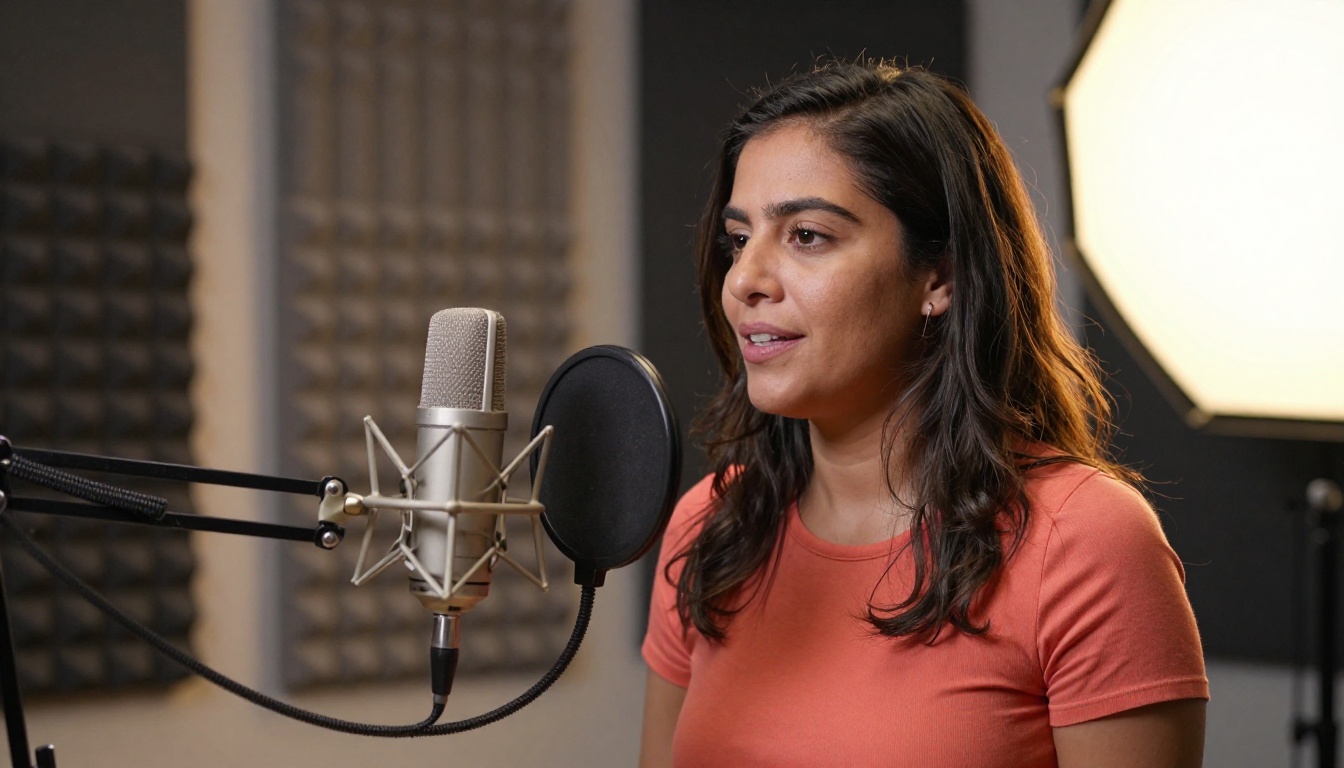
Lipsync 2 is the most direct tool for the core use case: take a video with a speaking face, replace the voice track, and have the lips match the new audio precisely.
Step 1: Prepare your video
Your source video should have a clearly visible face with good lighting. The model handles most quality levels, but heavily compressed input will reduce output sharpness. Ideal resolution is 720p or above. If your video has multiple camera cuts, process each segment separately for cleaner results.
Step 2: Prepare your audio
Export your audio as a clean WAV or MP3 file. If you generated the voice with a text-to-speech model, download the audio file before proceeding. Make sure the audio length matches or is close to the video length.
Step 3: Open Lipsync 2
Navigate to the Lipsync 2 model page on PicassoIA. You will see the input fields for video and audio files.
Step 4: Upload your inputs
Upload your source video and your audio file. Accepted video formats: MP4, MOV, AVI. Accepted audio formats: WAV, MP3, M4A.
Step 5: Set parameters
- Sync mode: For a single speaking face, use the default single-speaker mode.
- Output quality: Select the highest available option for final output. Use a lower quality setting for quick preview iterations to save processing time.
- Lip region blend: If the model exposes this option, a value around 0.7 to 0.85 gives a natural blend. Too high makes the lip region look composited; too low leaves visible sync gaps.
Step 6: Generate and review
Hit generate. Processing typically takes 30 to 120 seconds depending on video length and current server load. Download the output and review it at full playback speed. Pay particular attention to pauses in the audio: silence should produce closed or lightly closed mouth positions, not frozen open mouths.
💡 For talking-head videos where the subject is close to camera, use Lipsync 2 Pro instead. The sub-phoneme correction is clearly visible at close-up distances and worth the slightly longer processing time.
Lipsync for Multilingual Dubbing
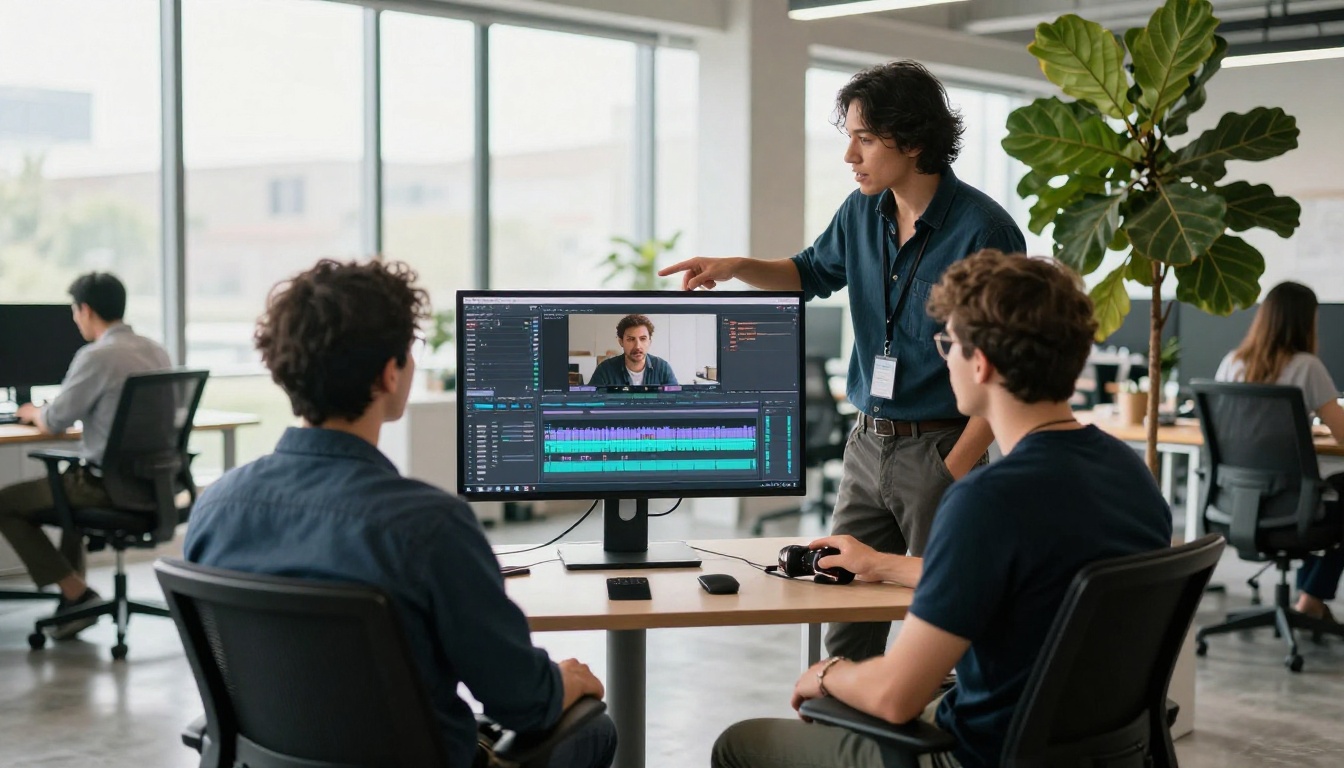
The most commercially powerful application of AI lipsync is dubbing video content into other languages without re-recording anything. A single source video can become the foundation for versions in Spanish, French, Portuguese, Japanese, and 100+ other languages, each with lips that match the translated audio.
The standard pipeline works like this:
- Transcribe the original audio (use a speech-to-text model if you do not have a script)
- Translate the transcript into the target language
- Generate the translated speech with a text-to-speech model matched to the speaker's voice
- Run the new audio through a lipsync model against the original video
Video Translate compresses all four of those steps into a single tool. Upload the video, select the target language, and the model handles transcription, translation, voice generation, and lipsync automatically. For high volume or for languages with very different phoneme timing (Mandarin and Japanese tend to be shorter per concept than English), the translated audio is sometimes shorter than the original. Slightly slowing the speech playback rate or allowing the model to stretch timing can prevent the video from finishing before the audio does.
For languages where phoneme precision is critical, Kling Lip Sync handles tonal and phonetically complex languages better than models primarily trained on English, which is an important distinction once you start publishing content in Mandarin, Vietnamese, or Thai.
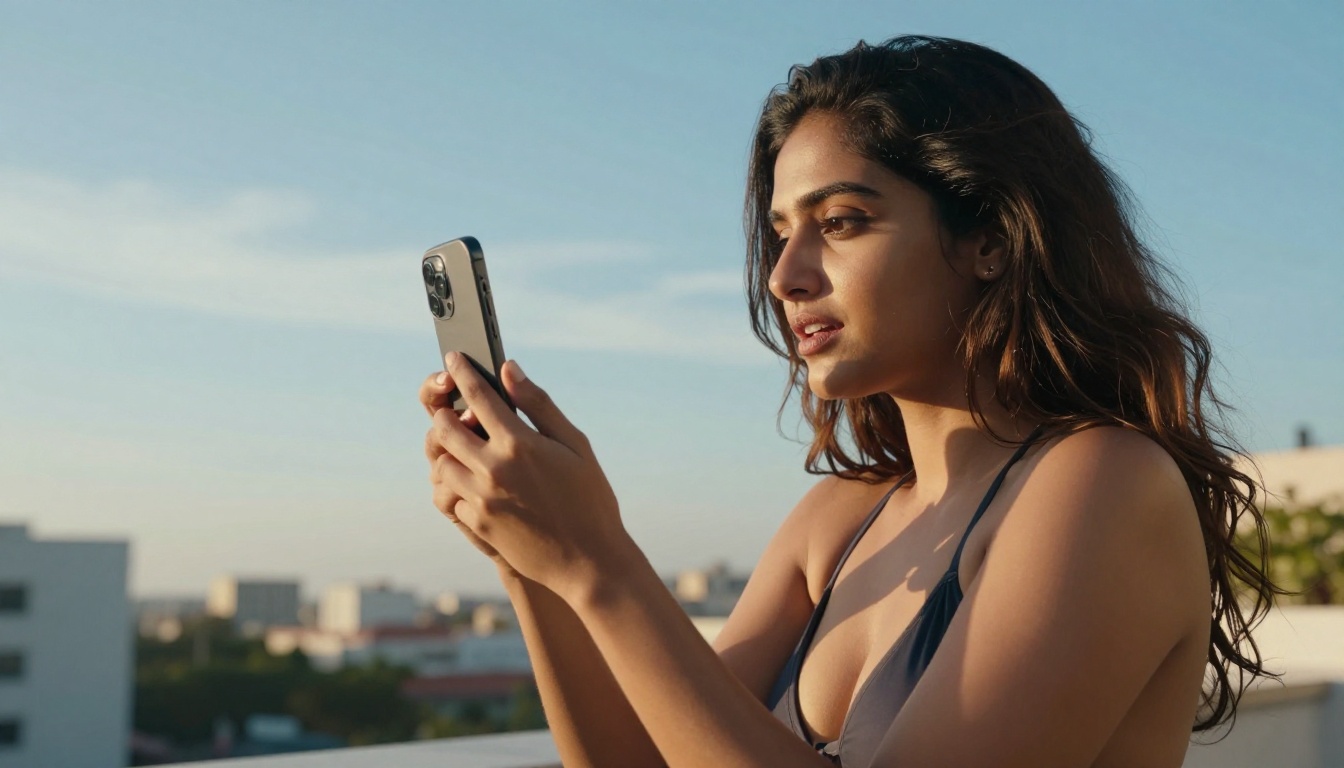
Photo to Talking Avatar
Still-image animation is arguably the most striking application of AI lipsync: upload a single photo of a person, supply an audio file, and receive a video of that person speaking naturally. No camera. No setup. No studio.
Omni Human 1.5 handles this at a quality level that includes realistic blink patterns, subtle head movement, and natural shoulder sway. The output does not look like a rigid face with moving lips. It looks like a video.
Best practices for photo input:
- Face facing forward or at a slight 3/4 angle: Direct profile shots limit the model's ability to generate natural mouth geometry from both sides of the face.
- Good lighting, minimal shadows on the face: The model reads facial landmarks from pixel data. Heavy shadows over the mouth region degrade sync accuracy.
- Neutral or mildly expressive starting expression: A heavily exaggerated pose in the source photo will fight the generated expression and create visual inconsistencies.
- High resolution: Minimum 512px face region. Larger is meaningfully better.
Fabric 1.0 produces slightly smoother motion that works well for professional or corporate presentations. P Video Avatar is the choice if you need a looping avatar that can be reused across many videos as a consistent presenter persona without the motion varying between sessions.
The Omni Human base model (previous version) remains a solid option if you need faster processing and slightly more stylized output compared to the 1.5 release.
4 Problems That Kill Sync Quality
Even with the best model, certain input issues consistently produce poor results. Fixing them before you run the model is faster than retrying after.
1. Audio with heavy background noise
Models read audio for phoneme timing. Background music, echo, or ambient noise makes phoneme extraction less precise, which means lip movements drift slightly off. Run your audio through a noise-reduction step before uploading. Even basic noise reduction improves sync accuracy noticeably.
2. Multiple speakers in one video
Most lipsync models default to tracking one face. If two people are speaking and both are visible, the model may apply lip movement to both simultaneously or default to the primary face only. Use a model with explicit multi-speaker support, or cut to single-speaker segments before processing.
3. Extreme head angles
A profile view, a heavily tilted head, or a face partially blocked by an object will cause the model to struggle with landmark detection. The lip region may warp incorrectly or flicker between frames. Trim or stabilize these moments in your video editor before running the lipsync model.
4. Audio and video length mismatch
If the audio is significantly longer than the video, the end of the speech will have no frames to sync against. Always trim audio to match video length (or vice versa) before running the model. A two-second buffer at the end of the video is usually enough to prevent clipping.
💡 A two-pass approach works well for long content. Process the video in 30 to 60 second segments, then stitch the output clips together. Shorter segments process faster and give you more control over which sections need a re-run without reprocessing the whole clip.
Mixing Voice Generation and Lipsync
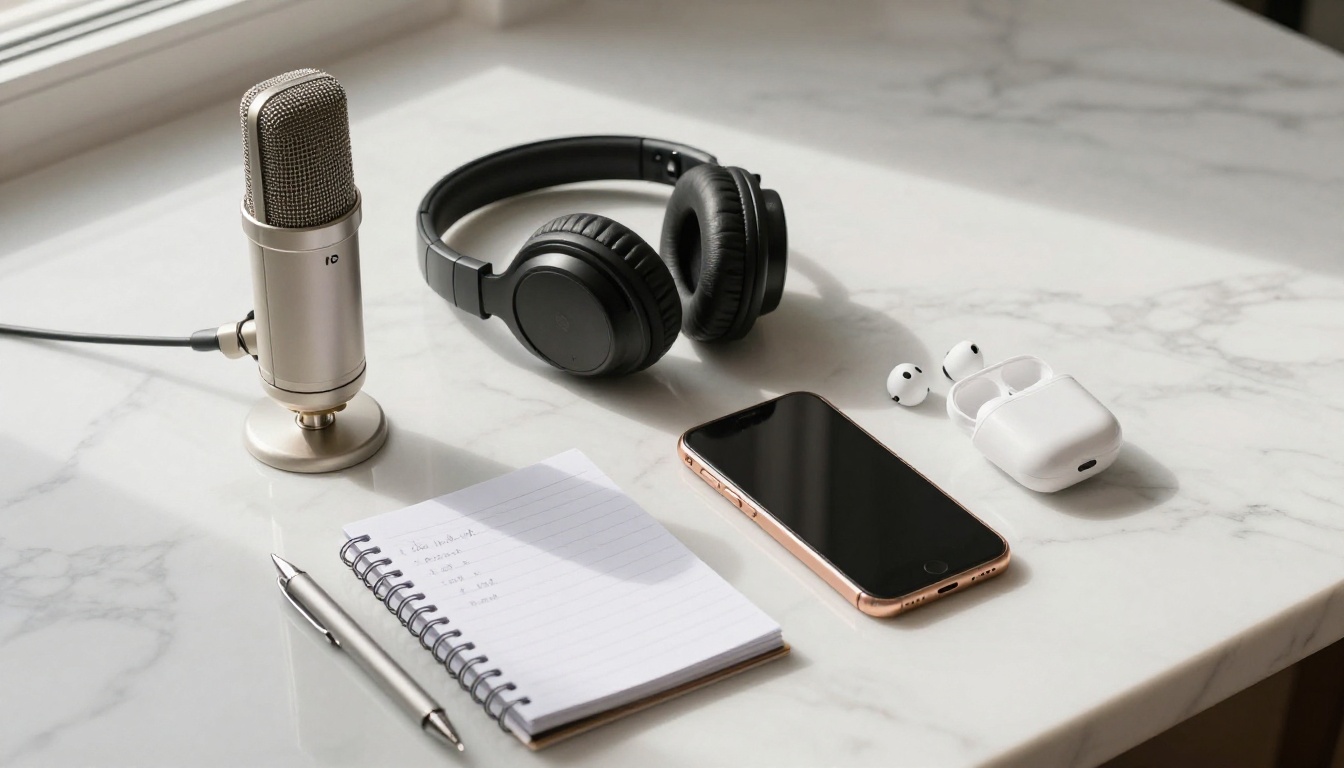
The most flexible production approach pairs a text-to-speech model with a lipsync model so neither audio nor video needs to be recorded from scratch. Write a script. Generate the voice. Lipsync it against a reference image or stock footage clip. The result is a fully produced talking-head video with no camera, no microphone setup, and no studio booking.
For English-language content, the combination of ElevenLabs V3 for voice generation and Lipsync 2 Pro for mouth sync currently produces some of the most realistic results available. The voice model captures natural breath and pacing that the lipsync model can read cleanly for precise phoneme alignment.
For multilingual content at scale, Minimax Speech 2.8 HD paired with Kling Lip Sync handles tonal and phonetically complex languages well without the timing drift that appears in models trained primarily on Western languages. If the target audience is global and you want a single workflow that covers translation as well, Video Translate is the fastest path from a single source video to a localized output.
For avatar-based content where you control the visual entirely, Chatterbox Pro by Resemble AI gives you fine-grained control over how the voice sounds, feeding a more expressive audio signal into Omni Human 1.5 for avatar animation that responds to the emotional nuance of the speech, not just its timing.
Start Syncing Voice to Video on PicassoIA
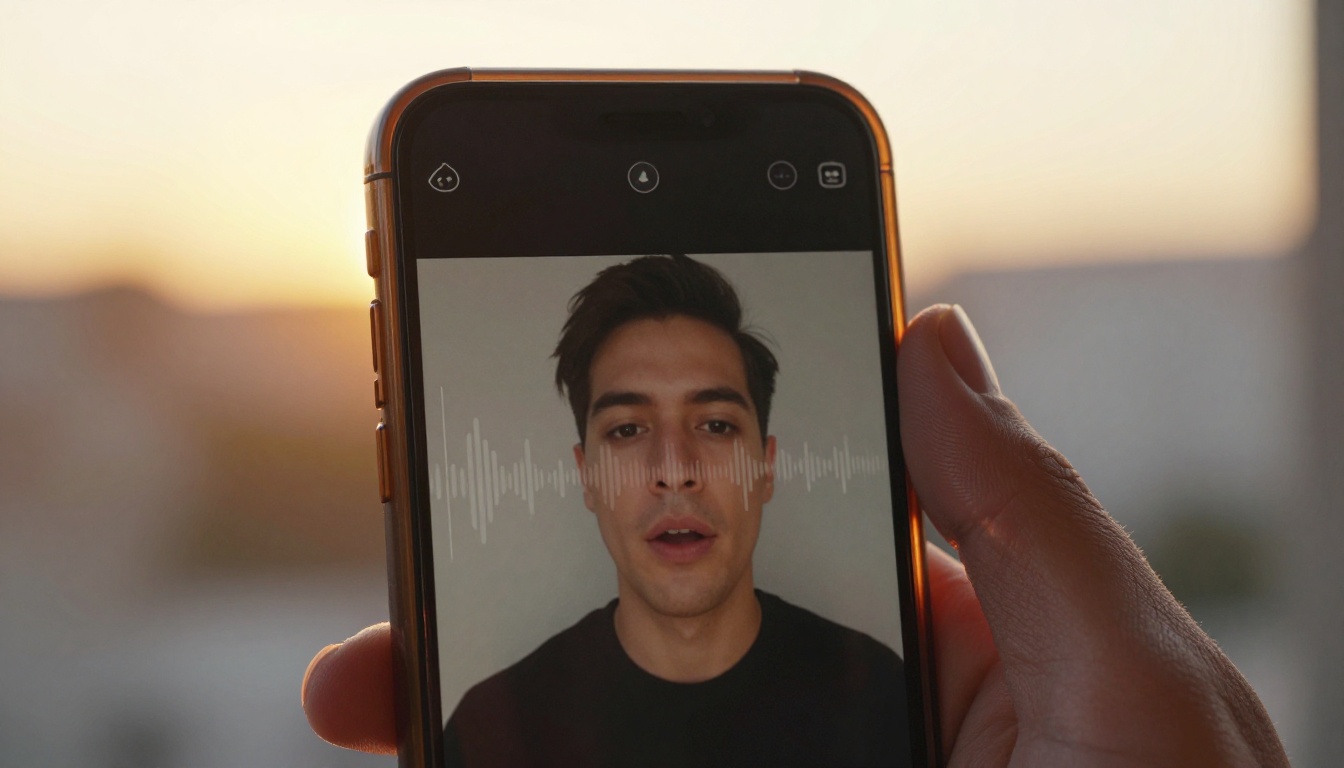
All the models referenced in this article, including Lipsync 2, Lipsync 2 Pro, Omni Human 1.5, ElevenLabs V3, and Chatterbox, are available on PicassoIA without any local installation or GPU setup. You run them directly in the browser.
The fastest way to start: pick a photo of yourself, write a short paragraph of text, generate the audio with a text-to-speech model, and run it through a lipsync model. The first output usually takes under five minutes from start to finish.
Once you see how the pieces connect, the longer workflows, multilingual dubbing, batch avatar generation, custom voice personas across video series, become straightforward extensions of the same basic process. The barrier is trying it the first time.
Sync your first voice to video today at PicassoIA.


