You have a photo, a script, and no camera crew. Ten years ago that meant a stock video or nothing. Today you can upload one portrait, paste a few sentences, and get a face that talks back in your chosen voice within minutes. The catch is that "free" means very different things from one tool to the next, and the first export is rarely the one you post. This article walks through what a talking avatar online really is, what free plans give you, which voices sound human, where the limits bite, and three examples you can copy today.

What a Talking Avatar Actually Is
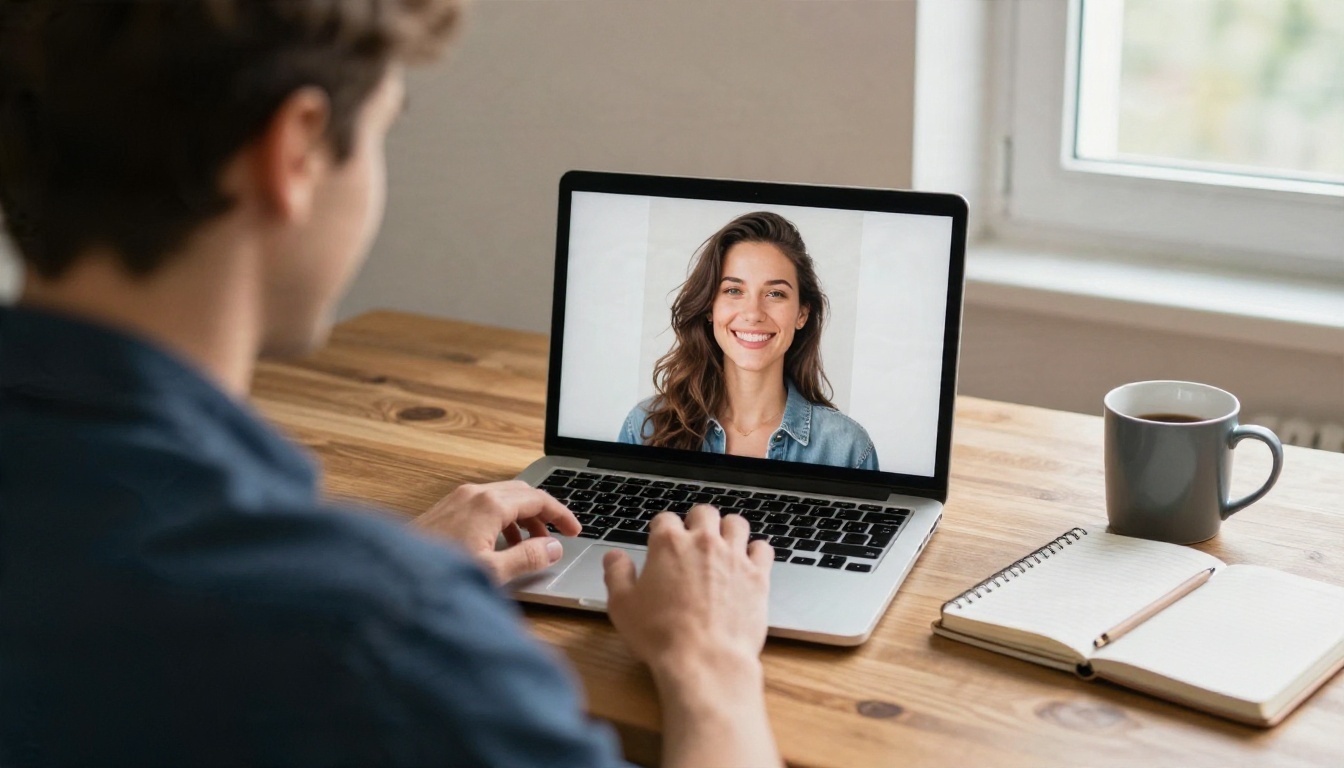
A talking avatar is a digital face that speaks your script with matching mouth movement, head motion, and expression. It can be built from a real photo of you, a stock presenter, or a generated character. The result is a short video where the face looks like it is delivering the words naturally.
Two ingredients make it work: a voice (recorded, cloned, or generated from text) and a face animation model that moves the lips and head to match that audio. Everything else, from backgrounds to captions, is polish.
Photo Avatars vs Video Avatars
These two terms get mixed up constantly, so here is the difference in plain terms.
| Type | Input | Best for | Typical weakness |
|---|
| Photo avatar | One still portrait + audio or text | Quick explainers, greetings, social clips | Limited body movement |
| Video avatar | A short recording of a real person | Repeatable presenter, longer scripts | Needs a clean training clip |
| Stock avatar | Pick from a library of presenters | Training and internal updates | Looks generic, many people use the same face |
Photo avatars are the fastest route. If you are searching for a free way to try this, a still image plus a voice track is almost always where you will start.
Where the Lip Sync Comes From
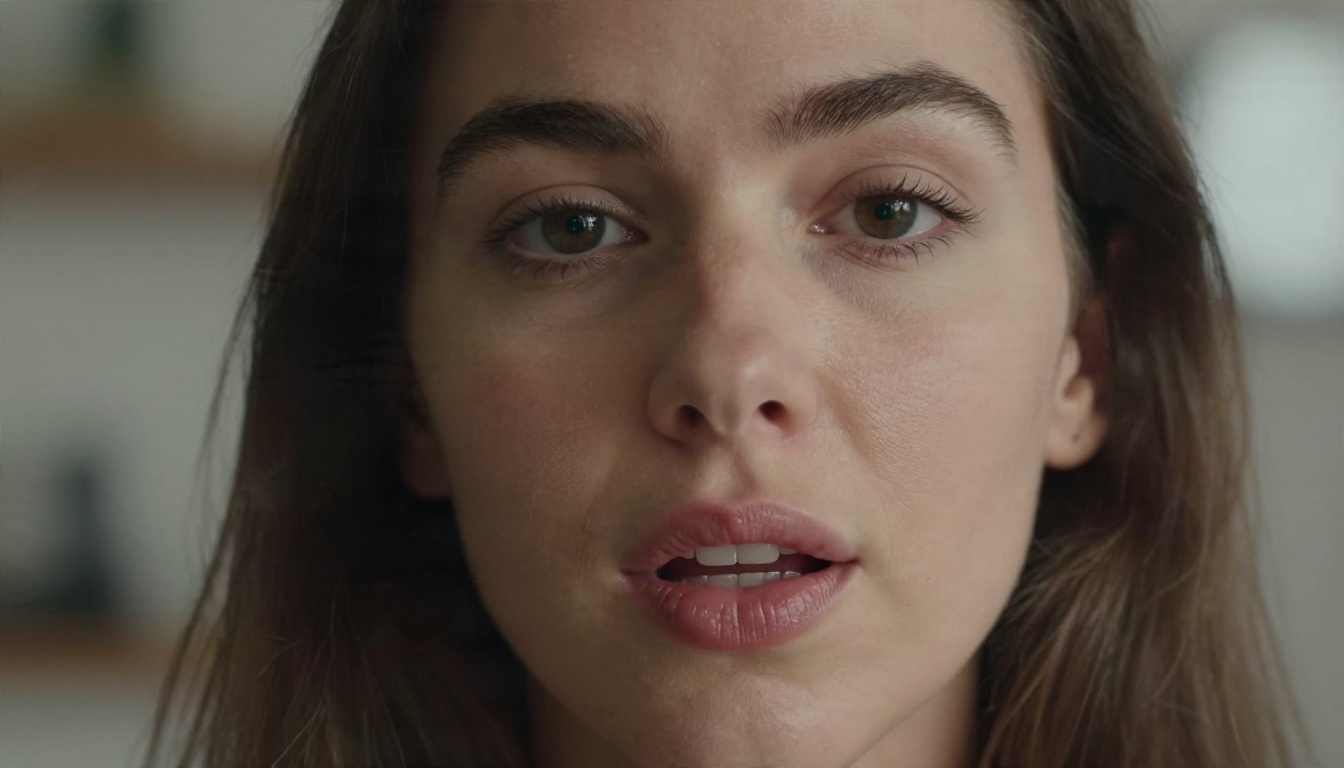
The mouth shapes are produced by a lipsync or audio-driven animation model. It reads the sound of the speech, maps it to mouth positions, then blends the movement into the face so cheeks, jaw, and eyes shift with it. Better models also add blinks, small head tilts, and eyebrow motion, which is what separates a convincing result from a puppet.
On PicassoIA, models in this category include Omni Human 1.5, Omni Human, Fabric 1.0, and P Video Avatar. For syncing a new voice onto an existing clip, there are also Lipsync 2 Pro and Kling Lip Sync.
Search for a free talking avatar and you will find dozens of sites. Most follow the same pattern: a generous headline, then a small free allowance with strings attached. Reviews published in 2026 disagree on the exact numbers for even the best-known names, which tells you the terms change often.
Typical Free Plan Restrictions
Here is what shows up again and again across the popular free tiers such as HeyGen, Vidnoz, BIGVU, and Magic Hour, based on reviews and each vendor's own pages. Treat the numbers as ballpark figures and check the current pricing page before you commit.
| Restriction | What it usually looks like |
|---|
| Monthly allowance | A handful of videos, or a credit pool worth roughly one minute to a few minutes of output |
| Daily credits | Some tools refill a small number of credits each day instead of a monthly pool |
| Watermark | A logo on the corner or across the video on most free exports |
| Resolution | Often capped at 720p on free plans |
| Length | Short clips, sometimes only 10 seconds per generation |
| Voices | A smaller set of stock voices, cloning locked behind a paid plan |
| Commercial use | Frequently restricted on the free tier, even when there is no watermark |
The pattern is simple. Free is designed for testing, not for publishing a polished campaign. That is fine if you know it going in.
Watermarks and Commercial Use
Two questions matter before you post anything.
- Is there a watermark? If yes, a business page or client video will look unfinished.
- Can you use it commercially? Some tools remove the watermark but still limit the free output to personal use.
💡 Quick check: Before you build a whole campaign on a free tool, generate one 10 second test, export it, and read the licence page. Five minutes now saves a re-render of twenty clips later.
Be careful with "watermark-free" comparison pages too. Many are written by companies selling their own avatar product, so the claims lean in their favour.
Free Options on PicassoIA
PicassoIA lets you chain a voice model and a face animation model in one place, so you are not bouncing between four websites. Browse the full catalogue at picassoia.com/en/all-models to see what is currently available for your account, since access and allowances can differ by model.
The workflow below is built from separate models, which gives you more control than a single locked tool: you pick the voice, you pick the face model, and you can swap either without starting over.
Voice Options That Sound Human
The voice decides whether people watch past the first three seconds. A perfect mouth with a flat, robotic voice feels worse than a slightly imperfect mouth with a warm one.
Stock Voices vs Cloned Voices
Stock voices are ready-made. You pick an accent and tone, paste your text, and generate. They are fast, consistent, and perfect for explainers and training material.
Cloned voices copy a real speaker from a short sample. They suit founders, teachers, and creators who want the avatar to sound like them. Models such as Qwen3 TTS and Chatterbox support cloning or voice design, with Chatterbox offering emotion control.
💡 Always get consent. Only clone a voice you own or have written permission to use. It protects you and the person whose voice it is.
Languages and Accents
If your audience is international, voice choice matters even more. The multilingual options on PicassoIA include Gemini 3.1 Flash TTS with 30 voices across 70+ languages, ElevenLabs v2 Multilingual in 30+ languages, and ElevenLabs Turbo v2.5 in 32 languages.
If you already have a finished video and want it spoken in another language with the lips adjusted, Video Translate handles dubbing in 150+ languages.

Voice Models Worth Trying
Not every text-to-speech model suits every script. This table gives a quick way to pick.
A good habit: generate the same two sentences with three voices, listen on phone speakers (where most people will watch), and keep the one that sounds least like a machine.
The Real Limits to Expect
Marketing pages show the best take. Here is what you will actually run into.
Length, Resolution and Queue Time
Short is easier. Most photo-driven models handle clips from a few seconds up to around a minute or so, depending on the model, and quality can drift on longer takes. If you need a three minute video, split the script into scenes of 15 to 30 seconds and stitch them together. It looks more natural too, since you can change the framing between scenes.
Free tiers add queues. A generation that takes one minute on a paid plan can wait much longer on a free one during busy hours.

Where Avatars Still Look Off
Even strong models struggle with a few things:
- Hands and body motion. Most photo avatars show head and shoulders only, and gestures are limited.
- Fast speech. Rapid talking can blur the lip shapes.
- Side profiles. A photo taken from an angle gives the model less to work with. Front-facing portraits win.
- Heavy accessories. Large glasses, scarves over the chin, or hair across the mouth can cause odd artefacts.
- Emotion mismatch. A smiling photo with a sad script feels strange. Match the photo's expression to the tone of the words.
💡 Photo checklist: Face fills a third of the frame, even lighting, mouth visible and relaxed, eyes open, no heavy shadows, at least 1024 pixels on the short side.
Examples You Can Copy
Real use cases beat theory. These three come up most often, and each one takes under ten minutes once you have the process down.
Teacher Lesson Intro
A teacher records no video at all. They upload a clear classroom photo, paste a 30 second welcome script, and generate a friendly intro that opens each weekly lesson. The same face greets students every week, and the script is the only thing that changes.
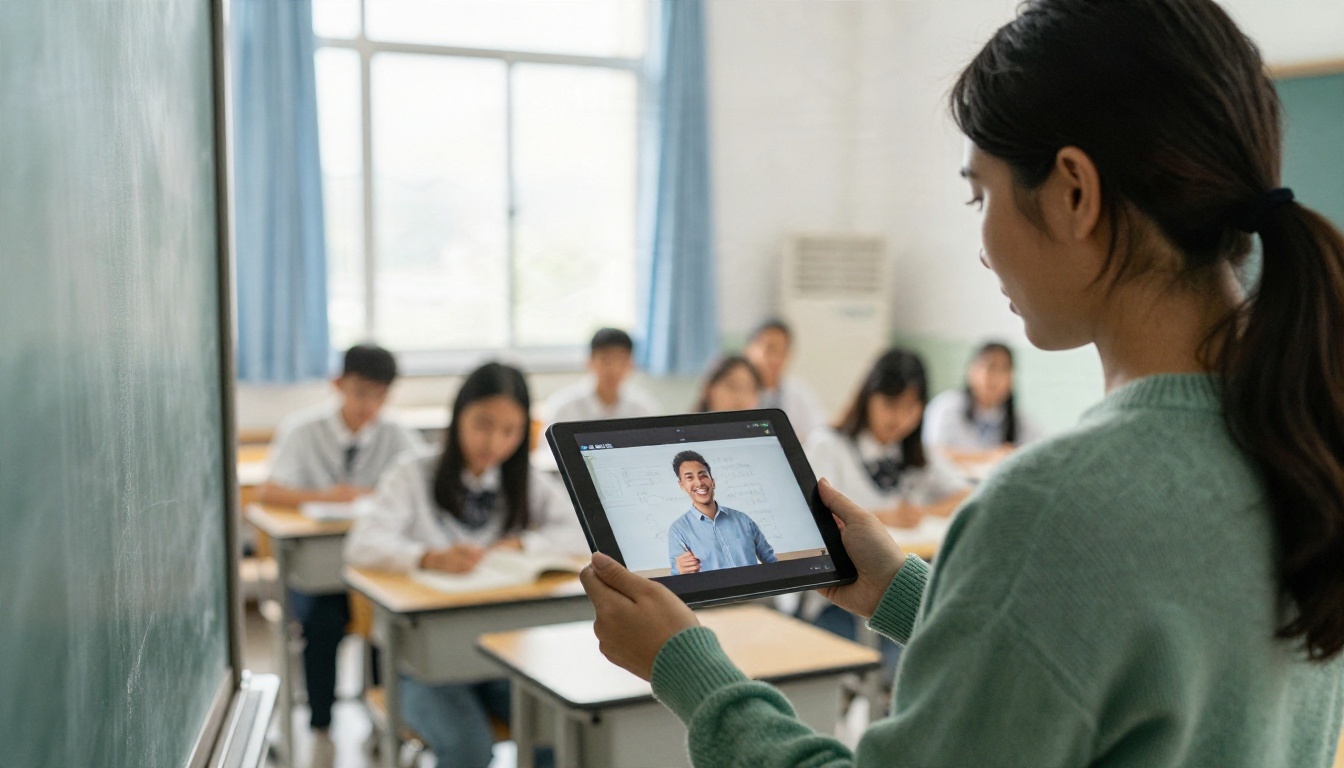
Setup that works: a warm, steady voice such as ElevenLabs v3, a front-facing portrait, and a slow script with short sentences.
Shop Product Pitch
A small shop owner wants a 20 second spoken intro for each new product. They write the script, generate the voice, and animate their own portrait, then drop the clip into a product page or social post. No filming day, no retakes.

Setup that works: Speech 2.8 Turbo for fast drafts, then Speech 2.8 HD for the final version, with Omni Human 1.5 animating the portrait.
Family Message
This one is quiet and personal. Someone animates an old portrait of a grandparent, with their own voice recording or a message read aloud, as a keepsake. Keep the tone respectful, and only use photos and voices of people who would be comfortable with it.
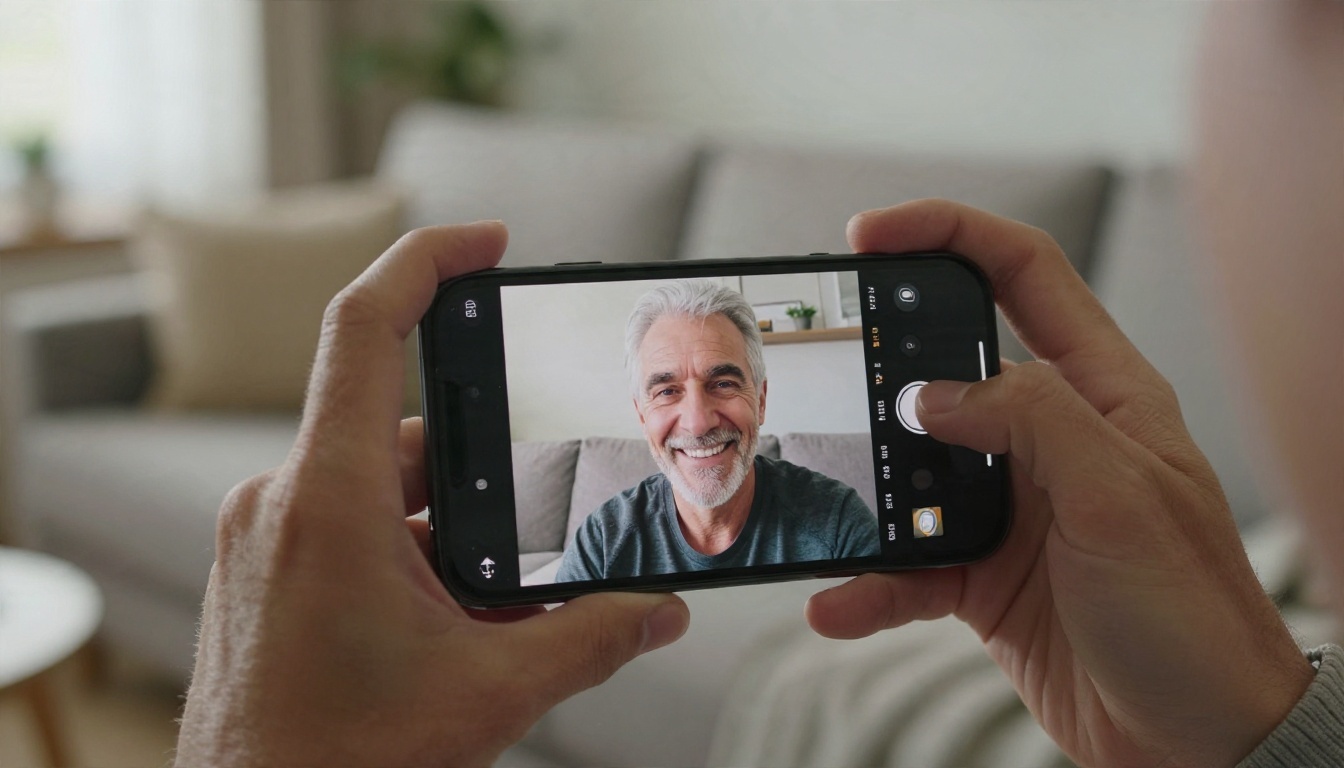
Setup that works: Fabric 1.0 or Omni Human with a short, clear audio file recorded close to the microphone.
Make One in Six Steps
Here is the full workflow using models on PicassoIA.
- Write the script. Aim for 60 to 90 words for a 30 second clip. Short sentences, spoken style, no long lists.
- Pick the voice model. Open the text-to-speech models, choose one that matches your language and tone, and paste the script.
- Generate and listen. Play it on your phone. If a word sounds wrong, respell it phonetically and regenerate.
- Choose your portrait. Front-facing, good lighting, mouth relaxed, high resolution.
- Open a face animation model. Try Omni Human 1.5, Fabric 1.0, or P Video Avatar. Upload the portrait and the audio file, then generate.
- Review the first three seconds. Check lips, eyes, and head motion. If something looks off, change the photo or slow the audio down rather than rewriting the whole script.
💡 Parameter tip: If the mouth looks stiff, the usual fix is a calmer voice, not a different model. Fast, loud delivery gives the model less time to form clean mouth shapes.
If you want to place the avatar in a new language afterwards, run the final clip through Video Translate. If you need to replace the audio on an existing video, Lipsync 2 Pro or Kling Lip Sync fit that job.
Pick Your Photo and Voice, Then Try It
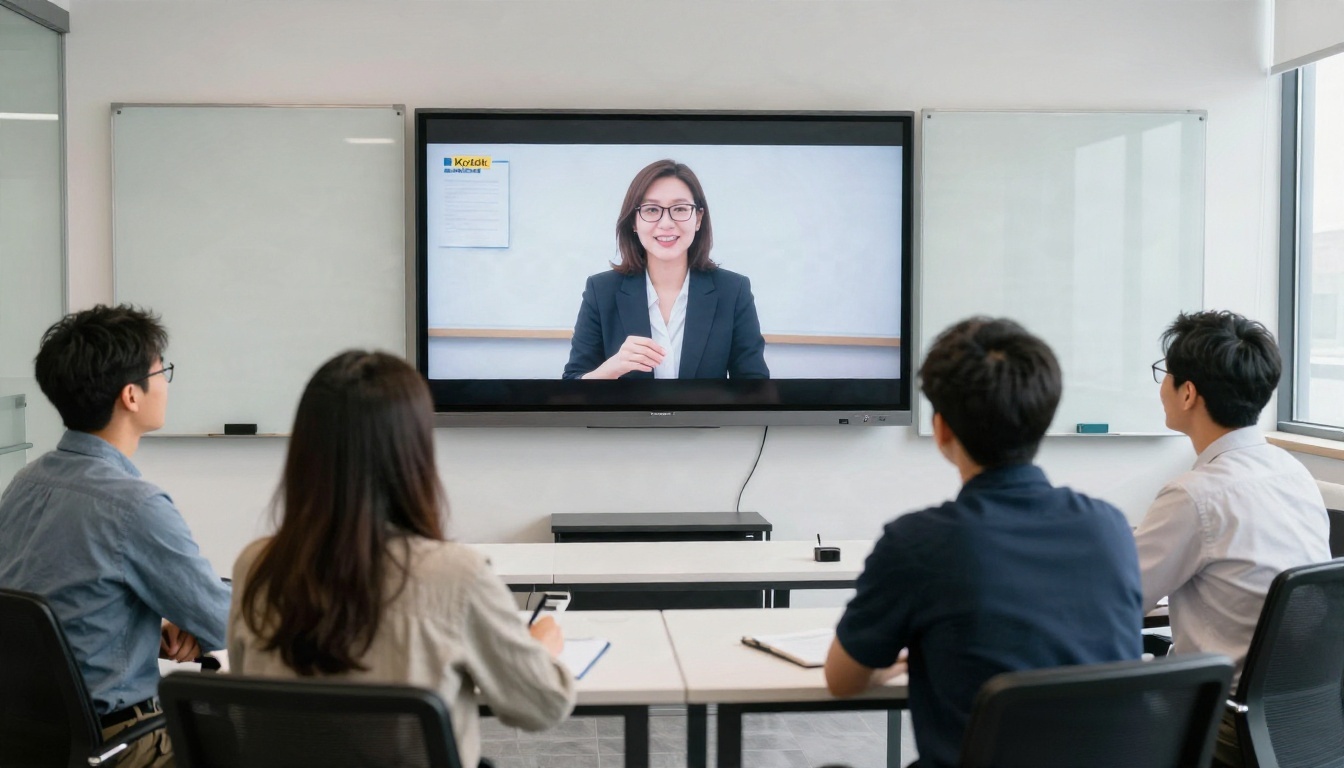
The fastest way to see whether a talking avatar fits your project is to make one. Choose a clear portrait, write 60 words, and generate a voice with two or three different text-to-speech models. Then animate the best pairing and watch the first five seconds.
You do not need to commit to a paid plan to find out whether the result works for your audience. Test a short clip, compare voices, and keep what sounds natural. When you are ready, open PicassoIA, pick a voice model and a lipsync model, and make your first talking avatar today. Then try a second version in another language and see how far one photo can go.


