The cost of hiring a professional game artist used to make solo developers and small studios pause hard. A single character sheet could run $200 to $500. A full environment pack with tilesets, backgrounds, and props could easily reach $3,000. That math does not work for most indie projects. AI tools for game asset creation have shifted those numbers dramatically, and the models available today produce results that would have seemed impossible three years ago.
This is not about AI art in theory. It is about the specific tools, the specific workflows, and the specific platforms that produce usable game assets right now, in 2027.
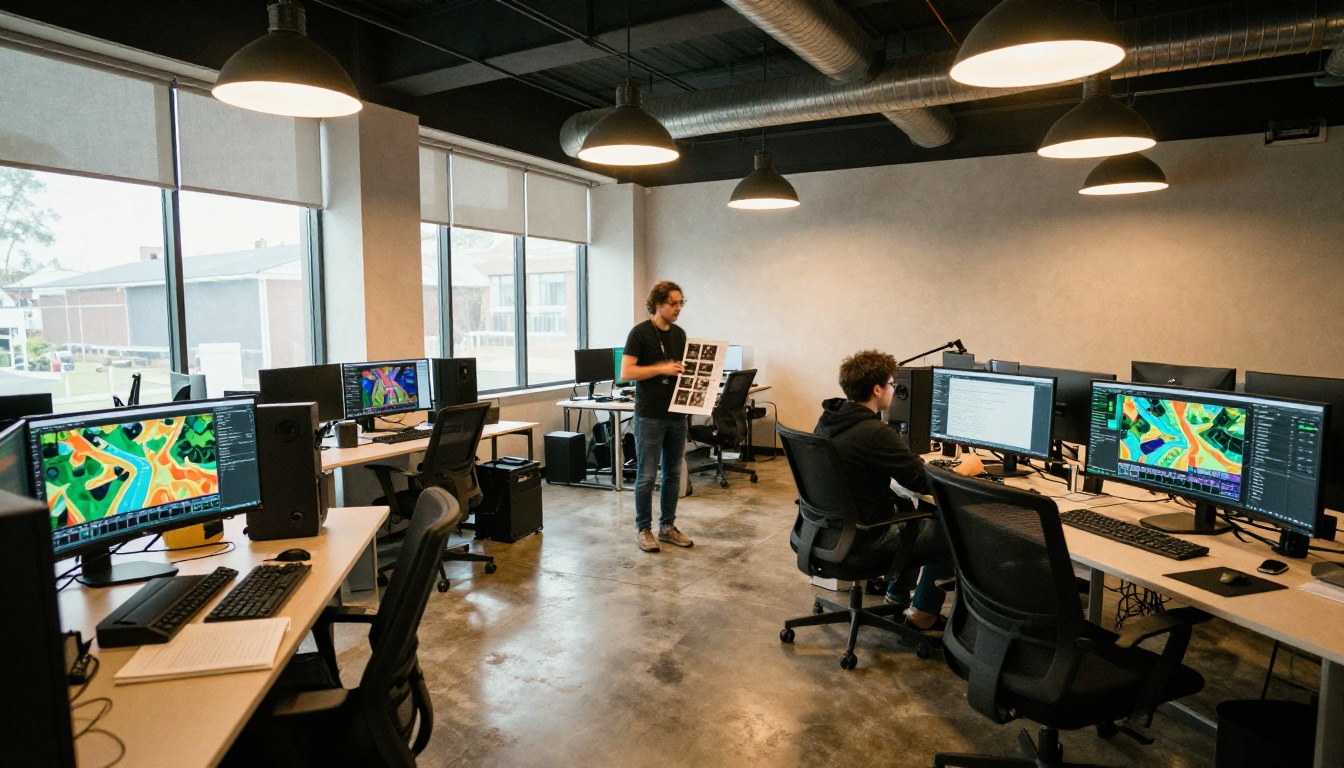
Why Game Asset Production Changed
The traditional pipeline for indie game art looked something like this: concept sketches, style approval, clean line art, coloring, revision cycles, file export. Each step required a skilled person and a calendar slot. Even with a dedicated artist on staff, the feedback loop between developer and artist added days to every single asset.
The Old Pipeline Was Too Slow
Waiting a week for a character sprite revision while trying to stay on a six-month dev schedule is not sustainable. Most indie developers dealt with this by either settling for placeholder art or launching with an inconsistent visual style. Both outcomes hurt player retention and reviews.
The bottleneck was never creativity. Developers had clear visions for their games. The bottleneck was production time and cost.
What AI Tools Can Produce Now
Modern text-to-image models trained on billions of images can generate production-quality concept art, texture references, environment backgrounds, UI mockups, and character portraits from a single sentence. The output quality has crossed a threshold where you can take a generated image, clean it up in your pipeline, and ship it.
What changes most with AI tools:
- Character concept generation from a text description in under 10 seconds
- Environment background creation in any art style you specify
- Tileset texture generation for both 2D and 3D pipelines
- UI element and icon production from simple style references
- Asset upscaling from low-resolution sources up to 6x
💡 The real shift: AI tools do not replace your art direction. They replace the production time between your idea and a usable reference image.
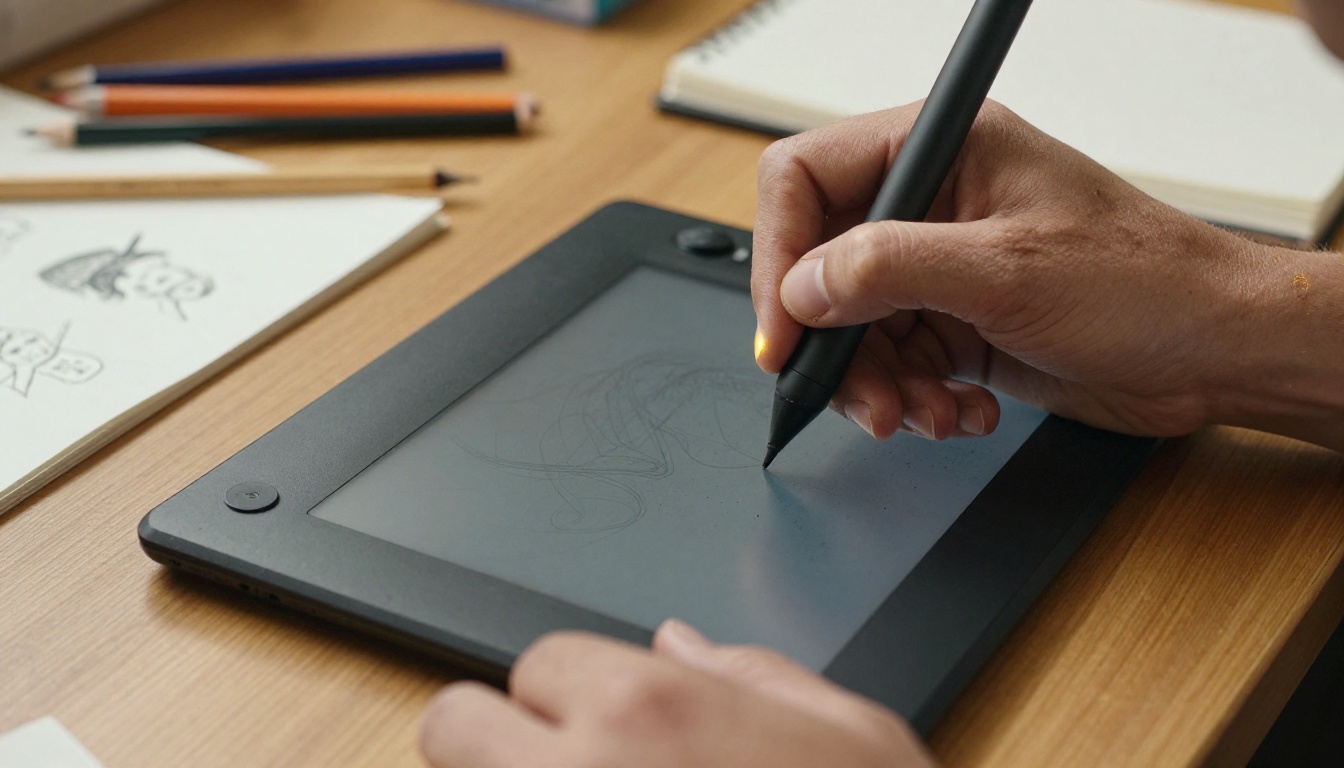
Not every text-to-image model handles game assets equally well. Some excel at photorealistic textures. Others handle stylized art, pixel sprites, or consistent character generation. Here are the models that matter most for game development work in 2027.
Flux Dev for Character Concepts
Flux Dev is a 12-billion parameter model built for detailed, high-resolution image generation. For game asset work, it shines in character concept art and environment illustration. Its img2img mode lets you upload a rough sketch and have the model refine it into a polished reference, fitting naturally into an iterative design loop.
Best for: Character portraits, environment concept art, and any asset where fine detail matters. Its guidance control lets you push the model toward strict prompt adherence, which is exactly what you need when generating a character that must match specific lore constraints.
Practical tip: Set your aspect ratio to 3:4 for portrait character art, and use the seed parameter to lock in a face design before iterating on clothing and accessories.
Recraft v3 for Pixel Art Sprites
Recraft v3 stands out from most text-to-image models because it explicitly supports pixel art as a native style. This is not a workaround or a prompt trick. You select the digital_illustration/pixel_art style parameter and the model renders crisp, grid-aligned pixel art directly from your description.
Available styles for game assets:
| Style Parameter | Best Use Case |
|---|
digital_illustration/pixel_art | 2D sprites, tilemaps, retro game art |
digital_illustration/2d_art_poster | Game cover art and title screens |
digital_illustration/hand_drawn | Sketch-style concept art |
realistic_image/hdr | High-fidelity environment textures |
realistic_image/natural_light | Photorealistic background references |
Recraft v3 also renders text inside images with unusual accuracy, making it useful for UI mockups and title screen concepts where you need readable placeholder labels.
Stable Diffusion for Background Generation
Stable Diffusion remains one of the most flexible models for game background generation. Its negative prompt support is particularly useful in game asset workflows because you can explicitly exclude unwanted visual elements: characters appearing in backgrounds, watermarks, blurry edges, and other artifacts that commonly show up in background renders.
Six available schedulers give you precise control over how the image is constructed. For game backgrounds specifically, DPMSolverMultistep and K_EULER_ANCESTRAL tend to produce the cleanest results with the most consistent color distribution across a scene.
💡 Negative prompt tip: For environment backgrounds meant to tile, always include "seams, tiling artifacts, borders, vignette" in your negative prompt to get cleaner edges that loop reliably in your engine.
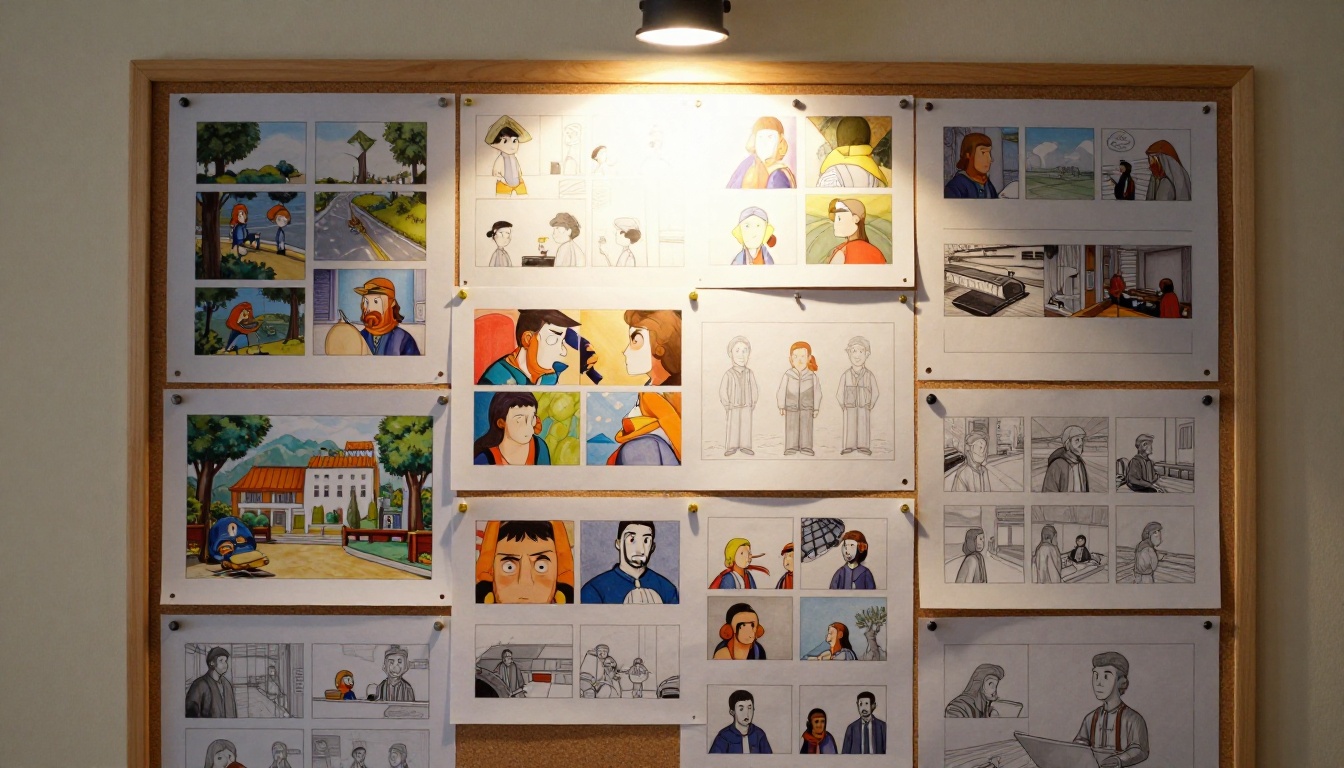
Using Flux Schnell on PicassoIA
Flux Schnell is the fastest route from a text prompt to a finished game asset reference image. It runs four denoising steps and returns a clean 1-megapixel image in under five seconds. For game developers who need to iterate through dozens of character and environment concepts in a single session, speed is the primary feature.
Here is the exact workflow for using Flux Schnell on PicassoIA for game asset production.
Step 1: Write a Specific Prompt
Vague prompts return vague images. The more precise your description, the more usable the output.
Weak prompt: "a forest background for a game"
Strong prompt: "a dense pine forest at dusk, low angle perspective, ancient moss-covered stone ruins partially visible between the trees, volumetric golden-hour light filtering through branches from the right, muted blue-green shadows on the left, photorealistic textures, no characters visible, 16:9 horizontal composition"
Include in every game asset prompt:
- Subject and style: what is in the scene and how it should look
- Lighting direction: where the light comes from and what quality it has
- Perspective: camera angle and viewing distance
- Exclusions: what should NOT appear in the image
Step 2: Pick the Right Aspect Ratio
Flux Schnell on PicassoIA supports eleven aspect ratios. For game assets, the most useful are:
- 16:9: Full environment backgrounds, cutscene panels, loading screens
- 1:1: Inventory icons, ability icons, profile portraits
- 9:16: Vertical mobile game backgrounds, character full-body art
- 3:4: Character portrait cards, NPC dialogue portraits
- 21:9: Ultra-wide cinematic environment panoramas
Step 3: Download and Import
Once the image generates, download it as PNG (lossless, with transparency support in your pipeline) or WebP for web-based games. The output is watermark-free and ready to import directly into your engine.
For Unity or Godot, import the PNG directly into your asset folder. For a sprite, crop in your preferred editor and export at your target resolution. If the generated resolution is not large enough for your needs, run it through a super-resolution model to scale it up without losing quality.
💡 Unlimited generation: PicassoIA runs Flux Schnell with no credit caps or usage quotas. You can iterate through 50 prompt variations in a single session without hitting a wall.
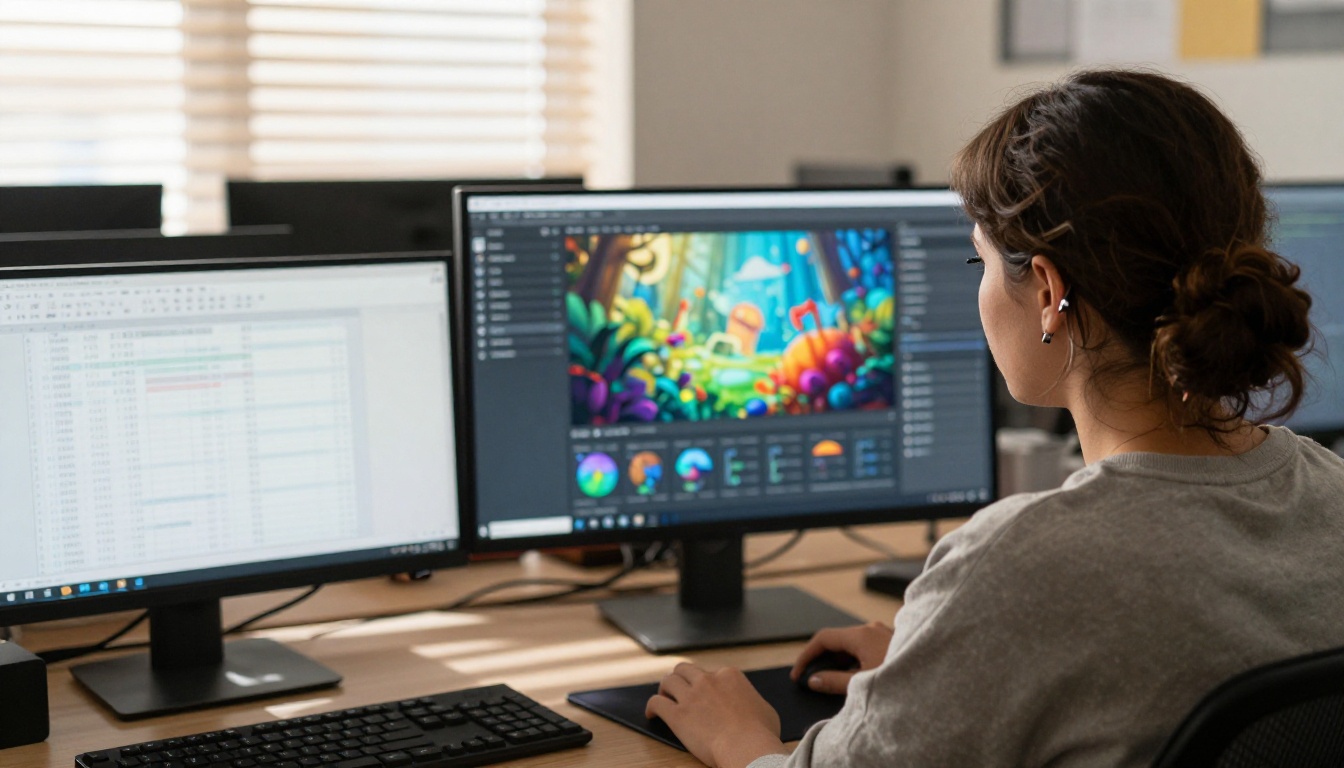
Generated images from most text-to-image models top out around 1024x1024 pixels. For many game engines and display resolutions, especially mobile HD or desktop at 1440p, you need higher fidelity. AI upscalers do not just stretch an image. They analyze texture details and regenerate missing information at higher resolution.
Clarity Pro Upscaler for Crisp HD Assets
Clarity Pro Upscaler is the preferred choice for taking a clean AI-generated game asset and scaling it to 4K game-ready resolution. It preserves edge sharpness on linework and character outlines, which matters when upscaling sprite sheets or character portraits where soft edges look blurry in-engine.
Best for: Character art, portrait cards, icon sets, and any asset where sharp edges and detail fidelity are critical.
Real ESRGAN and Topaz for Texture Upscaling
Real ESRGAN excels at upscaling natural textures: stone, wood, grass, water, and fabric. It is the better choice for environment assets and tileset textures where organic surface detail needs to scale cleanly without introducing sharpening artifacts.
Image Upscale by Topaz Labs goes up to 6x enlargement and is the strongest option when you need to take a very small source image, such as a low-resolution sketch or a compressed reference, and recover workable detail from it.
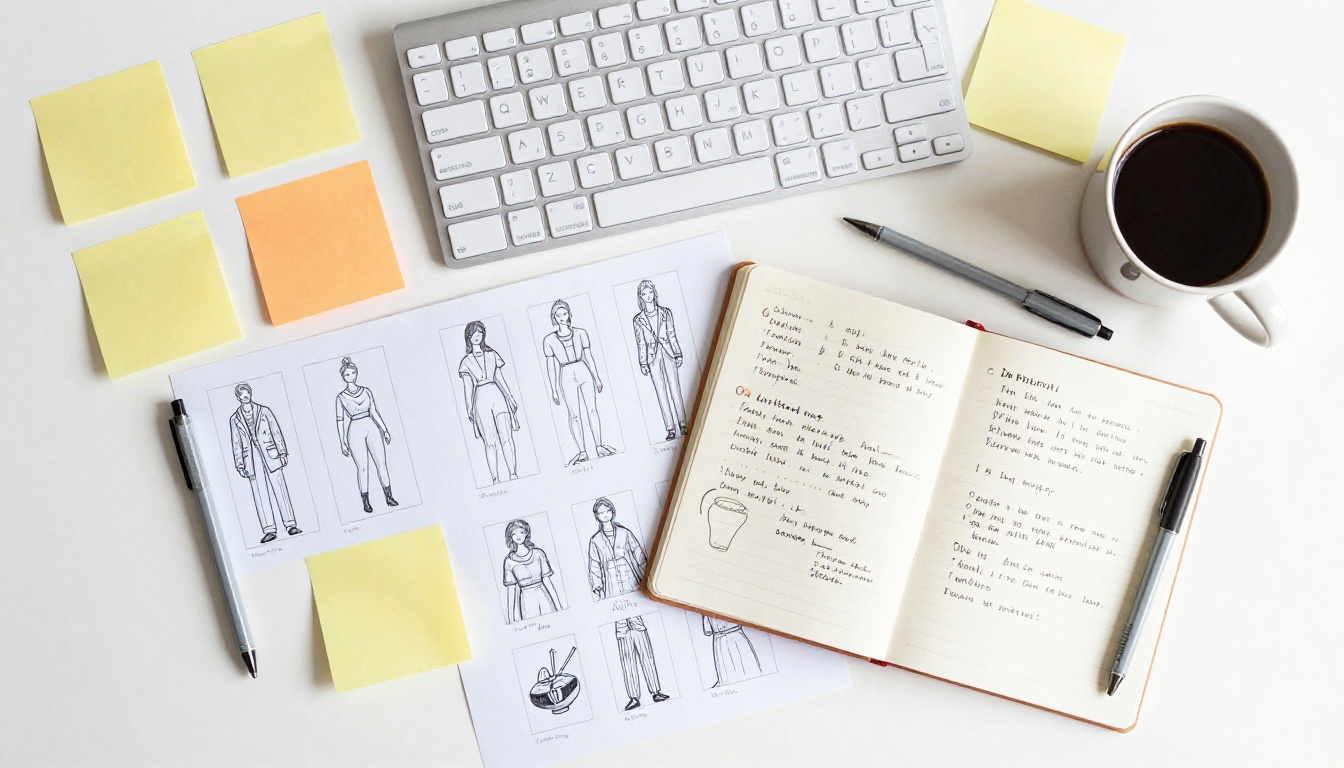
No single model handles every game asset type equally well. Here is a practical reference for matching your asset type to the right AI tool on PicassoIA.
| Asset Type | Recommended Model | Reason |
|---|
| Character portraits | Flux Dev | 12B parameters, fine face detail, img2img for iteration |
| Pixel art sprites | Recraft v3 | Native pixel art style, crisp grid-aligned output |
| Environment backgrounds | Stable Diffusion | Negative prompts, flexible schedulers, scene composition |
| Rapid concepting | Flux Schnell | Under 5s generation, no quotas, 11 aspect ratios |
| Asset upscaling | Clarity Pro Upscaler | Preserves edge sharpness and character detail |
| Texture upscaling | Real ESRGAN | Best results on organic natural textures |
What Game Assets AI Produces Best
Character Sprites and Portraits
Text-to-image models are strongest at character generation. A detailed prompt describing a character's physical appearance, armor style, color palette, and pose returns a high-quality reference within seconds. The critical element is to describe the lighting direction and framing explicitly, because the model uses those cues to determine composition.
For NPC dialogue portraits in visual novels and RPGs, Flux Dev's portrait mode with a 3:4 aspect ratio produces immediately usable results with consistent framing across multiple characters, making it straightforward to build a cast with visual cohesion.
Background Environments
Environment backgrounds benefit most from the combination of generation and upscaling. Generate the scene at 1:1 or 16:9 in Flux Schnell or Stable Diffusion, then run it through Clarity Pro Upscaler or Real ESRGAN for the final resolution. This two-step pipeline takes about 30 seconds total and produces 4K-ready backgrounds from a text prompt.
Textures and Tilesets
Seamless texture generation is where negative prompts earn their place. Generating a stone wall texture, a wooden floor tile, or a grass pattern requires you to explicitly exclude seams, depth cues, and vignetting from the output to get something that tiles cleanly in your engine. Pair Stable Diffusion for generation with Real ESRGAN for upscaling to get production-ready tilesets from a simple material description.
UI Elements and Icons
Recraft v3's realistic_image/enterprise style produces clean, professional UI element mockups. For icon sets, generate at 1:1 with a white or transparent background described in the prompt, then isolate the subject in your editor. The model's text rendering accuracy also makes it useful for button labels and HUD placeholder text during early prototyping.
5 Prompt Tips for Better Assets
Be Specific About the Art Style
"Pixel art" in a prompt with a model that does not natively support it will give you something that looks like low-quality art, not actual pixel art. Use Recraft v3 for pixel art with the dedicated style parameter. For other styles, name them precisely: "flat vector illustration," "hand-painted oil texture," "cel-shaded cartoon," "realistic PBR material map."
Name the Game Genre
AI models respond well to genre cues because the training data clusters genre aesthetics together. Prompts that include "JRPG character portrait," "Metroidvania environment," "top-down RPG tileset," or "side-scrolling platformer background" give the model a strong compositional and aesthetic anchor from the very first token.
Use Lighting Language
Lighting cues control mood and visual weight more than almost any other prompt element. "Volumetric morning light from the left," "flat ambient overcast lighting," "warm torchlight from below casting upward shadows," and "cool moonlight with hard blue shadows" each produce dramatically different results from the same subject description. Always specify both the light source position and its quality.
Control Consistency with Seeds
The seed parameter makes AI generation reproducible. Once you find a character pose, face, or environment composition you like, lock the seed and iterate by changing specific elements of the prompt. This lets you maintain visual consistency across a character's different outfits or a location's different lighting conditions across a time-of-day cycle.
Iterate Fast with Flux Schnell
Do not try to get the perfect image on the first generation. Use Flux Schnell's speed to generate 10 to 15 variations of a prompt, identify what works, and refine toward the result you want. At under 5 seconds per generation, you can work through a full concepting session for a game level in under 20 minutes.
💡 Seed workflow: Generate a batch with no seed set. Find the best result, note its seed number, then switch to that seed and refine your prompt word by word.
The Real Asset Workflow for Small Teams
The tools listed here are most powerful when used together as a pipeline rather than individually. Here is the workflow that produces the best results for small game development teams:
- Concepting with Flux Schnell: Generate 10 to 20 rough concepts for each asset type. Fast, unlimited, iterate until the visual direction is right.
- Refinement with Flux Dev or Recraft v3: Take the concept direction and generate polished, high-detail assets. Use img2img in Flux Dev to refine directly from your best Flux Schnell output.
- Upscaling with Clarity Pro Upscaler or Real ESRGAN: Scale the final asset to your target resolution. Characters through Clarity, textures through Real ESRGAN.
- Integration: Import clean PNG or WebP files directly into your engine. No watermarks, no licensing complications.
This pipeline replaces weeks of artist back-and-forth with a few hours of focused prompt work and iteration. For a solo developer building an RPG, that difference is the project shipping versus the project stalling indefinitely.
Build Your Own Game Assets Today
The tools listed in this article are live and accessible right now, without any setup, installation, or subscription requirement to get started. Whether you need character portraits for a visual novel, tile textures for a dungeon crawler, or environment backgrounds for a side-scrolling action game, Flux Schnell, Flux Dev, Recraft v3, and Stable Diffusion are ready to generate them.
The quality floor for indie game art has risen. The time and cost ceiling has dropped. What used to require a dedicated artist and weeks of iteration now takes an afternoon of prompt work and a clear vision of what you want to build.
Open PicassoIA, write your first prompt, and see what your game could look like.


