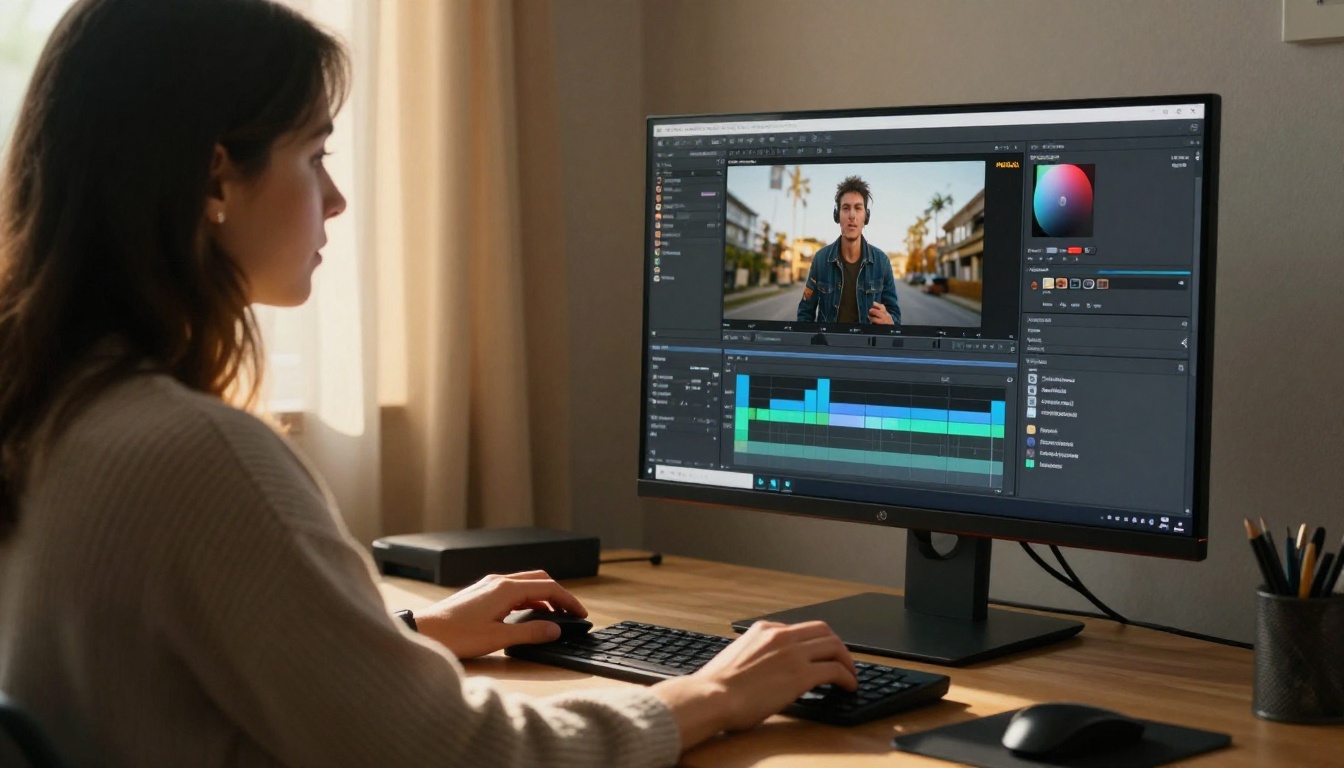
Making a video used to mean owning a camera, editing software, and knowing what a timeline even is. In 2027, you type what you want and hit generate. That's the entire shift. AI video tools have reached a point where someone with zero experience can produce a polished 10-second clip from a plain-English prompt, in under two minutes. The challenge now isn't access. It's knowing which tools are actually worth your time, and which ones consistently produce results without a steep learning curve.
This article ranks the top AI video tools for beginners in 2027, breaks down what each one does well, covers the free options, and walks through how to actually use one of them on PicassoIA from scratch.
Why AI Video Finally Works for Beginners
Two years ago, even the best AI video generators produced shaky, flickering clips that looked like they were dreamed up by a committee. The subjects morphed, the physics collapsed, and anything beyond a simple static shot fell apart after two seconds. That's no longer the reality.
Models like Seedance 2.0 from ByteDance now produce cinematic 1080p footage with synchronized native audio in a single pass. Google's Veo 3 handles dialogue and ambient sound within the same generation step. The gap between "AI-generated" and "real footage" has narrowed dramatically, and it continues to shrink every quarter.
Three things drove this shift:
- Diffusion models got faster. What took 10 minutes in 2023 now takes under 30 seconds with models like LTX 2 Fast, removing the need to sit and wait for every test run.
- Audio became native. Tools now bake ambient sound, music, and even dialogue directly into the output instead of needing separate audio layers added in post-production.
- Image-to-video arrived. You can hand the model a photo or an AI-generated still image and it animates it. No video production background needed whatsoever.
💡 The most beginner-friendly change: you don't need to understand video production at all. If you can describe a scene in a sentence, you can make a video.
What "Beginner-Friendly" Actually Means
Not every tool labeled as "easy" actually is. For this article, beginner-friendly means three specific things:
- Prompt-in, video-out. Minimal settings or parameters to configure.
- No subscription required to try. At least a free tier or trial credits.
- Fast results. Under 2 minutes for a first generated clip.
Tools that require extensive parameter tuning, proprietary workflows, or expensive credits before producing a single usable result are excluded here.
The Best Text-to-Video Tools Right Now
Text-to-video is the entry point for most beginners. You write a prompt, the model builds the video. No source image, no reference file. Just words.
Seedance 2.0 by ByteDance
Seedance 2.0 is the current benchmark for text-to-video quality. It generates clips up to 1080p with native audio baked in, handles complex scenes with multiple subjects, and follows prompt instructions more accurately than most competing models.
Best for: Social content, product demos, short narratives.
Speed: 60-90 seconds per clip.
Beginner advantage: Prompts can be short and casual. You don't need to specify technical camera parameters for a strong result.
For quicker iteration, Seedance 2.0 Fast gives you the same underlying model at faster generation times. Use it to test prompt variations before committing to a full-quality run.
Veo 3 and Veo 3.1 by Google
Google's Veo 3 is one of the few models that generates sound and dialogue alongside video in a single inference step. Describe a scene where two people are talking on a park bench and Veo 3 will lip-sync both speakers, produce ambient park sounds, and handle lighting transitions automatically.
Veo 3 Fast cuts generation time significantly while keeping the audio-sync feature intact. For higher fidelity output, Veo 3.1 brings the latest refinements in motion quality and detail retention.
Best for: Dialogue scenes, documentary-style clips, storytelling content.
💡 Veo 3 responds well to descriptive prompts written like screenplay notes: "Wide shot of a woman at a cafe, busy street behind her, sound of traffic fading as she picks up her phone."
Kling v3 by Kwaivgi
Kling v3 Omni Video from Kwaivgi produces 1080p video output with cinematic motion quality. It handles fast-paced action scenes and camera movements unusually well for a beginner-accessible tool. If you want shots with natural camera shake, dolly movements, or multi-plane depth, Kling v3 handles those reliably.
Kling v2.6 is the stable previous-generation variant many creators still prefer for consistent character motion. Both are available on PicassoIA.
Best for: Action clips, product visualization, social media reels.
Sora 2 by OpenAI
OpenAI's Sora 2 delivers text-to-video with synced audio at high definition. It excels at understanding narrative: describe a multi-beat prompt where something changes over the course of the clip and Sora 2 will follow it accurately.
Sora 2 Pro bumps this to HD output with more detail retention and longer potential clip durations.
Best for: Storytelling content, brand videos, anything requiring consistent character motion across multiple seconds.
Wan 2.7 T2V
Wan 2.7 T2V from Wan Video is the open-source heavyweight in this category. It generates 1080p clips with strong subject fidelity and accepts long, detailed prompts without degrading. It's one of the most capable free-to-use options currently available.
Best for: Creators who want high output quality without per-clip credit costs.
Sometimes the fastest path to a great video starts with an image. AI image-to-video models animate a still photo or an AI-generated frame, adding motion while preserving the original composition. This workflow is ideal for beginners who already have photos or who want precise control over the visual starting point.
Wan 2.7 I2V
Wan 2.7 I2V animates any image with fluid, realistic motion. Hand it a portrait and it will add subtle head movement and natural breathing. Give it a landscape and the clouds move, the grass sways. The motion feels physically grounded rather than arbitrary.
💡 Pair this with PicassoIA's text-to-image models to create a source frame with precise control, then animate it. The result looks like real footage without shooting a single frame.
Hailuo 02 by MiniMax
Hailuo 02 generates 1080p video with a strong emphasis on photorealism. It handles motion in human subjects particularly well. Hair movement, fabric physics, and hand gestures all render with accurate physical behavior. For beginners creating lifestyle or fashion content, this is one of the strongest options available.
For faster processing at lower credit cost, Hailuo 02 Fast is available at 512p and works well for quick iteration rounds before committing to full resolution.
Best for: Portrait animations, lifestyle content, fashion clips.
Pixverse v6
Pixverse v6 produces cinematic AI video with built-in audio. It supports both text and image input, making it one of the more flexible tools for beginners who want to experiment across different workflows. Earlier versions like Pixverse v4.5 are also available as fallback options.
Best for: Social media, short-form content, rapid prototyping.
Free Options to Start With
Not everyone wants to spend credits before knowing if AI video fits their workflow. These are the best free-accessible tools on PicassoIA.
PicassoIA Video
PicassoIA Video is PicassoIA's native free video generator. It supports both text-to-video and image-to-video inputs and has no hard credit cap for registered users. For total beginners, this is the right starting point. Generate your first clips here, get comfortable with the prompting workflow, then move to higher-quality models once you have a clear sense of what you want.
Ray Flash 2 720p by Luma
Ray Flash 2 720p from Luma is a free text-to-video generator that outputs at 720p. It's fast (under 30 seconds per clip), has a clean prompt interface, and produces smooth motion. A strong option for social content when you need volume at speed.
Ray 2 720p offers slightly higher quality at the same resolution tier for when you want to step up without a steep cost increase.
LTX 2 Fast by Lightricks
LTX 2 Fast is one of the fastest generation models available. Use it for testing prompt ideas without burning credits. When you find a prompt that works, run it through LTX 2 Pro for 4K output quality.
How to Use PicassoIA for Your First Clip

PicassoIA aggregates over 100 video generation models in a single interface. Here's how to go from zero to your first clip.
Step 1: Pick a Model
Go to PicassoIA Video for the free entry point. Or browse the full model library to pick a specific model based on the output type you need.
Step 2: Write a Specific Prompt
Keep it concrete and visual. Think in shots, not concepts.
Weak prompt: "A video about nature."
Strong prompt: "A wide aerial shot of a pine forest at golden hour, camera slowly pulling back, warm orange light filtering through treetops, birds visible in the far distance."
The model needs to see a scene in your words before it can build one.
Step 3: Set Your Aspect Ratio
For vertical social content (TikTok, Instagram Reels), use 9:16. For YouTube or widescreen use, 16:9. Most beginner projects start with 16:9.
Step 4: Iterate on the Output
Your first result rarely needs to be your final result. Generate 2-3 variations. Adjust the prompt based on what the model got right and what it missed. Change one element at a time rather than rewriting the whole prompt after the first result.
Step 5: Download and Publish
Generated clips are available for download immediately after generation. Use them directly in your video editor, social post, or presentation as-is.
With over 100 video models on PicassoIA, it's easy to get stuck choosing. Here's the short version.
For Your First Video
Use PicassoIA Video. It's free, fast, and builds your prompting instincts before you start spending credits on premium models.
When You Need Audio
Go with Seedance 2.0 or Veo 3. Both produce native audio alongside the video in the same generation step. No post-production sound work needed.
When You Have a Photo to Animate
Use Wan 2.7 I2V or Hailuo 02. Upload the photo, describe the motion you want, and the result looks like you filmed it on location.
When Speed Matters
LTX 2 Fast and Ray Flash 2 720p both generate in under 30 seconds. Good for rapid prompt testing before a full-quality run.
When You Need 4K Output
LTX 2 Pro outputs in 4K. Kling v3 handles complex camera movements with high fidelity. Either works for professional-grade deliverables.
3 Mistakes Beginners Make
1. Prompts that are too abstract.
"A beautiful scene" gives the model nothing to work with. "A slow pan across a rain-soaked Tokyo street at midnight, puddle reflections of warm ramen shop signs in the foreground" gives it everything it needs.
2. Abandoning the first result.
The model isn't failing when the first output misses. It's giving you information about which parts of the prompt are unclear or underspecified. Adjust one element at a time and regenerate.
3. Ignoring resolution settings.
At 480p, clips look acceptable on a phone screen but fall apart on a desktop monitor. For anything you plan to publish or share professionally, start at 720p or higher from the first run.
What to Make First
If you're staring at a blank prompt box, here are five starting points that consistently produce strong results across multiple models:
- Product showcase: "A [product] rotating slowly on a white marble surface, soft studio lighting from above, close-up texture detail visible"
- Nature scene: "Aerial shot of a coastal cliff at sunrise, waves crashing below, two seagulls in the foreground, warm orange light"
- Person in environment: "A young woman reading a book in a sunlit cafe, warm afternoon light, out-of-focus busy street visible through the window behind her"
- Abstract motion: "Slow close-up of oil and water mixing in a glass bowl, colorful swirls, shallow depth of field, soft white background"
- Urban scene: "Wide shot of a busy city intersection at dusk, motion blur on passing cars, warm streetlights coming on across the frame"
Each pattern works reliably because it includes a subject, an environment, a lighting condition, and at least one motion cue. Add those four elements to any prompt and your output quality will increase immediately.
Writing Prompts That Actually Work
Good prompt writing is the single most transferable skill in AI video. A well-written prompt works across every model on this list, regardless of which one you choose to run.
The Four Elements of a Strong Video Prompt
| Element | Example |
|---|
| Subject | "a woman in her 30s" |
| Environment | "in a sunlit coffee shop" |
| Lighting | "warm afternoon light from the left" |
| Motion | "gently stirring a cup, looking out the window" |
Put all four together: "A woman in her 30s in a sunlit coffee shop, warm afternoon light from the left, gently stirring her cup and looking out the window."
That single sentence will produce a usable clip in Seedance 2.0, Veo 3, Kling v3, or any other model on this list.
Adding Camera Language
Once you're comfortable with basic prompts, add camera direction. These phrases are universally understood by all text-to-video models:
- "slow dolly in" — camera moves gradually closer to the subject
- "gentle pan left/right" — camera sweeps horizontally across the scene
- "aerial shot pulling back" — camera rises and retreats to reveal the wider environment
- "handheld, slight shake" — adds a documentary, naturalistic feel
- "rack focus from foreground to background" — shifts sharpness between depth planes
You don't need to write a cinematography manual. One camera direction per prompt is enough to dramatically sharpen the output.
Prompt Length: How Much Is Too Much?
For models like Wan 2.7 T2V and Sora 2, longer prompts with multiple scene details tend to produce better results. For faster models like LTX 2 Fast or Ray Flash 2 720p, short and direct prompts work better. Two to four sentences is the sweet spot for most beginner use cases across all models.
Start Making Videos Today
The 10 models covered here all exist in one place. You can test PicassoIA Video for free today, step up to Seedance 2.0 when you want real production quality, or use Veo 3 when you need native audio built in. The full catalog, including all 87+ video models, text-to-image tools, upscaling, and audio generators, is at picassoia.com/en/all-models.
You don't need a production background. You don't need a camera. You need a specific enough prompt and a willingness to iterate on it. That's it.
Pick one model. Write one prompt. See what it produces. That's exactly how every serious AI video creator got their start.


