Every Zoom call you sit through is a potential goldmine of decisions made, tasks assigned, and commitments given. But if you're relying on someone to type it all out afterward, you're losing that value before the call even ends. AI transcription changes the equation entirely, turning spoken words into accurate, searchable, shareable text without anyone lifting a pen.
This article walks you through exactly how to transcribe Zoom calls automatically with AI, which tools deliver the best results, and how PicassoIA gives you direct access to the most powerful speech-to-text models available today.
Why Manual Notes Are Costing You Time
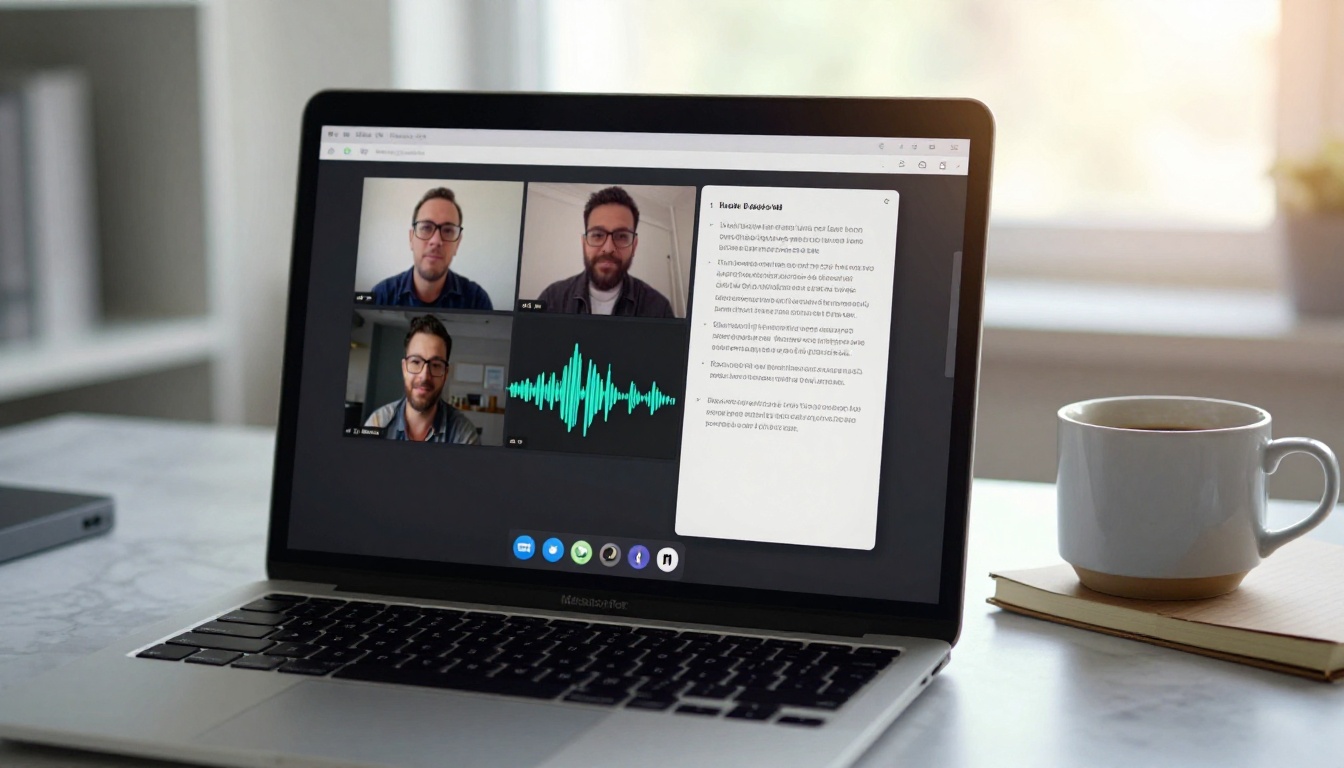
Note-taking during a live meeting is a fundamentally broken workflow. You're splitting attention between listening and writing, which means you do neither particularly well.
The Hidden Tax of Writing Everything Down
Consider a standard one-hour team sync with six participants. The designated note-taker spends roughly 45 minutes capturing fragments of conversation, misses nuance while trying to keep up, then spends another 30-60 minutes afterward trying to reconstruct what actually happened from those fragments.
Multiply that across a company running 20 regular meetings per week. That is hundreds of hours per month spent on a task that AI handles in seconds.
💡 People retain only about 10% of verbal information without a written record. AI transcription does not just save time, it preserves institutional knowledge that would otherwise disappear the moment the call ends.
What You Lose While Typing
When your focus is split between listening and typing, you miss:
- Tone and subtext: The hesitation before a "yes" that is actually a "no"
- Non-verbal agreement: The nods and reactions that never make it into notes
- Exact wording: Paraphrasing introduces errors, especially for technical decisions
- Fast-spoken ideas: Important points that come out quickly do not wait for your typing speed
- The person currently speaking: Eye contact drops to near zero while you are looking at the keyboard
The result is a watered-down, incomplete record that cannot be fully trusted as a source of truth for what was decided.
How AI Transcription Works
Modern AI transcription is built on deep learning models trained on thousands of hours of human speech across accents, languages, industries, and acoustic environments. The process is significantly faster and more accurate than most people assume.
From Audio Waves to Readable Text
Here is what happens when you feed a Zoom recording to an AI transcription model:
- The audio file is split into small segments, typically 30-second chunks for processing efficiency
- Each segment is converted into a spectrogram, a visual representation of sound frequencies over time
- A neural network processes each spectrogram and predicts the most likely sequence of words
- A language model layer refines those predictions using contextual probability, knowing that "the CTO" is far more likely than "the sea-to" in a business meeting
- The final output is timestamped text, often with speaker diarization built in
Speaker diarization is the automatic separation of who said what. The model analyzes vocal characteristics including pitch, cadence, and speech patterns to distinguish between participants and labels the output accordingly. On calls with 2-4 clear speakers and clean audio, diarization is accurate enough to use directly with minimal correction.
Accuracy in Real Conditions
Accuracy varies by model and audio quality, but here is what you can realistically expect:
| Audio Condition | Typical Accuracy |
|---|
| Single speaker, quiet room | 97-99% |
| Two speakers, minor background noise | 93-96% |
| Multiple speakers, some overlap | 85-90% |
| Heavy accent with technical jargon | 80-90% |
| Poor microphone quality | 70-85% |
The single biggest lever you control is microphone quality. A dedicated USB condenser mic raises accuracy by 10-15 percentage points versus a built-in laptop microphone, regardless of which AI model you use.
Setting Up Transcription for Zoom
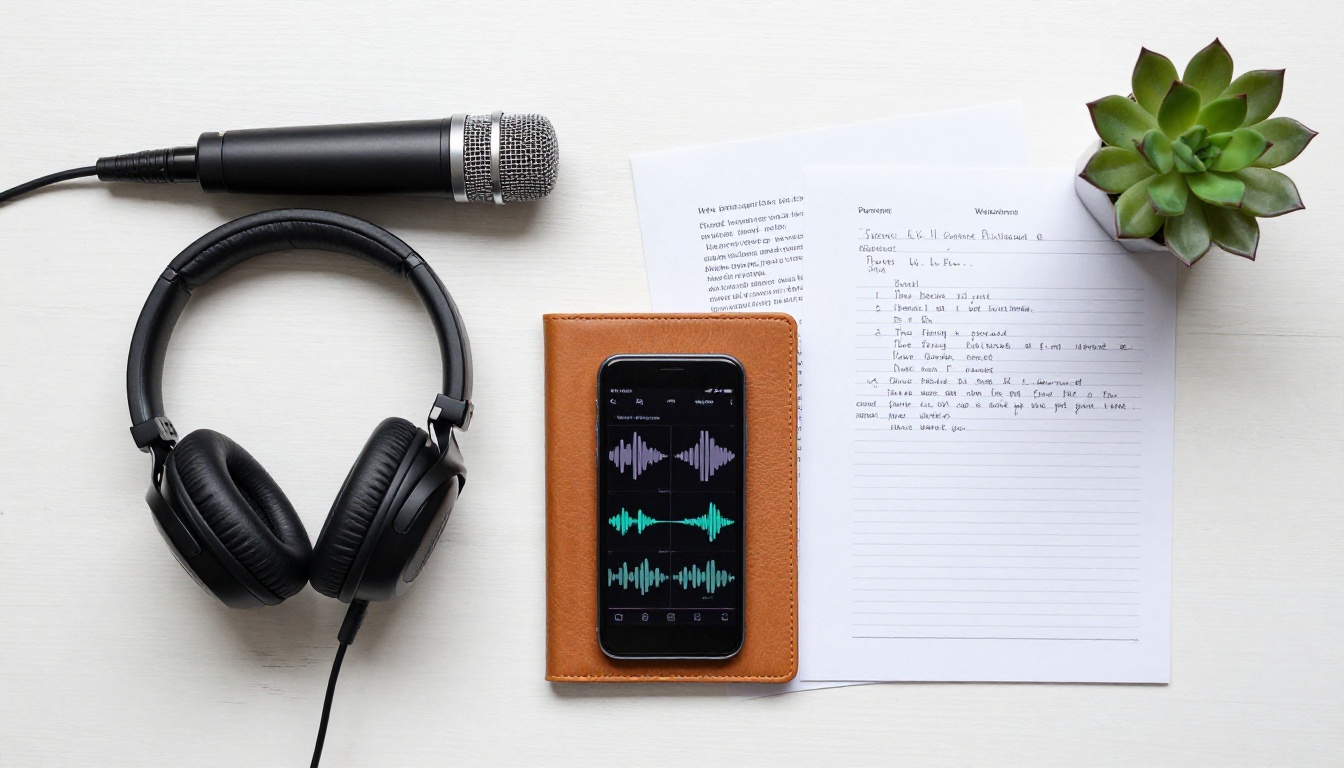
There are two broad approaches: use Zoom's built-in features or route your recordings through a dedicated AI transcription service. The right choice depends on your accuracy requirements and how much control you need.
Zoom's Native Transcription
Zoom offers automatic transcription for paid accounts. Once you enable cloud recording with transcription, transcripts are generated automatically after each meeting ends and linked to timestamps, so you can jump to any point in the recording directly.
The limitations are real. Zoom's built-in transcription works best with clear English, struggles noticeably with technical vocabulary, strong accents, and fast speakers, and gives you no visibility into or control over which model is doing the processing. For basic internal meetings between native English speakers it is adequate. For anything where precision matters, such as client calls, legal conversations, or multi-language teams, you need more.
Third-Party AI Transcription Services
Dedicated transcription platforms give you direct access to the most powerful models and the flexibility to choose the right one for your specific situation. This is where PicassoIA delivers real value, putting five best-in-class speech-to-text models on one platform with no technical setup required.
💡 Always export your Zoom recording as .m4a or .mp4 before uploading to a third-party tool. The compressed internal formats Zoom uses can reduce transcription accuracy by 5-10% compared to the standard exported file.
The Best AI Models for Zoom Transcription

PicassoIA's speech-to-text collection includes five distinct models, each with a different strength profile. Here is how to choose between them.
GPT-4o Transcribe
GPT-4o Transcribe from OpenAI is the current gold standard for English-language meeting transcription. It handles multiple accents with exceptional accuracy, processes industry-specific vocabulary without any fine-tuning or configuration, and maintains output quality across long recordings without drift.
What separates it from older models is contextual intelligence. It understands that "the Q3 pipeline" is more likely than "the queue three pipeline" in a sales context, and corrects transcription errors using meaning rather than just phonetics.
Best for: executive meetings, client calls, investor discussions, legal records, high-stakes decisions.
GPT-4o Mini Transcribe
GPT-4o Mini Transcribe delivers near-identical quality to its larger sibling at a fraction of the processing time and cost. For teams running high volumes of shorter meetings under 30 minutes, this model is the practical choice without meaningful accuracy trade-offs on standard business content.
Best for: daily standups, quick check-ins, internal syncs, high-frequency recurring meetings.
Gemini 3 Pro
Google's Gemini 3 Pro brings multimodal understanding to transcription. Beyond converting speech to text, it contextualizes the content of what is being said, which makes its output particularly clean for multilingual calls where speakers switch between languages mid-sentence.
Best for: international teams, multilingual calls, product demos, customer discovery sessions.
Granite Speech 3.3 8B
IBM's Granite Speech 3.3 8B is an enterprise-grade model built for structured, formal environments. Its 8 billion parameter architecture handles professional jargon across finance, healthcare, and legal industries with the reliability that regulated sectors demand.
Best for: board sessions, compliance reviews, medical consultations, financial advisory calls.
Granite Speech 4.1 2B
Granite Speech 4.1 2B supports transcription in six languages and prioritizes speed over raw parameter depth. What it lacks in size it makes up for with fast turnaround and solid multilingual reach.
Best for: global organizations needing fast output in Spanish, French, German, Japanese, or Portuguese alongside English.
Here is a quick comparison to help you decide:
| Model | Best Language | Speed | Accuracy | Ideal Use |
|---|
| GPT-4o Transcribe | English | Medium | Highest | Client calls, legal |
| GPT-4o Mini Transcribe | English | Fast | Very High | Daily standups |
| Gemini 3 Pro | Multilingual | Medium | Very High | International teams |
| Granite 3.3 8B | English | Medium | High | Regulated industries |
| Granite 4.1 2B | 6 Languages | Fastest | High | Multilingual speed |
How to Use PicassoIA for Zoom Transcription

PicassoIA's Speech to Text collection puts all five models on a single platform with no credentials, no setup, and no code required. Here is the complete process from recording to finished transcript.
Step 1: Record and Export Your Audio
Start with the best audio quality you can capture. Before the meeting:
- Enable cloud recording in Zoom settings, or set up local recording if you prefer keeping files on your own machine
- Ask all participants to mute when not speaking to reduce background noise pickup
- Use a dedicated USB microphone rather than the built-in laptop mic whenever possible
- Record from a quiet space away from open offices, street noise, or shared rooms
After the meeting ends, download the recording from your Zoom portal or local folder in .m4a or .mp4 format. Trim the beginning and end to remove hold music, technical setup conversation, and post-call chatter. Tighter, cleaner files process faster and produce cleaner output.
Step 2: Choose Your Model and Run It
Navigate to the Speech to Text section of PicassoIA's model collection. Based on the comparison above, select the model that fits your situation:
Upload your audio file and trigger the model. Depending on recording length and model, output typically arrives within 30-90 seconds.
Step 3: Edit, Export, and Put It to Work
Once the transcript arrives, follow this quick clean-up routine before distributing it:
- Scan for proper nouns: Client names, product names, and abbreviations are the most frequent error points in any model
- Add speaker labels if the model did not auto-detect them or got them wrong in a section
- Copy to your destination: Google Docs, Notion, your CRM, a shared team channel, or wherever your team works
- Feed it downstream: Paste into a large language model and prompt it to extract action items, decisions, open questions, or a meeting summary
What to Do With Your Transcripts

A raw transcript is the starting point, not the destination. Here is where the real ROI comes from.
Turn Meetings Into Action Lists
Paste your transcript into any large language model and prompt it to extract who committed to what, decisions that were made, questions still open, and blockers raised. A 60-minute meeting becomes a five-line action list in under two minutes. No interpretation, no reconstruction, just the exact words each person said.
Build a Searchable Archive

Store transcripts in a searchable tool like Notion or Confluence. Six months from now, when someone asks "what did we decide about the Q3 pricing model?" you search and find the exact answer in seconds rather than rewatching two hours of recordings. This searchable archive becomes a genuine institutional memory that survives employee turnover, project handoffs, and team restructures.
Repurpose Spoken Content
Product demos, client onboarding calls, and internal training sessions contain high-quality information delivered verbally by experts. That content should not disappear. Transcripts let you turn it into:
- Blog posts from expert explanations given naturally on calls
- FAQ pages from the questions customers consistently ask
- Training documents from onboarding and process walkthroughs
- Sales scripts from the calls your best performers consistently close with
For compliance-heavy industries like financial services, healthcare, and legal services, every client call may need a documented record. AI transcription produces records accurate enough for compliance review without the manual overhead of having someone type or review a recording in real time.
3 Mistakes That Kill Transcription Quality
Even the best model cannot fix bad input. These three mistakes consistently hurt accuracy regardless of which AI you use.
Mistake 1: Using the Wrong Microphone
The built-in microphone on most laptops picks up keyboard clicks, fan noise, and room echo at roughly the same volume as your voice. A USB condenser microphone placed 6-8 inches from your mouth with a pop filter raises transcription accuracy by 10-15 percentage points across every recording you ever make. It is a one-time purchase that pays for itself after a single important meeting gets transcribed cleanly instead of requiring heavy manual correction.
Mistake 2: Skipping the Review Pass
No model is infallible on proper nouns, numbers, and domain-specific abbreviations. A five-minute skim of the transcript before distributing it catches 90% of errors that would otherwise cause real miscommunication, wrong names on action items, or incorrect figures cited in follow-ups.
Mistake 3: Feeding Transcripts Without Context
Pasting a raw transcript into a summary tool without any context produces generic, often useless output. Add a short header to your transcript: "This is a 45-minute sales call with [Company Name] on [Date] discussing their marketing automation needs for Q3." Better context in means dramatically better action items, summaries, and analysis out.
Your Meetings, Finally Worth Having
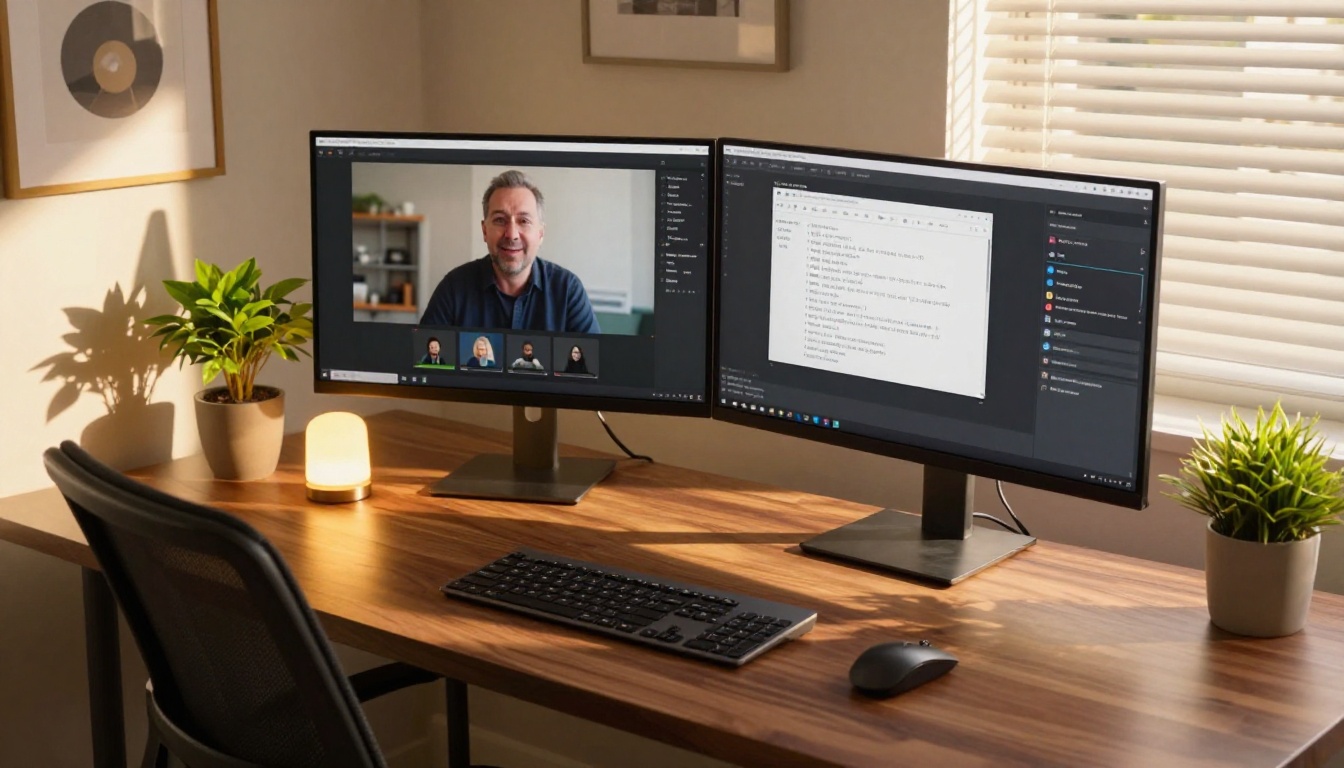
If you run more than five meetings a week without capturing what was said, you are operating with a self-imposed limitation. The information exchanged in those calls has real value, but only if you can capture, recall, and act on it reliably.
The tools are here, they are accurate, and they are accessible right now. Whether you reach for GPT-4o Transcribe for maximum precision, Gemini 3 Pro for multilingual support, or IBM's Granite Speech 3.3 8B for enterprise reliability, every model is one upload away on PicassoIA.
Start with your next Zoom call. Record it, export the audio, and run it through one of PicassoIA's speech-to-text models. The difference between having that conversation disappear and having a permanent, searchable record of everything said is literally a 90-second upload. There is no good reason not to do it.
And transcription is just one corner of what PicassoIA offers. The platform includes over 91 image generation models, text-to-video tools, background removal, super resolution, voice synthesis, AI music generation, and much more. Once you see what it does for your meeting workflow, it becomes natural to start thinking about what else in your process is worth automating.


