Still photos carry weight that video often can't match. The frozen fraction of a second, a face mid-laugh, a coastline at golden hour, a child caught in pure joy. But that stillness has always been its limitation too. AI has now closed that gap. The technology that lets you turn a photo into a video with AI is no longer experimental or reserved for professionals with expensive software. It runs in the browser, it takes seconds, and the results are convincing enough to stop a scroll.
This is not about filters or preset effects. The models doing this work were trained on billions of video frames and built an understanding, at a fundamental level, of how things in the real world tend to move. When you upload a photo, the model does not simply wiggle the image. It reasons about depth, physics, and what naturally happens next in a scene like this one.
How AI Reads a Still Photo
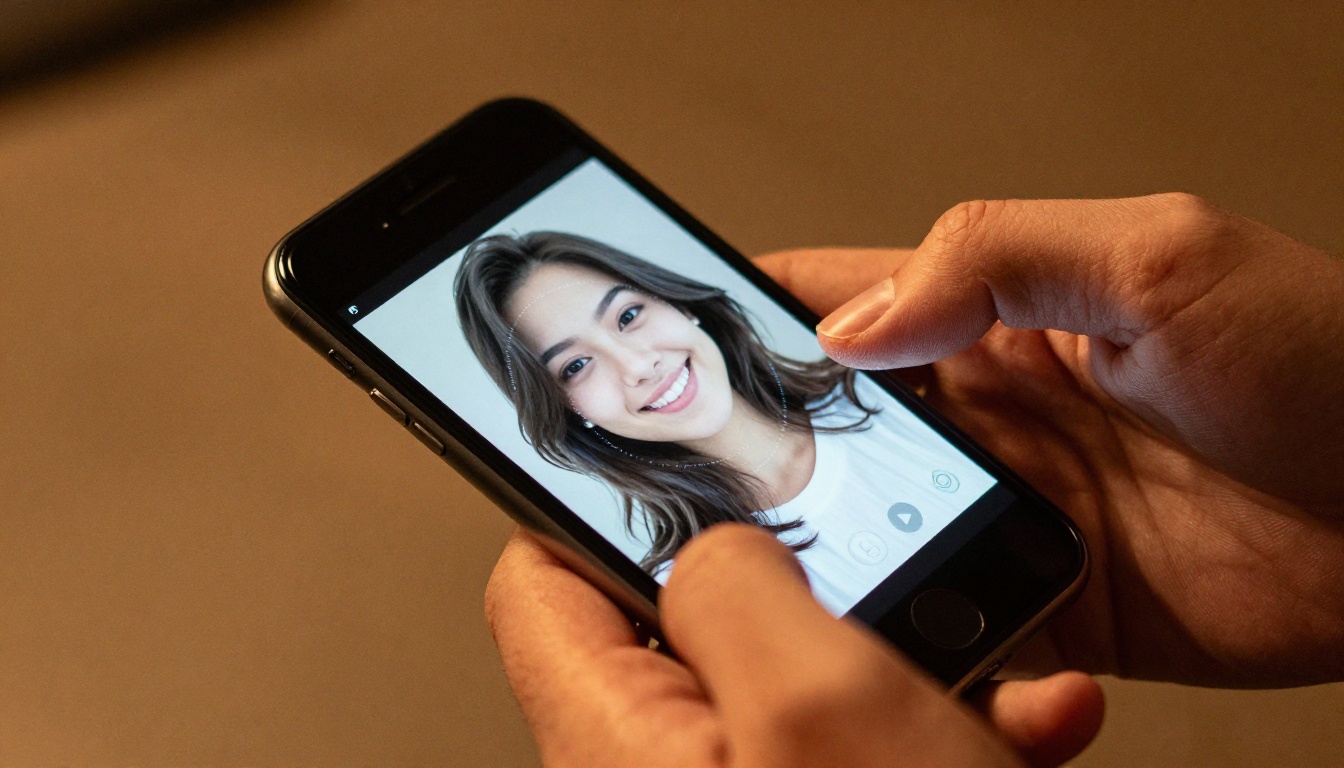
What the model actually sees
When you hand a still image to an image-to-video AI model, it does not process pixels the way a human eye scans a photo. It builds a representation of the scene in latent space, a compressed mathematical description of what objects are present, where they sit in three-dimensional space, and what their surfaces look like. From this representation, the model predicts what the next frame should look like, and the one after that, and the one after that.
The process is closer to memory and physics than it is to animation. The model has absorbed enough real video to know that water reflects light and ripples at a specific frequency, that hair moves with inertia, that fabric folds in response to both gravity and the body beneath it.
Depth, motion cues, and optical flow
The most technically interesting part of this process is how the model estimates depth from a flat image. Shadows, perspective lines, object overlap, and surface texture all provide cues. From these cues, the model builds a rough depth map of the scene and then applies plausible motion accordingly.
Foreground elements move more noticeably than background elements. Objects with mass move with inertia. Fabrics and foliage respond to implied environmental forces. The result is what researchers call temporal consistency: the video looks like it belongs to a real moment in time rather than a manufactured sequence of frames.
Why the Results Look So Real
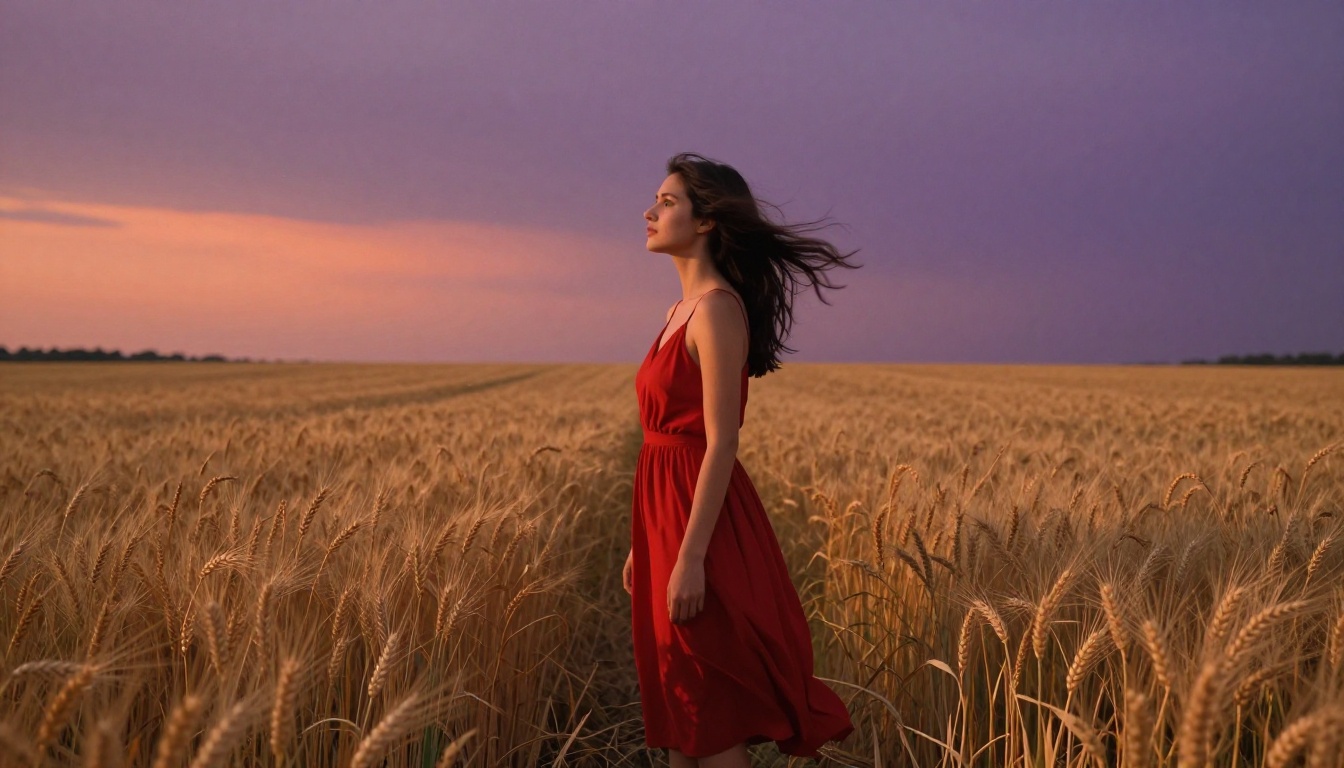
Diffusion models and temporal consistency
Current image-to-video models are built on diffusion architecture, the same foundation that powers modern image generators. The core innovation is the addition of a temporal dimension: instead of predicting a single image, the model predicts a sequence of images that flows coherently over time.
Training these models required enormous datasets of real video footage paired with the individual frames extracted from them. The model built associations between static visual information and the motion patterns that tend to follow. When it generates video from your photo, it is performing a kind of educated recall: "I have seen scenes like this before. Here is what tends to happen next."
The role of training data
The quality of the output depends heavily on what the model was trained on. Models trained on a broader and higher-resolution dataset produce more plausible motion with fewer artifacts. This is why the newest generation of models, including Wan 2.7 I2V and Kling v2.1, produce results that older models like I2VGen XL simply cannot match. The gap is significant.
💡 Tip: Models that support a text prompt alongside the image tend to produce more directed, intentional motion. Always write a motion description even when it feels optional.
Best Models for Photo to Video Right Now
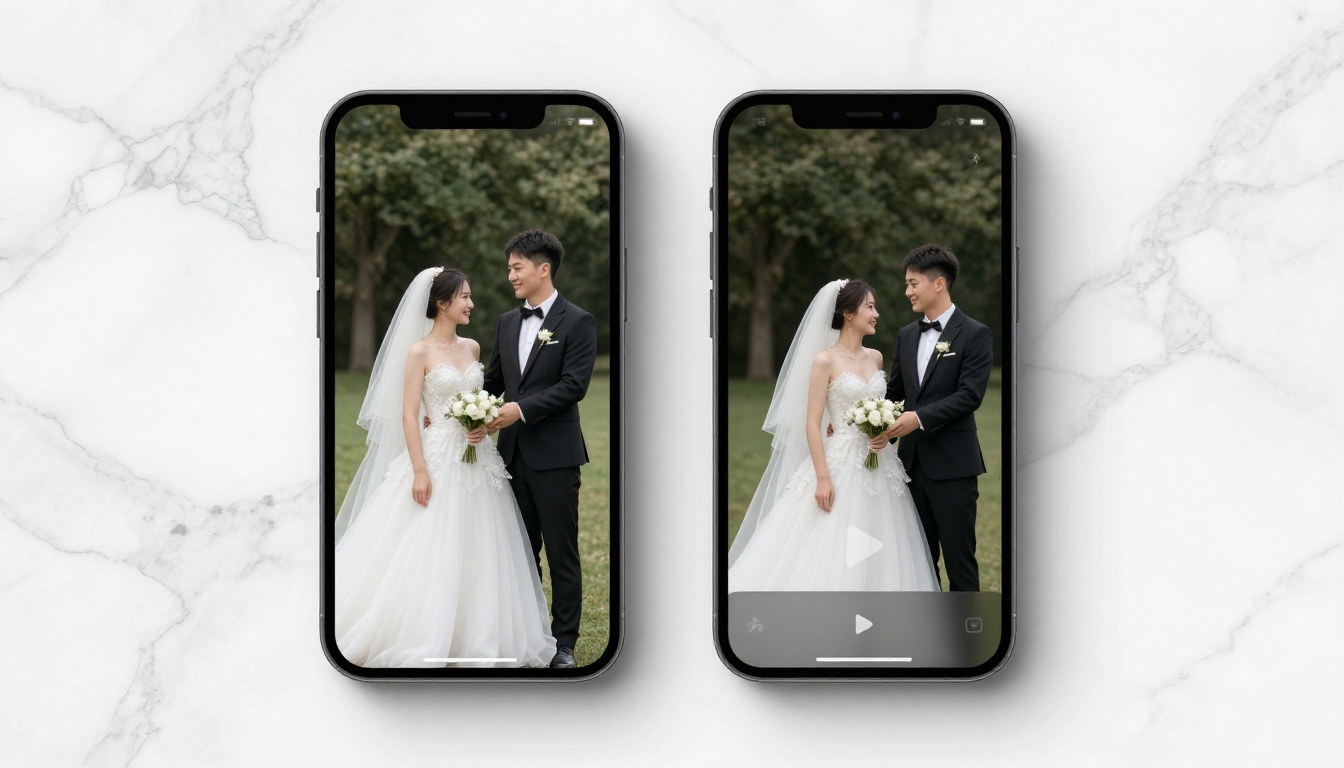
Not all image-to-video models are equal. Some are faster but sacrifice detail. Some produce cinematic motion but take longer to process. Here is a practical breakdown of the strongest options available right now:
The Wan family of I2V models
The Wan series has become a benchmark for image-to-video quality at scale. Wan 2.7 I2V is the current flagship, offering 1080p output with strong temporal coherence. Its predecessor, Wan 2.6 I2V, remains an excellent choice for landscapes and environments where motion is subtle and texture fidelity matters more than speed.
For those who need faster turnaround without sacrificing too much resolution, Wan 2.5 I2V Fast and Wan 2.2 I2V Fast both deliver solid 720p results with noticeably reduced wait times.
Kling for cinematic motion control
Kling v2.6 Motion Control adds something that most models do not: the ability to specify how the camera should move. You can define a dolly push, a slow pan, or a rotation around a subject. This turns photo animation into something much closer to filmmaking. If the goal is content that looks deliberately shot rather than AI-generated, Kling's motion control options are worth the extra configuration.
💡 Tip: For portrait photos, use Kling v2.1. Its face-coherence training makes the subject look stable even when the rest of the scene moves around them.
What Makes a Great Source Photo
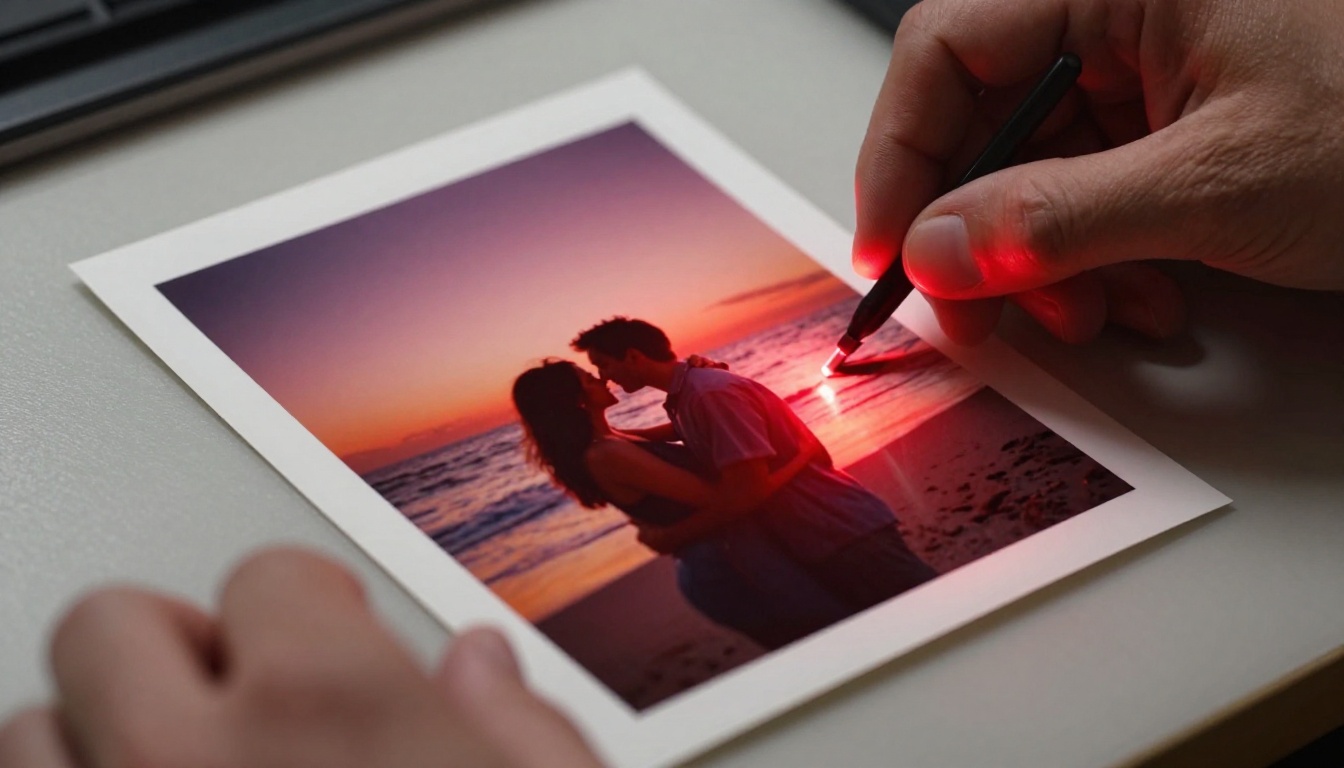
Composition rules
Not every photo animates well. The model needs enough visual information to reason about the scene. A strong source image for photo-to-video conversion shares several characteristics:
- Clear subject with defined edges: The model needs to separate the subject from the background to animate them independently
- Some visual depth: Images with foreground, midground, and background elements produce more dimensional motion
- Unambiguous lighting: Strong directional light helps the model maintain shadow consistency across frames
- Minimal text and graphics: Text in images tends to warp and distort during animation
Lighting and contrast tips
High-contrast images animate more cleanly than flat ones. The model relies on value contrast to define object boundaries and implied depth. Photos taken in flat, diffused light often produce motion that looks smeared rather than fluid.
Natural light from a single directional source, whether morning sun, window light, or golden hour, gives the model the information it needs to produce motion that reads as physically plausible. Avoid heavily HDR-processed photos or strong vignetting.
Resolution matters
Most image-to-video models accept a range of input resolutions, but they produce noticeably better output when the source image is 1080p or higher. Low-resolution inputs force the model to upscale before generating motion, and upscaling introduces softness that compounds into blurring and artifact-heavy video.
If your source image is below 720p, consider running it through a super resolution tool first. Models fed sharp, high-resolution input produce substantially better frame-to-frame consistency.
How to Use Wan 2.7 I2V on PicassoIA
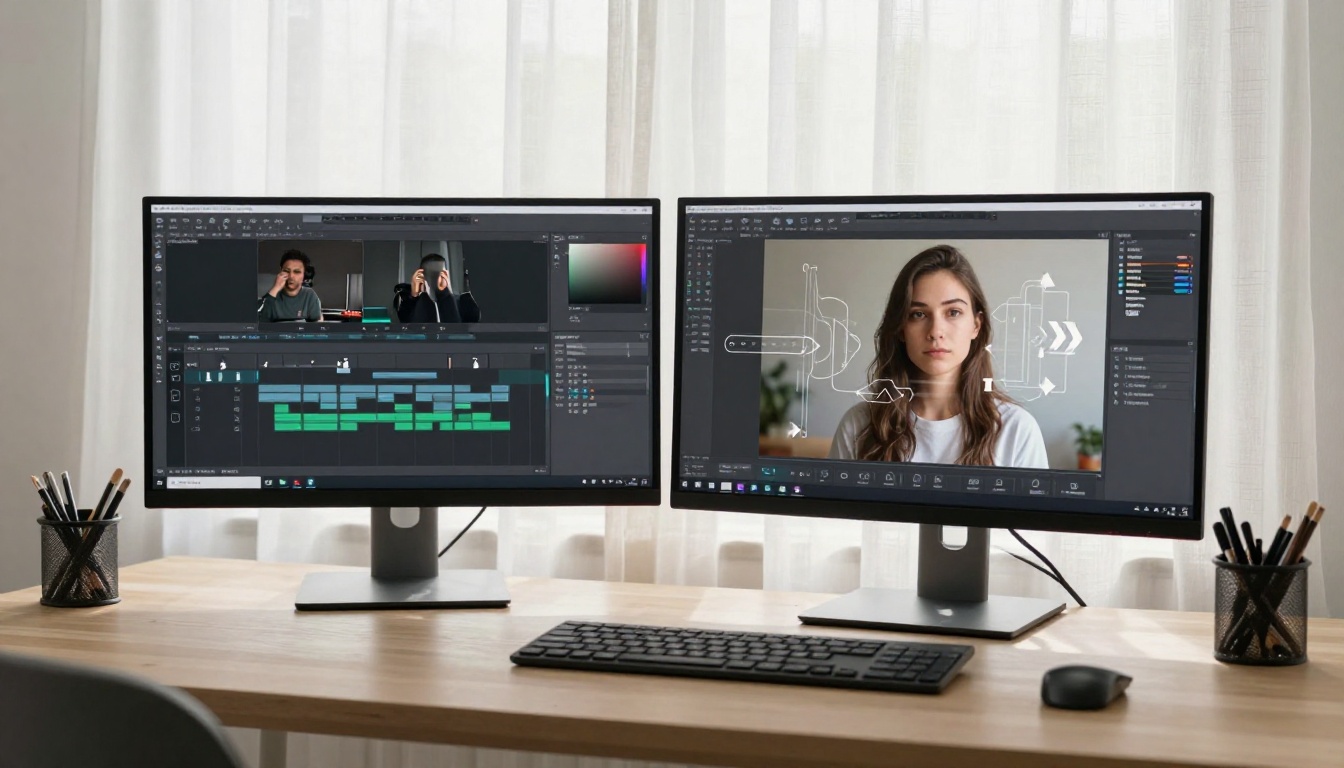
PicassoIA hosts Wan 2.7 I2V directly in the browser, with no installation, no local GPU, and no subscription requirement to try it. Here is how to get from a photo to a finished video clip.
Step 1: Upload your photo
Open Wan 2.7 I2V and click the image upload area. You can drag and drop directly, or click to browse. Supported formats: JPG, PNG, WEBP. Recommended minimum resolution: 1280x720.
Step 2: Write a motion prompt
This is the most important step most people skip. A motion prompt tells the model what should move and how. The format that works best:
[Subject] [action verb] [environmental detail]
Good examples:
- "Woman's hair flows gently in a soft breeze, fabric of her dress moves subtly"
- "Water surface ripples slowly, light reflections shift across the scene"
- "Camera slowly pushes in toward the subject, background slightly defocusing"
Avoid:
- Describing what you see in the photo instead of what should move
- Very long prompts with conflicting instructions
Step 3: Set duration and output quality
Wan 2.7 I2V supports clip lengths from 3 to 10 seconds. For most social content, 5 seconds is the sweet spot. Longer clips increase processing time and can lose coherence near the end of the sequence.
Set motion strength to a medium value first. Too high and the animation distorts the original photo. Too low and the video looks like a very slow GIF.
Step 4: Generate and download
Hit generate and wait for processing. Output downloads as MP4, ready to post directly to Instagram Reels, TikTok, or any short-form video platform without further editing.
💡 Tip: Generate 2 or 3 variations with slightly different motion prompts. One will almost always be noticeably better than the others.
5 Shot Types That Animate Beautifully
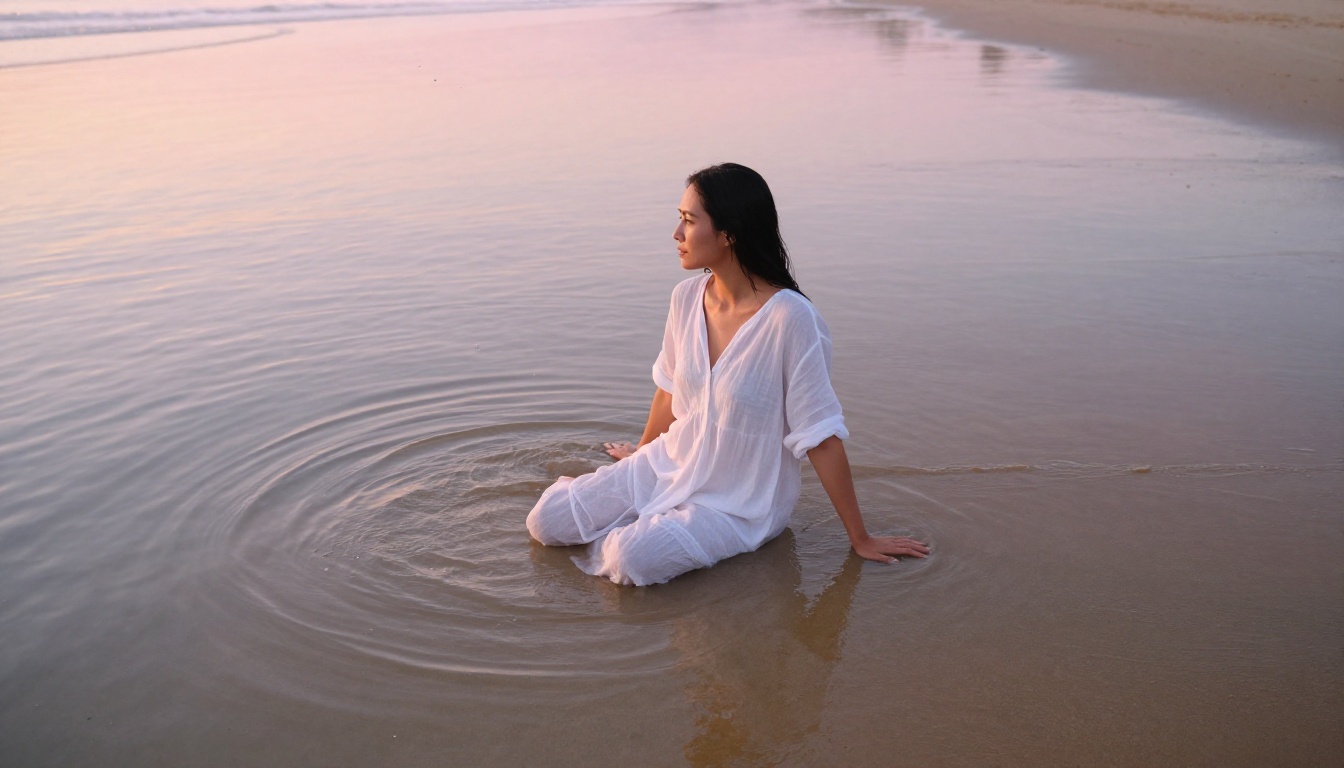
Some photo categories consistently produce better animation results than others. Here are the five shot types that benefit most from photo-to-video AI conversion.
1. Portraits with fabric and hair
Portraits where the subject has loose or textured hair, flowing clothing, or is photographed outdoors produce excellent animation results. The model has strong priors for how human hair moves, how fabric responds to gravity and wind, and how to keep a face stable while animating the surroundings. Try Kling v2.1 or Ovi I2V for portraits.
2. Water and coastal scenes
Water is one of the most satisfying subjects to animate. The model generates plausible wave motion, ripple propagation, and light reflection with high consistency. Any photo with visible water, whether a beach, lake, river, or rain puddle, becomes dramatically more compelling in motion.
3. Landscapes with sky and clouds
Open landscapes where the sky occupies significant frame real estate animate well, particularly when the original photo was taken in dynamic lighting conditions. The model introduces subtle cloud movement, atmospheric haze, and shifting light that gives the scene a cinematic quality. Wan 2.6 I2V handles this type particularly well.
4. Street and urban photography
Candid street photos with natural movement elements, people mid-stride, traffic blurred in the background, steam from vents, leaves on pavement, produce compelling animations. The model interprets implied motion from blur and body position and extrapolates it forward.
5. Food and product close-ups
Product photography benefits from camera motion more than subject motion. Using Kling v2.6 Motion Control, you can orbit slowly around a static subject, creating a living product visualization from a single photo. This is particularly useful for e-commerce content.
Common Mistakes That Hurt the Output
Overly busy backgrounds
Complex backgrounds with many overlapping elements, dense crowds, intricate patterns, or heavy foliage create depth-estimation problems for the model. The result is often a background that shimmers or warps in inconsistent ways. If your source photo has a very busy background, consider removing or simplifying it before animating.
Skipping the motion prompt
This is the single most common mistake. Users upload a photo and hit generate with the default settings. The model does something plausible, but it may not be interesting. A well-written motion prompt, even just one or two sentences, dramatically improves the specificity and quality of the output.
Conflicting physics in the prompt
Writing a prompt that asks for opposite or incompatible motions confuses the model and produces artifacts. Keep the environmental forces in your prompt internally consistent. If wind moves the hair, the leaves and fabric should respond to the same wind direction.
Expecting perfect loops
Most image-to-video models do not produce seamless loops by default. If you need a looping clip, look at models like P Video which support looping output, or plan to trim and cross-dissolve in a video editor post-generation.
Comparing I2V Models Side by Side
When choosing a model, the use case determines the right pick more than any single quality metric. Here is how to think about the decision:
For social media content where speed and volume matter: Hailuo 2.3 Fast and Gen4 Turbo return results quickly and look excellent at mobile screen sizes.
For portfolio or professional work where every frame matters: Wan 2.7 I2V at 1080p is the strongest all-around option. Take the extra processing time, it is worth it at full resolution.
For character and face animation: Kling Avatar v2 and Kling v2.1 both excel at keeping facial features stable during animation, which is the hardest part of portrait video generation.
For free, no-cost experimentation: Wan 2.1 I2V 720p and Wan 2.1 I2V 480p are available without credits on PicassoIA, making them the right entry point for anyone trying the technology for the first time.
💡 Tip: Always run your first generation on a smaller, faster model to test the motion prompt before committing to a high-resolution generation. Prompt iteration is faster and cheaper than resolution iteration.
What Photo Type Matches Which Model
The right photo-to-video pairing produces results that look natural and intentional. The wrong combination produces uncanny, artifact-heavy clips. Here is a quick reference:
Your First AI Video Is One Photo Away
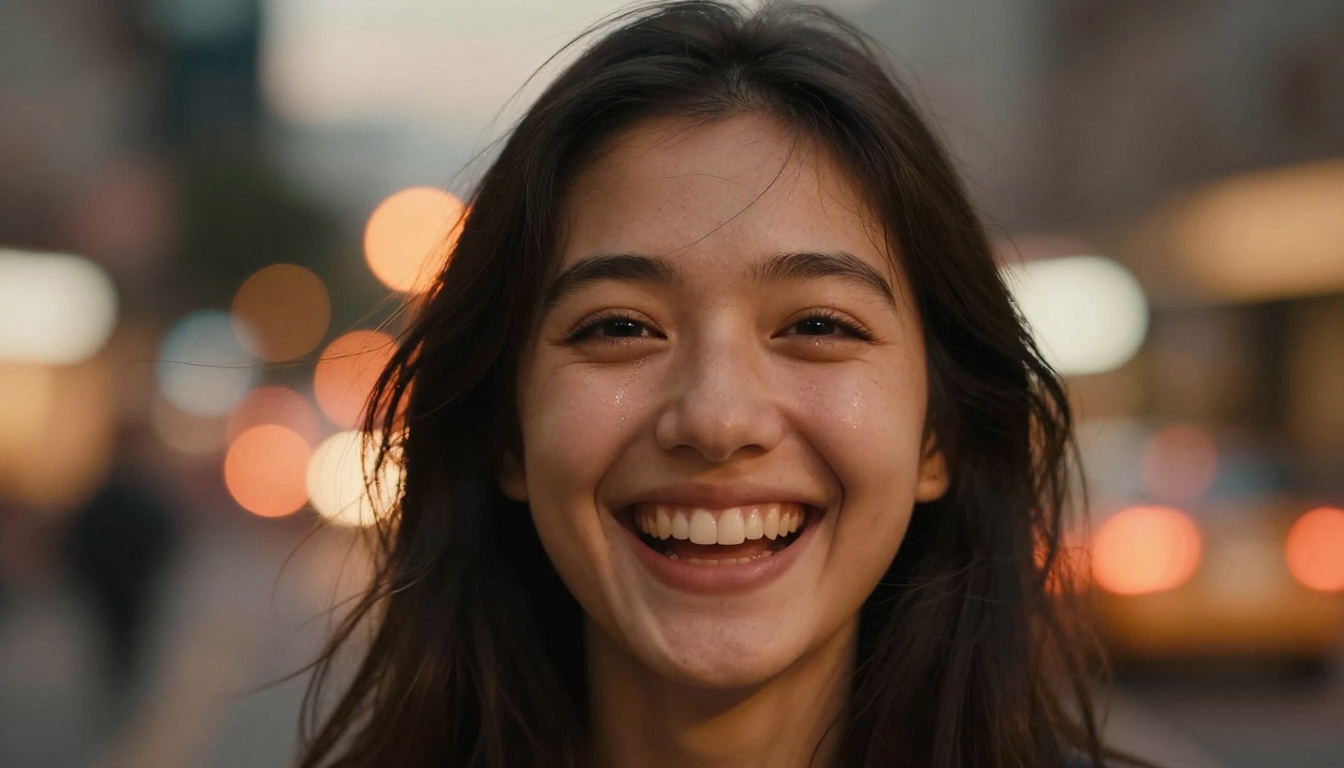
Pick any photo you like: a portrait, a landscape, something from your camera roll that you always thought deserved more. Upload it to Wan 2.7 I2V on PicassoIA, write a two-sentence motion description, and generate. The whole process takes under two minutes from upload to download.
If you are new to photo animation, start with Wan 2.1 I2V 720p for free, without needing to create an account or buy credits. Once you see what the technology actually does to an image you care about, the path forward becomes obvious.
PicassoIA gives you access to over 100 video generation models in one place. You can test Kling v2.1, compare it to Gen4 Turbo, and find the exact model that fits your photo and your workflow, all from the same browser tab.
The photos you already have are sitting in a folder. One of them could be a video by tonight.


