You type a message, the bot answers in character, and then a photo lands in the thread that actually matches the scene you just described. That is what people mean when they search for an uncensored AI chat with images, and it is also where most free tools fall apart. The text part is easy. The picture part is where filters, credit meters, and forgetful characters show up.
This article walks through how photo replies are really built, what "free" and "uncensored" usually mean in practice, the prompts that give you consistent results, and a repeatable setup for making the images yourself on PicassoIA.
💡 Quick take: A chat bot rarely draws anything itself. A language model writes the reply, and a separate image model makes the picture. Once you see that split, every limit in this article makes sense.
What "Uncensored" Really Means
The word gets used loosely. Some bots use it to mean "no lectures." Others mean "no filter on adult roleplay." A few mean nothing at all, and the marketing line is simply a way to get a click. Before you sign up for anything, sort the claim into one of these buckets.
Filters versus no filters
A filtered bot refuses certain topics, softens its tone, or breaks character with a warning. An unfiltered one follows your scenario without interrupting. Most tools sit somewhere between the two, and they usually filter text and images separately. That is why you can see a bot happily write a flirty reply and then fail to send the matching photo.
Where the picture comes from
When a reply includes an image, the app takes the scene from the chat, turns it into an image prompt, and sends that prompt to an image model. If the image model has a safety layer, your photo gets blocked or blurred even when the chat model said yes. If it has no safety layer, the app itself may add a rule on top.
| What you want | Where the limit usually sits |
|---|
| Flirty text, no refusals | Chat model and system prompt |
| Glamour or swimwear photos | Image model and app rules |
| Same character every time | Prompt design and reference images |
| Unlimited replies | Credits, queue, or daily caps |
💡 Reality check: Responsible tools keep explicit pornographic content out, and so should you. Suggestive, glamorous, artistic photos are the sweet spot, and they are also the ones that stay reliable across image models.
How Photo Replies Work
Think of a photo reply as a three step relay. The chat model reads your message and decides a picture would fit. It then writes a short visual description. Finally an image model renders that description and the app drops the result into the thread.
The two model setup
The chat model handles personality, memory, and tone. The image model handles faces, light, and fabric. They never share a brain. The chat model only knows what the image looked like if the app tells it, which is why a bot can say "I love this red dress" about a photo where the dress came out blue.
Why faces drift between photos
Image models start from noise every time. Unless the app sends a reference photo or a fixed character description, each new picture is a fresh roll of the dice. You get a brunette in one shot and a redhead in the next. Three things reduce drift:
- A fixed character sheet pasted into every image prompt
- A reference image passed along with the prompt
- A LoRA or similar add-on trained on one look
Free bots rarely give you the last two, so the first one does most of the work.
Free Bots and Their Limits
"Free" almost always means free to try. Image generation costs real compute, so apps ration it. The details change from app to app, but the pattern is consistent.
Typical free tier caps
- A small daily number of image replies, then a wait or a paywall
- Slower queues for free users, sometimes minutes per photo
- Lower resolution or a watermark on free images
- Fewer messages per day on the better chat models
- Image replies that are blurred until you upgrade
Memory and context limits
Chat models remember only what fits in their context window. In a long roleplay the early details fall off the back. Your character's hair color, the setting, the dress: all of it can vanish after a few dozen exchanges. Many apps add a short "memory" note to patch this, but those notes are tiny.
| Limit | What you notice | Easy workaround |
|---|
| Daily image cap | Photos stop mid scene | Save prompts and render them elsewhere |
| Short memory | Character forgets details | Re-paste a one paragraph character sheet |
| Queue delays | Photo arrives late | Ask for photos at scene changes only |
| Resolution cap | Soft, small images | Upscale with a super resolution model |
| Filter on images | Blur or refusal | Use an image model with looser rules |
💡 Tip: If a bot caps your photos, ask it to print the image prompt as text. You can run that prompt yourself in an image generator, and the chat keeps going.
Prompts That Get Better Photos
Good prompts do two jobs. They set the character in the chat, and they give the image model something concrete to draw. Vague prompts like "send me a sexy photo" produce generic stock-looking images. Specific prompts produce pictures that feel like a real moment.
A chat prompt template
Paste this at the start of a conversation and edit the brackets:
You are [name], a [age 25+] [job] with [hair, eye color, signature detail]. You speak in a [warm / teasing / dry] tone. When I ask for a photo, reply in character, then add one line starting with PHOTO: that describes the shot in plain visual terms (clothing, pose, room, light, camera angle).
That last line is the trick. It gives you a clean image prompt on every reply, and you can copy it into any image tool.
An image prompt template
A strong image prompt follows a fixed order:
- Subject and pose: who, doing what
- Wardrobe: fabric and color, kept tasteful
- Setting: room, props, time of day
- Light: direction and quality, such as "window light from the left"
- Camera: lens and distance, such as "85mm, shallow depth of field"
- Texture words: skin pores, linen creases, satin sheen
Example: "Woman with wavy chestnut hair on a linen bed, black silk camisole, morning window light from the left, 50mm lens, shallow depth of field, visible skin texture, film grain."
Prompts to avoid
- Stacked adjectives like "ultra sexy hot gorgeous perfect," which push models toward plastic faces
- Contradictions such as "close-up full body"
- Real people's names, which is a privacy and consent problem
- Anything involving minors, which is never acceptable
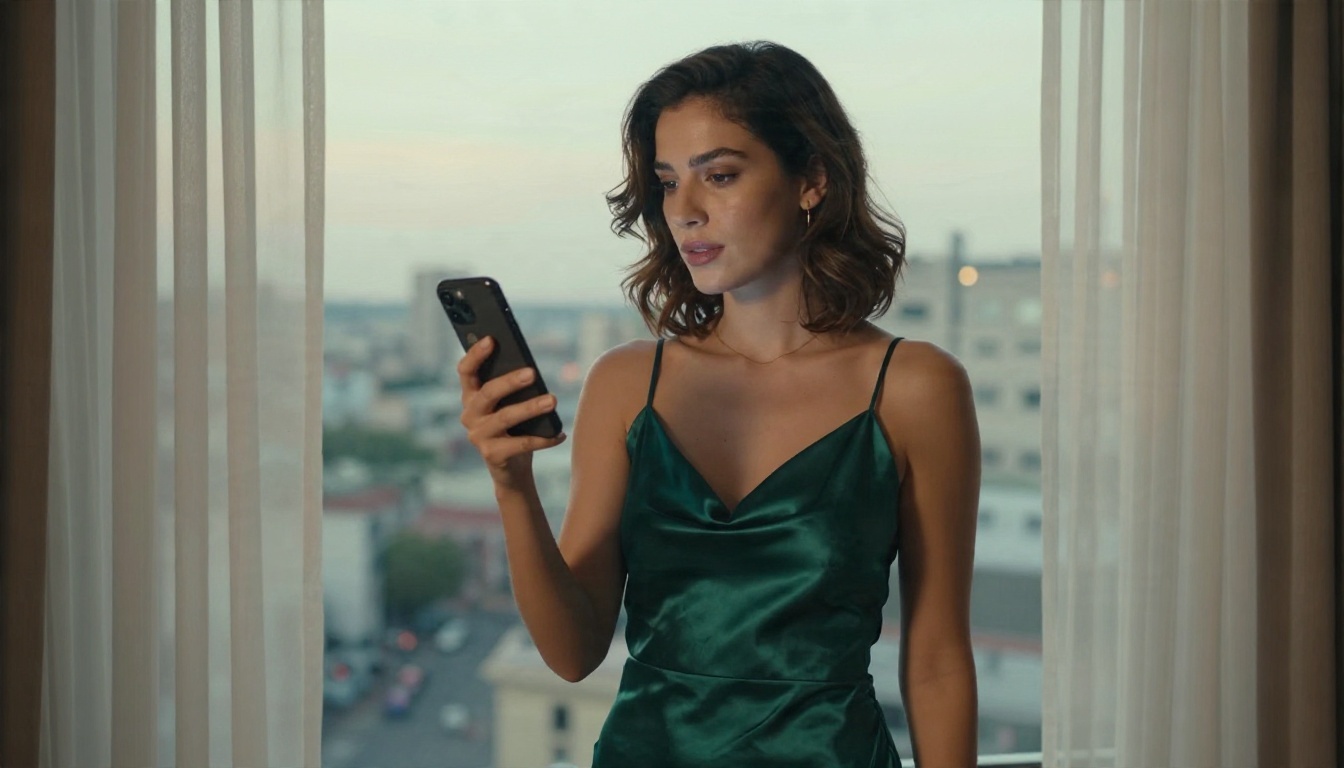
Build Your Own Photo Replies on PicassoIA
If a free bot keeps blocking or rationing your images, split the job. Keep the chat wherever you like, and make the pictures on PicassoIA, where the image models run without a daily meter on the one built for editing.
Step 1: Start with Seedream 4.5
Seedream 4.5 is the model to try first for suggestive, glamour style photos. It handles skin, fabric, and window light well, and it follows long prompts closely, which is exactly what your PHOTO: line gives it.
- Open the Seedream 4.5 page and paste the PHOTO: line from your chat.
- Set the aspect ratio to 16:9 for scene shots or 3:4 for portraits.
- Add your fixed character sheet at the start of the prompt every time.
- Generate, then keep the seed or the best result as your reference.
Step 2: Refine with Image Editor Pro
PicassoIA Image Editor Pro is built for unlimited generations, which is the answer to the daily cap problem. Use it for the second pass: change the outfit, fix a hand, move the light, or place the same character in a new room without starting from scratch.
💡 Workflow: Generate the base shot in Seedream 4.5, then send it to Image Editor Pro with short edit instructions such as "same woman, change to a white shirt, sunset balcony."
Step 3: Try these alternatives
Different models have different strengths, so it pays to keep a couple in rotation:
Step 4: Use a language model for prompt drafting
Chat models on PicassoIA are good for writing character sheets, scene descriptions, and image prompts. Gemini 3.5 Flash, Deepseek V3.1, and Qwen3.7-Plus all work for this. Each follows its own content rules, so treat them as prompt writers rather than an unfiltered roleplay partner. Ask them to turn a scene into a single dense paragraph in the structure above, then paste it into the image model.
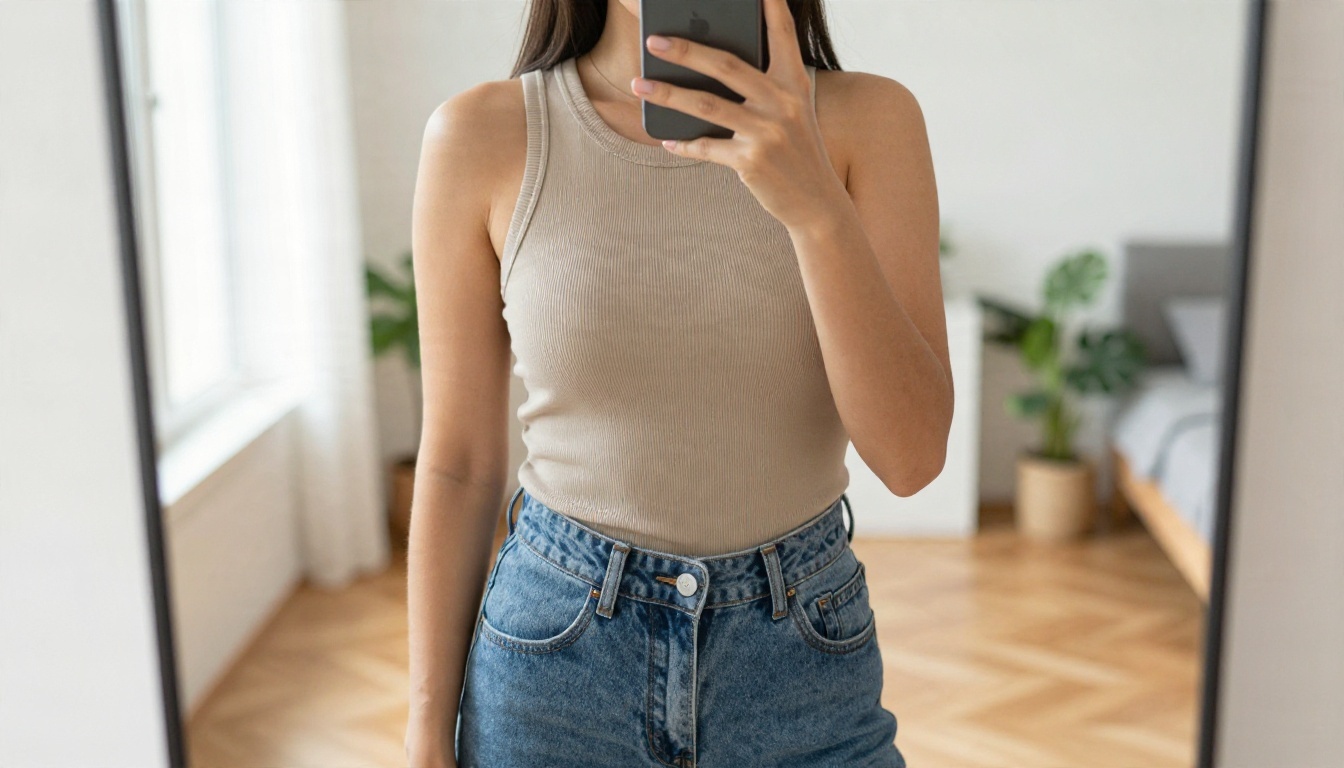
Keeping the Same Character
Consistency is the thing people notice most. A great photo is nice. The same person across twenty photos is what makes it feel like a real conversation.
Write a character sheet once
Keep one paragraph in a notes file and paste it into every image prompt. Include:
- Age (always an adult, stated plainly)
- Face: eye color, face shape, one distinctive detail such as freckles
- Hair: color, length, texture
- Build and height
- Signature item: a thin gold necklace, a silver ring
Reuse references
Image editing models can take an existing photo and change the setting while preserving the face. That is the cleanest way to keep a character stable, and it beats retyping descriptions. Run a first portrait, pick the best frame, and feed it back in for every new scene.
Fix the small things
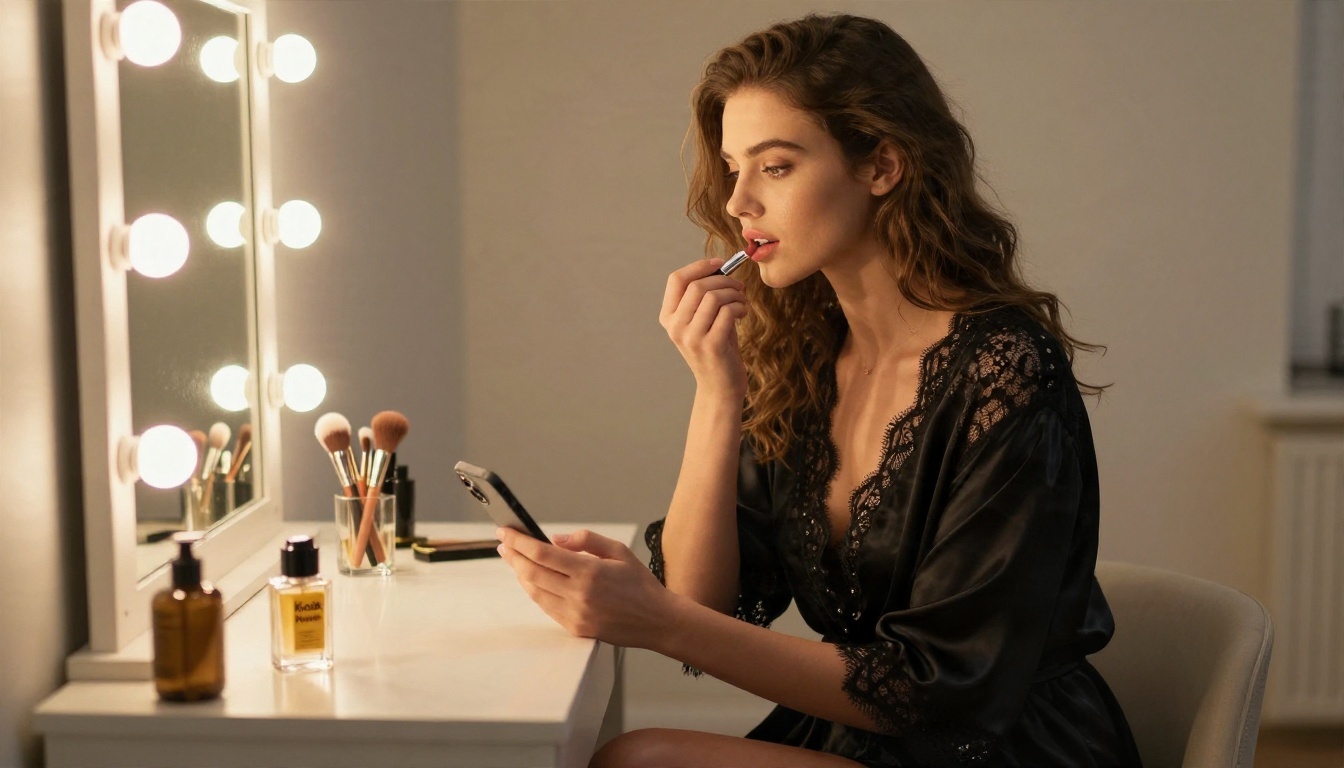
Hands, jewelry, and text on signs are where image models slip. Ask for hands to be out of frame or holding a simple object, and keep jewelry minimal. If a render has a bad detail, an inpainting pass in the editor is faster than re-rolling the whole image.
Safety, Privacy and Consent
An uncensored tool still sits inside the law and common decency. A few rules keep your experience safe.
Age and consent rules
- Characters are adults, every time, with no exceptions
- Never generate images of real people without their permission
- Do not use a face from social media, a celebrity, or an ex
- Keep it non-explicit when you plan to share or post anything
Privacy habits
Chats and prompts are stored somewhere. Assume anything you type could be read by the service, so skip your full name, address, workplace, and photos of yourself unless you are comfortable with that. Use a separate email for sign-ups, check whether the service lets you delete chat history, and turn off any option to train on your conversations if there is one.
| Habit | Why it helps |
|---|
| Separate email | Keeps the account away from your main identity |
| No personal photos | Removes the biggest privacy risk |
| Delete old chats | Limits what stays on the server |
| Export prompts locally | Lets you leave a service without losing work |
Quick Answers
Is there a truly free uncensored AI chat with images?
Free tiers exist, but they come with caps on photos, slower queues, or lower resolution. Most people who want volume end up splitting the work: chat in one place and render in another.
Why does my bot refuse the photo but not the text?
Because two models are involved. The chat model accepted your scene, and the image model or the app wrapper rejected the picture. Rewrite the PHOTO: line with a softer wardrobe and a clearer setting.
Why does the face change every time?
The image model has no memory. Paste the same character sheet into every prompt, or use a reference image.
Can I get higher resolution?
Yes. Render first, then run the image through a super resolution model to sharpen skin and fabric detail.
What should I ask a bot for in a photo?
Start with wardrobe, setting, and light. "Silk robe, dressing room, warm bulb light from the left" beats "something hot" every time.
Make Your Own Photo Replies
You do not need a perfect bot. You need a chat that stays in character, a clean image prompt, and a model that renders it without a meter running. Write a character sheet, ask your chat for a PHOTO: line, and run it through Seedream 4.5. Then polish the result in PicassoIA Image Editor Pro for as many variations as you like.
Try three scenes today: a morning bedroom, a balcony at sunset, and a hotel window at golden hour. Keep the same character sheet in each prompt and compare the results. Browse every image, editing, and chat model at picassoia.com/en/all-models and build the photo replies you wanted from the start.


