Blurry stone walls, washed-out grass fields, and muddy wooden floors are not artistic choices. They are the result of working with texture resolutions that were never meant to hold up at 1440p or 4K displays. The good news is that AI has changed this completely, and you do not need to repaint a single pixel to fix it.
This is the practical breakdown of how to upscale game textures with AI, what makes these tools actually work on surface detail, and which models to reach for depending on your texture type.
Why Texture Resolution Holds Games Back
The Real Cost of Low-Res Game Art
Most game textures were created with specific resolution constraints in mind. A stone wall tile from a 2015 open-world title might be 512x512 pixels. At the time, that was reasonable for the available VRAM and rendering budgets. Today, that same asset rendered on a 27-inch 4K monitor looks muddy, pixelated, and out of place next to modern high-fidelity geometry.
The issue is not just aesthetic. Low pixel density creates visual inconsistency. When high-poly geometry meets a low-res texture, the detail mismatch becomes obvious even to casual players. You can have a perfectly modeled rock with 50,000 polygons, but if the texture is 512px, it will look flat and unconvincing. It is the fastest way to break visual immersion and undercut the work that went into the geometry.
💡 A texture that looks sharp at 1080p will typically need to be 2x to 4x larger to hold the same perceived sharpness at 4K. That is not a preference, it is geometry.
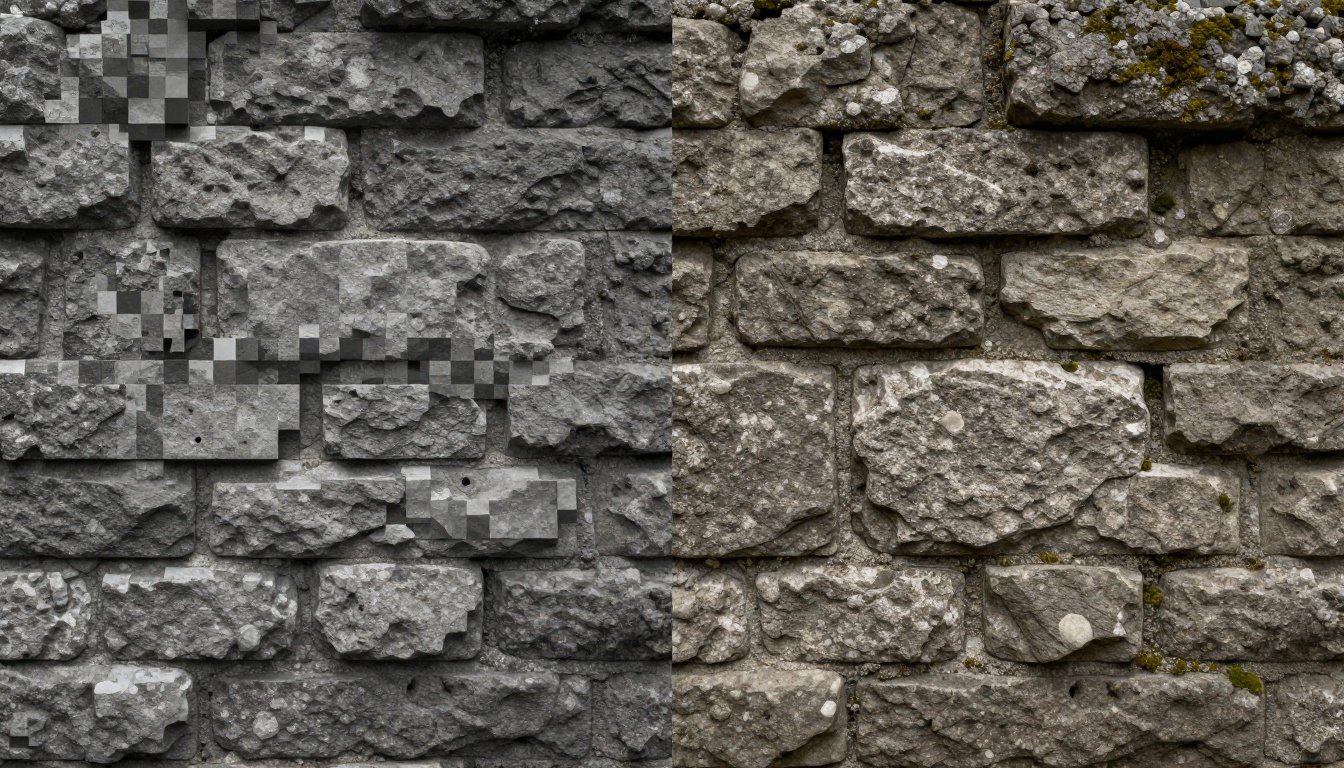
When 512px Just Does Not Cut It
The threshold where texture resolution becomes a visible problem varies by use case. Here is a practical reference for what resolution floor is appropriate for each role:
| Use Case | Minimum Recommended Resolution |
|---|
| Flat UI elements and icons | 256px per side |
| Distant background terrain tiles | 1024px |
| Mid-ground environment geometry | 2048px |
| Foreground hero props and characters | 4096px |
| Cinematic cutscene assets | 8192px |
For most modern game environments targeting 1440p or 4K output, 2K is the floor, not the ceiling. AI upscaling lets you hit 4K from a 1K source without losing the original texture's visual character, without a texture artist spending a week repainting it, and without sourcing expensive new assets.
How AI Upscaling Actually Works
Not Just Interpolation
Traditional upscaling methods like bilinear and bicubic filtering work by calculating the average value between existing pixels and inserting new ones. The result is predictably soft. Edges blur, grain disappears, and the texture looks smeared rather than sharp. You gain resolution in the technical sense but lose clarity in the perceptual sense.
AI upscaling works from a different starting point entirely. These models are trained on millions of matched pairs of high-resolution and low-resolution images, so they learn what real surface detail looks like at different scales. When they upscale a brick wall, they are not averaging pixel values. They are predicting what the mortar lines, stone chips, and surface grain should look like based on what actual high-resolution stone photography shows.
This is why the output from a well-trained AI upscaler can contain micro-detail that was not present in the source image. The model synthesizes it from pattern recognition, not from pixel math.

What the Model Actually Sees
The model processes the low-resolution source and identifies structural patterns: regular repeated grain, edge directions, frequency spectra that indicate material type, and spatial relationships between light and shadow. From that data, it synthesizes plausible high-frequency detail consistent with the surface type.
This is why texture type matters when selecting your upscaler. A model tuned for photorealistic portrait photography may handle organic surfaces like grass and skin better than it handles manufactured materials such as metal panels or pavement tiles. The reverse is also true. Picking the right model for the texture type is not optional if you want consistently sharp results.
💡 For best results, always upscale from the highest-quality version of your original texture. Upscaling an already-blurry or JPEG-compressed source multiplies those artifacts at 4x size.
5 AI Models for Game Textures
For Stone, Brick, and Concrete
Clarity Pro Upscaler is the top choice for hard surface materials with defined edges. It preserves mortar lines, chip detail, and surface roughness without introducing artificial sharpening halos. The result looks like a higher-resolution photograph of the same stone, not an AI-processed version of a blurry one.
Real ESRGAN is the field-tested baseline. It has been trained on an enormous and diverse dataset, making it reliable across the full spectrum of game texture types. For stone and brick specifically, it recovers grain structure and surface depth that bilinear upscaling discards completely.
For Organic Surfaces: Grass, Mud, Wood
Image Upscale by Topaz Labs supports up to 6x scaling and has exceptional handling of complex organic patterns. Grass blades, leaf veins, bark texture, and soil grain all benefit from its training on high-volume natural photography. This is the model to reach for when you are processing outdoor environment texture sets.
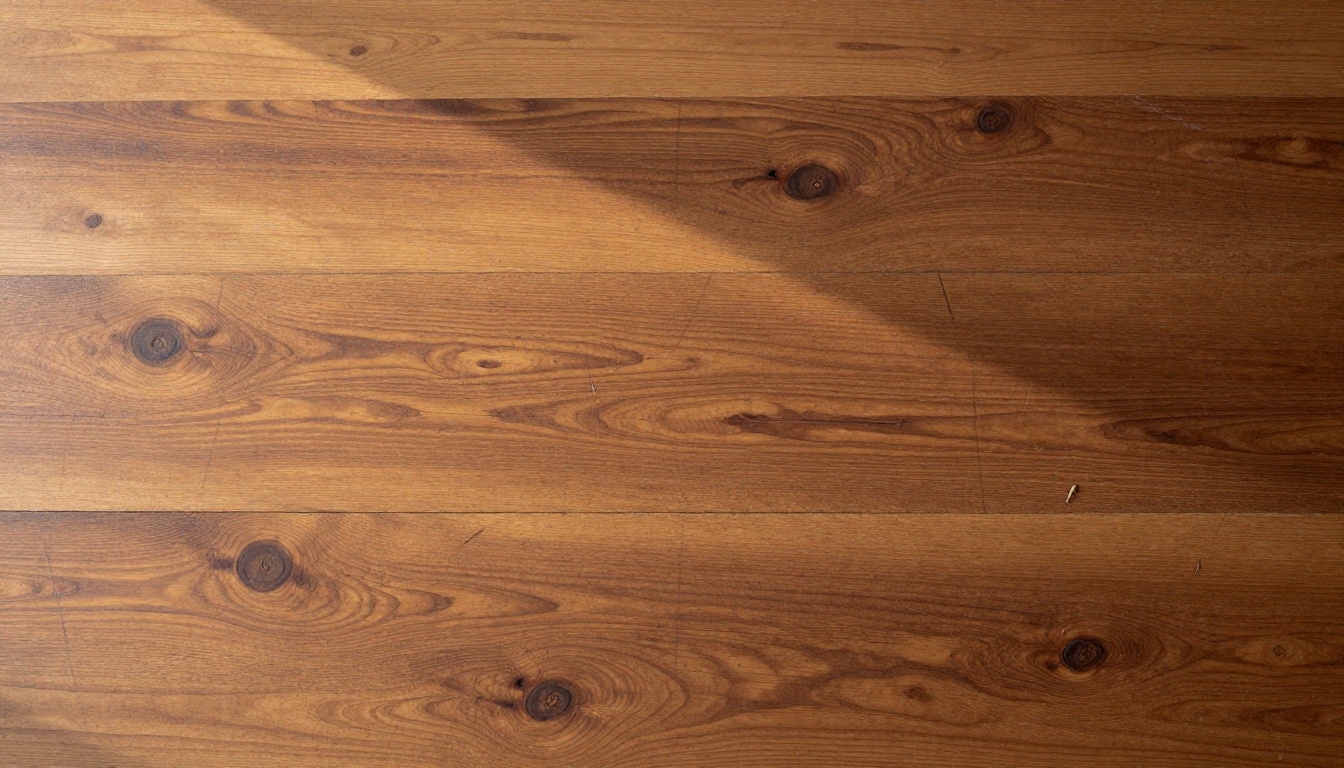
Crystal Upscaler delivers outstanding results on wood and fabric in particular. The way it handles anisotropic grain patterns (wood grain runs in one consistent direction, unlike the random scatter of stone) makes it noticeably sharper on plank and timber surfaces compared to general-purpose models that do not account for grain directionality.
For Metal, Fabric, and Manufactured Surfaces
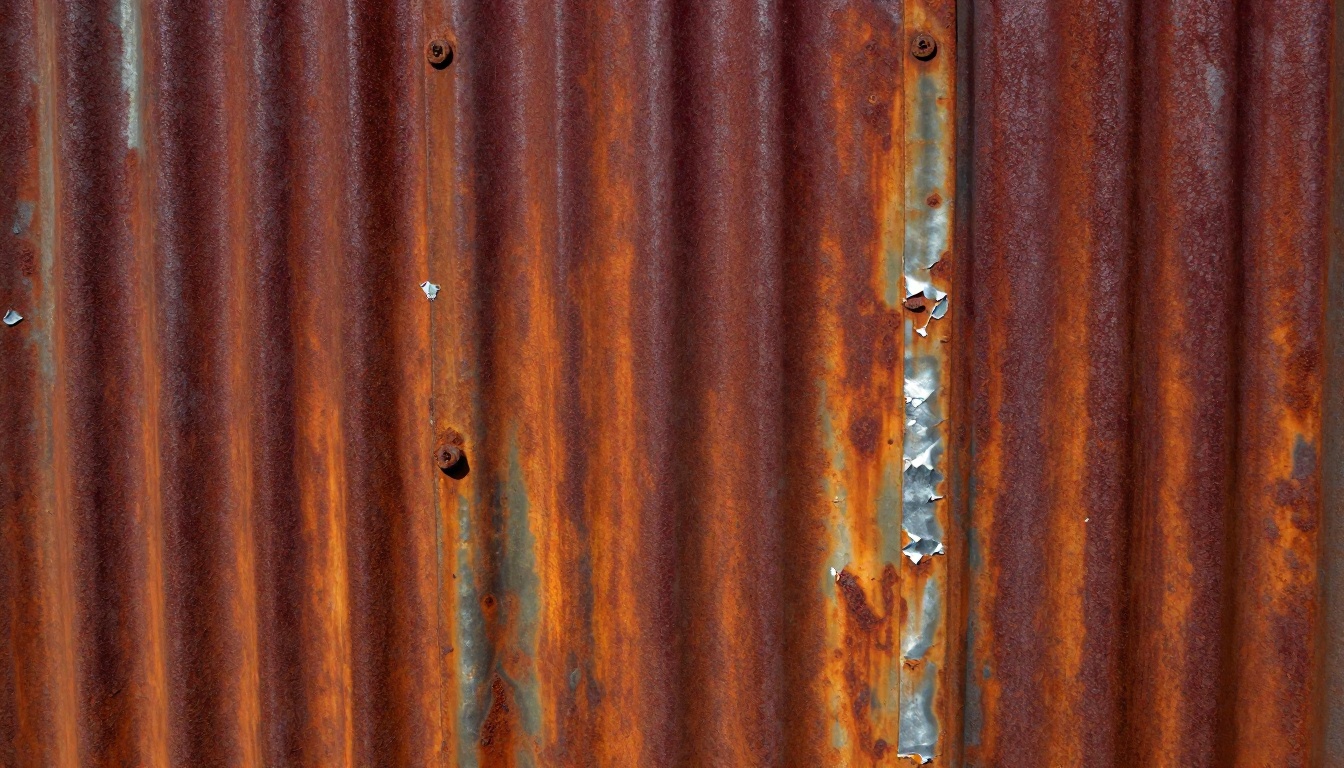
Increase Resolution by Bria handles the challenging combination of specular reflection gradients and surface micro-detail found in metal textures. Rust gradients, scratched paint, and brushed steel all upscale cleanly at 4x without the artificial smoothing that general models apply to reflective surfaces.
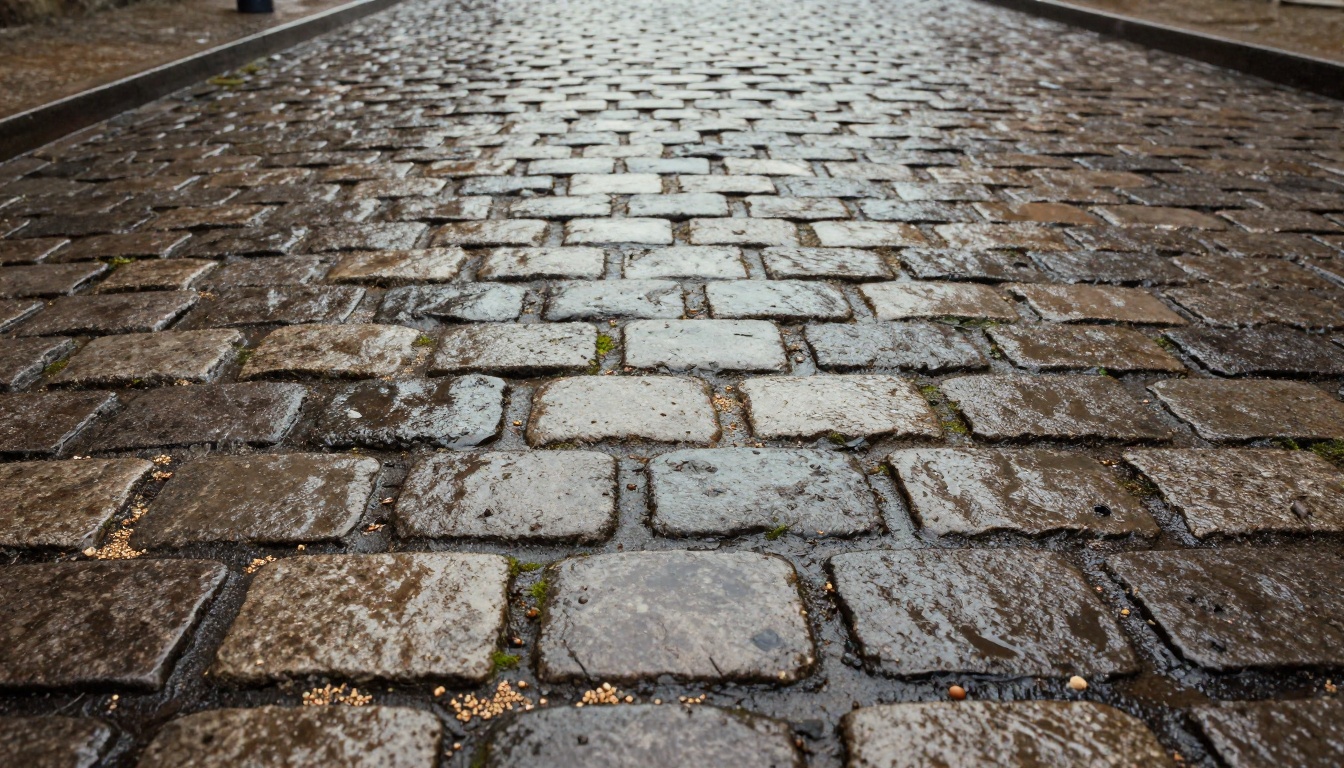
Recraft Crisp Upscale performs reliably on manufactured materials with regular geometric patterns. Pavement tiles, concrete blocks, and industrial surfaces stay sharp and accurate without the edge ringing that appears in models optimized for organic content.
How to Use Clarity Pro Upscaler on PicassoIA
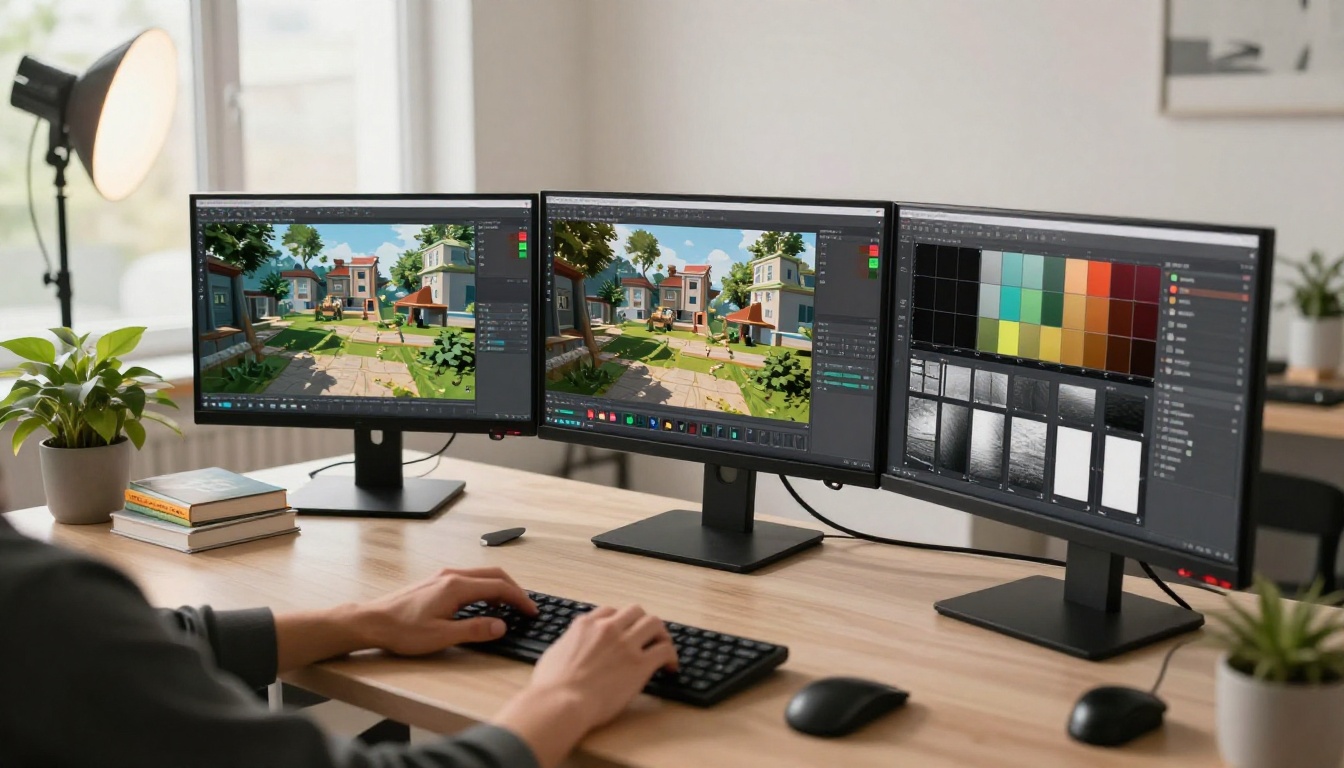
Clarity Pro Upscaler is the recommended starting point for most game texture workflows because it adds genuine surface detail rather than simply scaling pixel values. Here is the complete step-by-step process:
Step 1: Prepare Your Texture File
Before uploading, work from the cleanest version of your source texture available. If the file has been exported from a game engine or asset pipeline, check whether compression artifacts are visible at 100% zoom. If they are, source the original pre-compression asset from your project folder before proceeding.
Supported formats: PNG, JPG, WebP. For game textures, PNG is strongly preferred since it is lossless. Feeding a JPEG source into an upscaler means the model will faithfully reproduce those 8x8 compression blocks at 4x scale, which ruins the output.
Make sure the texture dimensions are a power of two if your game engine requires it (256, 512, 1024, 2048). The output will match this convention if the input does.
Step 2: Upload and Choose Scale Factor
Open Clarity Pro Upscaler and upload your texture file. The scale factor options typically range from 2x to 4x depending on the model version.
Which scale to use:
- 2x: Source is already 1K or above. You want a 2K or 4K output. Lowest artifact risk.
- 4x: Source is 256px or 512px. Maximum resolution gain. Visually verify the output on edge-heavy textures before committing to the full batch.
💡 For tileable game textures, note that some upscalers make subtle changes to edge pixels. This can create a visible seam when the texture tiles across a surface. Always check your tile edges after upscaling.
Step 3: Download, Verify, and Re-Import
Once the upscale completes, download the result and open it at 100% in your image editor. Compare against the original at equivalent zoom. You should see sharper edge definition on surface features like mortar, wood grain, and scratch marks; visible micro-detail that was absent or only implied in the original; and no new artifacts or halos around high-contrast edges.
If edge ringing appears (thin white or dark lines around high-contrast features), try Recraft Crisp Upscale instead. Its edge handling is tuned differently and often resolves that specific artifact pattern.
Import the verified PNG into your game engine and assign it to the appropriate material slot. If the engine generates mipmap chains on texture import, re-trigger that process to get the full benefit of the higher-resolution source.
What to Expect by Texture Type
Stone and Rock
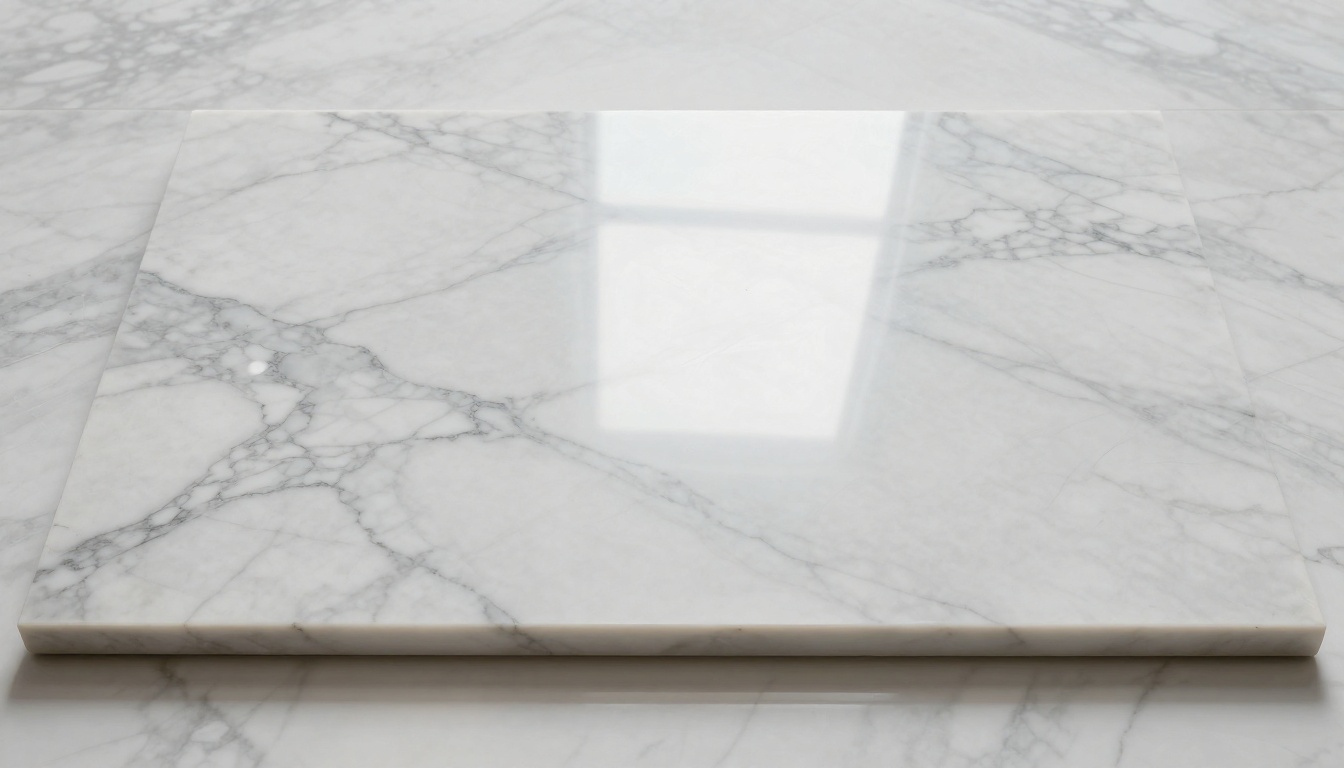
Stone textures show the most dramatic improvement from AI upscaling. The irregular, non-repeating character of stone surface detail (mortar variation, chip patterns, grain scatter) is exactly the type of data these models have been trained on at scale.
Expect mortar line definition to go from soft gradient smears to crisp physical edges, individual aggregate and pebble detail to become visible within the stone face, and the surface roughness variation across the texture (the subtle matte-to-satin shift) to be recovered with accuracy.
Real ESRGAN and Clarity Pro Upscaler both deliver strong results on stone. Run both on a sample and compare at 100% zoom to pick your preferred output for the specific look of your environment.
Terrain and Ground Cover
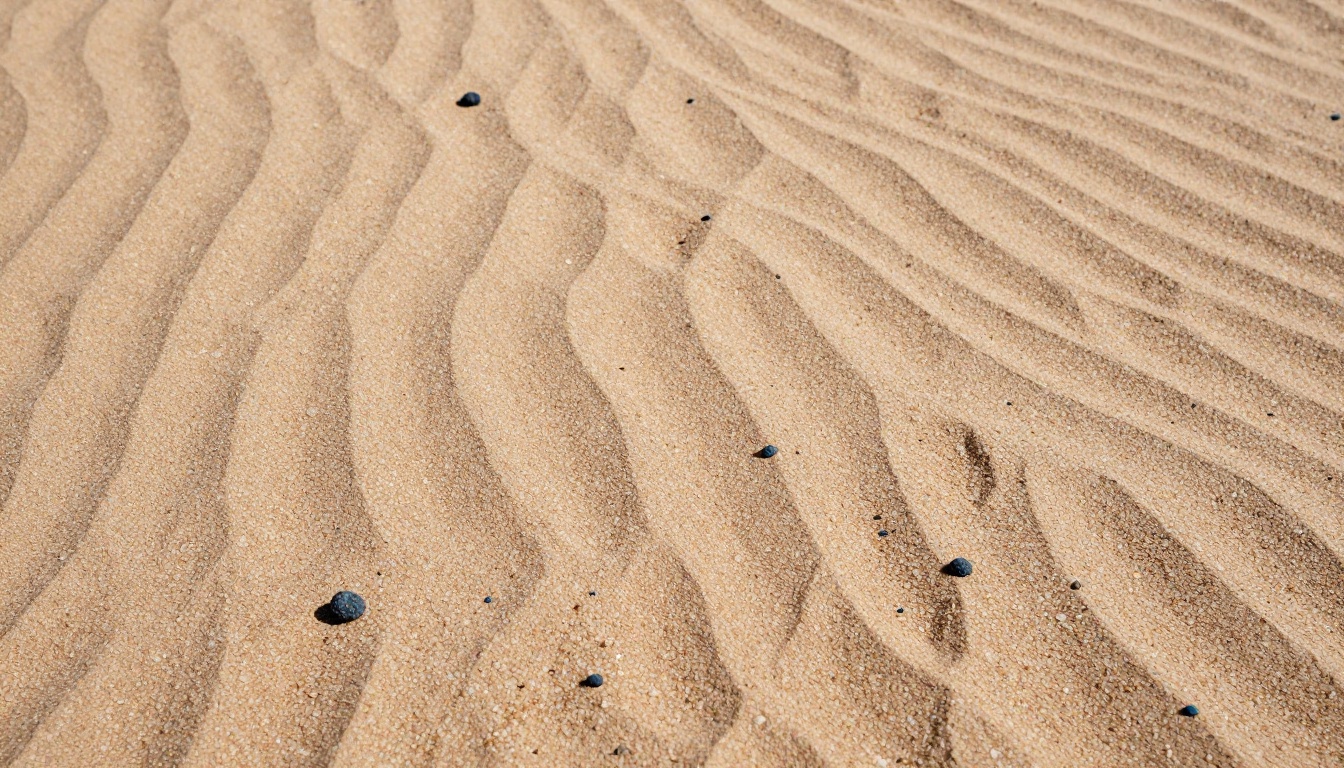
Terrain textures containing grass, dirt, mud, and sand are compositionally complex because they contain high-frequency detail at multiple spatial scales simultaneously. A grass texture has individual blade-level detail, soil particle-level detail, and color variation at the patch level, all layered in the same image.
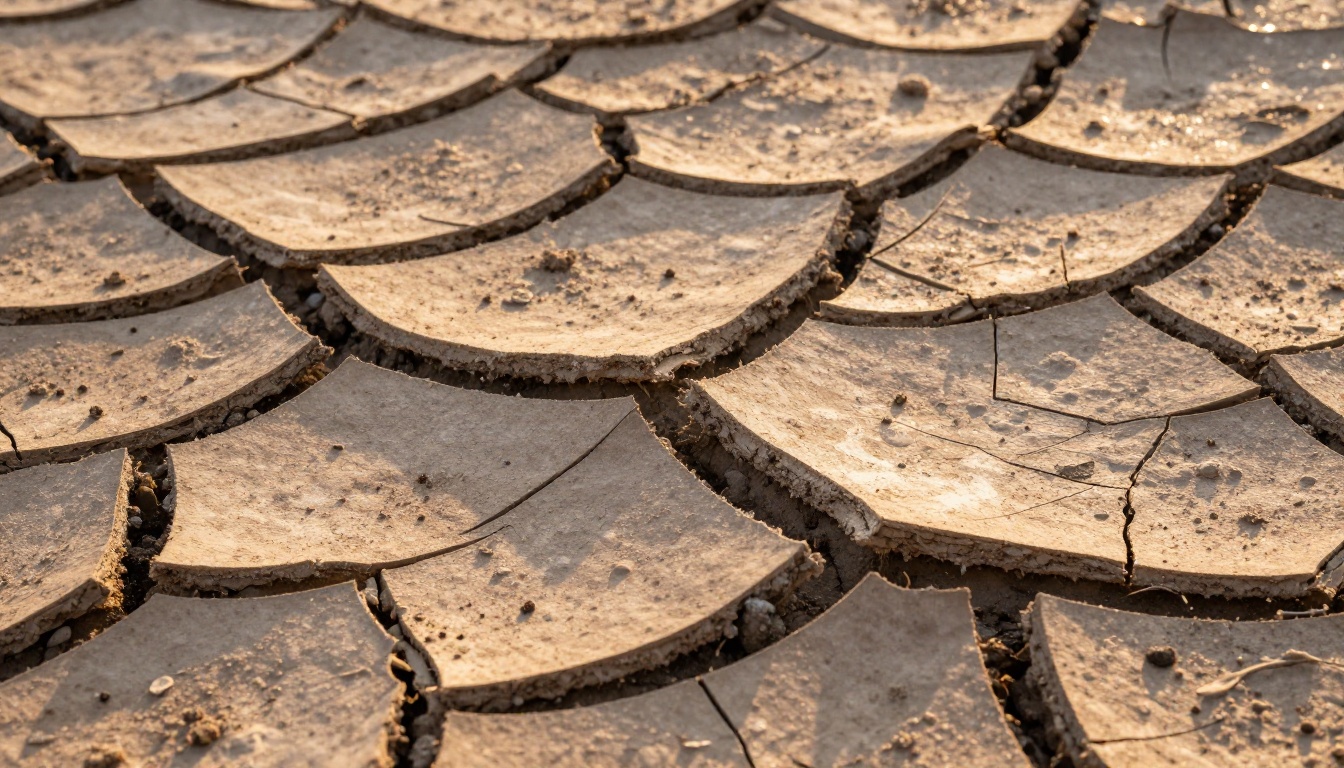
Image Upscale by Topaz Labs at 4x to 6x handles this multi-scale complexity better than alternatives. The 6x option is particularly valuable for tiny source textures (256px terrain tiles from older titles) where maximum resolution recovery is needed without losing the original color character of the biome.
Metal and Industrial
Metal textures present a specific challenge because they combine high-contrast edge data (scratch marks, bolt holes, seam lines) with smooth specular gradient data (the sweep of light across a brushed steel surface). Models that handle this poorly will over-sharpen the gradients, creating an artificial HDR-processed look.
Increase Resolution by Bria handles the balance between sharpening and gradient preservation better than general-purpose models for this category. The brushed directionality of the original surface is maintained in the 4x output rather than being flattened into a uniform shine.
Mistakes That Hurt Your Results
Starting from a Compressed Source
The most damaging mistake in any upscaling workflow is feeding in a compressed source file. If your texture has gone through lossy compression at any point, those artifacts are baked into the pixel data. The AI upscaler treats compression block patterns as valid image information and scales them up exactly like everything else.
A 512px JPEG with visible 8x8 block artifacts becomes a 2048px result where those same blocks are now very large and very obvious. Always source from the original uncompressed asset. If only a compressed version is available, run a dedicated artifact removal pass before the upscale step.
Using the Wrong Model for the Surface
General-purpose models produce usable results but not optimal ones. A model trained heavily on portrait photography will smooth out the grain in stone that you need sharp. A model tuned for sharp architectural edges may not handle the random scatter pattern of a grass terrain texture well.
💡 Run three different models on one representative texture from your project before committing to a full batch. The difference between the right and wrong model choice is visible within seconds at 100% zoom.
Not Checking Tileable Seams
For any texture that tiles seamlessly in a game engine, always verify the edges after upscaling. Place four copies of the output in a 2x2 grid in your image editor and inspect all four junction points at 100%. Even a one-pixel color shift at the edge will become a visible grid seam across your game surface at scale.
Model Comparison by Texture Type
Take Your Assets to 4K Right Now
The gap between average game visuals and genuinely impressive ones often comes down to texture resolution, not polygon count or lighting complexity. AI upscaling closes that gap without requiring a new asset creation pipeline, without artists doing manual repainting, and without sourcing expensive replacements for your existing library.
Every model referenced in this article is available on PicassoIA. You can upload a texture, run it through Clarity Pro Upscaler or Real ESRGAN, and have your result in under a minute. The Image Upscale by Topaz Labs pushes to 6x if your source textures are particularly small.
The fastest way to see what this does for your specific project: pick your worst-looking in-game texture right now, run it through one of these models at 4x, and drop the result back into your engine. What you see on screen will tell you immediately where AI upscaling fits in your workflow.
Start with one texture. You will know whether to run the rest.


