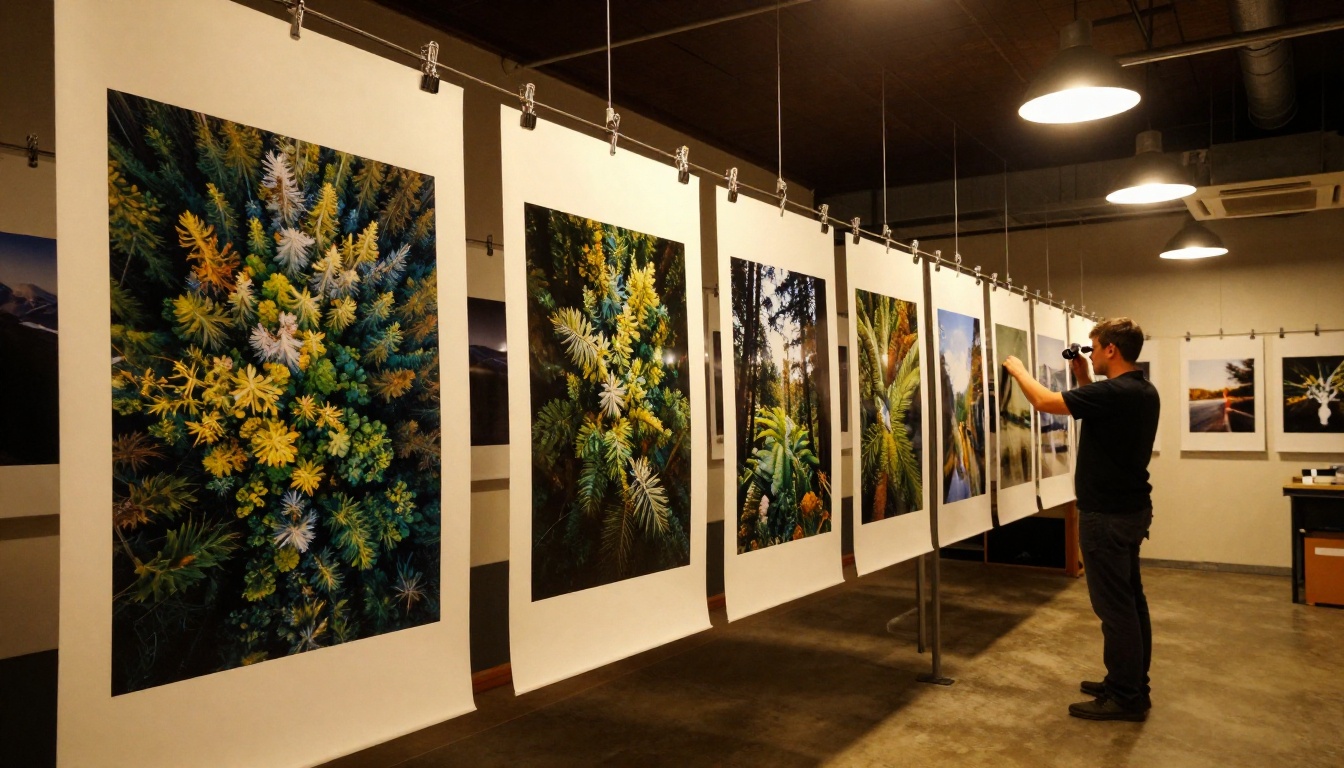
Printing a digital photo at large size should be straightforward. You take a great shot, send it to a lab, and hang a stunning piece on your wall. In practice, the results are often blurry, pixelated, and nothing like what you expected. The root cause is almost always the same: not enough pixels to fill the print at the resolution needed for sharp output. AI-powered photo upscaling solves this problem at a level that traditional software simply cannot reach.
Why Low-Res Photos Fail at Scale
Every digital photograph is made of pixels. When you stretch those pixels to cover a larger physical area, each one becomes a visible square. Printing software tries to fill the gaps by averaging surrounding colors, but that creates softness and color noise that no amount of sharpening can fix.
The real issue is not just size. It is pixel density. Large prints require significantly more raw pixels than small ones to maintain the sharpness your eye expects at typical viewing distances.
What DPI Actually Means for Printing
DPI stands for dots per inch, and it controls print sharpness. Professional photo labs print at 300 DPI. That means for a 12x18 inch print, you need an image that is at least 3600 x 5400 pixels to come out sharp.
Most smartphone photos cap out at around 12 megapixels, or roughly 4000 x 3000 pixels. At 300 DPI, that is about 13 x 10 inches. Go bigger and quality drops fast.
The Pixel Math Behind Large Prints
Here is what the numbers look like for common print sizes at 300 DPI:
| Print Size | Pixels Required | Megapixels |
|---|
| 8 x 10 in | 2400 x 3000 | 7.2 MP |
| 16 x 20 in | 4800 x 6000 | 28.8 MP |
| 24 x 36 in | 7200 x 10800 | 77.8 MP |
| 40 x 60 in | 12000 x 18000 | 216 MP |
That 40x60 inch print needs over 216 megapixels. A typical phone photo is 12 megapixels. That is an 18x gap in raw pixel count, and traditional upscaling cannot invent the missing detail. AI upscaling can.
How AI Upscaling Actually Works
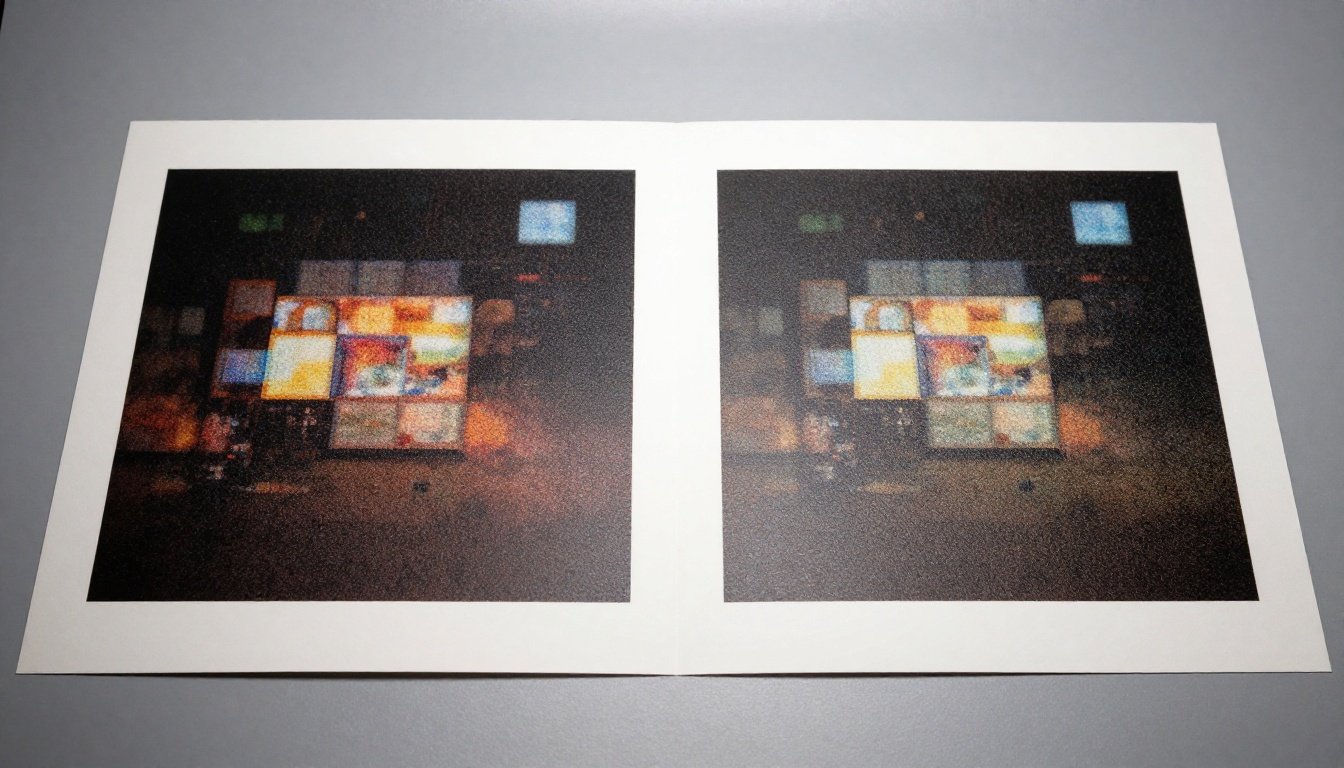
Traditional upscaling is arithmetic. The software looks at two neighboring pixels and calculates an average value for the pixels it needs to insert between them. The result is mathematically correct but visually soft because there is no real information being added.
AI upscaling is fundamentally different. These models are trained on millions of high-resolution images and learn what real-world detail looks like. When they upscale a photo, they do not average pixels. They predict what the missing detail should look like.
Super Resolution vs. Simple Interpolation
Simple interpolation methods like bicubic or Lanczos create smooth transitions between existing pixels. They reduce harsh edges but also reduce sharpness and fine detail. The output looks like a soft version of the original.
Super-resolution AI looks at the existing pixel data as context and uses that context to reconstruct what the missing detail should look like. A patch of grass becomes individual blades. A distant face develops pores and eyelashes. A stone wall develops mortar texture. The AI applies learned patterns from real photographs, not mathematical averages.
What AI Adds That Software Cannot
The single biggest difference is reconstruction of plausible detail. When you upscale a portrait from 500px to 4000px using bicubic interpolation, the face goes soft. When you do the same with a model like Clarity Pro Upscaler, the skin develops texture, the eyes sharpen, and the hair strands separate.
The AI generates detail that was not in the source image but is consistent with what would have been there if the photo had been shot at higher resolution. That is the capability that makes large-format printing with AI upscaling viable for professional use.
The Best AI Models for Print Upscaling
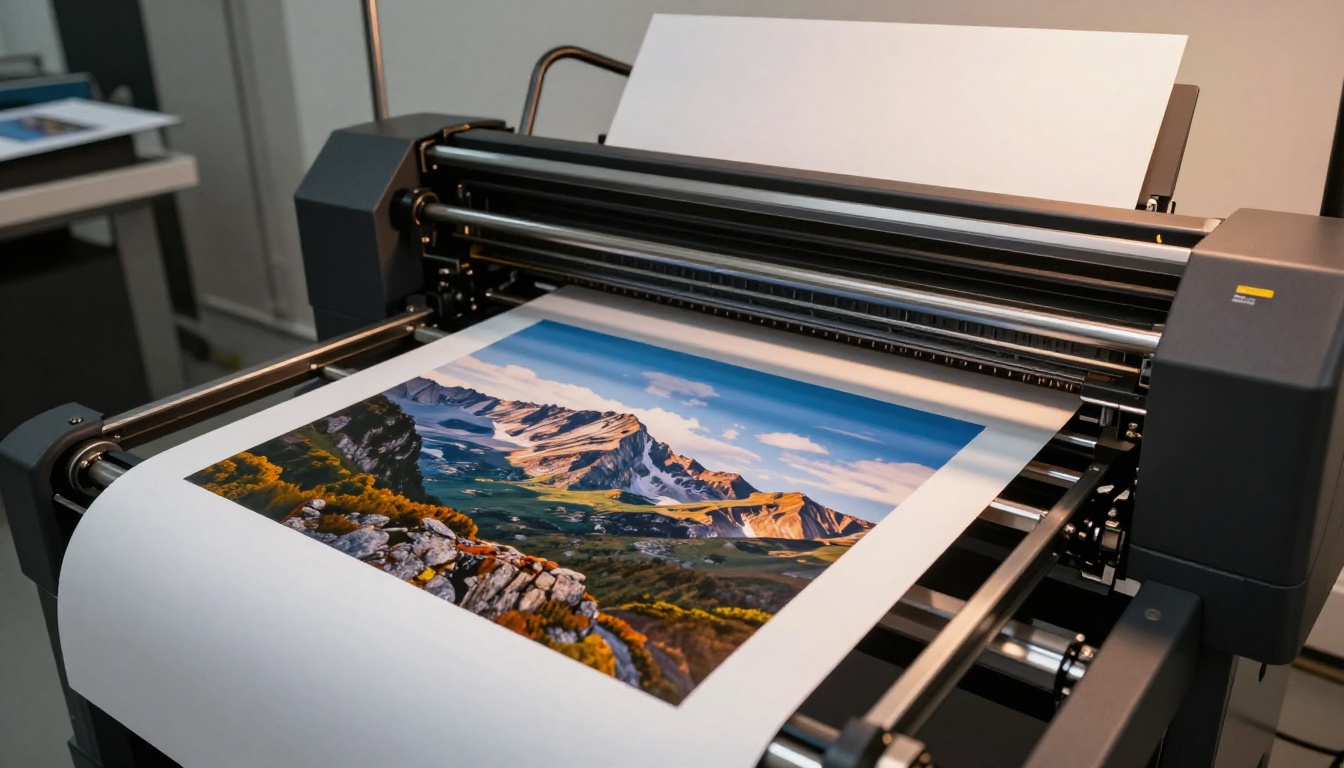
Not all upscalers perform equally. Different models are optimized for different content types, and choosing the wrong one can produce over-sharpened, noisy, or artificially textured results. Here is a breakdown of the top models available on PicassoIA.
Clarity Pro Upscaler
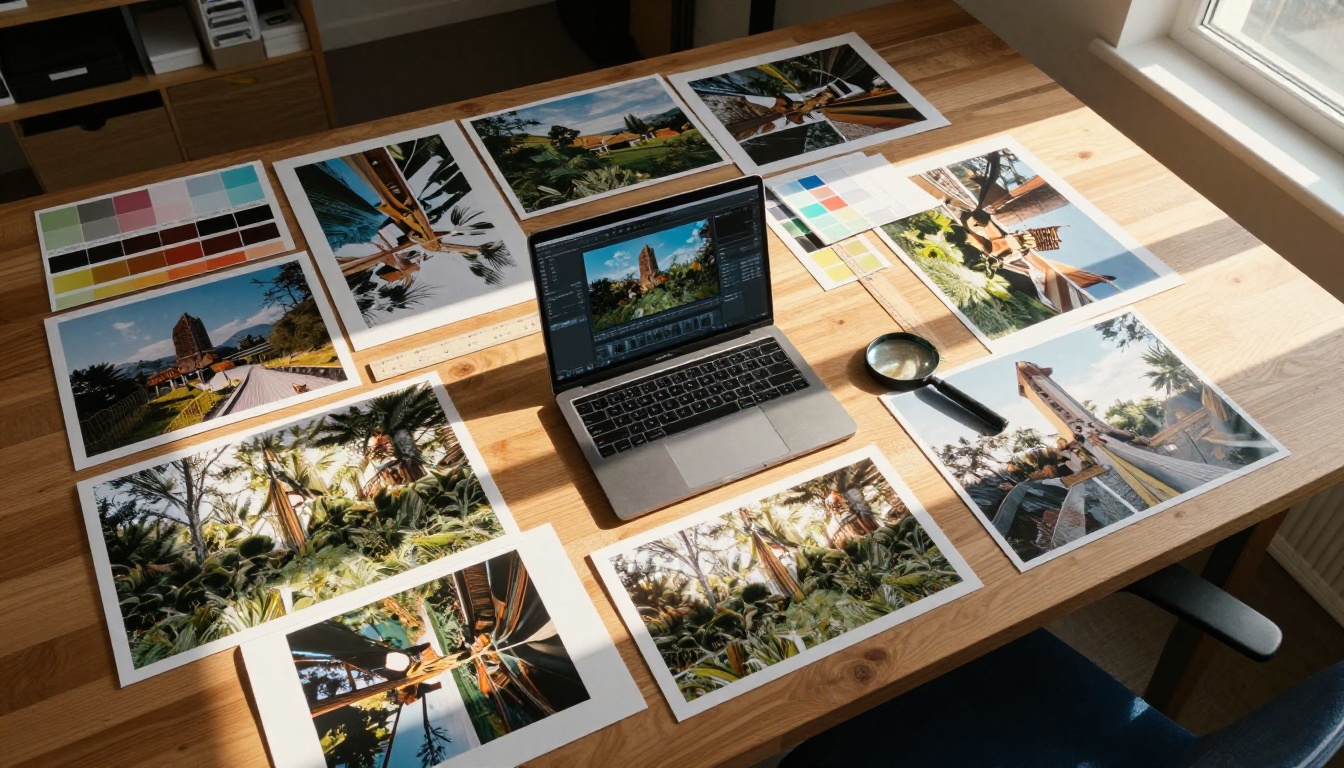
Clarity Pro Upscaler is built specifically for photorealistic results. It adds texture, sharpness, and micro-detail while preserving the natural color and tone of the original image. This is the model to reach for when print quality is the primary goal. It performs exceptionally well on portraits, architecture, and product photography.
Best for: Fine-art prints, portrait enlargements, professional photo labs.
Topaz Image Upscale
Image Upscale by Topaz Labs offers upscaling up to 6x, making it the highest-multiplier option available. Topaz has built its reputation on print-focused AI tools, and this model reflects that heritage. It handles noise reduction and sharpening simultaneously, producing clean output ready for large-format use.
Best for: Maximum size prints, old scanned photos, billboard and banner printing.
Real ESRGAN
Real ESRGAN is one of the most widely used open-source upscalers and delivers reliable 4x upscaling with strong detail recovery. It is particularly effective on outdoor and nature photography where texture matters. The model is aggressive about adding detail, which works well for landscapes but can over-sharpen already-sharp portraits.
Best for: Landscape prints, nature photography, outdoor scenes.
Crystal Upscaler
Crystal Upscaler is purpose-built for portrait upscaling. Its training emphasizes faces, skin, and hair, and the results show it. Where general-purpose upscalers sometimes create plastic-looking skin or harsh hair edges, Crystal Upscaler produces natural texture that holds up at close viewing distances on a large print.
Best for: Wedding prints, family portraits, headshots, beauty photography.
Google Upscaler
Google Upscaler enlarges photos up to 4x with a focus on structural accuracy. It excels at preserving the geometry and proportions of architectural and product photos. The output tends to be clean and neutral, which is useful when you need print-ready output without any stylistic AI influence.
Best for: Architecture prints, product photography, technical documentation.
P Image Upscale
P Image Upscale prioritizes speed without sacrificing quality. For workflows where turnaround time matters, this model delivers sharp, print-ready results fast. It is well-suited to batch upscaling when you have multiple images to prepare for a print order.
Best for: High-volume workflows, quick turnaround print orders, editorial photography.
Recraft Crisp Upscale
Recraft Crisp Upscale lives up to its name by prioritizing edge crispness. Fine lines, text elements, and graphic elements come out sharp and defined. This makes it particularly useful when your print contains text, logos, or graphic overlays alongside photographic content.
Best for: Photo prints with text overlays, mixed media, product mockups.
Recraft Creative Upscale
Recraft Creative Upscale takes a different approach by adding interpretive detail during the upscaling process. It produces visually richer results at the cost of strict photographic accuracy. For creative prints where visual impact matters more than documentary precision, this model creates stunning output.
Best for: Artistic prints, creative editorial, decorative wall art.
Bria Increase Resolution
Increase Resolution by Bria upscales up to 4x with a strong focus on commercial image quality. It is built for studio and commercial photography workflows where the output needs to meet strict technical specifications.
Best for: Commercial photography, catalog printing, advertising images.
Clarity Pro Upscaler on PicassoIA
Clarity Pro Upscaler is the recommended starting point for most large-print workflows. Here is how to use it on PicassoIA.
Step 1: Open the model page
Go to Clarity Pro Upscaler on PicassoIA. The interface loads directly in your browser with no software installation required.
Step 2: Upload your source image
Click the upload area and select your photo. JPEG, PNG, and TIFF files are accepted. For best results, use the highest-resolution version of the photo you have available. Even a small original will improve, but starting from a larger file gives the AI more data to work with.
Step 3: Set the upscale factor
Choose your target multiplier. For most large prints, 4x is the sweet spot. If you are printing at 6x the original size or larger, consider running the image through two passes: first 4x, then 2x on the result.
Step 4: Adjust the creativity slider
The creativity parameter controls how aggressively the AI adds new detail. For photojournalistic prints where accuracy matters, keep it low (0.3 to 0.5). For fine-art or decorative prints where visual richness is the goal, push it higher (0.7 to 1.0).
Step 5: Download and check at 100%
Always review the output at full 1:1 zoom before sending to print. Look at a representative area such as a face, a textured surface, or a fine-line detail. If the detail looks artificial or over-processed, reduce the creativity setting and run again.
💡 Pro tip: Always export upscaled images as TIFF or high-quality JPEG at 95%+ quality. Saving as a compressed JPEG after upscaling introduces compression artifacts that will show up in print.
Which Model Fits Your Print Type
Choosing an upscaler should not be random. Different subjects have different requirements, and the wrong choice can introduce artifacts that are worse than the original low-resolution problem.
Portrait and Headshot Prints
Portraits are the most demanding subjects for AI upscaling because viewers scrutinize faces closely. Any artificial sharpening or texture hallucination is immediately obvious. For portrait prints, Crystal Upscaler is the first choice. Its portrait-specific training prevents the common artifacts that make skin look like plastic or hair look like a painting.
For weddings and family groups where multiple faces appear in a single print, Clarity Pro Upscaler handles the variety of skin tones and ages better than specialist models.
Landscape and Nature Prints
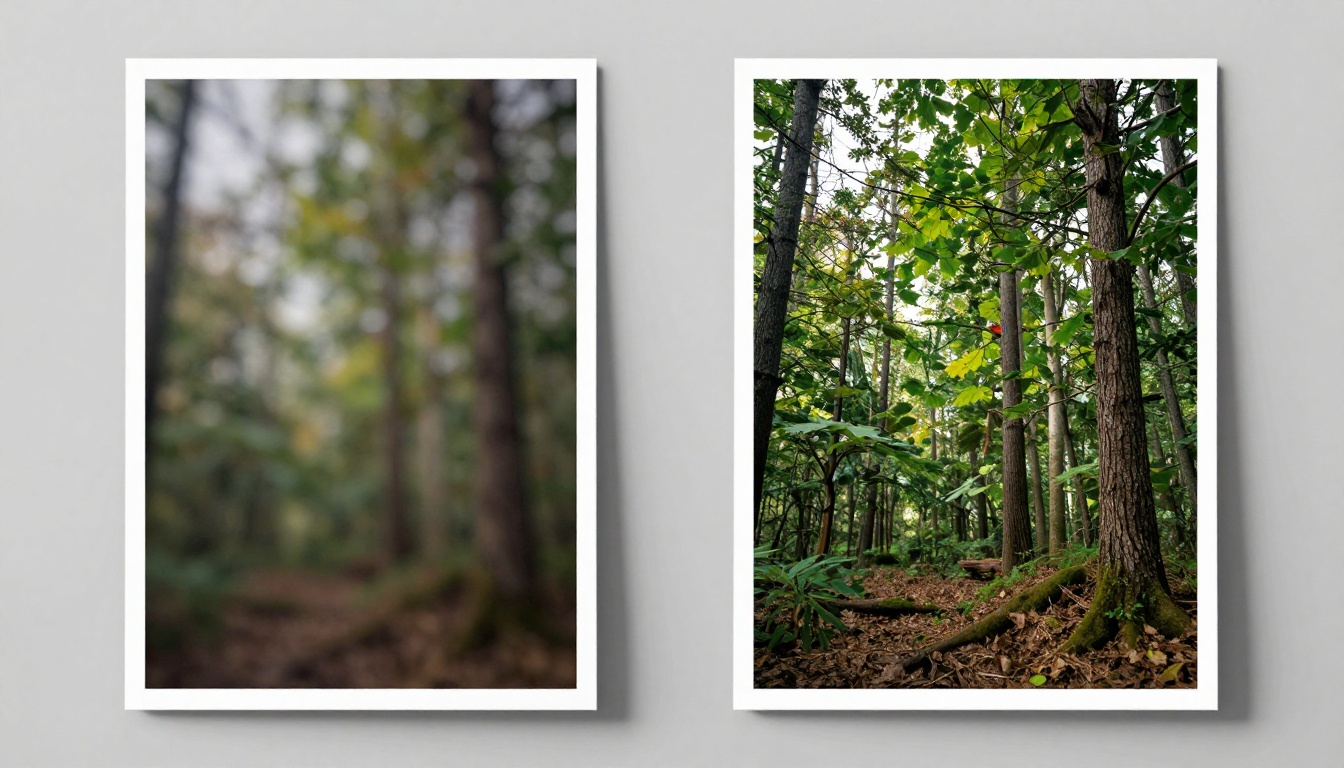
Nature photography benefits most from aggressive detail synthesis because organic textures like bark, grass, rock, and water read as natural even when the AI invents them. Real ESRGAN and Recraft Creative Upscale both perform well here.
For a very large landscape print like a 40x60 inch panorama, consider Image Upscale by Topaz Labs for its 6x upscale capability. This gives you the raw pixel count needed for billboard-size prints without requiring multiple passes.
Old or Damaged Photos
Restoring vintage or damaged photographs for printing is a special case. The source image often has noise, scratches, fading, or compression artifacts on top of the resolution problem. The right approach is to clean up the damage first using PicassoIA's image restoration tools, then upscale the cleaned version with Clarity Pro Upscaler or Increase Resolution by Bria. Trying to upscale a damaged image first just makes the damage larger.
Print Size vs. Resolution: Quick Reference
Use this table to determine whether your source image needs upscaling before printing, and by how much. The "Upscale Factor Needed" column assumes a 12-megapixel source (4000 x 3000 px) and a 300 DPI target.
| Print Size | Minimum Pixels (150 DPI) | Ideal Pixels (300 DPI) | Upscale Factor Needed |
|---|
| 5 x 7 inches | 750 x 1050 | 1500 x 2100 | None |
| 8 x 10 inches | 1200 x 1500 | 2400 x 3000 | None |
| 11 x 14 inches | 1650 x 2100 | 3300 x 4200 | Minor |
| 16 x 20 inches | 2400 x 3000 | 4800 x 6000 | 1.5x |
| 20 x 30 inches | 3000 x 4500 | 6000 x 9000 | 2x |
| 24 x 36 inches | 3600 x 5400 | 7200 x 10800 | 2.5x |
| 30 x 40 inches | 4500 x 6000 | 9000 x 12000 | 3x |
| 40 x 60 inches | 6000 x 9000 | 12000 x 18000 | 4x |
💡 Note: At 150 DPI you can still get acceptable quality for prints viewed from 3 feet or more (gallery viewing distance). At 300 DPI the print holds up to close inspection and handling.
Common Mistakes When Preparing Photos for Print
Getting the AI upscaling right is only part of the process. Several common mistakes in the surrounding workflow can ruin a print even when the upscaled image itself looks perfect on screen.
Over-sharpening After Upscaling
This is the most common error. AI upscalers add sharpness as part of the process. Running the output through additional sharpening in Photoshop or Lightroom stacks the effects and produces halos, edge artifacts, and an unnatural crispness that no amount of paper selection can hide in print.
The fix: If your upscaler model includes sharpening, do not sharpen again afterward. If you feel the output needs more crispness, run it through the upscaler again at a lower scale multiplier instead of applying post-processing sharpness.
Wrong Color Profile for Print
Screens display color in RGB. Printers work in CMYK. If you send an RGB file to a commercial print lab without converting to the correct color profile, the colors you see on screen will not match the final print. Reds shift orange. Blues go purple. Skin tones go wrong.
The fix: Ask your print lab for their ICC color profile and apply it before sending the file. Most professional labs provide these profiles for free. Convert from your editing color space (sRGB or Adobe RGB) to the output profile as the very last step before export.
Sending Files at the Wrong DPI Setting
A 7200 x 10800 pixel image exported at 72 DPI is not the same as the same image exported at 300 DPI, even though the pixel dimensions are identical. The DPI metadata tells the printer how to scale the pixels to physical size. If the DPI is wrong, the printer either shrinks the image or scales it up using its own inferior interpolation.
The fix: Always set DPI to 300 when exporting for print, regardless of what the original file says.
Upscaling a JPEG Multiple Times
Each time you save a JPEG, the compression algorithm runs again and introduces new artifacts. Upscaling a photo that has already been compressed multiple times amplifies every existing artifact into something visible in a large print.
The fix: Work from the original RAW or highest-quality JPEG you have. Save as TIFF after upscaling and do not re-save as JPEG until all editing is done.
Why Viewing Distance Changes the Math
One factor that most articles miss: print viewing distance changes the effective DPI requirement dramatically. A 300 DPI standard assumes the viewer holds the print at arm's length or closer. For a large print displayed on a wall, the viewing distance is typically 3 to 8 feet.
At 6 feet of viewing distance, you cannot resolve individual dots at 300 DPI. The effective required DPI drops to around 100 to 150 DPI. This means a very large wall-mounted print can look stunning even at lower resolution output, as long as it is not meant to be handled and inspected up close.
This is useful to know because AI upscaling does not always need to hit 300 DPI on the upscaled file for large-format gallery prints. For a 60-inch wide canvas mounted high on a wall, a 150 DPI upscale is often sufficient and produces a lighter file that is easier to work with in print production workflows.
For prints that will be handled, held, or inspected closely, such as photo books, framed portraits, and desk prints, you still want 300 DPI minimum.
Print at Any Size, Starting Now
The gap between a 12-megapixel phone photo and a print-ready 40x60 inch image used to require expensive professional scanning equipment, proprietary software licenses, and hours of manual retouching. Today, AI upscaling models on PicassoIA close that gap in seconds, with results that rival what dedicated print preparation software produces.
Whether you are printing a single large portrait for a living room wall, producing a run of fine-art prints for a gallery show, or supplying a commercial print lab with billboard-ready files, the workflow is the same: start from the best original you have, choose the right upscaler for your content type, verify the output at 100% zoom, and export with the correct color profile and DPI settings.
PicassoIA gives you all nine super-resolution models on one platform without separate software subscriptions or local GPU hardware. You can run a test comparison across multiple models in minutes and pick the result that suits your print before committing to a large-format output.
Start with Clarity Pro Upscaler for your first image. If you are printing portraits, try Crystal Upscaler alongside it and compare the two at 100% zoom before sending to the lab. For maximum upscale factor on very large prints, Image Upscale by Topaz Labs is the tool to reach for.
All models are available at picassoia.com/en/all-models.