Most people type one line into a video model, get a floaty, generic clip, and decide the tool is overrated. The tool is rarely the problem. Veo 3.1 reads a prompt more like a director's shot note than a search query, and it rewards you for being specific about the camera, the action, the light and the sound. This article gives you a formula you can reuse, ten prompts you can paste and adapt, and the settings that decide whether a clip looks intentional or accidental.
Veo 3.1 is Google's video model with native audio, so a single prompt can produce picture, dialogue, ambience and effects together. You can run it today on PicassoIA through Veo 3.1, and we will walk through that workflow near the end.
💡 Quick summary: name the camera move first, describe one clear action, anchor the scene with light and place, then add sound. Keep it to one shot per prompt.
Why Veo 3.1 Prompts Fail

Before the formula, it helps to see what goes wrong. Almost every disappointing Veo clip traces back to one of a handful of habits, and they are all fixable in the prompt rather than with more generations.
The Vague Prompt Problem
"A beautiful woman walking in a city" gives the model nothing to decide with. Which city, what time, what lens, what is she doing with her hands, what does the street sound like? When you leave those blanks, the model fills them with the most average answer, and average looks like stock footage.
Specific prompts do not need to be long. They need to be concrete. "A woman in an olive trench coat crosses a rain-soaked street at dusk, umbrella tilted against the wind" is one sentence and carries far more information.
Too Many Ideas in One Clip
A clip is short. Veo 3.1 supports 4, 6 or 8 seconds, and eight seconds is enough for one shot with one idea. If you ask for a chase, a close-up of a face, a cut to a rooftop and a sunset, the model has to compress all of it, and you get mush. One prompt, one shot. Build sequences by generating several clips and cutting them together.
Quick Diagnosis Table
| Symptom | Likely cause | Fix |
|---|
| Generic, stock-looking footage | No camera, light or place details | Add lens feel, time of day and location texture |
| Subject drifts or morphs | Too many actions at once | Reduce to one action, shorten the clip |
| Camera wanders randomly | No camera instruction | State the move: "slow dolly in", "static tripod" |
| Audio feels off or crowded | Audio was never described | Write dialogue and ambience as separate sentences |
| Text in the frame looks broken | Long text requested | Keep on-screen text to one or two short words |
| Style changes mid-clip | Mixed style keywords | Pick one look and repeat it once |
The structure that holds up best across tests is a shot list in a fixed order:
[Camera] + [Subject] + [Action] + [Context] + [Style and Audio]
You do not have to label the parts. Write them as flowing prose in that order and the model will follow the hierarchy. Here is how each part works.
Camera First
Start the prompt with the shot. The model weights early words heavily, and camera language is the fastest way to set the grammar of the whole clip. Useful phrasing includes:
- Shot size: extreme close-up, close-up, medium shot, wide shot, over-the-shoulder
- Angle: low angle, eye level, high angle, overhead, aerial
- Movement: slow dolly in, tracking shot, handheld, gentle pan left, crane up, static tripod
- Lens feel: 24mm wide, 50mm natural, 85mm portrait with shallow depth of field, macro
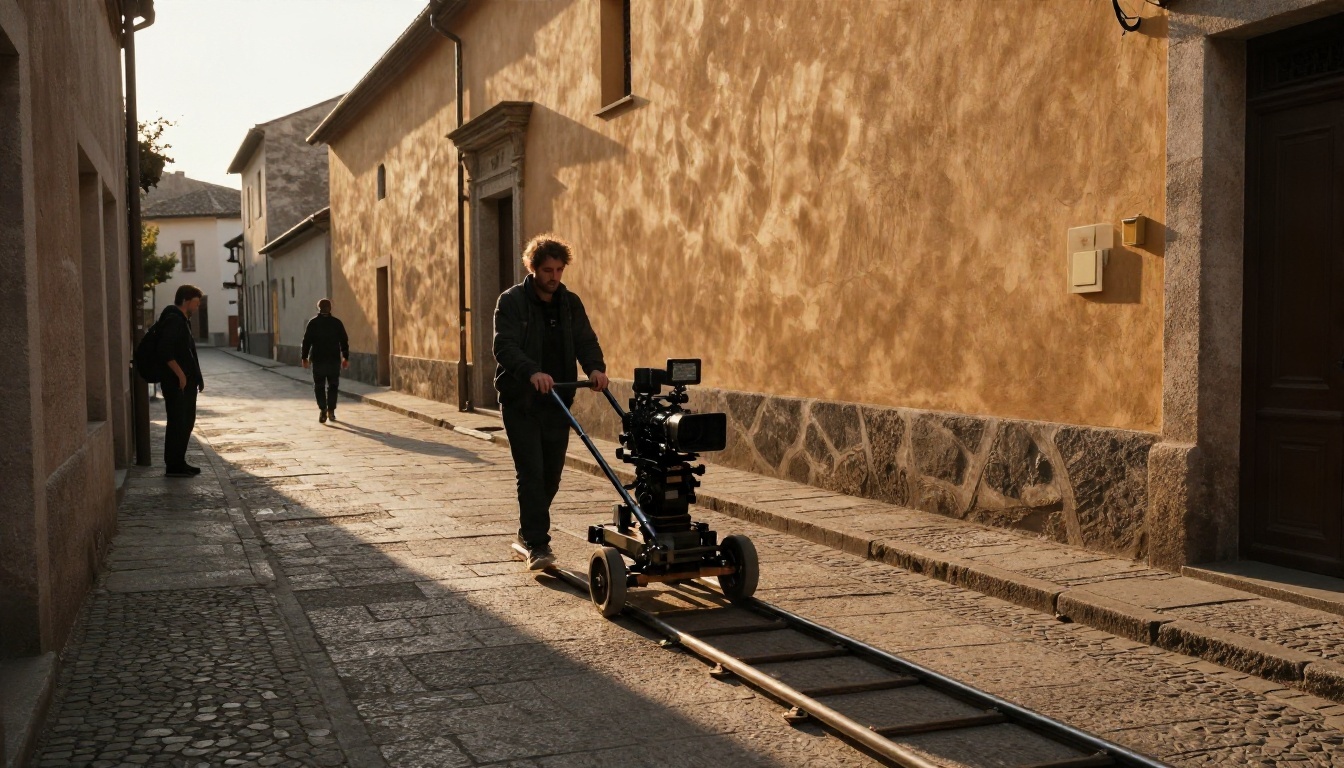
A dolly move reads very differently from a zoom. If you want the camera to physically travel through space, say "dolly" or "tracking". If you want the frame to tighten without parallax, say "slow zoom". Mixing both in one eight second clip is asking for trouble.
Subject and Action
Describe the subject with two or three visual facts, then give them one verb phrase. "A weathered fisherman in a yellow rain jacket coils a rope on a wet wooden dock" works. "A fisherman does fishing things" does not.
Use present tense and active verbs. Avoid abstract states like "feeling nostalgic" unless you translate them into something the camera can see: "stares at the horizon, shoulders slightly lowered."
Context and Style
Context is the room, the weather, the time and the surfaces. Style is the look of the film. Pair them in one or two sentences:
- "Late afternoon sun low behind the subject, soft rim light, long shadows on cobblestones."
- "Shot like a 35mm film still, natural grain, muted teal and amber color palette."
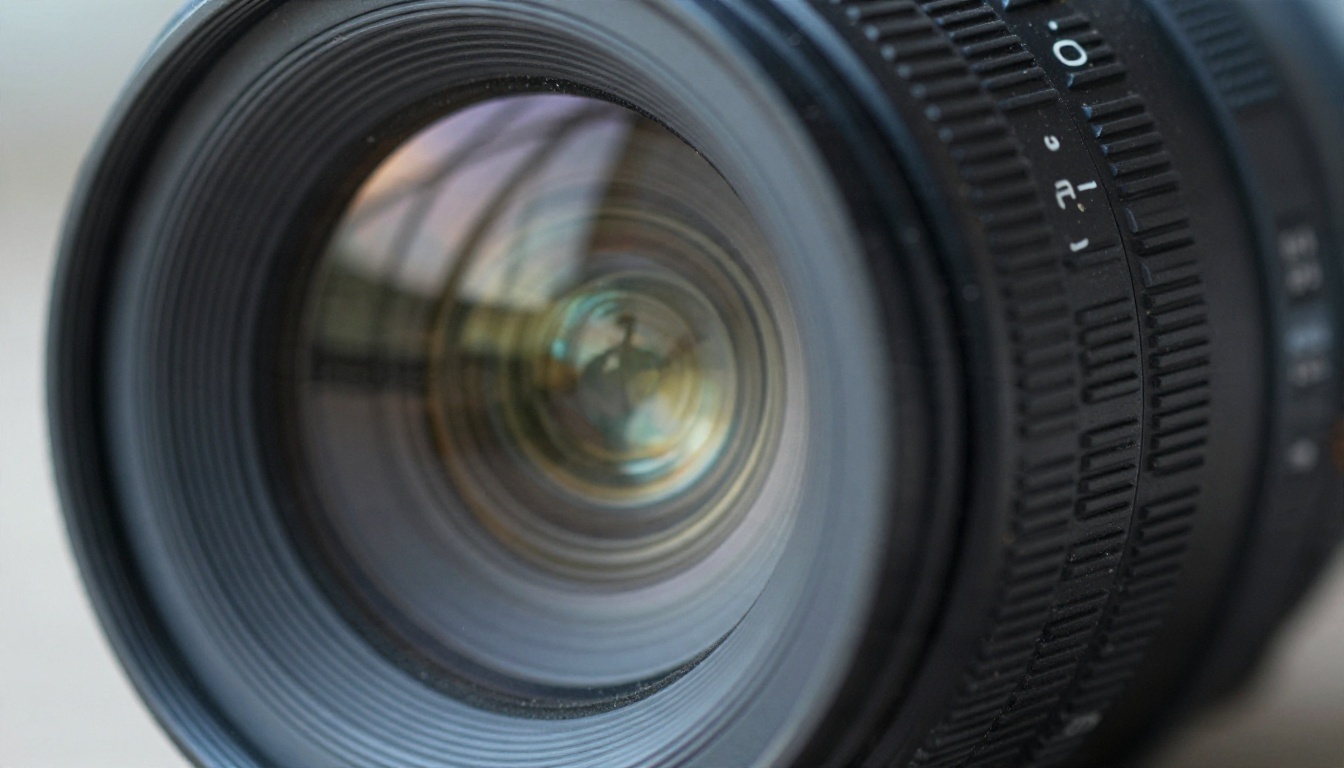
Lens vocabulary matters here too. "Shallow depth of field, background in soft bokeh" pushes the model toward a cinematic separation between subject and scene, while "deep focus" keeps everything sharp, which suits landscapes and architecture.
💡 Tip: Avoid stacking contradictory style words such as "documentary, hyper-stylized, painterly, photoreal". Pick one look. Repeating the same style cue once at the end of the prompt is enough reinforcement.
Plan the Shot Before You Write It
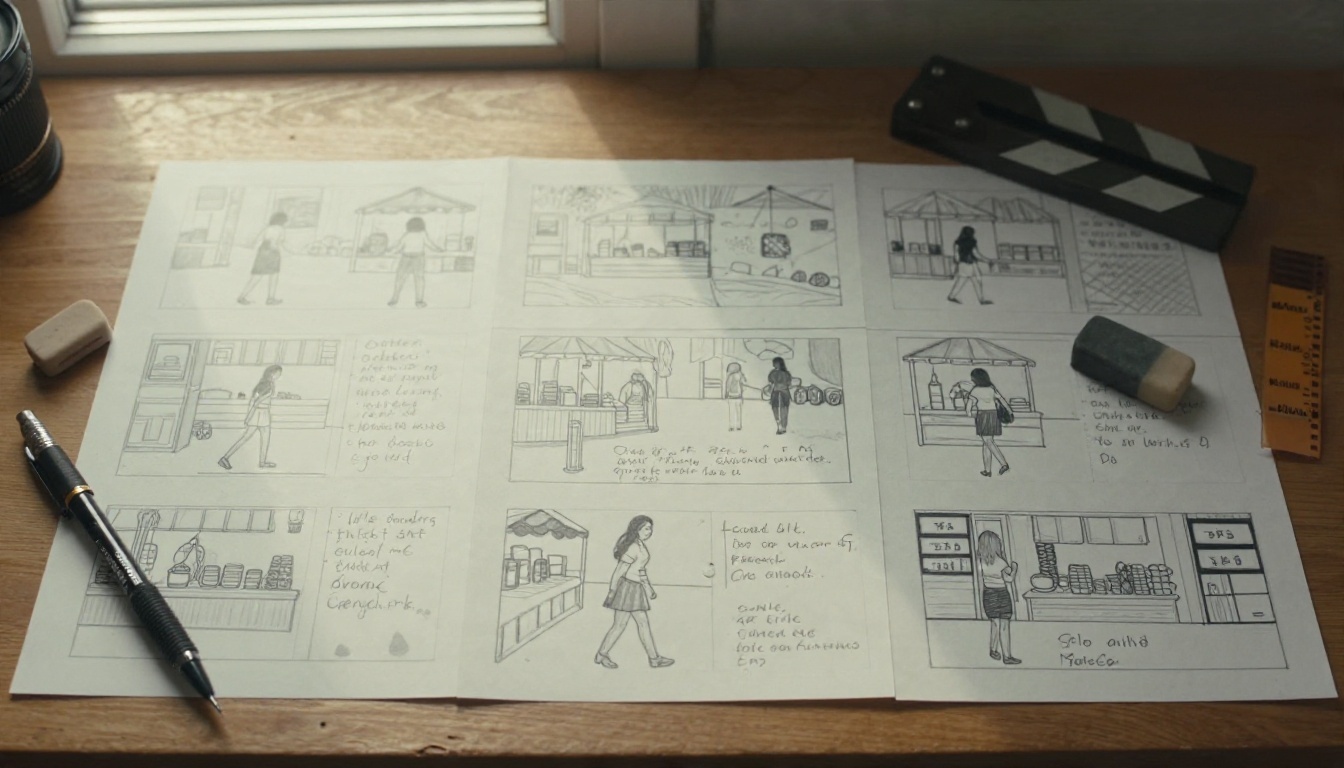
If you struggle to turn an idea into a prompt, sketch the shot first. A few index cards with a quick thumbnail and one line each make the camera, subject and action obvious, and then writing the prompt becomes copying your notes.
Writing Audio That Fits
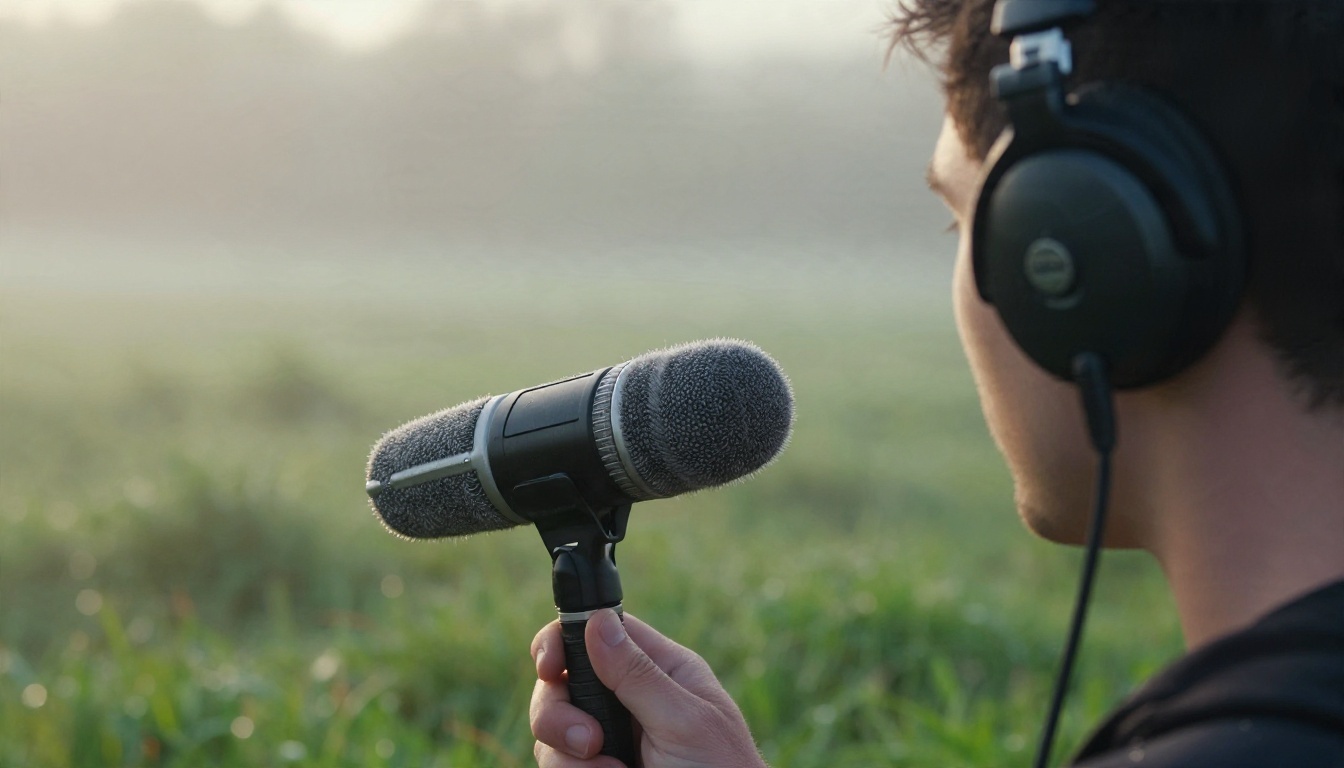
Native audio is the biggest practical change from earlier Veo releases. Because the sound is generated together with the picture, it follows what you describe, but only if you actually describe it. Treat audio as a separate layer of the prompt and give it its own sentences.
Dialogue
For spoken lines, put the words in quotation marks and say who speaks and how. For example: A woman in a trench coat turns to the camera and says, "We are almost there." Her voice is calm and low.
Some practical rules:
- Keep lines short. One or two sentences fit comfortably in an eight second clip. Long speeches get rushed or cut off.
- Name the speaker when more than one person is on screen, so the right mouth moves.
- Describe the delivery: whispered, tired, cheerful, flat. The tone carries into the voice.
- Avoid unusual spellings unless you want the odd pronunciation.
Sound Effects and Ambience
Write ambient sound as plain description: "soft rain on an umbrella, distant traffic, a tram bell far away." Sound effects tied to actions work well: "the crunch of boots on gravel", "a ceramic cup placed on a wooden table."
If you do not want music, say so: "No background music." Otherwise the model may add a cinematic score that fights with your dialogue.
| Audio layer | Example phrasing |
|---|
| Dialogue | He whispers, "Stay close." |
| Ambience | Wind through tall grass, distant birds |
| Action sound | Heavy boots on a metal staircase |
| Music | Soft solo piano, low volume, or "no music" |
| Silence | "Near silence, only the hum of a refrigerator" |
If you do not need sound at all, you can switch audio generation off in the settings. That is useful when you plan to score the clip yourself later.
Settings That Change the Result
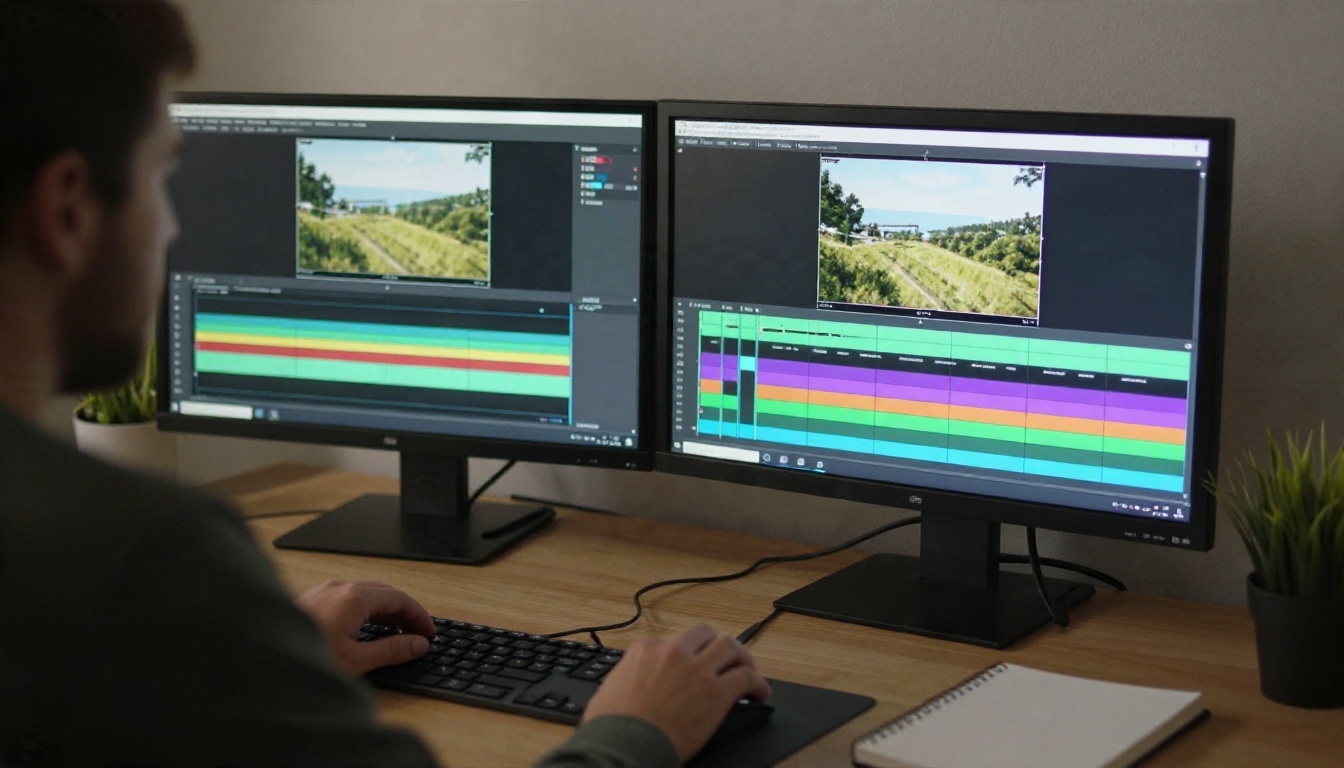
Prompts get the attention, but settings decide what you can actually do with the output. These are the options exposed for Veo 3.1 on PicassoIA.
| Setting | Options | When to change it |
|---|
| Duration | 4, 6 or 8 seconds | 4s for quick tests, 8s for final shots and reference mode |
| Resolution | 720p or 1080p | 720p for drafts, 1080p for delivery |
| Aspect ratio | 16:9 or 9:16 | 16:9 for landscape, 9:16 for vertical social |
| Generate audio | On or off | Off if you will add your own sound |
| Seed | Any integer | Fix it to compare prompt changes fairly |
| Negative prompt | Free text | Exclude things you keep seeing, such as text overlays |
| Image | One start image | Animate a specific frame |
| Last frame | One end image | Create a transition between two moments |
| Reference images | 1 to 3 images | Keep a subject consistent |
Duration and Resolution
Shorter clips tend to be more stable, because the model has less time to drift. A good habit is to draft at 4 seconds and 720p, confirm the shot works, then re-run the winning prompt at 8 seconds and 1080p. You save time and you avoid paying for a long render of a prompt that was never going to work.
Seed and Negative Prompt
When you are tuning a prompt, change one thing at a time and keep the seed fixed. Otherwise you cannot tell whether the improvement came from your edit or from luck. Once a prompt is stable, remove the seed to get fresh variations.
The negative prompt is for recurring annoyances. Short lists work best: "subtitles, watermark, text overlay, distorted hands." Avoid writing negative instructions in the main prompt itself, because naming an unwanted thing can make it appear.
Start and End Frames
If you have an exact opening image, supply it as the start frame and write a prompt that describes the motion, not the picture. The model already sees what is in the frame, so repeating it wastes words. Describe what moves, how the camera travels and what the sound is doing.
Adding an end frame turns the clip into a transition: the model animates from the first image toward the second. Treat the end frame as a strong suggestion rather than a pixel-exact target. It works best when the two images share the same location, lighting and aspect ratio, and when the change between them is believable in a few seconds, such as a character turning, a door opening, or the sun dropping behind a ridge.
Reference Images for Consistency
Reference mode accepts one to three images to keep a character, object or style consistent. There are important constraints on PicassoIA's Veo 3.1 page: reference images only work with the 16:9 aspect ratio and an 8 second duration, and the last frame is ignored when references are provided. In other words, you choose between a start and end frame workflow, or a reference workflow, not both in one run.
For best results, use clean, well lit reference photos where the subject is clearly visible and not heavily cropped. Mention the subject in the prompt using the same words you would use to describe the reference, so the model connects the two.
Prompts You Can Copy
These ten examples follow the five part formula. Swap the subject, place and sound for your own project. Each one is written for a single shot.
Cinematic Character Moments
1. Rain walk
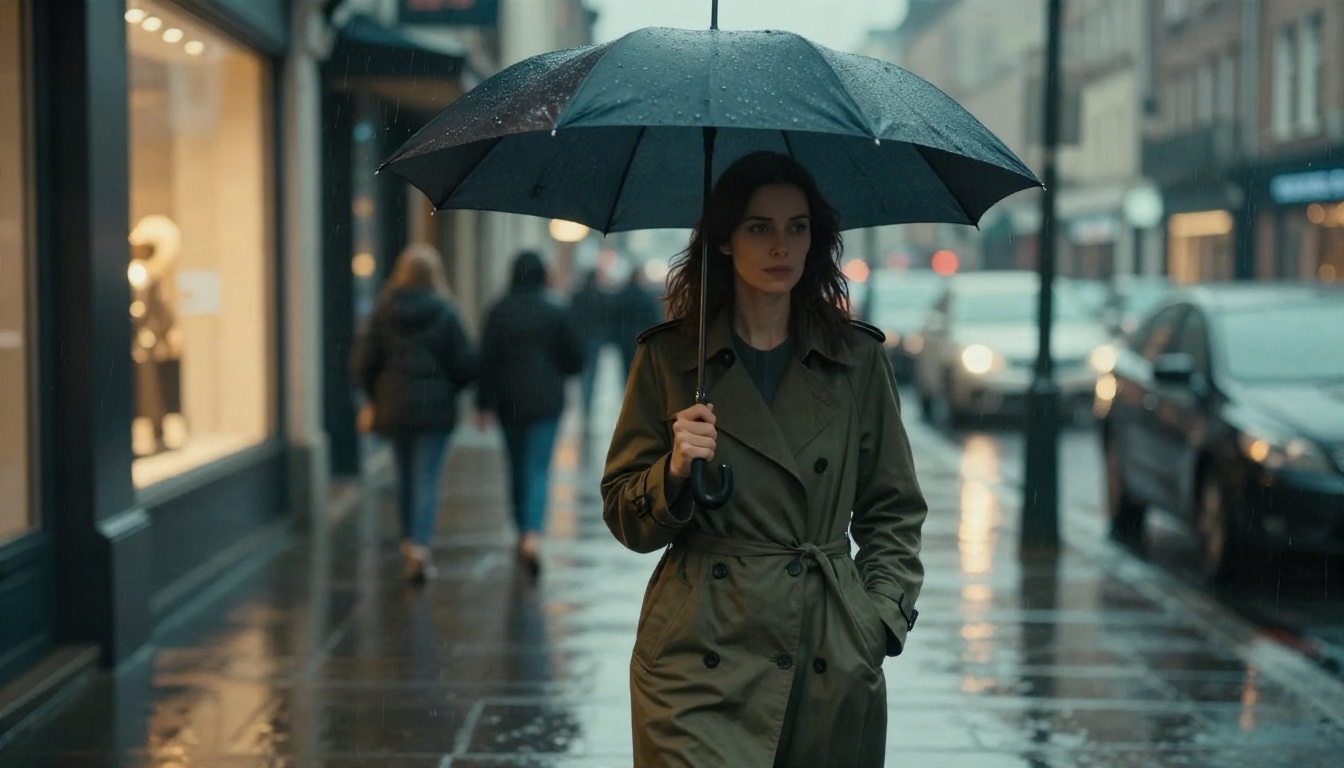
Medium tracking shot at eye level, 50mm lens with shallow depth of field. A woman in a long olive trench coat walks along a rain-soaked city street at dusk, holding a dark umbrella tilted against the wind. Warm shop windows reflect in the wet asphalt. Shot like a 35mm film still, muted teal and amber palette. Soft rain on fabric, distant traffic, her footsteps. No music.
2. Quiet confession
Close-up, static tripod, 85mm portrait lens. A man in his sixties sits at a kitchen table in morning light, hands wrapped around a chipped mug. He looks up and says, "I should have called sooner." His voice is low and tired. Natural window light from the left, warm color grade. The hum of a refrigerator, a clock ticking.
3. Market stroll
Handheld medium shot following from behind. A young woman in a linen shirt walks through a crowded outdoor market, touching bundles of fresh herbs, then glances back over her shoulder and smiles. Midday sun, dappled shade from canvas awnings, vivid but natural colors. Chatter, a vendor calling out prices, plastic bags rustling.
Landscape and Aerial
4. Coastal drone pass
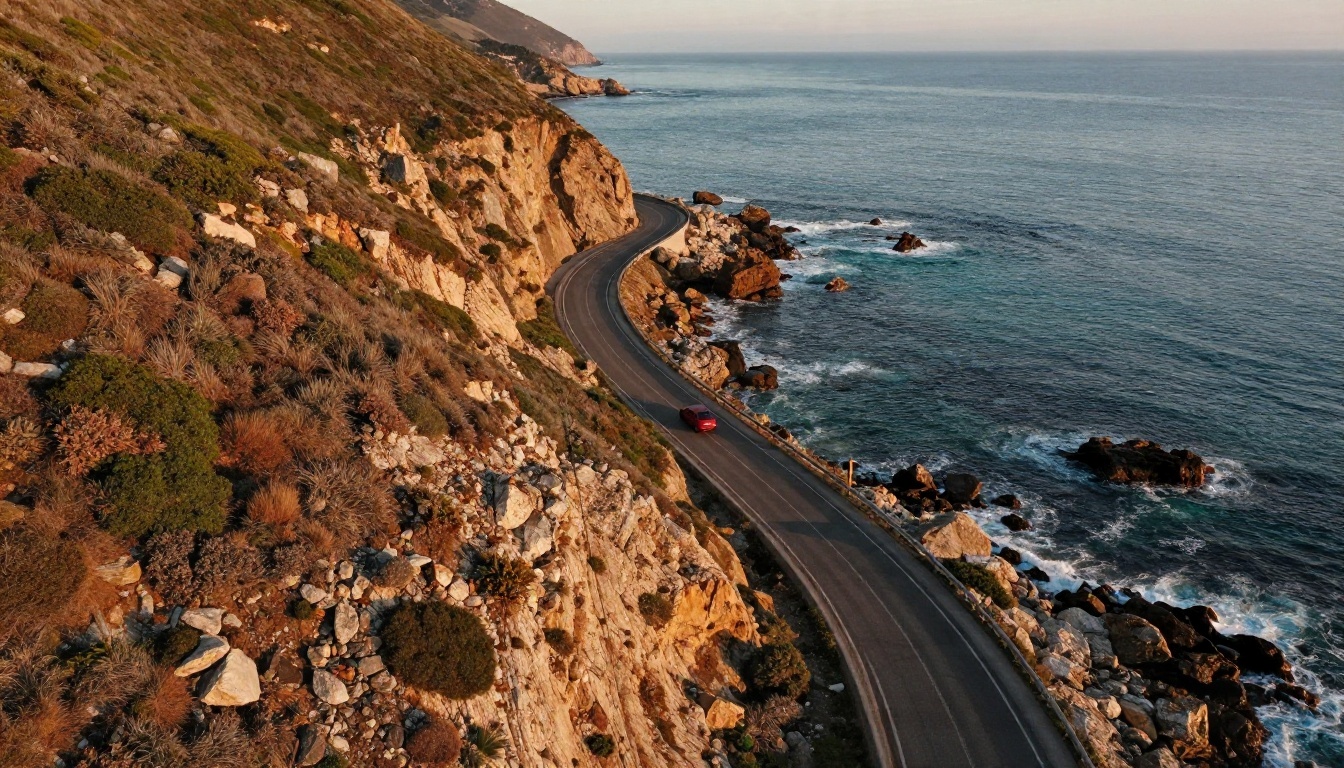
Aerial shot flying forward and slightly down, 24mm wide lens. A small red car drives along a winding cliffside road above turquoise water. White surf breaks on dark rocks below. Low golden hour sun from the right casts long shadows over the hillside scrub. Natural, slightly hazy atmosphere. Wind rushing, waves far below, faint engine hum.
5. Forest dawn
Slow dolly in at ground level between tall pine trunks. A lone traveler with a worn backpack walks along a narrow dirt path through thin morning mist. Soft light filters through branches, shallow depth of field. Birdsong, the crunch of boots, a distant stream. Calm, naturalistic look.
6. Mountain lake
Wide static shot on a tripod. A still alpine lake reflects snow-capped peaks at sunrise. A thin layer of mist drifts across the water, and a single bird skims the surface. Deep focus, crisp detail, pastel sky. Gentle water lapping, distant bird calls, no music.
Product and Detail Shots
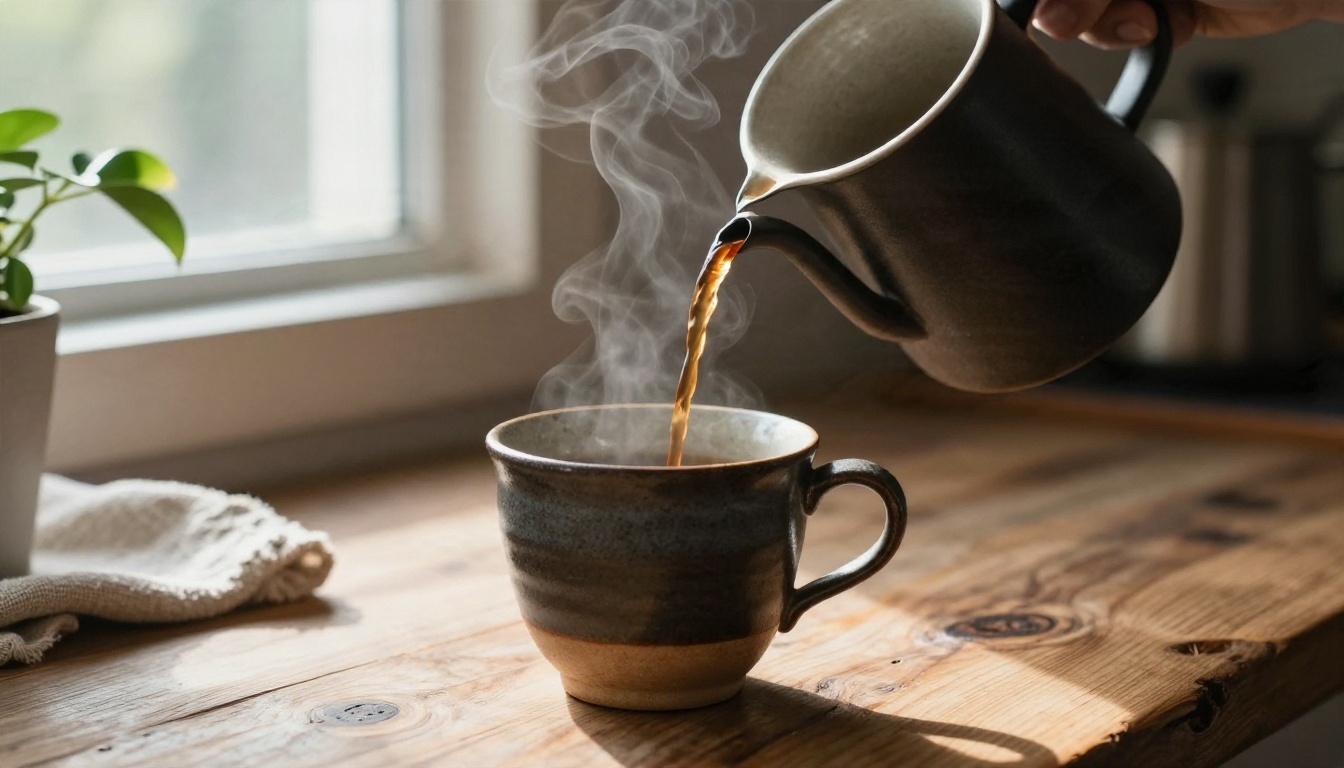
7. Coffee pour
Macro shot, 90mm lens, locked off. Hot black coffee pours in a thin stream from a matte ceramic kettle into a handmade stoneware cup. Steam curls upward in soft window light from the left. Blurred green plant in the background. The trickle of liquid, a soft clink as the kettle touches the counter.
8. Watch reveal
Slow macro push in on a brushed steel wristwatch resting on dark slate. A soft beam of light slides across the dial, revealing the hands one by one. Very shallow depth of field. Quiet ticking, a faint breath of room tone.
9. Sneaker unboxing
Overhead shot, static. Hands lift the lid off a cardboard shoebox, unfold tissue paper and lift out a pair of white leather sneakers. Soft daylight, clean wooden table. Paper rustling, the soft thud of the lid set aside.
10. Bakery morning
Low angle, handheld, 35mm lens. A baker in a flour-dusted apron slides a tray of golden loaves onto a wooden counter. Warm light from the oven glows on his forearms. Steam rises from the crust. The scrape of the tray, crackling bread, quiet radio in the background.
💡 Reuse trick: keep a document with your best camera, lighting and audio phrases. Mixing and matching tested snippets beats writing from scratch every time.
How to Use Veo 3.1 on PicassoIA
You can generate clips straight from the browser on the Veo 3.1 model page. Here is the workflow that wastes the least time.
- Open the model. Go to the Veo 3.1 page and open the generator.
- Paste your prompt. Use the five part formula. Start with the camera and keep it to one shot.
- Set a draft configuration. Choose 4 seconds and 720p, and pick 16:9 or 9:16 depending on where the clip will live.
- Decide on audio. Leave generation on if you described dialogue or ambience. Turn it off if you plan to add your own sound.
- Add images if needed. Upload a start image to animate an exact frame, add an end image for a transition, or use one to three reference images for a consistent subject (remember: references need 16:9 and 8 seconds).
- Add a negative prompt. Something short like "text overlay, watermark, subtitles".
- Generate and review. Watch with sound on. Note what is wrong: camera, subject, light or audio.
- Fix one thing. Edit only the part of the prompt that caused the problem, and keep the seed fixed while you iterate.
- Render the final. Raise the duration to 8 seconds and resolution to 1080p once the draft works.
💡 Pro workflow: build your start frame first with an image model such as Seedream 4.5, then animate it in Veo 3.1. You control the composition, wardrobe and lighting before a single second of video is rendered.
Which Variant Fits Your Job
PicassoIA hosts more than one Veo option, and picking the right one saves both time and budget.
| Model | Best for | Notes |
|---|
| Veo 3.1 | Final shots, highest fidelity, reference images | Use for deliverables |
| Veo 3.1 Fast | Rapid iteration and drafts | Test prompts quickly before a final run |
| Veo 3.1 Lite | Lightweight, high volume clips | Good for social batches |
| Veo 3 Fast | Quick audio-enabled clips from the previous generation | Handy as a quick comparison |
A sensible pipeline is to draft in a fast variant, lock the wording, and then render the final in the full model. Variants can behave a little differently, so confirm the options on each model page rather than assuming they match.
When to Try Something Else
No single model wins every scenario. If you want a different motion style or want to compare results, try Kling v3 Video for cinematic movement, or Sora 2 for another take on synchronized audio. Running the same prompt across models is the quickest way to learn which one reads your writing style best. If your project is built around uploaded footage and sound, PicassoIA Reference To Video is worth a look.
Fixing Clips That Almost Work
Even strong prompts need a pass or two. Use this list when a result is close but not right.
- The subject looks different halfway through. Shorten the clip, reduce the number of actions and add one visual fact that never changes, such as a red scarf.
- The camera does something strange. Replace vague words like "dynamic" with one precise move, or say "static tripod" when you want stillness.
- Lip movement looks off. Shorten the dialogue and name the speaker. Prefer close-ups for speech.
- The light is flat. State the direction and quality: "low sun from the right, long soft shadows."
- The mood is wrong. Describe the color palette and film look in one sentence rather than adding emotion words.
- Unwanted text appears. Add it to the negative prompt and avoid describing signs or screens in the main prompt.
Make Your First Clip Today
The fastest way to get good at Veo 3.1 is to run small, deliberate tests. Pick one of the ten prompts above, change the subject to something from your own project, and generate a 4 second draft at 720p. Adjust one element, rerun with the same seed, and compare the two clips side by side. After five or six rounds you will have a personal bank of camera moves and sound phrases that work.
Ready to try it yourself? Open Veo 3.1 on PicassoIA, paste a prompt, and watch your first scene come to life. If you want to browse everything else available, from image generators to lip sync and video enhancers, head to picassoia.com/en/all-models and build your next project there.


