Google's Veo 3.1 does something that took years for AI video to get right: it generates the sound at the same time as the footage, not as an afterthought. One prompt, one output, both in sync. If you've been running AI video tools that spit out silent clips you then have to patch with royalty-free music from somewhere else, this is a meaningful shift in how the workflow actually feels.
What Veo 3.1 Actually Does
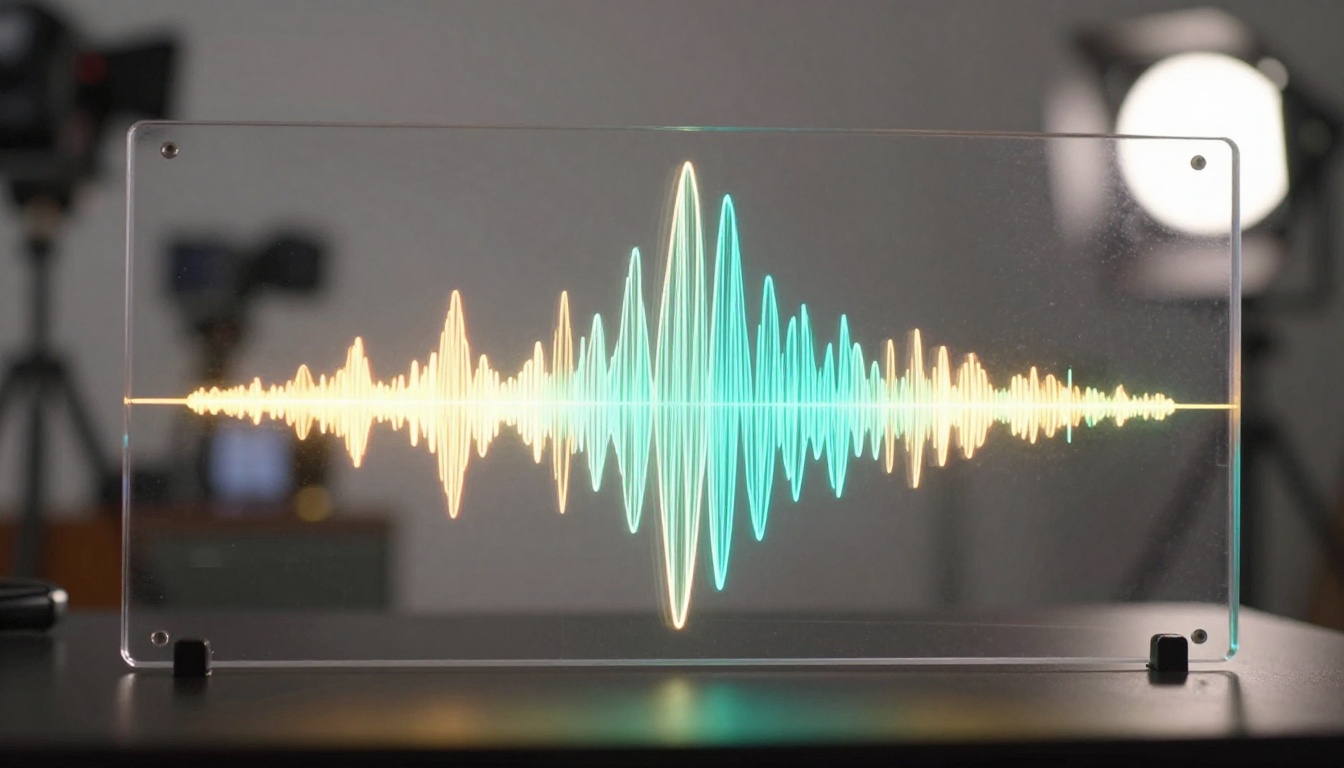
Veo 3.1 is a text-to-video model from Google DeepMind that produces 1080p video clips with native synchronized audio. The audio doesn't come from a separate pass or a bolted-on TTS step. It's generated jointly with the video frames, meaning dialogue, ambient sound, music, and environmental noise are all part of the same prediction.
The model takes a natural language prompt and returns an MP4 file where what you see and what you hear were produced together. A scene described as "a chef in a busy restaurant kitchen calling out orders" will produce footage of that kitchen with the realistic sound of clinking pans, background chatter, and a voice calling out orders, all timed to the visual motion.
This differs from what most previous video models did, which was produce video and then optionally let you layer audio on top manually. The synchronization in Veo 3.1 is inherent to the generation process, not an add-on.
Key capabilities at a glance:
- Native audio generation covering speech, ambient sound, and music
- 1080p output resolution for final-quality content
- Text-to-video from detailed natural language prompts
- Multiple style controls including cinematic framing, lighting, and motion speed
- Three model variants optimized for different speed-quality trade-offs
💡 Tip: The more specific your prompt is about the sonic environment, the stronger the audio output. Mention specific sounds: "the crackle of a campfire" or "distant traffic and rain on glass" rather than just describing a general location.
The Audio That Ships With the Video
The audio layer in Veo 3.1 handles three distinct types of sound, and each one behaves differently in response to your prompt.
1. Ambient and environmental audio
This is background sound that matches the physical setting you describe. A forest scene generates wind through leaves and birdsong. An indoor office generates keyboard clicks and HVAC hum. The model infers what the space should sound like based on visual context, even when you don't explicitly name the sounds. A city street generates traffic noise automatically.
2. Speech and dialogue
When your prompt includes people speaking, Veo 3.1 generates matching lip movement and audio. Prompts like "a woman explains a concept while walking in a park" produce dialogue-length audio timed to natural speech cadence. The voice character won't be a specific person you can specify by name, but the tone, pacing, and gender follow from the scene description.
3. Musical scores
Prompt for a cinematic or emotional context and the model may generate background music appropriate to the mood. This is less deterministic than ambient audio but shows up reliably when the prompt has a strong emotional or narrative cue. Describe the scene's emotional register explicitly: "tense," "joyful," "contemplative."
What makes this useful is that you aren't limited to picking from pre-baked sound libraries. The audio is generative, which means it matches very specific scenarios that no stock library covers.

💡 Tip: For voiceover work where you need precise script control, pair Veo 3.1 with PicassoIA's dedicated text-to-speech models like ElevenLabs v3 or Gemini 3.1 Flash TTS. Veo 3.1's built-in speech is strong for natural scene dialogue; standalone TTS gives you script-level precision.
For music creation beyond what the video model generates, Lyria 3 Pro and Lyria 3 produce full-length original compositions you can sync with your footage in post.
Veo 3.1 vs. Veo 3 vs. Veo 3.1 Lite
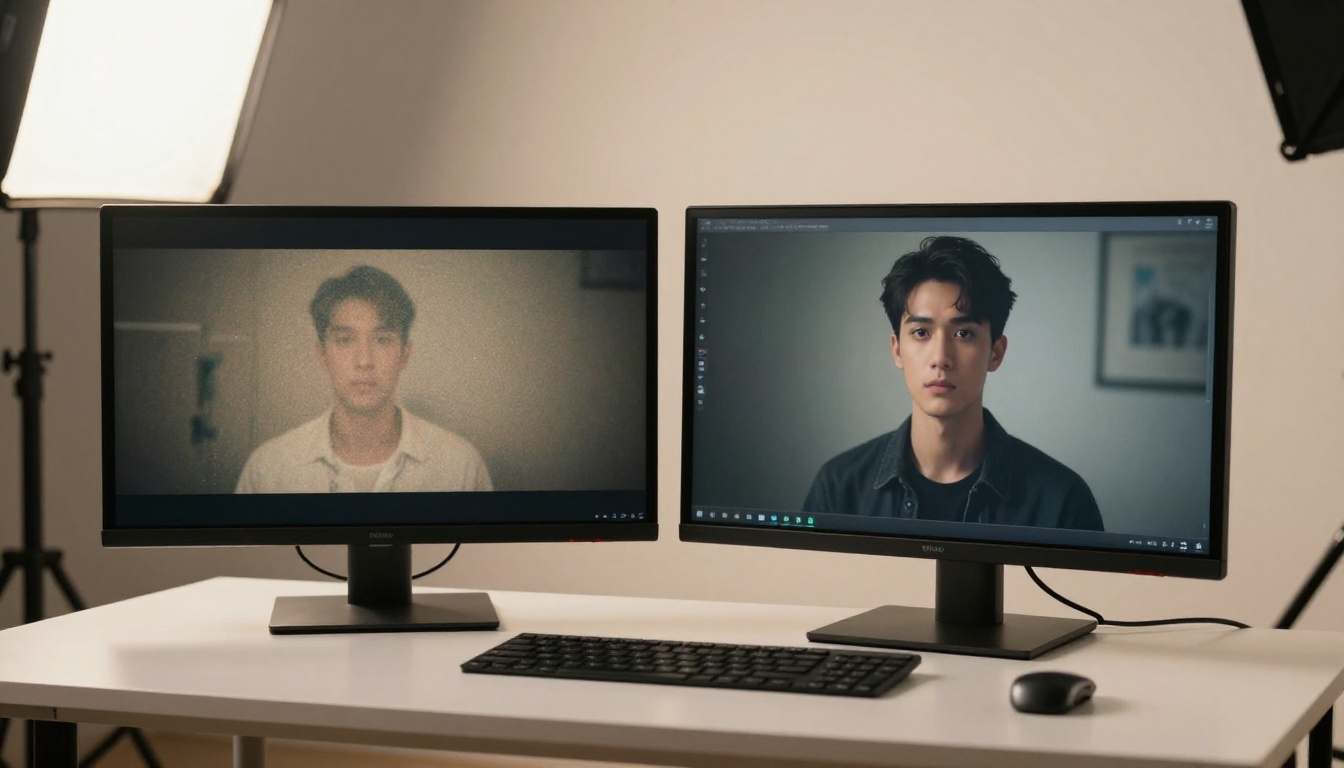
Three Veo variants are available on PicassoIA and they serve different needs. Here's how they split:
| Model | Resolution | Audio | Speed | Best For |
|---|
| Veo 3.1 | 1080p | Native synchronized | Standard | High-quality final output |
| Veo 3.1 Fast | 1080p | Native synchronized | Fast | Iteration and drafts at full quality |
| Veo 3.1 Lite | Standard | Native audio | Fastest | Quick previews, high-volume output |
| Veo 3 | 1080p | Native audio | Standard | Previous generation baseline |
| Veo 3 Fast | 1080p | Native audio | Fast | Fast iteration on Veo 3 prompts |
When to use Veo 3.1: Final-quality content where visual fidelity and audio synchronization need to hold up at full screen. Marketing videos, social reels, demos, product showcases.
When to use Veo 3.1 Fast: You're iterating on prompts and need to see how a scene reads before committing to a full generation. Same output quality as 3.1, meaningfully faster generation time.
When to use Veo 3.1 Lite: You need volume. Multiple short clips, rapid prototyping, situations where generation cost or time matters more than reaching the absolute ceiling of output quality.
The jump from Veo 3 to Veo 3.1 is primarily in prompt adherence and audio-visual coherence. Scenes with complex motion, multiple subjects, and detailed audio environments show the most visible improvement between generations.
Veo 3.1 Lite is not a downgrade
Veo 3.1 Lite is frequently misread as a lesser model. For high-volume workflows where you're generating dozens of clips, or for social content that will be watched on a phone at 70% volume, the Lite variant is entirely appropriate. The native audio generation is still there. Reserve the full Veo 3.1 for outputs that will be viewed on large screens or reviewed by stakeholders.
How to Use Veo 3.1 on PicassoIA
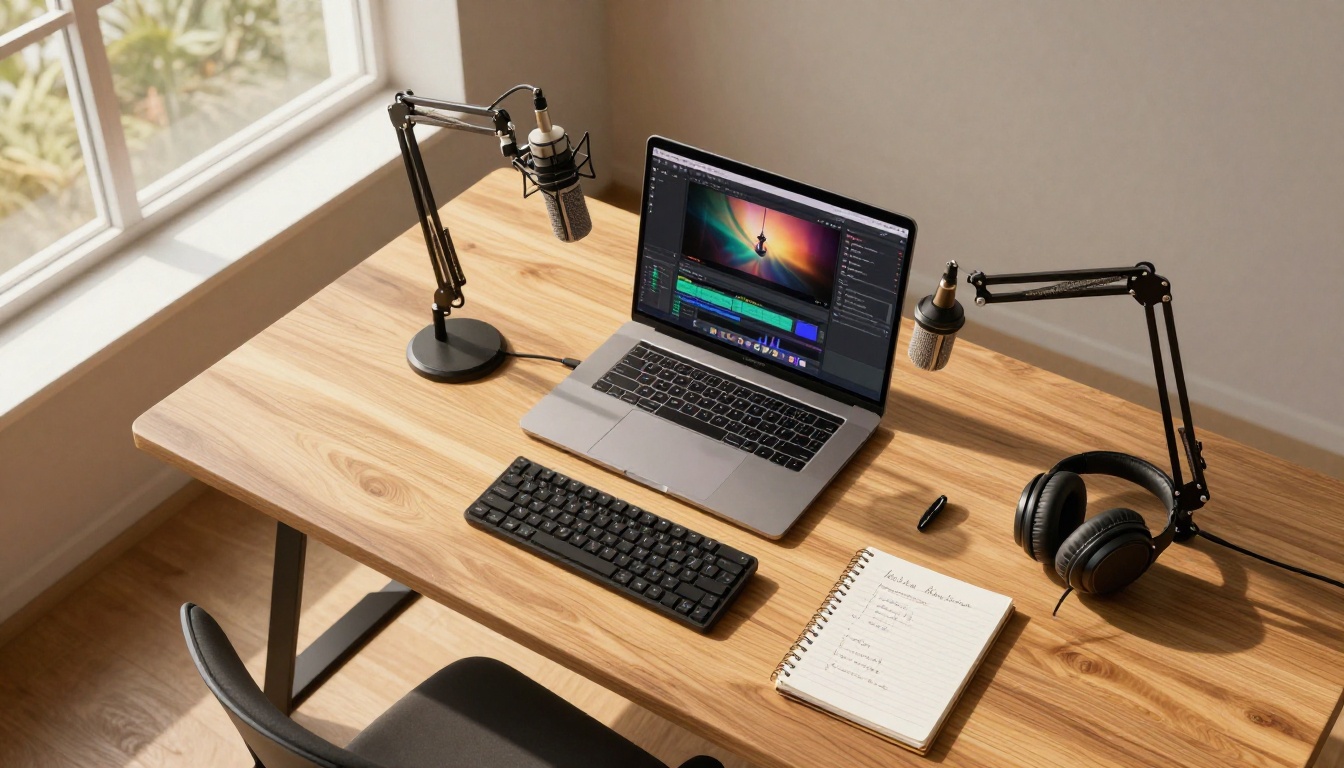
PicassoIA gives you access to Veo 3.1, Veo 3.1 Fast, and Veo 3.1 Lite alongside 100+ other text-to-video models in one interface. Here is the workflow:
Step 1: Pick your variant
Navigate to the text-to-video section on PicassoIA and select Veo 3.1 for full quality output. If you're in prompt development and want to iterate quickly, start with Veo 3.1 Fast to reduce generation time without sacrificing quality.
Step 2: Write a structured prompt
A strong Veo 3.1 prompt has three layers:
- Visual subject: What's in the scene and what's happening
- Environment: Location, lighting, time of day, overall atmosphere
- Audio cues: Specific sounds, dialogue snippets, musical mood, any silence
Example: "A street vendor in a morning market slices fresh fruit, the early sun casting long warm shadows across the stall, the hum of a crowded market in the background, coins clinking on the wooden surface, a radio playing softly from inside a nearby shop."
Step 3: Set duration
Veo 3.1 supports clips of varying lengths. Shorter clips (5-8 seconds) give you more frame-by-frame consistency and tighter audio-visual alignment. For longer narrative content, consider generating multiple short clips and cutting them together.
Step 4: Review audio and video together
When the output arrives, watch with sound on immediately. The audio and video are co-generated, so if the prompt had strong audio intent, you'll hear it in the first few seconds. If the audio doesn't match your expectation, the issue is almost always in prompt specificity rather than the model's capability.
Step 5: Iterate with Fast
Veo 3.1 Fast is your primary iteration tool. Run 3-4 variants with slight prompt tweaks before committing to a final generation. Audio behavior changes meaningfully with small changes to environmental description.
💡 Tip: Add explicit scene transitions in your prompts. "Starts silent, then a door opens and the ambient sound of rain fills the room" gives the model a temporal arc it can follow for audio generation.
Prompt Writing That Gets Results
Most weak outputs from Veo 3.1 trace back to vague prompts. The model is capable. The limiting factor is what you give it.
What it ignores vs. what it responds to
Veo 3.1 responds to physical cause-and-effect in prompts. If something in the scene would physically produce a sound, name it. The model understands causality and will generate the sound corresponding to the action you describe.
Low-signal prompts (weak audio output):
- "a busy city street"
- "happy people at an event"
- "a nature scene"
High-signal prompts (strong audio output):
- "a busy city street at rush hour: car horns, bus brakes hissing, pedestrians talking, a delivery truck reversing with a warning beep"
- "three friends laughing at a table in a crowded restaurant, overlapping conversation, glasses clinking, the chef calling out orders from the kitchen pass"
- "wind through tall grass in an open field at dusk: insects chirping in rhythm, a distant owl, the soft rustle of leaves with each gust"
The difference isn't creativity. It's specificity. Name the sources of sound you want, explicitly.
Visual-audio coupling in prompts
The model couples audio to motion. A character described as "running" generates footsteps. A musician described as "strumming a guitar" generates guitar audio. Use this intentionally: describe the physical action that produces the sound, rather than just naming the sound itself.
| Physical Action in Prompt | Audio Generated |
|---|
| "pours water from a pitcher into a glass" | water splashing, pouring, liquid settling |
| "types quickly on a keyboard" | rapid mechanical keyboard clicks |
| "a car accelerates onto a highway" | engine rev, tire friction, wind noise |
| "applause erupts in a packed theater" | crowd clapping, cheering, ambient hall reverb |
| "rain hits a window in steady sheets" | rain impact, glass vibration, distant thunder |
Camera direction affects audio perspective
The model factors in implied microphone distance based on the camera angle you describe. A close-up facial shot generates intimate near-field audio. An aerial establishing shot generates ambient environmental sound from a distance. You can write camera angle into your prompts to influence audio character:
"Close-up over the shoulder as she whispers into a phone" produces very different audio than "wide shot of a woman talking on a phone in a park."
Use this to control how foreground vs. background audio is weighted in the output.
Audio Generation Settings Worth Knowing
Veo 3.1 doesn't expose a separate audio mixing console. The audio is a direct product of your prompt and the model's interpretation. Understanding which content types produce reliable audio helps you plan prompts more effectively.
Audio fidelity by content type:
- Ambient and environmental sound: Very strong. Physical environments generate convincingly realistic background audio in almost every generation. This is the most reliable category.
- Speech and dialogue: High fidelity for single-speaker scenes with clear prompt intent. Multi-speaker scenes with more than two characters are less reliable for distinct voice differentiation.
- Music: Depends heavily on how explicitly you describe the musical context. "Upbeat jazz piano in a bar" produces jazz piano; "music" alone produces generic background scoring with variable quality.
- Sound effects tied to action: Highly reliable when the action is explicit in the prompt. The clearer the physical action described, the cleaner the corresponding sound effect.
What to do when audio fails:
If a specific generated clip has audio that doesn't match the visual or prompt intent, don't retry the same prompt. Change one variable: add more explicit audio cues, simplify the subject count, or reframe the environment description. Complex multi-subject scenes with competing audio sources are harder for the model to balance consistently.
For voiceover work where you need script-level accuracy, generate your visual in Veo 3.1 and then generate the precise voice with ElevenLabs v3 or Speech 2.8 HD, then sync them in post. This gives you the best of both: Veo's cinematic visual output and precise voiceover control.
For multilingual projects, Gemini 3.1 Flash TTS covers 70+ languages with 30 distinct voice characters and pairs cleanly with Veo-generated footage.
Where Veo 3.1 Sits Among Other Video Models
The AI video space now has enough strong models that the right choice depends on what matters for your specific output. Here is how Veo 3.1 compares to other models available on PicassoIA:
| Model | Audio | Resolution | Primary Strength |
|---|
| Veo 3.1 | Native synchronized | 1080p | Audio-visual coherence, prompt adherence |
| Seedance 2.0 | Native audio | 1080p | Scene consistency, motion quality |
| Sora 2 | Native audio | HD | Long-form coherence, physics accuracy |
| Ray 3.2 | HDR | HDR | Cinematic look, HDR color grading |
| Kling v3 | Yes | 1080p | Character animation, expressive motion |
| Pixverse v6 | Native AI audio | 1080p | Fast cinematic turnaround |
| Wan 2.7 T2V | Standard | 1080p | Open-weight flexibility, customization |
Veo 3.1's specific edge is in the quality and synchronization of its audio layer. No other model on this list produces ambient sound, speech, and music as a single tightly coupled output with the visual. Seedance 2.0 is arguably the closest peer for overall output quality and also generates native audio.
For pure visual aesthetics without an audio requirement, Ray 3.2 remains a strong alternative with its HDR color output. For character-driven scenes with expressive movement, Kling v3 is worth running in parallel.
The practical answer is: use Veo 3.1 when the audio matters as much as the video. Use other models when you're primarily optimizing for visual aesthetics or motion quality and plan to handle audio separately.
The full Veo lineup is available now
All three Veo 3.1 variants, Veo 3.1, Veo 3.1 Fast, and Veo 3.1 Lite, plus Veo 3 and Veo 3 Fast, are accessible on PicassoIA without needing a separate Google account or API setup. You access all five from the same interface, alongside every other video model on the platform.
Start Making Videos Now
Veo 3.1 is already accessible on PicassoIA. The 110+ video models on the platform mean you're not locked into a single output style. Run Veo 3.1 for a scene, run Seedance 2.0 for another, compare them, pick the one that worked. There is no commitment to a single model.
For a complete audio-visual production pipeline, these tools work together rather than compete:
- Veo 3.1: Ambient, environmental, and scene-driven audio built directly into your video generation
- ElevenLabs v3: Precise voice generation from written scripts, with emotional range control
- Gemini 3.1 Flash TTS: Fast multilingual voiceover at scale, 70+ languages, 30 voice characters
- Lyria 3 Pro: Full original music tracks composed from a text brief
- Speech 2.8 HD: Studio-quality voice output with fine-grained emotional control
The infrastructure to produce a complete audio-visual piece, from the opening frame to the final sound fade, is already in one place. The only variable is how specific you're willing to get with your prompts.
Try Veo 3.1 on PicassoIA with a scene you've been picturing. Start detailed: name the location, the time of day, the specific sounds you expect, and the camera angle. See what comes back. You can always strip a detail and run it again, but a precise first draft pushes the model harder and shows you faster what it's actually capable of.
All the models referenced in this article, from Veo 3.1 to the full audio toolkit, are available at picassoia.com/en/all-models.


