Independent filmmakers spent decades watching Hollywood wizards build impossible worlds and knowing that gap was not just creative. It was financial. Professional VFX software licensing, specialized rendering hardware, and the senior artists who know how to use both have always represented the hardest barrier to entry in filmmaking. Not anymore.
AI has done something genuinely disruptive to visual effects production. The tools available in 2027 let a solo creator sitting in an apartment do work that required a full production house five years ago. This is not about approximating the results or accepting lower quality. It is about using a fundamentally different pipeline that produces real, usable visual effects at a fraction of the traditional cost.
This article walks through exactly which AI tools move the needle for VFX work, how to connect them into a practical workflow, and what you can realistically expect to produce on a limited budget.
The Real Cost of Traditional VFX
Software Alone Costs Thousands
The standard professional stack for visual effects work involves tools like Adobe After Effects at roughly $60 per month, Maxon Cinema 4D at $719 per year for the entry-level tier, and compositing software for serious node-based work. Add a Foundry Nuke license for anything that requires professional-grade compositing and you are looking at $3,000 to $12,000 per year just for software before anyone touches a single frame of footage.
The freelance or independent producer path is not much better. Most indie films rely on licensed software, meaning those costs hit the production budget directly.
Skilled Artists Don't Come Cheap
Even if you own the software, using it is a separate skill set with a multi-year learning curve. A mid-level VFX compositor earns $40 to $80 per hour. A senior particle effects artist or VFX supervisor commands significantly more. For a small project needing 20 shots of visual effects work, the labor cost alone can run $15,000 to $50,000 before you factor in render time.
The Hidden Costs Nobody Mentions
Traditional VFX pipelines have invisible costs that only become visible when you are stuck inside them. Render times on a consumer machine for particle simulations or complex composites can run 4 to 20 hours per frame. You need dedicated storage for uncompressed footage files, which run 50 to 300 GB for even a short project. You need a fast internet connection to collaborate with any vendor or freelancer. These friction points compound fast.
💡 The real breakthrough from AI is not that it is cheaper. It is that it removes the friction entirely. You get results in seconds, not hours.
What AI Actually Changed
From Months to Minutes
The practical shift with AI in VFX is speed. Tasks that previously required hours of skilled labor now complete in seconds or minutes. Background removal that once meant careful rotoscoping frame by frame now happens automatically. Upscaling low-resolution footage to 4K no longer requires dedicated render machines running overnight. Scene-style transfer that used to require After Effects plugins and manual keyframing can now be typed as a text command.
This speed change is not cosmetic. It changes what is economically viable. A solo creator can iterate 50 versions of a VFX shot in the time it used to take to set up a single After Effects composition.
The Three Things AI Does Best
AI VFX tools are not equally strong at everything. They perform best in three specific areas:
- Object and background removal: AI models separate subjects from backgrounds with accuracy that matches professional rotoscoping for most shot types.
- Image and video upscaling: Neural upscaling recovers detail from low-resolution sources far more accurately than traditional bicubic methods.
- Scene generation and manipulation: Text-driven image and video models generate photorealistic backgrounds, effects elements, and atmospheric overlays from natural language descriptions.
Where AI is still developing: precise frame-by-frame consistency across long sequences, complex multi-layer compositing with many overlapping elements, and deep integration with existing 3D pipelines. Knowing the limits helps you structure a workflow that uses AI where it excels and human editing where it does not.
Generate Cinematic VFX Concept Art with Flux Schnell
One of the most underused applications of AI in VFX production is pre-visualization. Before you shoot a single frame, you need to know what your VFX shots are supposed to look like. That used to mean commissioning concept art at $500 to $2,000 per image. Now it means writing a prompt.
Flux Schnell generates high-quality photorealistic images in under 5 seconds from a text prompt. For VFX pre-viz, this means you can produce dozens of reference images in a single session to show your team, your client, or yourself exactly what each VFX shot should look like before you invest production time in achieving it.
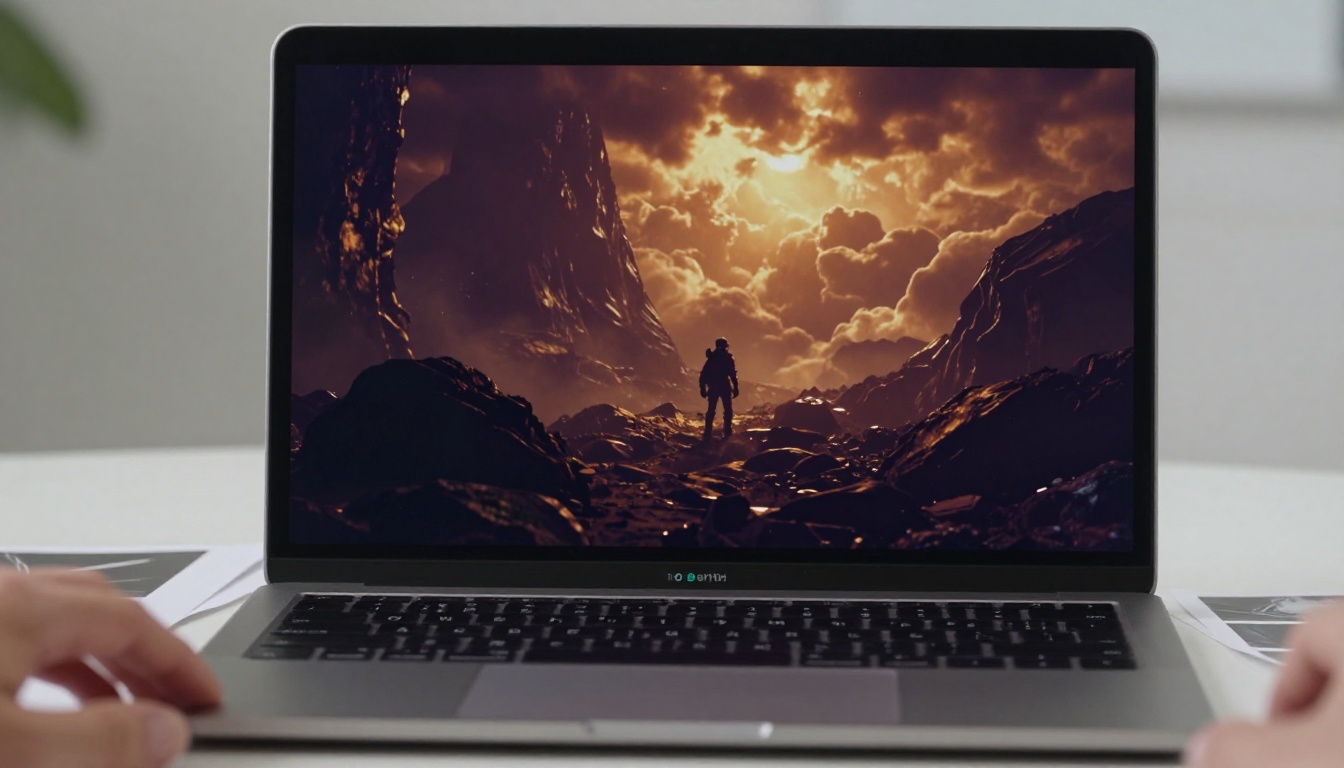
For heavier VFX reference work where you need maximum detail and photorealism, Flux Dev offers the full 12-billion parameter version with img2img support. Upload a practical location photo and describe the VFX element you want to add, and the model returns a photorealistic composite reference you can hand directly to your production team.
How to Use Flux Schnell on PicassoIA
- Open Flux Schnell on PicassoIA
- Set your aspect ratio to 16:9 for widescreen film-standard reference images
- Write your scene description with full specifics: the VFX element type, camera angle, lighting conditions, and real-world setting
- Run at 4 inference steps for fast iteration, then increase to 28-50 steps in Flux Dev for your final hero references
- Download as PNG at quality 100 for maximum fidelity across print and screen use
What to Prompt for VFX Looks
The difference between a useful VFX reference and a generic image comes down to specificity. Compare these two approaches:
| Weak Prompt | Strong VFX Prompt |
|---|
| "explosion in a field" | "mid-ground practical pyrotechnic explosion in a dry wheat field, overcast diffuse natural light, 35mm lens perspective, smoke and debris cloud with realistic fire color temperature 1800K, foreground out-of-focus grass blades visible" |
| "sci-fi space scene" | "photorealistic spacecraft hull exterior in low earth orbit, hard directional sunlight from upper right creating extreme contrast on riveted metal surface, Earth curvature visible in lower third of frame" |
| "rain effect" | "heavy downpour on city street at night, sodium vapor streetlights reflected in wet asphalt, rain streaks visible against dark background from a 1/60s shutter speed capture, foreground pavement texture saturated with water" |
The more you describe the physics and camera behavior of the effect, the more photorealistic and production-useful your reference images become.
Background Removal Without a Green Screen
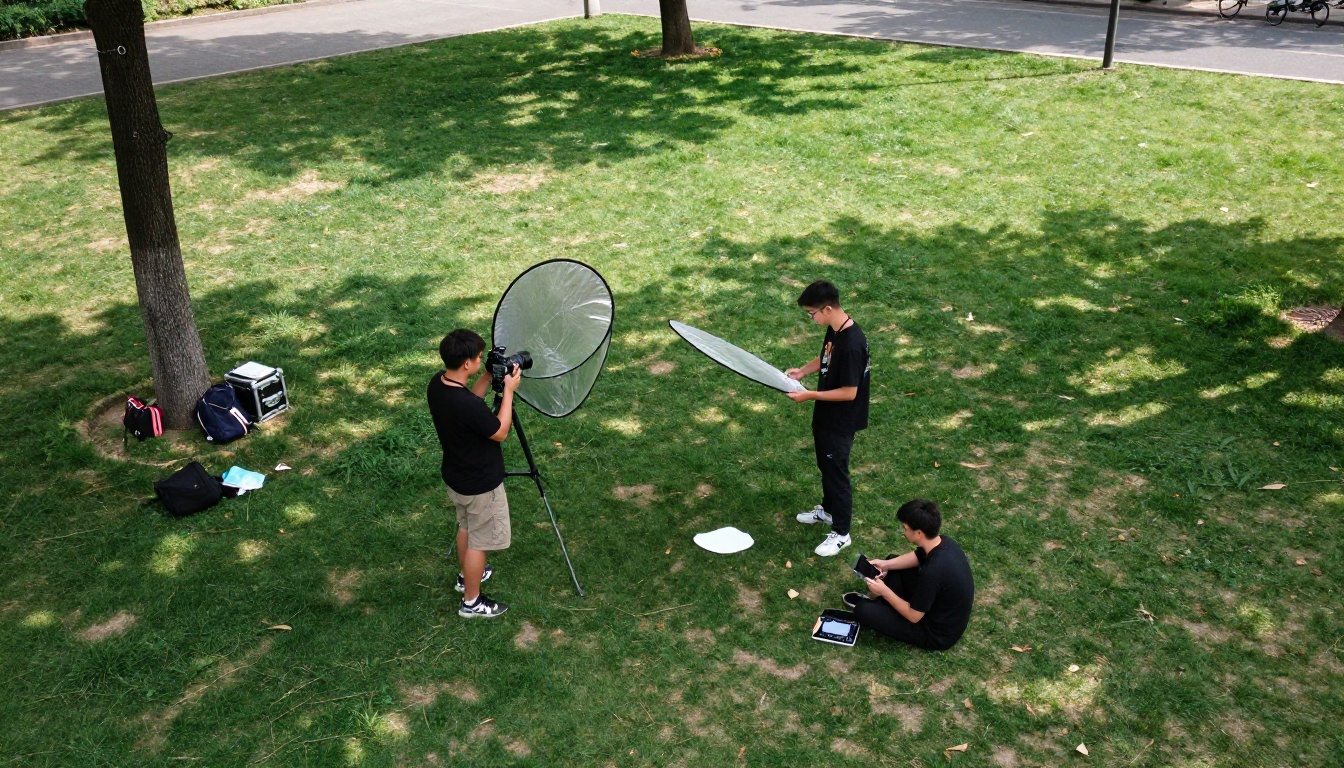
Green screen is expensive to execute well. You need dedicated chromakey fabric without wrinkles, color-matched lighting with no hot spots or spill, and time in post to pull a clean chromakey cutout. Most low-budget productions end up with green spill on hair, fringing around complex edges like curly hair or fine fabrics, and inconsistent results between shots.
AI background removal solves this without any of those requirements.
How AI Reads the Subject
AI background removal models use semantic segmentation, meaning the model identifies the boundary between a person or object and their background at a pixel level from millions of training examples. This produces clean cutouts around fine details like individual hair strands, transparent fabrics, and complex object outlines that would require frame-by-frame manual masking in traditional VFX work.
Remove Background handles still images with precise edge detection that works on portraits, full-body shots, and product photography. For video footage, Video Remove Background extends the same capability to moving footage, eliminating the need for a physical green screen on any shot where the camera and subject are reasonably separated.
Three Workflows That Work
Workflow 1: Character Compositing
Shoot your actor against any plain, uniformly lit wall. Use Video Remove Background to isolate the subject. Place the clean cutout over AI-generated background plates from Flux Dev. The critical factor in making this look real is matching the lighting direction in your practical footage to the lighting direction in your background plate.
Workflow 2: Product Replacement
Shoot product close-ups against any neutral surface. Use background removal to extract the product, then composite it into lifestyle setting background plates generated from text prompts. This is particularly effective for e-commerce content, promotional material, and product demos.
Workflow 3: Scene Extension
For scenes where you need to make a small location look larger or more populated, remove the background from existing footage, generate a wider environment plate using AI, and composite back in. Combined with upscaling the final composite, this approach can make a 3-person shoot feel like a much larger scene.
Why Upscaling Matters for VFX
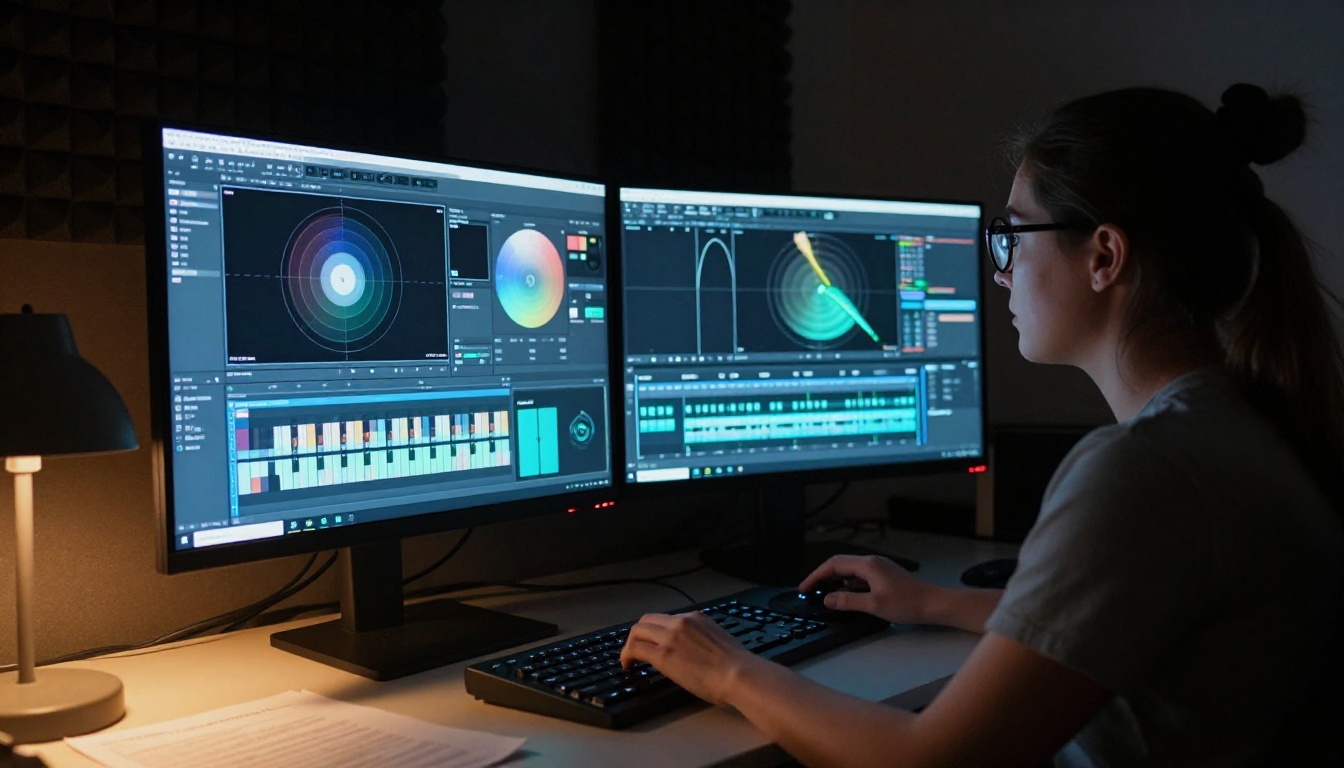
Every compositing operation introduces some quality degradation. When you layer multiple elements, adjust colors, apply effects, and render the final output, the accumulated processing can visibly reduce sharpness. Starting with the highest possible source quality matters, and finishing with AI upscaling can recover detail that the compositing process cost you.
More practically, many low-budget productions shoot at 1080p or 720p. Delivery expectations have shifted to 4K for most platforms. The gap used to mean visible quality differences in the finished product. AI upscaling closes that gap without requiring reshoots or new hardware.
The Tools That Actually Work
For still images and composited frame output, the best performers available are:
- Clarity Pro Upscaler: Photorealistic upscaling that adds micro-detail and texture recovery, particularly effective on skin, fabric, and environmental surfaces.
- Real ESRGAN: Strong 4x upscaling with artifact suppression, reliable on a wide range of photographic content including complex composites.
- Topaz Image Upscale: Up to 6x upscaling, the strongest option when going from a very low resolution source to a print or broadcast-ready output.
For video footage specifically:
- Real ESRGAN Video: 4K video upscaling that processes footage frame by frame with temporal consistency to avoid flickering between upscaled frames.
- Crystal Video Upscaler: Adds sharpness and clarity to video footage with perceptual quality tuning calibrated for cinema output.
- Video Upscale by Topaz Labs: Up to 4K with 120fps interpolation support, making this the right tool when you need both resolution and frame rate improvements in a single pass.
💡 Always upscale after compositing, not before. Upscaling your raw footage first creates larger files without improving the composite quality.
Edit Your Scenes with Text Commands
This capability still surprises filmmakers who have not worked with it. You can take an existing video clip and change elements of it using plain text descriptions, without touching a timeline or masking a single pixel manually.
What Lucy Edit 2 and Wan 2.7 Do
Lucy Edit 2 accepts a video input and a text instruction. You can type "change the background to a winter forest" or "make the lighting look like late afternoon" and the model processes the footage to match. The edits affect the video globally, redistributing lighting and environment while keeping the subject and motion intact throughout.
Wan 2.7 Videoedit focuses on structural edits, changing clothing, set elements, and scene compositions based on natural language. You can also remove specific objects from video footage using Video Erase Object, which handles frame-by-frame object removal from moving footage without manual masking on any frame.
For targeted section edits, LTX 2 Retake lets you select a specific portion of a video clip and re-generate just that section from a new prompt, keeping the rest of the footage completely untouched.
The Limits You Need to Know
Text-based video editing works best on shots with a clear single action and stable backgrounds. It struggles with fast camera movement, very dark scenes, and shots with multiple overlapping subjects. Long clips above 10 to 15 seconds can produce consistency issues where the effect fades or shifts during the clip. The workflow for best results is to cut your footage into individual shot segments before processing, apply the AI edit per shot, then reassemble the sequence in your editing software.
Building Your Full AI VFX Pipeline
A Practical Shoot-to-Finish Workflow
Here is how all of these tools connect into a real production:
Pre-Production:
- Use Flux Schnell for concept art and VFX pre-viz references
- Generate background plates for planned composite shots before the shoot day
- Save your best Flux Dev prompts with fixed seeds for consistent visual style across all reference materials
Production:
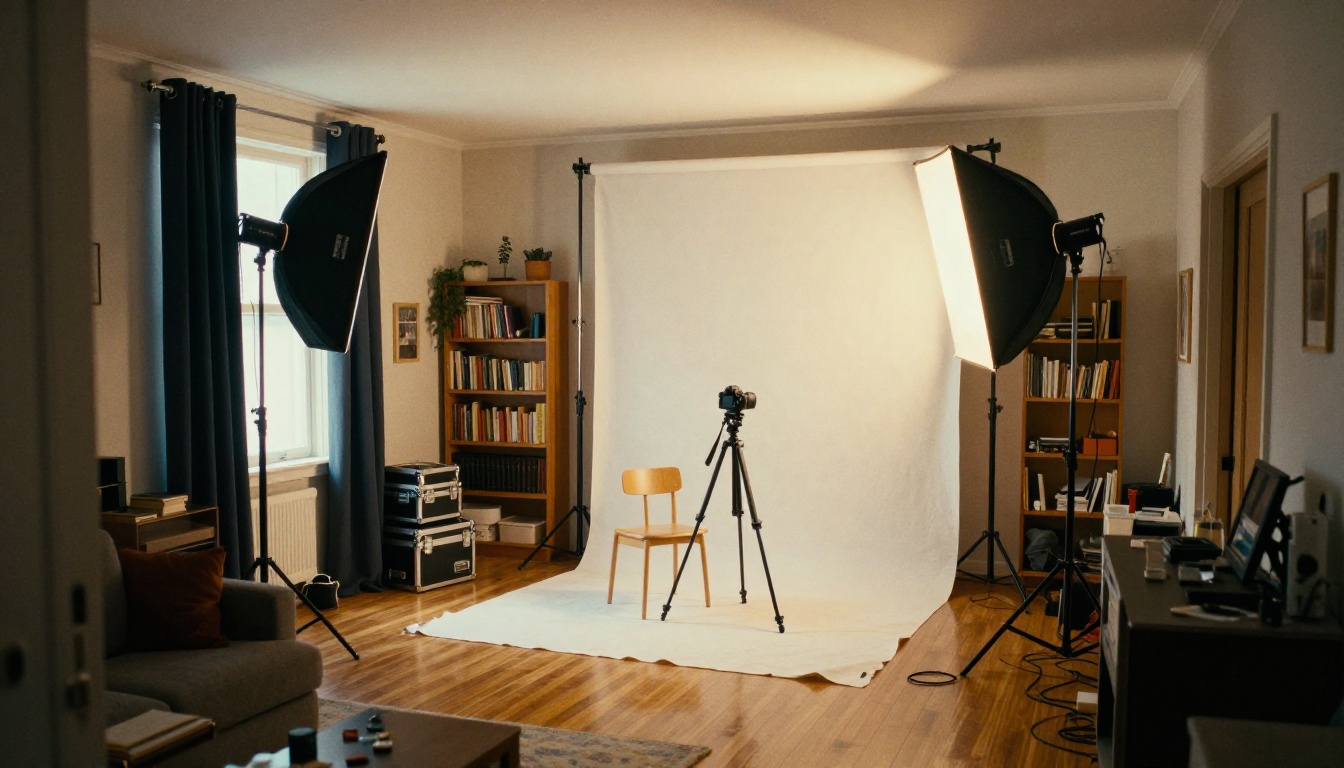
- Shoot against any neutral background (no green screen required)
- Capture at the highest resolution your camera supports
- Use strong, directional practical lighting and note the lighting angle for every VFX shot
Post-Production:
- Apply Video Remove Background to isolate subjects from practical footage
- Composite against AI-generated or sourced background plates
- Apply text-based scene edits using Lucy Edit 2 or Wan 2.7 Videoedit
- Remove unwanted objects from shots using Video Erase Object
- Upscale finished composites using Real ESRGAN Video or Video Upscale by Topaz Labs
- Apply final color grade
What It Costs Per Month
This is the number that surprises most filmmakers when they actually calculate it.
| Tool Category | Traditional Cost | AI Cost on PicassoIA |
|---|
| Concept art (10 images) | $5,000 to $20,000 | Included |
| Background removal (per project) | $500 to $2,000 | Included |
| 4K upscaling (per project) | $300 to $1,500 | Included |
| Video scene editing (per shot) | $200 to $800 | Included |
| Compositing software license | $60 to $500/month | Included |
The tools listed in this article are all available through PicassoIA without separate subscriptions for each individual capability. You access Flux Schnell, Flux Dev, background removal, the full upscaling suite, and text-based video editors from a single platform.
💡 The strongest advantage of the AI pipeline is not that any single tool is dramatically cheaper than its traditional equivalent. It is that you stop paying for tools you only use occasionally, and every capability stays available when you need it.
Three Mistakes That Cost You Quality
Understanding what not to do saves hours of frustration.
Mistake 1: Mismatched Lighting Direction
The most common reason AI-assisted composites look fake is that the lighting direction on the subject does not match the lighting in the background plate. If your actor was lit from the left but your AI-generated background has midday overhead sun, the composite will never look right regardless of how clean the cutout is. Always note lighting direction during production and match it in your prompts when generating background plates.
Mistake 2: Ignoring Film Grain Consistency
Your practical footage has a certain level of sensor noise and grain. AI-generated background elements are often extremely clean by comparison. Before compositing, either reduce the grain on your practical footage or add matching grain to your AI elements so both layers share the same visual texture.
Mistake 3: Over-Processing Upscales
AI upscaling models are aggressive by default. Running Clarity Pro Upscaler at maximum settings on footage that is already sharp can produce over-sharpened textures and halos around high-contrast edges. Start at moderate settings and verify on a calibrated monitor before committing to final output.
The Gear You Actually Need
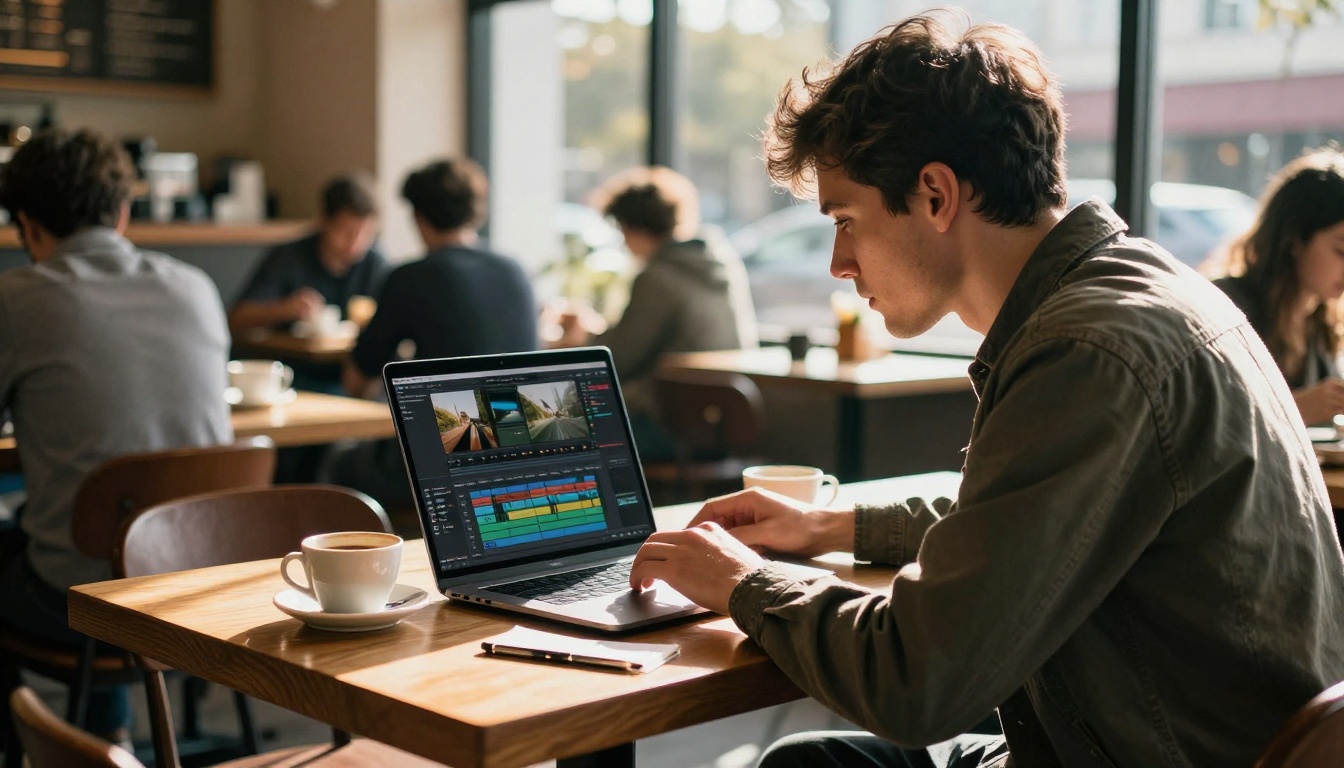
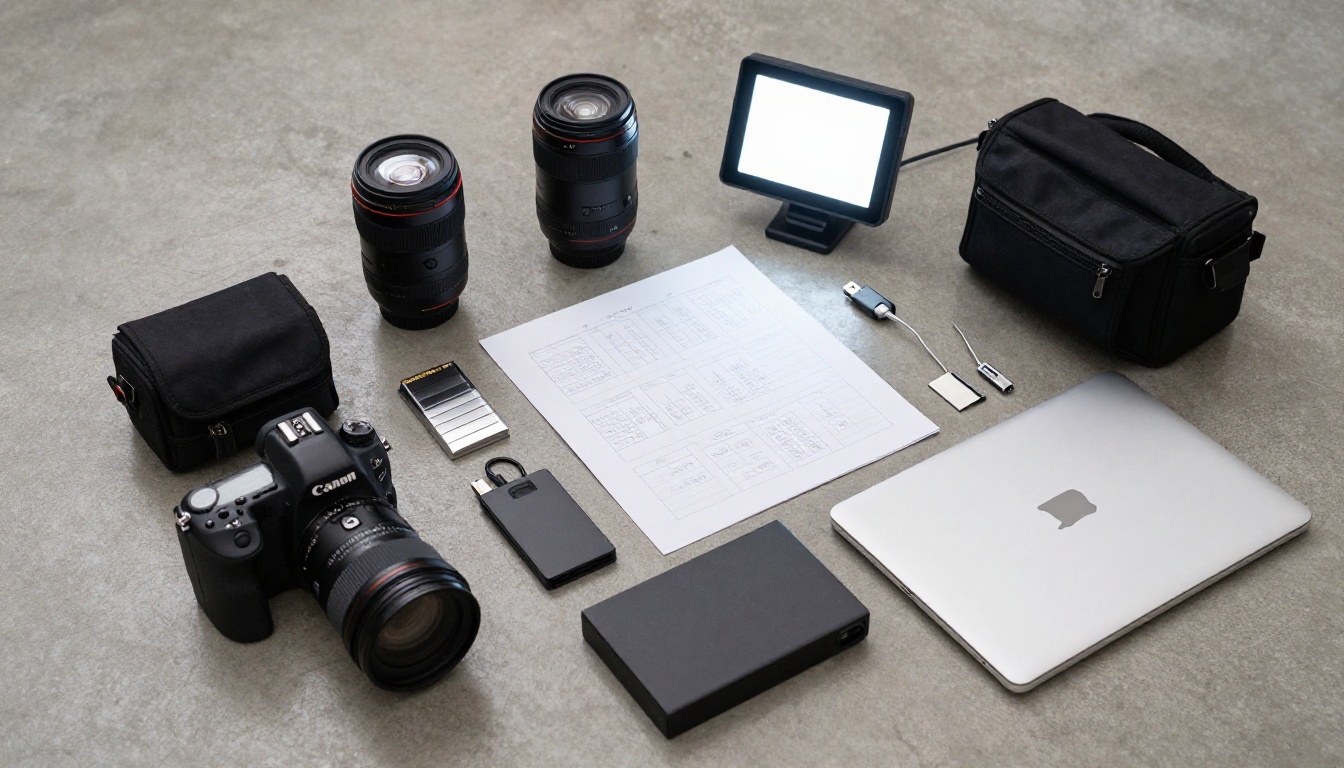
Filmmakers transitioning to an AI-forward VFX workflow often overestimate the hardware requirements.
What you need:
- A laptop or desktop with a capable GPU (all PicassoIA processing runs in the cloud, so local hardware is mainly for playback)
- External storage for footage files (2TB minimum for serious projects)
- A color-calibrated monitor for compositing and color grading work
What you do not need:
- A dedicated render farm
- High-end workstation hardware for the AI processing itself
- Green screen setup for most shot types
The cloud-based processing model on PicassoIA eliminates the hardware barrier that kept professional AI VFX tools out of reach for most independent creators. The same processing available to a production company with dedicated server infrastructure runs identically on a consumer laptop through the platform, with no installation or configuration required.
Start Making VFX Shots Today
If you have been waiting for the right moment to start building visual effects work into your productions, the tools are ready. The practical workflow in this article does not require expensive software licenses, dedicated hardware, or years of compositing experience. It requires a clear idea of what you want each shot to look like, good practical footage as your starting point, and willingness to iterate.
Open PicassoIA and start with a single shot. Write a detailed Flux Schnell prompt for your VFX reference, note what works and what to adjust, then apply what you learned to the next shot. The iteration speed that AI provides is the real advantage here. You can run 20 versions of a concept in the time it used to take to set up one After Effects composition.
Most independent filmmakers who start with one or two VFX shots per project end up reworking entire sequences once they see what is possible without the traditional cost and time barriers. The ceiling on what a small production can achieve with visual effects has shifted significantly, and the tools are already here to take advantage of it.


