Most people who try Wan 2.6 for the first time type a nice scene description, press generate, and get a clip where the camera drifts around for no reason. The subject looks fine. The background slowly warps. Nothing feels directed. The fix is not a better subject description. It is a better camera sentence, because in Wan 2.6 the camera is controlled almost entirely through your prompt.
This article walks through exactly how that works: the sentence structure that gets reliable results, ten camera moves with prompts you can copy, the settings that change the outcome, and the mistakes that quietly ruin a take. Every example below is written for image to video, where you start from a still frame and tell the model how the camera should move through it.
What "Motion Control" Means in Wan 2.6
Let's clear up the term first, because it causes confusion. When people search for Wan 2.6 motion control, they usually mean one of two things: steering the camera (pan, dolly, orbit, crane) or steering the subject's movement (a walk, a turn, a gesture). Wan 2.6 handles both through text.
Prompt-driven, not slider-driven
There is no dedicated "camera" field or motion slider in Wan 2.6. The inputs on the Wan 2.6 I2V model are a source image, a prompt, a negative prompt, duration, resolution, a seed, an optional audio file, prompt expansion and multi-shot. That is it. Anything you want the camera to do has to live inside the prompt text.
That sounds limiting, but it works in your favour once you accept it. Wan 2.6 understands plain cinematography language: dolly in, pull back, orbit, crane up, tracking shot, handheld, low angle. If you do not name a move, the model invents one, and invented motion tends to look like the scene is melting rather than the camera moving.
💡 Rule of thumb: if the prompt does not state a camera move, expect the model to improvise one. Always write the move on purpose, even if it is only "locked off, static camera."
Where Kling v3 Motion Control differs
Some tools use a different meaning of motion control: you upload a reference video and the model copies its movement onto a character. That is how Kling v3 Motion Control works. Wan 2.6 does not copy a reference clip. It reads your description. If you need exact choreography from a video you filmed, use Kling v3 Motion Control. If you want to direct a camera move from a still image with words, Wan 2.6 is the better fit.
| Approach | Input | Best for | Model |
|---|
| Prompt-driven camera | Image + text | Dolly, orbit, crane, tracking moves | Wan 2.6 I2V |
| Prompt-driven from scratch | Text only | Fast concept tests | Wan 2.6 T2V |
| Reference-video motion | Image + motion video | Copying a performance | Kling v3 Motion Control |
After running the same still frames through many wordings, one pattern keeps winning: camera first, subject second, environment third, light last.
Order of the sentence
Use this skeleton:
- Camera move with a speed word ("slow dolly in toward...")
- Subject action (what the person or object does, in one verb)
- Environment motion (rain, steam, grass, crowd)
- Light and mood (soft overcast, warm rim light)
- Style anchor (35mm film look, natural colour)
Camera goes first because the model weighs the opening of a prompt more heavily. If you bury "slow orbit" at the end of three lines of scene description, it often gets ignored.
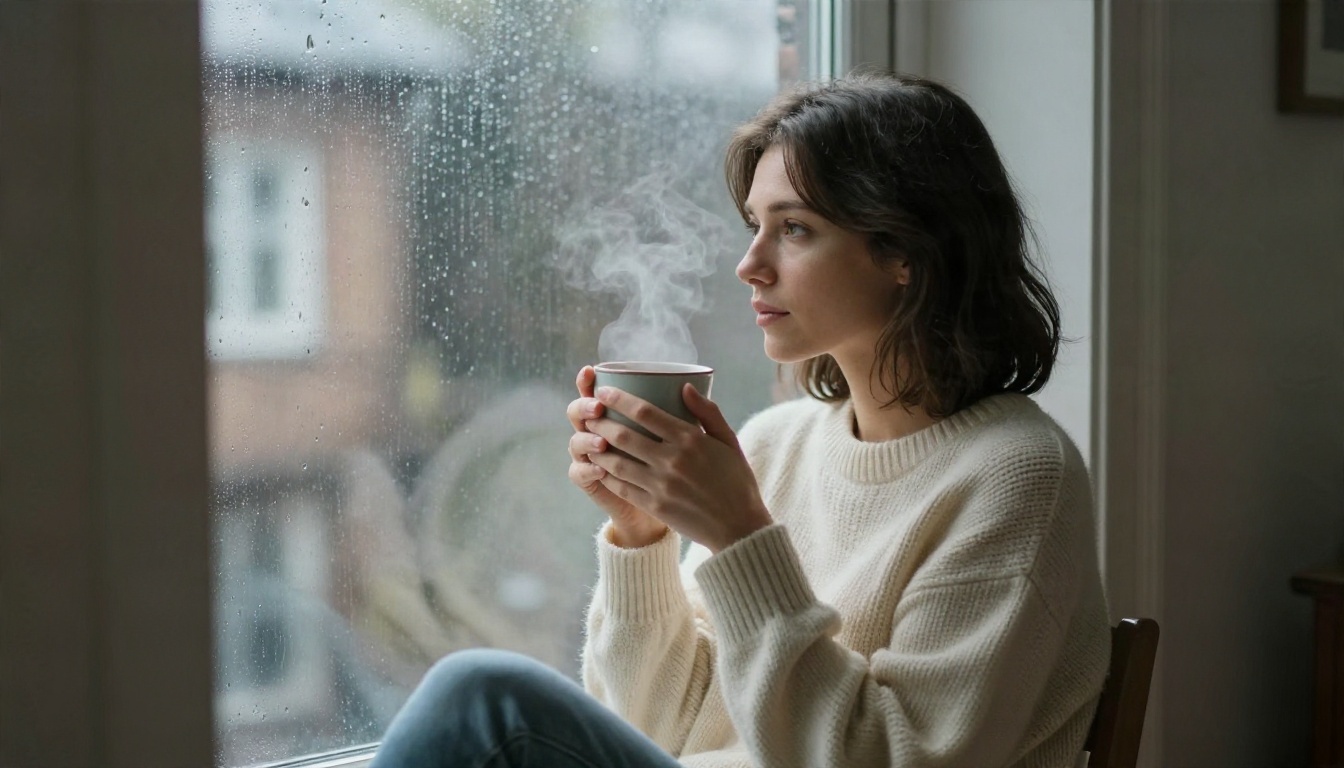
Weak prompt: A woman sits by a window with a cup of tea, it is raining, cozy mood, camera moves around.
Strong prompt: Slow dolly in toward a woman sitting by a rain-streaked window. She lifts a ceramic mug and exhales, steam curling upward. Raindrops slide down the glass behind her. Soft overcast light from the left, shallow depth of field, natural film colour.
The second version names one move, one subject action and one background motion. Nothing competes.
Intensity words
Wan 2.6 reads speed and intensity from adjectives. These map reliably:
| Intensity | Phrases that work | Result |
|---|
| Minimal | "subtle camera drift", "barely perceptible push in" | Almost still, great for portraits |
| Moderate | "slow dolly in", "steady tracking shot", "gentle pan left" | The safe default for most scenes |
| Dramatic | "rapid whip pan", "fast orbit", "aggressive push in" | More energy, higher artifact risk |
💡 Tip: one dominant motion per clip. One subject, one camera move, one mood. When a prompt asks for a dolly, a pan, a crane and a subject sprint all in five seconds, quality drops fast.
Ten Camera Moves With Prompts
Each prompt below is written to be pasted after you upload a matching still. Swap the subject and keep the structure.
1. Slow dolly in
The workhorse. It adds emotional weight without drawing attention to itself.
Slow dolly in toward a woman seated at a rain-streaked window. She lifts a ceramic mug with both hands and looks out at the street. Steam rises from the cup, raindrops run down the glass. Soft overcast daylight from the left, shallow depth of field, natural film colour.
Use "slow" every time. Without it, a dolly can feel like a digital zoom.
2. Orbit around the subject
Orbits are where Wan 2.6 shows its strength, because the model keeps the subject consistent while the background rotates around it.
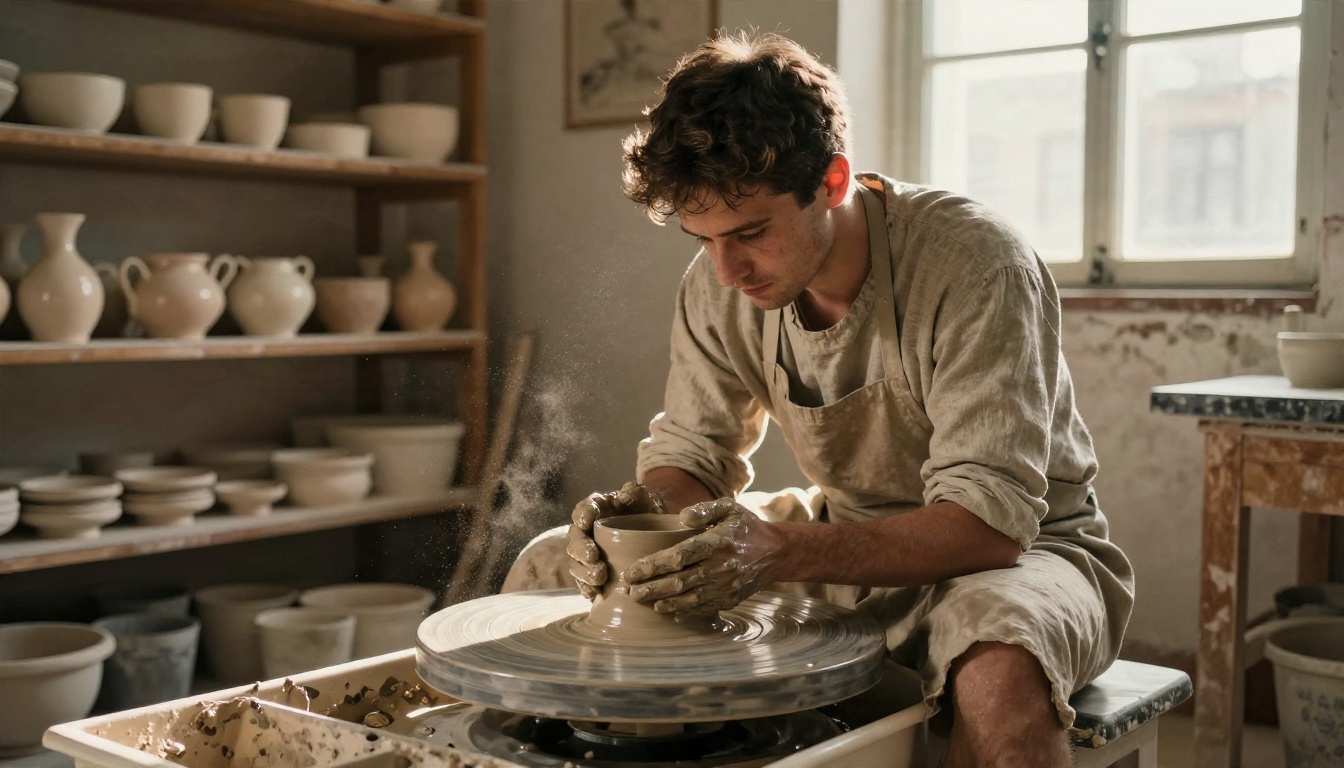
Slow orbit camera move, circling clockwise around a potter shaping wet clay on a wheel. His hands press and lift the clay, which rises into a tall vase shape. Dust drifts through warm afternoon light from the window on the right. Shelves of finished pots slide past in the background. Realistic textures, 35mm film look.
Specify direction (clockwise or counterclockwise) and keep the arc modest. A "slow 90 degree orbit" is safer than "full 360 spin" inside a five second clip.
3. Crane up and reveal
Start close to the ground and rise to show the landscape. Great for establishing shots.
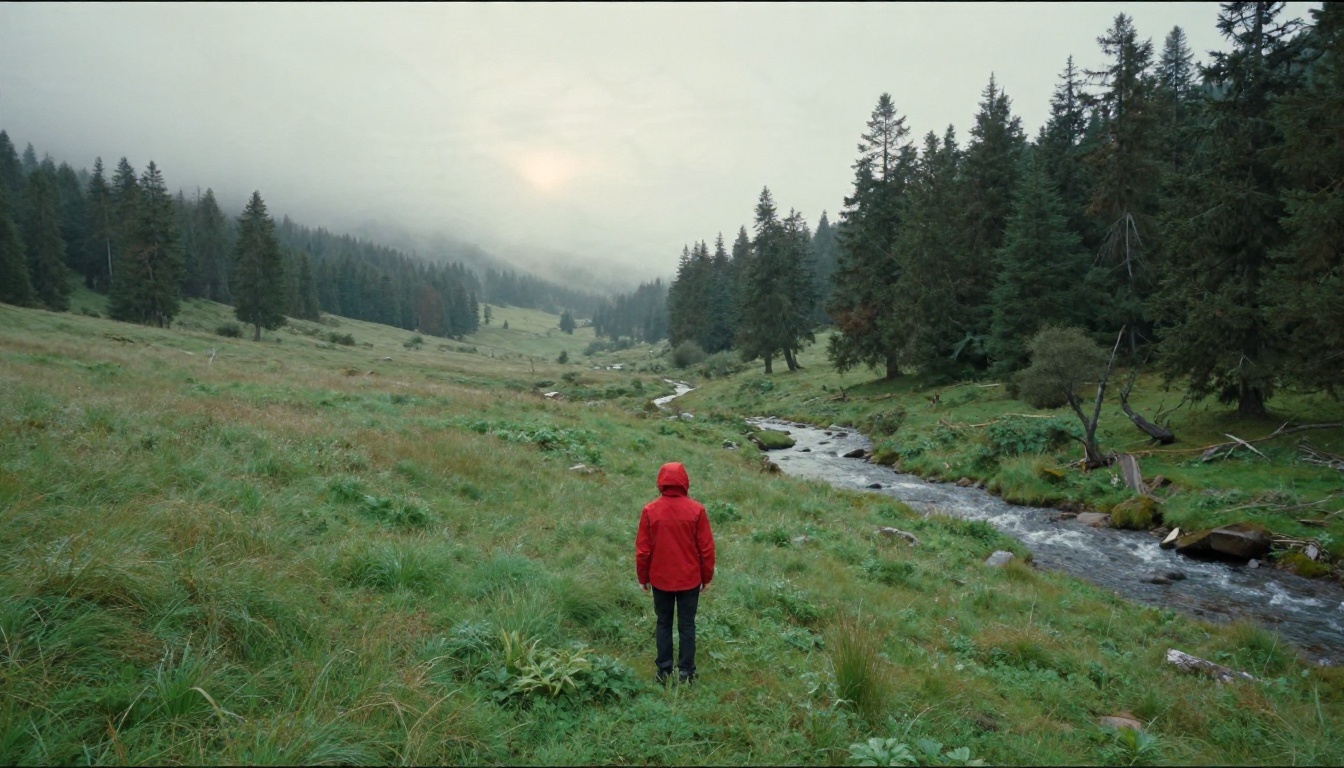
Smooth crane up, the camera rising steadily from behind a hiker in a red rain jacket to reveal the full alpine valley, a winding stream and distant pine forest. Wind moves the long grass. Soft morning light behind thin cloud, natural colour, wide lens.
4. Tracking shot
The camera travels alongside or behind a moving subject. It is the most useful move for walking scenes.
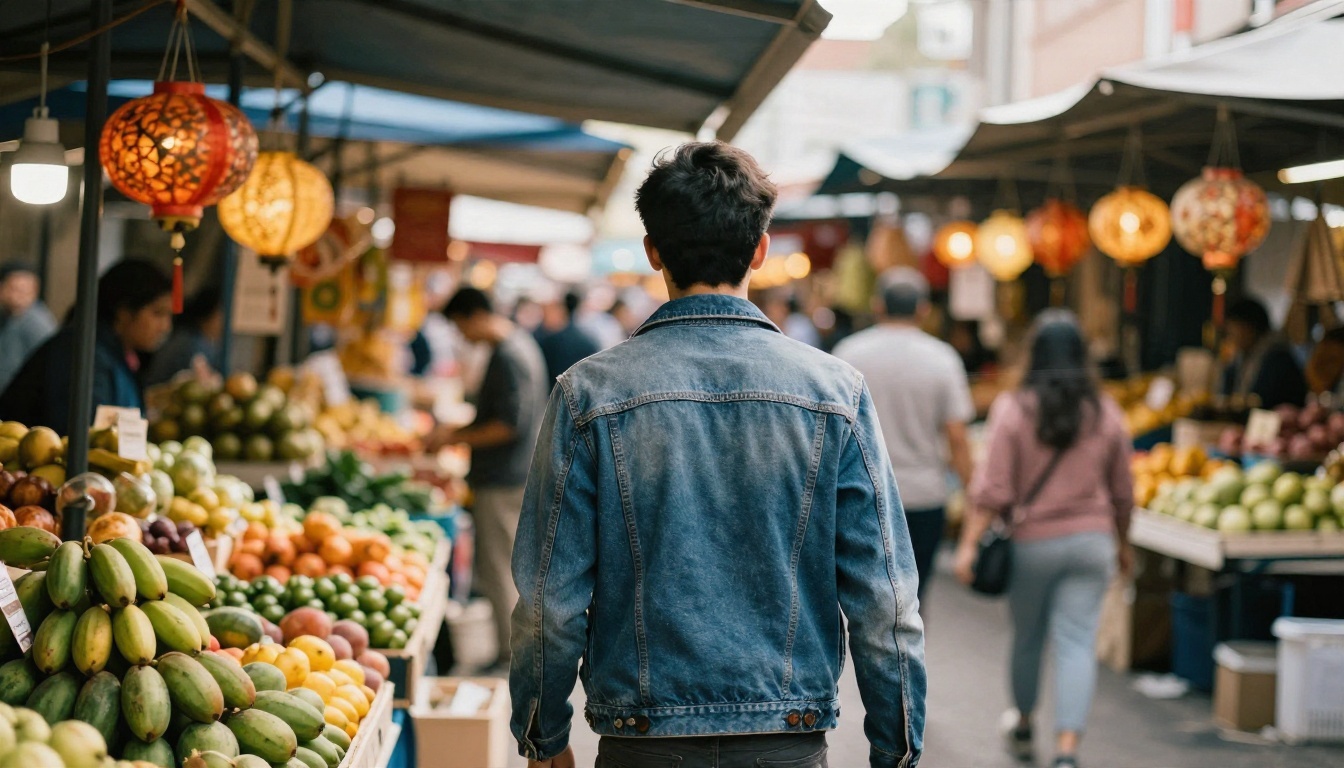
Steady tracking shot following a young man in a denim jacket from behind as he walks through a busy morning market. Vendors and shoppers pass on both sides, hanging lanterns sway slightly. Warm light filters through canvas awnings. Camera stays at shoulder height, constant distance, no zoom.
Notice "constant distance, no zoom." Adding what the camera should not do prevents the common failure where a tracking shot slowly turns into a push in.
5. Handheld close-up
A little shake adds realism, but ask for it gently.
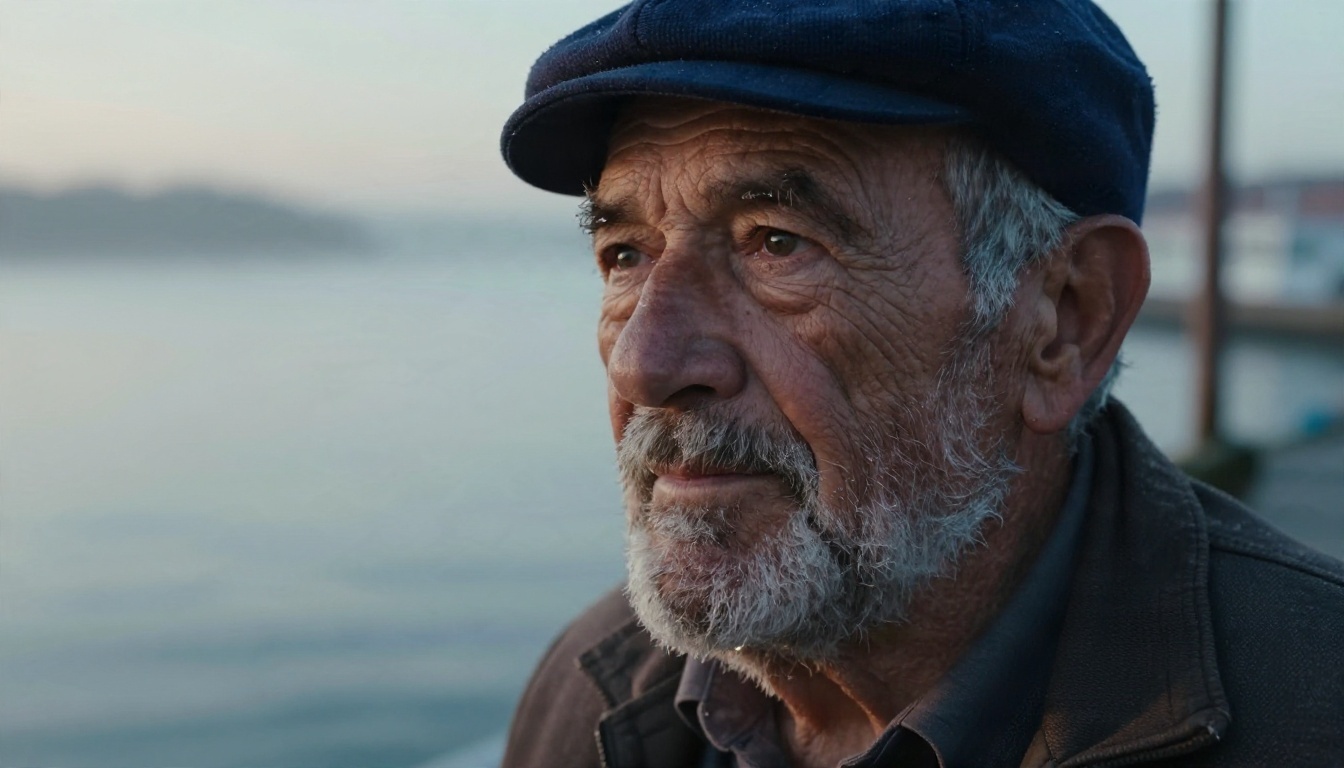
Subtle handheld camera, very slight natural sway, holding an extreme close-up on an elderly fisherman on a misty dock. He blinks slowly and turns his gaze toward the water. Fine mist drifts across the frame. Soft diffused light from the left, shallow depth of field.
If you write only "handheld," you can get exaggerated shake. Pair it with "subtle" or "slight."
6. Low-angle hero shot
A low camera makes the subject feel larger. Combine it with an action that has clear start and end points.
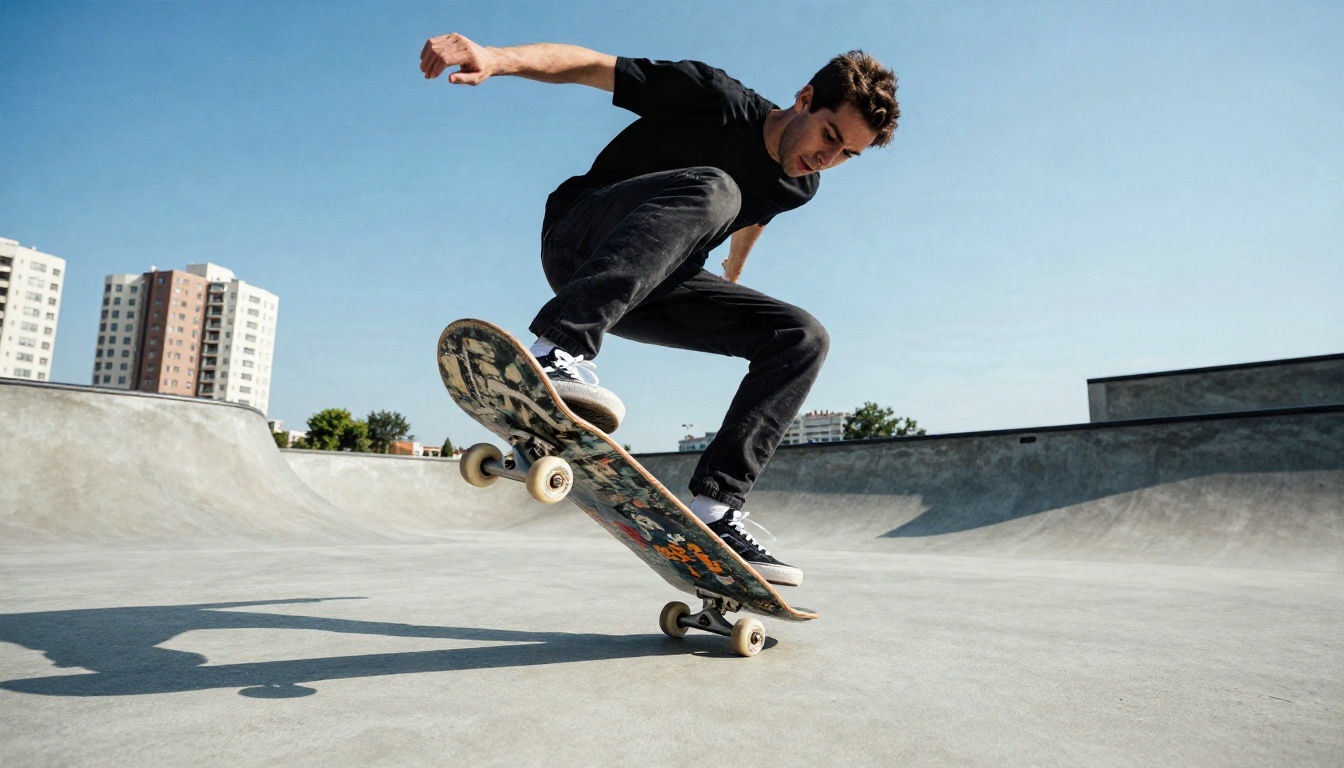
Low angle camera near the ground, slowly tilting up as a skateboarder lands an ollie and rolls past. Sunlight flares softly over the board, wheels spin, small bits of grit scatter. Wide lens, crisp hard midday light.
7. Aerial pull back
Drone style moves suit landscapes. Describe altitude change instead of just "aerial."
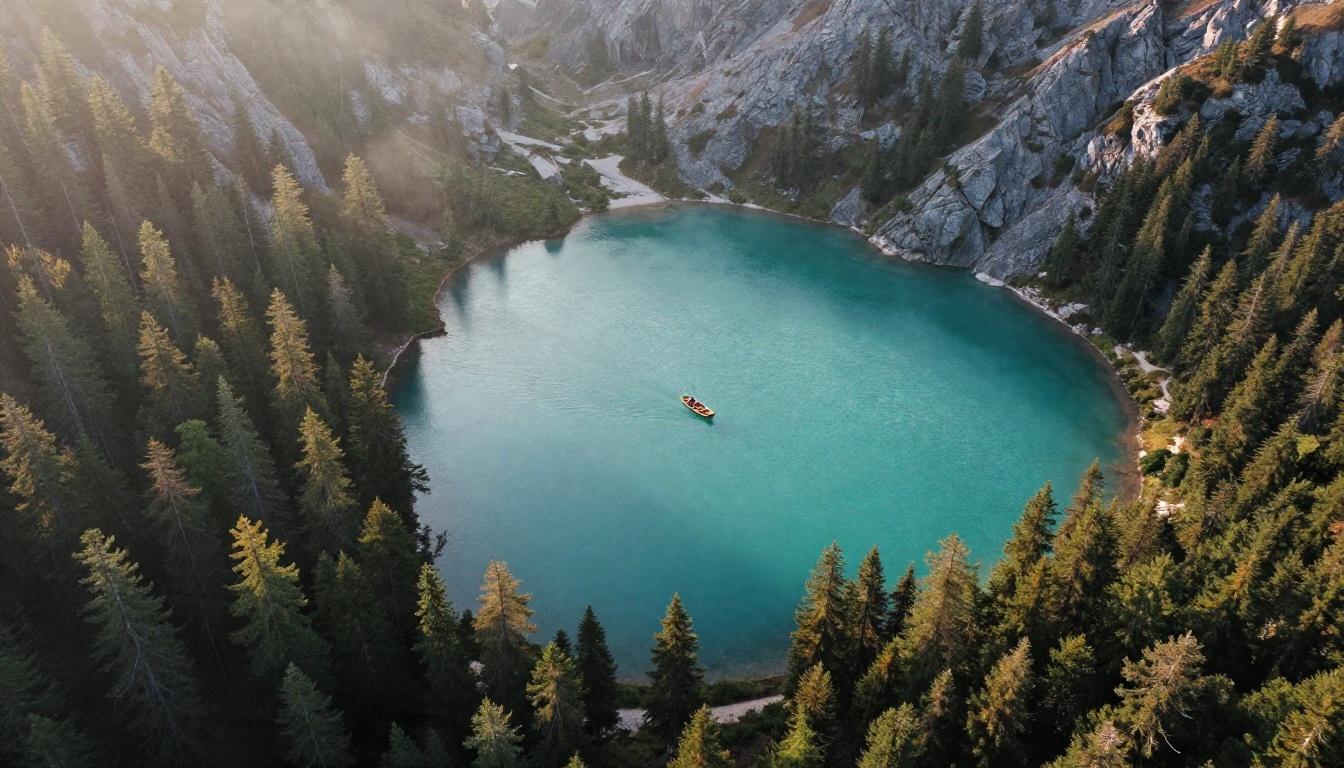
Aerial camera pulling back and rising slowly above a turquoise mountain lake, revealing steep rock walls and dark pine forest. A small wooden rowboat drifts near the centre, ripples spreading behind it. Thin mist over the water, early morning light from the left.
8. Pan and whip pan
A pan follows attention. Say where it starts and where it lands.
Gentle pan left, starting on a street musician and ending on a crowd gathered by a fountain. Pigeons lift off the cobblestones. Late afternoon sun, warm natural colour.
For a whip pan, add "fast whip pan with slight motion blur," then expect to run two or three seeds before it lands cleanly.
9. Push in on a detail
A tight, short move toward a small object turns a still into a story beat.
Slow push in on a handwritten shot list on a wooden desk, a pen rolling a few centimetres and stopping. Warm lamp light from the right, cool window light from the left, shallow depth of field.
10. Locked off, static camera
Sometimes the best camera move is none. Say it explicitly so the model keeps the frame still and puts all the motion in the subject.
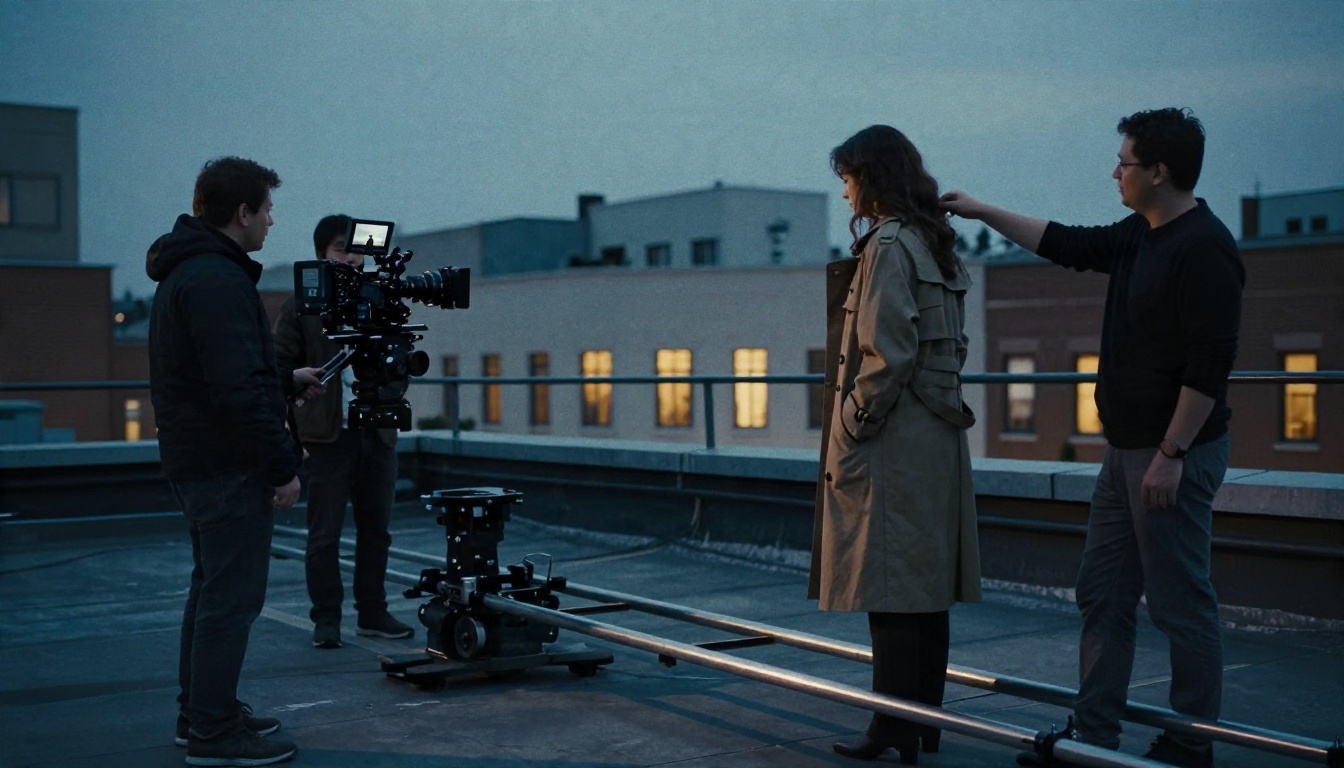
Locked off static camera, tripod, no camera movement. An actress in a trench coat on a rooftop pulls her collar up as wind moves her hair. City windows glow softly behind her in blue hour light.
Settings That Change the Result
Prompts do most of the work, but a few settings decide whether a good prompt turns into a good clip.
Resolution and duration
On the Wan 2.6 I2V model, resolution is 720p or 1080p and duration is 5, 10 or 15 seconds. My recommendation:
| Goal | Resolution | Duration |
|---|
| Testing a camera prompt | 720p | 5 s |
| Social clip, simple move | 720p | 5 or 10 s |
| Final delivery | 1080p | 5 or 10 s |
| Long establishing move | 1080p | 10 or 15 s |
Test at 720p and 5 seconds. A prompt that fails there will fail at 15 seconds too, and you will have spent more to find out. Move up only after the move looks right.
Longer clips need slower moves. A "slow dolly in" stretched across fifteen seconds is fine. A "fast orbit" stretched across fifteen seconds becomes chaos.
Prompt expansion and multi-shot
Enable Prompt Expansion is on by default. It rewrites your prompt into a richer description before generation. That helps with short prompts but can also add camera moves you did not ask for. If your prompt is already specific, such as the examples above, try turning expansion off and compare. Many camera prompts get steadier without it.
Multi Shots only works when prompt expansion is enabled. It splits one description into several cuts. Use it for 10 or 15 second clips where you want a sequence, for example a wide establishing shot followed by a close-up. Leave it off for a single continuous move like an orbit or a crane, because cuts break the illusion of one camera.
Negative prompt
A short negative prompt prevents the most common failures. A solid default:
shaky camera, jitter, warped faces, distorted hands, extra limbs, text, watermark, flickering, heavy motion blur, oversaturated colours
Keep it short. A very long negative list can flatten motion and make the clip feel static.
Seed
Once a camera move works, write down the seed. Reusing it with small prompt changes (a different subject, a different light) keeps the movement character similar. It is the closest thing Wan 2.6 has to a "keep this camera behaviour" button.
How to Use Wan 2.6 on PicassoIA
The whole workflow takes a few minutes and requires no setup.
- Open the model page. Go to Wan 2.6 I2V for animating a still, or Wan 2.6 T2V if you are starting from text only.
- Upload a clean first frame. Pick an image with clear subject separation and room in the frame for the move. If you plan a dolly in, leave space between camera and subject. If you plan a crane up, keep the horizon low.
- Paste your camera prompt. Use the formula: camera move, subject action, environment motion, light, style.
- Set duration to 5 and resolution to 720p for the first test.
- Decide on prompt expansion. Start with it on. If the camera wanders, switch it off and rerun with the same seed.
- Add the negative prompt from the section above.
- Generate, review, adjust one thing. Change only the camera wording or only a setting each run, so you know what caused the difference.
- Raise to 1080p and a longer duration once the move is right.
Image to video or text to video?
Choose Wan 2.6 I2V when composition matters, because the first frame fixes it. Choose Wan 2.6 T2V when you are still exploring ideas. T2V also lets you pick sizes such as 1280x720, 720x1280, 1920x1080 and 1080x1920, so it is handy for vertical social formats.
If you want to compare against the next generation, Wan 2.7 I2V is on the platform as well, and the same prompt structure carries over. For quicker drafts, Wan 2.6 I2V Flash trades some polish for speed, and Wan 2.5 I2V Fast is another option for rough tests.
💡 Source frames matter. Build your starting images with an image model such as Seedream 4.5, which gives sharp, photographic stills that animate well. A soft or cluttered first frame produces soft, cluttered motion.
Mistakes That Ruin Camera Moves
Review your takes the way an editor would: against a plan. These are the errors that show up most.
1. Stacking moves. "Dolly in while orbiting and craning up" asks for three camera paths at once. Pick one. If you need a combination, generate separate clips and cut them together.
2. Vague camera words. "Cinematic camera movement" tells the model nothing. "Slow dolly in" tells it everything. Use the vocabulary of a real set.
3. Subject and camera both moving fast. A sprinting subject plus a fast tracking shot is the hardest case. Wan 2.6 handles walking, turning and gentle gestures well, but fast action, crowded multi-character interactions and physics-heavy scenes remain weak spots. Slow one of the two motions down.
4. Forgetting the "do not" clause. Add "no zoom," "constant distance," or "no camera shake" when you need discipline. It costs five words and saves several reruns.
5. Changing five things between runs. Alter one variable at a time. Otherwise you will never learn which edit fixed the clip.
6. Skipping the still frame check. If the first frame has awkward hands, odd lighting or cramped framing, the clip inherits those problems. Fix the still first, then animate.
Quick Reference Cheat Sheet
| Want this | Write this |
|---|
| Emotional closeness | "slow dolly in", "subtle push in" |
| Reveal a place | "smooth crane up", "aerial pull back" |
| Show 3D form | "slow orbit clockwise, 90 degrees" |
| Follow a walker | "steady tracking shot, constant distance" |
| Raw realism | "subtle handheld, slight natural sway" |
| Power and scale | "low angle, slowly tilting up" |
| Calm scene | "locked off static camera, no camera movement" |
| Clean results | negative: "shaky camera, jitter, warped faces, flickering" |
And a few numbers worth remembering:
- 5 seconds at 720p for every first test
- One move per clip
- Slow as the default speed word
- Same seed when iterating on a good move
Try Your Own Camera Moves
The fastest way to get comfortable with Wan 2.6 camera prompts is to run the same still through three different moves and compare. Take one photo, write a dolly in, an orbit and a crane up, and watch how each sentence changes the clip. You will start predicting what the model does before you press generate.
Open Wan 2.6 I2V on Picasso IA, upload a frame, paste one of the prompts above and adjust it for your subject. When you want a wider look at what is available, browse all models on Picasso IA and mix video, image and audio tools in one place. Start with a 5 second test, change one word, and keep the seed of the takes that work.


