Vertical video is not just a format preference anymore. It is the default for billions of people watching short clips on phones, and if your AI-generated videos are cropped, squashed, or oddly framed in portrait mode, viewers scroll past before the first second ends. Wan 2.7 gives you real tools to fix this, but only if you use it right.
What Makes Vertical Video So Hard to Get Right
Most text-to-video models were trained on a diet of horizontal content. Movies, TV, YouTube, stock footage: almost all of it is 16:9. When you ask a model to generate portrait video, it is fighting its own training data's gravity. Wan 2.7 handles this better than most, but you still need to understand what you are working against.
The 9:16 Math That Breaks Most Outputs
A 16:9 frame is 1.78 times wider than it is tall. A 9:16 portrait frame is the exact inverse: 1.78 times taller than wide. That sounds simple, but think about what it means for subject placement. A person standing in a horizontal scene has room to breathe on both sides. In portrait mode, that same person gets cut off at the shoulders or the feet unless the model actively reframes the shot.
The problem gets worse with backgrounds. Wan 2.7 will often try to show you the same rich environmental detail it would in a wide shot, but in a tall narrow frame that detail gets compressed and confusing. Subjects that were naturally centered in 16:9 become awkwardly cropped in 9:16 unless you tell the model exactly what to do.
Where Most Prompts Go Wrong
Here is the real issue: most people write prompts as if aspect ratio is a settings toggle that the model will handle automatically. It is not. The model responds to language. If your prompt describes "a wide shot of a city street" but you set 9:16 as your output ratio, you get a weird compromise where the model tries to please both instructions at once and fails at both.
The fix is writing prompts that are intrinsically vertical in their composition logic. More on that in detail later.
Setting Up Wan 2.7 for Portrait Mode
Before you write a single word of your prompt, the technical settings need to be right. Getting these wrong wastes time and credits on outputs that will need to be redone.
The Right Aspect Ratio Settings
Wan 2.7 T2V supports multiple aspect ratios including native 9:16 portrait output. This is the setting you want for vertical content. Do not generate at 16:9 and then crop in post: you lose resolution, you cut off content that was never meant to be cropped, and the composition looks like an afterthought.
On PicassoIA, when using Wan 2.7 I2V (image-to-video), your source image aspect ratio matters just as much. Feed it a portrait-orientation reference image for best results. A landscape photo fed into I2V almost always produces awkward results in a vertical output, because the model tries to animate a composition that does not fit the frame.
💡 Pro tip: When using Wan 2.7 I2V, always prepare your source images in 9:16 format. Generate them in portrait orientation first, then animate. This is the single biggest workflow improvement for vertical AI video.
Resolution Choices That Matter
Wan 2.7 offers different resolution tiers. For content going to TikTok, Instagram Reels, or YouTube Shorts, 720p is a solid floor that keeps render times reasonable. The full 1080p option is worth it for content that will be displayed on larger screens or used in professional production workflows.
One practical note: at higher resolutions, your prompt needs to be more specific. At 1080p, the model has more pixels to fill and will make more decisions on its own if you leave gaps in your description. At 720p, it is slightly more forgiving. Start at 720p when testing prompt ideas and move to 1080p for your final output.

How to Use Wan 2.7 on PicassoIA
PicassoIA hosts three distinct Wan 2.7 variants, each suited to different production scenarios. Knowing which to use when saves you from running the wrong model on the right idea.
Wan 2.7 T2V Step by Step
Wan 2.7 T2V (Text-to-Video) is your starting point when you do not have reference imagery. Here is the workflow that produces consistent vertical results:
- Open Wan 2.7 T2V on PicassoIA
- Set aspect ratio to 9:16 before writing your prompt
- Write a portrait-native prompt (see the Prompt Writing section below)
- Set resolution: 720p for testing, 1080p for finals
- Run the generation and check the first output before committing to iterations
The most common error at this stage is setting the aspect ratio after writing the prompt. Write the prompt with the frame in mind from the start.
Wan 2.7 I2V for Portrait Results
Wan 2.7 I2V (Image-to-Video) is the most reliable path to high-quality vertical output, because you control the first frame completely.
The workflow:
- Generate a portrait-orientation source image (use any image model with 9:16 output, or photograph something on your phone)
- Upload it to Wan 2.7 I2V
- Write a motion prompt describing what changes from that starting frame
- The model animates from your composition, preserving the vertical framing you set
This is particularly effective for product shots, portrait animations, and anything where a specific initial composition is important.
Wan 2.7 R2V for Subject Animation
Wan 2.7 R2V (Reference-to-Video) is the least used of the three, but it is powerful for character animation. You provide a reference image of a subject and a motion prompt, and the model animates that specific subject.
For vertical videos featuring a single person or character, R2V often produces cleaner results than T2V because the subject is anchored. The model is not inventing what your character looks like: it is working from a reference. This means better subject centering, more consistent proportions within the vertical frame, and less chance of the composition drifting into horizontal defaults.
💡 Tip: Combine R2V with a clean portrait-style reference photo (subject centered, minimal background) for the tightest control over vertical composition.
Writing Prompts That Work in Portrait Mode
This is where most tutorials stop short. They tell you to "set 9:16" and call it done. The actual craft is in the language you use.
Framing Cues That Actually Work
Your prompt needs to include explicit vertical composition language. These phrases consistently improve portrait-mode outputs:
- "vertical framing" or "portrait orientation"
- "full-body vertical shot" when you want to show a whole person
- "close-up portrait" when you want tight facial framing
- "low-angle looking up" creates natural vertical drama
- "camera tilts upward" tells the model where attention should move
- "subject centered vertically" is underused and extremely effective
What to avoid: "wide shot," "panoramic," "establishing shot," "landscape view." These cues fight portrait output even when the aspect ratio is set correctly.
Subject Placement in Your Prompt
Think in vertical thirds. In a 9:16 frame, you have more vertical real estate than horizontal. Use it:
| Content Type | Placement Cue to Use |
|---|
| Single person | "centered vertically, head in upper third" |
| Full-body shot | "full figure from feet to head, vertical frame" |
| Product display | "product centered, close-up, portrait frame" |
| Action shot | "subject moving upward through frame" |
| Conversation | "two people stacked vertically" |
The table above is not theoretical: these specific phrases tested against Wan 2.7 T2V produce measurably more intentional vertical compositions.
Composition Words That Stick
Beyond framing cues, certain compositional vocabulary consistently signals portrait intent to the model:
- "tight vertical composition"
- "foreground element filling the lower quarter of the portrait frame"
- "head room at top, negative space at bottom"
- "camera pulls back vertically to reveal"
- "slow vertical pan from feet to face"
The last two are motion prompts, which brings up an important point: your motion descriptions need to be portrait-native too. A "slow pan left" in a vertical video looks bizarre. "Pan down," "tilt up," "vertical dolly" are the camera moves that make sense in a tall frame.

Common Mistakes Worth Avoiding
Even experienced creators make these. Knowing them in advance saves a lot of wasted generations.
The Letterbox Trap
When Wan 2.7 is uncertain about how to fill a vertical frame, it sometimes defaults to adding black bars at the top and bottom, creating a pseudo-cinematic letterbox effect. This looks terrible in portrait format and is the model's way of hedging.
How to avoid it: Be explicit about filling the full frame. Phrases like "edge-to-edge vertical composition," "no black bars," and "full bleed portrait format" signal that you want the entire frame used.
Over-Describing Background Detail
In a horizontal wide shot, a detailed background adds depth and context. In a 9:16 frame, a busy background competes with your subject because there is so little horizontal space to let things breathe. The model tries to fit all that detail into a narrow column and the result is cluttered and visually confusing.
The fix: Simplify background descriptions for vertical content. "Soft blurred background," "single-color wall," "out-of-focus natural setting" all work better in portrait format than "detailed cityscape with multiple buildings and signs."
Ignoring Head Room
Head room is the space between the top of a subject's head and the top of the frame. In horizontal video, it is a minor consideration. In vertical video, it is critical. Too much head room in a 9:16 frame and your subject looks tiny and lost. Too little and the person looks cut off by the frame edge.
Explicit instructions work: "tight head room, approximately one head-height of space above the subject" gives the model something concrete to work with.

Other Models Worth Trying
Wan 2.7 is strong, but PicassoIA has other text-to-video models that handle vertical format well in specific situations.
When to Pick Kling v3
Kling v3 Video excels at cinematic motion. If your vertical content needs dramatic camera work, fast action, or complex subject movement, Kling v3 often outperforms Wan 2.7 on motion quality. The trade-off is that Kling v3 costs more per generation.
Use Kling v3 when: Your clip involves significant motion, multiple subjects, or you need cinematic-level visual quality. Use Wan 2.7 when: Budget matters, you want consistent batch outputs, or you are using Wan 2.7 R2V for character-anchored animation.
Seedance 2.0 for Social Clips
Seedance 2.0 from ByteDance is built for the exact use case social media vertical video represents. It includes native audio generation alongside the video, which is a practical advantage for clips going directly to TikTok or Reels without post-production.
Seedance 2.0 responds well to short, punchy prompts: fewer than 50 words with a clear subject, action, and setting. For Wan 2.7 style detailed prompting, the model can get confused. Treat them as different tools with different prompt dialects.
💡 Also worth testing for fast iteration: LTX 2 Pro for 4K output, Pixverse v6 for effects-heavy vertical content, and Wan 2.6 T2V as a slightly faster alternative to 2.7 when speed matters more than peak quality.
Prompts vs. Settings: What Drives Results
A common debate in AI video communities is whether prompt quality or model settings matter more. For vertical video specifically, the answer is both, but in a specific order.
Settings come first. If your aspect ratio is wrong, no prompt will save you. Get the technical parameters right before you spend time refining language.
Prompt quality comes second. Once your settings are correct, prompt language is the primary driver of composition quality. A precise vertical-native prompt will outperform a vague one even with identical settings every time.
Here is how to think about prompt iteration for vertical content:
- Start with a single sentence describing your subject and action
- Add explicit vertical framing language
- Describe the background in simple, minimal terms
- Add specific motion cues if using T2V or I2V
- Run once, evaluate composition, adjust one element at a time
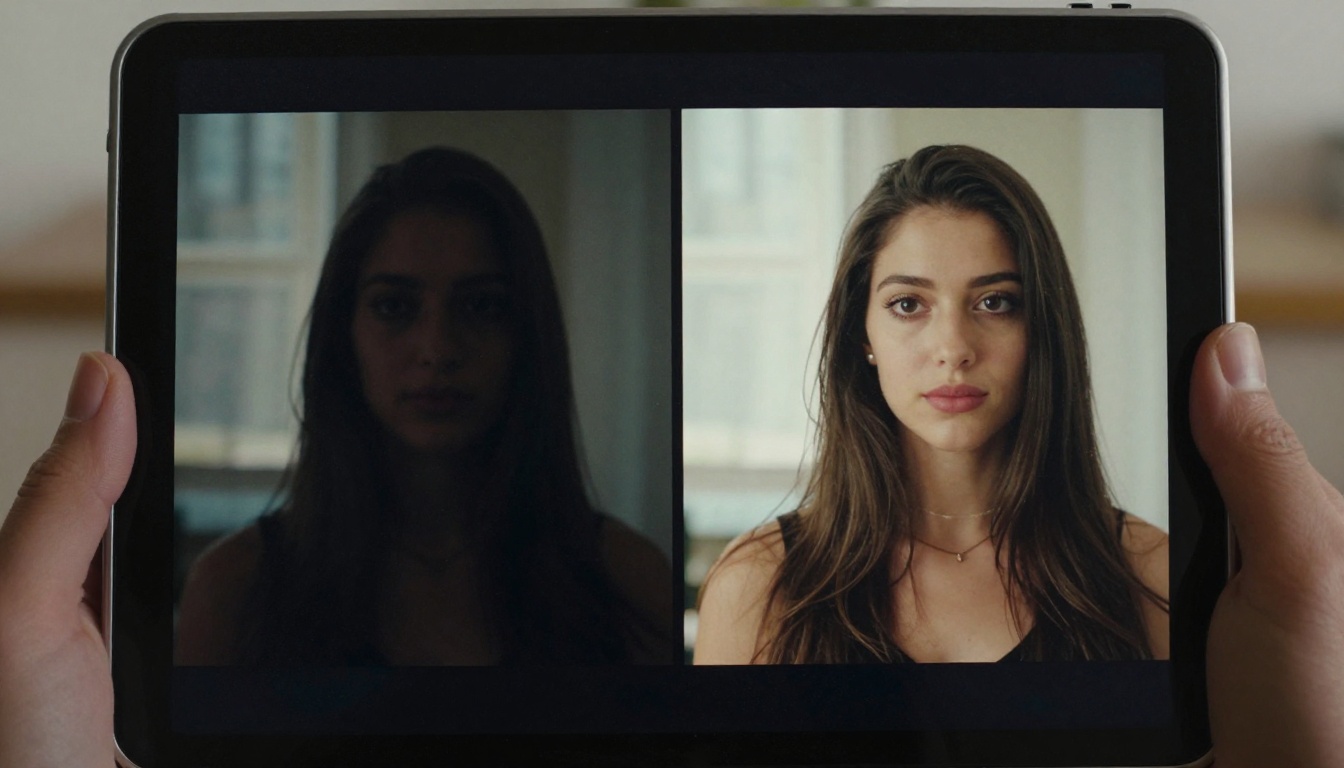
Do not change multiple variables between generations. You will not know what fixed or broke the result.
Batch Output: Getting Consistency Across Clips
If you are creating a series of vertical videos (a content series, a product line, a story arc), consistency between clips matters as much as quality within a single clip.
Keeping Subjects Consistent
Wan 2.7 R2V with a fixed reference image is the best tool for character consistency. Use the same reference photo across all clips in your series and you get the same subject framed consistently in portrait mode across every generation.
For non-character content (products, environments, abstract), build a prompt template with fixed elements that repeat across generations:
- Fixed lighting description
- Fixed background description
- Fixed aspect ratio language
- Fixed camera movement type
Vary only the action or subject interaction. This is how professional content pipelines produce 20 or 30 coherent vertical clips without each one looking like a different creative direction.
Seed Values for Repeatability
When you find a generation you like, note the seed value if the model exposes it. Re-using a seed with minor prompt variations produces outputs that feel related to the original. Completely randomizing seeds between iterations makes it hard to build on successful results.
What Changes Between Wan 2.6 and 2.7 for Vertical Output
If you have been using Wan 2.6 I2V or Wan 2.6 T2V, upgrading to 2.7 is worth doing for vertical content specifically.
The main improvements that affect portrait-mode output:
- Better subject centering: 2.7 is less likely to drift the main subject toward the edges in a vertical frame
- Reduced letterboxing tendency: The model fills the portrait frame more confidently
- Improved motion in tall frames: Vertical pans and tilts look smoother
- Sharper facial detail: Close-up portrait shots show more detail at equivalent resolutions
These are not marketing claims: run the same prompt on both models and compare. The differences are visible, particularly in close-up human subjects where portrait format is most commonly used.
Start Making Vertical Videos on PicassoIA
The fastest way to apply everything in this article is to run a live comparison. Open Wan 2.7 T2V on PicassoIA and run the same concept twice: once with a generic horizontal-style prompt and once with the vertical-native framing language from this article. The difference in output quality will tell you more than any written explanation can.
From there, experiment with Wan 2.7 I2V using a portrait-orientation reference image you already have. If you are building a series, try Wan 2.7 R2V with a fixed subject reference and vary only the action prompt.
PicassoIA also has over 87 other text-to-video models available, including Kling v3, Seedance 2.0, and Pixverse v6 for when you want to compare across different architectures. Vertical video production is one of the fastest-growing use cases on the platform, and the toolset keeps expanding.
Start with a single portrait clip. Get the framing right once, document the settings and prompt structure that worked, and then scale from there.


