Most people open an AI image tool, type a few words, get a muddy generic result, and decide the tool is broken. It isn't. The tool performed exactly as instructed. The problem, almost every time, is what the instruction contained, or what it didn't.
There are seven specific mistakes that account for the vast majority of disappointing AI image outputs. None of them require technical expertise to fix. Once you see them clearly, you can correct all of them in a single session.
Your Prompts Are Way Too Short
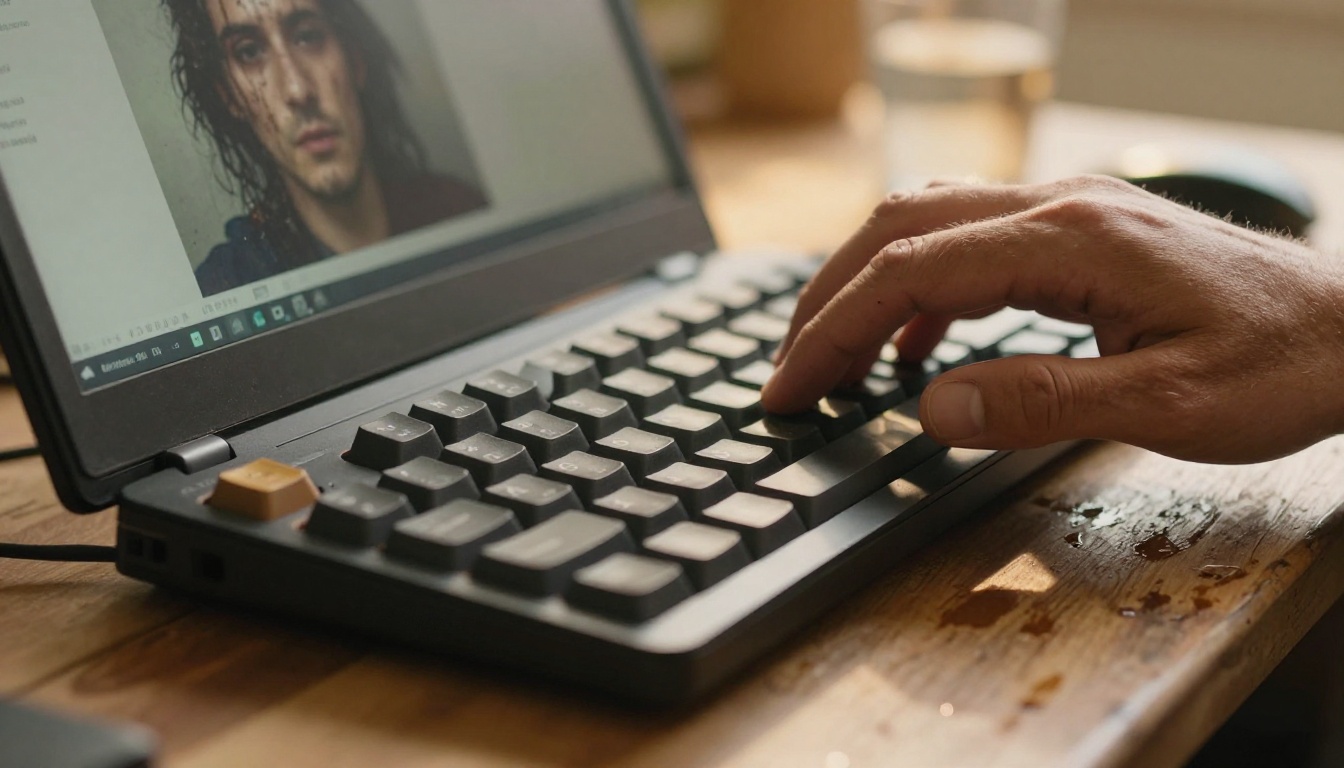
A prompt like "beautiful woman in the forest" is not really a prompt. It is a topic. The AI has no information about what lighting you want, what camera angle fits the image, what mood it should carry, or what photographic style you are after. So it guesses. And the statistical average of every forest woman in its training data is always generic.
The length trap
Text-to-image models were trained on billions of image-caption pairs. When you write a short prompt, you draw from the center of a very crowded distribution. Everything that is modal, average, and unremarkable about that concept gets blended together. The output reflects the median, not the exceptional.
What a good prompt actually contains
A strong prompt answers at least six questions before the model has to guess anything:
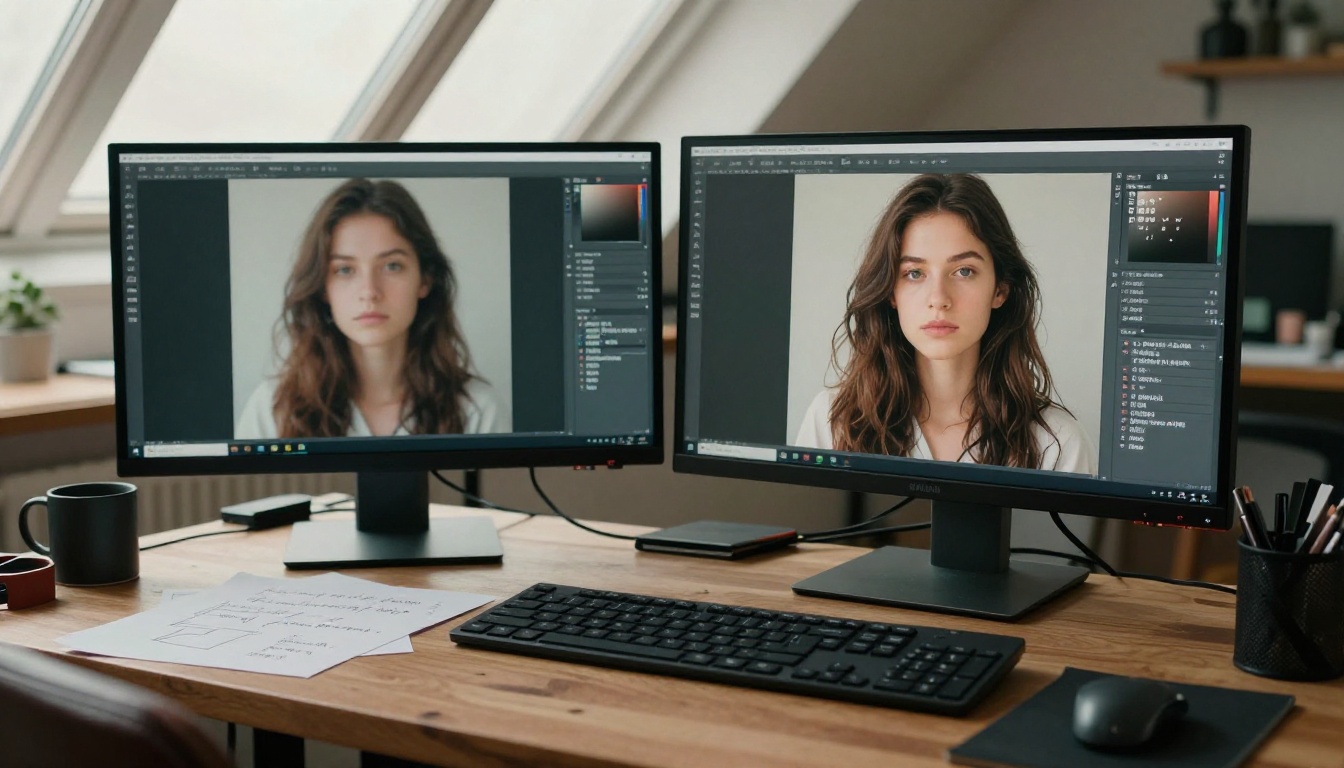
- Subject: Who or what is in the image, and how specifically? "A woman" becomes "a 28-year-old woman with auburn hair and freckles wearing an oversized white linen shirt."
- Environment: What is behind the subject? What surfaces are in frame? What time of day is it?
- Lighting: Morning sunlight from the left? Overcast diffused north-facing light? Warm golden hour rim light from behind?
- Camera angle and lens: Low angle looking up at the subject? Aerial overhead? 85mm f/1.4 portrait compression with creamy bokeh?
- Mood and atmosphere: Melancholic and soft? Vibrant and sharp? Intimate and warm?
- Style and film stock: Photorealistic RAW 8K photography, Kodak Portra 400 film grain, natural textures throughout.
The difference between a six-word prompt and a sixty-word prompt is not just verbosity. It is the number of decisions you are making consciously instead of leaving to chance.
💡 Tip: Before generating, ask yourself: could ten different photographers interpret this prompt ten completely different ways? If yes, add specifics until the answer is closer to three.
Picking the Wrong Model Every Time
Most beginners assume there is "the AI image tool" and they are using it. In reality, AI image platforms host dozens or hundreds of distinct models, each trained on different datasets and tuned for different types of output.
Not all models do the same thing
Some models are trained primarily on photographic data and produce realistic skin tones, natural lighting, and convincing textures. Others are trained for artistic illustration, anime, architectural rendering, or product visualization. A few specialize narrowly in portraits or fashion.
Using a model optimized for anime art to generate a photorealistic corporate headshot produces a poor headshot, not because the model failed, but because it was built for something else entirely. The model did its job. You gave it the wrong job.
How to match model to goal
| Goal | Model Type to Look For |
|---|
| Photorealistic portraits | Portrait or photorealism fine-tuned model |
| Product photography | Studio or commercial image model |
| Creative illustration | Art or concept art model |
| Architectural renders | Architecture-trained model |
| Abstract or artistic work | Generalist artistic model |
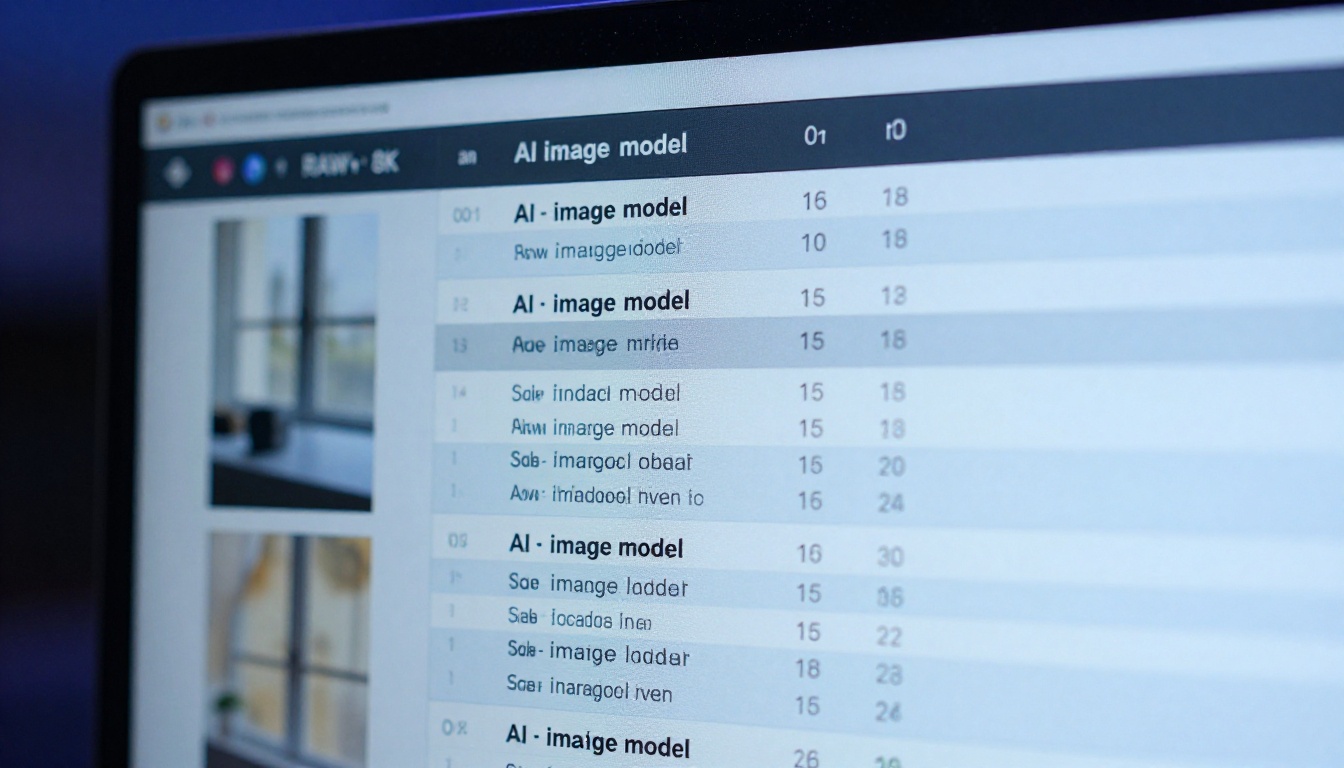
On PicassoIA, the text-to-image collection includes over 91 models spanning photorealistic, artistic, and specialized categories. Spending 60 seconds reading a model description before generating saves hours of bad outputs downstream.
💡 Tip: Check the sample images on each model's page before using it. Those samples show you what that model does at its absolute best. If you don't see your intended style there, the model is probably wrong for your project.
Your Output Resolution Is Always Wrong
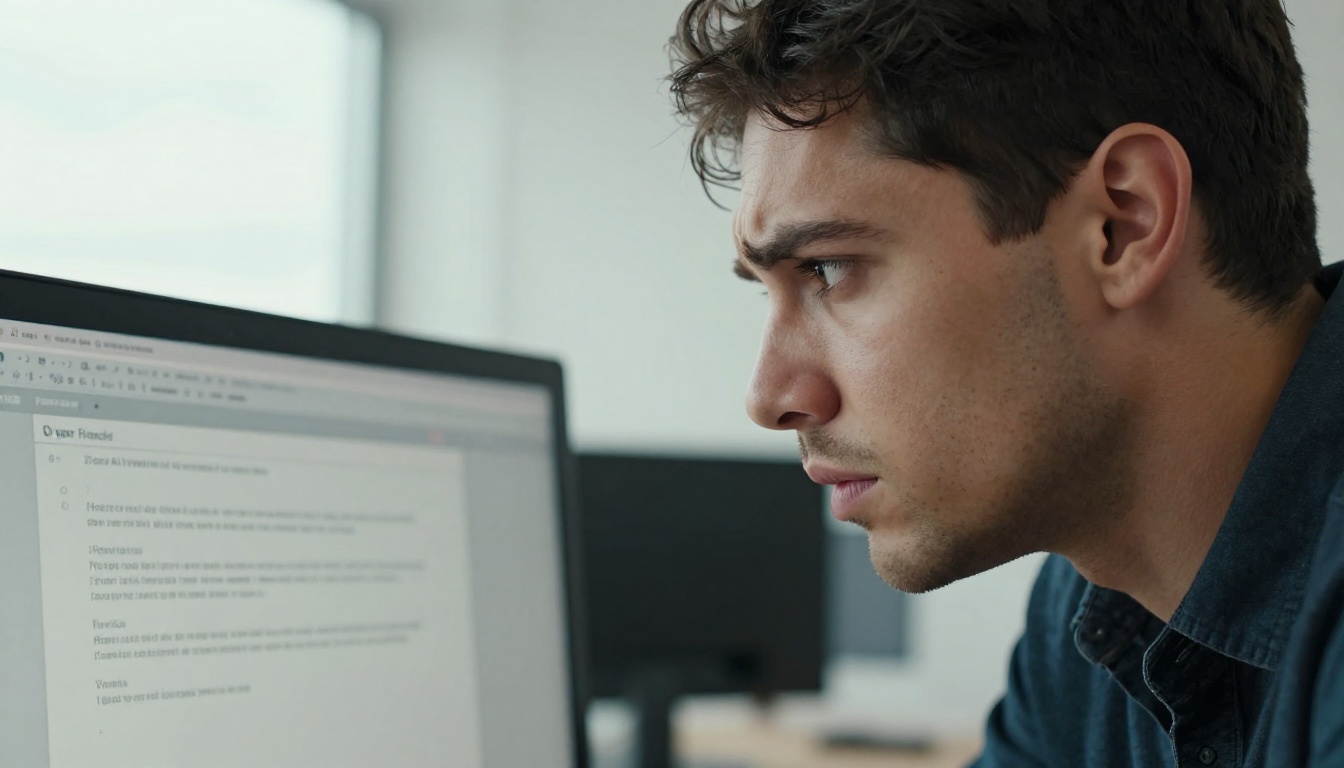
This is the mistake most beginners never identify as a mistake. They generate an image, download it, zoom in, and see a pixelated or softly blurred mess. Their conclusion: AI images are just low quality. That conclusion is wrong. The resolution settings were simply left at default.
Why your output looks blurry
Many models default to generating at 512x512 or 768x768 pixels. At that size, images look acceptable as thumbnails or on a phone screen. The moment you crop them, print them, or use them at full size in a layout, the lack of native resolution becomes immediately obvious.
This is not a flaw in AI image generation. It is a configuration choice that beginners almost always leave untouched.
Upscaling the right way
Generating at higher resolution is one path. Running the output through a dedicated AI upscaler is often the better path, because modern upscalers do not just stretch pixels. They reconstruct plausible detail that logically should exist in the image.
PicassoIA offers several strong upscaling models:
- Clarity Pro Upscaler: Photorealistic upscaling with strong skin and texture reconstruction. Excellent for portraits and faces.
- Topaz Image Upscale: Enlarges images up to 6x while preserving sharp textural fidelity across surfaces.
- Real ESRGAN: A reliable 4x upscaler that handles a broad range of image types without introducing obvious artifacts.
- P Image Upscale: Sharp results in under a second, useful when speed is the priority.
- Google Upscaler: 4x enlargement without visible compression or quality degradation.
- Crystal Upscaler: Specifically optimized for portrait upscaling with natural skin tone and hair detail preservation.
The workflow is: generate at a supported resolution, then pass the image through an upscaler to bring it to print or publication quality. Treating these as two distinct steps consistently produces better results than trying to force everything into one generation.
💡 Tip: For social media, 1024x576 at 72dpi is usually enough. For printing or product use, always upscale first with a dedicated model before exporting.
Seeds: What Most Beginners Never Touch
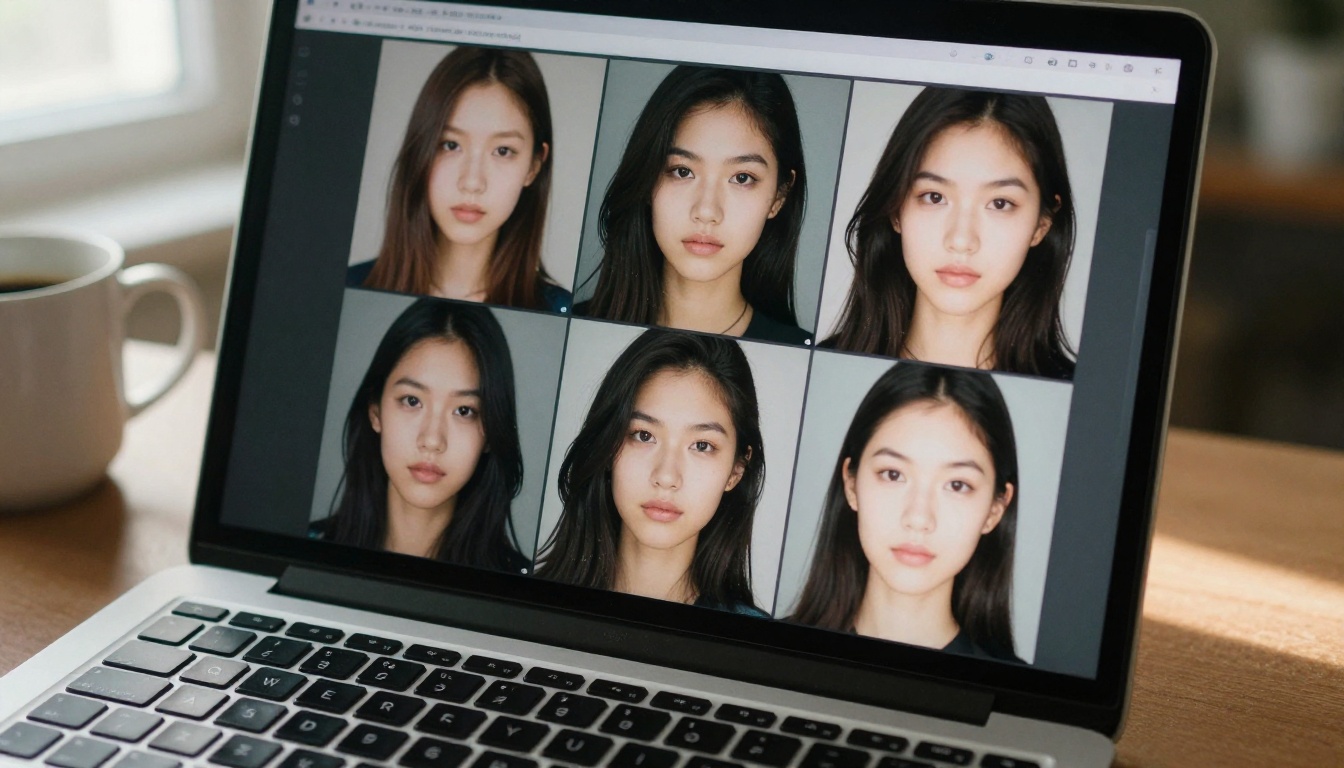
Every AI image generation runs from an underlying random seed number. That seed determines the randomness baked into the initial noise the model works from. Change the prompt by one word with the same seed and you get a closely related variation. Use a completely different seed with the exact same prompt and the image looks entirely different.
Beginners almost never pay attention to seeds. This causes two distinct problems.
You can't reproduce your best results
When a generation comes out beautifully and you did not note the seed, you cannot get that exact image back. The next run with the same prompt will look different. The one after that will look different again. Without the seed, the configuration that produced your best result is permanently gone.
When you find a generation you like, the first action is to copy the seed number. Most AI image platforms display it in the generation details or output metadata panel immediately after the image appears.
You can't iterate with any precision
Intelligent iteration means changing one variable at a time so you know what made the difference. If your prompt changes and your seed randomizes simultaneously, you have no way to attribute any improvement. Locking the seed lets you adjust prompt language, lighting descriptors, and style modifiers while comparing outputs that share the same underlying compositional structure.
| Iteration Goal | Seed Strategy |
|---|
| Refine a prompt you like | Lock the seed, vary the wording |
| Find a better composition | Same prompt, randomize seed 5-10 times |
| Build a consistent visual series | Lock seed, vary one descriptor per image |
| Explore completely different directions | Full random seed every generation |
The Aspect Ratio Nobody Sets Correctly
A 1:1 square image stretched to fill a 16:9 banner looks distorted immediately. A 16:9 landscape image cropped to 9:16 for a social story loses most of its content. These outcomes seem obvious in hindsight, but beginners routinely generate at whatever ratio the tool defaults to and try to adapt afterward.
Wrong ratio, wasted generation
Different contexts have standard ratios that exist for real reasons. Generating for the wrong one costs you compute time and forces you into awkward cropping that always involves losing something:
- Social media feed posts: 1:1 or 4:5
- Stories and vertical content: 9:16
- Blog headers and article banners: 16:9
- Landscape photography and wallpapers: 16:9 or 3:2
- Product thumbnails and square avatars: 1:1
- Print portrait work: 4:5 or 2:3
Set the ratio before generating, based on where the image will actually appear. Deciding it afterward means cropping away detail that was already generated and paid for in compute time.
💡 Tip: When you are not sure where an image will land, generate at 16:9. It gives you the most flexibility for cropping to any other ratio without losing the main subject.
Negative Prompts: The Field Nobody Fills In
The negative prompt field sits right there in the interface. Most beginners never touch it. This is a significant missed opportunity, and the outputs reflect it.
Negative prompts tell the model explicitly what not to include. Without them, the model includes whatever it considers typical for your concept, which often means blurry backgrounds when you wanted sharp ones, anatomically incorrect hands from statistical noise in training data, unwanted watermarks, flat or artificial-looking skin, and stylistic elements you never asked for.
What belongs in a negative prompt
A working negative prompt for photorealistic portraits looks something like this:
blurry, out of focus, distorted, deformed, extra fingers, bad anatomy, watermark, text overlay, logo, overexposed, underexposed, cartoon, 3D render, illustration, painted, neon, oversaturated, noise, grain, low quality, duplicate, cropped
You do not need a 200-word list. A focused set of 15 to 20 items specific to your output type will improve nearly every generation measurably. Build a default negative prompt for each type of work you do regularly and reuse it. Starting from scratch every session wastes the advantage.
Negative prompts are also useful for avoiding style contamination. If you are generating photorealistic images and don't want any illustrative softness creeping in, adding "illustration, painted, digital art, soft edges, smooth skin" to your negative prompt pushes the model firmly toward photography.
Expecting the First Try to Be the Last One
This is less a technical mistake and more a workflow mistake, and it has a direct effect on output quality. Beginners generate one image, find it imperfect, and conclude either that they don't know what they are doing or that the tool doesn't work. Neither conclusion leads anywhere useful.
Iteration is the actual process
Experienced AI image creators typically run 10 to 50 generations before settling on a final result. The first generation shows you what the model understood from your prompt. The second corrects the gaps. The third refines the lighting. By the fifth or sixth iteration, something compelling usually emerges.
Knowing what to change between iterations is what separates productive iteration from random clicking:
- Subject looks wrong: your subject description is too vague or generic
- Composition feels off: add explicit camera angle and lens specifications
- Lighting is flat: describe the light source, its direction, and its quality in words
- Style is wrong: you may be using the wrong model for this type of output
- Output is blurry: adjust resolution settings or run the result through Clarity Pro Upscaler or Real ESRGAN
The model isn't failing. It is showing you which information was missing from the prompt.
How All of This Fits Together
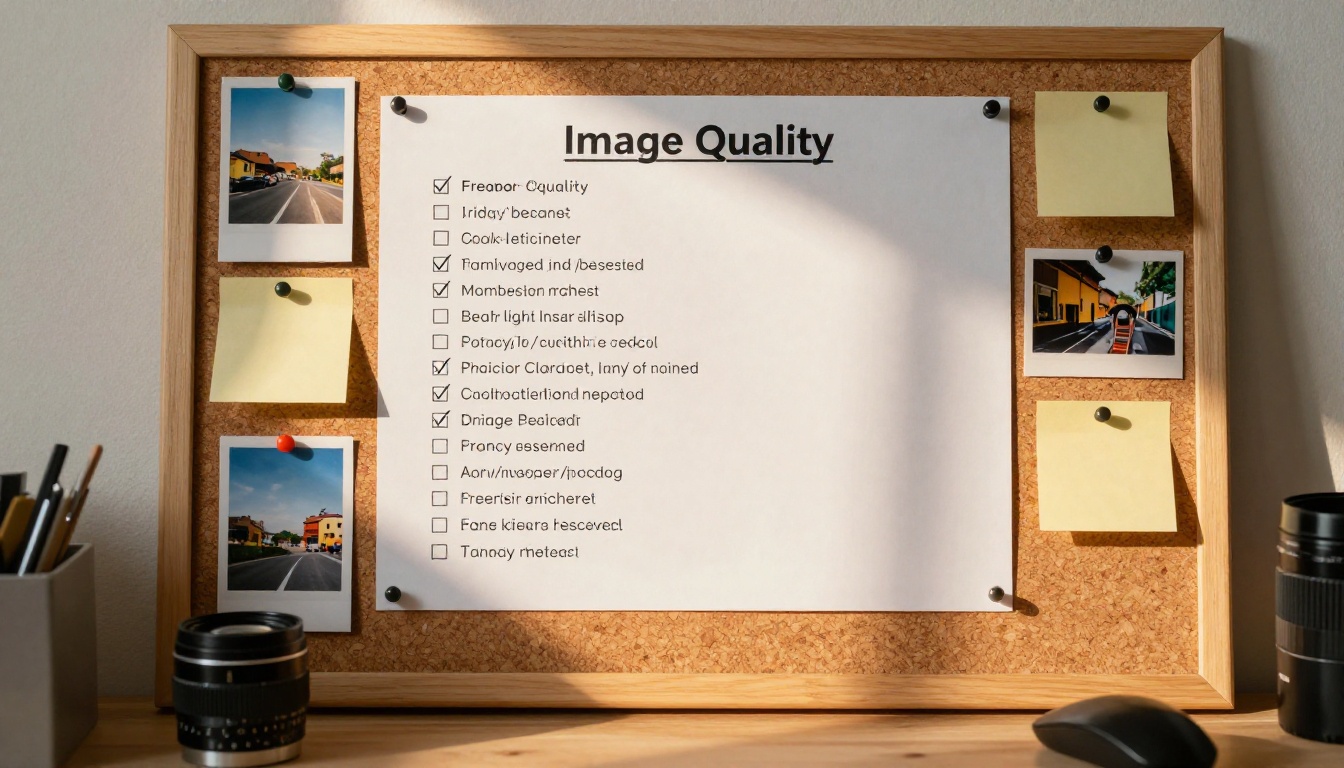
Every mistake above traces back to the same root cause: treating AI image tools like a search engine rather than a creative collaborator. You type a keyword and expect a curated result. That mental model produces consistently average output.
These systems respond to specificity. They reward precision. The quality of your output is nearly entirely determined by the quality of your input, which is a far more controllable situation than most beginners realize once they see it clearly.
Here is a checklist to run before every generation session:
Running through this before every session takes about 90 seconds. The improvement in output quality is not marginal. It is the difference between outputs you would never share and ones you would actually use.
Start Creating on PicassoIA
The fastest way to internalize everything above is to run one generation the old way, and then immediately run the same concept with a proper detailed prompt, the right model, correct resolution settings, and a filled negative prompt. The difference in the two outputs is immediate and, for most beginners, genuinely surprising.
PicassoIA gives you access to over 91 text-to-image models, dedicated upscalers including Clarity Pro Upscaler, Real ESRGAN, Topaz Image Upscale, and Crystal Upscaler, background removal via Remove Background, and a full suite of image and video creation tools, all in one platform.
Start with one image you care about. Apply what is above. The results will show you immediately whether any of this is worth taking seriously.
Browse every available model at picassoia.com/en/all-models and find the right starting point for your next project.


