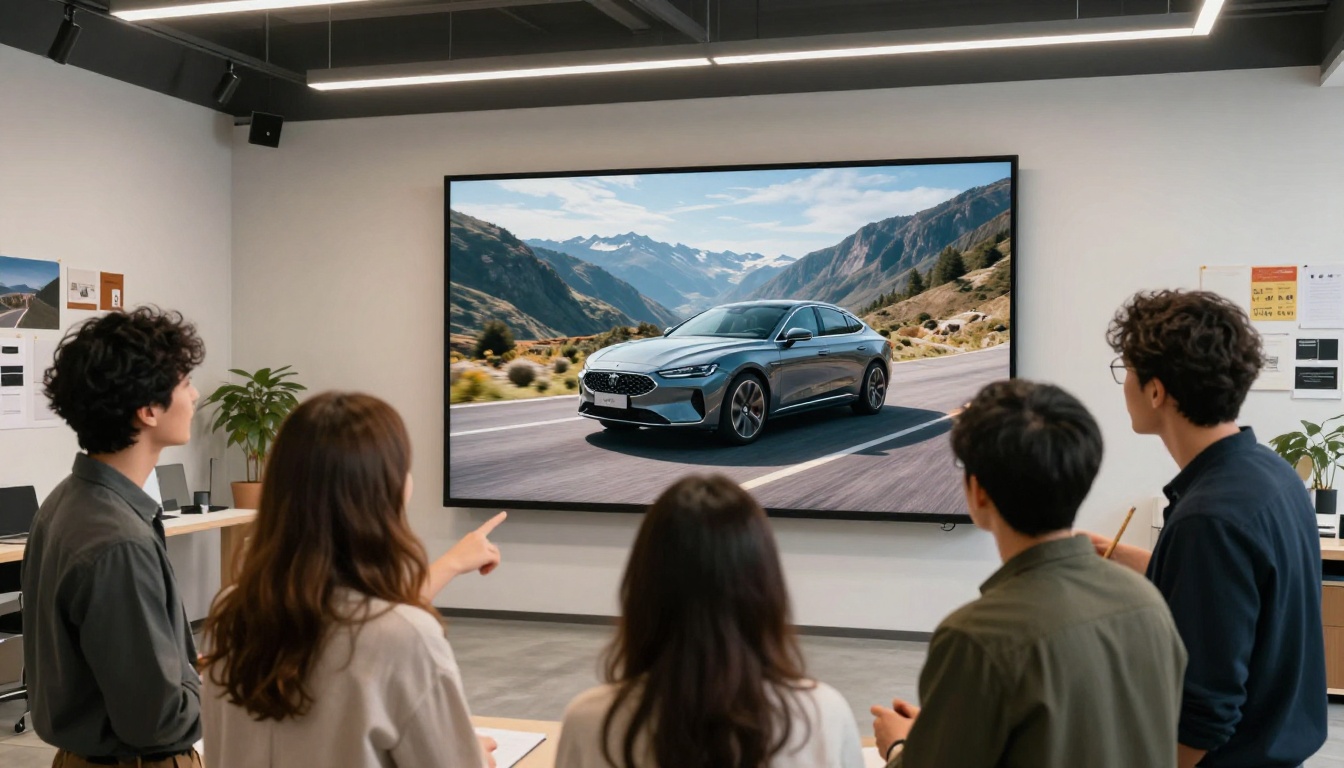
GPT Image 2 is OpenAI's most capable image generation model to date, and if you haven't tested it seriously, the gap between it and where we were two years ago is genuinely striking. This isn't a marginal improvement. The photorealism, prompt adherence, and compositional accuracy have crossed a threshold that makes it useful for real work, not just experimentation. Let's go through exactly what it can and can't do.
The Basics: What Makes It Different
It's not DALL-E 3 with a new name
GPT Image 2 is a distinct architecture from its predecessors. Where DALL-E 3 focused on prompt alignment, making sure the image actually matches what you typed, GPT Image 2 pushes both alignment AND perceptual realism simultaneously. The result is images that look photographed, not generated.
The model handles multi-element composition far better than earlier versions. Ask it for a scene with specific objects, people, and lighting, and it places them correctly relative to each other instead of mashing them together in an implausible arrangement.
How the text-to-image pipeline works
Under the hood, GPT Image 2 uses a diffusion-based architecture refined with reinforcement learning from human feedback (RLHF), similar to the technique that improved ChatGPT's text outputs. This means the model has been tuned to produce outputs that actual humans prefer, not just outputs that score well on technical metrics.
The pipeline takes your prompt, encodes it into a semantic representation, then progressively refines a noisy image into detail. Each refinement step is guided by the text embedding, which is why specific, detailed prompts produce dramatically better results than vague ones.
7 Things GPT Image 2 Does Well
Portrait generation
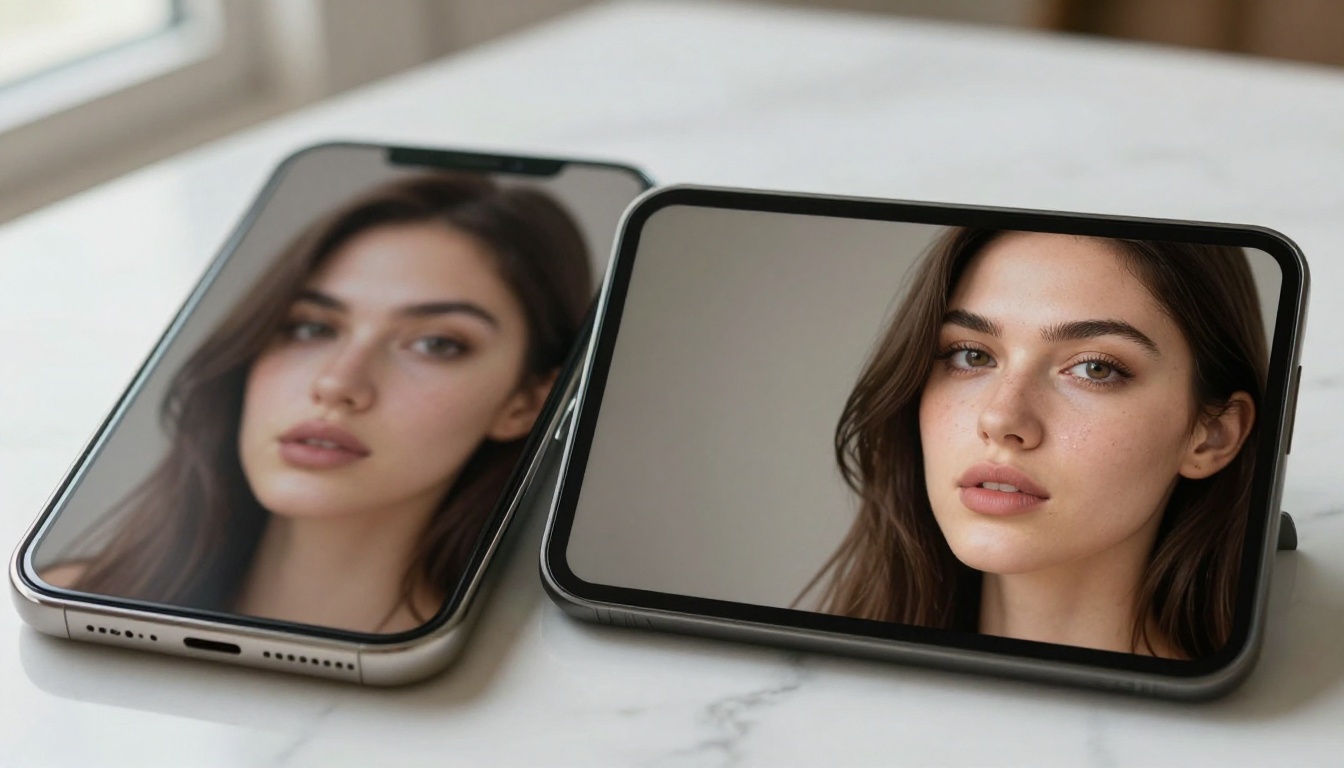
This is where GPT Image 2 genuinely impresses. Faces are consistent, lighting is natural, and skin tones respond to described conditions with accuracy. You can specify age, ethnicity, emotion, and lighting direction and get a result that looks like a professional headshot from a competent photographer. The model handles diverse skin tones well, which has historically been a weak point in AI image generation.
💡 Tip: Describe lighting direction explicitly. "Soft window light from the left, warm afternoon" gives far better results than just "good lighting." The model treats lighting as a first-class element of the composition.
Facial micro-details are rendered with a level of realism that was only achievable by specialist portrait models a year ago. Pores, subtle asymmetry, natural wrinkles, and realistic eye reflections all contribute to an output that reads as photographed rather than synthesized.
Product and commercial shots
E-commerce teams are quietly adopting this for product photography at scale. Specify a surface material, lighting rig, and context, whether lifestyle or studio, and the output is routinely indistinguishable from a basic commercial shoot. It doesn't replace a photographer for hero campaign images, but it handles the volume work of variant shots, color options, and contextual setups extremely effectively.
💡 Tip: For product shots, always specify the surface material. "White acrylic sweep with subtle shadow" vs. "marble table" vs. "dark walnut shelf" produce very different moods and the model renders each material texture accurately.
Architectural and interior visuals
Architects and interior designers use GPT Image 2 to rapidly prototype visual concepts before committing to renders or physical mockups. Describe a room's materials, natural light conditions, furniture style, and color palette, and the output communicates the design intent clearly to clients and collaborators. Far faster than a 3D render for early-stage presentations.
Scene composition from complex prompts
Earlier models would often ignore elements of a complex scene or place them spatially incorrectly. GPT Image 2 handles multi-subject scenes with spatial logic. "A woman reading a book on the left side of the frame, a dog sleeping in the foreground, a bookshelf in the background" renders with those objects in approximately the right positions with the right relative scale.
Text rendering in images
One of the oldest complaints about AI image generators is broken text. Gibberish letters on signs, menus, and product labels that look like they were typed by someone who had never seen the alphabet. GPT Image 2 handles short text strings reliably. Product labels with 3 to 5 words, storefronts, simple typographic elements, all render correctly in the majority of attempts. Longer text strings still drift into incoherence, but for the most common commercial use cases, the text problem is largely solved.
💡 Tip: Keep text strings under 5 words for best results. Use quotes in your prompt to mark the text clearly: "a bakery awning that reads "Fresh Daily" in hand-lettered white type."
Style consistency across a session
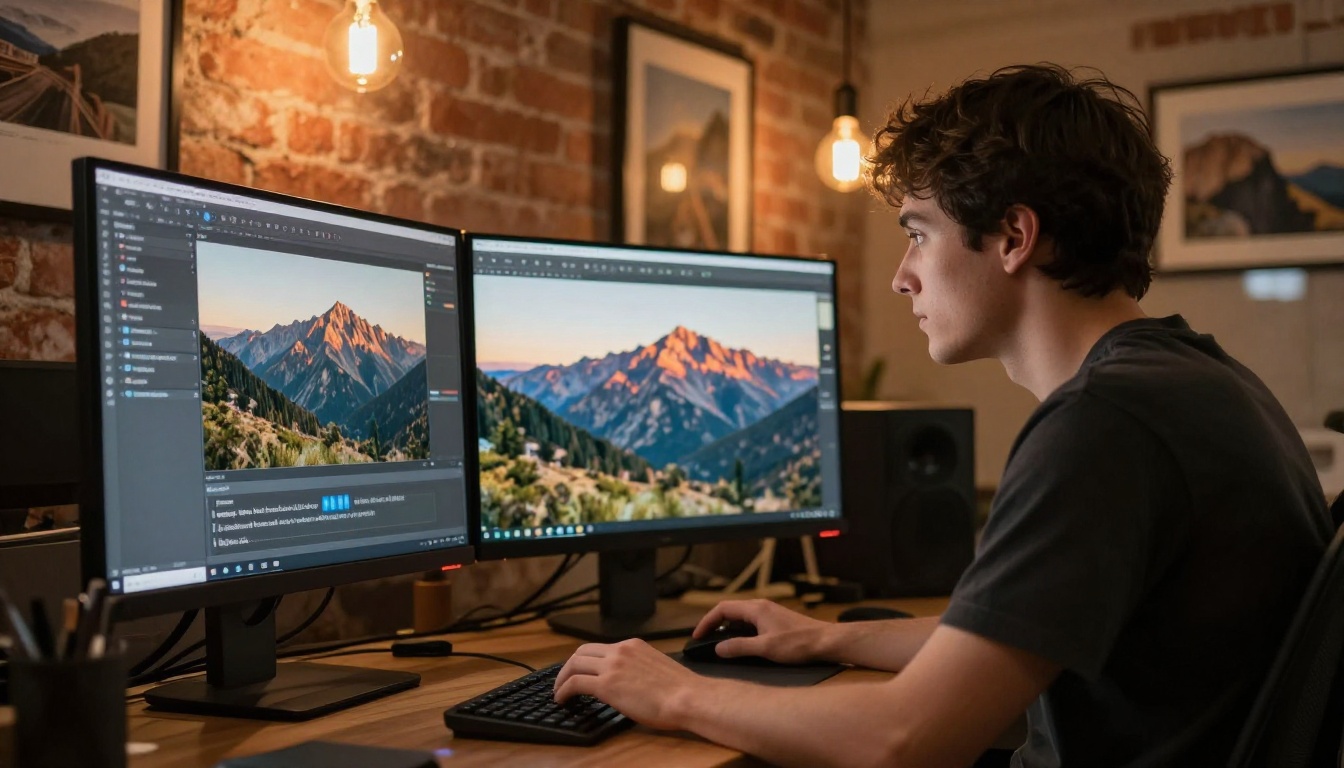
For content creators producing image series, visual consistency matters enormously. GPT Image 2 maintains visual style, color grading, and character appearance across multiple generations when you use consistent prompt language as an anchor. This makes it practical for social media content batches, editorial series, and storyboard production where images need to feel like they belong together.
Inpainting and targeted edits
Beyond generation from scratch, GPT Image 2 supports inpainting, where you define a region of an existing image and describe what should replace it. Change the background of a product shot. Swap a shirt color. Remove a distracting object from a scene. The model blends the edit with the surrounding image content in a way that reads as natural rather than grafted on.
Where It Struggles
Hands and fine anatomy
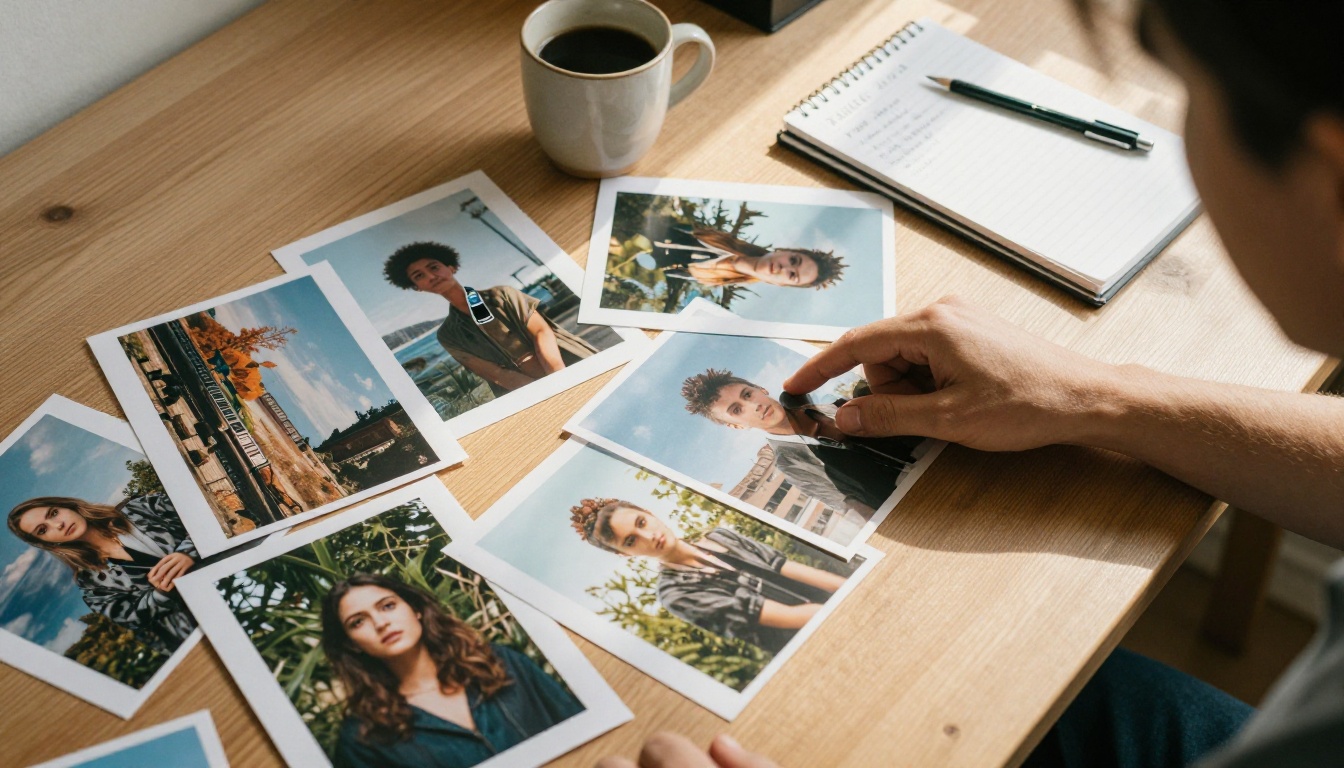
This remains the persistent weak point of diffusion models including GPT Image 2. Hands with unusual angles, overlapping fingers, and close-up views of joints often render incorrectly. Extra fingers, fused knuckles, and anatomically impossible poses appear more often than they should. The solution is compositional: use camera framing and scene design to avoid featuring hands prominently. A slightly wider camera angle, or a pose that naturally obscures the hands, sidesteps the issue entirely.
Very long text in images
Short text strings work well, but if you need a paragraph of readable text, a legible chart, or complex multi-line typography, GPT Image 2 is not the right tool for it. For text-heavy visuals, the right workflow is to generate the photographic base image from the model and then add text as an overlay in a design tool like Figma or Photoshop. This hybrid approach produces clean, accurate text without fighting the model's inherent limitations.
Highly specific spatial instructions
Describing a five-person group photo with specific named poses for each individual and precise spatial relationships between them will produce a plausible result but not an accurately faithful one. The model interprets general compositional intent rather than executing a rigid technical layout. For group compositions, describe the mood and rough arrangement rather than expecting precise positional control.
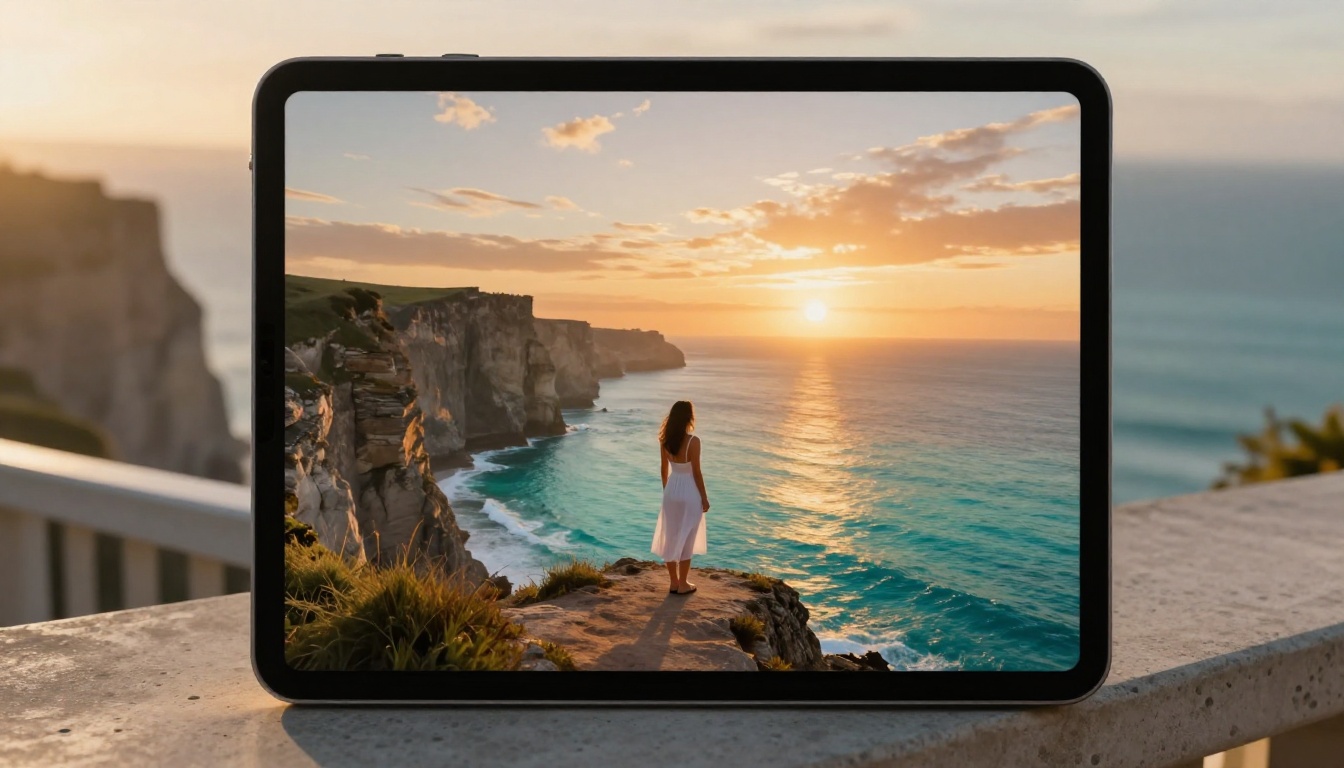
GPT Image 2 vs. Other Top Models
Choosing the right model depends heavily on your specific use case. Here's how GPT Image 2 compares to the leading alternatives currently available:
Each model has a specific sweet spot. GPT Image 2 leads for commercial photography-style outputs, portrait work, and anything requiring prompt accuracy. Seedream 4.5 produces stunning detail for print-scale visuals where pure resolution is the priority. Flux Redux Dev is the best choice when you need consistent variations from an existing source image. Qwen Image Edit Plus handles retouching and targeted modifications better than most.

How to Use GPT Image 2 on PicassoIA
GPT Image 2 is available directly on PicassoIA without any API setup, credits management, or technical configuration.
Step-by-step walkthrough
- Open the model page: Go to GPT Image 2 on PicassoIA directly from the text-to-image collection.
- Write your prompt: Be specific. Include subject, environment, lighting, camera angle, and style. More detail means more control over the output.
- Select your aspect ratio: For social media, 1:1 or 9:16. For website headers or presentations, 16:9. For standard photography proportions, 3:2.
- Run the generation: Click generate. Processing time ranges from seconds to a few minutes depending on resolution and server load.
- Review and refine: If the result isn't right, refine the prompt rather than regenerating with identical text. Change one variable at a time to isolate what's affecting the output, whether that's lighting, subject detail, or camera framing.
- Download or continue: Save the result directly or route it into an inpainting or editing workflow for further refinement.
Tips for better prompts
Start with lighting. The lighting condition sets the mood for everything else before any other detail. "Golden hour, warm side light from the right, long shadows" vs. "overcast, flat diffused light, neutral tones" produces completely different emotional registers even with identical subject matter.
Use camera language. GPT Image 2 responds well to photography terminology. "85mm f/1.8, shallow depth of field, background bokeh" will produce results with those specific optical characteristics. "Wide angle 24mm, environmental portrait, everything in focus" does the same for a different look.
Describe negatives. Stating what you don't want often cleans up outputs significantly. "No text overlays, no watermarks, no cluttered background, no artificial vignetting" removes common artifacts before they appear.
Anchor the style at the end. End every prompt with a film emulation or style note: "Kodak Portra 400, natural grain, photorealistic, raw photography" tells the model what aesthetic register to stay in throughout the generation.

Who Actually Needs This
Content creators and social media teams
If you're producing visual content at volume, AI image generation changes the production math entirely. A social media team that previously needed a photographer for every campaign visual can now iterate on concepts in hours rather than days. GPT Image 2 handles the routine visuals, freeing up the creative budget for the shots that genuinely need a human eye behind a lens.
Small businesses without creative teams
The typical small business has no in-house photographer or designer. Product photos are shot on a phone against a white wall. Website hero images are whatever stock photo looked acceptable. GPT Image 2 changes what's achievable for businesses without large creative budgets. A bakery can generate lifestyle shots of its products in beautiful kitchen environments. A clothing brand can create lookbook-style images without booking a model or renting a studio.
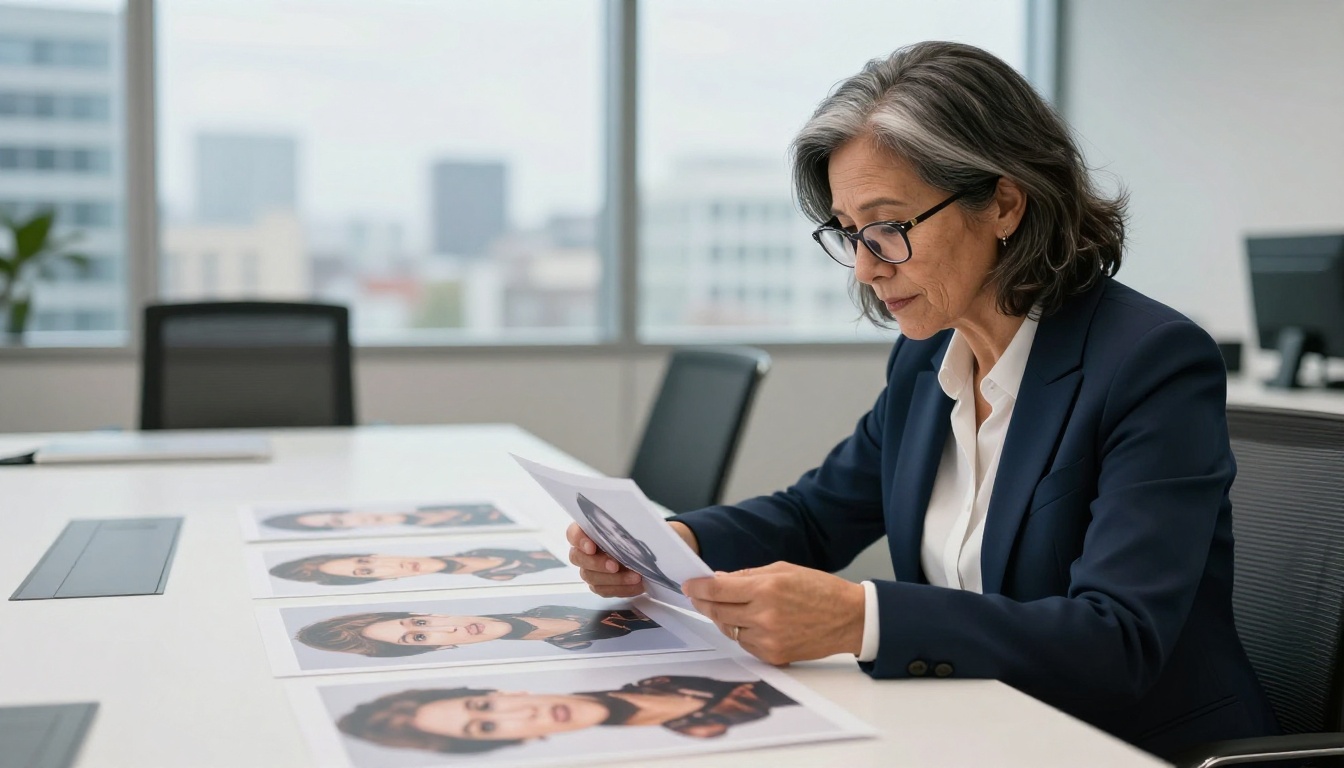
Developers building visual products
If you're integrating image generation into an application or platform, GPT Image 2's strong prompt adherence makes user-facing results more predictable. Consistent output quality reduces the support overhead that comes from wildly variable model behavior. The model's reliability across prompt types makes it a dependable backend for consumer-facing products.
Designers and art directors
Rapid visual prototyping is where this model earns its reputation with professionals. An art director can generate 20 concept directions for a campaign before committing to a single production shoot. The iteration speed changes how creative briefs are developed, presented, and approved. Clients see realistic visual directions early in the process, which compresses the revision cycle significantly.
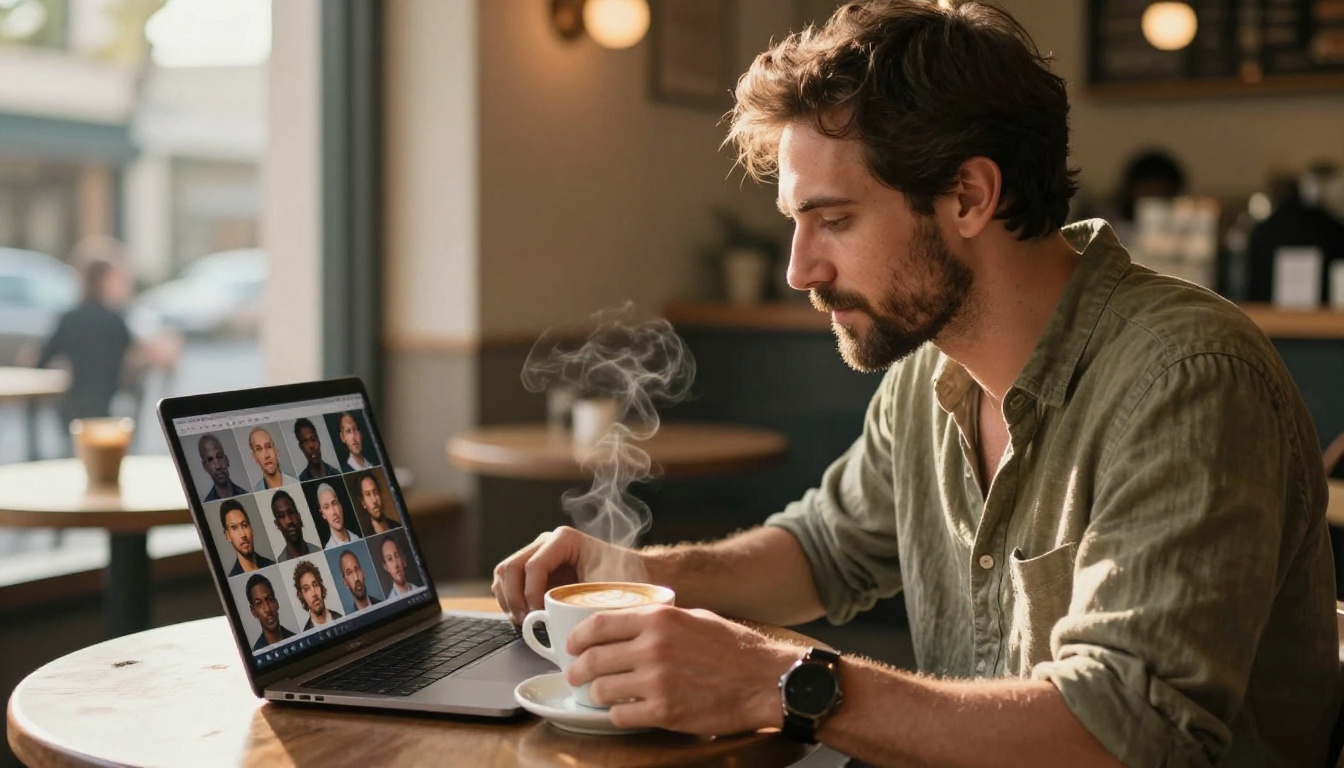
Real Applications Right Now
The practical applications are already showing up across industries at scale:
- Real estate listings: Generate furnished room visuals for empty properties to help buyers visualize the space
- Restaurant menus: Create food photography from written descriptions before dishes are finalized or seasonal items change
- Fashion concept work: Visualize garment designs on models with varied body types, skin tones, and styled environments
- Publishing: Generate chapter headers, concept illustrations, and cover mockups without commissioning original art
- Marketing testing: Create multiple visual treatments of the same campaign concept to test before committing to production
- Training data: Generate labeled image datasets for computer vision and machine learning projects at scale
💡 Worth knowing: PicassoIA's Image Editor Pro lets you take any GPT Image 2 output and continue refining it with additional AI tools. Generate the base image, then refine specific regions, expand the canvas, or swap out elements that aren't working.
Start Creating Your Own Images
The only way to genuinely grasp what GPT Image 2 produces is to run a few generations yourself. Theory and examples only take the understanding so far. The model's behavior under different prompt structures is something you absorb by doing, not by reading.
PicassoIA gives you access to GPT Image 2 alongside dozens of other leading models, so you can compare outputs from the same prompt side by side. Try Seedream 4.5 for ultra-high-detail 4K results. Use Qwen Image Edit Plus when you need to edit and refine an existing image rather than generate from scratch. And when consistent variations of a source image are what you're after, Flux Redux Dev is the right pick.
Pick a concept you've been wanting to visualize. Write a detailed prompt using the tips above. See what comes back. The distance between what you imagine and what the model produces has narrowed to a point that still surprises people the first time they use it seriously.