You have a photo you like, but the light is flat, the outfit is wrong, or the background is a mess. Image 2 image AI fixes that without a reshoot. You upload the photo, type one sentence, and the model rebuilds the picture while keeping the parts you care about: the pose, the face, the composition. It sounds simple because it is. The hard part is picking the right tool and writing a prompt that doesn't wreck your original.
This article answers the question in the title directly. You will see what image 2 image AI is, how it differs from text to image, which free tools are worth your time, what tasteful NSFW results look like, and a list of prompts you can paste straight into an editor.
What Image 2 Image AI Means
The Short Definition
Image 2 image AI (also written img2img or image-to-image) is a generation method where the model starts from an existing picture instead of a blank canvas. You provide a source photo plus a text instruction, and the model produces a new image that follows both.
Think of it as a retoucher who never gets tired. You hand over a photo and say "make this golden hour" or "put her in a red silk robe," and you get a fresh version back in seconds.
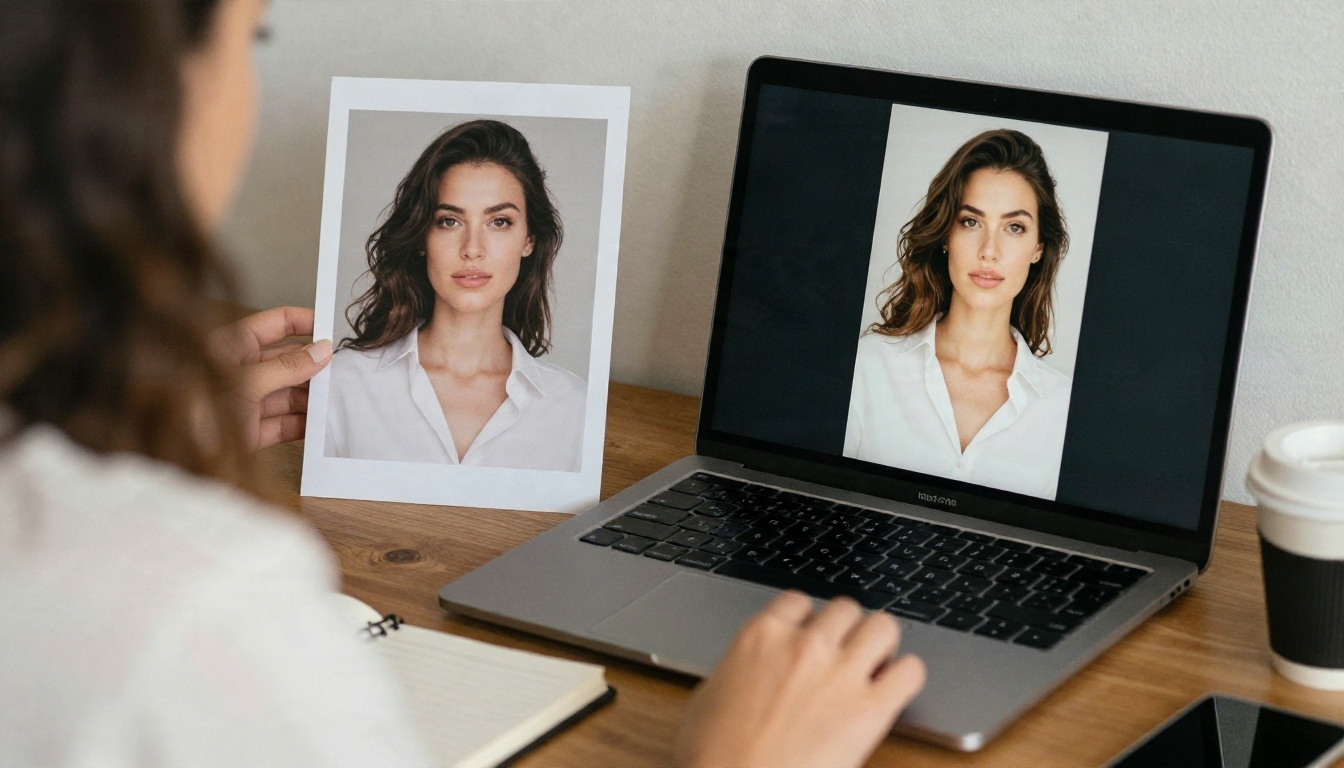
Image 2 Image vs Text to Image
Text to image builds everything from words. Image 2 image borrows structure from your photo, so the result is far more predictable.
| Feature | Text to Image | Image 2 Image |
|---|
| Input | Prompt only | Photo plus prompt |
| Control over pose | Low, depends on luck | High, copied from the source |
| Control over face | Random | Can stay consistent |
| Best for | New ideas from scratch | Edits, restyling, variations |
| Typical retries | 5 to 20 | 1 to 5 |
| Risk | Wrong composition | Over-changing the original |
💡 If you already know what you want the final picture to look like, start with image 2 image. If you only have a vague idea, start with text to image and then refine the best result with an edit pass.
What People Actually Use It For
Most people fall into a few groups:
- Photographers who want to test a color grade or lighting setup before a shoot.
- Creators who need the same character in ten outfits.
- Sellers who swap messy backgrounds for clean ones.
- Adult content creators who want glamour, swimwear, and boudoir looks from a single reference session.
- Hobbyists who restyle old family photos.
How the Process Works
Noise First, Then Cleanup
Under the hood, most image models work by removing noise step by step until a picture appears. In text to image, the model starts from pure random noise. In image 2 image, it starts from your photo with a controlled amount of noise added on top.
The model then cleans that noisy version up while following your prompt. Because your original pixels are still partly there, the pose and layout survive.
The Strength Slider
Many tools expose a setting called strength, denoise, or image influence. It decides how much of your original survives.
| Strength | What Happens | Use It For |
|---|
| 0.1 to 0.3 | Tiny changes, skin and light tweaks | Retouching, color grading |
| 0.4 to 0.6 | Clothing, background, mood shifts | Outfit swaps, scene changes |
| 0.7 to 0.9 | Heavy rebuild, only rough layout stays | Style changes, new scenes |
| 1.0 | Original ignored | Same as text to image |
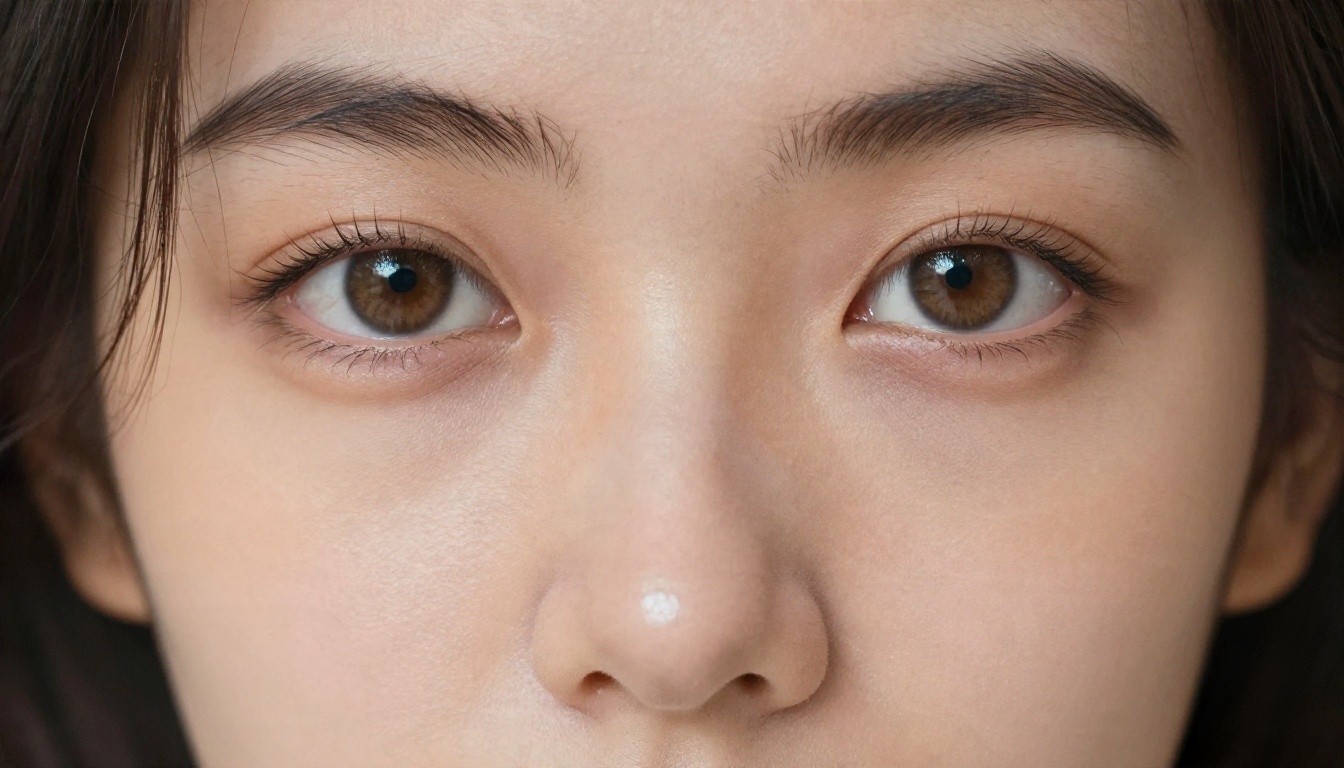
Low strength keeps pores, freckles, and eye detail intact. High strength can smooth them away, which is why portrait edits usually sit between 0.3 and 0.6.
Instruction Editing vs Classic Img2Img
Newer editors skip the slider entirely. You type an instruction like "change the dress to emerald green" and the model decides what to touch and what to leave alone. This is often called instruction-based editing, and it is the style used by most modern models on PicassoIA. It tends to be easier for beginners because there is nothing to tune.
Seedream 4.5 Comes First
For realistic photo work, including adult glamour and swimwear edits, start with Seedream 4.5. It accepts reference images, keeps skin tone and anatomy believable, and handles lighting changes without the plastic look some models produce. It is also fast, so you can test five prompt variations in a few minutes.
PicassoIA Image Editor Pro
Next is PicassoIA Image Editor Pro. Its main selling point is unlimited generations. When you are iterating on a prompt, that matters more than any single feature. You can run twenty attempts without watching a credit counter, and it works with uncensored, adult-oriented edits within the non-explicit limits described below.
💡 Iteration is where image 2 image pays off. The first result is rarely the best one. Having room to run it ten times is what turns an okay edit into a good one.
Other Editing Models That Work
Once you have the basics, these models are worth testing for different jobs:
| Model | Best For | Link |
|---|
| Seedream 4.5 | Realistic portraits, glamour, swimwear | Open model |
| Image Editor Pro | Unlimited edit attempts | Open model |
| Qwen Image Edit Plus | Precise instruction edits | Open model |
| Qwen Image Edit 2511 | Clean outfit and background swaps | Open model |
| Flux Kontext Fast | Quick photo edits, consistent subjects | Open model |
| P Image Edit | Sub-second edits for rapid testing | Open model |
| Nano Banana Pro | General photo edits and 4K output | Open model |
Some models apply stricter content filters than others. If an adult-oriented edit gets blocked, switch to Seedream 4.5 or Image Editor Pro rather than rewording the same prompt ten times.
Free Options on Your Phone
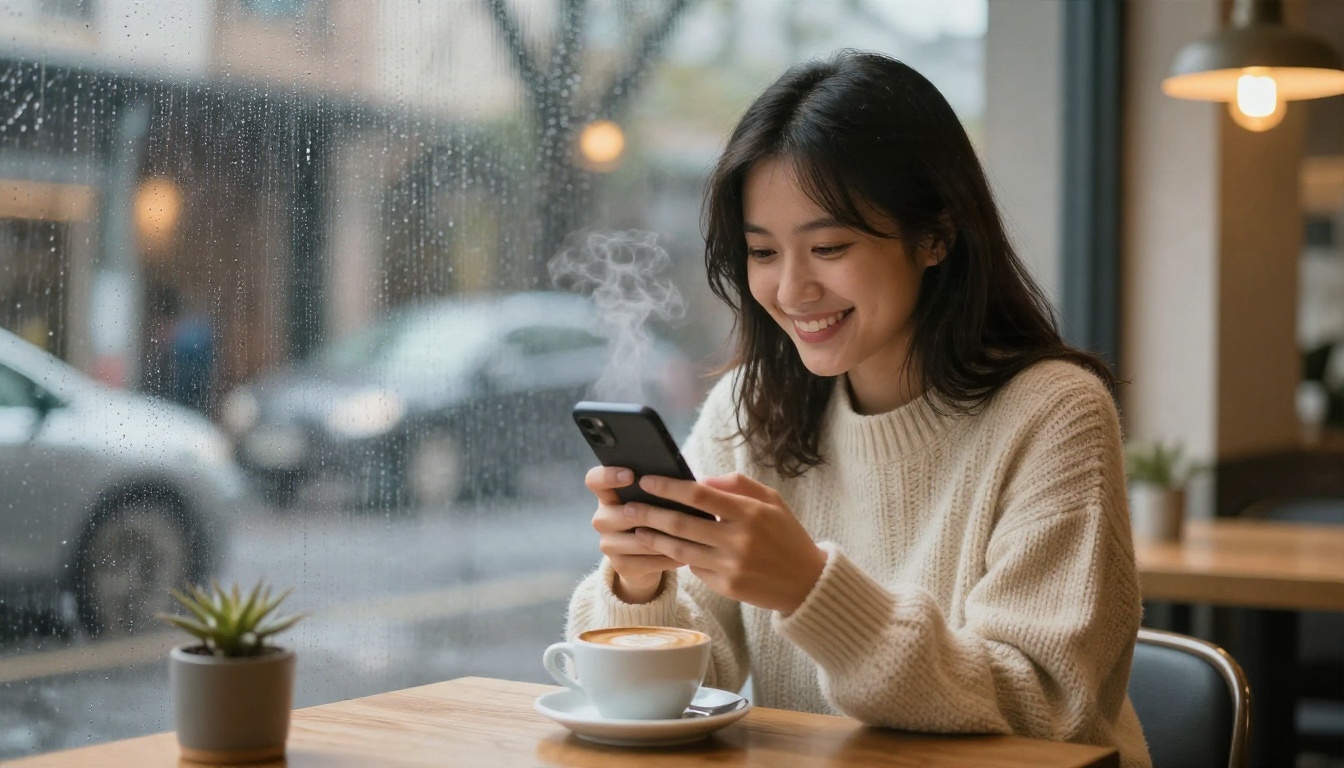
You don't need a desktop setup. Any browser-based editor works on a phone, so you can shoot a photo, upload it, and get a restyled version while waiting for coffee.
NSFW Examples That Stay Tasteful
What Non-Explicit Means Here
Adult image 2 image AI is one of the most searched uses of the technology, so it deserves a straight answer. The examples below are suggestive and glamorous, not pornographic. Think swimwear campaigns, boudoir editorials, and fashion photography. No explicit content, no nudity shown.
That line is not only about platform rules. It is also what looks best. Implied beats explicit nearly every time because the light, fabric, and pose do the work.
Glamour Portraits
A single clothing swap is the classic image 2 image edit. Start with a plain portrait on a balcony or in a hallway, then ask for satin, silk, or lace.
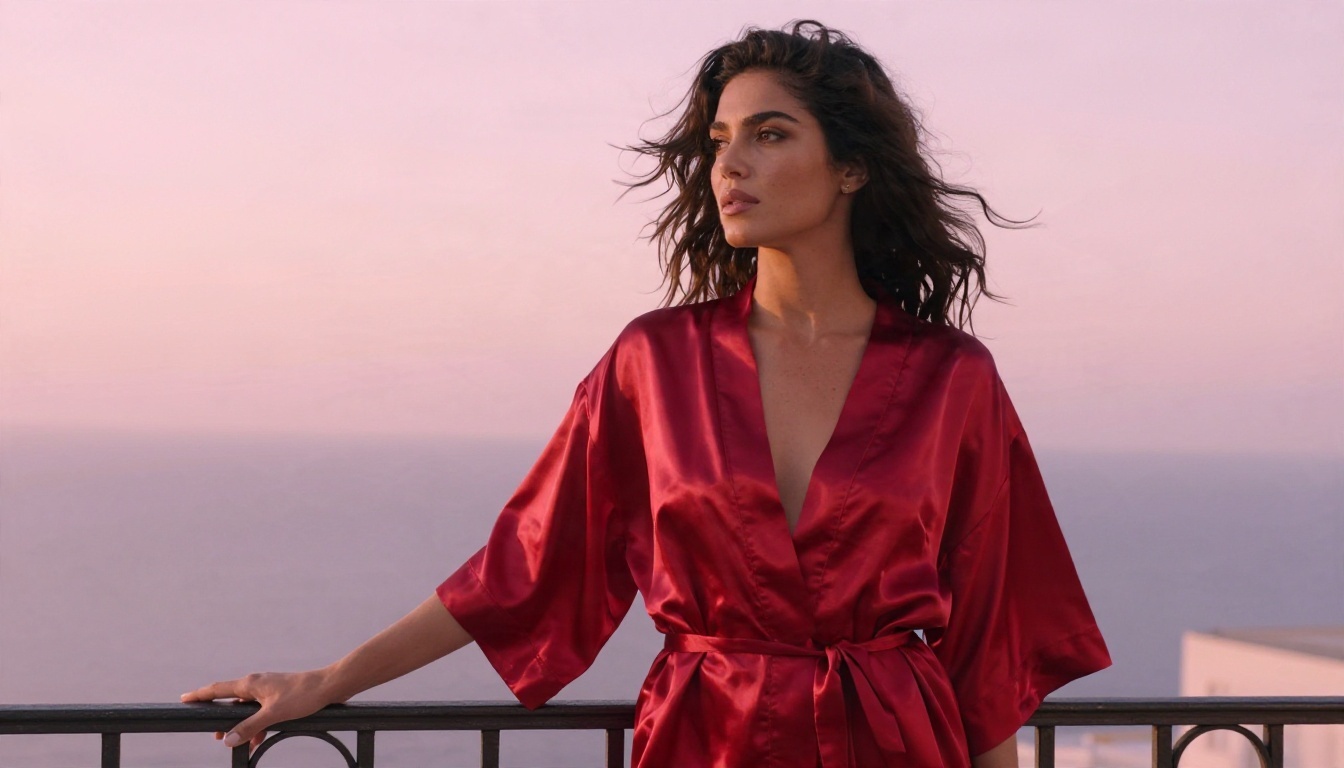
Sample prompt: Change her outfit to a deep red silk robe loosely tied, keep the pose and face, warm sunrise light from the left, Mediterranean balcony, shallow depth of field, Kodak Portra 400 film grain.
Strength around 0.5 works well. Anything higher starts changing her face.
Beachwear and Poolside Shots
Swimwear is the easiest adult-adjacent category because the settings are natural and the light does most of the styling.
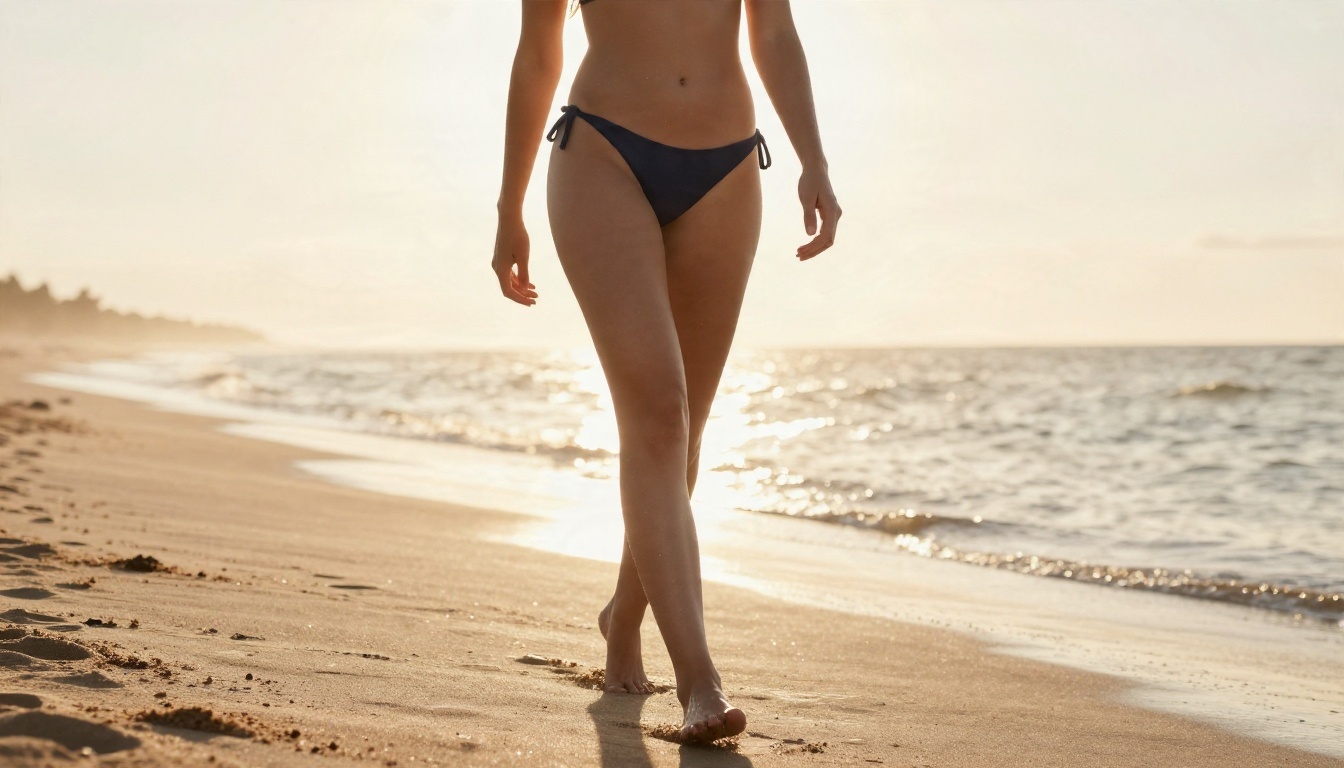
Sample prompt: Place her on a wet sandy beach at golden hour wearing a navy triangle bikini, sun behind her creating rim light on hair and shoulders, natural skin with tiny water droplets, 70mm lens at hip height.
A different source photo, different scene:
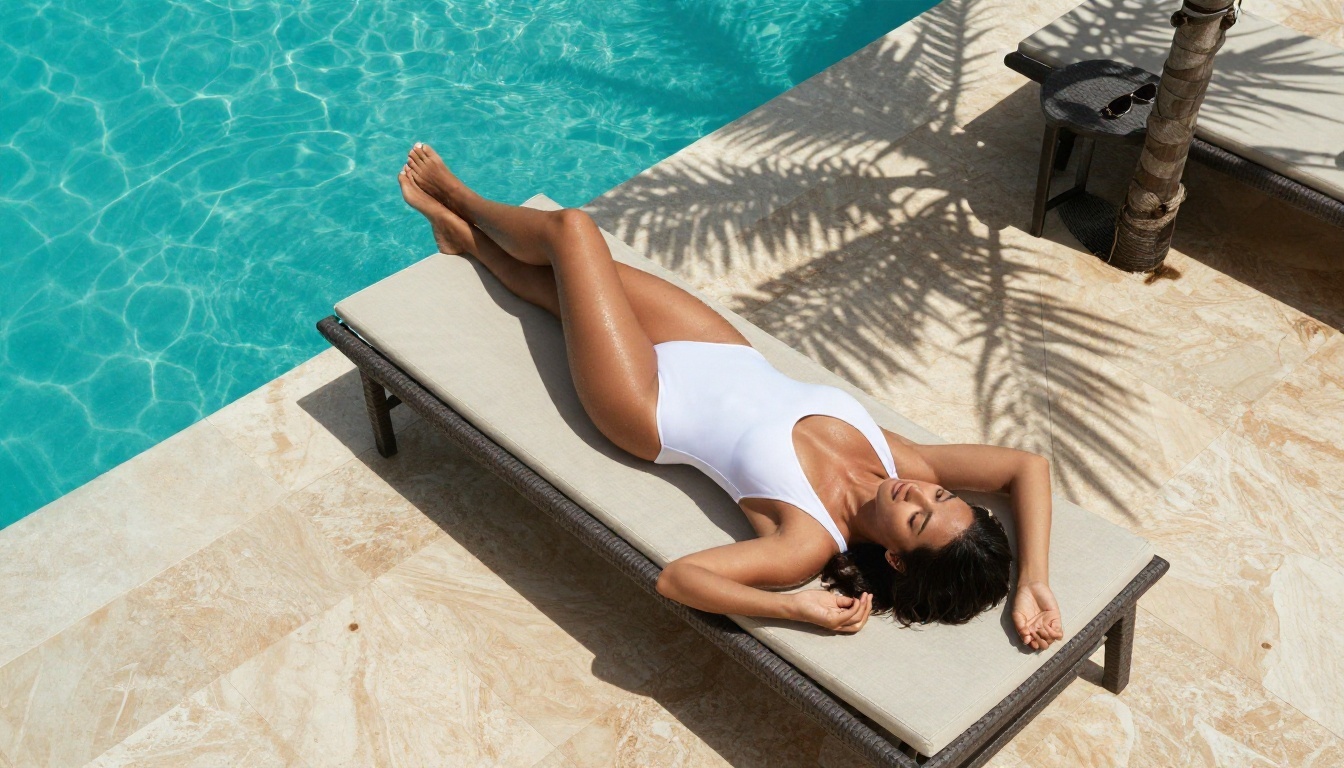
Sample prompt: Seat her on a teak sun lounger beside an infinity pool at a luxury villa, white high-cut one-piece swimsuit, turquoise water, palm shadows across her legs, bright midday sun, shot from above with a 24mm lens.
Soft Bedroom Portraits
Boudoir style relies on light more than on skin. Window light from one side, rumpled linen, and relaxed posture carry the mood.
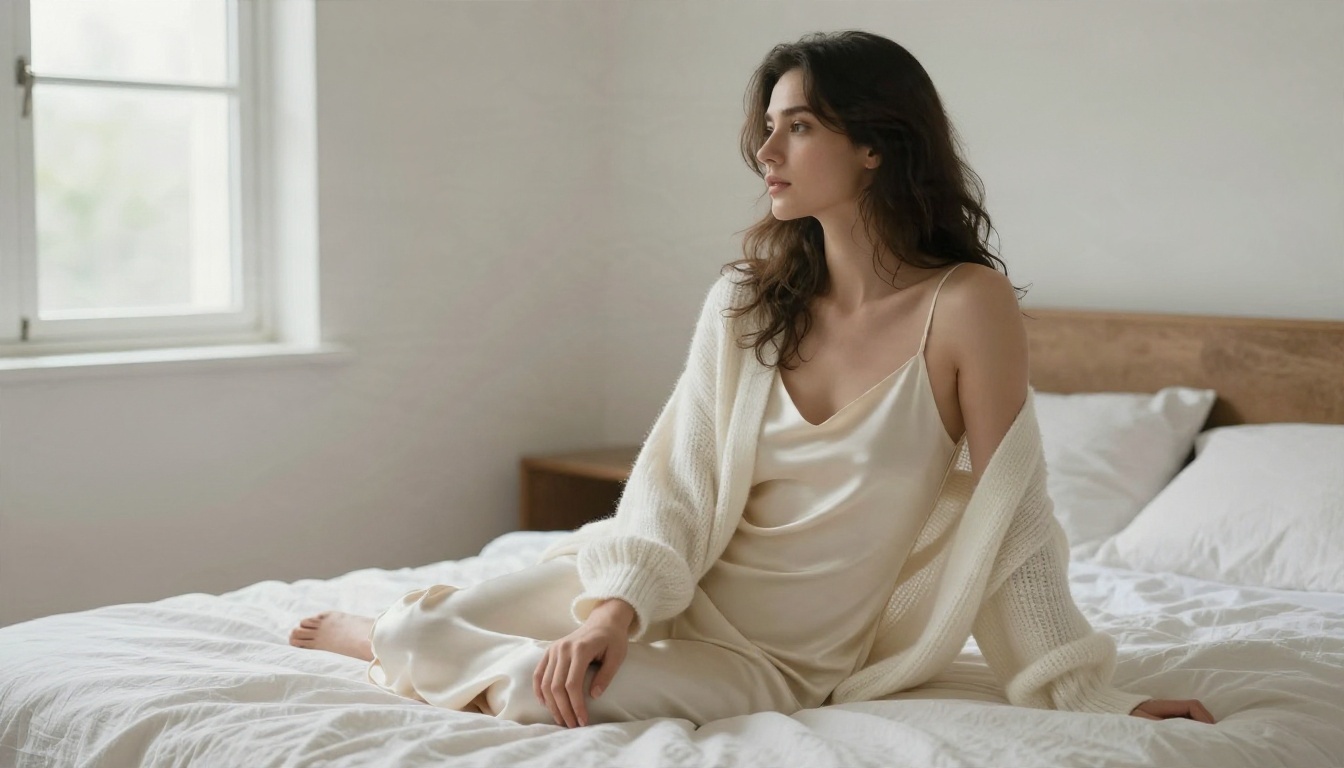
Sample prompt: Seat her on the edge of a bed in a minimalist sunlit bedroom, cream silk slip dress with an oversized white knit cardigan, soft diffused window light from the left, linen wrinkles, 85mm f/1.4.
Consent Rules You Should Follow
Image 2 image AI works on real photos, which makes consent the most important rule in this section.
- Only use photos of yourself or of adults who gave clear permission. Never edit a photo of someone who has not agreed.
- Never edit photos of minors, in any context.
- Don't present edited images as real photos of a real person who did not take part.
- Keep it non-explicit. Tasteful glamour is the target.
If you want adult results without any real person involved, generate a model from scratch with text to image, then use that image as your source.
Prompts You Can Copy
A Simple Prompt Formula
Good image 2 image prompts say what to keep and what to change. A reliable structure:
[Keep] + [Change] + [Light] + [Camera] + [Texture]
For example: Keep her pose and face. Change the outfit to a black satin camisole. Soft window light from the right. 85mm lens, shallow depth of field. Visible skin texture, subtle film grain.
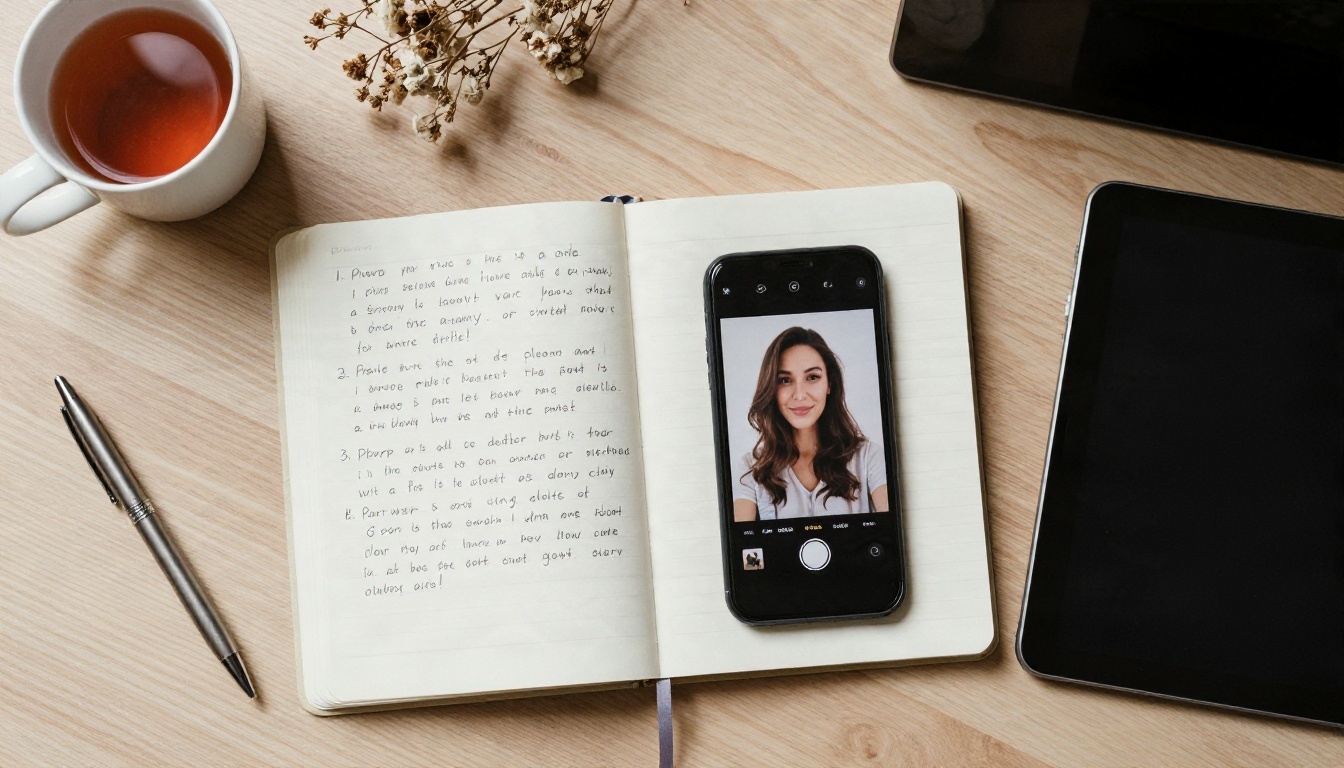
Ten Prompts to Paste
Use these with Seedream 4.5 or Image Editor Pro, and change the details to fit your source photo.
- Keep the pose and face. Change the background to a sunrise balcony with pastel sky.
- Change her outfit to a red satin robe. Keep everything else identical.
- Relight the scene with warm golden hour light from the left, soft rim light on hair.
- Put her on a beach in a navy bikini, wet sand, water around her ankles.
- Make the photo look like it was shot on Kodak Portra 400, with natural grain and warm skin tones.
- Replace the background with a minimalist white bedroom, window light, linen sheets.
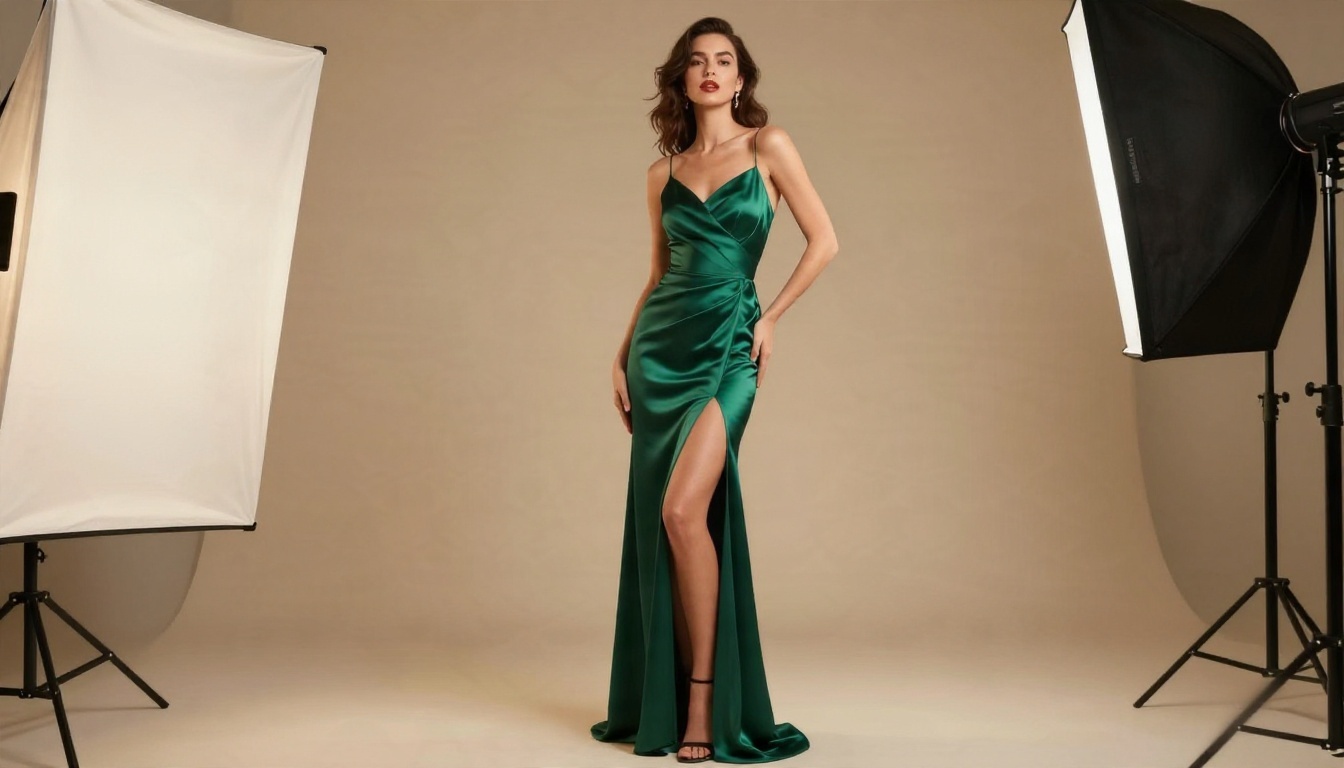
- Change her dress to emerald green satin with a high leg slit, studio softbox lighting.
- Keep her face and hair. Change the setting to a luxury villa pool at midday.
- Add subtle freckles and natural skin pores, remove airbrushed smoothing.
- Change the camera angle to a low angle, 35mm lens, shallow depth of field.
Style Change Prompts
Fashion editorial looks work well because the studio setting is controlled. The same source photo can become an evening gown shoot, a swimwear campaign, or a casual street shot.
💡 Always mention a camera and a film stock. Words like 85mm f/1.8, Kodak Portra 400, and film grain push the model toward photographic realism instead of a glossy, over-smoothed look.
Your First Run in Five Steps
- Pick a clean source photo. Sharp, well lit, and with the subject clearly visible.
- Open an editor. Use Seedream 4.5 for realistic results or Image Editor Pro if you want unlimited attempts.
- Upload the photo. Most editors accept JPG and PNG.
- Write one change at a time. "Change the outfit" works better than "change the outfit, background, hair, and lighting."
- Iterate. Run it three to five times, keep the best, and use that as your new source for the next edit.
Common Mistakes and Fixes
| Problem | Likely Cause | Fix |
|---|
| Face changes too much | Strength too high | Lower strength to 0.3 or 0.4 |
| Skin looks plastic | No texture in prompt | Add "natural pores, subtle freckles, film grain" |
| Edit barely visible | Strength too low or vague prompt | Raise strength, name the exact change |
| Hands look wrong | Source photo hides them | Use a source where hands are clear |
| Blocked by filter | Prompt too explicit | Soften wording, or switch to Seedream 4.5 |
| Lighting looks fake | No light direction | Specify "window light from the left" |
| Background bleeds into subject | Too many changes at once | Edit the subject and background in two passes |
A few habits save the most time:
- Change one thing per pass. Stacking edits is how faces drift.
- Save every good result. A decent version 3 is a better source for version 4 than your original photo.
- Keep prompts short and specific. Adjectives like "stunning" add nothing. Light direction and lens do.
- Don't fight the filter. If a model blocks you, change the model, not the wording.
Try It on Picasso IA Today
Image 2 image AI is the fastest way to get a new photo from one you already have. Pick a source image, write one clear change, and run it. Within a few minutes you will see whether the light, outfit, or scene works.
Start with Seedream 4.5 for realistic glamour and swimwear edits, then switch to PicassoIA Image Editor Pro when you want to iterate without limits. For sharper instruction edits, test Qwen Image Edit Plus or Flux Kontext Fast.
Upload one photo today, copy a prompt from the list above, and compare the result with your original. To browse every editing and generation model in one place, visit picassoia.com/en/all-models.


