You snap a photo. Seconds later, that static image is breathing, moving, alive as a video clip. That is what image to video AI does, and it is happening right now across social media feeds, marketing campaigns, photography portfolios, and AI creative studios worldwide. The technology that powers this is genuinely remarkable, and once you see how it works, you will want to use it immediately.
What Image to Video AI Actually Does
Image to video AI takes a single still image as input and produces a short animated video clip as output. The model does not simply zoom in or apply a basic pan effect. It synthesizes entirely new frames, frame by frame, that represent a plausible motion sequence based on what was in the original photograph.
From Still Photo to Moving Clip
When you feed an image into a model like Wan 2.7 I2V or Kling v2.1, the AI does not just "animate" the photo in a traditional sense. It generates a sequence of frames, typically 24 to 60 per second, where each frame is a photorealistic rendering of how that scene might have evolved over time. Water ripples. Hair moves. Eyes blink. Fabric shifts in a breeze.
The result can be anywhere from 2 to 10 seconds of video, depending on the model and your settings. Some newer models like Kling v3 Video push this toward cinematic quality at 1080p resolution, with natural-looking camera motion and physically believable subject behavior built in by default.
The Difference from Text to Video
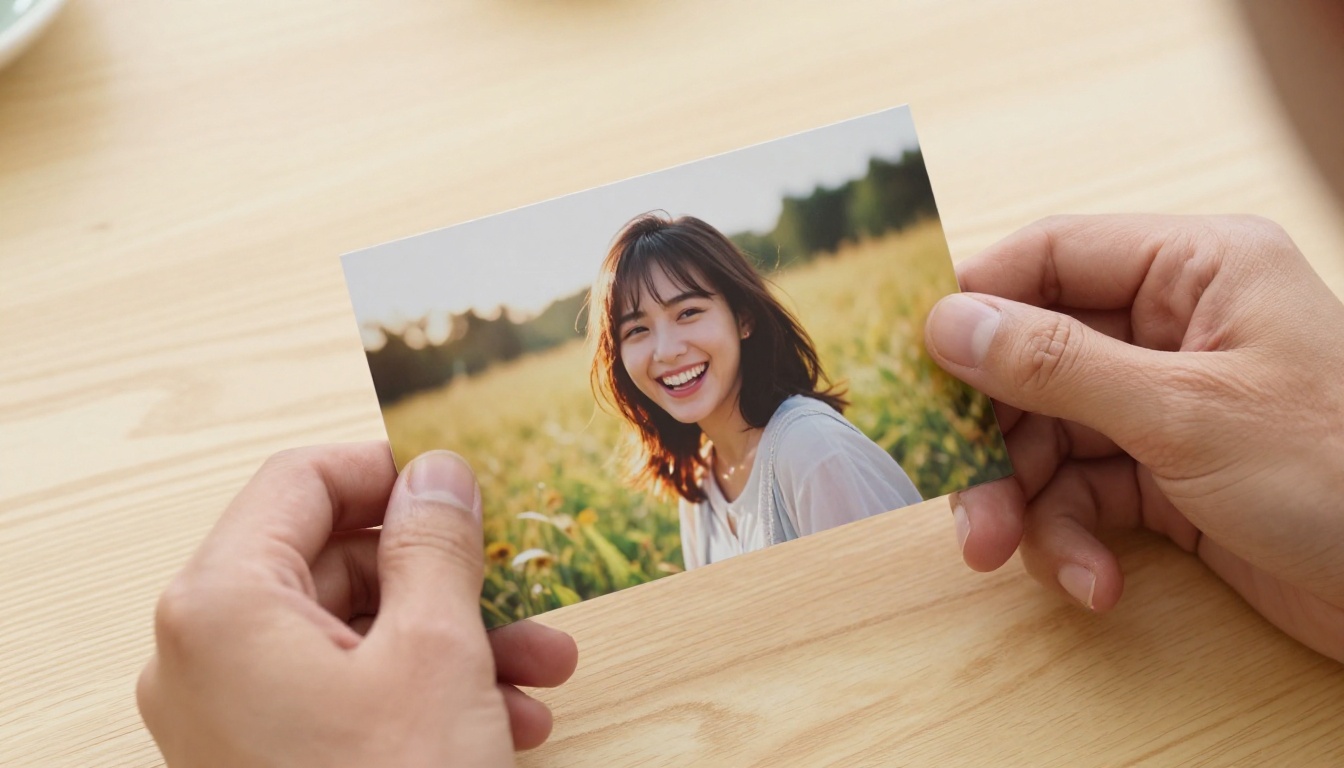
Text to video AI generates a clip from a written description alone. Image to video AI uses a real photograph as the anchor point for the scene. This gives you far more control over the subject, environment, and visual style because you are starting with something concrete rather than relying on the model to invent everything from scratch.
The combination is powerful: you can generate an image with exact visual characteristics using a text to image model, then pass it into an image to video model to animate it. That two-step workflow is one of the most widely used pipelines in AI content creation today. It gives you both the creative flexibility of text prompting and the visual specificity of a real reference image.
The Technology Behind It
Diffusion Models and Temporal Consistency
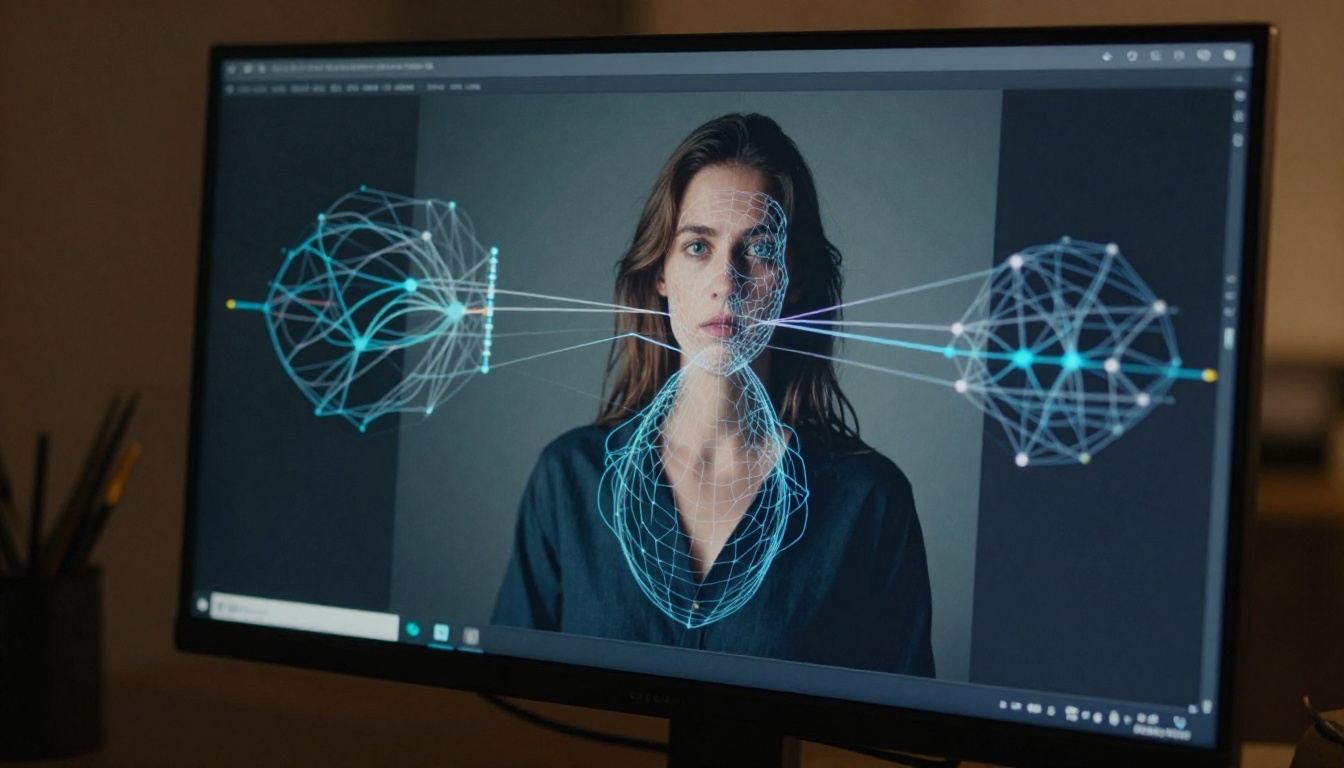
Most image to video models are built on video diffusion architectures. These are extensions of the same diffusion process used in image generation, where a model gradually denoises a random signal into coherent visual content. For video, the challenge is exponentially harder: the model must maintain visual consistency across dozens or hundreds of frames simultaneously.
This property is called temporal consistency, and it is the single hardest problem in video AI. If a person's face in frame 1 looks subtly different in frame 47, the result looks glitchy rather than like real footage. The best models address this by conditioning every generated frame on the original input image, treating it as a permanent visual reference throughout the entire generation process.
Optical Flow and Frame Prediction
Earlier image animation systems used optical flow to warp pixels from one frame to the next, simulating motion by displacing pixels according to estimated velocity vectors. This approach works reasonably well for simple, structured motion like water or clouds, but breaks down badly on complex subjects such as human faces or articulated body movement, producing smearing and visual tearing.
Modern diffusion-based models do not warp pixels. They regenerate each frame from scratch using the original image as a conditioning signal, guided by a learned understanding of how real-world physics and motion behave. The result is far more photorealistic, though it requires significantly more compute per generation.
How the Model "Imagines" Motion
Here is where it gets interesting. When you give a model a portrait photograph and ask it to animate the subject, the AI has no information about what motion actually occurred when that photograph was taken. It has to invent plausible motion based entirely on patterns learned from millions of real videos during training.
This means the model has internalized things like: how hair moves in wind at different intensities, how fabric behaves when a person turns their head, how subtle facial muscle movements create the impression of breathing or blinking. The better the model, the more physically convincing this synthesized motion becomes, to the point where viewers cannot distinguish it from real footage at casual viewing distances.
💡 Tip: Adding a motion direction hint to your prompt, such as "gentle breeze from the left" or "slow camera dolly forward", dramatically improves the intentionality of the generated motion and reduces random artifacts.
Types of Image to Video Models
Not all image to video models are created equal. They vary significantly in resolution, clip length, motion quality, and subject handling. Choosing the right model for your specific use case is as important as the quality of your source image.
Short-Clip vs. Long-Form Output
Most commercial use cases work perfectly well with 4 to 6 second clips. Social media platforms thrive on short-form animated content, so a 5-second AI video from a photograph is already highly usable for Instagram Reels, TikTok, or LinkedIn posts.
Realistic vs. Stylized Results
Some models are trained specifically to maintain photorealistic output that closely matches the input photograph. Others introduce stylized motion or cinematic grading that can differ noticeably from the source image's original look.
If you are animating a portrait photograph and need the result to look indistinguishable from real footage, models like Wan 2.6 I2V and Kling v2.6 Motion Control are strong choices. If you want more creative or cinematic output with atmospheric motion and dramatic lighting shifts, Kling v3 Video consistently delivers high-drama results that feel more like a film clip than a documentary.
What Affects Output Quality
The model you choose is only one factor. How you set up your input image and motion prompt matters just as much, and in some cases more.
Image Resolution and Composition
Higher resolution input images produce better results. Most models work best with inputs of at least 720p. Low-resolution or heavily compressed images cause the model to hallucinate missing detail, which leads to artifacts in motion sequences or facial distortion across frames.
Composition matters too. Images with a clear focal subject, clean backgrounds, and good lighting animate more convincingly than cluttered, poorly-lit photographs. A well-exposed portrait shot on a prime lens will animate dramatically better than a blurry, backlit phone snapshot.
- Use images with at least 1280x720 pixels
- Ensure the main subject is clearly visible and not cropped at the edges
- Avoid motion blur in the source image itself
- Strong lighting contrast in the original helps the model read depth and surface detail
How to Write Prompts for Video
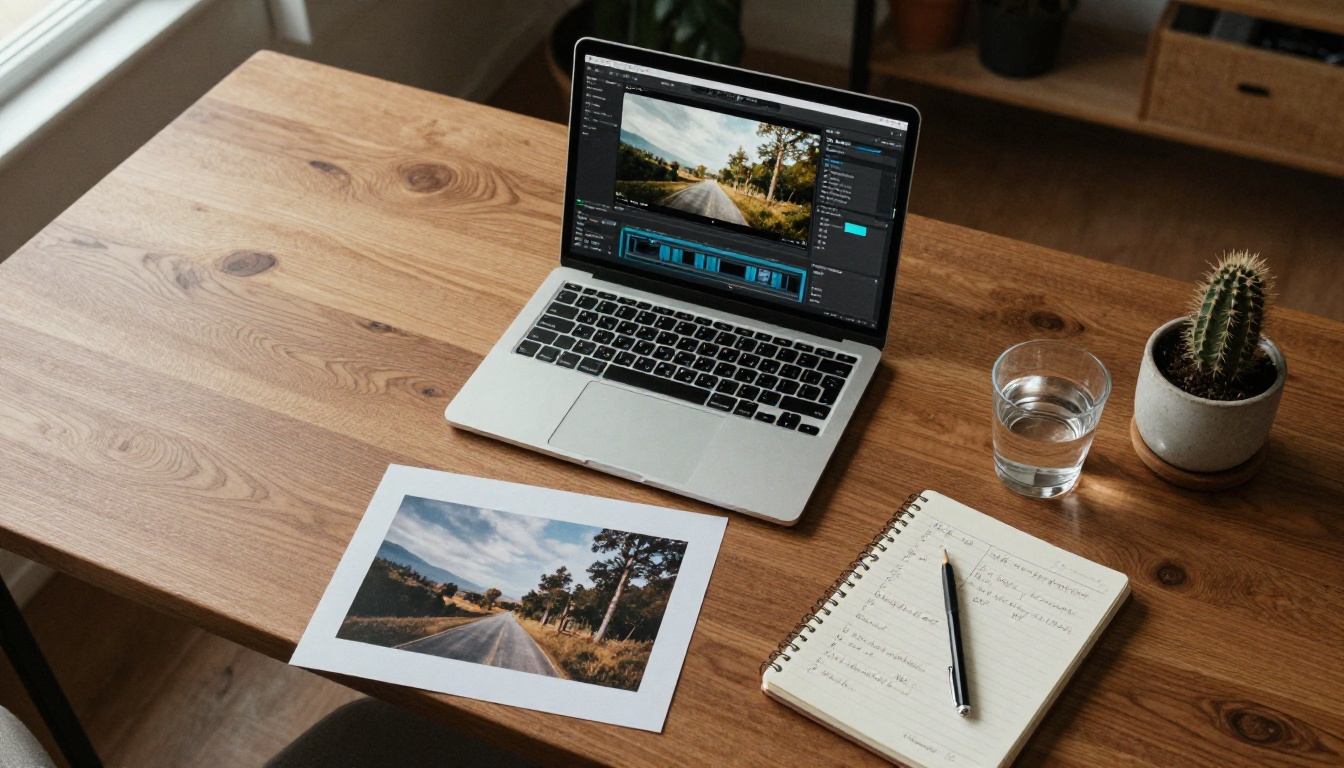
When you supply a motion prompt alongside your image, you are giving the model directional instructions for what should happen in the scene. Think of it as describing what occurs rather than what the scene looks like.
Prompts that work well focus on:
- Direction of motion: "camera slowly pans right", "subject turns head slightly left"
- Environmental dynamics: "light breeze rustles hair and fabric", "gentle waves in the background"
- Atmospheric details: "soft morning light shifts gradually warmer", "steam rises from the coffee cup"
- Camera movement: "slow dolly zoom in", "subtle handheld sway"
What tends to produce poor results:
- Describing the static visual scene instead of the motion
- Overly complex instructions with multiple conflicting subjects
- Requesting rapid or extreme camera movement, which most models handle poorly
- Very long, vague descriptions without a clear primary action
💡 Tip: Keep motion prompts under 30 words and focus on a single primary action. Models respond better to one specific, clear instruction than to five general ones.
Frame Rate and Duration Settings
Most models offer settings for clip length in seconds, and sometimes frame rate (24fps or 30fps are common). Shorter clips, 3 to 5 seconds, tend to have stronger temporal consistency because the model maintains coherence across fewer frames. Longer clips, 8 to 10 seconds, are more impressive in scope but carry a higher chance of the subject's appearance drifting away from the source image mid-clip.
When starting out, 4 seconds is the sweet spot: long enough to feel like real motion, short enough to stay sharp throughout.
Real-World Uses
Social Media and Content Creation
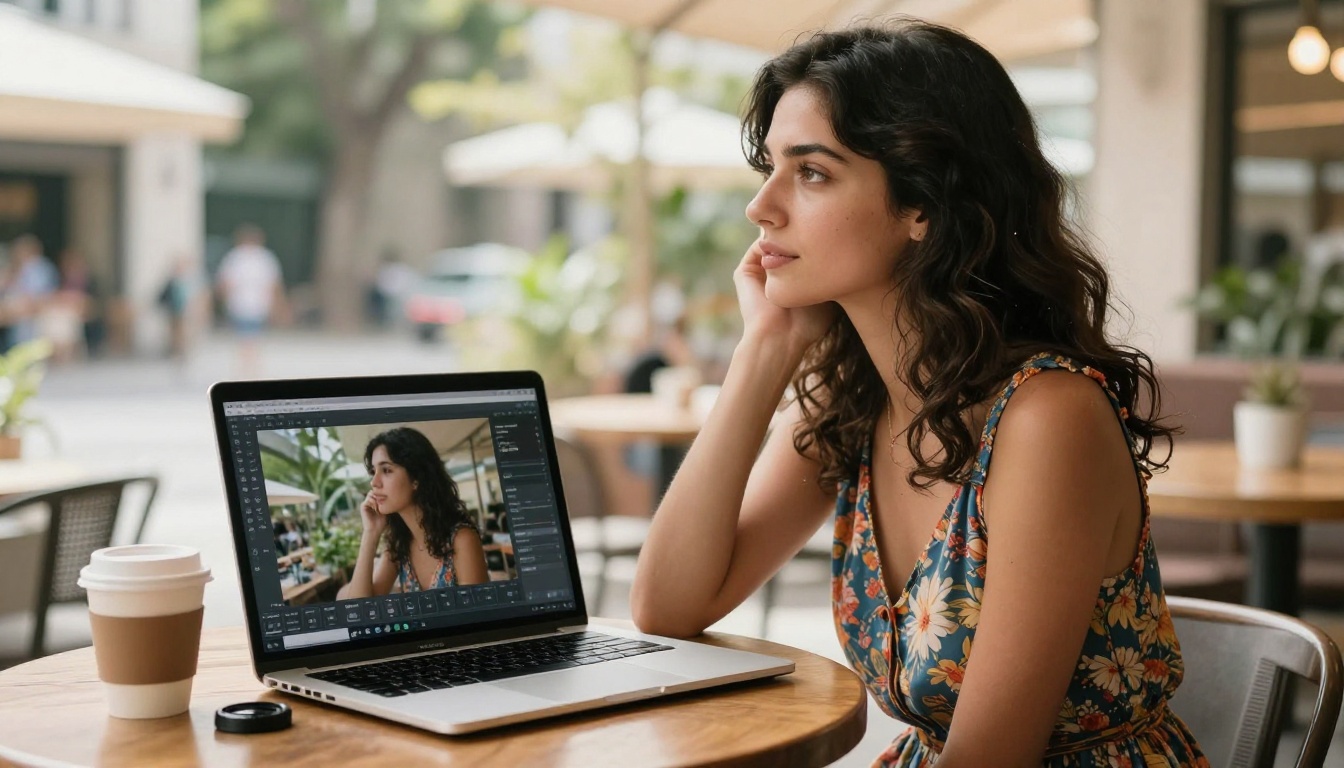
The most immediate use case is turning still photography into animated content for social platforms. A single portrait from a brand photoshoot can become a looping animated clip for Instagram Stories, a dynamic post for LinkedIn, or an attention-grabbing header for a digital campaign.
Photographers and content creators are using tools like P Video to multiply the value of every image session without additional production costs. One photoshoot can now produce both still assets and motion content simultaneously, without a video crew or additional equipment.
Product Visualization and E-commerce
Product photography is a high-value application. Animating a product image to show it rotating, catching light from different angles, or being naturally interacted with creates a more compelling buying experience than any static photograph alone can deliver. E-commerce brands are using Grok Imagine R2V and similar tools to produce animated product demos directly from existing photography catalogs, without scheduling new video shoots or hiring production teams.
Portrait and Photography Animation
Bringing old or sentimental photographs to life is one of the most emotionally resonant uses of this technology. Models like Pia and I2VGen XL are specifically designed for portrait animation, producing subtle, natural motion that respects the original photograph rather than dramatically altering its visual character.
Portrait photographers are using image to video AI to offer animated portrait products as an additional service to clients, creating a new revenue stream without any additional equipment investment or production overhead.
Top Image to Video Models on PicassoIA
PicassoIA hosts dozens of image to video models across its platform. Here is a breakdown of the most relevant ones organized by use case.
The Wan Series
The Wan family from Wan-Video is among the most capable open-weight image to video model lineups available. Wan 2.7 I2V is the current flagship, offering strong temporal consistency and excellent handling of human subjects at up to 1080p. For faster iteration at slightly lower quality, Wan 2.5 I2V Fast trades some fidelity for significantly reduced generation time. If you want to animate photos at lower compute cost, Wan 2.2 I2V Fast remains a reliable choice for straightforward portrait and landscape animation. The entire Wan series handles natural environments, fabric, and hair particularly well.
Kling and Cinematic Models
Kling from KwaiVGI has become a benchmark for cinematic video quality. Kling v3 Video produces some of the most visually polished output currently available, with rich color grading and natural camera movement built into its generation style. For scenes requiring precise motion control, Kling v2.6 Motion Control lets you direct the camera path and subject motion with greater precision than standard prompt-based control allows.
Runway's Gen4 Turbo is worth using specifically for its speed. When you need to iterate quickly through multiple variations of an animated image, Gen4 Turbo generates usable results in a fraction of the time that heavier models require. It sacrifices some motion complexity for that speed, but for social content where fast turnaround matters more than absolute quality, it is an excellent workflow tool.
Specialty Models for Portraits and Audio
Some models produce more than just an animated image. Ovi I2V from Character AI generates video clips with synchronized audio from a single photograph. This is particularly powerful for portrait animation where you want the subject to appear to speak, react, or express emotion with believable sound.
Hailuo 2.3 Fast from MiniMax offers fast turnaround for photo animation with solid face fidelity, making it a reliable choice for social content where speed matters. Video 01 Live from the same developer is the slower, higher-quality option in their lineup, better suited for final production output than rapid prototyping.
How to Create Your First AI Video on PicassoIA
Since PicassoIA has extensive image to video model support, here is a practical step-by-step workflow for producing your first animated clip.
Step 1: Pick Your Starting Image
The source image is the foundation of everything that follows. Choose a photograph with:
- A clear, well-lit subject with no motion blur
- At least 1280x720 pixel resolution
- A composition that does not crop the subject tightly at the frame edges
- A reasonably clean or simple background if you want stable, artifact-free results
If you do not have a suitable photograph, you can generate one using any of PicassoIA's text to image models and pass the output directly into an image to video model. This two-step pipeline gives you full creative control from start to finish.
Step 2: Choose a Model
For most first attempts, Wan 2.7 I2V is the best starting point. It handles a wide variety of subject types reliably and consistently produces solid results. If you want cinematic quality and are willing to wait a bit longer for generation, Kling v3 Video is the premium option for high-stakes output.
Step 3: Write Your Motion Prompt
A good starting motion prompt for a portrait: "Subject breathes slowly, hair moves in a gentle breeze from the left, soft warm light shifts slightly, natural subtle motion throughout."
For a landscape: "Clouds drift slowly from right to left, water surface ripples gently, tall grass sways in mild wind, camera static."
Focus on one to two motion elements. Competing instructions, like asking for a moving camera AND wind effects AND subject movement simultaneously, often produce confused, artifact-heavy output on shorter or lighter models.
Step 4: Set Duration and Generate
Start with 4 to 5 seconds for your first attempt. After generation, review the output and pay attention to:
- Is the subject's face and form maintained consistently across all frames?
- Does the motion look physically natural or mechanical and twitchy?
- Are there visual artifacts in high-texture areas like hair, clothing patterns, or complex backgrounds?
If results are unsatisfactory, try a different seed value before switching models entirely. The same model and prompt combination can produce meaningfully different results with a different random seed, and iteration within a single model is faster than switching.
💡 Tip: After generating your video, run it through Crystal Video Upscaler or Video Upscale by Topaz Labs to push the resolution to 4K for production-quality output.
Common Issues and How to Fix Them
Motion Artifacts
Flickering textures, rippling surfaces, or parts of the image appearing to distort are the most common artifacts in image to video output. They typically occur in high-frequency texture areas: hair, clothing patterns, foliage, or detailed architectural backgrounds.
Fix: Use a motion prompt that specifies minimal movement in those areas. Adding "static background, no camera movement" often dramatically reduces background artifacts. Reducing clip duration to 3 to 4 seconds also helps, as shorter clips give the model fewer frames across which to accumulate drift.
Face Distortion
Faces are the hardest subject for any video AI model. Subtle facial distortion across frames is common when the model tries to maintain a specific person's likeness through 60 or more synthesized frames.
Fix: Use models optimized for portrait animation: Wan 2.7 I2V, Kling v2.6 Motion Control, and Hailuo 2.3 Fast all have strong face consistency records. Also, ask for subtle facial motion only: breathing, very slight head movement, and natural blinking. The more dramatic the face motion, the harder it is to maintain fidelity.
Inconsistent Backgrounds
If your source image has a complex or detailed background, the model may struggle to keep it visually stable while animating the foreground subject. The background can appear to "breathe" or shift between frames even when no motion was requested.
Fix: Use source images with clean, simple backgrounds when possible. If your source image has a busy background, include "static background" in your motion prompt and reduce the requested clip length to 3 to 4 seconds. For subjects that require complex backgrounds, Kling v3 Video and Wan 2.7 I2V handle spatial complexity better than lighter or older models.
Start Creating AI Videos Right Now
Image to video AI has moved from a research curiosity to a production-ready tool that anyone can use today. The gap between a static photograph and a dynamic, animated video clip is now a few clicks and a short motion prompt.
The models on PicassoIA cover every use case from quick social content to high-quality cinematic output. Whether you are a photographer wanting to offer animated portraits, a brand needing dynamic product visuals, or a creator building content without a video production team, the technology is already producing results that genuinely impress at first viewing.
Pick a photograph you already have. Open Wan 2.7 I2V or Kling v3 Video on PicassoIA, write a simple motion prompt describing what you want to happen in the scene, and generate your first animated clip. The workflow takes under two minutes once you have done it once. The results tend to speak for themselves immediately, and once you see your first photograph come to life as a fluid, photorealistic video clip, it is very difficult to go back to sharing still images alone.


