Not every AI upscaler is worth your time. Some blur fine details. Others hallucinate textures that were never there. A few over-sharpen until skin looks plastic and skies look like a watercolor painting. If you are picking an upscaling tool, the feature list on the product page will rarely tell you what actually matters. This article does.
Whether you are restoring a faded family photo, preparing product images for large-format print, or upsizing low-resolution assets for a website rebuild, the wrong upscaler can cost you hours of manual correction. The right one gives you a clean, printable result in seconds. Knowing exactly what separates them saves you from the trial-and-error cycle.
Why the Wrong Upscaler Ruins Your Work
Most people assume upscaling just means "making the image bigger." It does not. A naive resize interpolates pixels by guessing what should fill the new space. The result: soft, mushy edges and color banding. An AI upscaler uses a trained neural network to predict high-frequency detail, but the quality of that prediction varies dramatically between models.
The architecture matters. So does the training data. A model trained predominantly on landscapes will struggle with portraits. A model built for photorealistic images will add inappropriate texture to illustrations. Picking the right tool for your content type is half the battle, and it is a decision most tutorials skip entirely.
Blurry output is not the only problem
Bad upscalers introduce artifacts: ringing, halos around edges, smearing of fine detail in hair and fabric, and checkerboard noise patterns. These problems are often invisible at 100% zoom but catastrophic when printed at A2 size or displayed on a 4K monitor. Always test any upscaler at 200% to 400% zoom to catch failures before committing to a workflow.
The telltale signs of poor upscaling: a watercolor-like smoothness in areas that should have sharp texture, geometric banding in gradients like sky tones and skin transitions, and duplicated pixel patterns in repetitive textures like brick and fabric weave.
Over-sharpening is just as bad
Over-sharpening is a trap many AI models fall into. They boost contrast at edges so aggressively that the image looks like it went through an unsharp mask at maximum settings. Skin texture looks like clay. Tree bark becomes a rigid grid. The sweet spot is perceptual sharpness: detail that reads as real and natural, not hyperreal.
The distinction matters most in print. An over-sharpened image at screen resolution can look acceptable on a monitor but catastrophic on paper, where the eye tracks fine detail at close viewing distance.
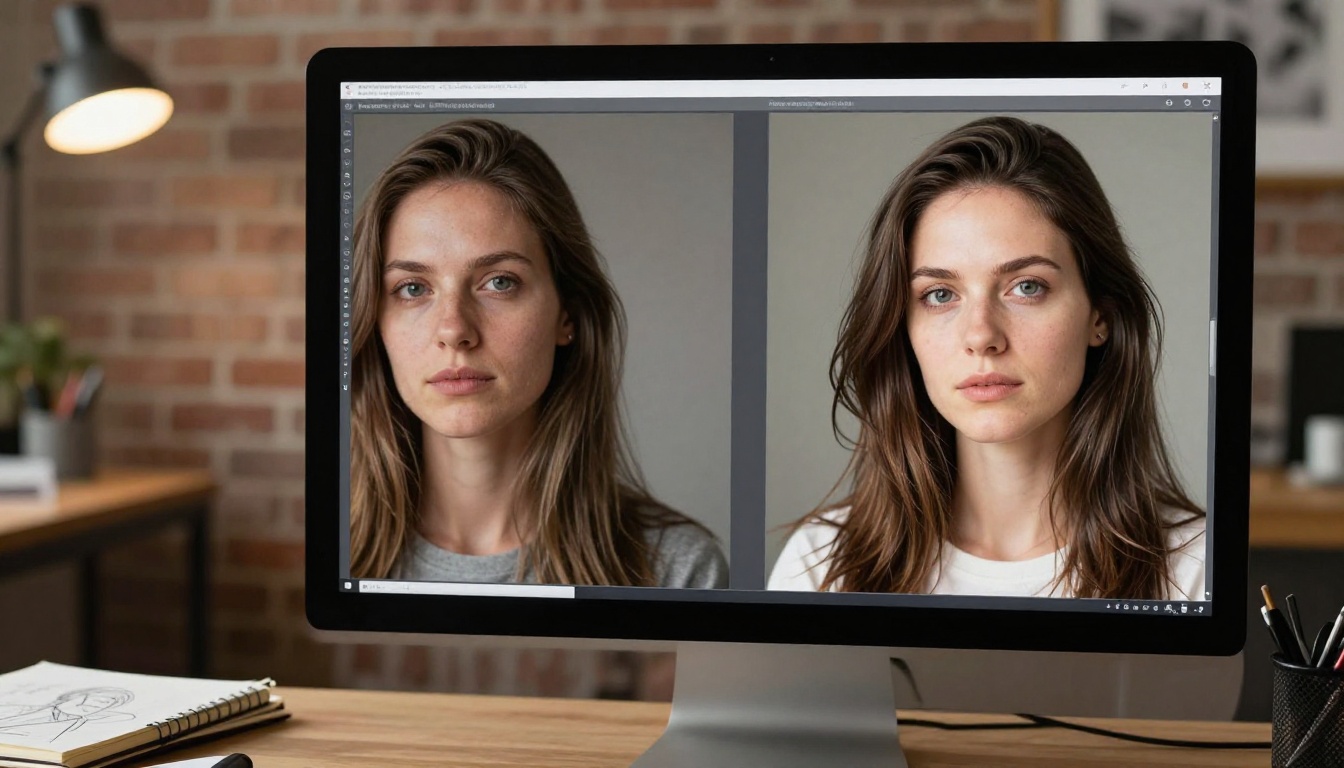
💡 Test with a portrait first. Human faces are the most sensitive subject for upscaling artifacts. If skin looks smooth and natural without plastic edges, the model handles other content types well too.
Output Quality That Holds Up at Large Print
The real test of any AI upscaler is not a side-by-side at screen resolution. It is a 30x40cm print on matte photo paper. At that scale, every compression artifact, every hallucinated texture, every halo around a sharp edge becomes visible to the naked eye. Before you commit any tool to a production workflow, run a single test print.
Sharpness without halos
Halos are the dark or bright bands that appear around high-contrast edges when sharpening is applied too aggressively. They are easy to create, hard to remove in post-processing, and immediately recognizable as a sign of poor processing. A good upscaler applies edge-aware sharpening that boosts detail in texture regions while keeping clean edge transitions smooth and natural.
The halo test is simple: find a sharp contrast edge in the image, a roofline against a bright sky, or hair against a light background. Zoom to 300%. If you see a dark fringe on the light side and a light fringe on the dark side, the sharpening strength is too aggressive.
Artifact-free detail matters most
Compression artifacts from JPEG source files represent the biggest challenge for any AI upscaler. Good models include artifact removal as part of their processing pipeline, cleaning up blocking and ringing before the resolution increase step happens. This sequencing is critical. If a model sharpens before it cleans artifacts, it amplifies those artifacts rather than removing them.
This is a non-negotiable requirement if you are working with images that have been compressed and re-compressed through platforms like social media. Those files have often passed through three or four lossy compression cycles and carry significant blocking.
| Feature | What to Check |
|---|
| Edge sharpness | No halos or ringing around hard edges |
| Skin texture | Natural pore detail, not plastic smoothing |
| Background detail | Fine textures in fabric, wood, stone |
| Artifact handling | JPEG block removal before upscaling |
| Color fidelity | No color shifts or unexpected desaturation |
| Gradient smoothness | Clean sky and skin-tone transitions |
Scale Factors: 2x, 4x, or 6x?
The scale factor determines how much larger the output image will be. A 1000x750px image upscaled 4x becomes 4000x3000px, roughly 12 megapixels. Choosing the wrong scale factor is wasteful at best and actively damaging to output quality at worst.
4x hits the sweet spot for most work
For the majority of use cases, 4x upscaling is the correct choice. It is aggressive enough to make a web-sized image printable at A4 or A3, but not so aggressive that the AI must hallucinate an excessive amount of detail it cannot reasonably infer from the source. Most super-resolution models are architected and optimized specifically for 4x, meaning you get better results at this multiplier than at 2x or 6x.
Models like Real ESRGAN, Google Upscaler, Bria Increase Resolution, and Crystal Upscaler all operate at 4x as their primary output. Neural network architectures for super resolution often stack two 2x passes internally, which is why 4x is the natural breakpoint for output quality.
When 6x makes sense
Six times upscaling is appropriate when your source image is genuinely low resolution and you need very large output. Product photos from legacy catalogues, archival images digitized from film strips, and screenshots from older software often fall into this category. The tradeoff: more detail must be generated from less source information, which increases the risk of hallucination in fine-texture areas.
Image Upscale by Topaz Labs handles this range, supporting up to 6x enlargement. Topaz Labs has long been a benchmark in professional photo editing, and their AI model reflects years of optimization for demanding, high-stakes output.
💡 Rule of thumb: Use 2x when your source is already high quality. Use 4x for web images going to print. Use 6x only when the source is genuinely tiny and you accept some generated detail in fine-texture regions.
Built-In Noise Reduction
Noise reduction and upscaling must work together. If a model sharpens before it denoises, it sharpens the noise itself, producing grainy output that looks worse than the original source. A well-designed upscaler applies a denoising pass first, reconstructs structural detail, then applies sharpening only to regions where the model is confident about real edge information.
Old and scanned photos need it most
Scanned film photographs carry grain that looks appealing on photo paper but becomes chaotic and disorganized when upscaled with a model that is not grain-aware. Early digital photos from pre-2010 cameras carry luminance and chroma noise from small sensors shooting at high ISO settings. Both types require careful handling before the resolution increase step.
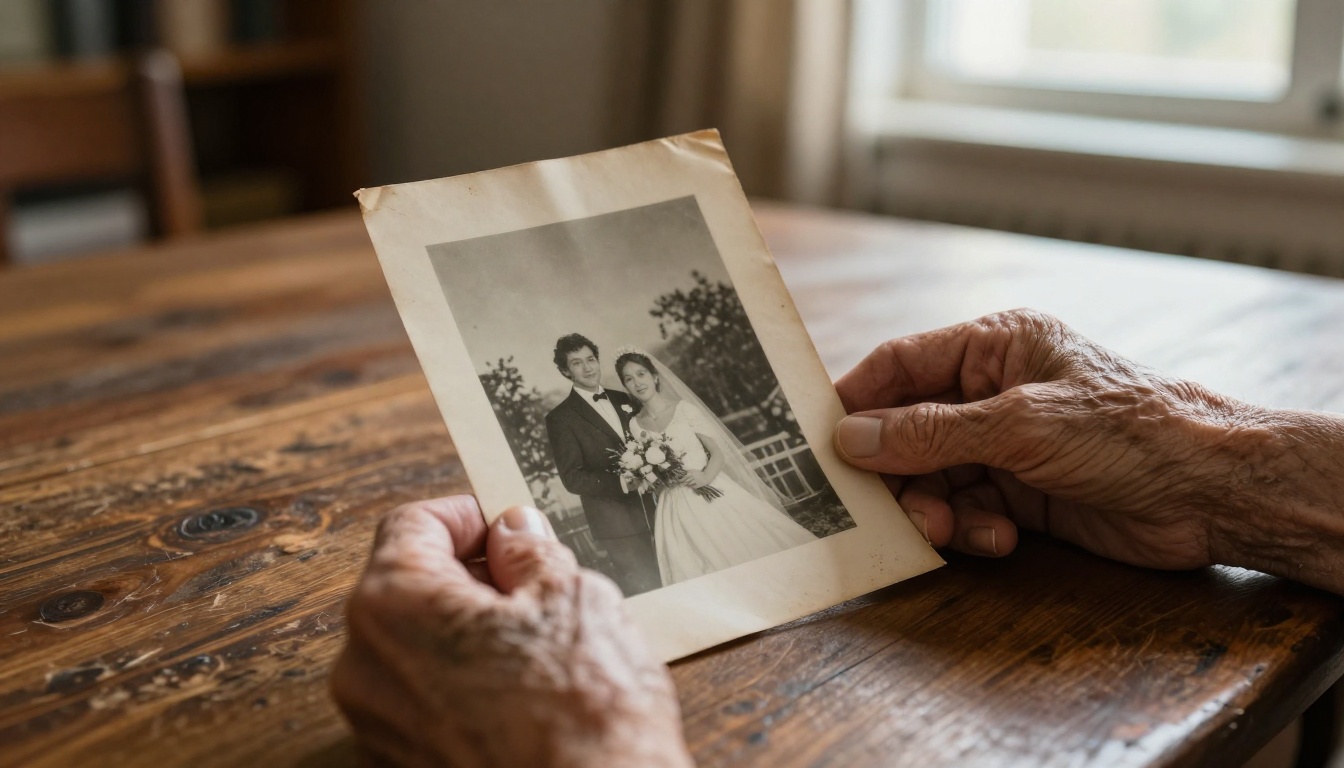
Photo restoration is one of the highest-value applications of AI upscaling. A faded, soft wedding photo from 1975 can be sharpened, denoised, and enlarged to a modern printable resolution without any manual retouching by hand. The emotional value of that result alone justifies investing in a quality tool rather than a free web-based resize.
How denoising pairs with upscaling
The best upscalers do not apply a flat denoising strength across the entire image uniformly. They are texture-aware. Smooth areas like clear skies and skin receive more noise suppression to produce clean, even tones. Textured areas like tree bark, fabric weave, and stone surfaces receive less suppression, preserving the detail that makes those materials look physically real. This selective processing separates professional-grade AI models from basic consumer tools.
Clarity Pro Upscaler is specifically built for this type of selective, photorealistic processing. It produces results that hold up for commercial print, advertising, and product photography at full scale.
Speed matters more than most people acknowledge. If you are processing a single hero image, waiting 45 seconds is fine. If you are processing 300 product photos for an e-commerce relaunch, that wait time multiplies into hours. Batch processing capability and per-image processing speed become hard constraints at scale.
Batch processing saves real time
Not all web-based upscalers support batch processing. Some require you to upload, wait, download, and repeat for every single image individually. For large workflows, this is a genuine production bottleneck. When evaluating a tool, check whether it allows queue submissions and whether output is accessible without manual intervention after each image completes.
Cloud-based platforms remove the overhead of managing local GPU hardware. You access professional-grade models on demand without installation or maintenance cycles. For teams or individual creators working at volume, this architecture makes high-quality upscaling accessible without capital investment in hardware or ongoing maintenance time.
File format compatibility
Most professional workflows involve PNG and JPEG. Some archival workflows require TIFF for lossless preservation. Make sure any upscaler you choose handles your source format natively without requiring an intermediate conversion step. Format conversion between processing stages compounds quality loss, particularly when the source is already lossy.
| Format | Best Use Case | Compression Type |
|---|
| JPEG | Photos, web images | Lossy |
| PNG | Graphics, screenshots, text | Lossless |
| TIFF | Archival and professional print | Lossless |
| WebP | Modern web delivery | Lossy or Lossless |
💡 Always upscale from the best source you have. Re-compressing a JPEG before upscaling adds artifacts the AI then has to work around. If a RAW or TIFF version exists, start from that file.
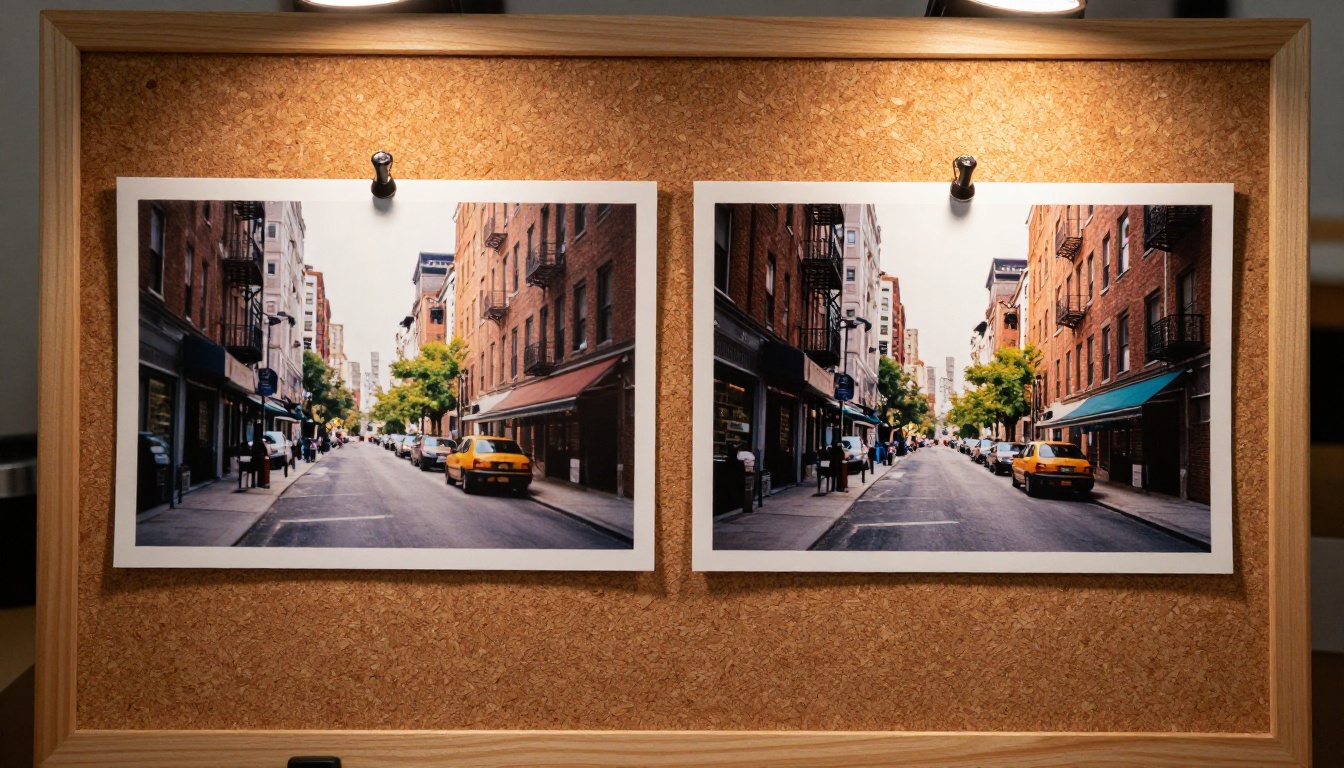
The Best AI Upscalers Available Right Now
PicassoIA offers nine super-resolution models, each with distinct strengths for specific content types. Here is a practical breakdown of which to use for which situation:
For portraits and people
Crystal Upscaler by philz1337x is optimized specifically for portrait upscaling. It preserves skin texture without over-smoothing, keeps individual hair strands sharp and separated, and handles the full tonal range of human faces accurately. For headshots, wedding photography, and event work, this is the strongest starting point.
Clarity Pro Upscaler, also by philz1337x, goes further by adding texture enhancement on top of the resolution increase. It rebuilds fine detail rather than simply scaling what is already present in the source, making it appropriate for commercial portrait and beauty work where fine skin and fabric detail is critical to the final output.
For landscapes and architectural work
Google Upscaler delivers clean 4x output for landscape, architectural, and nature photography. Its particular strength is gradient handling: skies, water surfaces, and smooth tonal transitions that other models can posterize or band come out clean and continuous.
Real ESRGAN by Nightmare AI is a widely tested open-source model with strong general performance across content types. It is particularly effective for images with repetitive fine textures: brick surfaces, roofing, foliage, and woven fabric all benefit from its training on varied natural textures.

For e-commerce and product photography
P Image Upscale by Prunaai is built for speed without sacrificing output quality. For high-volume product photography workflows where you need consistent results processed quickly, it delivers reliable output with minimal per-image wait time.
Recraft Crisp Upscale by Recraft AI focuses on clean edge definition and crisp output, making it well suited for product images where precise edge clarity and clean white-background separations drive conversion rates. Its companion, Recraft Creative Upscale, adds generative texture detail for cases where you want the AI to add richness beyond what is present in the source.
For archival and restoration work
Image Upscale by Topaz Labs is the professional choice for restoration and archival upscaling. It supports up to 6x enlargement, handles noise and compression artifacts from aged and damaged images well, and produces output appropriate for large-format archival prints and museum-quality restoration. The Topaz Labs reputation in professional photography carries directly into the output quality of this model.
Bria Increase Resolution completes the lineup with reliable 4x upscaling tuned for commercial imagery across a wide range of content. It is a strong all-rounder for content that falls outside the specialized categories above.
How to Use a Super-Resolution Model on PicassoIA
PicassoIA gives you access to all nine models through a single platform, no software installation required. Here is how the workflow looks in practice:
Step 1: Choose your model. Browse to picassoia.com/en/all-models and filter by the Super Resolution category. All nine models appear with descriptions and output specifications. If you are upscaling portraits, start with Crystal Upscaler. For general photography, Real ESRGAN or Google Upscaler are reliable first choices.
Step 2: Upload your source image. Use the highest-quality version available. PNG is preferred for graphics and screenshots. JPEG is fine for photos as long as the compression quality is moderate or better. Avoid re-compressing or resizing before upload.
Step 3: Set your scale factor. Most models default to 4x. If your source image is already solid quality and you need a modestly larger output for print, 2x is sufficient and avoids unnecessary AI inference. Reserve 6x for genuinely small source material.
Step 4: Download and review at 200% zoom. Check edges for halos. Check smooth gradients like sky areas for banding or posterization. Check fine textures like fabric and hair for hallucinated patterns. If something looks wrong, switch models and run the comparison again.
💡 Run the same image through two or three models. Models that look identical at screen resolution often separate clearly at 200% zoom. This comparison takes three minutes and prevents bad print runs or rejected client work.
Which Upscaler Fits Your Photos?
There is no single best AI upscaler. There is the best upscaler for your content type, your scale factor requirement, and your output format. Use the table below to pick a starting point:
Test It on Your Own Photos
The best way to see what matters in an AI upscaler is to run your own images through one. Take a photo you already have. Upload it to Crystal Upscaler or Real ESRGAN. Zoom to 200% before and after.
What you see in that comparison, the sharpness, the artifact handling, the texture quality, will tell you more about AI upscaling than any written description. PicassoIA makes all nine super-resolution models available at picassoia.com/en/all-models. No installation, no GPU required, no setup time. Your photos deserve better than a bicubic resize.