You've seen the demos. A blurry, pixelated thumbnail gets dropped into an AI upscaler, and seconds later a crisp, detailed image appears. It looks like pure magic. But here's what's actually happening: that new detail wasn't in the original photo. The AI predicted it, based on statistical patterns it absorbed during training. Once you internalize that distinction, everything else about AI upscaling, when it works brilliantly, when it fails, and when the output actually misleads you, starts to make sense.
What AI Upscaling Actually Does
From Pixels to Predictions
Traditional upscaling (bicubic or bilinear interpolation) simply stretches existing pixels and blends their neighboring values. The result is a larger image that is uniformly softer. You've added more pixels without adding any new information.
AI upscaling works differently. A neural network trained on millions of image pairs, each consisting of a low-resolution input and its corresponding high-resolution version, absorbs statistical patterns about what the world looks like at higher magnification. It maps what textures tend to appear when you zoom into grass. It internalizes how edges in architectural photos typically sharpen. It catalogues what skin pores usually look like at 4x the original scale.
When you feed it your image, it does not recover anything. It predicts what the detail probably was, using those absorbed patterns as its guide.
This is the most important thing to internalize about AI upscaling: it is prediction, not restoration.
The Training Data Problem
Every super-resolution model is only as good as the data it trained on. A model trained heavily on professional studio portraits will add convincing skin pores to close-up face photos. Feed it a macro image of a beetle, and that same skin-texture reasoning gets applied to a subject where it has no business being.
💡 The model doesn't know what it's looking at. It recognizes only that certain pixel arrangements tend to correspond to certain high-resolution structures, based on examples it processed during training.
This is why upscaling quality shifts dramatically across subject matter. A model may have processed thirty million human faces during training, but only a few thousand close-up images of rough limestone walls. Your limestone wall will upscale noticeably less accurately than your portrait, even if both source images have identical resolution and compression levels.
The subject diversity of the training dataset is one of the least-discussed factors in upscaling quality, but it consistently explains why results that seem inconsistent from the outside are actually very predictable once you know what's inside the model.
Why Results Vary So Wildly
Low-Quality Source Images
The single most decisive factor in upscaling output is the condition of the source image. This is where the magic metaphor collapses completely.
If your source is a heavily compressed JPEG, the AI faces an unusual problem. JPEG block artifacts are not blur. They are data corruption that creates hard-edged square boundaries where the original scene had none. The upscaler has to decide whether those harsh boundaries represent real edges in the subject or compression noise. It often makes wrong decisions, either preserving blocky artifacts in the output or smearing them into larger waxy smudges.
Motion blur presents an even harder problem. A face blurred by camera shake during a long exposure has genuinely lost spatial information. The blur isn't a resolution issue. The shape data isn't there. No amount of statistical inference can reconstruct a face that was in motion.
Here's a practical breakdown of how common source conditions interact with AI upscaling:
| Source Condition | Upscaling Result |
|---|
| Sharp photo, native low resolution | Excellent. Clear edges give the model strong input |
| Soft optical focus (shallow DOF) | Good. Smooth gradients upscale without major artifacts |
| JPEG blocking artifacts | Poor. The model confuses block edges with real structure |
| Motion blur or camera shake | Poor. Shape information is lost, not just resolution |
| Scanned film with grain | Variable. Depends heavily on the model's training data |
| Screenshot or screen recording | Good. Clean pixels, strong contrast, defined edges |
| Heavily downsampled web image | Poor. Multiple resampling passes compound errors |
Subject Matter Matters
Different subjects produce very different outcomes, even from the same model at the same upscale factor, on images with similar original quality:
- Human faces: Most models perform best here. Training datasets skew heavily toward portraits
- Text and numbers: Frequently distorted. The AI reads a rough glyph shape and guesses the character
- Fine repeating patterns: Fabric weaves, window screens, and mesh all create moiré at certain upscale factors
- Animal fur and feathers: Model-dependent. Some handle it well, others produce plasticky smoothing
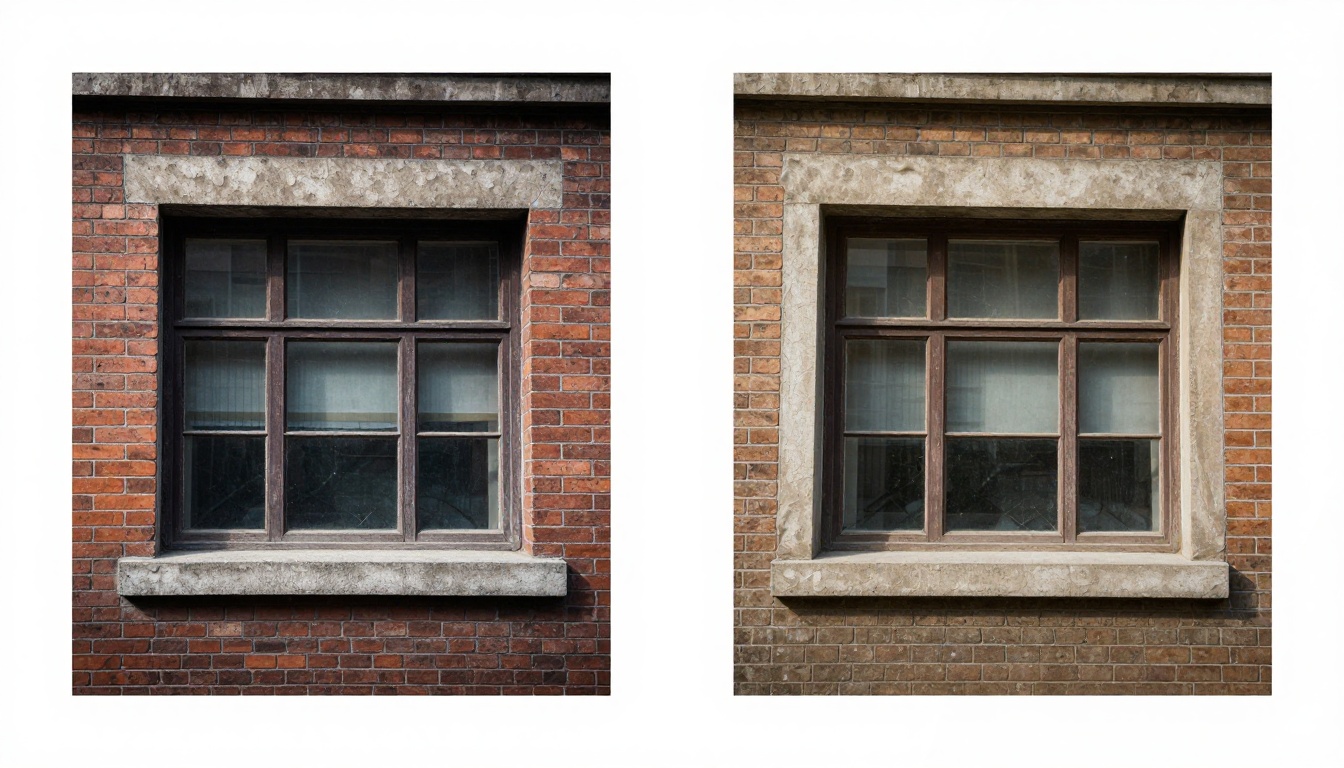
- Architecture: Generally reliable, but corner rounding and geometric softening are common failure points
- Night scenes with noise: Difficult. Noise patterns compete with actual scene detail for the model's attention
The Hallucination Problem
When AI Invents the Wrong Details
"Hallucination" is borrowed from broader AI terminology. In super-resolution, it describes when the model adds plausible-looking detail that is factually incorrect relative to the original scene.
The clearest example: you upscale a photograph of a person wearing a printed shirt. The original is too low resolution to clearly show the print. The AI invents a fabric pattern that looks realistic, because it has processed thousands of printed shirts at high resolution and knows what they tend to look like. But the pattern it invents is nothing like the one actually on the shirt. Anyone who doesn't know the original won't notice. Anyone who does will see immediately that it's wrong.
This is why AI upscaling generates controversy in forensic, journalistic, and archival applications. The output is aesthetically plausible but not factually accurate. The two qualities are not the same thing.
Faces, Text, and Fine Patterns
Three categories where hallucination is most visible and most consequential:
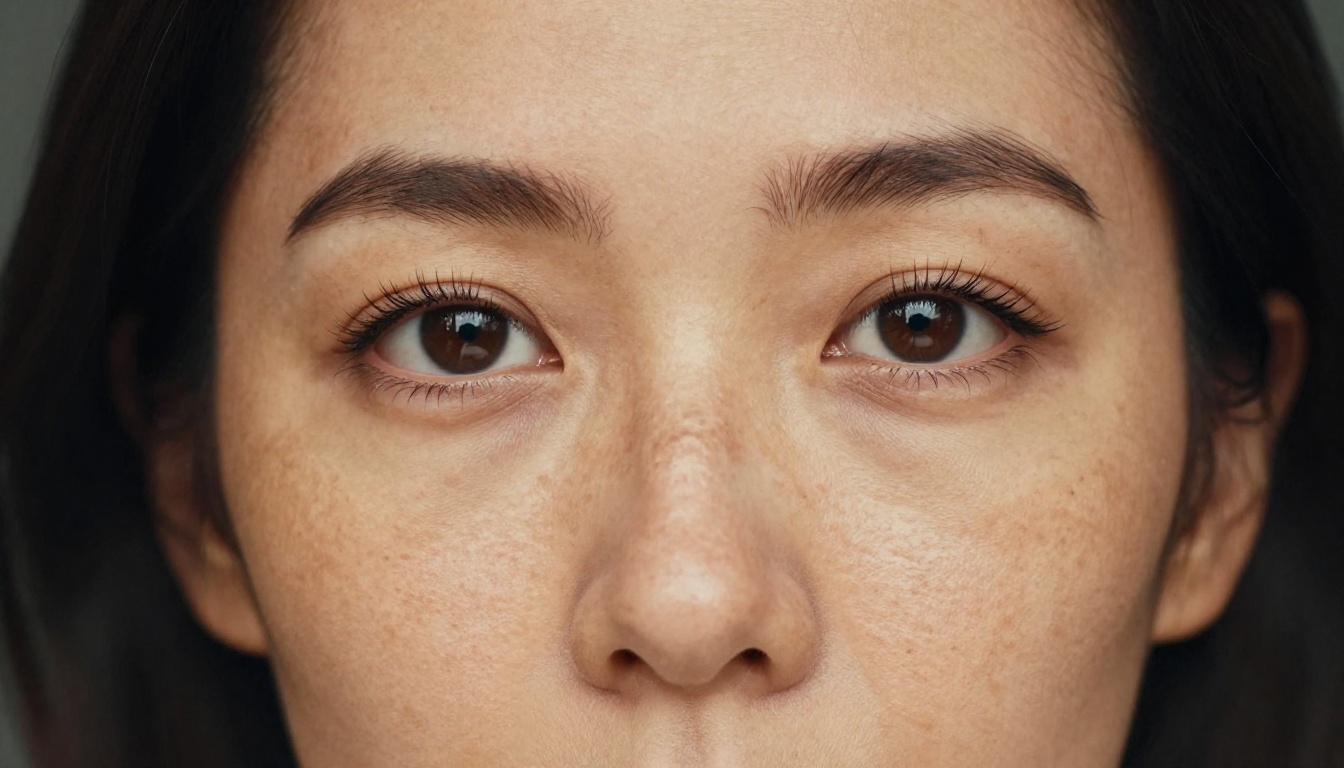
Faces: AI adds skin texture, pore detail, and eyelash sharpness that looks strikingly realistic. In portrait photography this is often desirable. In identity verification or documentation, it becomes a liability, because the added features are invented, not recovered.
Text: Small text is almost always distorted in upscaled images. The model sees the approximate shape of a glyph and reconstructs what it thinks the character was. Wrong characters appear regularly. Never rely on upscaled text for accuracy in any context.
Fine patterns: Fabric weaves, fence mesh, perforated metal, and screen textures all create aliasing when upscaled. The repeating frequency of the pattern beats against the pixel grid and produces visible ringing and moiré artifacts around edges.
💡 If accuracy matters more than appearance, use the original low-resolution source, not an upscaled version.
Comparing the Main Approaches
ESRGAN and Its Descendants
Real-ESRGAN is among the most widely deployed open-source upscaling architectures. It uses a Generative Adversarial Network structure where a generator produces high-resolution outputs and a discriminator penalizes anything that doesn't look photographically realistic. The model trains on synthetic degradations, including blur, noise, JPEG artifacts, and combinations of all three, so it handles the messy inputs that real-world photos present.
The strength of this approach is output quality. Images emerge looking sharp and detailed, with natural grain structure and realistic surface textures. The cost is occasional hallucinated detail, particularly on faces and text, because the generator's job is to look real, not to be accurate.
The Crystal Upscaler builds on this architecture with modifications tuned for portrait work, reducing over-sharpening tendencies and improving accuracy around skin transitions. The Clarity Pro Upscaler pushes creative sharpening further, adding visible texture that makes images look more detailed at the cost of slightly greater deviation from the source.
Diffusion-Based Upscaling
Newer diffusion upscalers treat super-resolution as a generative problem rather than a regression problem. They start from a noisy version of the low-resolution input and iteratively denoise it toward a high-resolution output, guided by the original pixels but not strictly constrained by them.
The Recraft Creative Upscale uses this approach to add depth and invented detail at high magnification. Results look richer than GAN-based outputs, but they deviate further from the source. This works well for creative projects where the goal is a high-quality image, not a faithful enlargement.
The Recraft Crisp Upscale takes the opposite approach, prioritizing fidelity to the original over creative texture addition. It's the better choice when you need the enlarged image to match what was actually in the frame.
For the highest upscale factors, Image Upscale by Topaz Labs supports up to 6x magnification with strong detail preservation, and Google Upscaler delivers clean 4x results with minimal processing artifacts. For quick, general-purpose upscaling on any image type, P Image Upscale produces sharp results in about one second. For older or damaged photos, Increase Resolution by Bria is built specifically for restoration use cases.
How to Use Super-Resolution on PicassoIA
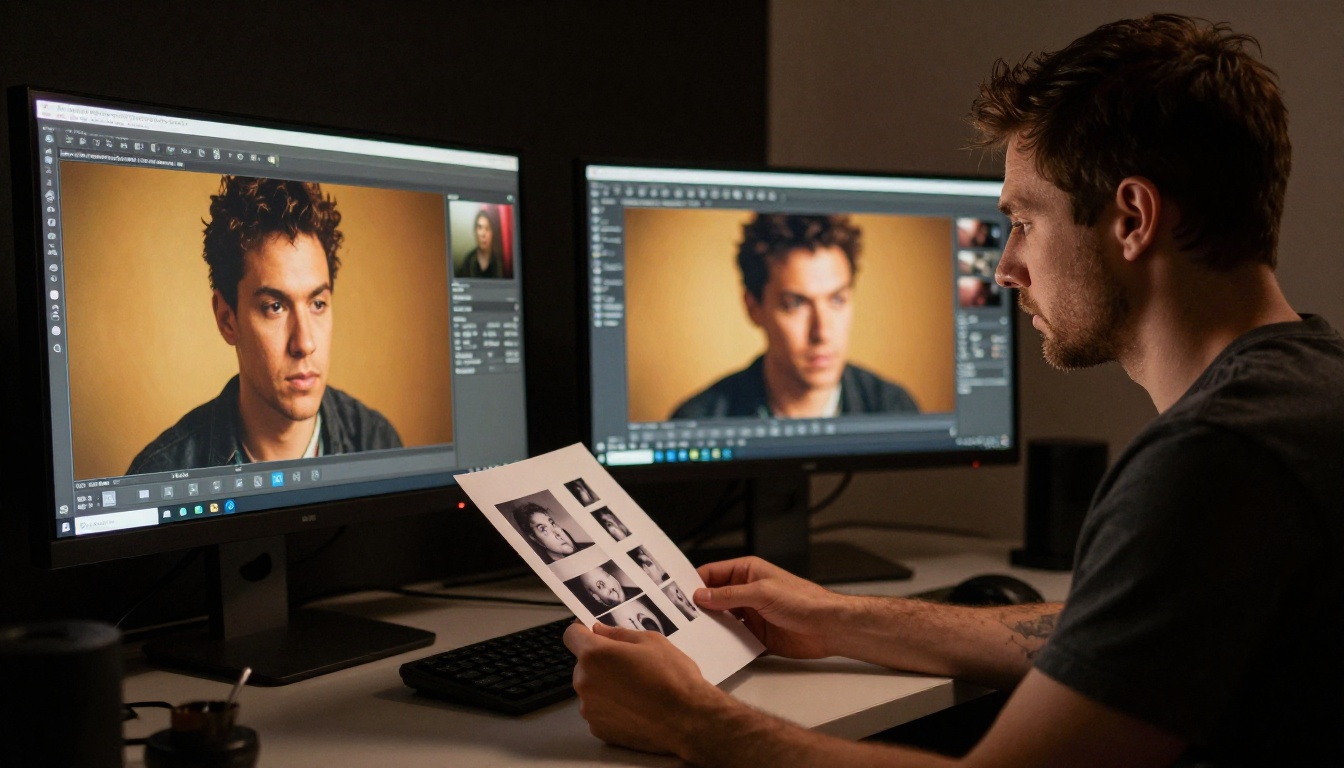
Choosing the Right Model
PicassoIA gives you access to nine super-resolution models in one place. Here's how to pick the right one for your input:
Step-by-Step on PicassoIA
- Go to the super-resolution section on PicassoIA and select a model from the table above
- Upload your source image in the best available format (PNG or TIFF preferred over JPEG)
- Select your upscale factor (2x, 4x, or 6x depending on the model)
- Run the prediction and wait for the output
- Download the result and zoom to 100% before deciding whether it meets your needs
- If the first model doesn't produce what you need, try a second model on the same source image
💡 Always evaluate upscaled images at 100% zoom. Thumbnails make everything look sharp. Issues only appear at full magnification.
When to Use AI Upscaling
Cases Where It Works Well
AI super-resolution genuinely delivers when:
- You have a clean, sharp original and simply need it printed at a larger size
- You're working with scanned film photographs in good condition without water damage or heavy scratching
- You need to enlarge a portrait and want realistic-looking skin texture added in the process
- You're preparing images for large-format printing where slight prediction-based detail is acceptable
- The subject matter is something the model was heavily trained on: people, common objects, landscapes
Cases Where It Falls Short
Skip AI upscaling, or apply with caution, when:
- The source has significant JPEG blocking artifacts (clean those up first with a dedicated tool)
- The image has motion blur or camera shake (the information is genuinely missing, not just scaled down)
- You need to read or verify text that appears in the frame
- The output will be used for identity verification, journalism, or archival documentation
- The subject contains fine repeating patterns: fabric weave, wire mesh, perforated metal, or screen captures of patterned UI
A practical workflow improvement for damaged sources: run PicassoIA's restoration tools on the source image before applying super-resolution. The sequence of cleaning first and upscaling second almost always outperforms upscaling a damaged source directly.
Getting Better Results
Prep Work Before Upscaling
Consistent output quality comes from consistent input quality. These steps reliably improve results before you run anything through a super-resolution model:
- Remove compression artifacts first. JPEG blocking confuses upscaling models. A light denoise pass or dedicated artifact-removal tool before upscaling gives the AI cleaner edges to work from.
- Don't upscale by more than necessary. A 2x upscale from a well-exposed original often looks better than a 4x upscale from the same image, even if your final print size requires 4x. Upscaling in two stages (2x, then 2x again) sometimes produces cleaner output than a single 4x pass.
- Sharpen the source before upscaling. If the source is slightly soft, a gentle unsharp mask applied before upscaling gives the AI clearer signal about where edges actually are, producing sharper output at the other end.
- Use lossless input formats. Feed the model a PNG or TIFF file, not a JPEG. Every JPEG re-compression adds artifacts that compound in upscaling.
Post-Processing After Upscaling
The raw output from a super-resolution model is rarely the final step. Common corrections that improve the upscaled result:
- Soften aggressive sharpening. Many models add strong edge contrast that can read as artificial. A very subtle blur radius of 0.3 to 0.5 pixels in post brings the output back to a natural look.
- Add light film grain. Upscaled images sometimes look too smooth or plastic. Adding fine noise that matches your original film stock emulation brings back a natural photographic quality.
- Inspect text regions manually. Any text in the upscaled output should be compared character-by-character to the source. Correct wrong characters if accuracy matters at all.
- Crop and compose after upscaling. Give the model as much context as possible. Don't crop before running through super-resolution; the model uses surrounding pixels to inform every prediction.
The Gap Between Expectation and Reality
The perception gap around AI upscaling comes from how demos are curated. They almost always show a best-case scenario: a clean, well-exposed photograph of a human subject, minimal compression, modest upscale factor. Under those conditions, the results really do look remarkable.
Real-world inputs are messier. Screenshots saved from social platforms, scanned slides with dust and scratches, concert photos from 2014, phone images from low-light situations with aggressive noise reduction baked in. These are the inputs most people actually work with, and they are not the inputs the demos show.
Knowing what the AI is actually doing, predicting plausible detail based on statistical patterns, helps calibrate expectations accurately. You'll get consistently strong results when you start with clean inputs and realistic scale targets. You'll get inconsistent or disappointing results when you ask the model to reconstruct information that was never there in the first place.
The difference between a model that "works" and one that "doesn't work" for your images is often not the model at all. It's the condition of the source.
That said, the nine models available on PicassoIA cover a wide range of input types and goals. Running the same source image through Real-ESRGAN, the Crystal Upscaler, and Topaz Image Upscale simultaneously and comparing the outputs at 100% zoom is a fast, practical way to find the best fit for any specific image. Each model makes different statistical bets about what the missing detail probably was. Seeing those different bets side by side is the fastest path to a reliable intuition about which model to reach for first.
Try It on Your Own Images

The fastest way to build real intuition for what AI upscaling can and cannot do is to run your own images through several different models and compare the results at full zoom. No amount of reading substitutes for direct experience with images you already know well.
PicassoIA puts all nine super-resolution models in one place, so you can compare Real-ESRGAN against Google Upscaler against Topaz Image Upscale without switching accounts or platforms. You can also jump between P Image Upscale for quick tests and Clarity Pro Upscaler for when you want to push fine detail as far as it goes.
Start with an image you know well, something where you remember what the real-world subject actually looked like. That reference point makes it immediately visible where the AI invented plausible-but-wrong detail versus where it got the output genuinely right. After a few sessions, you'll have a clear sense of which models suit which input types, and that practical knowledge will save you considerable time on your actual projects.
Visit picassoia.com/en/all-models to browse the full super-resolution lineup and run your first image.


