You've seen it happen. Someone shares an AI image and the comment section splits immediately: half the people think it's a real photograph, and the other half clock it as artificial within seconds. That gap doesn't happen by accident. The difference between an AI image that convinces and one that doesn't comes down to a set of specific, reproducible factors, and once you understand them, you can stop leaving realism to chance.
This isn't about using the "right" model and hoping for the best. It's about knowing exactly which technical variables determine whether a generated image reads as authentic or artificial, and then stacking them in your favor.
The Uncanny Valley Is a Technical Problem
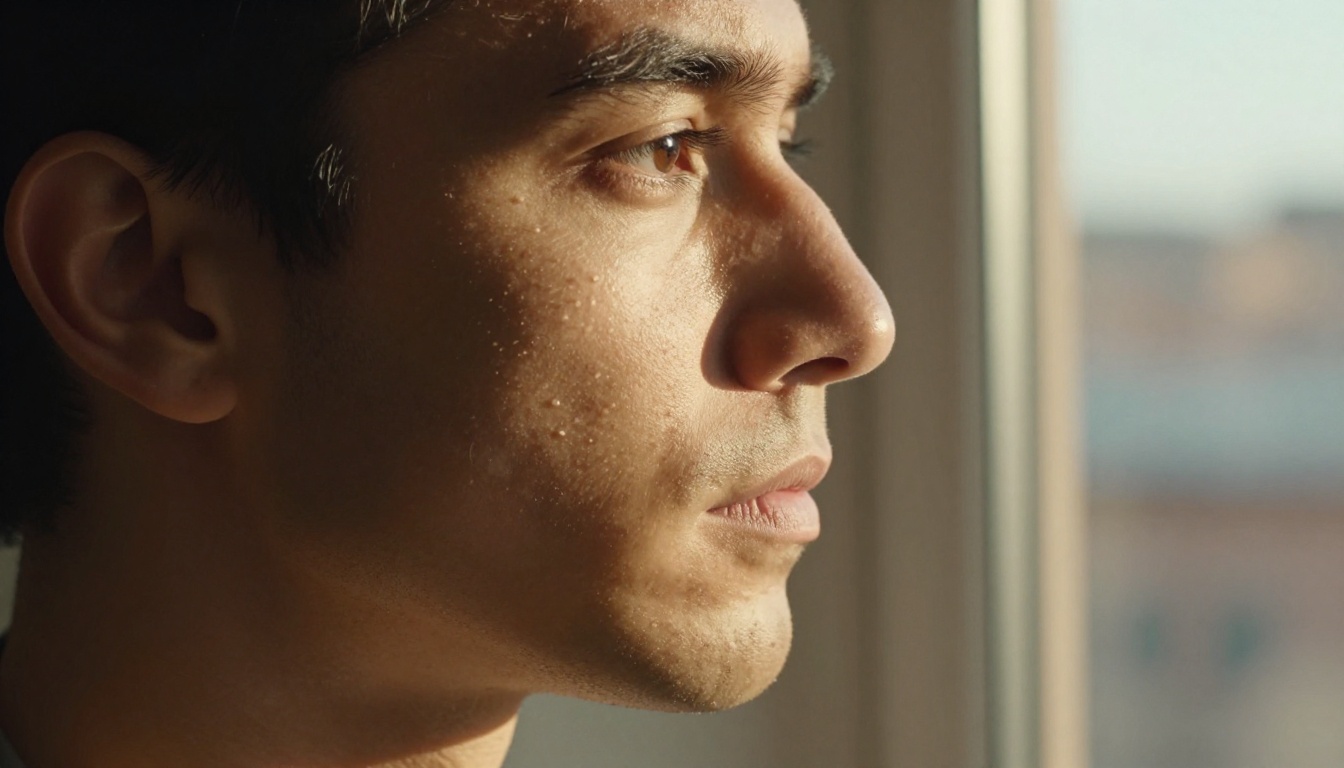
The uncanny valley is usually described as a feeling, something vague and hard to pin down. In practice, it's the result of several overlapping technical failures that your visual cortex processes before your conscious mind even registers the image.
What the Human Eye Actually Checks
Human vision evolved to detect threats and recognize faces. It does this by checking a small set of high-priority signals, and it does it fast. Before you've consciously decided "this looks fake," your brain has already flagged:
- Lighting consistency: Does the light source make physical sense? Do all shadows point the same direction?
- Surface response: Does the skin, fabric, or material respond to light the way the real thing would?
- Focal clarity: Is the sharp/blurry boundary where a real camera lens would put it?
- Micro-detail density: Is there enough fine-grain complexity at every surface?
An AI image that fails any one of these checks gets filed as "off." An image that gets all of them right gets filed as "real."
The Three Signals Your Brain Uses
Rather than processing the whole image at once, your visual system shortcuts to three primary signals:
- Light physics: Is the illumination behaving like photons actually would?
- Material response: Does skin look like skin under that light, or like plastic?
- Depth and distance cues: Does the sense of three-dimensional space feel earned?
Most AI images fail on signal 2. They get the light direction roughly right but produce surfaces that respond to it incorrectly. A face with perfectly directional lighting but uniform, smoothed skin still reads as fake because the material response is wrong.
Lighting Is the Hardest Thing to Fake
Of all the technical factors in photorealism, lighting is the one with the most physical complexity and the least tolerance for error. A slight inconsistency in shadow direction reads as an error because human vision has years of calibration data telling it exactly what shadows should look like.
Soft Shadows vs. Hard Edges
Real light doesn't produce perfectly hard shadow edges unless it's coming from a point source in a vacuum. Natural light, window light, even studio softboxes all produce soft, gradient shadow transitions. The shift from lit to shadow on a face takes several millimeters of gradual change.
Many AI models, especially older SDXL-based ones, produce shadows with slightly artificial edges because the underlying diffusion process doesn't have a precise enough model of light scatter. The result is a face that looks like it was lit by a stage light rather than by daylight.
What to look for in a realistic image:
- Shadow edges with a visible penumbra (soft gradient zone)
- Reflected fill light on the shadow side from ambient bounce
- Color temperature shift between the lit side and the shadow side
Subsurface Scattering: The Skin Secret
This is the single most important factor for realistic human skin, and it's the reason so many AI portraits feel like wax figures. Subsurface scattering is what happens when light enters the surface of skin, bounces around beneath it, and exits at a slightly different point. It gives skin a warm, translucent quality that you don't get from a simple reflective surface.
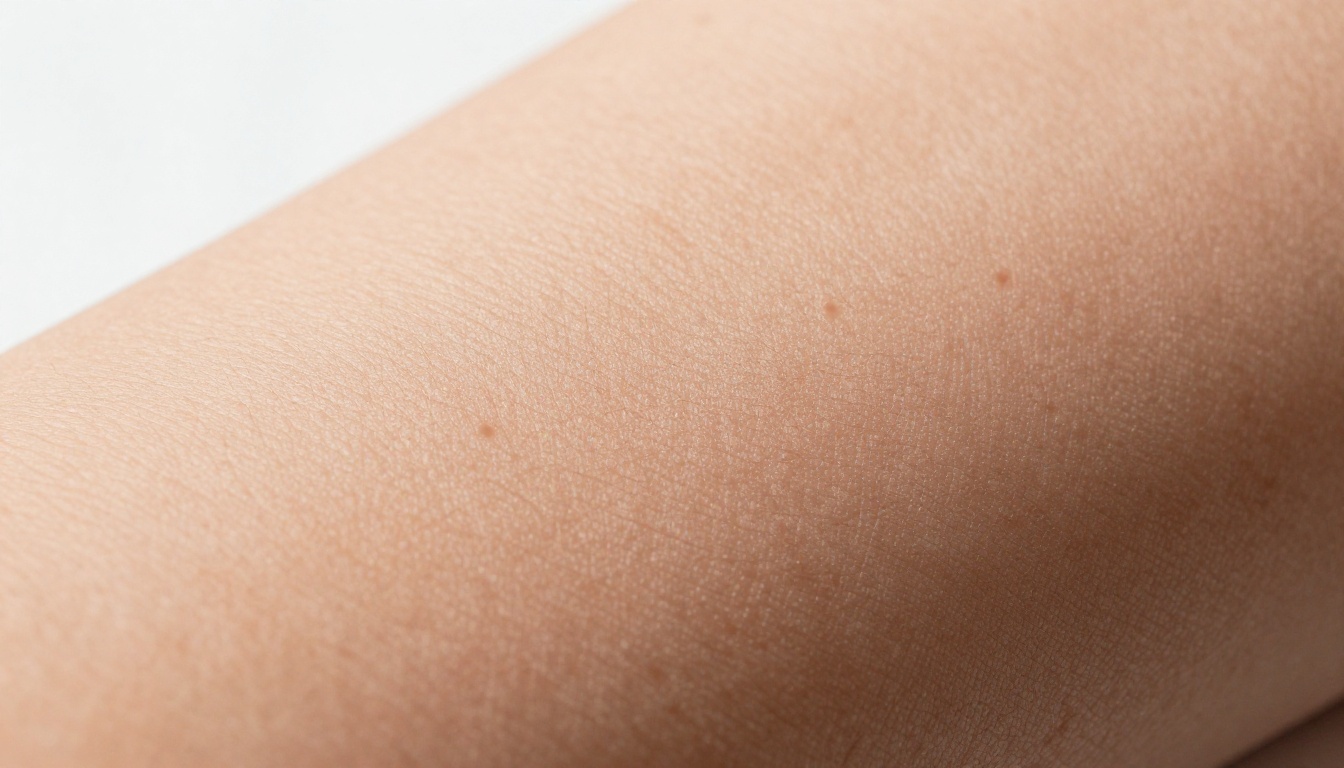
High-quality models trained on large volumes of real photography encode this behavior implicitly. Models with less training data or lower-resolution training sets produce skin that reflects light like a matte painted surface, which is the signature failure mode of artificial portraits.
💡 Prompt tip: Adding "subsurface scattering, translucent skin, volumetric light" to your prompt explicitly tells the model to prioritize this property in its output.
Texture Tells the Truth
Lighting is the biggest variable, but texture density is the fastest way to distinguish a high-realism image from a mid-tier one. The real world has an almost absurd level of fine-grain detail at every surface: pores, fiber weave, wood grain, rust flakes, scratches.
Pore-Level Detail and Why It Matters
A photograph taken with a good lens at close range shows every pore on a person's face. Not smoothed, not averaged, but individually present as tiny depressions with their own micro-shadow. AI models that produce images with smooth, poreless skin are failing at texture density even if the lighting is excellent.
The fix is partly model selection, partly prompting. Models like Flux 1.1 Pro Ultra and Realistic Vision v5.1 have been trained on high-resolution photography and produce noticeably better micro-texture in skin. Adding "visible pores, skin texture, film grain, 8K detail" to your prompt helps activate those features.
Hair, Fabric, and Surface Materials
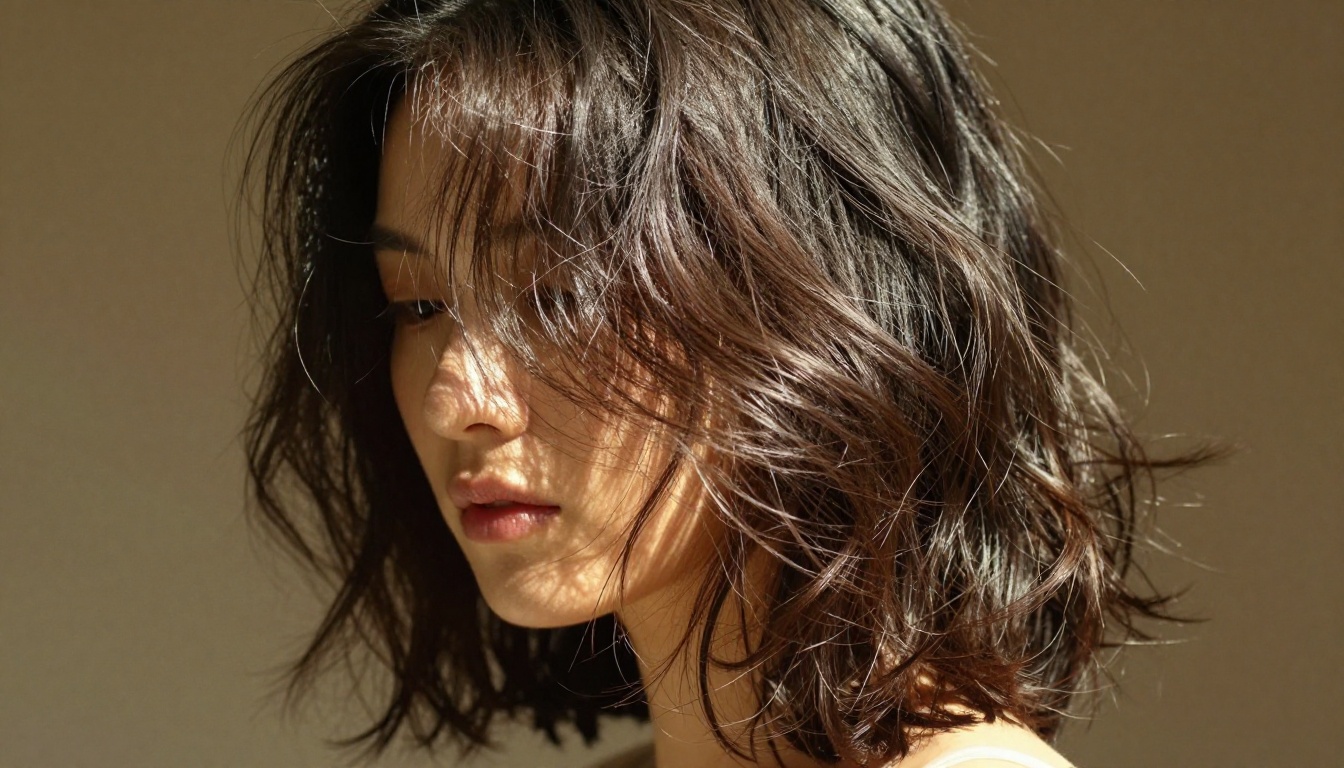
Hair is another common failure point. Convincing hair requires individual strand rendering, realistic light diffraction through semi-transparent fibers, and natural clumping behavior. Many models produce hair that looks like a painted mass rather than thousands of individual strands.
The same applies to fabric. A cotton shirt in a real photo shows individual thread weave, slight variation in color saturation between threads, and realistic shadow behavior in the folds. A flat, uniformly rendered fabric reads as fake immediately.
Materials ranked by difficulty for AI models:
| Material | Difficulty | Common Failure |
|---|
| Smooth skin | Medium | Over-smoothed, no pores |
| Wavy hair | High | Mass rendering, no individual strands |
| Cotton fabric | Medium | Flat weave, no variation |
| Metal surfaces | Low | Usually rendered well |
| Glass / water | High | Incorrect refraction |
| Fur / fine hair | Very High | Clumping, loss of individual fibers |
Depth of Field Is a Realism Signal
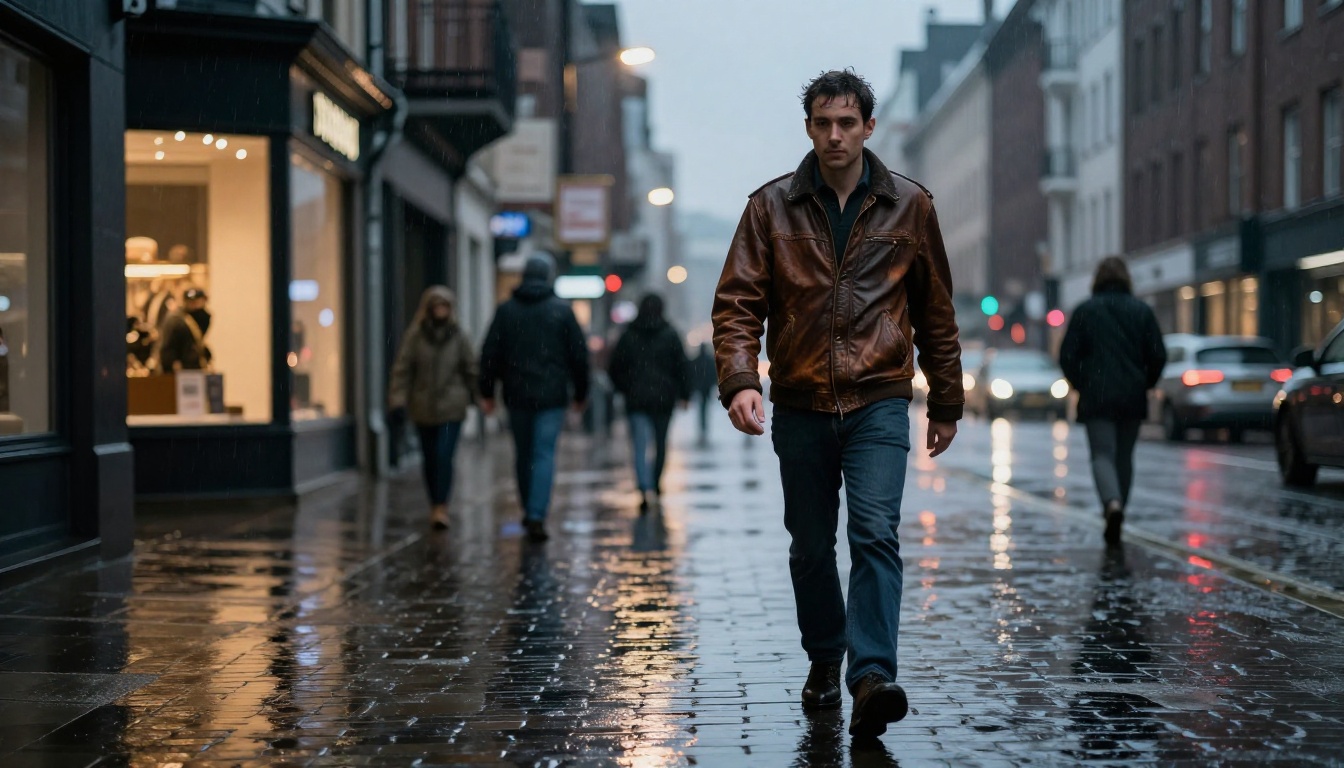
Depth of field is one of those details that photographs have and digital renders often get wrong. A real camera lens with a given aperture produces a mathematically precise zone of sharpness, with everything outside it blurring in a specific, physics-based way. Backgrounds blur. Foreground elements blur. The transition is smooth and follows the inverse square of distance from the focal plane.

Bokeh Done Right
Bokeh, the out-of-focus blur in the background, is a strong realism cue because people associate it with real cameras. Models that get bokeh right produce images that read as photographic almost automatically. The quality of bokeh matters too: circular highlight shapes from point light sources in the background, smooth blur gradients, and correct color bleeding at the edges.
Where Focus Should and Shouldn't Be
In real photography, the focus isn't everywhere. Even at f/8, there's a depth of field boundary. AI images that render everything at equal sharpness across the entire frame look like renders, not photographs, because no camera lens behaves that way.
Adding "shallow depth of field, 85mm f/1.4, bokeh background, subject in focus" to your prompt tells the model to simulate this correctly. The best models will also put specular highlights slightly out of focus when they're behind the focal plane, which is exactly what happens with real lenses.
How the Model Architecture Shapes Output
The model you choose is the ceiling for your realism. Prompt engineering can push you toward that ceiling, but it can't break through it. Different architectures have fundamentally different strengths.
Training Data Volume and Quality
The single biggest factor in a model's realism ceiling is the quality and volume of its training data. A model trained on billions of high-resolution photographs will have a better implicit understanding of how light, texture, and depth work than one trained on lower-resolution or more mixed data.
This is why models like Flux 2 Pro outperform earlier generations: not just because the architecture improved, but because the training pipeline improved alongside it.
Flux, SDXL, and Realistic Vision: Compared
These three model families represent three different approaches to photorealism:
| Model | Architecture | Realism Strength | Best For |
|---|
| Flux 1.1 Pro Ultra | Flow Matching | Lighting, spatial coherence | Complex scenes, environments |
| Flux 2 Pro | Flow Matching | Detail density, faces | Portraits, product shots |
| Realistic Vision v5.1 | SDXL Fine-tune | Skin texture, natural portraits | Human subjects |
| RealVisXL v3 | SDXL Fine-tune | Speed, consistent quality | Rapid iteration |
| SeedDream 4 | Diffusion Transformer | Compositional realism | Lifestyle scenes |
Flux models dominate on coherence and spatial accuracy. The fine-tuned SDXL models like Realistic Vision v5.1 and RealVisXL v3 trade some of that spatial accuracy for better skin rendering specifically. For portraits, the SDXL fine-tunes often win. For complex environments, Flux usually does.
Prompt Engineering for Realism
The model sets the ceiling. Your prompt determines where on that scale you land. A mediocre prompt with an excellent model will still produce a mediocre image. A well-engineered realism prompt with the same model will push it to its ceiling.
The Words That Trigger Photorealism
Diffusion models have learned associations between words and visual properties. Certain phrases reliably activate photorealistic rendering behavior:
Lighting terms:
- "volumetric morning light"
- "soft window light from the left"
- "overcast diffused natural daylight"
- "golden hour backlight"
Camera terms:
- "85mm f/1.4, shallow depth of field"
- "shot on Kodak Portra 400"
- "Leica M11, documentary photography"
- "medium format, Phase One"
Texture terms:
- "visible pores, skin texture"
- "film grain, natural imperfection"
- "subsurface scattering"
- "individual hair strands"
Quality modifiers:
- "RAW photography, 8K"
- "photorealistic, no post-processing"
- "natural color science, true-to-life"
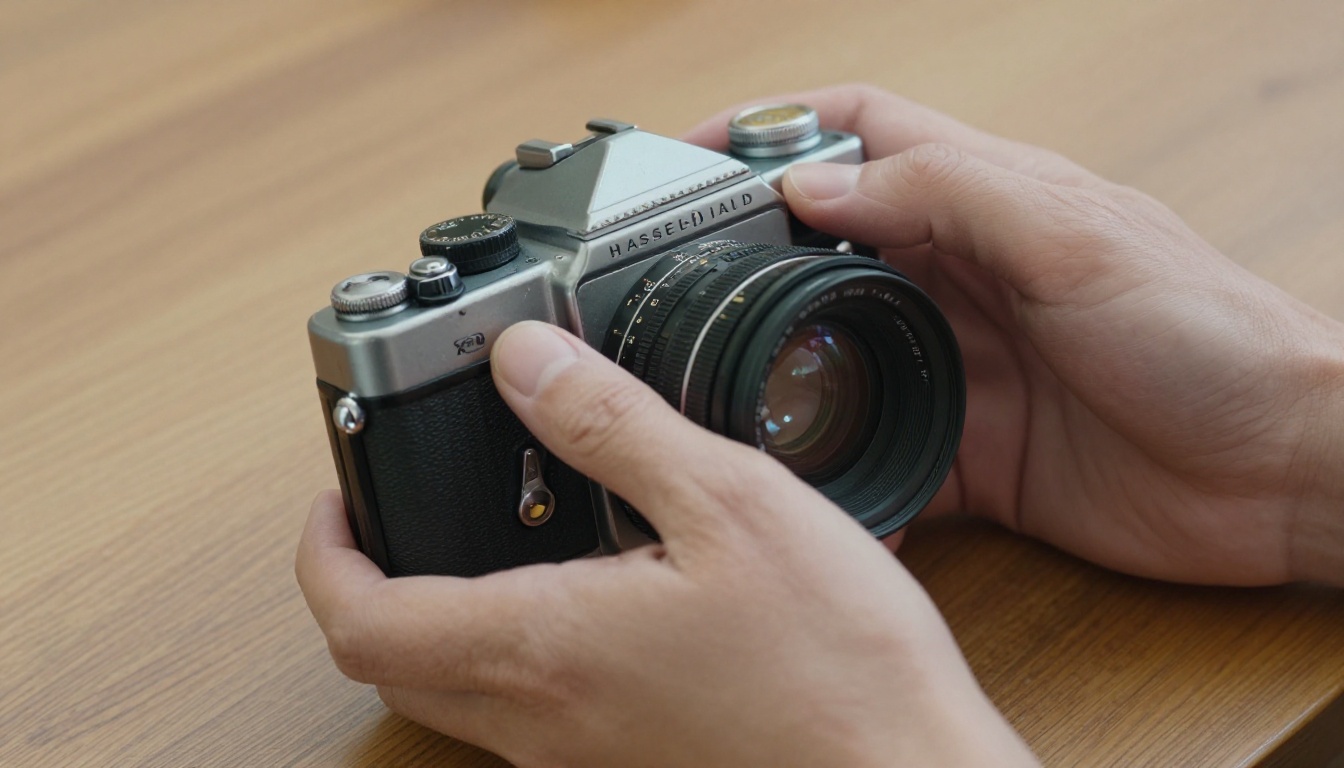
What to Avoid in Your Prompts
Certain phrases actively push models toward artificial outputs:
- "digital art" or "3D render" will produce non-photographic results
- "hyper detailed" can sometimes over-sharpen and destroy film grain
- "beautiful" without qualification pushes toward idealized, smoothed results
- "perfect skin" actively tells the model to remove the texture that creates realism
- "vibrant colors" pushes toward oversaturated outputs that don't match real photography
💡 The rule: If the word describes how you want something to look rather than how a photographer would describe the shot, it's probably working against realism.
The Best PicassoIA Models for Photorealistic Images
Now that the technical factors are clear, here's how the best models on PicassoIA map to specific use cases.
Top Picks for Convincing Portraits
For human subjects, the priority is skin texture, lighting response, and hair rendering. These models consistently perform:
-
Flux 1.1 Pro Ultra: The highest-ceiling option on the platform. Handles complex lighting, correct shadow behavior, and spatial coherence. For scenes with multiple light sources or complex environments, this is the default choice.
-
Realistic Vision v5.1: Specifically fine-tuned for photorealistic human subjects. Produces skin with visible pores and natural texture that reads as authentic. Best for close-up portraits where skin detail matters most.
-
Flux Portrait Series: Optimized for portrait photography with consistent face rendering and strong depth-of-field simulation across a wide range of lighting conditions.
-
Flux Professional Headshot: When you need the image to pass as a professional photograph, this model's training on real headshot photography shows immediately in the output quality.
Landscapes and Environments
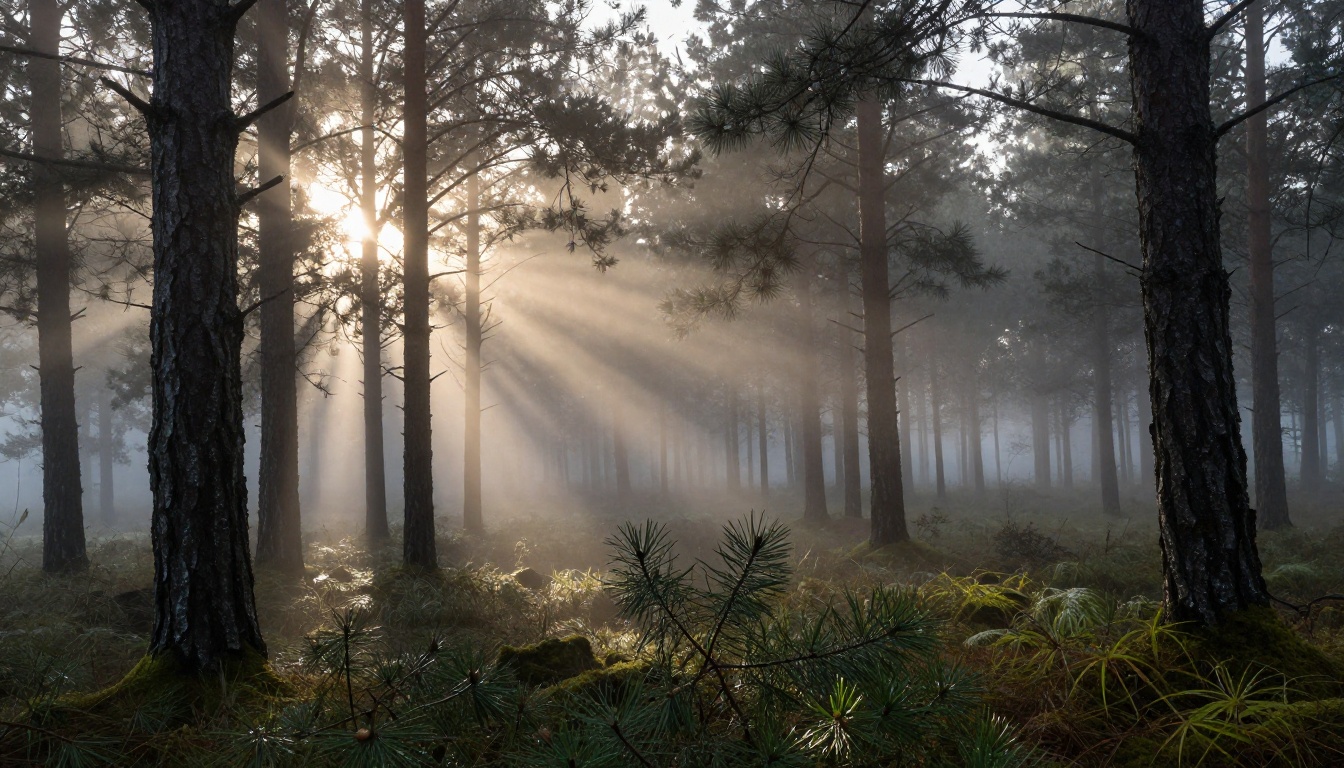
For non-human subjects, the priority shifts to atmospheric depth, material rendering, and spatial coherence.
-
Flux 2 Pro: Strong on environmental scenes, atmospheric fog, and complex light behavior through particles and atmosphere.
-
RealVisXL v3: Fast iteration speed with consistent output quality. Good for landscape and lifestyle scenes where you need multiple variations quickly.
-
SeedDream 4: Handles compositional complexity well, particularly in busy lifestyle and street scenes where spatial relationships between elements matter.
Using Flux 1.1 Pro Ultra on PicassoIA
Flux 1.1 Pro Ultra is the highest-realism model on PicassoIA and the one that gives you the most consistent photographic output across subjects and lighting conditions. Here's how to use it effectively.
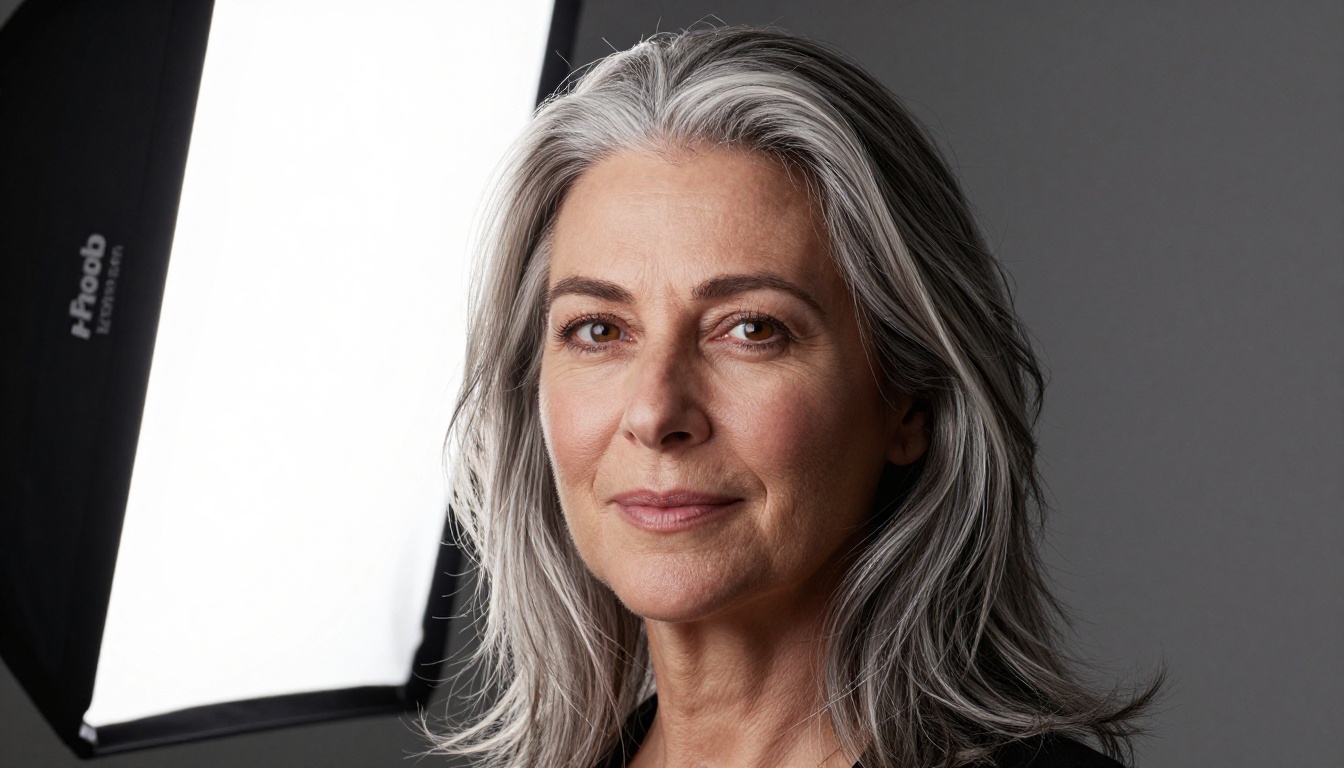
Step 1: Choose the Model
Go to Flux 1.1 Pro Ultra on PicassoIA and open the generation panel. Set your aspect ratio before writing your prompt, since aspect ratio affects how the model composes the scene.
Step 2: Write a Realism-Focused Prompt
Structure your prompt in this order for the most consistent photorealistic results:
- Subject and action: What is in the scene and what is it doing?
- Environment: Where is it? Indoor, outdoor, specific location type?
- Lighting: Direction, quality, color temperature, source.
- Camera details: Lens focal length, aperture, film stock.
- Texture modifiers: Pores, grain, material surface details.
Example: "Close-up portrait of a man in his thirties, worn denim jacket, sitting by a window in a coffee shop, soft overcast daylight from the left, shadow side with slight warm bounce from a wooden table, shot on 85mm f/1.4, Kodak Portra 400, visible pores, natural skin texture, film grain, no retouching"
Step 3: Iterate and Compare
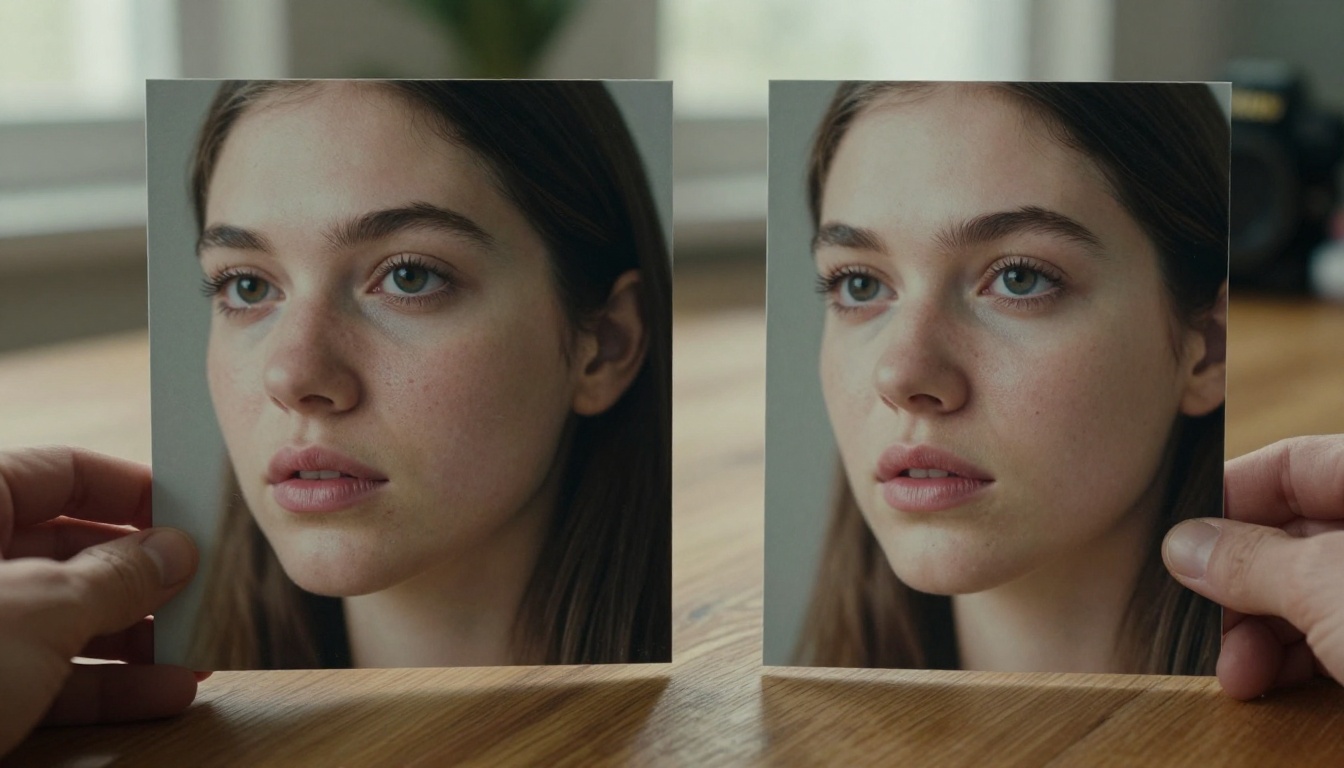
Generate two or three variations of the same prompt to see which rendering best captures the lighting and texture you're after. Small changes in the lighting description often produce noticeably different results. The difference between "soft window light" and "overcast diffused daylight" can shift the entire feel of the image.
💡 Use SDXL Lightning 4 Step for fast iteration on prompt language before switching to Flux 1.1 Pro Ultra for your final high-quality generation. The composition and lighting direction will transfer; the texture quality will improve significantly.
Step 4: Refine with PicassoIA Image Editor Pro
Once you have a base image you're satisfied with, use PicassoIA Image Editor Pro to make targeted improvements. The inpainting capability lets you fix specific areas: sharpen hair detail, adjust skin texture in a particular region, or correct a shadow that the model rendered slightly off.
This combination of high-realism generation followed by targeted inpainting is how consistently convincing images get produced at scale, without needing to regenerate the entire image every time a small area misses the mark.
Start Generating on PicassoIA
Every factor covered here, lighting physics, texture density, depth of field, model selection, prompt structure, is something you can control right now. PicassoIA gives you access to Flux 1.1 Pro Ultra, Realistic Vision v5.1, RealVisXL v3, Flux 2 Pro, and SeedDream 4 all in one place, without needing API keys, local hardware, or separate accounts.
The fastest way to close the gap between "obviously AI" and "is this real?" is to start generating and compare outputs across models and prompts. Pick one of the models above, write a prompt using the lighting and camera structure from this article, and see where the model's ceiling actually sits.
The difference between a fake-looking AI image and one that stops people mid-scroll is almost never luck. It's technique, and now you have the specific variables to work with.


