Every time you generate an AI image and something just feels "off," your brain is catching something real. Maybe the lighting falls on nothing. Maybe the background objects don't quite obey perspective. Maybe the person's skin looks poured on rather than lived in. These are not random mistakes. They are patterns, and once you know them, you can fix them.
This article breaks down exactly why AI images look fake, where the problems come from, and the specific methods that fix them, from prompt structure to model selection to upscaling workflows.
The Uncanny Valley in Your Prompt
What the eye detects first
Human vision has spent millions of years learning to read faces, hands, lighting, and physical space. That system does not turn off when it encounters a generated image. When the light source in a portrait does not match the shadows behind the subject, your visual cortex flags it in under 100 milliseconds. You do not need to analyze the image. You just feel it is wrong.
The "uncanny valley" was originally coined for robotics, but it applies perfectly to AI-generated imagery. Get close enough to photorealism and any remaining flaw becomes more disturbing, not less. A cartoon face does not bother you. An almost-human face does.
The 5 telltale signs
These are the most common artifacts that give AI images away:
| Problem | Why It Happens |
|---|
| Waxy, pore-less skin | Training data often lacks high-res macro skin images |
| Symmetrical backgrounds | Models default to "balanced" compositions |
| Perfect, uniform hair | Hair strand simulation is computationally expensive |
| Extra or fused fingers | Hand geometry is massively complex in 3D space |
| "Floating" light sources | Models absorb light aesthetics, not physics |
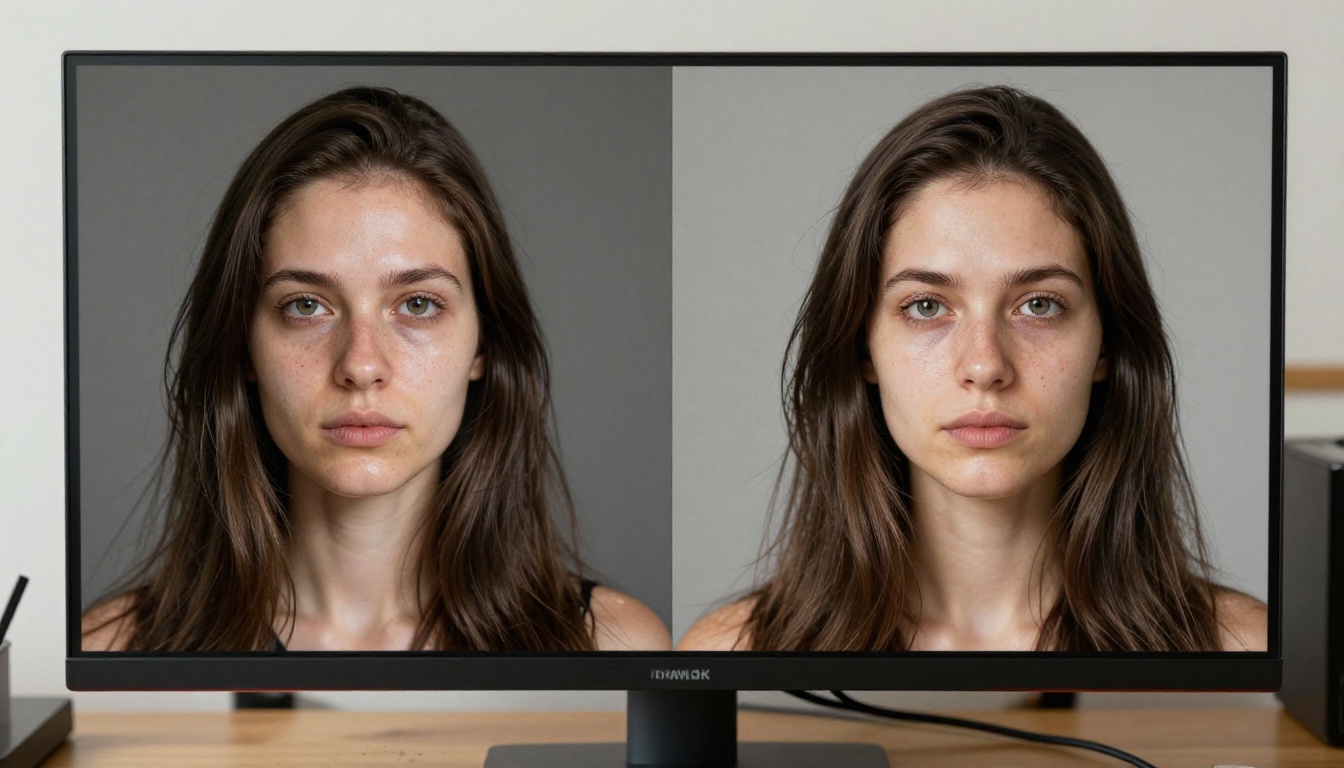
Knowing these five patterns means you know where to look before you accept a generated result. More importantly, it tells you where to focus your prompting effort.
Why AI Struggles with Skin and Hair
Skin that reads as plastic
Photorealistic skin is not smooth. It is a mosaic of micro-textures: visible pores, fine hairs, slight discoloration, faint capillaries near the surface, and asymmetry introduced by muscle movement and aging. Most AI models average these details out because they are trained on compressed internet images where that data is already lost.
The fix starts at the prompt level. Instead of writing "beautiful skin," write:
natural skin texture, visible pores, subtle freckles, slight redness at nose bridge, 85mm f/1.8 shallow depth of field, Kodak Portra 400 film grain
Each of those additions forces the model to generate detail rather than smooth it away. Grain especially helps, because Kodak Portra 400 is a texture reference the model has seen thousands of times in training data it associates with authentic photography.
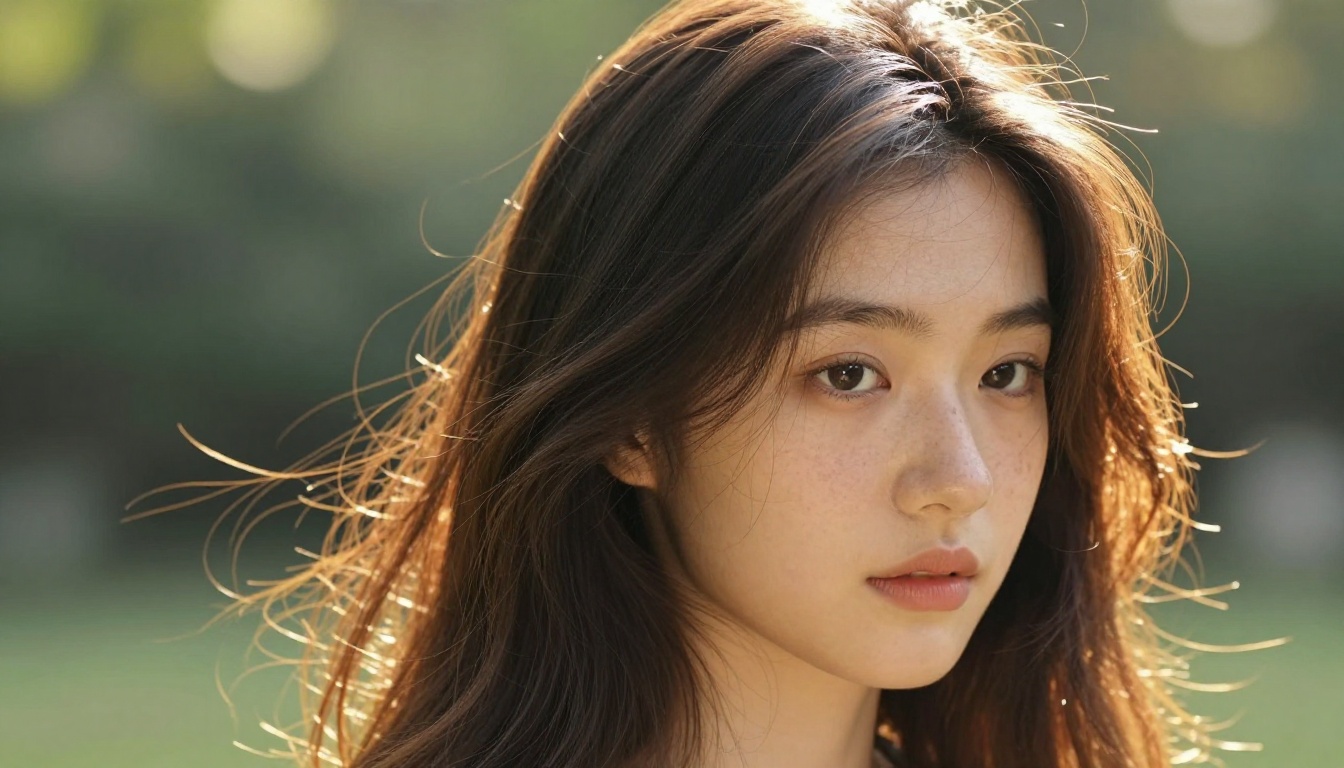
Models like Realistic Vision v5.1 and RealVisXL v3.0 Turbo are specifically fine-tuned on high-resolution portrait photography, which is why they produce better skin texture at the base level before you even refine the prompt.
Hair that defies physics
Hair is one of the hardest things in computational graphics. Real hair has:
- Thousands of individual strands with random variation
- Backlit translucency that separates the subject from the background
- Micro-flyaways that catch light differently from the main mass
- Weight and movement that follow physics
AI often generates hair as a single unified shape with a surface texture painted on. It looks like a wig or a painted helmet.
💡 Fix it: Add "individual hair strands catching backlight, slight wind movement, micro-flyaways visible against background" to your prompt. Pair this with a specific lighting setup like "golden hour backlight from behind and above."
The moment you describe physics-based behavior, the model reaches for training examples that actually show it.
Hands, Eyes, and the Details That Ruin It
The hand problem
AI-generated hands remain one of the most consistent failure points across all models. The reason is topological: hands change shape dramatically with every small movement. A fist, an open palm, a pointing finger, a grip around an object, these are all structurally different and the model has to infer which version you want from context.
What goes wrong:
- Extra fingers appear because the model is uncertain about how many are visible
- Fingers fuse because the model averages neighboring hand poses
- Proportions shift because wrist-to-finger ratio is hard to infer from 2D training data
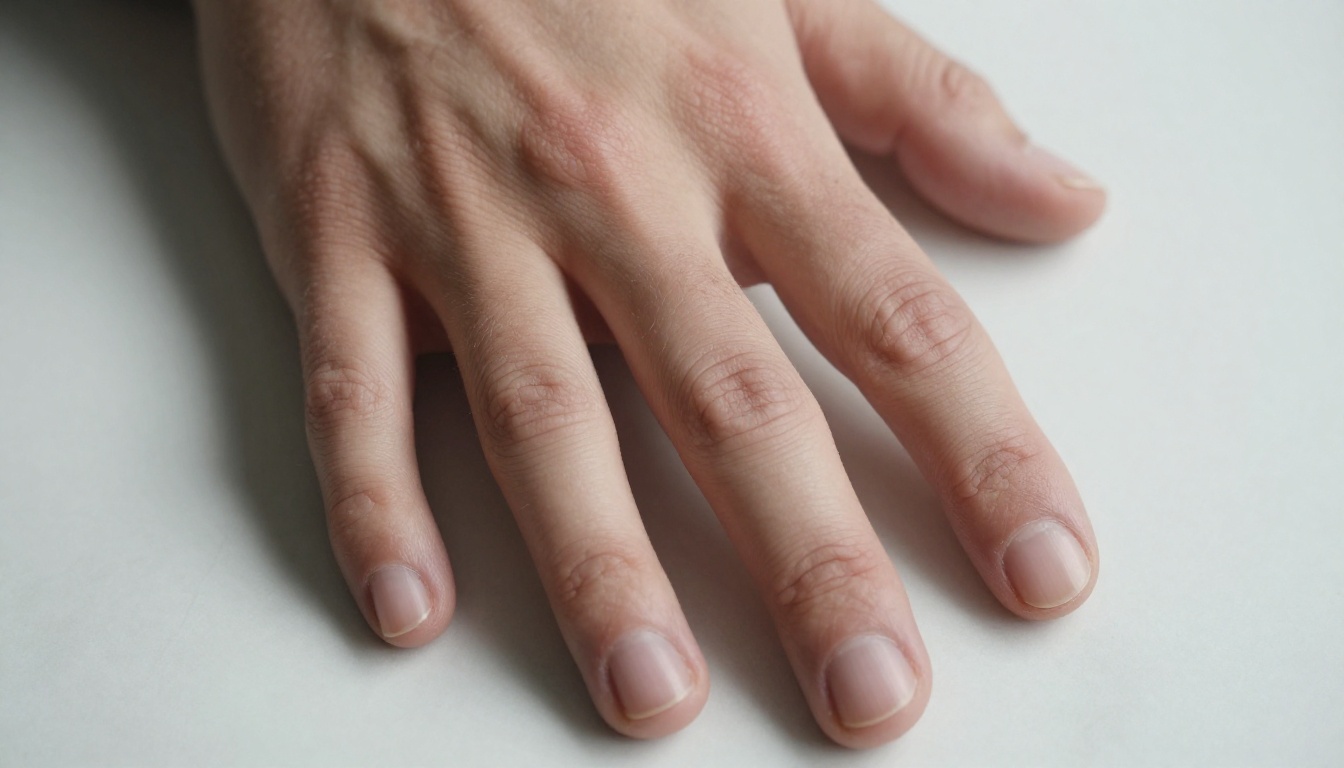
The most reliable fix is to remove hands from the composition entirely unless they are the subject. Frame your prompt to crop at wrists, or position hands where they are partially obscured. When hands are essential, use a model with ControlNet support so you can provide a reference skeleton.
Flux 1.1 Pro Ultra handles hands significantly better than older architectures because its training dataset was curated for anatomical consistency. Still, detailed hand positioning benefits from a reference image.
Eyes without depth
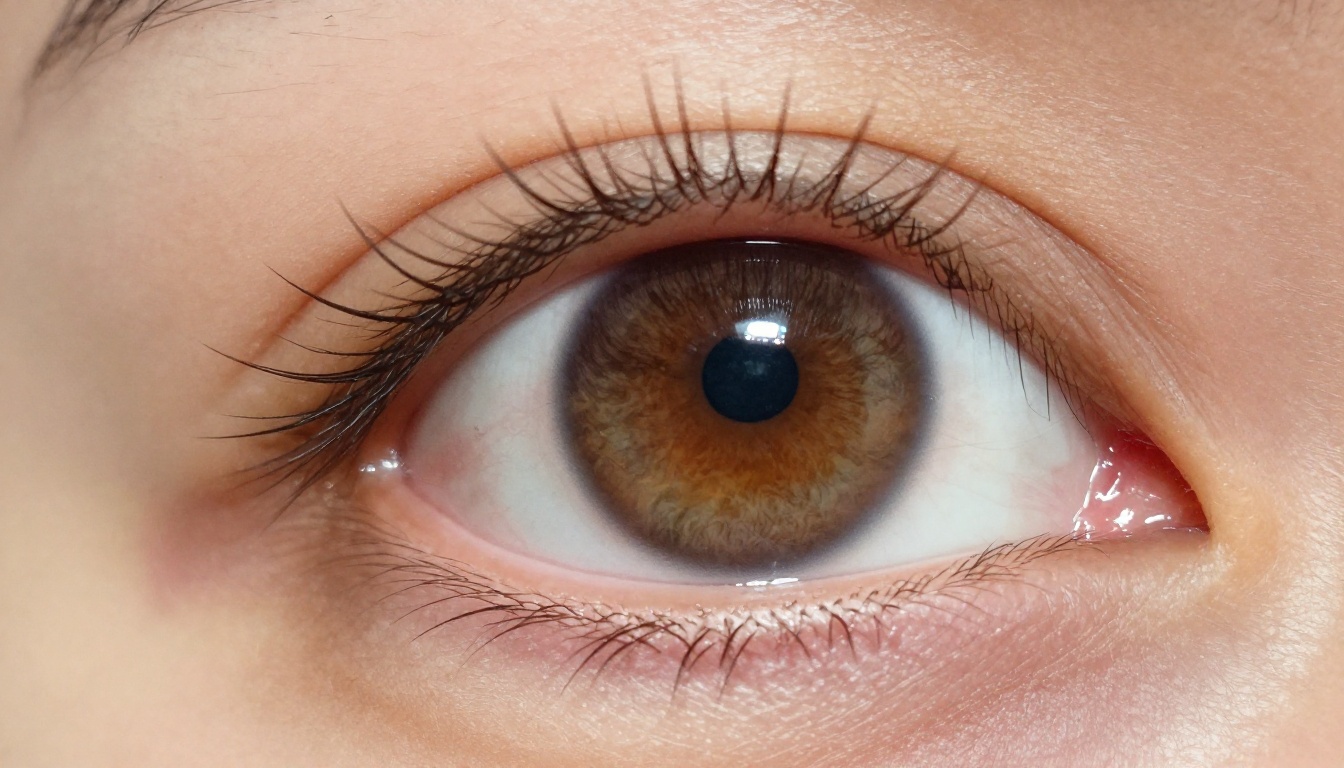
Human eyes catch light in a specific way. There is a catch light (the reflection of the light source), a distinct iris with radial fiber patterns, a darkening limbal ring where the iris meets the sclera, and subtle redness in the corners. AI eyes often look glassy because they reproduce the aesthetic without the physics.
💡 Fix it: Write "catch light from studio softbox at 45 degrees upper left, iris with natural fiber detail, slight limbal ring, 135mm telephoto lens compression" into your prompt. The lens specification triggers model behavior associated with professional portrait photography.
Prompt Writing That Fixes Realism
Specify lighting like a photographer
Vague lighting kills realism. "Good lighting" tells the model nothing. A photographer doesn't think in adjectives. They think in:
- Direction: "softbox at 45 degrees upper left"
- Quality: "diffused overcast light" vs. "direct harsh midday sun"
- Color temperature: "3200K tungsten warmth" vs. "5600K daylight"
- Effect: "volumetric morning haze from right side window"
When you specify lighting like a cinematographer, the model reaches for training examples that were photographed under similar conditions, which are almost always real photographs.
A complete lighting specification might look like: volumetric morning light from left window, warm 3200K color temperature, soft shadow on right side of face, slight lens flare at window edge
That is not decoration. That is physics instruction.
Add imperfections on purpose
This feels counterintuitive. We want beautiful images, so we write "beautiful" into our prompts. But "beautiful" is a training-data average and averages are what make AI images look fake.
Real beauty is asymmetric. Real skin has a blemish or two. Real hair has a strand out of place. Real photographs have slight chromatic aberration, minor motion blur on loose fabric, dust particles in direct sunlight.
Imperfections to add intentionally:
slight natural asymmetryauthentic freckles across nose bridgeminor chromatic aberration at frame edgesnatural skin redness near cheeks and noseslight motion blur on loose clothingdust particles visible in direct sunlight
Each of these cues tells the model it is making a photograph, not an illustration.
The Right Models for Photorealism
Top generators for realistic output
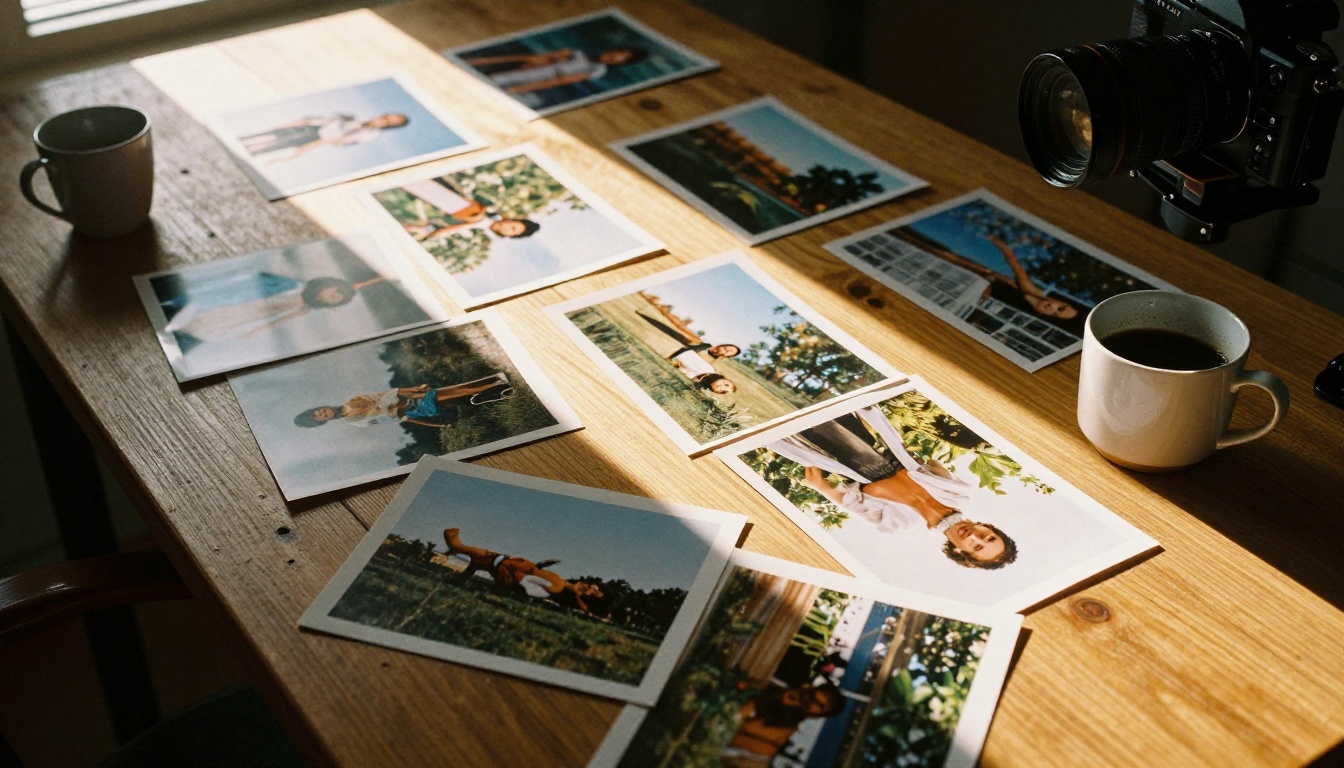
Not all models are equal for photorealism. The architecture, the training data curation, and the fine-tuning objective all affect how realistic the output feels.
| Model | Strength | Link |
|---|
| Flux 1.1 Pro Ultra | 4MP detail, anatomy accuracy | Open model |
| Flux Krea Dev | Trained to avoid the "AI look" | Open model |
| Seedream 4.5 | 4K output, strong portrait realism | Open model |
| Imagen 4 Ultra | High-detail photorealism engine | Open model |
| Realistic Vision v5.1 | Fine-tuned for authentic portrait photography | Open model |
| RealVisXL v3.0 Turbo | Fast and photorealistic, strong skin rendering | Open model |
| Dreamina 3.1 | Cinematic 4MP quality | Open model |
Flux Krea Dev is worth highlighting specifically because it was trained with the explicit objective of reducing the "AI aesthetic." Where most models optimize for visual appeal in abstract terms, Krea Dev optimizes for looking like it came out of a camera.
When upscaling saves the result
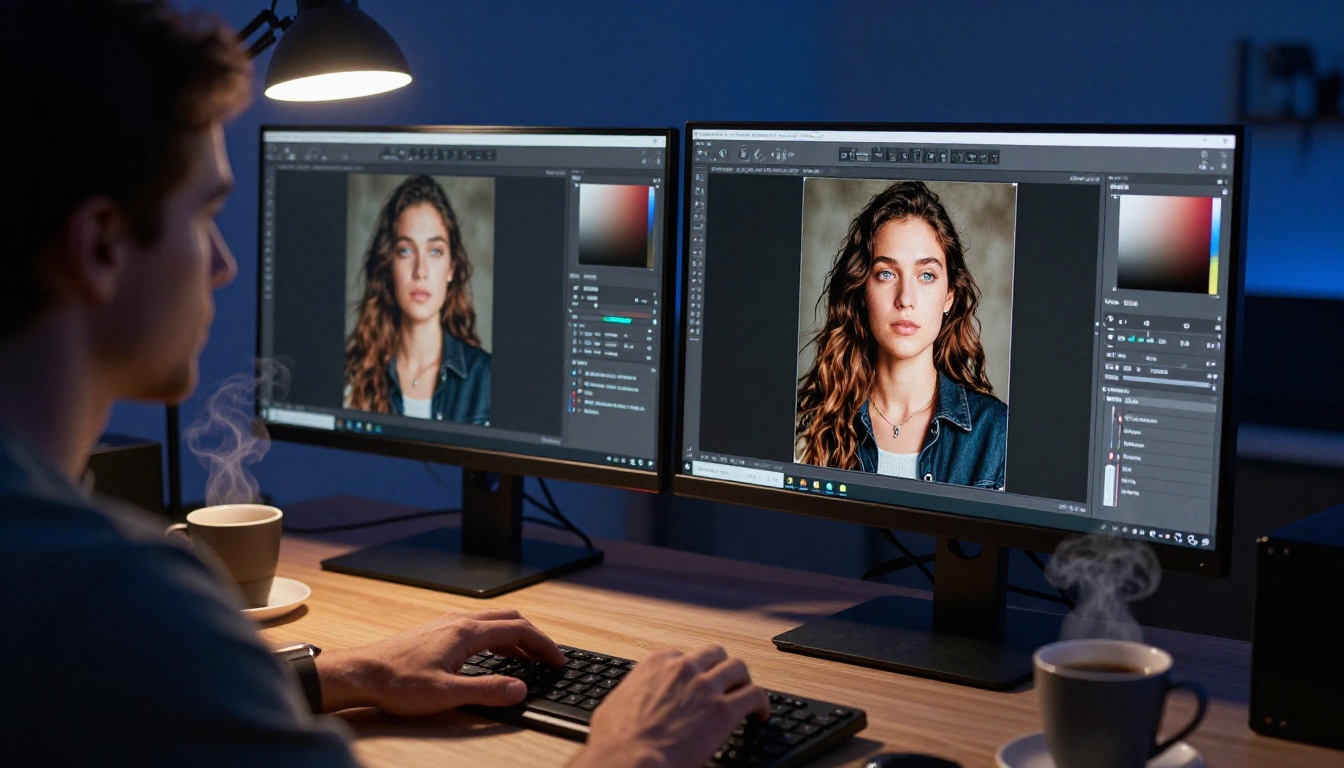
Even a well-prompted image at standard generation resolution (typically 1024px) lacks the pixel density to hold up under close inspection. Skin texture, background detail, and hair strands that looked acceptable at small sizes fall apart at 100% zoom.
This is where super-resolution models become part of the realism workflow, not just a finishing step.
Recommended upscaling models:
💡 Workflow tip: Generate at native resolution first, evaluate for compositional and anatomical issues, then upscale only the images that pass. Upscaling a bad base just gives you a bigger bad image.
The Clarity Pro Upscaler is particularly effective for portrait work because it adds micro-detail during the upscale process, making skin texture and hair strands read as genuinely photographic even on large prints.
How to Use PicassoIA to Fix Fake-Looking AI Images
PicassoIA gives you access to all of these models without switching between platforms. Here is a practical workflow for taking a generated portrait from "AI obvious" to convincingly real:
Step 1: Generate with a realism-focused model
Open Flux 1.1 Pro Ultra or Realistic Vision v5.1 on PicassoIA. Write your prompt with physics-based lighting and imperfection cues described in this article.
Step 2: Check for the five telltale signs
Before going further, look for: waxy skin, symmetrical background, plastic hair, hand issues, and glassy eyes. If three or more are present, refine your prompt and regenerate rather than trying to fix a fundamentally weak output.
Step 3: Apply skin refinement if needed
Use Qwen Image Edit Plus LoRA Skin to apply targeted skin texture improvements without regenerating the whole image. This preserves your composition while adding the micro-detail the base generation missed.
Step 4: Upscale with texture generation
Run the result through Clarity Pro Upscaler or Image Upscale by Topaz Labs. Set the enhancement strength high enough to add genuine texture, not just resize.
Step 5: Evaluate at 100% zoom
At this size, real photographs hold detail. If your upscaled result still reads as artificial at 100% zoom, the issue is in the base generation. Go back to step 1 with a more physics-specific prompt.
The role of the image editor
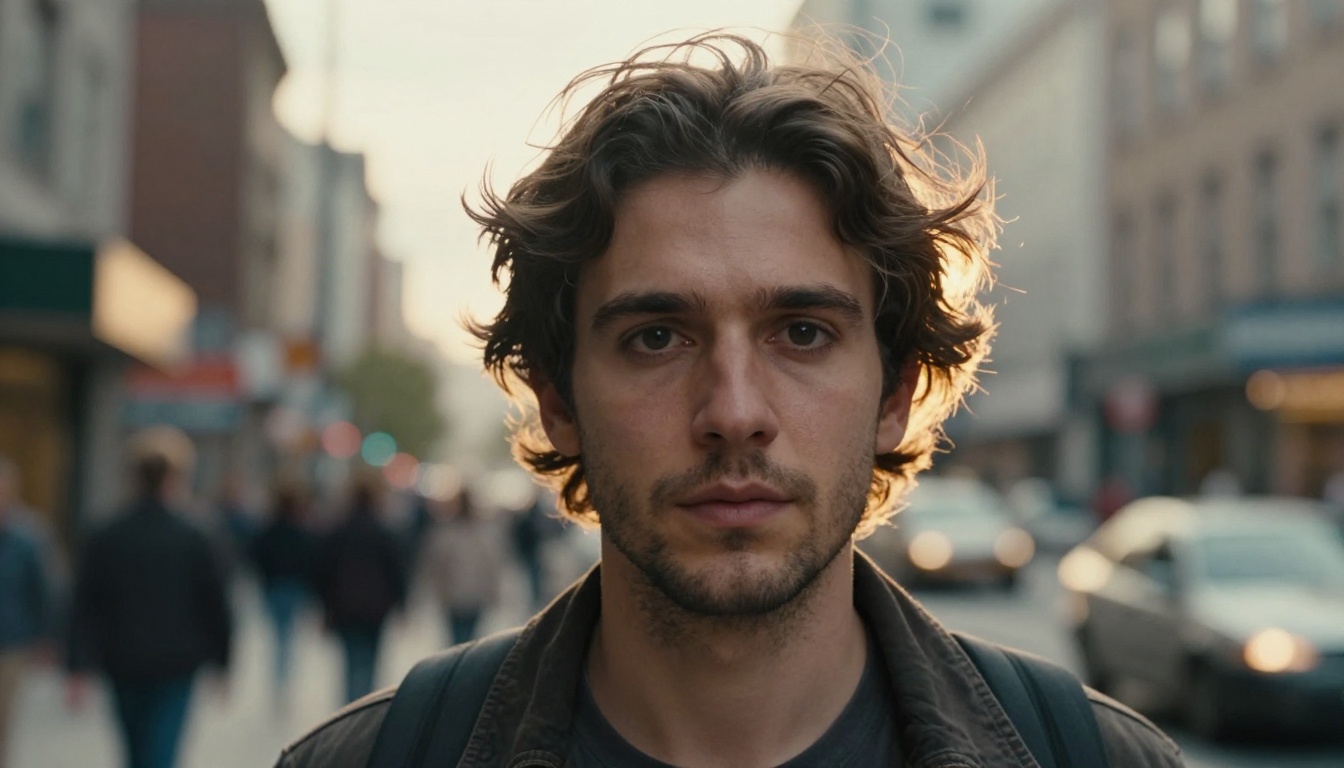
PicassoIA's image editing tools go beyond generation. Inpainting lets you target specific regions like hands or backgrounds for selective regeneration. If an otherwise excellent portrait has a bad hand, you do not need to regenerate from scratch. Mask the hand, describe what you want, and let the model fill only that region.
Similarly, outpainting lets you extend a composition that feels too tight, adding natural environment context that makes the full image feel less artificially framed.
The 30-Second Check Before You Share
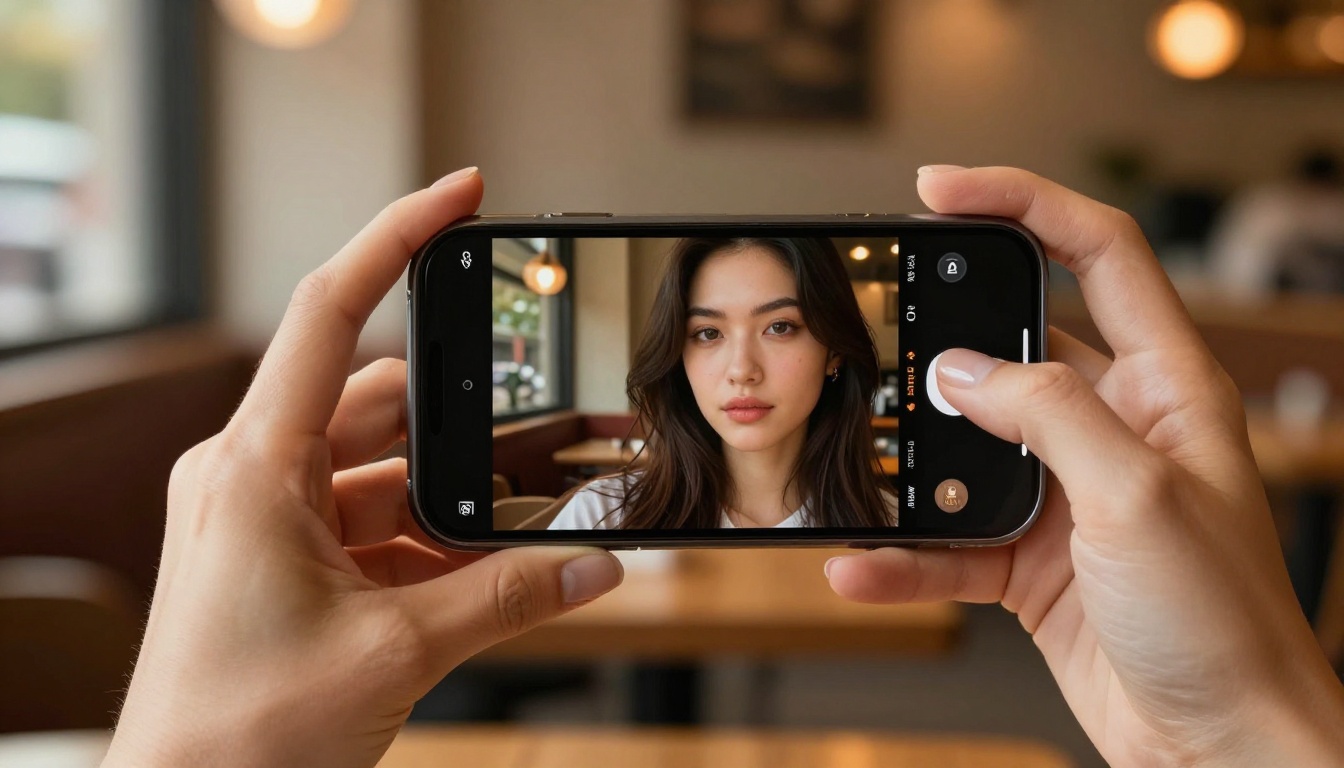
Before publishing or sharing any AI image, run through this checklist:
- Does the lighting have a clear direction and source?
- Is there visible texture in skin, hair, and surfaces?
- Are background elements obeying correct perspective?
- Do hands look anatomically plausible?
- Do eyes have a catch light and visible iris detail?
- Is there at least one small imperfection that makes the image feel real?
If any of these fails, you know exactly where to focus your next iteration. The goal is not perfection. It is convincing imperfection.
The difference between a fake-looking AI image and a photorealistic one is rarely the model. It is the specificity of the instructions you give it. A photographer does not say "take a nice photo." They set up the light, choose the lens, adjust the angle, and then shoot. Write your prompts the same way.
Start Creating Photorealistic Images Now
The tools are ready. Pick a model from PicassoIA, write one prompt with explicit lighting, at least three texture cues, and one deliberate imperfection. Compare it to what you were generating before. The difference will be immediate.
PicassoIA gives you access to Flux 1.1 Pro Ultra, Seedream 4.5, Realistic Vision v5.1, and dozens of other photorealism-focused models alongside dedicated upscalers like Clarity Pro Upscaler and Image Upscale by Topaz Labs. Everything in this article's workflow is available in one place.
Browse all available models at picassoia.com/en/all-models and start generating images that look like they came from a camera, not a computer.


