You upload a photo, type one sentence, and a few seconds later the lighting, the outfit or the background looks exactly the way you pictured it. That is what people want from an 18 plus AI image editor, and it is also why the search results are full of tools that promise everything and deliver a watermark, a paywall or a blurred preview. This article sorts the real options from the noise. You will see what "free" and "no login" actually mean, which editors handle glamour, swimwear and mature themes without constantly refusing, and how to get clean results from your own photos.
💡 Quick answer: For adult-oriented glamour and photo editing, start with Seedream 4.5 for generation, then use PicassoIA Image Editor Pro for unlimited edits on your own pictures.
What "18 Plus AI Image Editor" Means
The phrase covers a few different needs, and mixing them up is the fastest way to waste an afternoon on the wrong site.
Editing versus generating
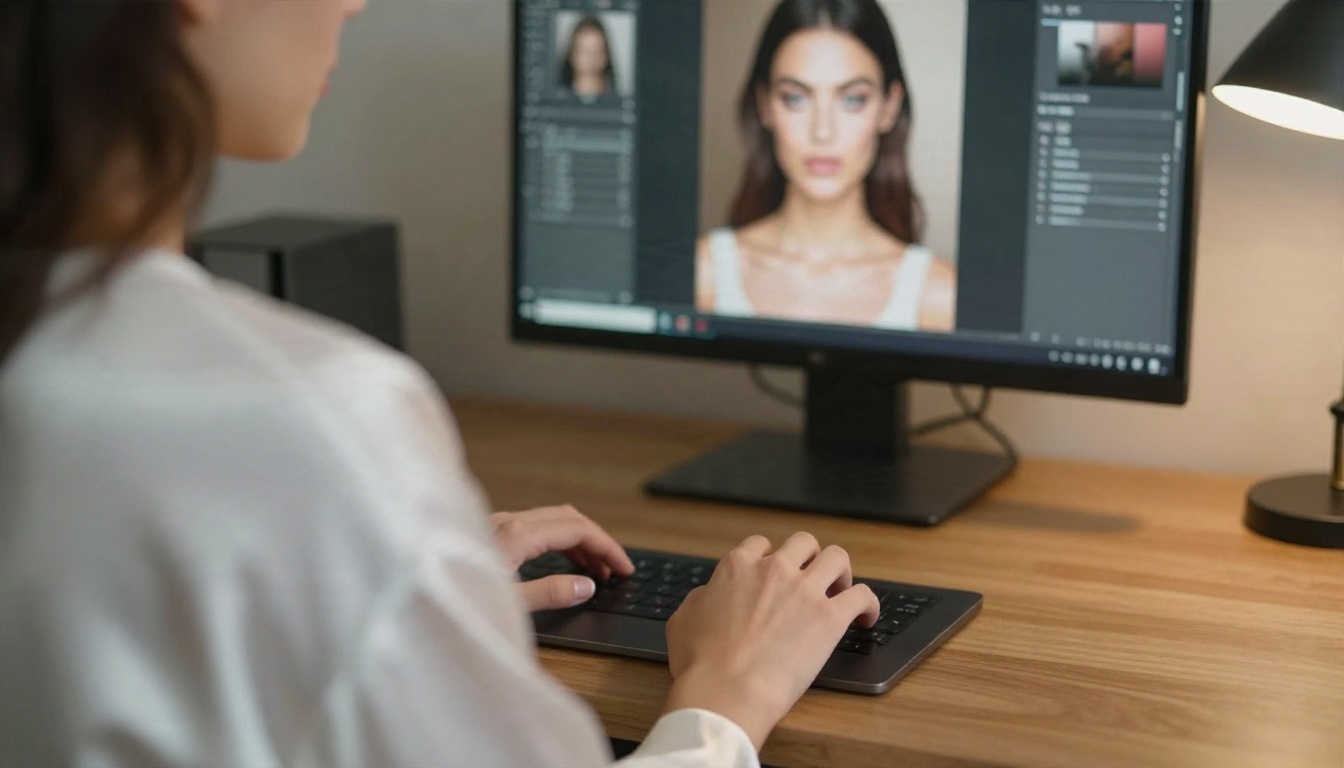
An editor starts from a photo you already have. You change the outfit, fix the light, swap a background, remove a distraction or retouch skin. A generator starts from text and invents a new picture. Most good tools now do both, but they are not equally strong at each. If you have a specific photo to improve, you want an editor that respects the face, pose and proportions of the original. If you want a fresh glamour concept, you want a generator with strong anatomy and skin texture.
What "18 plus" realistically includes
For most people this means adult-oriented but non-explicit work: swimwear shoots, boudoir-style portraits, lingerie-inspired fashion looks, beach and pool photos, and bold editorial styling. The tools that serve this well are the ones with fewer arbitrary refusals on bodies and fabrics, not the ones that promise anything goes. This article stays on the aesthetic side: beautiful, suggestive and tasteful.
Why the search keeps growing
Three reasons come up again and again. People are tired of mainstream editors that refuse a bikini photo. Creators want to retouch their own content privately. And many users simply want quick results on a phone without building an account. Each of those needs leads to a slightly different tool, which the next sections sort out.
Free and Online: The Fine Print
"Free" is the most overloaded word in this niche. It can mean four very different things.
The four kinds of free
| Type of "free" | What you get | Typical catch |
|---|
| Free trial credits | A handful of edits | Runs out after a few images |
| Free with watermark | Unlimited previews | Clean download costs money |
| Free tier with queue | Slow but usable | Long waits at peak hours |
| Free and unlimited | No cap on edits | Rare, check the quality and the rules |
A tool that gives you ten edits is fine for testing. It is a poor choice if you iterate, because good results usually take four to eight attempts per photo.
Online beats installing
Browser-based editors save you from downloading large model files, tuning a GPU and fixing driver errors. They also work on a phone. The trade-off is that your image travels to a server, so the privacy policy matters more than the feature list.
Speed matters more than it looks
Editing is a loop: prompt, look, adjust, repeat. If every pass takes a minute, you give up after three. If it takes a few seconds, you keep refining until the result is right. Fast models change the way you work, which is why speed shows up in the comparison table below.
💡 Tip: Before committing to a tool, run the same photo and the same prompt through two editors. The difference in skin texture and fabric detail tells you more than any feature page.
No Login: Convenient, With Limits
A no login editor is attractive because there is nothing to remember and no email to hand over. It is also where most of the sketchy sites live.
What you gain without an account
Speed of entry and a sense of anonymity. You open the page, drop a file, get a result. For a one-off fix, that is perfect.
What you give up
Without an account there is usually no history, no saved prompts, no higher resolution and no way to retrieve an image you forgot to download. Some anonymous sites also keep uploads longer than they admit, because there is no user to delete data on request.
A short privacy checklist
- Check whether the site states how long uploads are stored.
- Avoid tools that ask for a payment card to "verify your age" before showing any result.
- Never upload photos of another person without their clear permission.
- Strip location data from the file before uploading.
- Be wary of pages that load a dozen pop-ups before the editor appears.
The Best Options Compared
These are the models worth trying on PicassoIA, ordered by how well they suit adult-oriented glamour work and by the freedom they give you.
Seedream 4.5 for fresh concepts
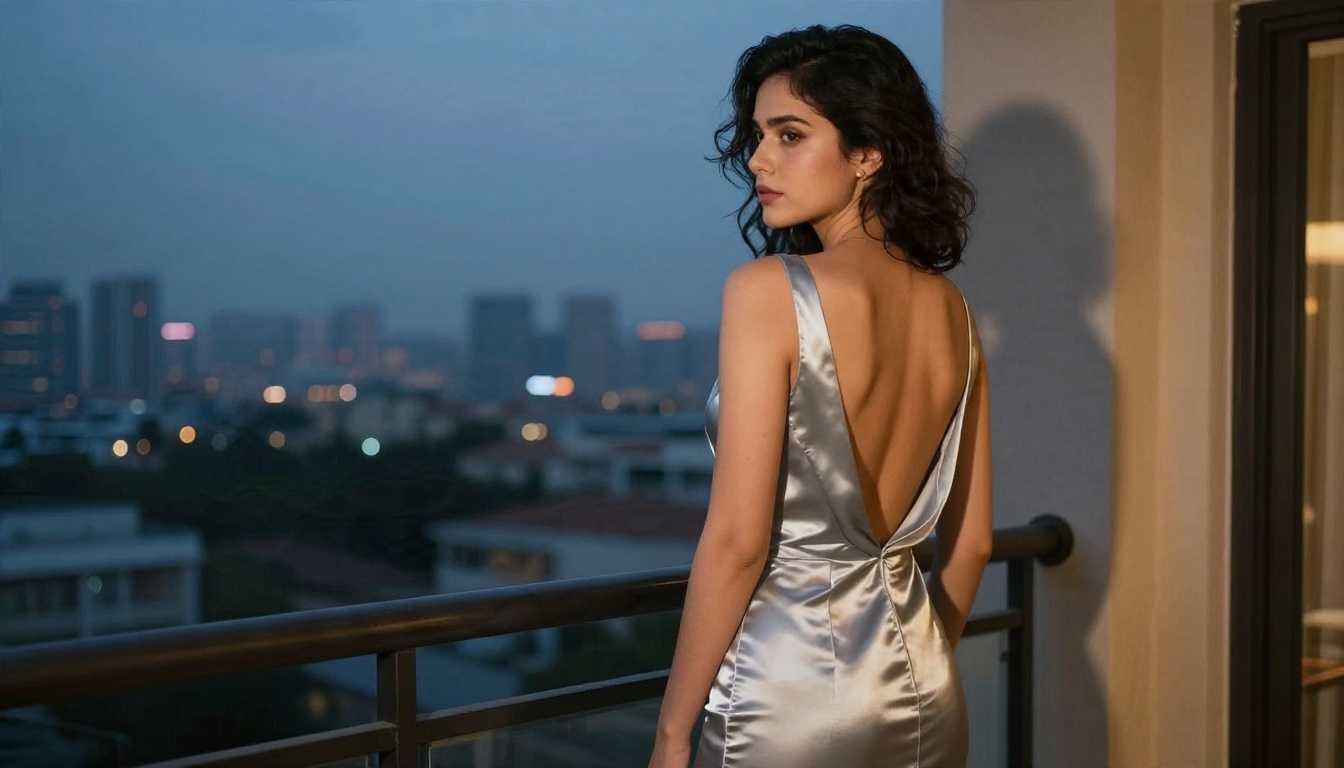
Seedream 4.5 is the first stop when you want a new glamour image from text. It produces sharp, high resolution output with believable skin, hair and fabric, and it handles swimwear, satin, lace and evening wear without the heavy hand of a mainstream filter. It is strongest when your prompt names the lens, the light direction and the fabric, because it tends to reward specificity.
PicassoIA Image Editor Pro for your own photos
PicassoIA Image Editor Pro is built for the job this article is about: editing photos you already own. It runs online, offers unlimited generations, and is fast enough that you can iterate freely. That unlimited part matters. Free tiers with caps punish exactly the trial-and-error that editing needs.
P Image Edit for quick fixes
P Image Edit is built for speed. Think sub-second turnarounds for small changes such as a different top, a cleaner background or a warmer tone. It is a good choice when you want to test five variations in a minute.
Qwen Image Edit Plus for detail control
Qwen Image Edit Plus and its newer sibling Qwen Image Edit 2511 are good at following longer, more precise instructions while keeping the subject recognisable. Use them when the face and pose must stay exactly as they are.
More editors worth a test
Nano Banana, Flux Kontext Fast and Reve 2.1 are strong general editors. They are excellent for backgrounds, lighting and retouching, though general models can be more cautious with mature themes, so test them with a small edit first.
Side by side
How to Use Image Editor Pro on PicassoIA
This is the workflow that gives the cleanest results with the least frustration.
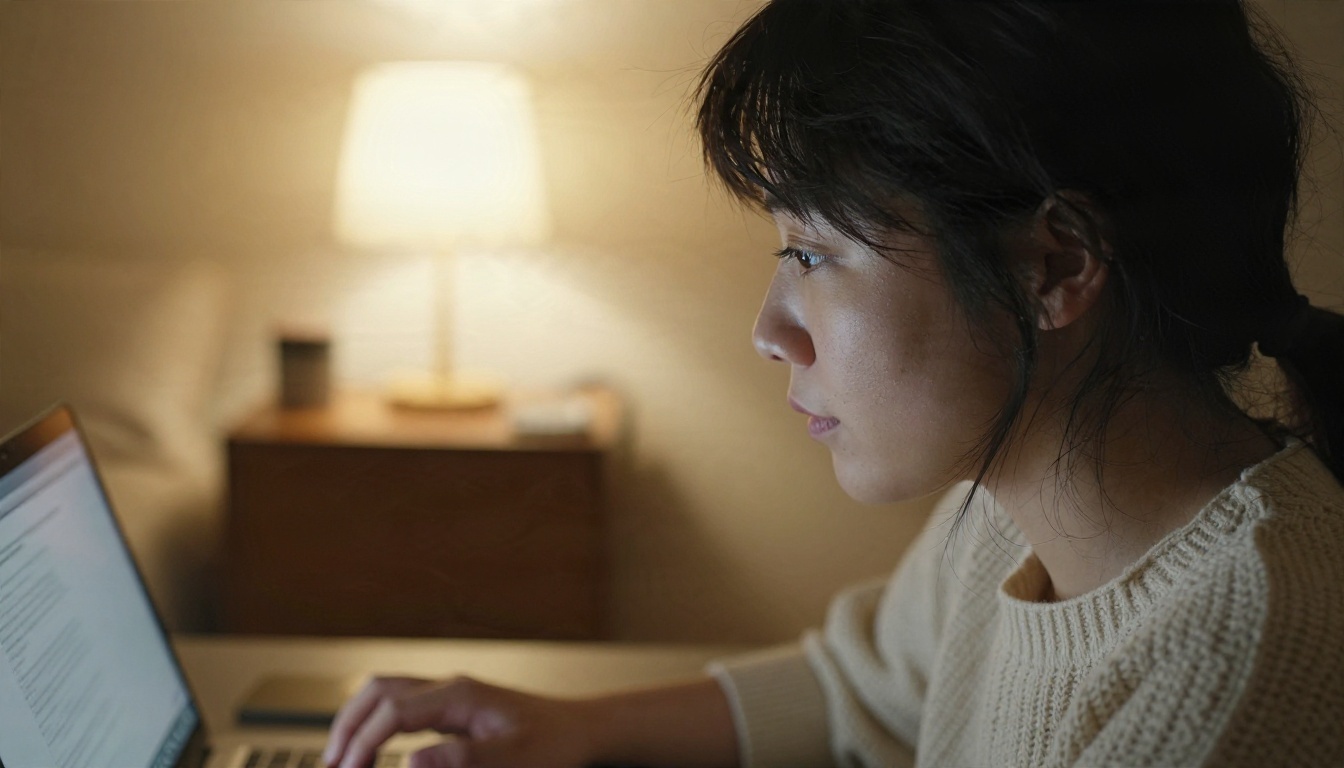
Step by step
- Open the model page. Go to PicassoIA Image Editor Pro and open the editor in your browser.
- Upload a sharp source photo. Use a picture where the face is clearly visible and the light is even. A blurry source produces a blurry result, no matter how good the model is.
- Write one clear instruction. Describe a single change, for example: "change the outfit to a red two-piece swimsuit, keep the face, pose and background unchanged."
- Name the light and the lens. Add phrases like "soft golden hour light from the left, 85mm lens, natural skin texture."
- Generate and compare. Run the prompt two or three times. Because generations are unlimited, treat each run as a draft.
- Refine in small steps. Change only one thing per pass: outfit first, then background, then color grade.
- Download the best version. Save the file and keep the winning prompt for next time.
Parameter tips
- Keep the instruction short. Long, tangled prompts make the model drop details. One change, one sentence.
- Say what must not change. "Keep the face and hairstyle identical" protects the likeness better than hoping the model guesses.
- Match the source light. If your photo has window light from the left, ask for the same direction. Conflicting light is the number one cause of a fake look.
- Edit in layers of intent. Fix the large things first, polish the small ones last.
💡 Tip: If a result looks plastic, add "visible skin pores, natural texture, subtle film grain" to the prompt. It pulls the image away from the over-smoothed look.
Prompts That Actually Work
Good prompts are specific, calm and visual. Here are patterns that hold up across most editors.
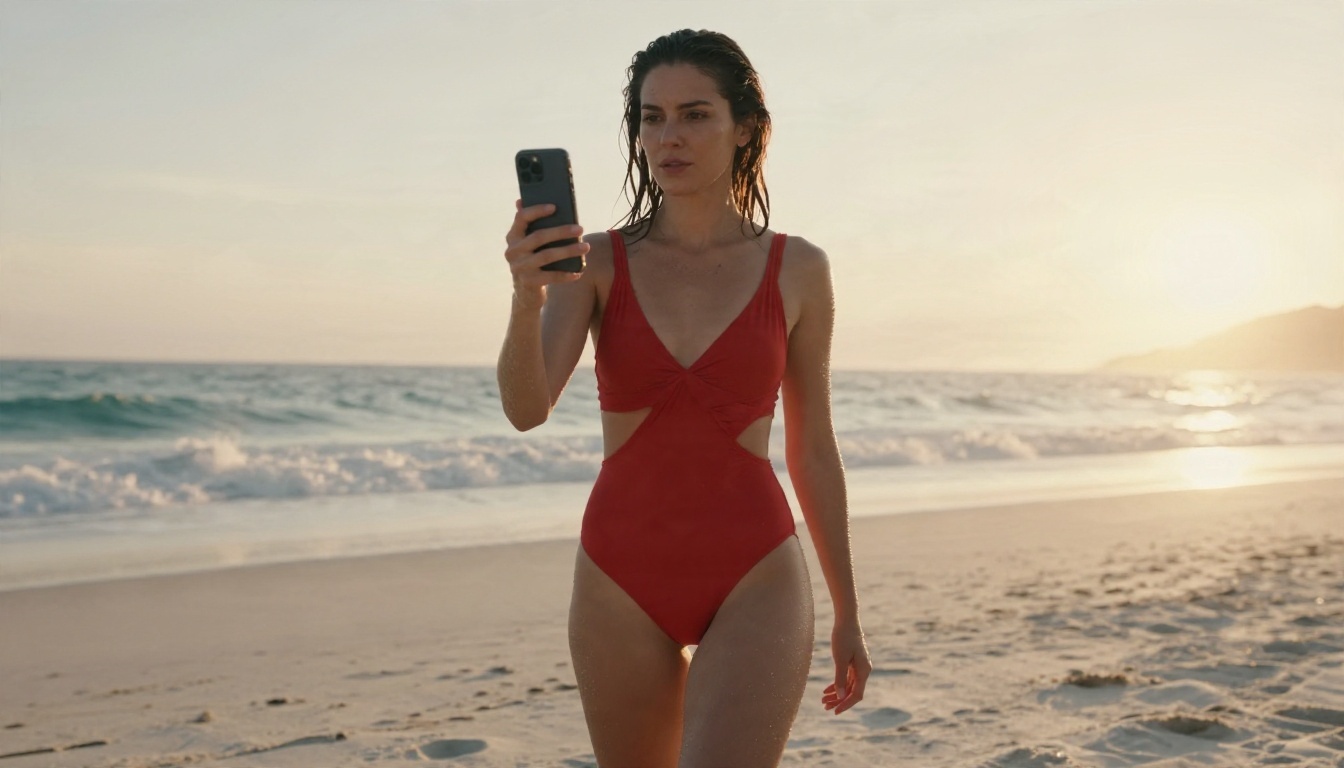
Outfit and styling changes
Try: "Replace the t-shirt with a black satin slip dress, keep the face, hair and pose, soft window light from the left." The structure is always the same: what to change, what to keep, what light to use.
Background and mood changes
Try: "Move the subject to a white sand beach at golden hour, warm backlight, sea mist, keep her exactly as she is." Naming the time of day does more work than any adjective like "beautiful" or "stunning."
Retouching that looks human
Try: "Even out the skin tone, keep pores and small freckles, reduce harsh shine on the forehead, natural look." Asking to keep texture is what prevents the waxy finish that gives AI edits away.
Prompt template
| Part | Example |
|---|
| Change | Swap the top for a cream lace bodysuit |
| Keep | Same face, hairstyle and pose |
| Light | Soft overcast window light from the left |
| Lens | 85mm, shallow depth of field |
| Finish | Natural skin texture, fine film grain |
Before and After in Practice
A fair test of any editor is a side by side. Take one source photo, run the same instruction through two tools, and judge four things: the face, the fabric, the hands and the edges where the subject meets the background.
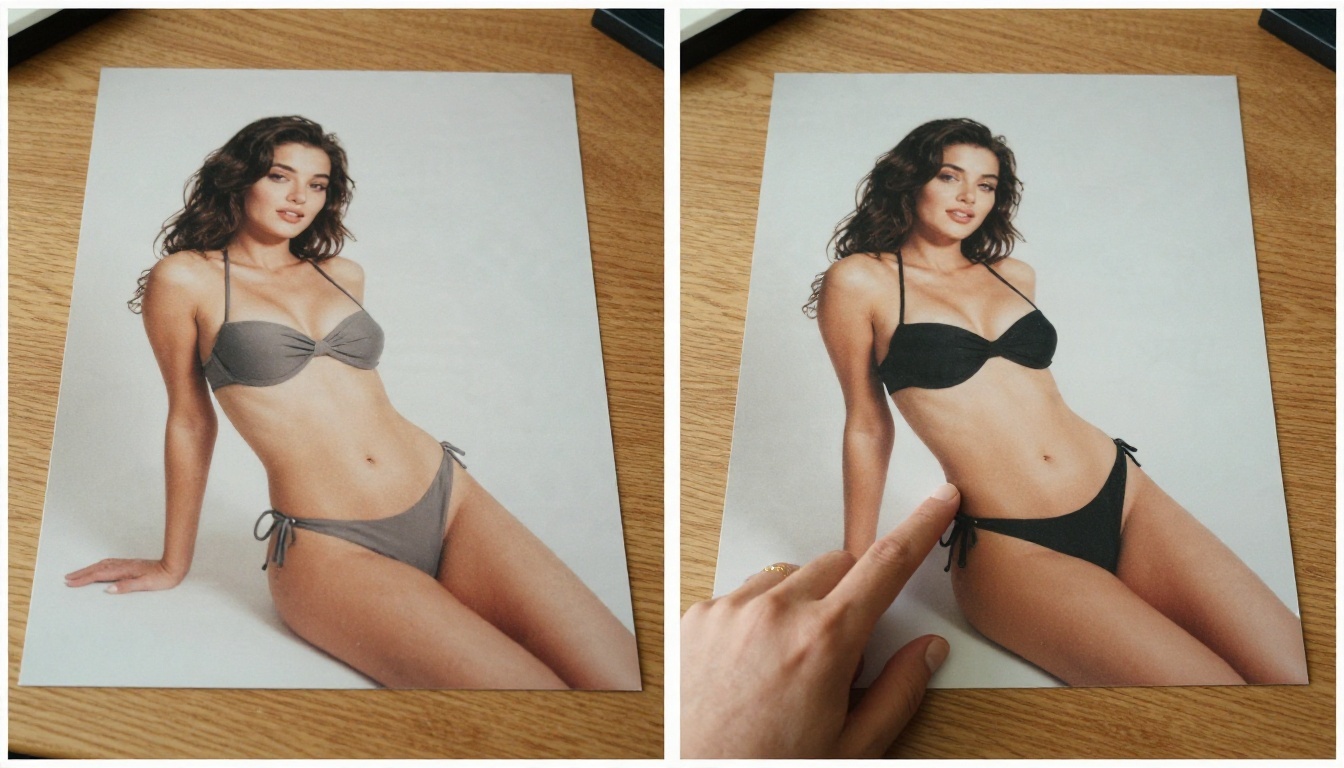
What to check first
- Face: does it still look like the same person?
- Hands: are there the right number of fingers, and do they grip naturally?
- Fabric: do folds and straps follow the body's shape?
- Edges: is there a halo or smear around hair and shoulders?
Common mistakes
- Asking for five changes in one prompt.
- Using a tiny, compressed source image.
- Forgetting to say what must stay the same.
- Accepting the first result instead of generating a few drafts.
When to switch tools
If three attempts in a row ignore your instruction, change the model, not the wording. A Qwen Image Edit Plus run may follow a long instruction that another tool keeps dropping, while P Image Edit may nail a simple swap in a second.
Every editor has weak spots. These alternatives fill the gaps.
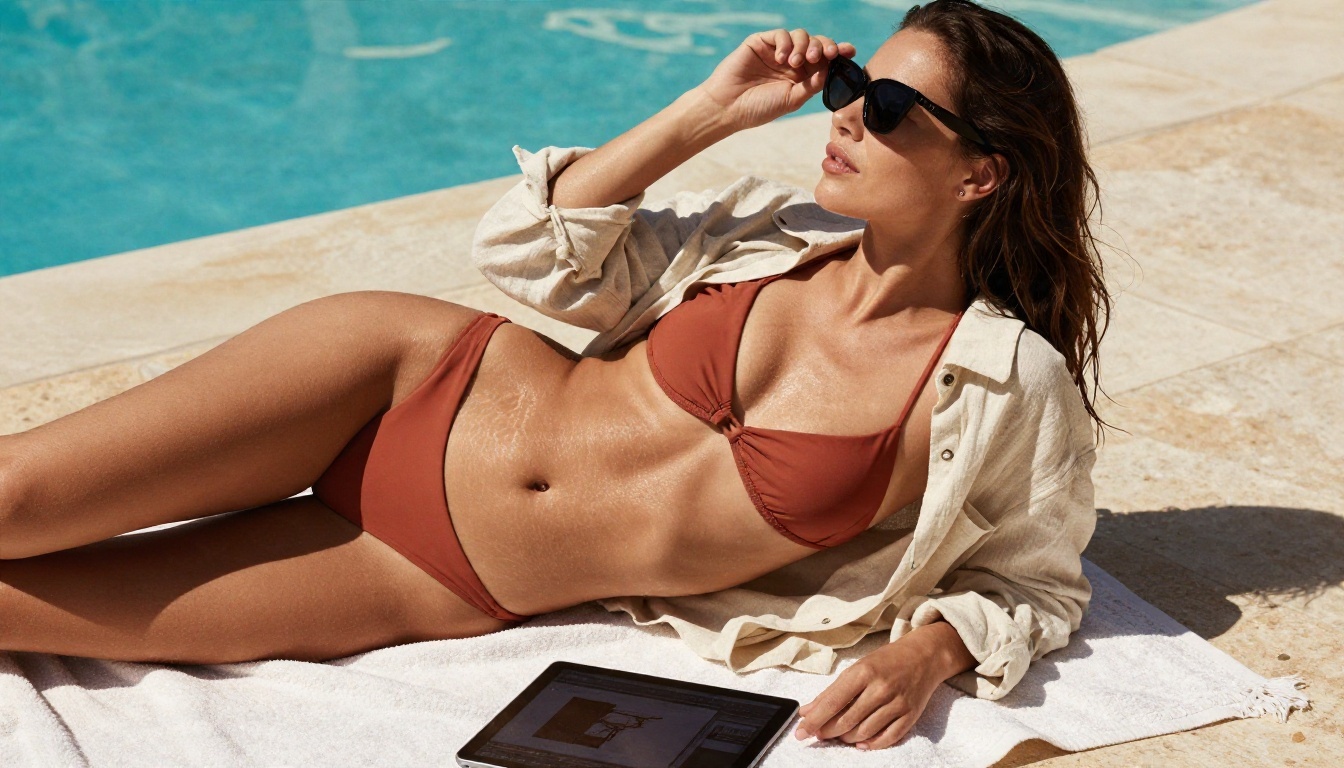
For maximum image quality
Seedream 5 Pro and Qwen Image 3 Pro produce sharp photographic output for general scenes. They suit fashion, travel and lifestyle edits, but for mature or swimwear themes, test a small sample first because general-purpose models may be stricter.
For free experimentation
Flux 2 Klein 4B Base and Flux 2 Klein 9B Base LoRA are lightweight, quick and good for style experiments. They are handy when you want many cheap drafts before refining the best one elsewhere.
For specific cleanup jobs
Text Removal clears watermarks and captions from your own images. Depth of Field adds a convincing lens blur behind a subject. Both are small tools that make a finished portrait feel more professional.
For turning a photo into video
If a finished still deserves motion, PicassoIA also offers video models such as Happyhorse 1.1, which can animate an image into a short clip.
Rules Worth Following
The technology is powerful, and that makes a few ground rules non-negotiable.
Consent comes first
Only edit photos of yourself, or of adults who have clearly agreed. Editing someone else's picture into a suggestive version without their permission is harmful, and in many places it is illegal.
Adults only, always
Never use any editor on images of minors, or on content that makes a subject look underage. This is a hard line, and reputable platforms enforce it.
Keep it non-explicit
Aim for style, light and fashion: swimwear, satin, lace and golden hour rather than anything graphic. Beautiful, suggestive imagery also travels better, because most social platforms and ad networks still remove explicit material.
Label AI work honestly
If you publish edited or generated images, say so. Audiences trust creators who are open about their process, and some platforms now require a label.
Quick Fixes for Common Problems
| Problem | Likely cause | Fix |
|---|
| Face changed | No instruction to keep it | Add "keep the face identical" |
| Waxy, plastic skin | Over-smoothing | Add "visible pores, natural texture" |
| Weird hands | Complex pose | Crop or pick a simpler pose |
| Wrong lighting | Prompt conflicts with source | Match the source light direction |
| Request ignored | Instruction too long | Split into two passes |
| Blurry result | Low resolution source | Upload a sharper original |
Try It on Your Own Photos
The best way to judge an 18 plus AI image editor is to run your own picture through it and see what comes back. Start with PicassoIA Image Editor Pro: upload a photo, write one clear instruction, and generate as many drafts as you like without counting credits. When you want a brand new glamour concept, switch to Seedream 4.5 and describe the light, the lens and the fabric. Then compare a few of the other editors above on the same photo to find the one that fits your style.
Pick a favorite photo, write a prompt using the template above, and see what happens. Every model, from quick editors to high resolution generators, is waiting at picassoia.com/en/all-models.


