Ask Claude to resize a product shot, pull a clean cutout or reframe a landscape clip for vertical, and an Adobe MCP server is the piece that lets it do the job instead of just describing it. The official Adobe for Creativity connector reached Claude in late April 2026 and bundles 50+ tools across Photoshop, Lightroom, Illustrator, Firefly, Premiere, Express, InDesign and Adobe Stock. That headline sounds like Creative Cloud living inside a chat window. The reality is narrower, and knowing exactly where the line sits saves you a lot of wasted prompts.
This article breaks down what the connector does in Photoshop, Illustrator and Premiere, how it compares with community built servers, how to switch it on, and which other tools fill the gaps. Everything about the official connector comes from Adobe's own page and independent write ups. Where reviewers disagree or public detail is thin, the article says so instead of guessing.

What the Adobe MCP Server Is
MCP, the Model Context Protocol, is the open standard that lets an AI assistant call outside tools. An MCP server is the other end of that call: it publishes a list of actions, and Claude picks the right one when your request needs it. Adobe hosts its server itself, so there is nothing to install on your machine. You switch the connector on inside Claude, and the assistant gains a menu of creative actions it can run on the files you share in the chat.
For a working designer, editor or marketer, the change is simple to state. Before, Claude could write the brief, the caption and the shot list. Now it can also press some of the buttons.
One Connector, Eight Apps
According to Adobe, the connector spans Photoshop, Lightroom, Illustrator, Firefly, Premiere, Express, InDesign and Adobe Stock. It is available in Claude on the web, on mobile, in Claude Desktop and in Cowork. One catch: the iOS and Android apps cannot browse or add new connectors, so the first setup happens on the web or on desktop.
The use cases Adobe lists are practical rather than flashy: retouch portraits, build designs from templates, resize videos for different platforms, edit photos and animate designs, all from plain language prompts.
Guest Access or Signed In
You can start without an Adobe account. Adobe says guests get roughly 40 standard tools right away. Third party summaries add that signing in with a free or paid Adobe account opens the remaining tools, Creative Cloud storage and higher usage limits, and that the sign in runs through an OAuth prompt inside Claude.
💡 Tip: Guest mode is the cheapest test. Run three real jobs from your own backlog before you connect an account, and you will know within an hour whether the connector fits your work.
| Question | Short answer |
|---|
| Who hosts it | Adobe, nothing to install |
| How many tools | 50+ across eight apps |
| Account needed | No for about 40 tools, yes for the rest |
| Where it works | Claude web, mobile, Desktop and Cowork |
| Runs on your computer | No, it lives inside a chat |
Photoshop Inside Claude
Photoshop is the app people most want to hand to an assistant, and it is also where expectations collide hardest with reality. The connector can do real work here. It just does not behave like a seasoned retoucher sitting at your desk.
What You Can Ask For
The jobs that fit the connector best are short, repeatable and easy to describe:
- Portrait retouching, such as blemish cleanup and tone balance
- Background removal for product shots and headshots
- Crop, resize and reformat for social posts, ads and storefronts
- Effects and filters applied the same way across a batch
- Firefly generation to create or extend an image from a text prompt

A request that works well reads like a work order, not a wish: "Remove the background from this product photo, place it on a soft grey backdrop and export a 1200 by 1200 square." One job, one output, no ambiguity.
Where It Stops
Independent testing paints a clear picture. MindStudio's review concludes that the connector works at Adobe Express and Firefly level, not at the level of desktop Photoshop. In that review it lacked non-destructive editing, layer compositing, detailed masking and high end color science.
Speed was the other problem. Converting an image to a 9x16 vertical format took the connector 3 minutes 14 seconds and left the subject off center, a job the reviewer says a skilled Photoshop user finishes in under 30 seconds. A basic white balance fix left a magenta cast that a 13 second manual adjustment cleared.
| Task | Reported connector result | Desktop Photoshop |
|---|
| Reformat to 9x16 | 3 min 14 s, off center | Under 30 s by hand |
| White balance fix | Magenta cast remained | 13 s manual fix |
| Layer compositing | Not available | Full control |
| Masking | Not available | Full control |

💡 Rule of thumb: If a job takes you 15 seconds by hand, do it by hand. If it takes 15 minutes and repeats 200 times, hand it to Claude and check the results afterwards.
Illustrator and Vector Work
Illustrator appears on Adobe's list, but public detail about what Claude can actually do there is thin, and the MindStudio review does not test it. Treat the connector as a layout and asset helper for now, not as a tool that draws precise paths on command.

Logos and Layouts by Prompt
The work reported to go smoothly is template driven: layouts for social and marketing formats, resizing a design for several placements, and pulling supporting assets from Adobe Stock. Give Claude the facts it cannot guess. Paste your brand colors as hex codes, name your fonts, and state the safe margins. A prompt such as "Build three story size layouts from this template using #1F3A5F and #F4EDE4" gives it something concrete to execute.
Hand drawn concepts still win for the first idea. Sketch on paper, photograph it, and let the assistant help with variations after the direction is chosen.
Clean SVG From Other Tools
When you need a real vector file, a dedicated vector model is often faster. Recraft v4.1 SVG generates vector art from a text prompt, and Recraft Vectorize converts an existing raster logo into scalable shapes. Both results open in Illustrator for the final polish, which is exactly where the desktop app earns its place.
Premiere and Video Edits
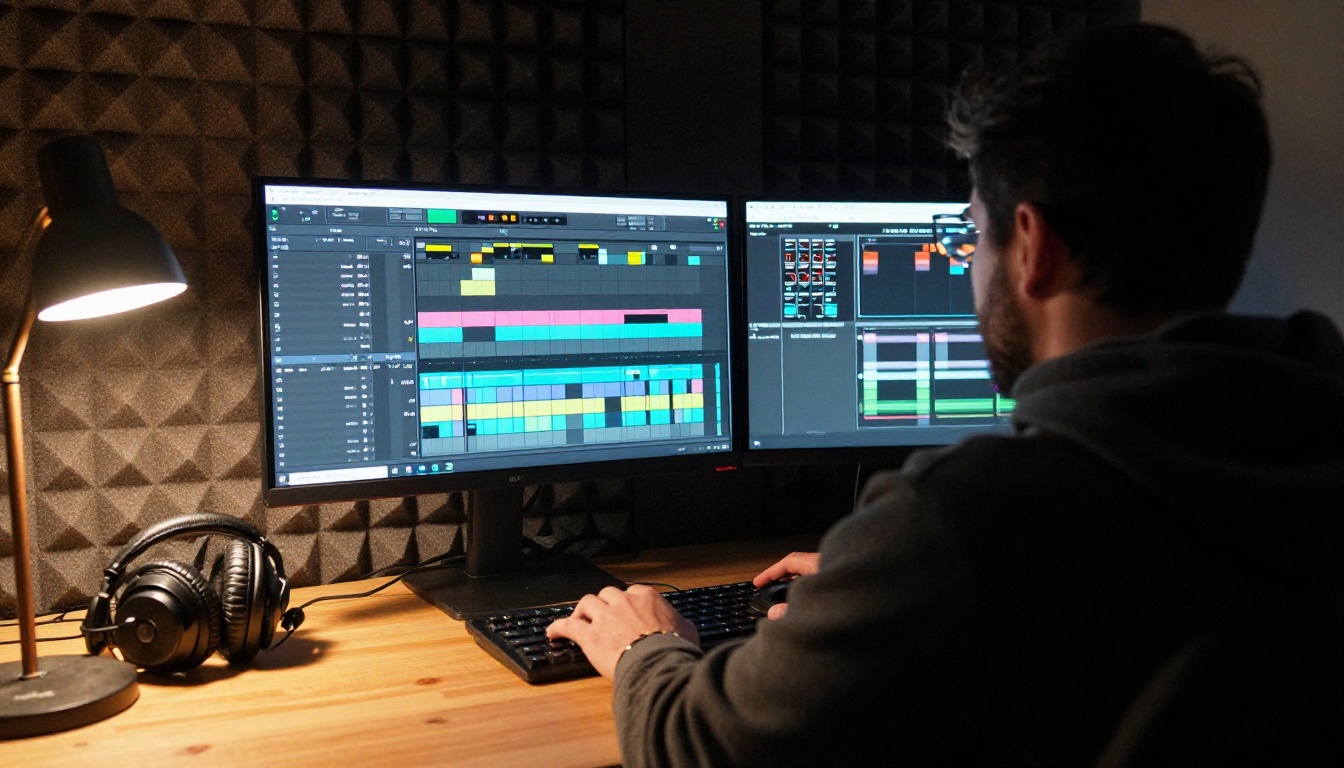
Premiere is where the gap between promise and tool is widest. Adobe lists "resize videos for different platforms" as a headline use case, while the independent review found no timeline control, no audio mixing and no color grading.
Reframing for Vertical Video
The sweet spot is repetitive format work: one landscape clip in, a vertical and a square version out for Reels, Shorts and ads. MindStudio names batch automation of high volume, low complexity jobs such as social asset resizing as the best fit, especially when you can let it run overnight and latency does not matter.

If the reframe misses your subject, the Luma Reframe Video model on PicassoIA changes the aspect ratio of a clip online, with no desktop editor open.
Timeline Limits You Will Hit
Be ready for these walls:
- No timeline surgery. Cuts, ripple edits and multi track layering stay in Premiere.
- No audio mixing or color grading. Those are separate craft jobs.
- No background work. The connector only acts while a chat is open. Nothing watches a folder or fires when a new file lands.
For AI assisted edits, models such as Wan 2.7 VideoEdit and Aleph 2 change a clip from a text instruction, which suits restyling and fixes better than precise cutting.
Adobe is not the only route to Claude controlling Creative Cloud apps. Open source projects have offered that for a while, and they sit at the other end of the trade off.

The Hosted Connector
Adobe's version wins on convenience. One toggle, optional sign in, no code, and Adobe keeps it running. The cost is depth: reviewers place it at Express and Firefly level, so it suits quick formatting and generation, not layered production files.
Local Servers for Full Control
Community projects such as adb-mcp, matrayu/adobe-mcp and AJSMonty/adobe-mcp take another path. They drive the apps installed on your own machine, typically through a plugin bridge, and between them reach Photoshop, Premiere Pro, Illustrator, InDesign and After Effects. They have no Adobe support behind them, so expect setup work and occasional breakage.
| Feature | Official connector | Community servers |
|---|
| Setup | One switch in Claude | Local server plus an app plugin |
| Depth | Express and Firefly level | Reaches the installed desktop app |
| Support | Adobe | Open source maintainers |
| Files | Shared in the chat | Files on your own machine |
| Best for | Batch resizing, templates | Scripted pro workflows |
Pick the hosted connector if your work is resizing, templates and quick generation and you want results today. Pick a local server only if you are comfortable debugging a plugin and need scripted control of the installed apps.
💡 Safety note: A local server acts on real project files with real permissions. Work on copies, keep version history, and check your client's data rules before sending unreleased work to any hosted service.
Setting It Up in Claude
The official route takes a few minutes, and most of that is deciding whether to sign in.

Connect in Five Steps
- Open Claude on the web or in Claude Desktop, since mobile apps cannot add connectors.
- Open the connector directory and find Adobe for Creativity.
- Switch it on for your chat or project.
- Sign in with your Adobe account when prompted, or stay in guest mode.
- Attach a file and ask for one specific edit.
Prompts That Work Better
- Name the file, the edit and the output in a single sentence.
- One job per message. Chain the next step after you see the result.
- State the format. "Export as PNG, 1080 by 1920" beats "make it vertical".
- Ask for the plan first. A short numbered plan lets you correct course before anything runs.
- Paste brand basics such as hex colors, fonts and margins at the top of the chat.
A realistic first run looks like this: attach ten product photos, ask for background removal on all of them, then request a 1080 by 1350 export for the feed and a 1080 by 1920 version for stories. Check the first result closely, because a mistake in step one repeats across the whole batch. Once the output looks right, let the rest run and spot check every fifth file.
Long, iterative sessions burn context quickly, so batch your instructions instead of nudging one pixel at a time. If a job needs more than three corrections, finish it in the desktop app.
Filling the Gaps With PicassoIA
The Adobe connector handles light formatting jobs. PicassoIA gives you a wide catalog of models for the rest: generating images, editing by description, cutting out subjects, vectorizing logos and reframing video, all in the browser with no desktop install.

Which Model for Which Job
How to Use Claude Sonnet 5
Claude Sonnet 5 is a good planning partner before you touch any image tool. Here is a simple routine:
- Open the model page and start a new chat.
- Paste the job: audience, channels, sizes, brand colors and the files you already have.
- Ask for a numbered edit plan, one action per line, each with the exact output size.
- Send the image steps to Seedream 5 Pro or Qwen Image Edit Plus, and the video steps to the reframe or edit models above.
- Paste the results back and ask for a punch list of anything that needs a manual fix.
💡 Tip: Ask for plain numbered output with no extra commentary. It is easier to scan, and each line becomes a ready made prompt for the next tool.
Make Your First Image Now
The Adobe MCP server is a useful assistant for repetitive formatting, and it is honest to say it stops well short of a full Photoshop, Illustrator or Premiere session. The smartest setup mixes tools: let the connector batch the boring resizing, keep the desktop apps for craft, and use PicassoIA when you need a fresh image, a clean cutout, a vector logo or a reframed clip in seconds.
Pick one project from your backlog today. Write the brief with Claude Sonnet 5, generate the visuals with Seedream 5 Pro, and see how much of the workload disappears. Open Picasso IA, try a prompt, and start creating your own images right now.


