Adobe Stock has accepted AI-generated images since late 2022, and thousands of creators have tried to turn prompts into side income ever since. Most of them hit the same wall: rejections that never explain themselves, a submission limit that shifts without warning, and a portfolio that sits unsold because it looks like everyone else's. This article lays out what Adobe actually asks for, the technical mistakes that sink most batches, the subjects buyers still pick, and a repeatable workflow you can run on PicassoIA with models that reach stock-ready resolution. Treat the rules below as a checklist, then read Adobe's contributor pages again before each upload, because the policy keeps moving.
What Adobe Stock Accepts From AI
Adobe Stock takes generative AI images, vectors and videos, as long as they meet the same quality bar as every other submission and carry a clear label. There is no lower standard for AI. A buyer who licenses your file expects the same sharpness, the same usable framing and the same legal safety as a photograph from a working studio. What changes is your responsibility: you must hold the rights to what the tool produced, and you must tell Adobe how the file was made.
Three conditions decide whether a file is even eligible:
- Rights: you need the legal right to license the output commercially. Read the terms of every model and every plan you generate on.
- Label: every AI file gets the generative AI checkbox at upload, with no exceptions.
- Originality: the image cannot copy a copyrighted work, a known character or a brand.
The Labeling Checkboxes
The Contributor Portal asks you to tick up to two boxes. The first, "Created using generative AI tools," applies to every file made with generative software, whether you generated it from scratch or used an AI fill to edit a photograph. The second, "People and Property are fictional," applies when the image shows a person or a place that does not exist.
Labeling protects you as much as it protects buyers. Reviewers do not have to guess how the file was made, and buyers see an accurate tag next to your listing. Skipping the label is the fastest way to get a batch rejected or an account flagged.
💡 A fictional-people checkbox never replaces a release. If your image shows a recognizable real person or a recognizable private property, Adobe requires the matching release, even when AI produced the picture.
What Never Goes in a Prompt
Adobe's restrictions apply to prompts, titles and keywords alike. Keep every item below out of all three:
- Names of artists, real people or fictional characters
- References to creative works still under copyright
- Names of government agencies
- Third-party intellectual property, including brands, logos and product names
- Descriptions that suggest the image shows a real newsworthy event
The classic slip is a prompt that borrows a living illustrator's style. Even if the output looks original, the prompt itself breaks the rule. Describe the look with light, lens, material and mood instead.
The title rule goes one step further. Describe the subject plainly and leave out the words "generative AI" along with any technical parameters copied from your prompt, such as aspect ratio flags or lens settings.
File Requirements You Cannot Skip
Technical checks are where most batches fail, so treat the table below as a pre-flight list.
| Requirement | What to do | Why it matters |
|---|
| Format | Export as JPEG | Photo uploads are JPEG, so convert PNG output last |
| Resolution | At least 4 megapixels | Smaller files are rejected on size alone |
| Sharpness | Inspect at 100% zoom | Reviewers look at full size, not thumbnails |
| Labels | Tick the AI box, and the fictional box when it applies | Missing labels can get the whole batch flagged |
| Metadata | Plain title, relevant keywords | Search relies on it, and rules apply to it too |
A 4 MP floor sounds modest until you check what AI tools return by default. Many generators output around 1 MP, a quarter of what Adobe wants. A 16:9 frame needs roughly 2,670 by 1,500 pixels to reach 4 MP, and a 3:2 frame needs about 2,450 by 1,630.
Two routes get you there: generate at a higher native resolution, or upscale afterward. Native output is cleaner, because the model draws real detail instead of guessing it. Seedream 5 Pro offers a 1K setting of about 2 megapixels and a 2K setting of about 4 megapixels, so 2K is the setting that clears Adobe's floor without any extra step.
When a model tops out lower, an upscaler can close the gap. Topaz Image Upscale enlarges up to 6x, Google Upscaler handles 4x, Clarity Pro Upscaler aims at photorealistic detail, and Crystal Upscaler is built for portraits.
💡 Upscaling magnifies every flaw. Fix hands, text and edges first, then upscale, then check the result at 100% again.
Why AI Images Get Rejected
Most rejections trace back to technical flaws that only show at full size, not to policy. Contributors report the same short list again and again:
| Flaw | What the reviewer sees | Practical fix |
|---|
| Hands and limbs | Extra fingers, fused knuckles, odd joints | Regenerate, or pose hands holding an object |
| Text | Garbled signs, packaging, screens, clothing | Prompt for blank screens and plain surfaces |
| Faces | Asymmetric eyes, melted ears, blurred teeth | Inspect the face at 100% before anything else |
| Texture | Repeating background patterns, cloned foliage | Inpaint the repeated area or recompose |
| Architecture | Stairs to nowhere, warped windows | Check every straight line and window grid |
Hands, Faces, and Garbled Text
These three failures cause the bulk of rejections because the human eye catches them instantly. A viewer might not notice a perfect shirt, but a sixth finger ends the sale. The cheapest fix is prevention. Write prompts that keep hands busy (holding a mug, resting on a keyboard) or out of frame, and ask for blank screens and unmarked surfaces so the model never has to invent letters.
When a face looks slightly off, do not try to rescue it with heavy sharpening. Regenerate. A fresh seed costs seconds, while a rejected file costs you a slot in a limited submission queue.
Soft Detail and Repeating Patterns
Zoom into hair, foliage and jewelry. AI images often look sharp at thumbnail size and turn mushy at 100%, with edges that melt into the background. Backgrounds are the other trap: brick walls, leaves and crowds sometimes repeat the same chunk of texture. Scan the corners and the out-of-focus areas, not just the subject.
Real People, Places, and Brands
A prompt without a celebrity name can still produce a face that resembles one. If a viewer could name the person, treat the file as unusable. The same goes for recognizable landmarks, protected interiors and clothing that carries a logo or a near-copy of one. Invent the subject, the location and the wardrobe, and keep everything generic.
What Actually Sells
Stock buyers are businesses, marketers and designers who need images for ads, blog posts, presentations and product pages. They search for a specific situation, not for beauty. Contributors consistently report the same demand areas: business, technology, healthcare, lifestyle and backgrounds.
| Category | Typical buyer need | Watch out for |
|---|
| Business and technology | Teams, meetings, remote work, data themes | Fake screen text and generic handshakes |
| Healthcare | Care, consultations, wellness | Hands, medical devices, readable labels |
| Lifestyle | Home, food, family moments | Faces and hands again |
| Backgrounds | Textures, gradients, copy-space scenes | Repeating patterns |
| Landscapes and flowers | Heavily oversupplied | Only works with an unusual angle or light |
Business and Technology

Office scenes are the bread and butter of stock libraries, and the competition is brutal. To stand out, show a specific moment instead of a staged pose: someone pointing at a laptop, a whiteboard session, a manager reviewing printed sheets. Leave clean negative space in the frame, because designers need room for headlines. Keep screens blank or abstract so no fake text gives the file away.
Healthcare and Lifestyle
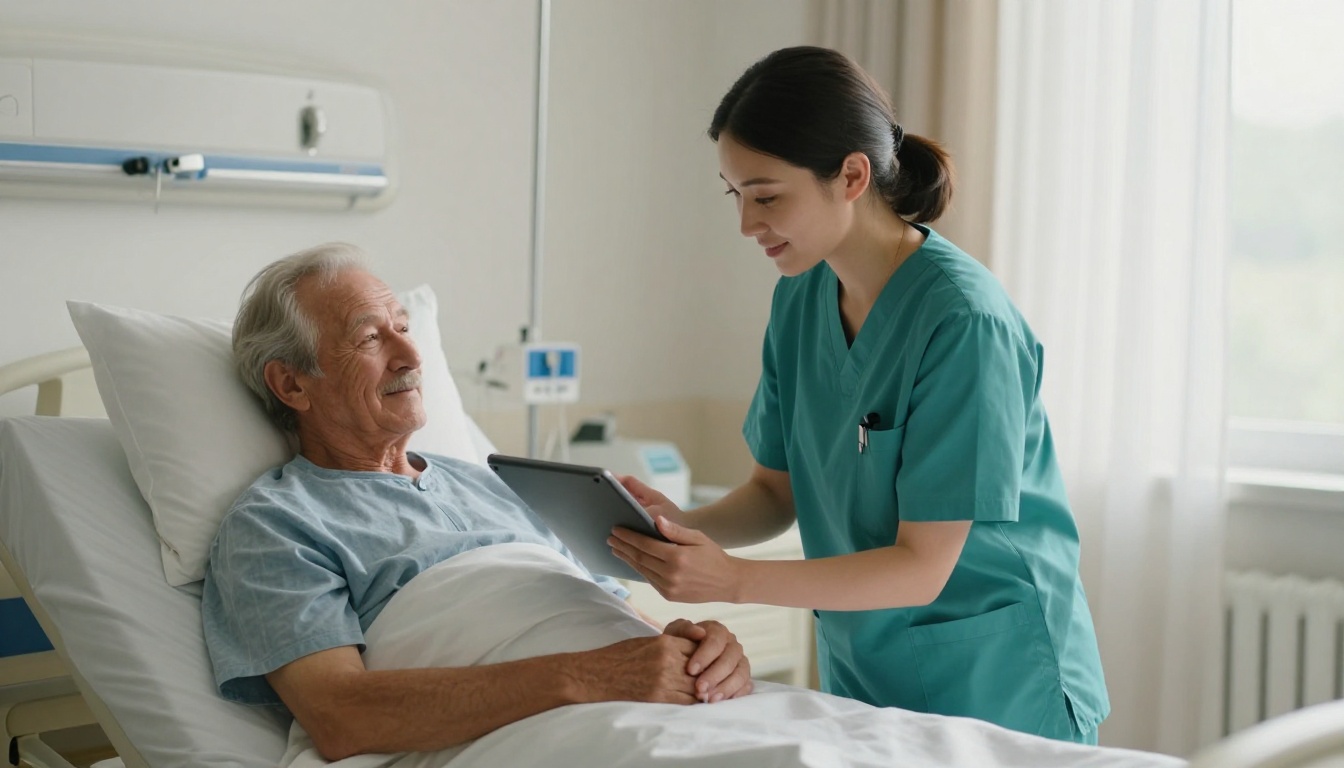
Healthcare buyers want warmth and credibility. Natural window light, believable fabric textures and calm expressions read as trustworthy, while glossy, over-smoothed skin reads as synthetic. Because these images feature fictional people, remember the fictional-people checkbox. Avoid anything that implies a real clinic, brand of equipment or readable chart.
Concepts Cameras Struggle to Shoot
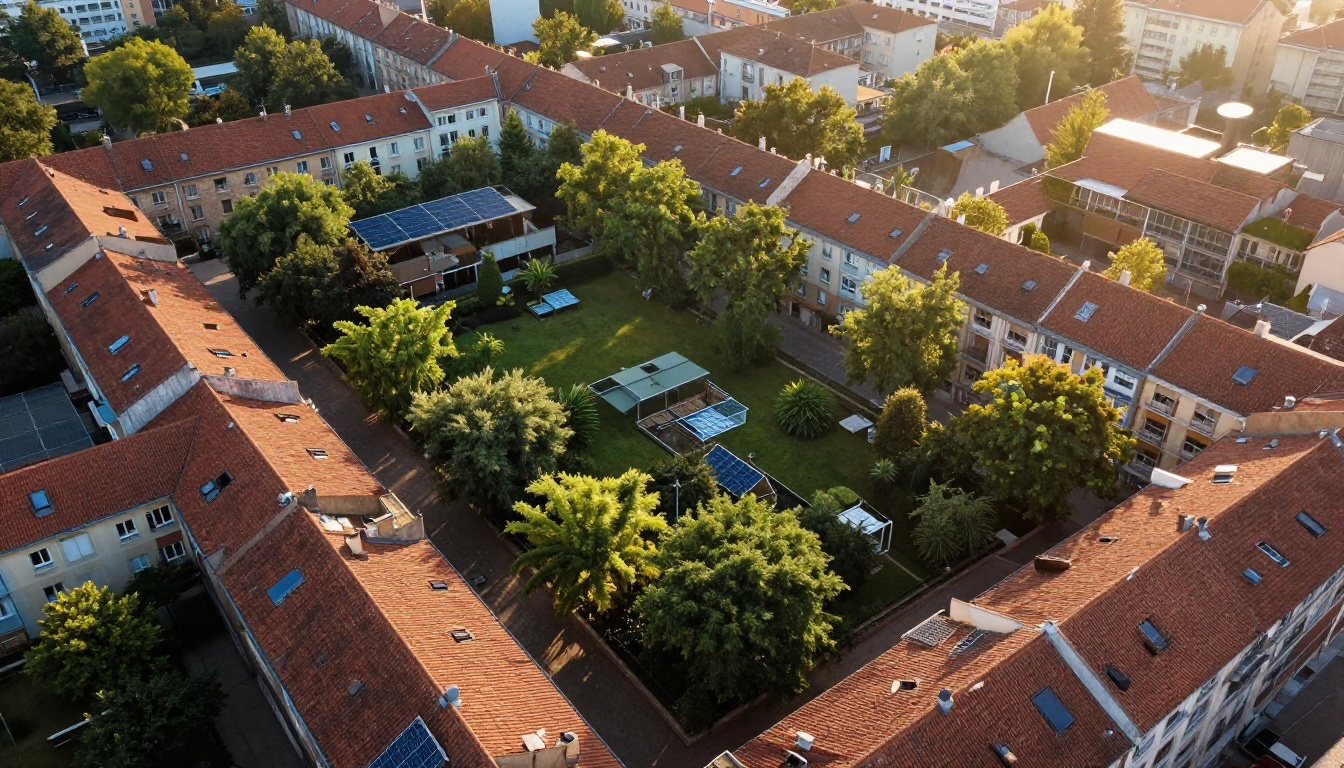
AI earns its place where a photographer would need a helicopter, a permit or a decade of waiting. Think of an imagined city with rooftop gardens, a rural clinic seen from above, or a workspace in a place that does not exist. These concepts illustrate articles on sustainability, housing, energy and remote work, topics that always need pictures.
Series beat singles. Ten consistent images of one concept, shot from different distances and angles, give a buyer options and give you more chances to appear in results.
Titles and Keywords That Get Found
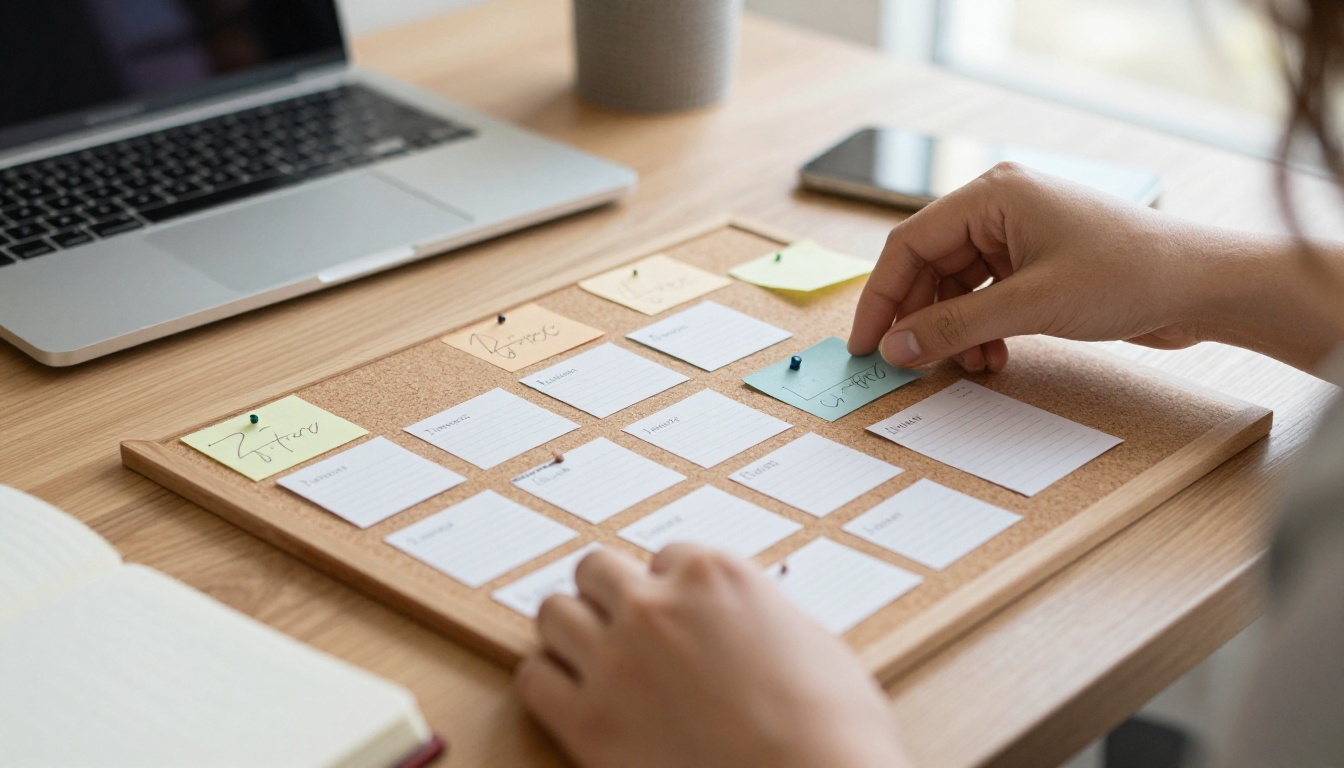
A great image with weak metadata is invisible. Buyers type what they need, and the search engine matches it against your title and keywords. Spend as much care on text as on the picture.
Write Titles Like a Caption
Describe the subject, the action and the setting in plain language, the way you would explain the photo to someone who cannot see it.
- Weak: "photorealistic 8k nurse cinematic --ar 16:9"
- Strong: "Nurse showing a tablet to an elderly patient in a bright hospital room"
The weak version leaks prompt jargon and skips the context a buyer searches for. The strong one reads like a caption and contains the nouns people actually type.
Build Keywords in Layers
Start with the literal subject, then add the action, the setting, the mood, the concept the image illustrates, and the practical traits such as copy space or a vertical crop. Lead with the most accurate terms. Do not pad the list with unrelated popular words: irrelevant keywords hurt search quality and invite rejections. The same banned items from your prompt apply here, so no brands, no real names, no fictional characters.
💡 Write the title and keywords before you upload, while the image is still open in front of you. Describing what is visibly there keeps you from drifting into guesses.
How to Use Seedream 5 Pro
Seedream 5 Pro is a strong fit for stock work on PicassoIA for a practical reason: its 2K setting lands at about 4 megapixels, right at Adobe's minimum, with no upscaling step. It accepts prompts up to 4,000 characters (the provider recommends staying under 600 English words), takes up to 10 reference images, and supports ratios from square to 21:9 in PNG or JPEG.
Generate at 2K
- Open Seedream 5 Pro on PicassoIA.
- Write a prompt that names the subject, the action, the setting, the light direction, the lens and the surface textures. Keep brands, real names and artist references out.
- Set size to 2K. The 1K setting produces about 2 megapixels, which falls short of Adobe's floor.
- Pick a ratio buyers use: 3:2 or 4:3 for general use, 16:9 for banners and headers.
- Choose PNG while you retouch, and export JPEG at the end.
- Generate several variations and keep only the cleanest.
💡 Reuse one prompt skeleton and swap the subject. Consistent lighting and framing make a series feel professional.
Different models draw skin, fabric and light differently, so it pays to run the same prompt through a few:
Check each model's license terms and PicassoIA's terms for commercial use before you submit anything, since Adobe holds you responsible for your rights.
Upscale and Retouch
If a result is a little under 4 MP, run it through an upscaler such as Topaz Image Upscale or Google Upscaler. Then fix leftovers: a stray finger, a smudged edge, a repeated leaf. Retouch gently. Heavy sharpening creates halos that reviewers spot immediately.
Check at 100% Zoom
Before export, open the file at full size and walk through this list:
- Hands and fingers count correctly
- Eyes, ears and teeth are symmetric and sharp
- No readable but garbled text anywhere
- Hair, foliage and jewelry hold detail
- Backgrounds do not repeat patterns
- Straight lines and windows stay straight
- Nothing resembles a logo, a landmark or a known face
Ten minutes here saves a rejected batch.
Video and Music Add-Ons
Adobe publishes separate guidelines for generative AI video and vectors, so read those pages before you submit anything other than images. If you build short clips from your stills, PicassoIA has text-to-video and image-to-video models such as Veo 3.1, Kling v3 Video and Seedance 2.0. For a soundtrack under your own clips, try Lyria 3 Pro or Stable Audio 2.5. The image rules in this article do not automatically apply to audio, so check Adobe's current pages before licensing music anywhere.
What You Can Realistically Earn
Adobe's standard contributor royalty is commonly reported at 33% of each standard image license, and individual downloads typically pay from a fraction of a dollar to a few dollars. Check your own dashboard for the exact rate that applies to you. Money comes from portfolio size and age, not from any single image.
The math is simple: images in portfolio × downloads per image per month × your royalty per download. With hypothetical numbers, 500 images downloaded 0.3 times a month each is 150 downloads, and at $0.50 each that is $75 a month. These figures are an illustration, not Adobe data, but they show why a portfolio of 50 images rarely pays and why one of 1,000 well-tagged images can.
Submission limits shape your strategy too. Adobe sets a weekly submission limit and a cap on how much can sit in review, and both depend on your account performance, mainly approval rate and sales. The cap exists because of waves of unedited AI uploads. Flooding the queue with weak files lowers your approval rate and shrinks your limit, while a clean 10 images a week builds trust.
- Submit fewer, better files and watch your approval rate
- Build series around a niche you can describe in one sentence
- Keep a log of rejection reasons and turn each into a prompt rule
- Revisit older files: strong titles and keywords keep selling for years
Build Your First Batch Today
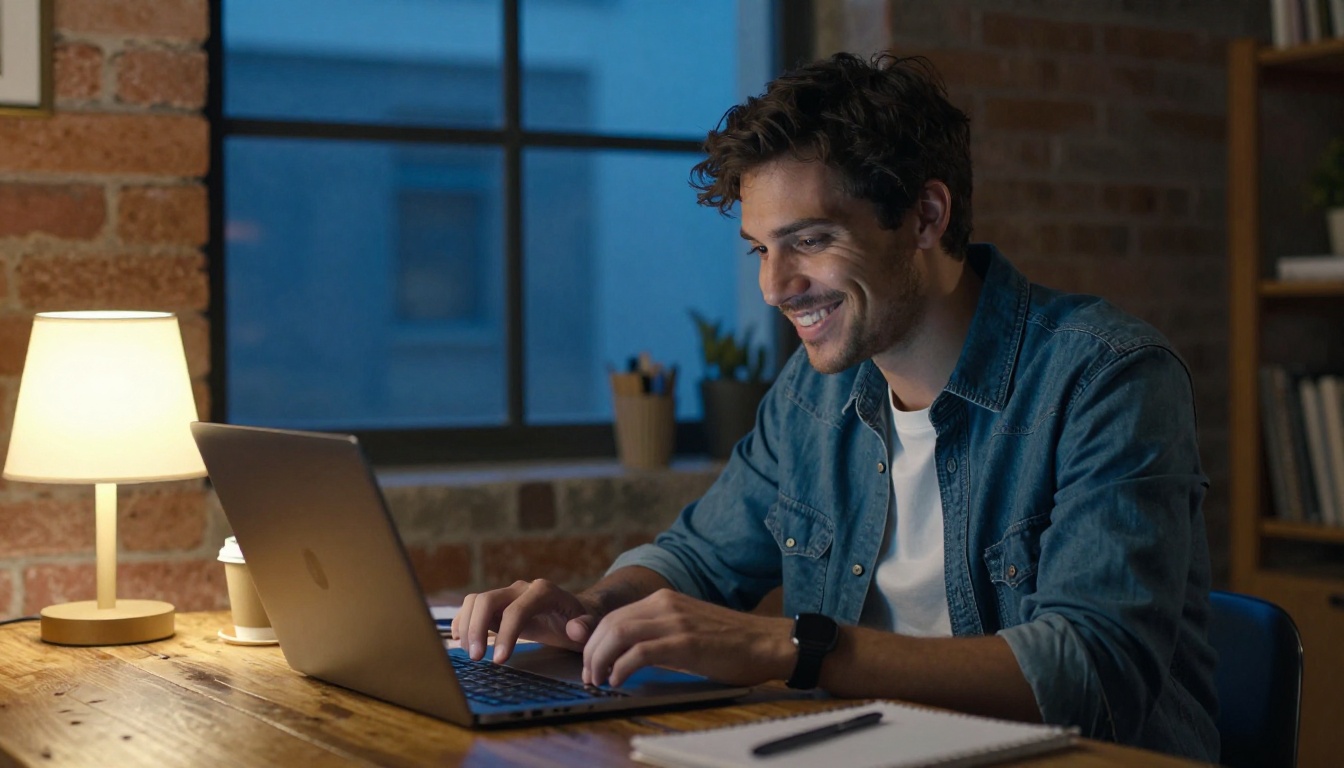
You now have the checklist. Pick one category from the table above, write ten prompts that describe specific moments, and run them on PicassoIA. Generate at 2K in Seedream 5 Pro, upscale only when needed, inspect every file at 100%, tick the right checkboxes and write plain captions as titles. Submit your ten best and watch the approval rate before you scale up.
Ready to create your own images with Picasso IA? Open the model library at picassoia.com/en/all-models, try a few photorealistic models on the same prompt, and see which one gives you the cleanest hands, the sharpest faces and the most believable light. The first batch is the cheapest experiment you will ever run, so start it today.


