Most people who try adult AI generation hit the same three walls within ten minutes: a refusal message, a face that looks like melted wax, or a paywall after two images. None of that is inevitable. The gap between a frustrating session and a folder full of magazine-quality shots comes down to three choices: which model you pick, how you structure the prompt, and which settings you leave alone. This article covers all three, with nine real examples, copy-ready prompts and a short list of free tools that hold up in daily use.
One boundary before we start. Everything here is about non-explicit, suggestive, photorealistic imagery of fictional adults: swimwear, lingerie, boudoir, glamour and fashion. That is where the models are strongest, where the results look best, and where you stay on safe ground.
What Adult AI Generation Really Means
The phrase covers a wide range, and most of it is far tamer than people assume. In practice, searches for adult AI images mostly come from people who want one of these:
- Glamour and swimwear portraits for social media, mood boards or personal projects
- Boudoir style photography with soft light, silk, lace and implied intimacy
- Fashion and lingerie concepts for designers testing looks before a real shoot
- Fictional character visuals for stories, games and companion style apps
- Photo editing, such as changing an outfit, a location or the lighting on an existing picture
The tools that serve this well share a few traits. They allow adult themes without blocking every second prompt, they render skin and fabric with real texture, and they let you iterate quickly without counting credits.
💡 Quick rule of thumb: If a tool refuses a harmless prompt like "woman in a bikini on a beach," it is the wrong tool. Switch models instead of rewriting the prompt ten times.
Why Prompts Get Blocked
Refusals usually come from the platform's filter, not from your wording. Some models are trained to reject anything involving skin. Others only block explicit terms. Rewording rarely fixes the first kind, so test a neutral swimwear prompt first. If it passes, the model is usable for glamour work.
Realistic Versus Plastic Results
The most common complaint is the "AI look": over-smoothed skin, glassy eyes and identical faces. It comes from vague prompts. Words like "beautiful" or "perfect" push the model toward an airbrushed average. Concrete photographic language pushes it toward a real photograph, and that is the core of everything below.
Free tiers are crowded with trials that expire after a handful of images. Here is how the realistic options compare for adult themed, photorealistic work.
| Tool | Best for | Speed | Strength |
|---|
| Seedream 4.5 | Photorealistic glamour and swimwear | Fast | Skin texture, 4K output, strong prompt following |
| PicassoIA Image Editor Pro | Editing outfits, scenes and lighting | Fast | Unlimited generations |
| Z Image Turbo | Quick drafts and rapid iteration | Very fast | Sharp images in seconds |
| Flux 2 Klein 9B Base LoRA | Styled looks with LoRA support | Fast | Consistent visual style |
| Hunyuan Image 3 | Detailed scenes and complex prompts | Medium | Good scene composition |
| Qwen Image 3 | Natural looking portraits | Medium | Clean, photographic rendering |
Start With Seedream 4.5
For most readers, Seedream 4.5 is the best first stop. It handles adult themed glamour without the constant refusals, it renders pores, freckles and fabric weave convincingly, and it outputs up to 4K. It also follows long prompts closely, which matters because the formula below depends on detail.
Use Image Editor Pro for Unlimited Edits
When you already have a picture and want to change the swimsuit color, move the scene to a different beach or soften the light, PicassoIA Image Editor Pro is built for it. The real advantage is that generations are unlimited, so you can run twenty variations of one edit without watching a counter. That changes how you work: you stop treating each attempt as precious and start testing freely.
Speed Tools for Drafting
Z Image Turbo is useful for the rough pass. Write a prompt, get an image in seconds, judge the composition, then move the winning prompt to Seedream 4.5 for the final render. This two step habit saves a lot of time.
💡 Workflow tip: Draft in a fast model, finish in a high fidelity model. Reusing the exact same prompt keeps the composition recognizable between the two.
Good adult AI prompts read like a photographer's shot list, not a wish. This five part structure produced every image in this article:
- Subject and action: who they are, what they wear, what they are doing
- Environment: location, props, background details
- Light: direction, quality and time of day
- Camera: angle, lens and depth of field
- Texture and film feel: skin, fabric, grain, color palette
A Prompt You Can Copy
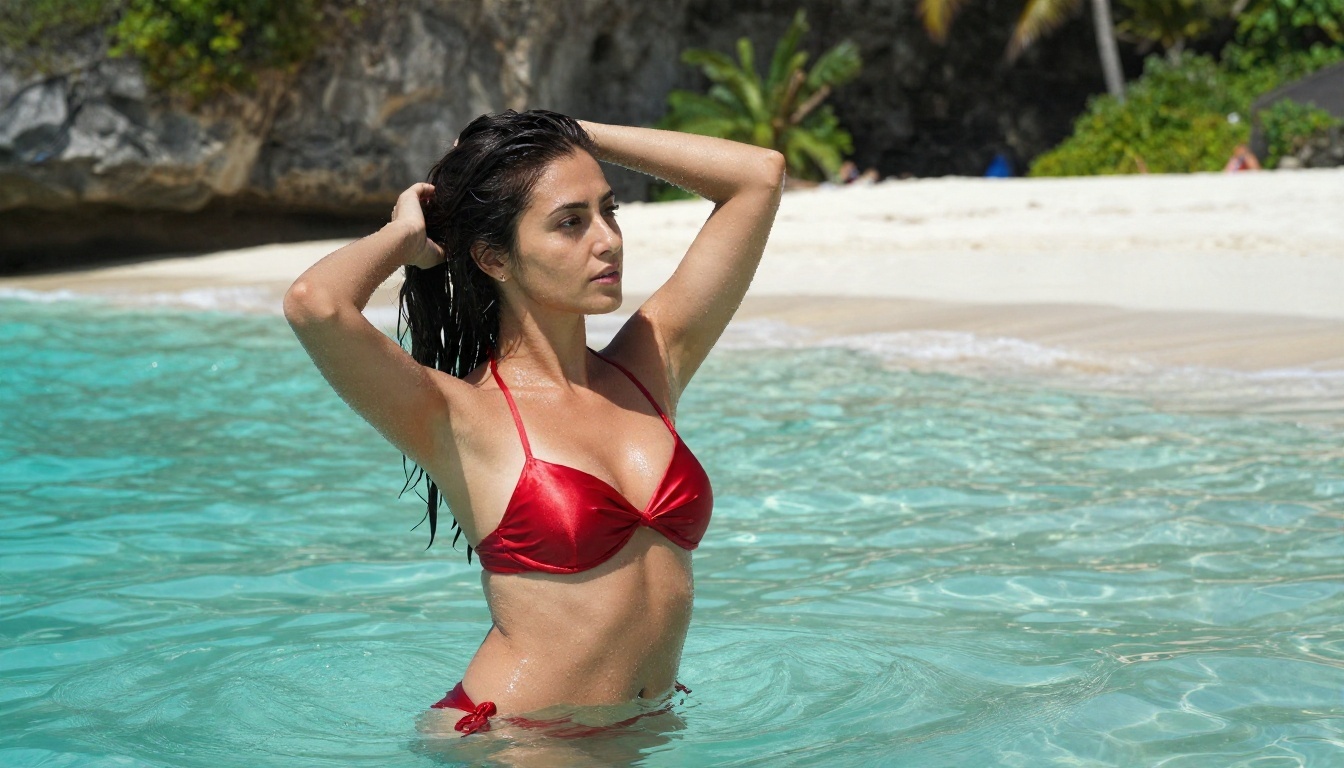
Adult woman in a red satin bikini standing waist deep in clear turquoise water at a quiet beach, one hand pushing wet hair back, low-angle shot from the waterline, white sand and limestone cliffs behind her, harsh late morning sun from upper right with sparkling water droplets on her tanned skin, 35mm f/2 lens, Kodak Portra 400 grain, realistic skin texture, photorealistic
Notice what is missing: no "beautiful," no "stunning," no "8K masterpiece." Instead the prompt gives the model facts it can render. Light direction, lens length and film stock do more for realism than any adjective.
Words That Raise Realism
Some phrases consistently help:
- Skin: "visible pores," "faint freckles," "natural highlights," "fine sand on skin," "water droplets"
- Fabric: "satin sheen," "lace texture," "woven crochet," "velvet pile," "cotton wrinkles"
- Light: "soft window light from the left," "golden hour backlight," "single warm lamp," "softbox with white fill"
- Camera: "85mm f/1.8," "35mm f/2," "50mm f/1.4," "low angle," "overhead"
- Film: "Kodak Portra 400," "subtle film grain," "natural color grading"
Words That Hurt Results
Cut these when you see them in old prompt lists: "ultra detailed 8K masterpiece," "perfect skin," "flawless," "hyperrealistic," "trending," and long strings of repeated quality tags. They tend to produce the waxy, over-smoothed look you are trying to avoid.
Nine Examples With Settings
Each example below uses a different angle, distance and light so you can see how much the setup changes the mood. Settings are noted under each image.
Boudoir Close-Up With Window Light
A tight portrait is the fastest way to test whether a model handles skin well. This one uses a 105mm lens look, soft window light from the left, and lace as the texture target.
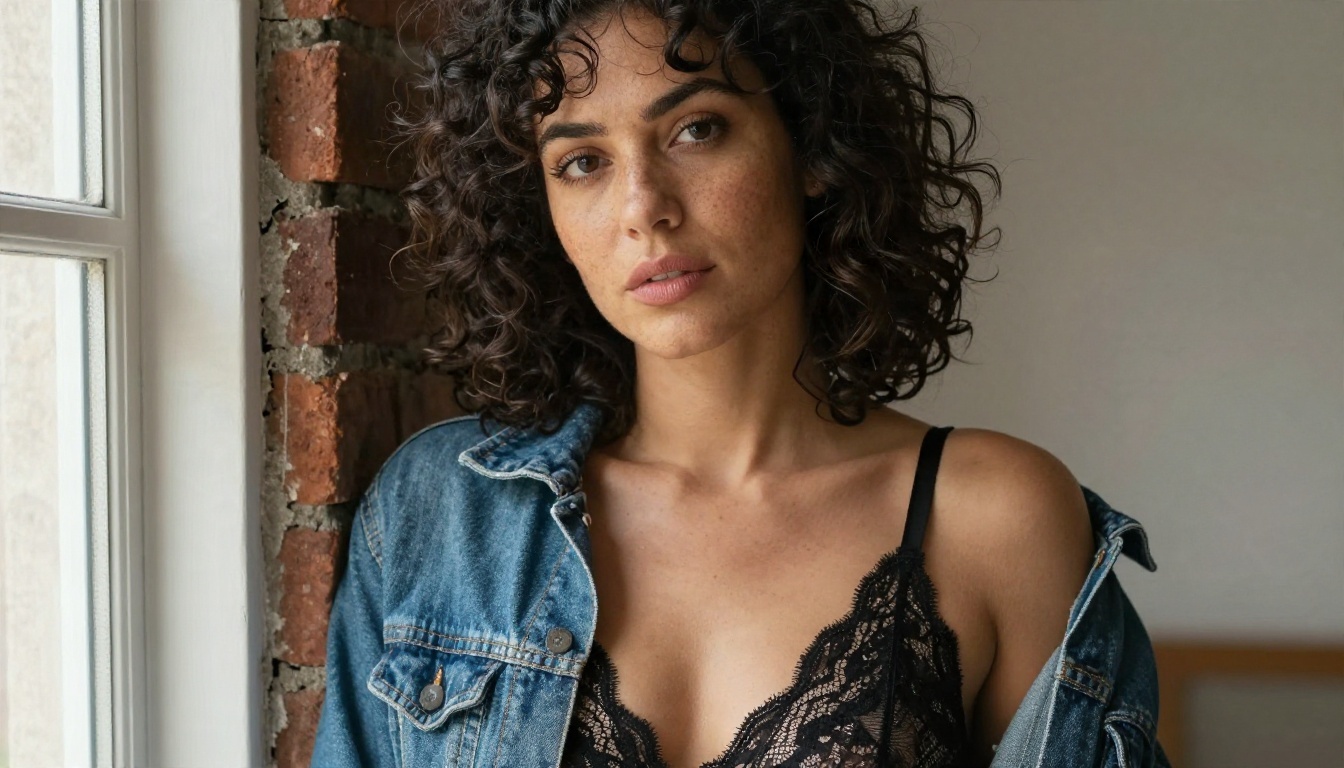
Prompt core: black lace bralette under an open denim jacket, sunlit loft, brick wall, soft window light from the left, 105mm f/2, visible skin pores, Kodak Portra 400 grain.
Overhead Pool Scene
Overhead shots hide the face problems that sometimes show up in wide scenes, and they let color do the work. Emerald against deep blue water is a strong pairing.
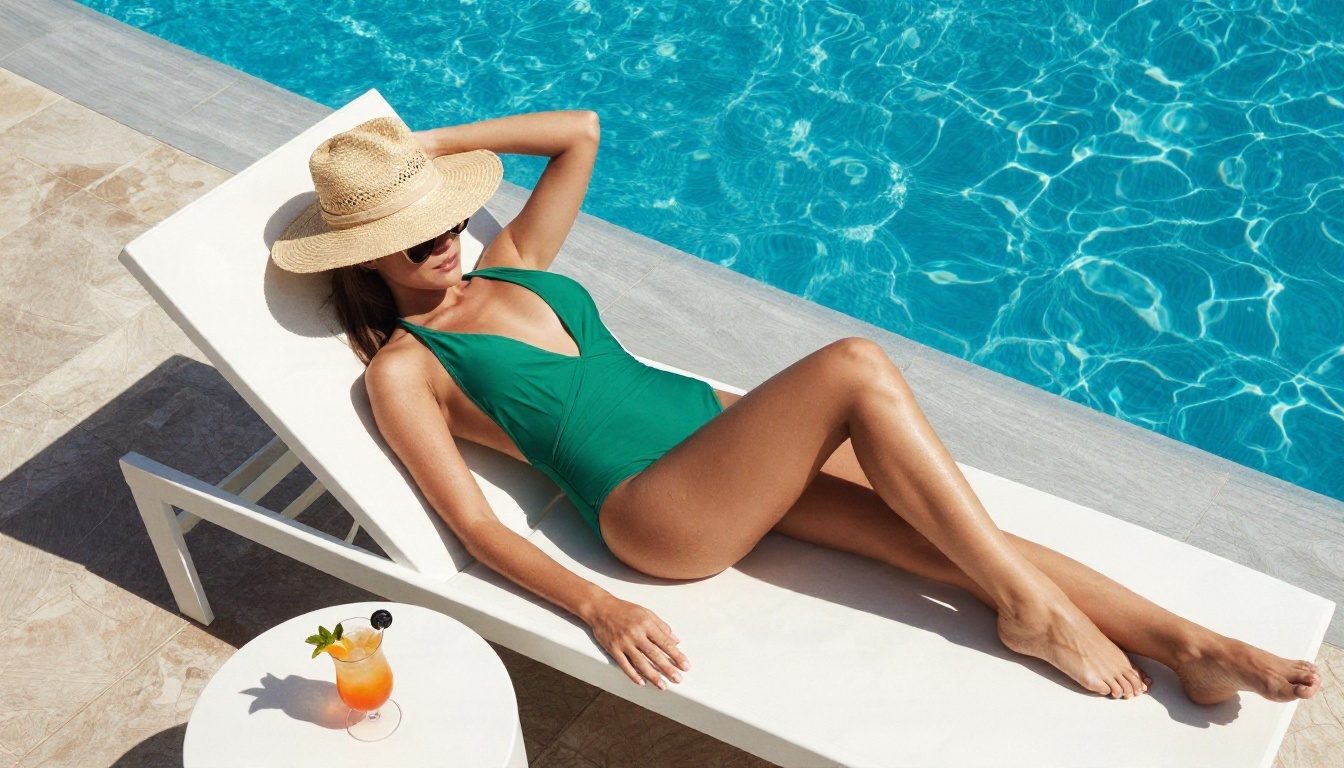
Prompt core: overhead view, emerald one piece, white sun lounger, infinity pool, straw hat, bright midday sun with crisp short shadows, 24mm lens from directly above.
Mirror Reflection in a Hotel Bathroom
Mirror scenes look intimate without showing anything explicit. The mix of warm vanity bulbs and cool window light gives the image depth.
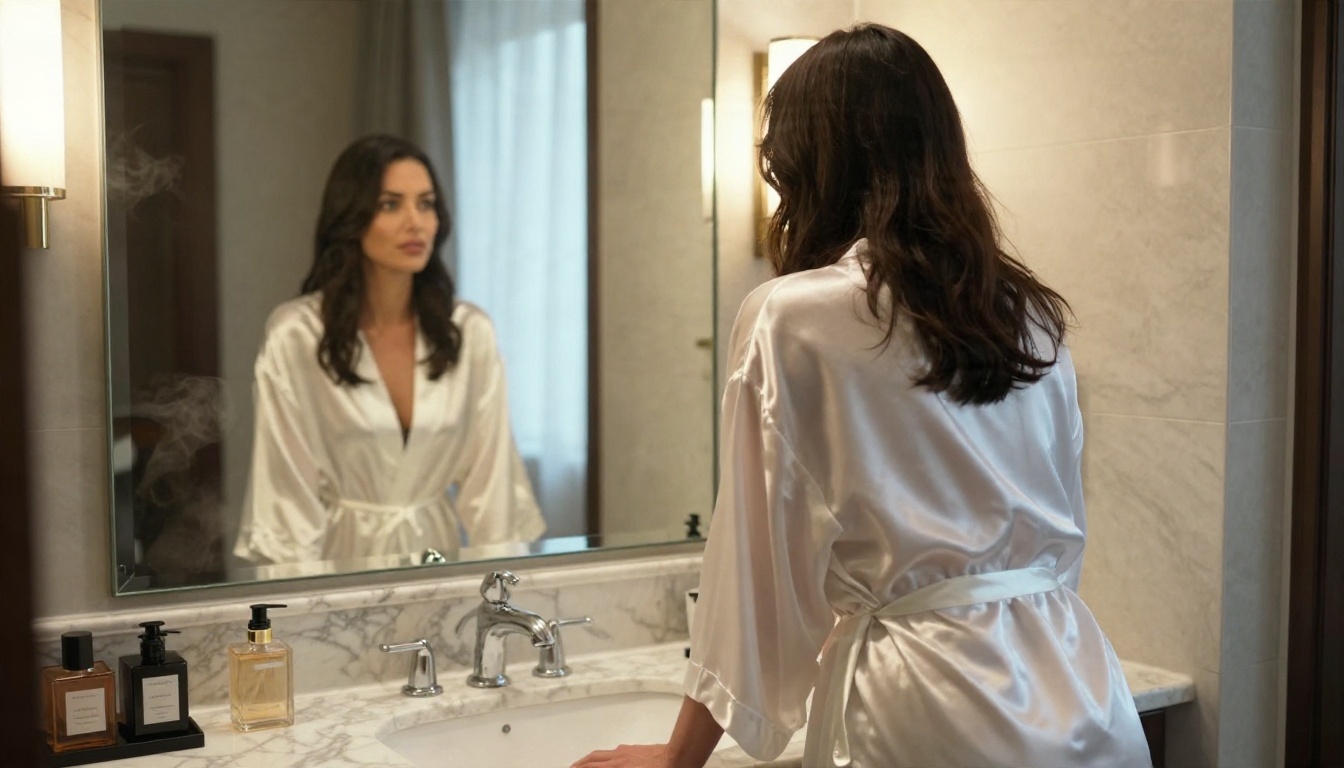
Prompt core: sheer white silk robe, boutique hotel bathroom, face visible in the mirror, warm tungsten lights mixed with daylight, marble counter, 50mm f/1.4.
💡 Mirror warning: Reflections are a weak point for many models. If the reflection looks wrong, generate three or four variations and keep the best one rather than rewriting the prompt.
Golden Hour Boardwalk
Backlight is the easiest way to get a glowing, natural look. A long lens compresses the background and keeps the subject clean.
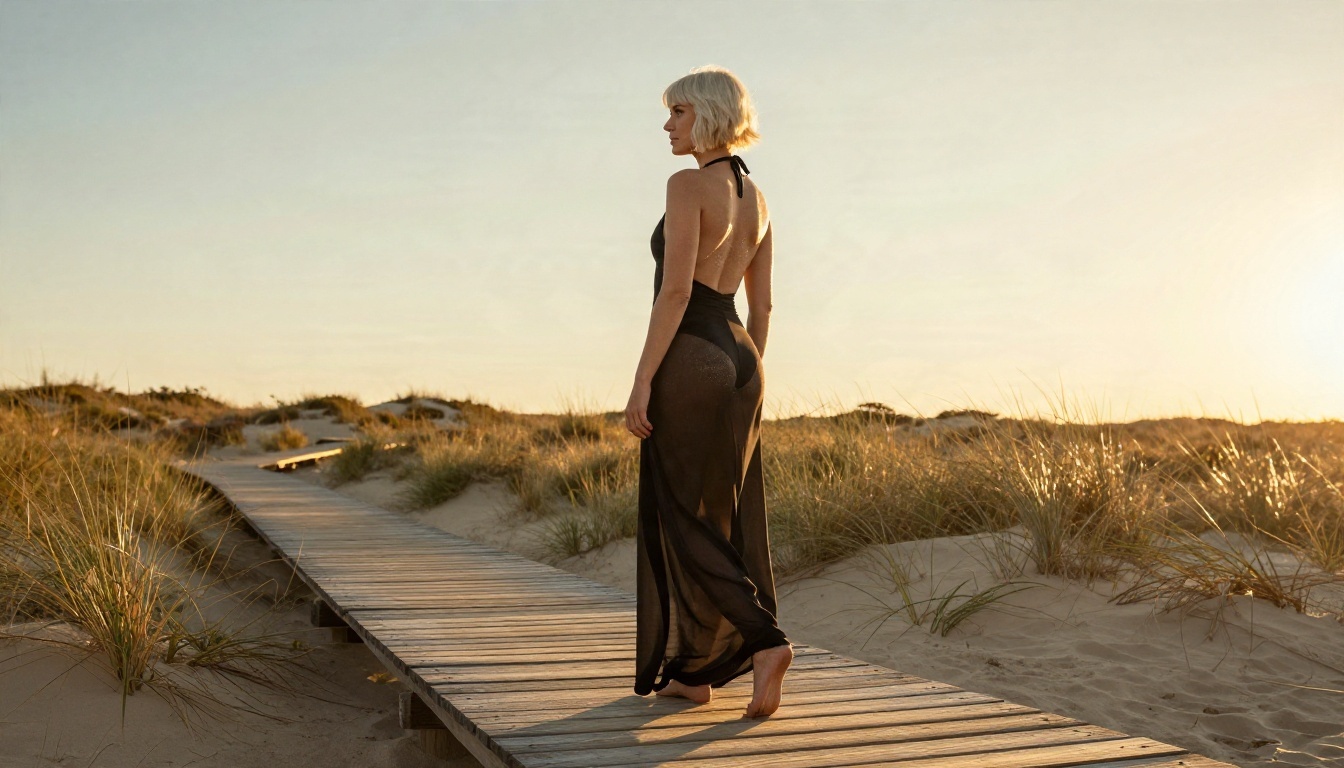
Prompt core: platinum bob, black halter swimsuit, long sheer sarong, wooden boardwalk, warm backlight, dune grass, 135mm f/2 compression.
Velvet Lingerie in a Dim Library
Low key lighting is where weak models fall apart, with muddy shadows and flat skin. A single lamp from one side creates the contrast that makes velvet and skin both readable.
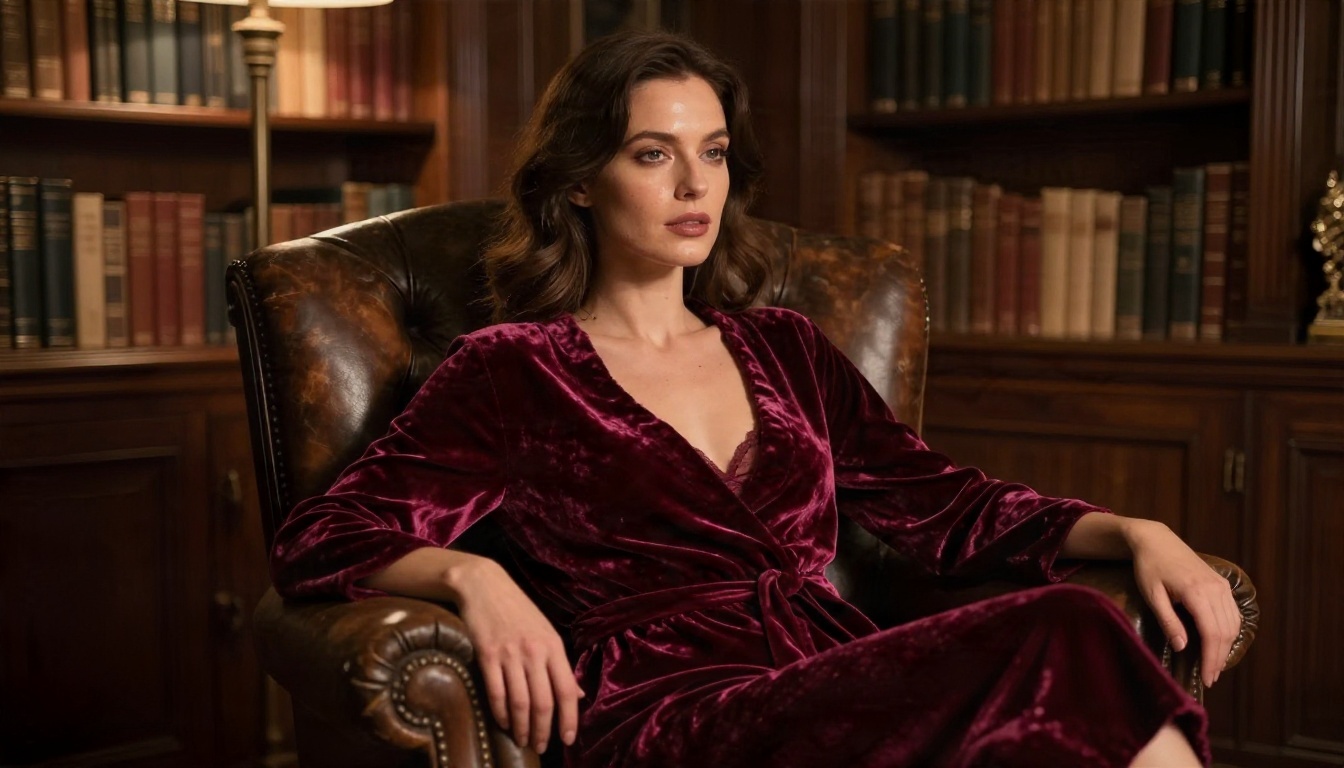
Prompt core: burgundy velvet lingerie set with a long robe, vintage leather armchair, single warm lamp from the right, chiaroscuro, bookshelves in soft focus, 50mm f/1.8.
Lifestyle Shot on a Coastal Road
Not every adult themed image needs a bedroom. Candid lifestyle scenes feel more believable and are easier to render. Overcast light removes harsh shadows, which also removes many skin artifacts.
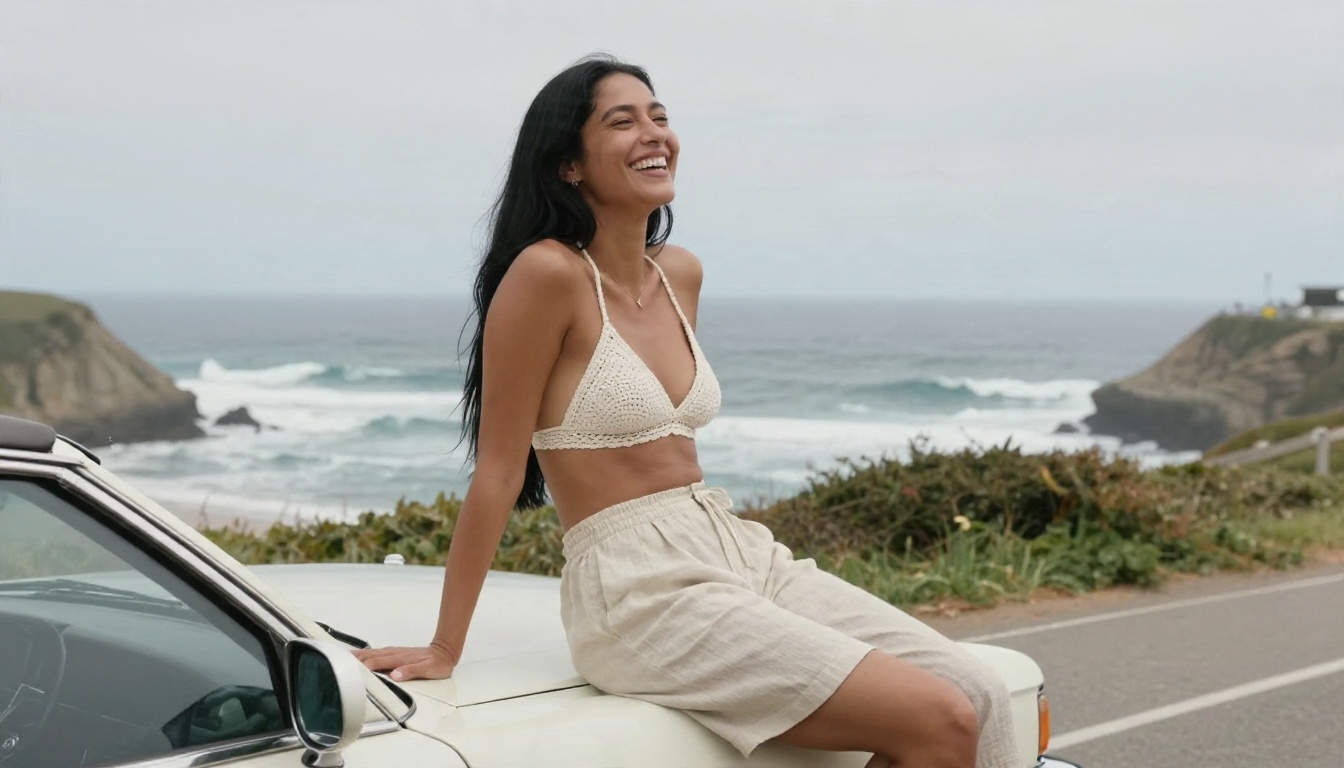
Prompt core: white crochet bikini top, high waisted linen shorts, vintage convertible, coastal road, overcast soft light, wide 28mm f/2.8.
Clean Studio Fashion Look
Studio prompts give you the most control. A seamless backdrop, a softbox and a white reflector are enough to produce catalog quality results.
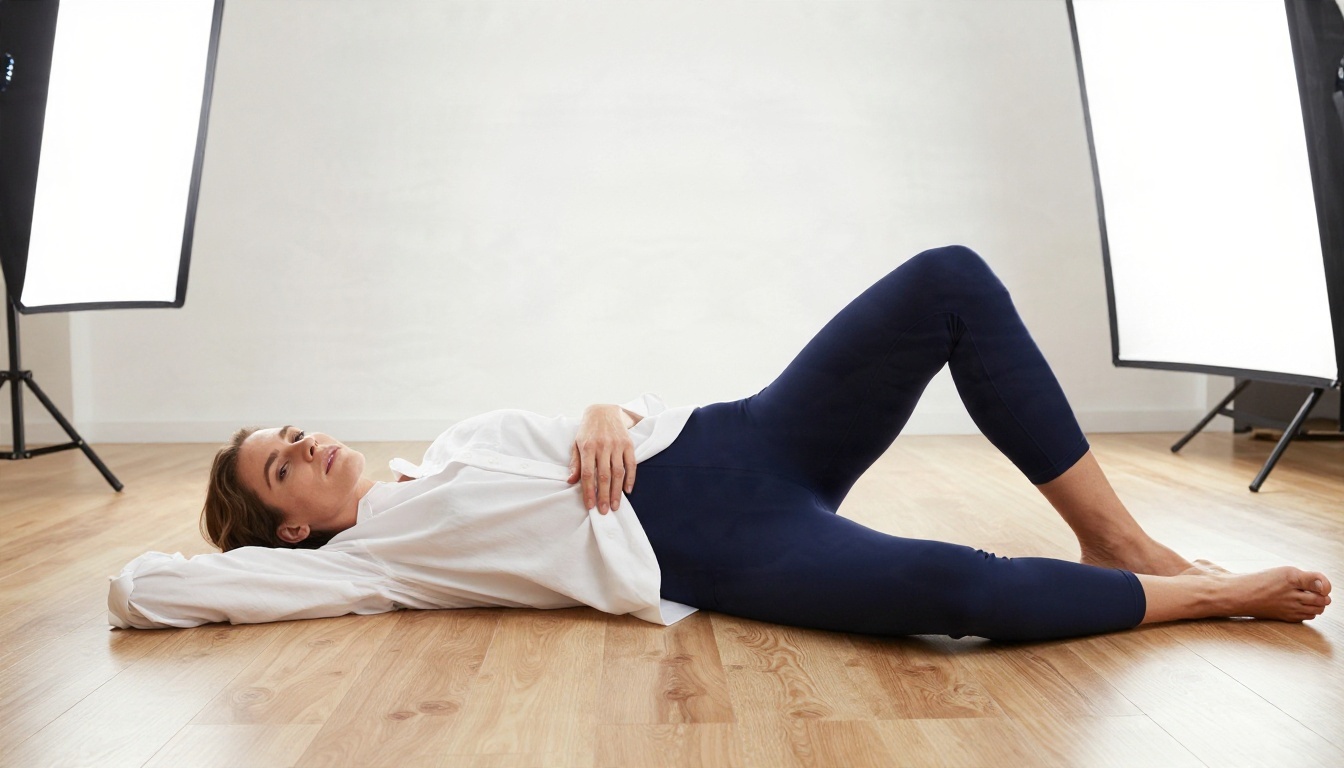
Prompt core: navy bodysuit with an oversized white shirt, wooden floor, high angle three quarter view, large softbox from front left, white reflector fill, 70mm f/2.8.
Sunset Pier From Behind
Turning the subject away from the camera reduces face errors and adds a cinematic feel. Reflected sky color on calm water does the rest.
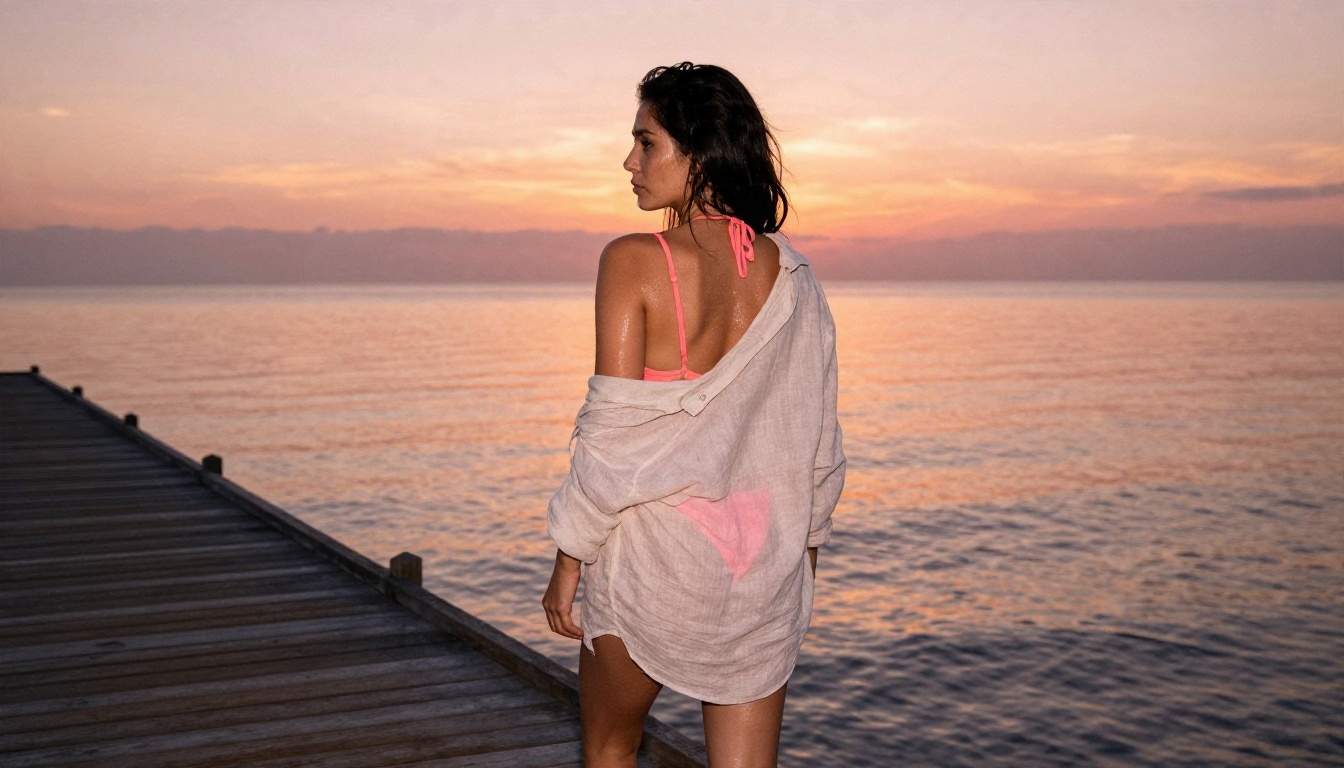
Prompt core: coral pink bikini, open linen shirt, wooden pier, head turned over shoulder, orange and pink sky, warm backlight with soft flare, 40mm f/2.
Settings That Matter Most
Most interfaces show a dozen sliders. Only a few change your results in a meaningful way.
| Setting | Recommended value | Why |
|---|
| Aspect ratio | 16:9 for scenes, 3:4 or 2:3 for portraits | Matches how photographers frame each type |
| Resolution | Highest available (2K to 4K) | Skin and fabric texture needs pixels |
| Seed | Fixed when iterating, random when exploring | A fixed seed lets you change one word and see the effect |
| Guidance or prompt strength | Medium | Too high gives harsh, over-sharpened skin |
| Batch size | 2 to 4 images | Gives choices without waste |
| Negative prompt (if offered) | "cartoon, illustration, plastic skin, extra fingers, text" | Pushes away the common failures |
Fix Hands and Faces
Hands and faces fail more often than anything else. Three habits help:
- Keep hands simple. "Hand resting on the knee" works far better than "fingers intertwined."
- Avoid crowded scenes. One subject, one clear action.
- Use distance. A mid-shot hides small face errors that a tight close-up would expose.
Keep the Same Character
If you want one fictional character across several images, fix the description wording (hair, skin tone, age range, a distinguishing detail like freckles) and reuse it word for word. For stronger consistency, a LoRA based model such as Flux 2 Klein 4B Base LoRA or a custom trainer like P Image Trainer lets you lock a look in.
How to Use Seedream 4.5 on PicassoIA
Here is the workflow I would repeat for any new idea, using Seedream 4.5.
Step by Step
- Open the model page and choose a text prompt input.
- Write the prompt with the five part formula: subject, environment, light, camera, texture.
- Set the aspect ratio to 16:9 for scenes or a portrait ratio for single subject shots.
- Pick the highest resolution offered for the final render.
- Generate two or three variations and compare skin, hands and background.
- Change one detail at a time, such as the light direction or lens, and regenerate.
- Move to Image Editor Pro to adjust outfit color, background or mood on the best result.
Parameter Tips
- Describe one light source clearly. Mixed light works only if you name both sources, as in the mirror example.
- Name the lens you want. "85mm f/1.8" gives soft backgrounds, "24mm" gives wide environmental feel.
- Mention fabric names rather than just colors. "Satin" and "crochet" produce very different textures.
- Keep prompts between 50 and 120 words. Shorter loses detail, longer starts to contradict itself.
💡 Editing shortcut: Instead of rewriting a whole prompt to change a swimsuit color, upload the image to Image Editor Pro and describe only the change. It keeps the face, pose and light intact.
Other Models Worth Testing
Different models suit different jobs. A few more options on PicassoIA are worth a quick test with the same prompt:
Run the same prompt through two or three of them and keep whichever gives the best skin. Model behavior and filters differ, so a prompt that fails in one tool may pass in another.
Bring Stills to Life
Once you have a strong still, animating it is the next step. A fast video model such as LTX 2.5 Fast can turn a boardwalk or pier image into a short moving clip, with slow camera drift and hair moving in the breeze. Start with the still, because the quality of the first frame sets the ceiling for the video.
Rules You Should Not Bend
Good results matter, but a few limits matter more.
- Adults only. Every subject should be clearly an adult. Never write prompts that suggest a minor, school settings or youthful framing.
- Fictional subjects. Do not generate images of real people, celebrities or someone you know without their clear consent. Likeness without permission is harmful and often illegal.
- No deception. Label AI images as AI generated when you share them, especially if they look like real photographs.
- Keep it non-explicit. Suggestive, glamour and boudoir imagery is the strongest category for photorealistic models anyway. Pushing past it gives worse results and more problems.
- Respect platform rules. Where you post matters. Check the rules of each site before you upload.
Common Mistakes
| Mistake | Fix |
|---|
| Using only adjectives like "sexy" or "beautiful" | Describe light, lens, fabric and pose instead |
| Rewriting a blocked prompt ten times | Switch to a model that allows the theme |
| Generating one image and judging the model | Generate three to four and compare |
| Using maximum guidance | Use a medium value to keep skin natural |
| Crowded scenes with many hands | Keep one subject and a simple action |
Start Creating Your Own Images
The fastest way to learn what works is to run your own prompts. Take one of the nine examples above, copy the prompt core, and change a single thing: the light, the lens, the outfit or the location. Compare the results side by side and you will see more in an hour than any article can show.
Open Seedream 4.5 for your first renders, refine them with PicassoIA Image Editor Pro where generations are unlimited, and test the other models when you want a different look. The full list of image and video models is at picassoia.com/en/all-models. Pick a scene, write the shot list, and see what you get.


