You upload a photo, type "make him older," and get back a stranger. Same hair color, maybe, but the jaw is wrong, the eyes belong to someone else, and the skin looks like wax. The problem is almost never the model. It is the prompt. A good AI age progression prompt tells the editor what to change (age cues) and, just as important, what to leave alone (identity). This article gives you tested wording you can copy, adapt, and reuse for adult portraits, babies, and growing children.
What an Age Progression Prompt Does
An age progression prompt is a short instruction that asks an image model to show a person older (or younger) while keeping them recognizable. People use it for family keepsakes, school projects, missing person awareness posters, character design, film pre-visualization, and plain curiosity: what will my kid look like at 16?
Edit Versus Generate
There are two ways to run it. With image editing, you upload a real photo and the model changes it. With text to image, you describe the person from scratch. Editing keeps far more of the original face, so it is the better route for anything personal. Generation works better when you only need a believable character at several ages.
Why Identity Drifts
Models treat "older" as a big bundle of ideas: gray hair, wrinkles, a different face shape, new clothes, even a new background. If your prompt is vague, the model reaches for the average older person instead of your older person. Specific, narrow instructions stop that.
💡 Tip: Think of the prompt as two lists. One list says what changes. The other says what must stay the same. The second list is the one most people forget.
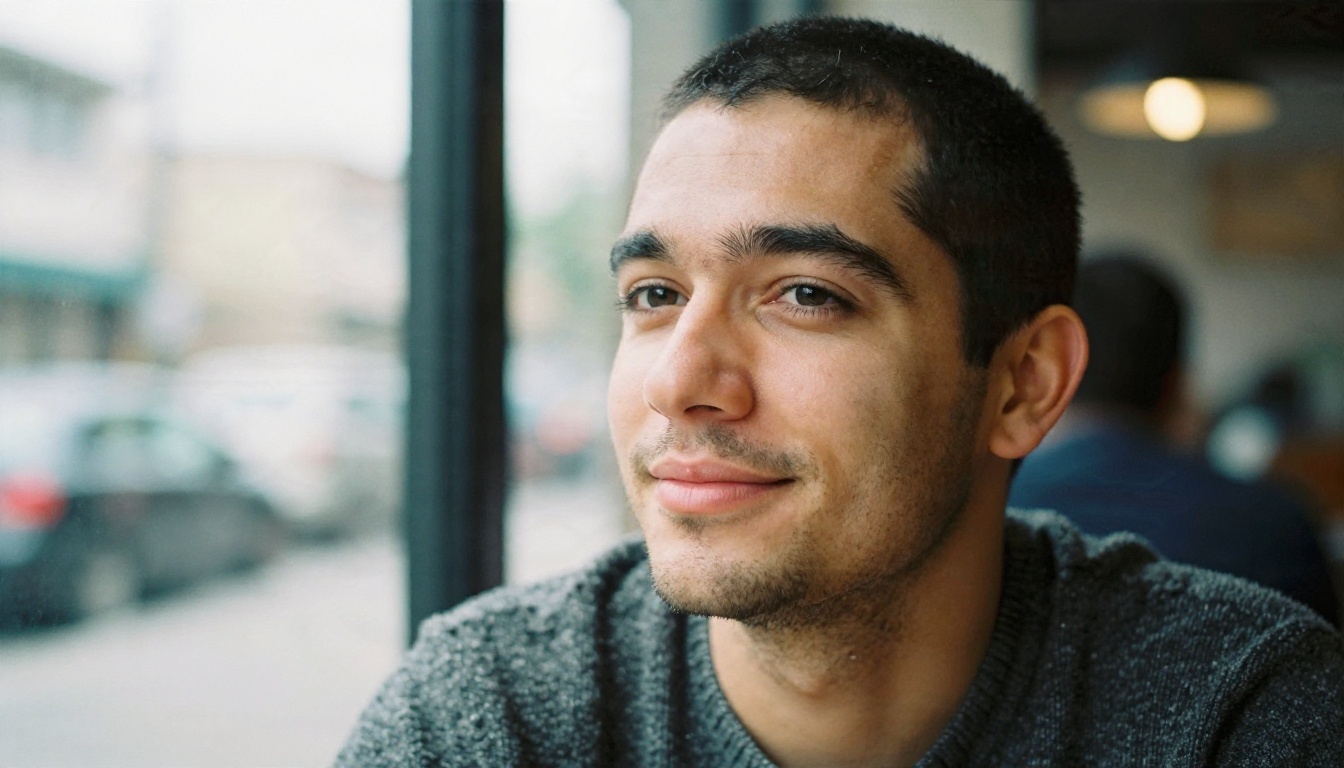
After a lot of trial and error, the structure below gives the most consistent results across editing models.
Five Building Blocks
| Block | What it does | Example wording |
|---|
| Action | Tells the model to edit, not redraw | "Edit this photo to show the same person at age 70" |
| Age target | A number beats an adjective | "around 70 years old" |
| Age cues | Names the visible changes | "silver hair, deep smile lines, age spots, thinner eyebrows" |
| Keep list | Locks identity | "keep the same eye shape, nose, jawline, and expression" |
| Photo style | Keeps realism | "natural skin texture, same lighting, same background, photorealistic" |
Put them together and you get something like this:
Edit this photo to show the same person at around 70 years old. Add silver hair, deep smile lines, soft age spots and slightly thinner eyebrows. Keep the same eye shape, nose, jawline and gentle smile. Keep the cafe window lighting, the wool sweater and the blurred street. Natural skin texture, photorealistic.
Words That Steer Age
Some terms carry more weight than others. Here is a quick reference.
| Target age | Strong cues | Words to avoid |
|---|
| 30s | faint laugh lines, slightly fuller face | "old", "tired" |
| 50s | gray at the temples, forehead lines, softer jaw | "ancient" |
| 70s | white hair, crow's feet, thin lips, age spots | "zombie", "decayed" |
| 90s | deep folds, thin fragile skin, sparse hair | "monster", "horror" |
Use specific facial changes rather than emotional words. "Tired" and "sad" will change the expression, which you did not ask for.
Prompt Examples for Adult Photos
These work best as image edits. Replace the bracketed parts with your own details.
Aging a Portrait to 70
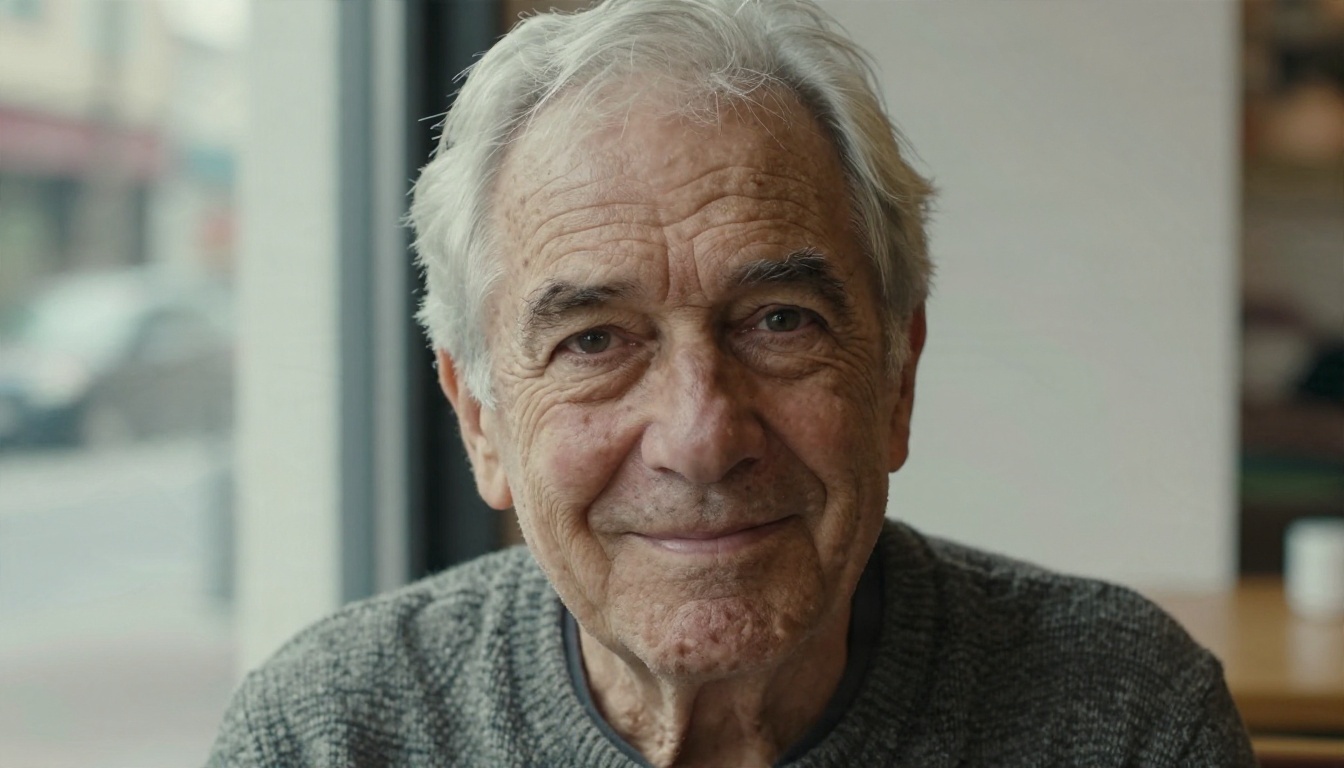
Edit this portrait to show the same person at around 70 years old. Natural gray and white hair with a slightly receding hairline, deep forehead lines, crow's feet around the eyes, soft jowls, a few age spots on the temples. Keep the same eye color, nose shape, smile and head angle. Keep the original lighting and background. Realistic skin pores, no smoothing, no filters.
The result should look like a cousin of the original photo, not a different person.
Ten Year Step Prompts
Jumping from 28 to 70 in one move is risky. For better identity, age in steps and reuse the previous output as your next input.
- Step 1: "Show this person at 40. Add faint laugh lines and slightly fuller cheeks. Keep everything else identical."
- Step 2: "Show this person at 55. Add gray at the temples and defined forehead lines. Keep everything else identical."
- Step 3: "Show this person at 70. Add white hair, crow's feet and age spots. Keep everything else identical."
This is slower but gives you a believable timeline you can line up side by side.
Going Younger
Reverse aging uses the same logic.
Edit this photo to show the same person at around 20 years old. Smoother skin with natural texture, fuller cheeks, darker and thicker hair, brighter eyes. Keep the same face structure, expression, clothing style and lighting.
💡 Tip: Never ask for "perfect skin" when going younger. You will get a retouched look. Ask for "natural youthful skin with visible pores."
Baby and Child Aging Prompts
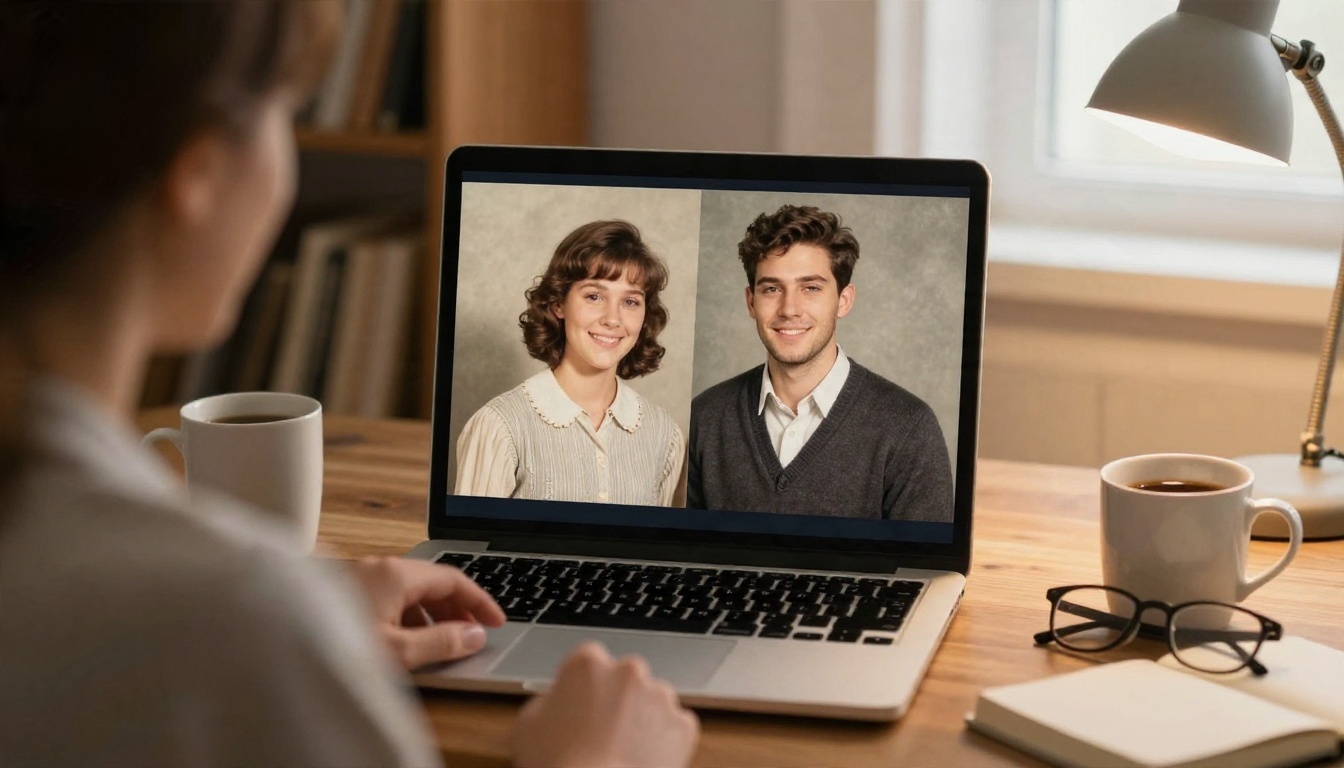
Children change faster than adults, and the changes are mostly about proportion: face length, baby fat, tooth count, hair texture. Your prompts should mention those, not wrinkles.
Newborn to Toddler
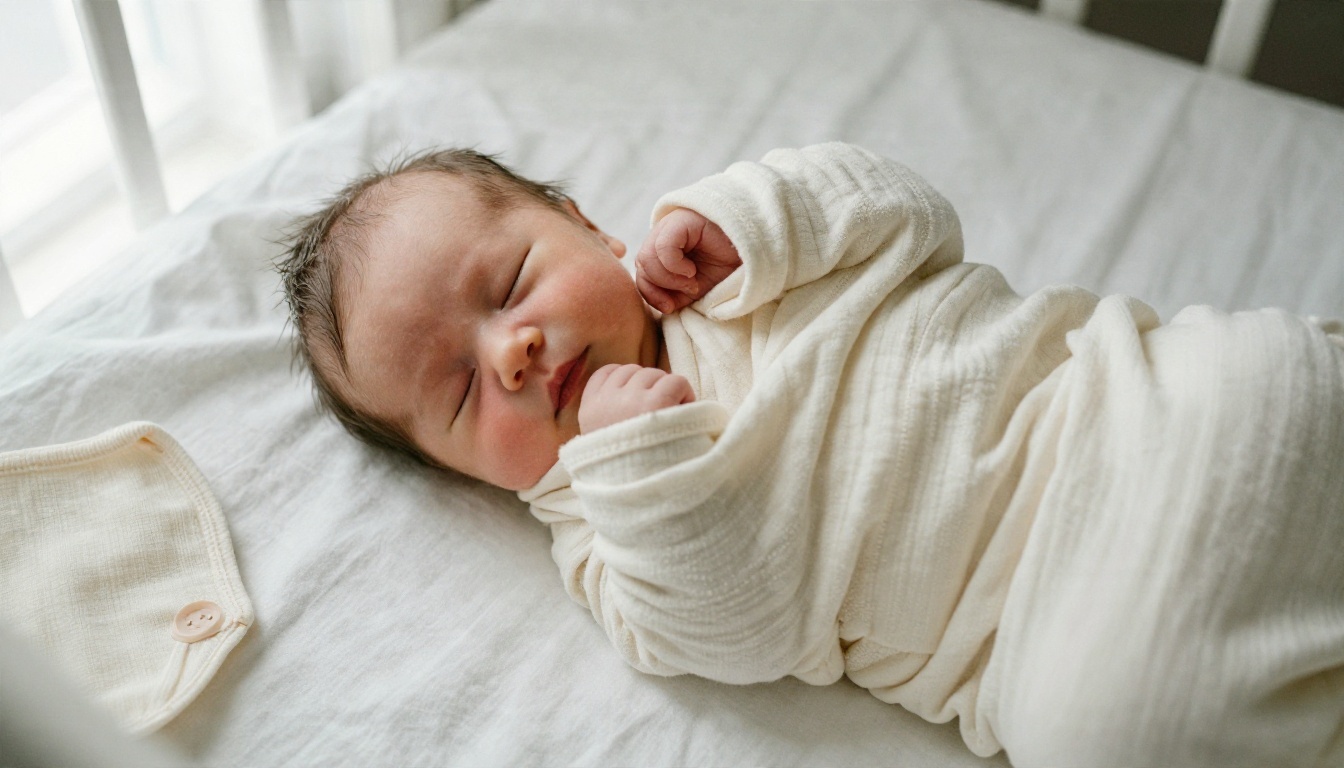
A newborn's face has very few fixed features, so the model has more freedom here. Keep the references short and concrete.
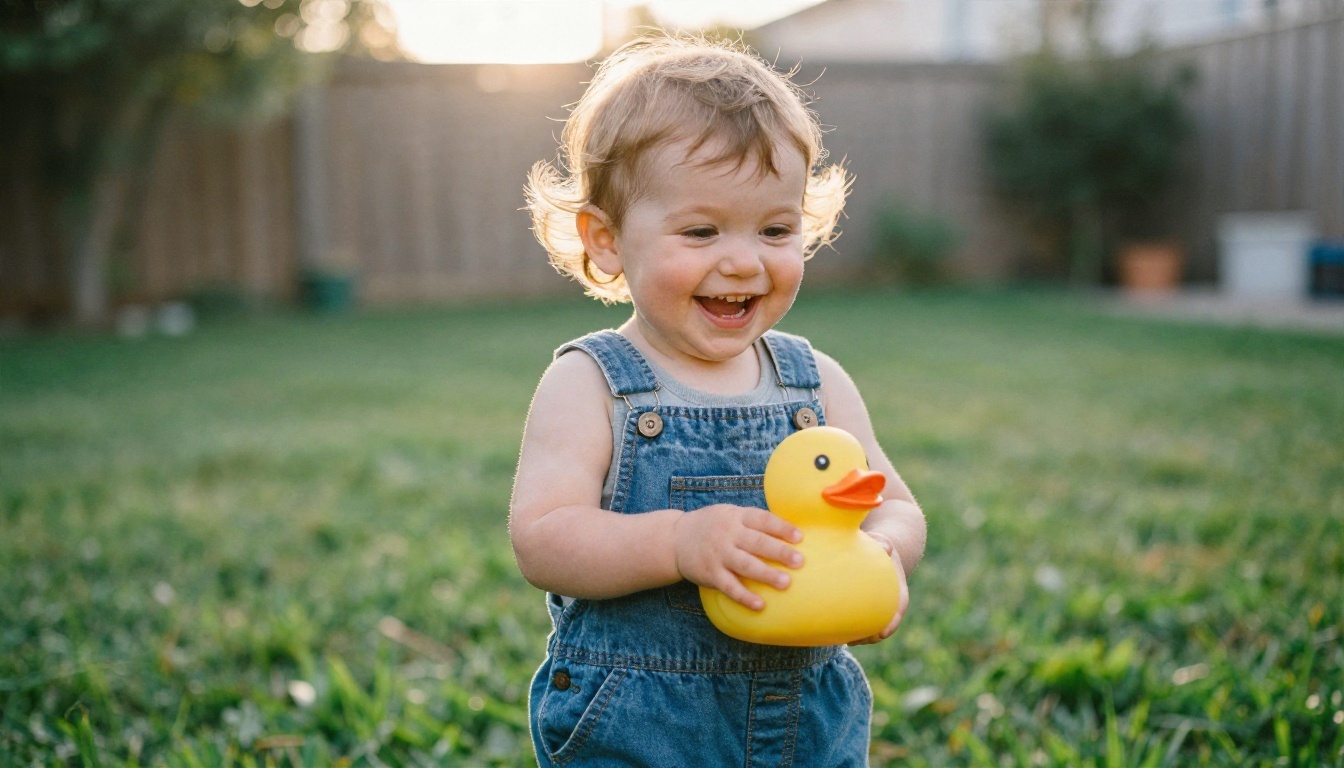
Edit this newborn photo to show the same baby at around 2 years old. Fuller cheeks, more defined eyebrows, wispy light hair, a few baby teeth, bright alert eyes. Keep the same eye shape, nose and lip shape. Standing outdoors, soft daylight, natural skin, photorealistic.
Child to Ten Years Old
At this age you can name the milestones that families recognize at a glance.
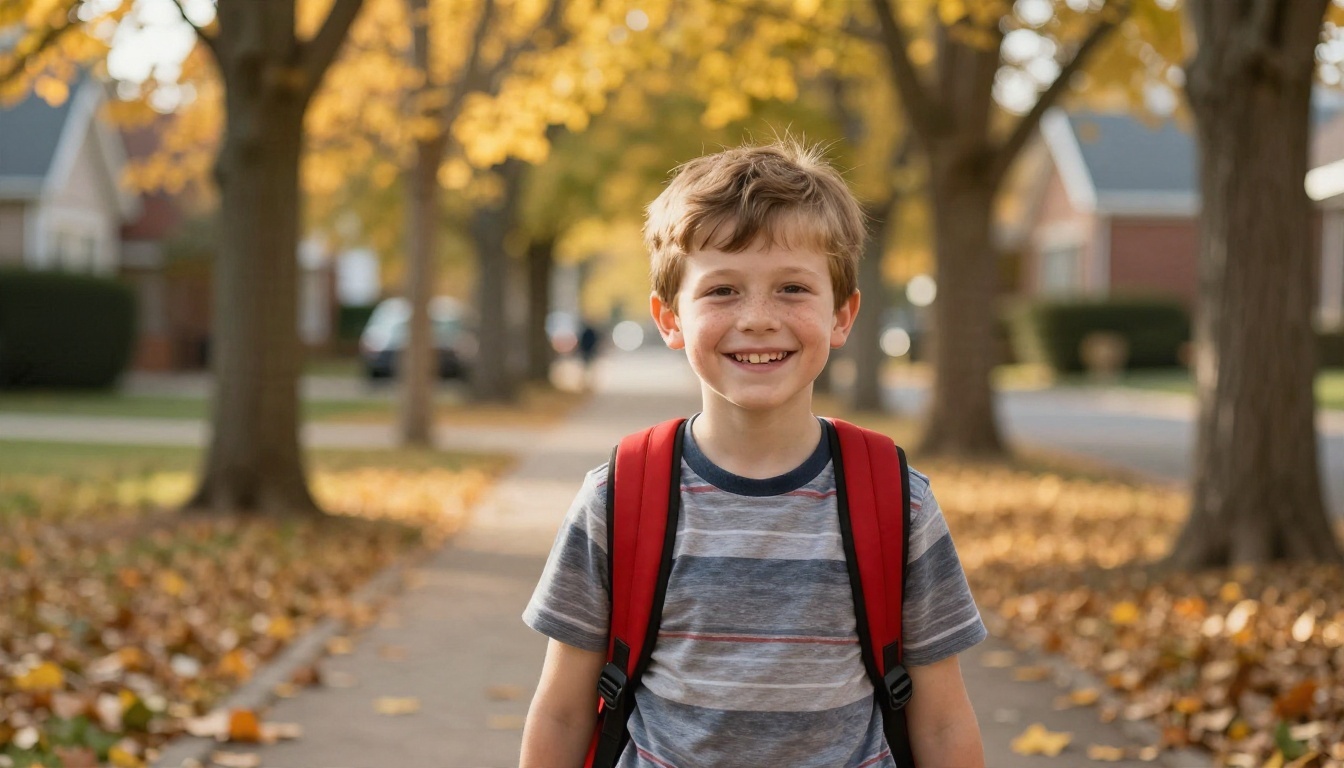
Edit this photo to show the same child at 10 years old. Longer face, leaner cheeks, a missing front tooth, light freckles across the nose, slightly longer hair. Keep the same eye color, smile shape and hair color. Wearing a striped t-shirt and a school backpack, autumn sidewalk, natural light.
Child to Teenager
Teen prompts need restraint. Describe structure, not glamour.
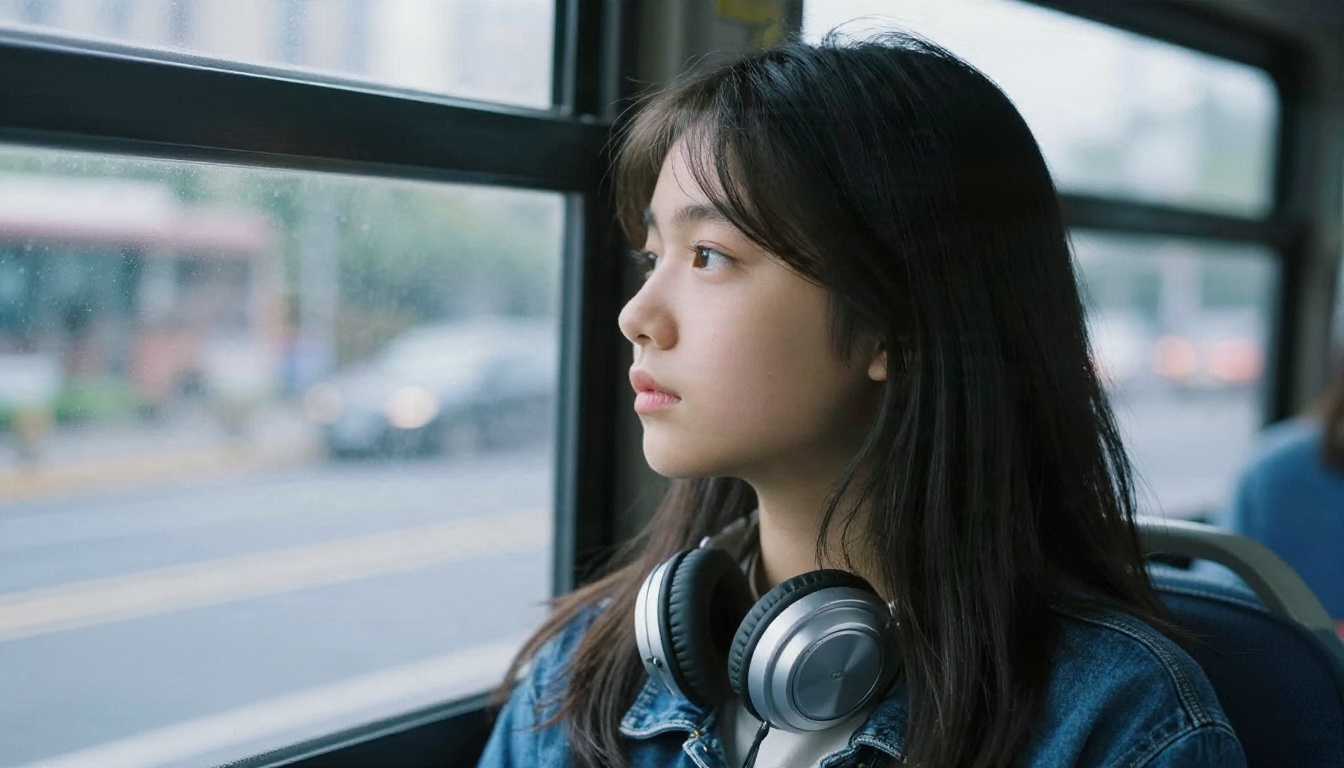
Edit this photo to show the same child at 17 years old. Defined cheekbones, a longer neck, clearer jawline, adult proportions, natural skin with a few subtle blemishes. Keep the same eyes, eyebrows, nose and hair color. Casual jacket, side profile, natural window light.
Care With Children's Photos
A few simple habits keep this safe and respectful:
- Use photos of your own children or family, with permission from everyone depicted.
- Keep results fully clothed and wholesome. Age prompts should never sexualize anyone, and platforms block that on purpose.
- Do not upload a stranger's child photo, ever.
- Treat the result as an illustration of a possibility, not a prediction. No model can know how a real child will actually grow.
How to Use Nano Banana on PicassoIA
Nano Banana is built for editing and generating images from natural language, which makes it a friendly place to start with age progression. Here is the workflow.
Step by Step
- Open the Nano Banana model page on PicassoIA.
- Upload your source photo. Pick a sharp, front facing image with even lighting. The more of the face is visible, the better.
- Paste your prompt using the five block formula: action, age target, age cues, keep list, photo style.
- Run the generation and review the face first. Check the eyes, nose, and jaw against your original.
- If identity holds but the age is off, change only the age target and re-run. Do not rewrite the whole prompt.
- For a timeline, feed each output back in as the next source and age in ten year steps.
Settings That Matter
| Setting | Recommendation | Why |
|---|
| Source photo | Front facing, 1000 px or larger | More detail to preserve |
| Prompt length | 40 to 80 words | Short enough to stay focused |
| Age jump | Max 15 to 20 years per step | Protects identity |
| Output review | Zoom to 100 percent | Catches plastic skin early |
| Variations | Generate 3 to 4 | Pick the most faithful face |
💡 Tip: If you want a sharper final image for printing, run your favorite result through a super resolution model on PicassoIA to bring back fine skin detail.

Picking the Right Model
Different models behave differently on faces. Here is how the main options on PicassoIA compare for this specific task.
If you are building a fictional character at five ages, generate the first portrait with Seedream 4.5, then switch to an editing model like Qwen Image Edit Plus to age that same face. That two stage method keeps the face steadier than regenerating from text every time.
Fixing Common Mistakes
The Face Becomes Someone Else
Cause: the prompt asked for too many changes, or the keep list was missing.
Fix: shorten the age jump, then name three features to preserve. "Keep the same eye shape, nose and mouth" is usually enough. If it still drifts, age in two steps.
Skin Looks Plastic
Cause: words like "perfect," "flawless," or "high quality" push models toward airbrushing.
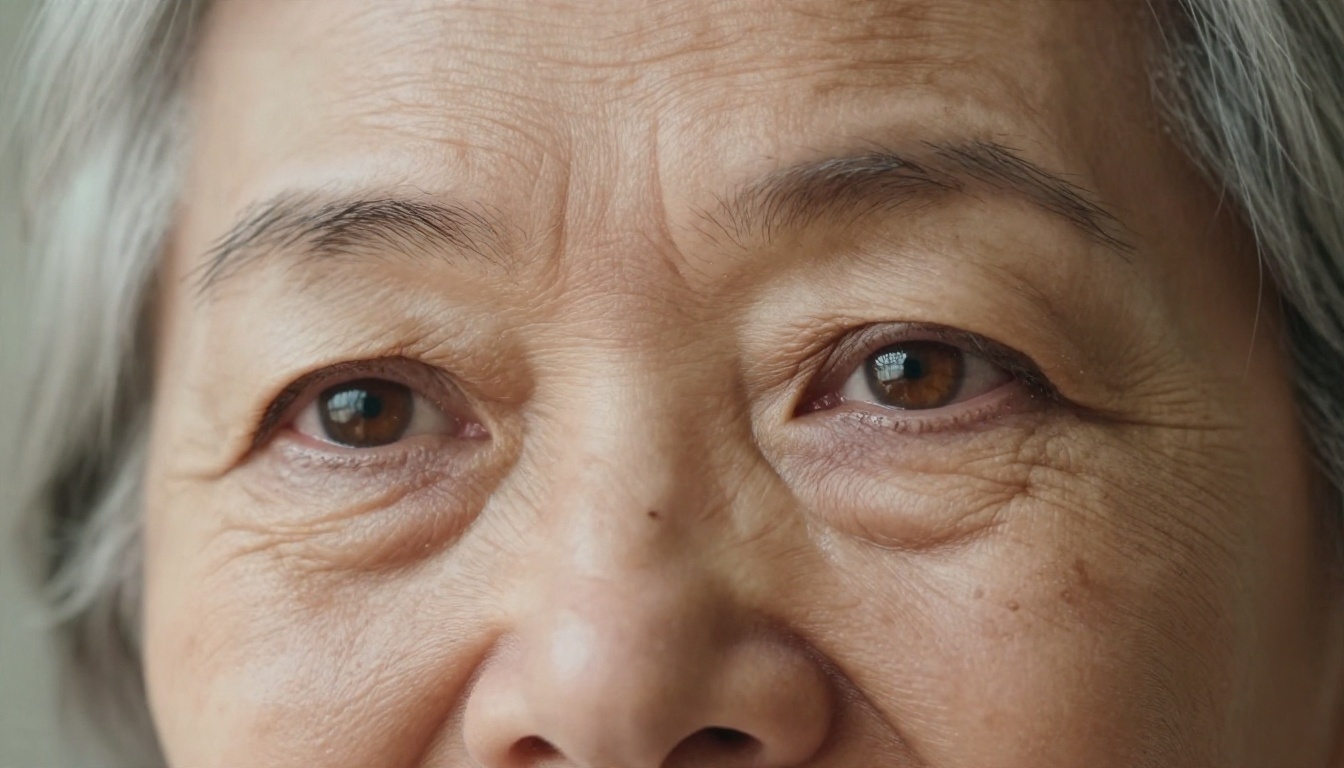
Fix: swap them for "natural skin texture, visible pores, fine lines, no retouching." The eyes in the close up above are a good target: wrinkles that follow the muscles around the eye, not a uniform smooth surface.
The Age Feels Off
Cause: the model blends cues from different decades. Gray hair with the skin of a 30 year old is a common one.
Fix: match your cues to the age target. If you ask for 60, include hair, skin, neck, and eyebrows together. A mismatched cue list gives a mismatched face.
The Background Changed
Cause: you did not say to keep it.
Fix: add "keep the original background, clothing and lighting" to the end of the prompt. Say it every time.
Quick Troubleshooting Checklist
- Eyes shifted color? Name the eye color in the keep list.
- Hair too dramatic? Specify "slightly thinning" instead of "bald."
- Face too thin or too heavy? Mention "same face shape."
- Baby results look like an older child? Add "baby proportions, round cheeks."
Try Your Own Age Progression Today
Pick one family photo, paste the formula from this article, and run it. Change the age target, compare the results, and keep the one that still looks like the person you know. In ten minutes you can build a small timeline from baby photo to grandparent portrait.
PicassoIA gives you the editing and generation models above in one place, so you can test prompts on several of them and see which one holds a face best. Start with Nano Banana, try Seedream 4.5 for extra skin realism, and browse every option at picassoia.com/en/all-models. Your first prompt does not have to be perfect. Change one variable at a time, keep notes, and the results get better quickly.


