You have a selfie on your phone. In it you are wearing a hoodie, standing in a kitchen, squinting slightly. Now picture the same face under a hooded emerald cloak, in a misty forest, with golden light catching the edge of your hair. That jump used to need a costume budget, a location scout and a photographer. An AI fantasy art generator from photo does it in about a minute, and several good options cost nothing to try.
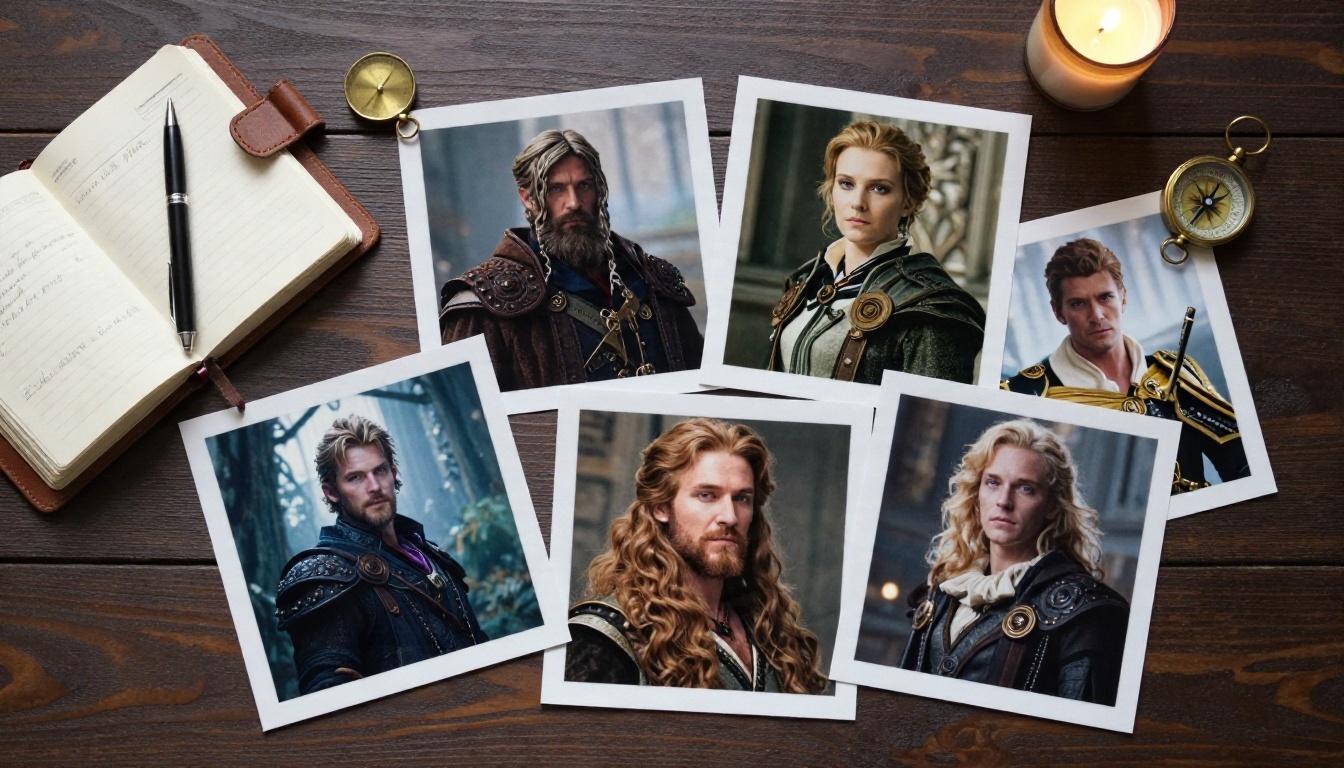
This article shows how the process works, which free tools are worth your time, eight fantasy styles that give reliable results, and prompts you can paste straight into an editor. Every image you see below was generated with AI and aims for a photographic look, as if shot on location during a film production, rather than a painted or cartoon look.
What Photo-to-Fantasy AI Actually Does
A photo-to-fantasy generator takes your picture as a reference and rebuilds the scene around you. The face, the pose and often the hairstyle stay. The clothing, background, lighting and mood change according to your text prompt.
Under the hood, most tools use an image editing model. You give it two things: a source image and a written instruction. The model keeps the identity cues from the photo and rewrites everything else.
💡 Quick distinction: text-to-image tools invent a person from scratch. Photo-to-fantasy tools start from your face. That is why the second group needs a clear, well-lit source picture.
Image editing vs. style filters
Many mobile apps still apply a filter. A filter paints a texture over your photo and leaves the composition untouched. An editing model is different: it can move you from a bedroom to a castle courtyard, change the clothes, add pointed ears, and keep your face recognizable.
| Approach | What changes | Face accuracy | Best for |
|---|
| Style filter | Surface texture only | Very high (nothing moves) | Quick profile pictures |
| Image editing model | Clothes, scene, light | High with a good source photo | Realistic fantasy portraits |
| Text-to-image only | Everything | Low (no reference) | Invented characters |
| Editing model plus LoRA | Everything, in a trained style | High | Repeated characters or series |
Free Options Worth Trying
Free is a moving target, so check the current limits on each page before you plan a project. These are the editors I would start with on PicassoIA, because each accepts a reference photo and each handles fantasy prompts well.
Nano Banana for fast edits
Nano Banana is built for editing and generating images from a written instruction. It follows plain-language requests well, such as "put this person in a green hooded cloak in a foggy forest." If you want higher resolution, Nano Banana Pro is listed for 4K output, and Nano Banana 2 Lite targets speed.
Flux Kontext Fast for identity
Flux Kontext Fast is designed for instruction-based photo edits. It tends to preserve the shape of a face while rewriting clothes and background, which is exactly what a fantasy conversion needs.
Seedream 4.5 for fine detail
Seedream 4.5 produces 4K images and handles small material details well: stitched leather, fur trim, chainmail rings, silk. When you want the costume to look hand-made, this is a strong pick. Its newer sibling, Seedream 5 Pro, targets sharp 2K output.
Qwen Image Edit Plus for multi-step changes
Qwen Image Edit Plus is useful when you want to change one thing at a time: swap the outfit first, then the background, then the weather. A second option, Qwen Image Edit 2511, follows the same editing idea.
| Tool | Strongest point | Pick it when |
|---|
| Nano Banana | Simple, natural-language edits | You want a result in one try |
| Flux Kontext Fast | Face preservation, speed | The likeness matters most |
| Seedream 4.5 | Material and texture detail | You want a print-quality portrait |
| Qwen Image Edit Plus | Step-by-step editing | You are refining a single scene |
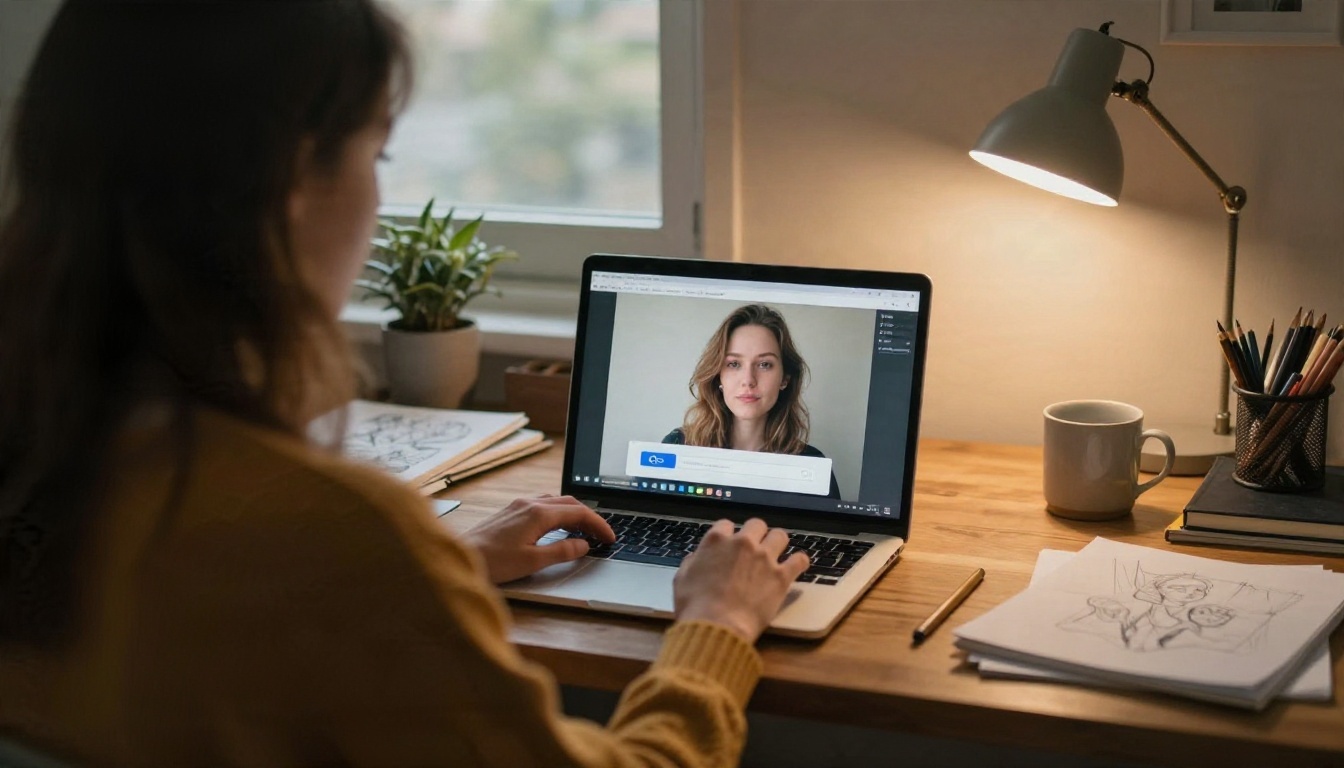
How to Prepare Your Source Photo
The photo you upload sets the ceiling for the result. A weak source gives a weak fantasy portrait, no matter how clever the prompt is.
What a good source looks like
- Face fully visible, no sunglasses, no hand across the mouth.
- Even light, ideally near a window, with no harsh shadows across the eyes.
- Sharp focus on the eyes. Motion blur makes the model guess.
- Neutral or gentle expression. Extreme grimaces can warp strangely when the model restyles the face.
- Shoulders and upper chest in frame. This gives the model room to dress you.
What to avoid
Heavy beauty filters, tiny faces in group shots, and very low-resolution screenshots all reduce likeness. If your only picture is small or blurry, run it through a super resolution tool first. PicassoIA has an upscaling category for that.
💡 Pro tip: if you want a full-body fantasy shot but only have a headshot, ask for a "three-quarter length portrait." Models invent a body far more convincingly when you request a closer crop than when you request a wide, full-length scene.
Eight Fantasy Styles That Work
Not every fantasy theme converts well. The eight below consistently give believable results because they pair a clear costume with a clear environment.
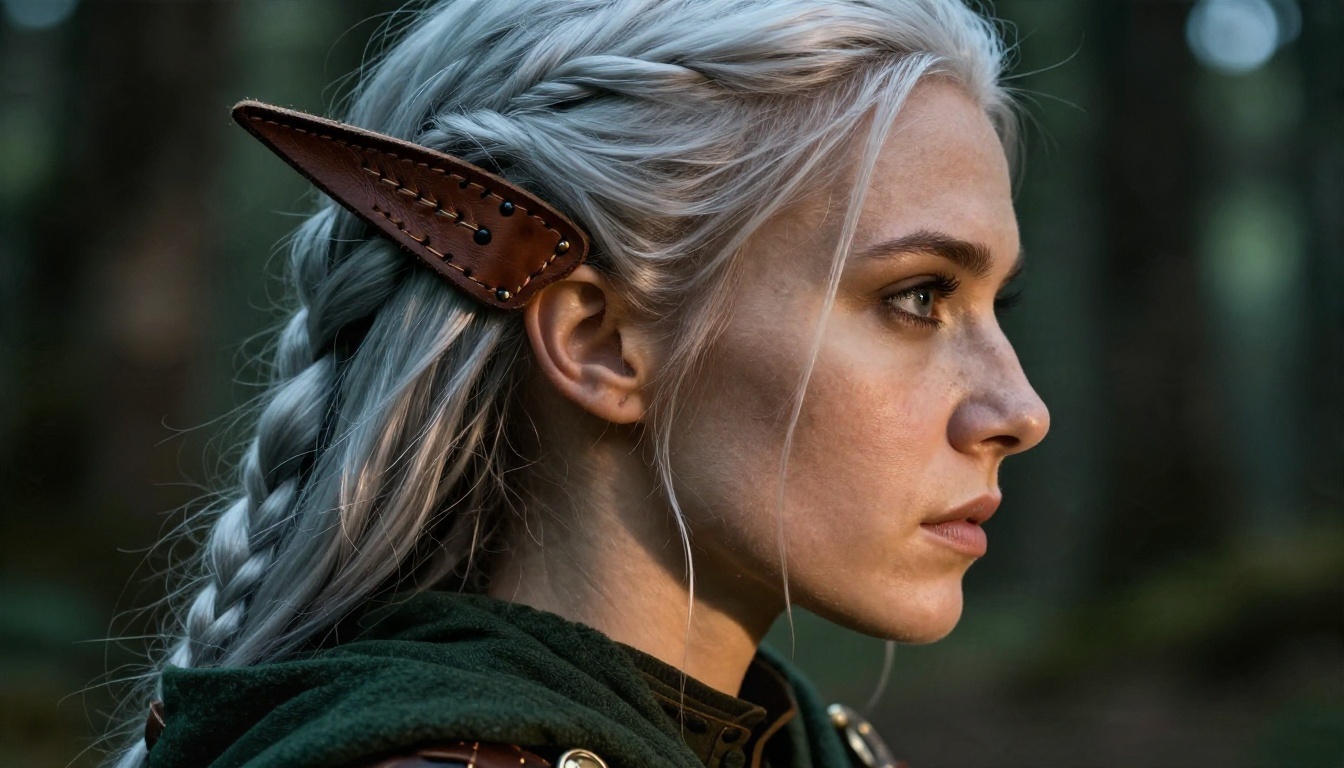
1. The woodland elf
Pointed ears, braided hair, a leather bracer and a dark green cloak. The forest background supplies natural soft light, which flatters most faces.
2. The weathered knight
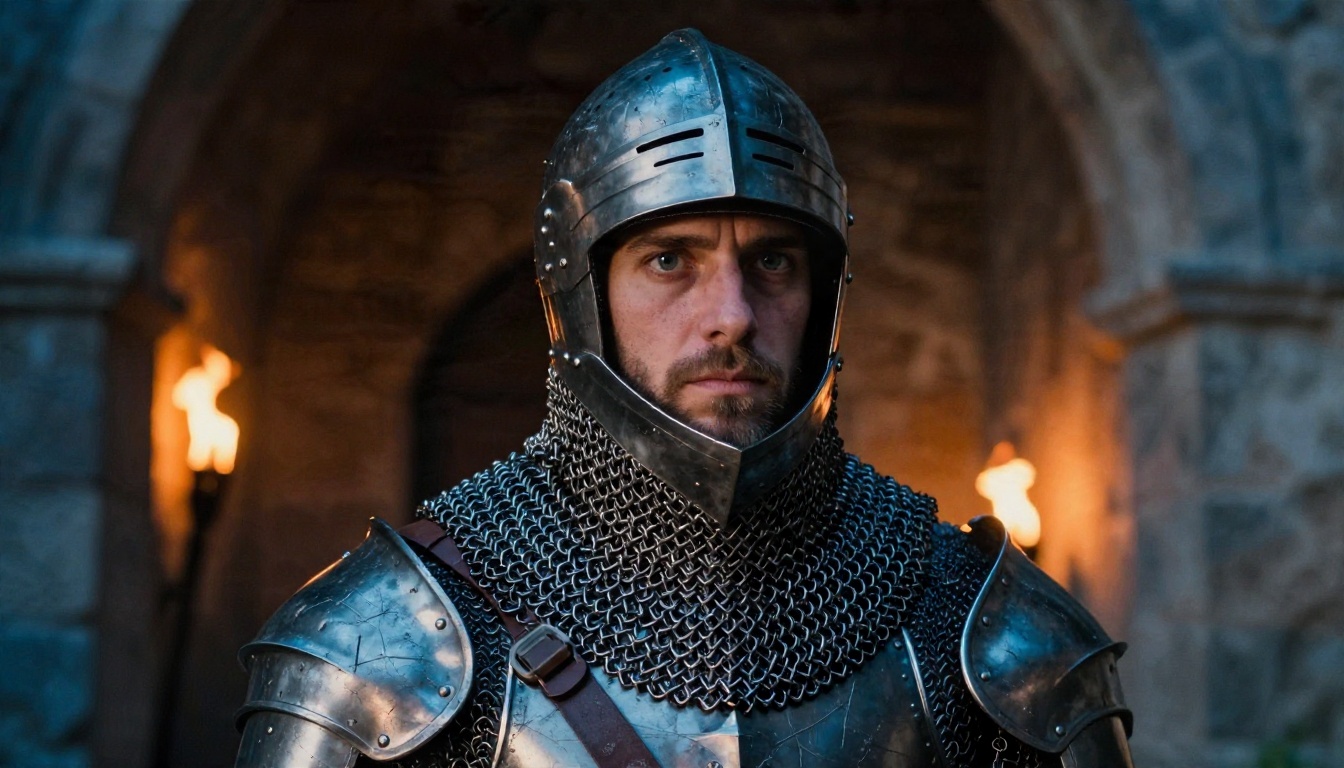
Steel, chainmail, torchlight. This style rewards a source photo with defined facial structure and some stubble or character in the face. Ask for scratches and dents on the metal, because perfect armor looks fake.
3. The cliff-top sorceress
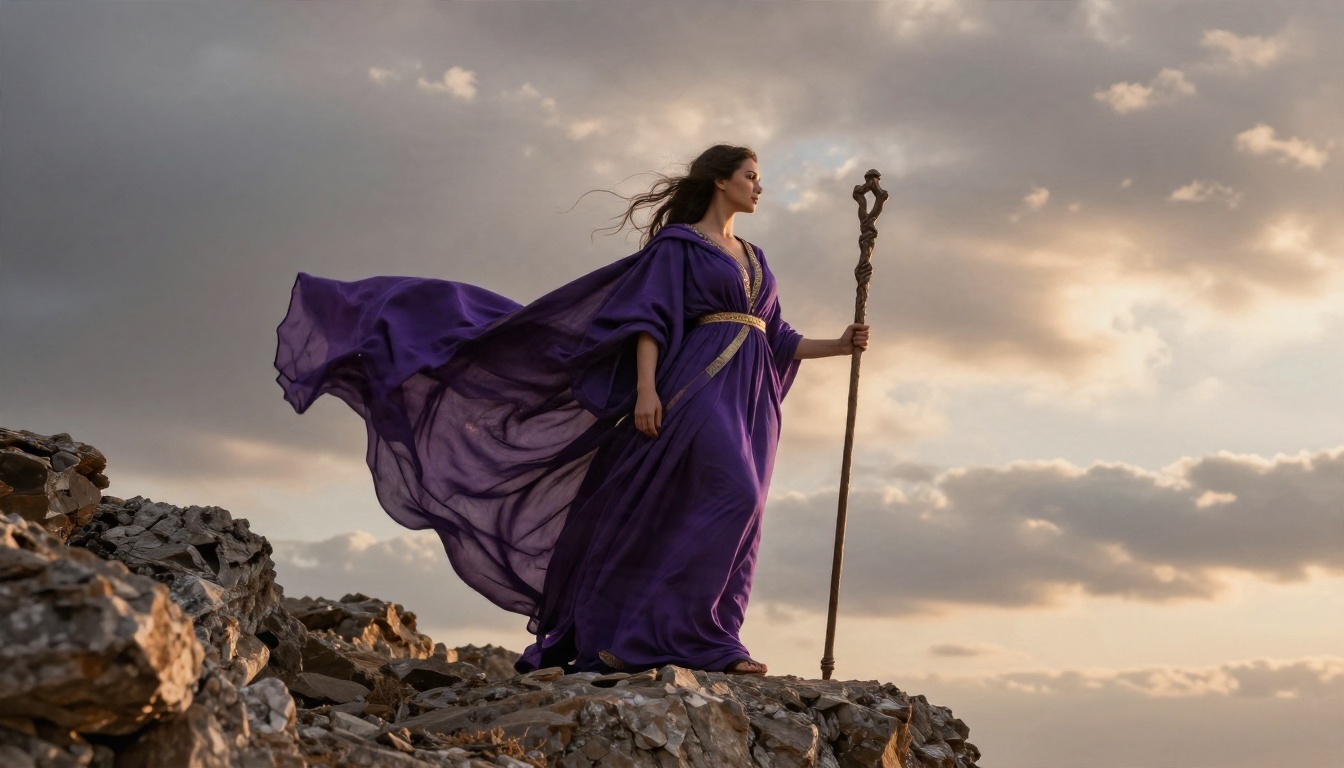
Flowing robes, wind, a dramatic dusk sky. Low camera angles make the figure look larger and more commanding. The wind also hides small errors in fabric edges.
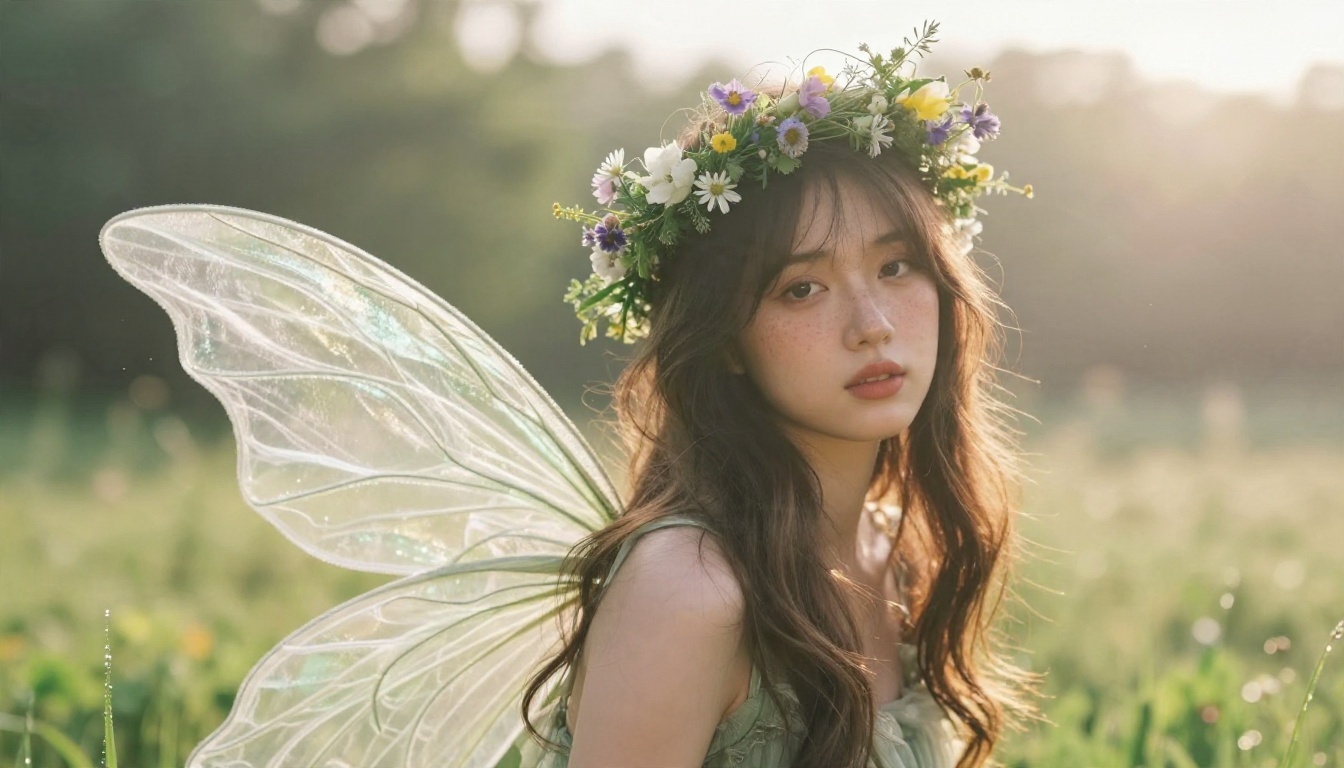
4. The meadow fairy
Soft pastel light, tulle wings, a crown of real flowers. Go for backlight and a shallow depth of field. It is the gentlest of the eight and works well for portraits and greeting cards.
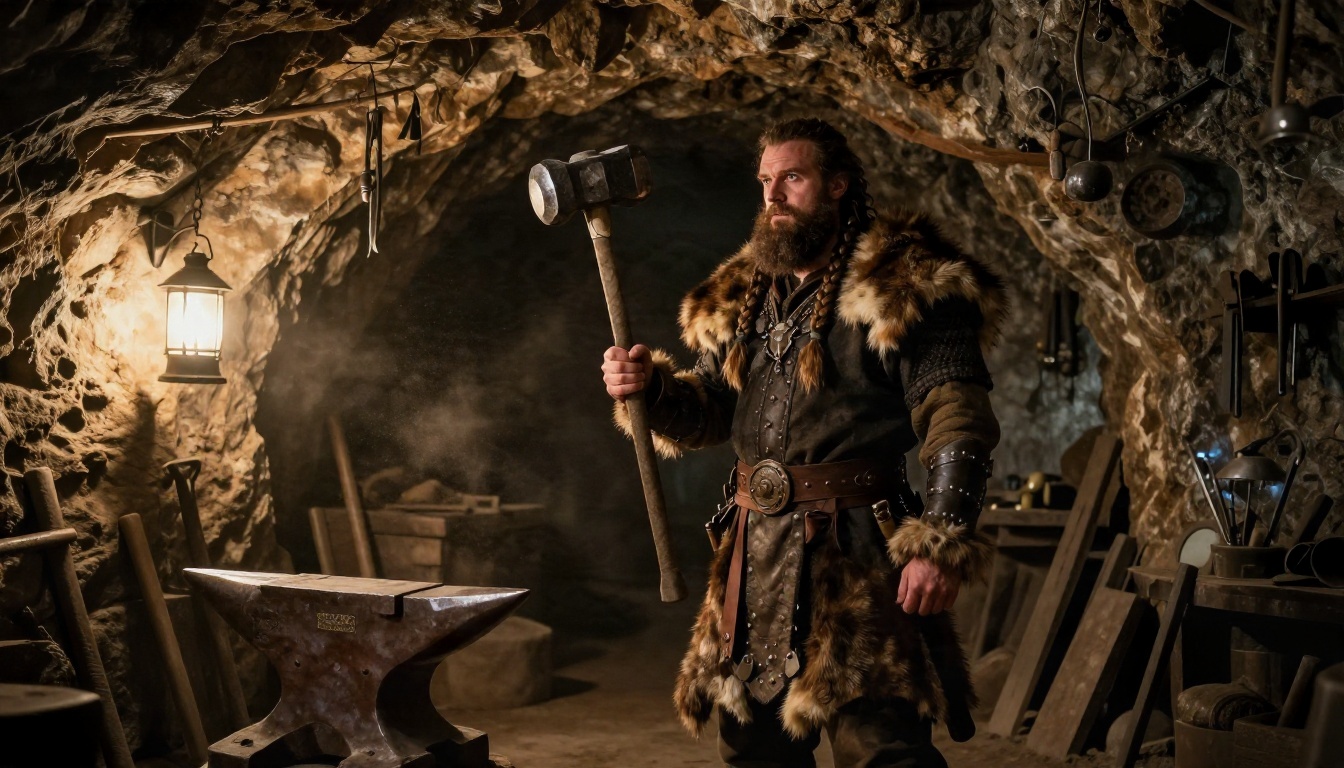
5. The dwarf smith
Braided beard, fur trim, anvil, lantern light. A bearded source photo gives the model less to invent. Everyone else can request a "braided false beard" in the prompt.
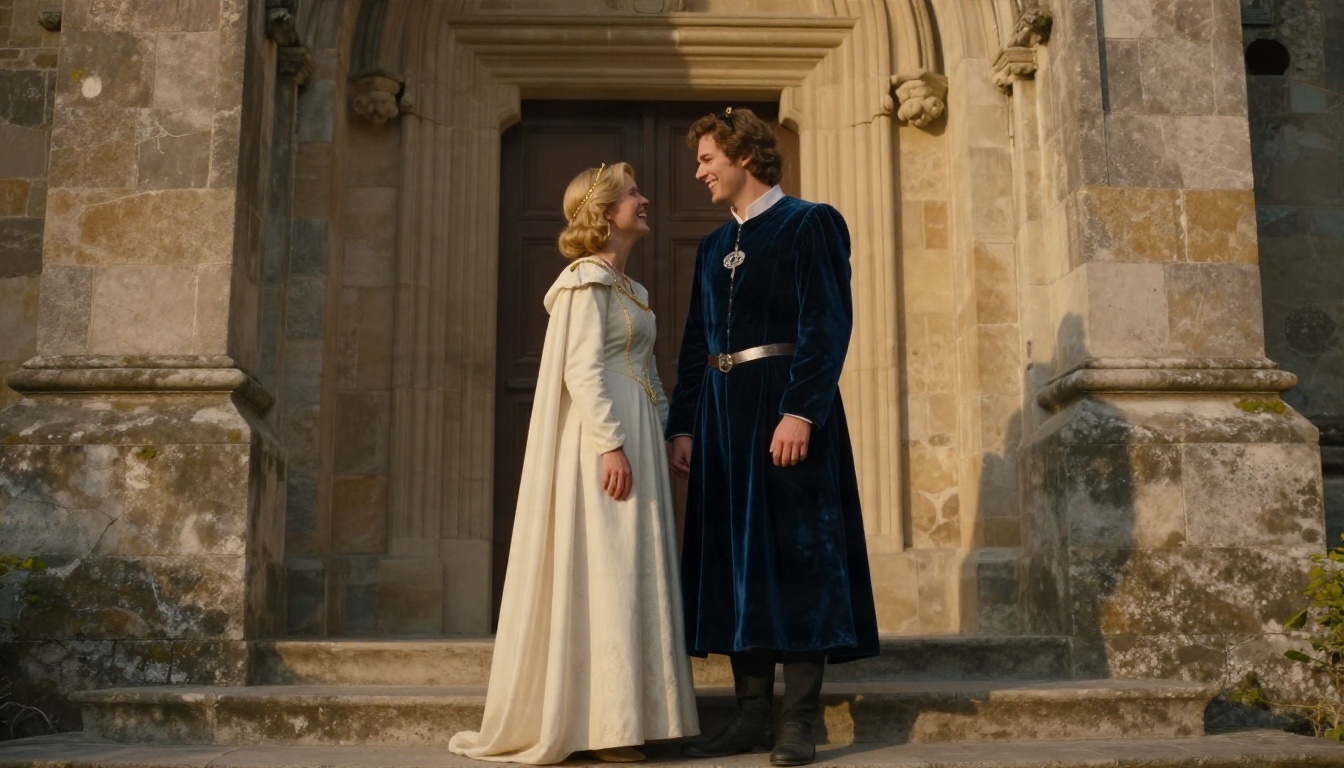
6. The royal pair
Two people in matching period costume, laughing on chapel steps. This is the most popular style for couples, and it holds up as a wedding or anniversary gift. Use a source photo where both faces are clearly visible and at a similar scale.
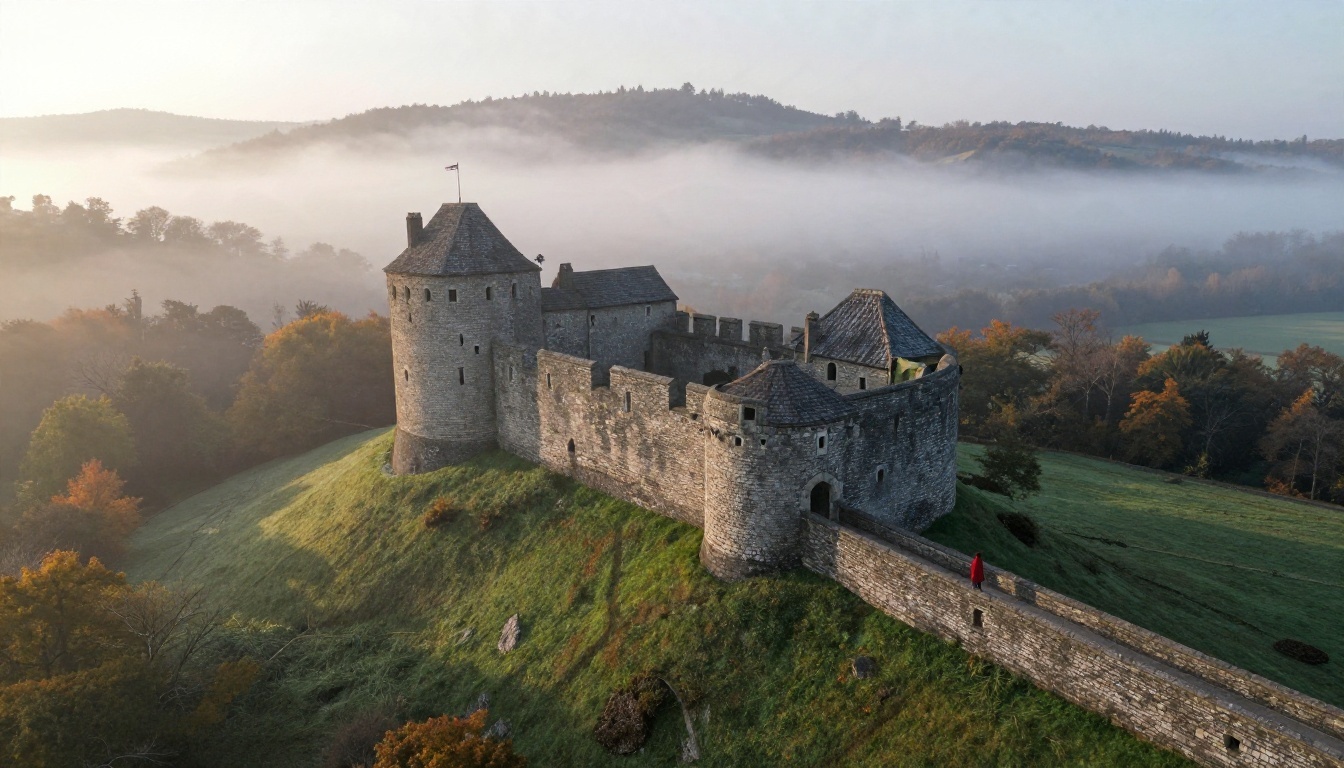
7. The traveler at the castle
A small figure in a red cloak crossing a stone bridge below a hilltop castle. It is the easiest style for beginners, since the face is tiny and the setting carries the picture.
8. The ranger in the mist
Hooded cloak, tall trees, cool light. It is a quieter cousin of the elf, with no ears or props. If you want a realistic, understated result, this one rarely fails.
Prompts You Can Paste Today
A good fantasy prompt has five parts: subject, costume, setting, light, camera. Skip any one and the model fills the gap with something generic.
The formula
[Keep this person's face] + [costume with materials] + [location with weather] + [light direction and time of day] + [lens and film look]
Five ready prompts
- Elf: "Keep this person's face and hairstyle. Dress them as a woodland elf in a deep green velvet cloak with silver leaf embroidery and subtle pointed ears. Misty ancient forest, golden hour light from the upper left, 85mm lens, shallow depth of field, Kodak Portra 400 film grain, photorealistic."
- Knight: "Keep this person's face. Battle-worn knight with scratched steel pauldron and chainmail coif, stone corridor lit by torches, warm orange light from the left and cool shadows on the right, 85mm f/1.4, natural skin texture, photorealistic."
- Sorceress: "Keep this person's face. Long purple wool robe with gold trim blowing in the wind, standing on a rocky cliff at dusk, low camera angle, warm sunset behind, 24mm lens, photorealistic."
- Fairy: "Keep this person's face. Layered tulle wings, a crown of real wildflowers, sunlit meadow at dawn, soft backlight, dew on grass, 70mm lens, pastel Portra tones, photorealistic."
- Ranger: "Keep this person's face. Dark hooded cloak, leather bracer, standing under tall pine trees in fog, cool overcast light, 50mm lens, quiet cinematic mood, photorealistic."
Words that improve realism
| Instead of | Write | Why it helps |
|---|
| "fantasy art" | "photograph of a person in a handmade fantasy costume" | Pushes the model toward real fabric and skin |
| "beautiful lighting" | "golden hour light from the upper left" | Gives a direction the model can follow |
| "cool armor" | "scratched steel with leather straps" | Specific materials look more believable |
| "magical forest" | "misty beech forest with moss and ferns" | Real plants read as real |
| "high quality" | "85mm f/1.8, Kodak Portra 400 grain" | Describes a camera instead of a vague quality |
💡 Watch out for glow. Words like "magical aura" and "glowing eyes" tend to produce an obviously artificial look. If you want a photographic result, describe light sources that exist in the scene: a torch, a lantern, the sun.
How to Use Nano Banana on PicassoIA
This walkthrough uses Nano Banana, but the same flow applies to Flux Kontext Fast and Qwen Image Edit Plus.
Step by step
- Open the model page. Go to the Nano Banana page on PicassoIA.
- Upload your source photo. Pick a sharp, evenly lit picture with your face fully visible.
- Paste a prompt. Start with one of the five prompts above. Replace the costume and setting with your own idea.
- Generate. The first result usually lands within moments.
- Compare with your original. Check the eyes, nose and jawline. If the likeness drifted, add "keep the exact same face, same eye shape and same jawline" to the prompt.
- Refine one element at a time. Change only the cloak color, or only the weather, in each new run. Changing five things at once makes it impossible to see what caused a problem.
- Upscale if needed. For prints, send the best result through a super resolution model.
Parameter habits that save time
- Keep the aspect ratio the same as your intended use: 16:9 for banners, 4:5 for social posts, 2:3 for posters.
- Run three to four variations of the same prompt and pick the best. Image models vary from run to run.
- Save the prompt of every result you like. A small notebook or text file pays off quickly.
Fixing Common Problems
Most failed results come from a handful of causes.
The face looks like someone else
The model had too little to hold on to. Use a closer, sharper source photo and add an explicit instruction to keep the face. Reduce the number of simultaneous changes.
The costume looks like plastic
You wrote a vague costume. Name materials: velvet, wool, linen, hammered iron, brass buckles, leather cord. Ask for "visible stitching" and "worn edges."
The skin looks too smooth
Add "natural skin texture, visible pores, fine freckles" and lower any words that suggest beauty retouching. Avoid "flawless."
The background fights the subject
Pick one setting and one time of day. A cave at sunrise with a beach in the distance confuses the model. Fog and shallow depth of field help the subject stand out.
Hands and props look odd
Hands holding staffs and swords are still the hardest part. Keep props simple, request a single object, or let the hands rest on a belt or cloak.
Go Beyond a Single Image
Once you have a portrait you like, there are plenty of ways to extend it.
- Outpainting expands the canvas, turning a tight portrait into a wide banner with more forest or castle around you.
- Inpainting fixes small flaws, such as a strange buckle or a stray hair, without redoing the whole picture.
- Background removal lets you cut yourself out and place the figure into other scenes.
- Super resolution raises the pixel count for printing.
- Image to video models can bring a still portrait to life, if you want motion later.
For a character series, such as a family as a fantasy party, keep the same lighting and film look in every prompt. Consistency in light matters more than consistency in costume when you place the images side by side.
Privacy and Respect
Only upload photos of people who agreed to it. A friend's face, a partner's face or your own is fine. A stranger's photo is not. If you plan to share fantasy portraits of other people, tell them first. Also remember that photographic AI portraits can be mistaken for real photographs, so label them as AI images when you post them somewhere public.
Make Your Own Fantasy Portrait
The gap between "selfie in a kitchen" and "ranger in the mist" is now one photo and one well-written prompt. Pick a style from the eight above, copy the matching prompt, and run it through Nano Banana, Flux Kontext Fast or Seedream 4.5 on PicassoIA. Try the same photo with three different costumes. Change only the light in the next run. Save the best prompts.
Your first result will not be your best. By the fifth or sixth variation you will know exactly what your face looks like under torchlight, and what a cloak looks like when the wind catches it. Open PicassoIA, upload a photo, and start building your own fantasy character today.


