You have a living room you are tired of, a landlord who will not let you repaint, and a budget that does not stretch to a designer. A few years ago that meant squinting at Pinterest boards and guessing. Today you can photograph the room, type "swap the sofa for a cream bouclé one and warm up the walls," and see a believable result in seconds. That is what an AI image editor for interior design does: it takes your real photo, keeps the architecture, and changes only what you ask for.
This article shows how that works in practice. You will see which models handle room edits best, a step-by-step tutorial, prompts you can paste right now, a room-by-room idea list, and an honest look at free options and their limits.

What an AI Interior Editor Does
Traditional design software asks you to model a room in 3D, place furniture, and render it. An AI editor skips all of that. You give it a photograph and an instruction, and it repaints the pixels in a way that respects perspective, light and shadow.
There are two broad families of tools, and mixing them up is the most common reason people feel disappointed.
Editing vs. generating from scratch
Generators build a new room from a text prompt. The result looks great but it is not your room. The window is in the wrong place, the ceiling is too high, and the floor plan is invented.
Editors start from your photo. Walls, windows, doors and camera angle stay put. Only the sofa, paint, flooring or lighting changes. For real renovation planning, staging a listing or testing a paint color, this is the family you want.
Why it works for real rooms
Modern editing models read the photo as a scene. They detect surfaces (wall, floor, ceiling), objects (sofa, lamp, rug) and light direction. When you say "replace the rug," the model knows where the rug ends and the floor begins, and it matches the new rug to the existing shadows.
💡 Quick rule: If you want to keep your layout, use an editing model. If you want inspiration for a room that does not exist yet, use a text-to-image model.
Who gets the most value
| User | Typical goal | Best approach |
|---|
| Renter | Test furniture and paint without commitment | Photo edit with short prompts |
| Homeowner | Preview a renovation before hiring | Photo edit plus depth control |
| Real estate agent | Stage empty rooms for listings | Add furniture to an empty photo |
| Designer | Show clients three directions fast | Same photo, three style prompts |
| Content creator | Produce room makeover visuals | Generate and edit in one workflow |

Best Models for Restyling Rooms
PicassoIA hosts several editing and generation models that suit interiors. Each has a different personality, so it helps to know which one to reach for.
Image Editor Pro for fast iterations
PicassoIA Image Editor Pro is built for the "try ten versions" workflow. It offers unlimited generations, which matters because interior editing is rarely right on the first attempt. You will often run the same photo through six or seven prompt variations before you land on the sofa shape you like.
Nano Banana for precise object swaps
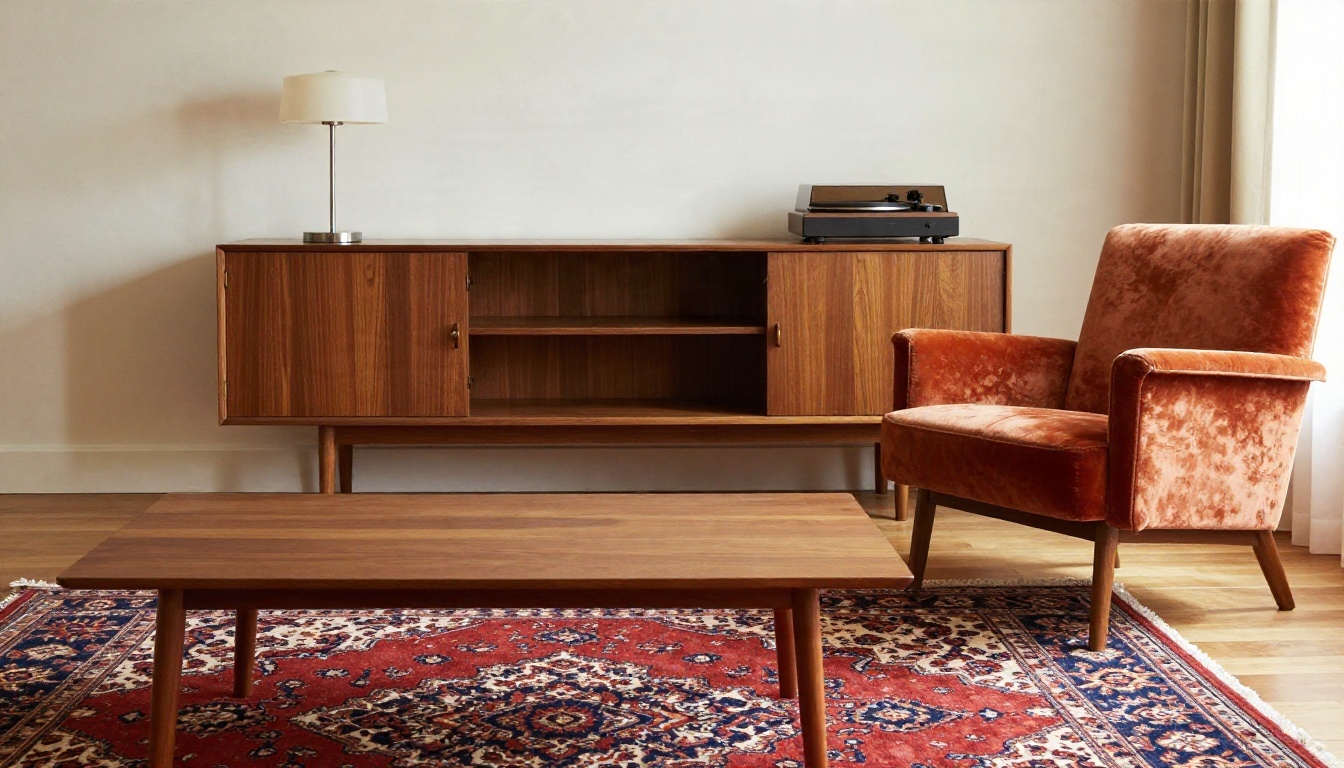
Nano Banana is strong at following plain-language edits such as "change the armchair to rust-orange velvet, keep everything else." It tends to leave untouched areas alone, which is exactly what you need when you are changing a single piece of furniture.
Flux Kontext Fast for quick restyles
Flux Kontext Fast is a context-aware editor that responds well to short instructions. It is a good choice for whole-room mood changes like "make this room feel warmer and more rustic."
Qwen and P Image for variety
Qwen Image Edit Plus and Qwen Image Edit 2511 handle multi-object edits and text-heavy instructions well. P Image Edit is built for speed, which is useful when you are testing many ideas in a row.
Depth and sketch control for structure
When you need the geometry of the room locked down, Flux Depth Pro uses the depth map of your photo to keep walls, ceilings and furniture placement in the same positions. If you start from a hand-drawn floor sketch rather than a photo, ControlNet Scribble turns rough lines into a realistic interior.
Generating new inspiration images
To build a mood board before editing, Seedream 4.5 produces sharp, photorealistic interiors from text, and Nano Banana Pro pushes resolution higher when you need larger visuals.
How to Use Image Editor Pro
Here is the exact workflow for restyling a room photo with PicassoIA Image Editor Pro. The same steps apply to the other editing models, only the prompt wording changes slightly.
Step 1: Take a clean source photo
Quality in equals quality out. Stand in a corner so you can capture two walls and the floor, hold the phone at chest height, and keep it level so vertical lines stay straight. Turn on every light and open the curtains. Flat, even light gives the model more information than a dim, moody shot.
💡 Tip: Clear obvious clutter first. Cables, laundry and bags confuse the model and often reappear in the result as strange objects.
Step 2: Upload and write one instruction
Open the model page, upload your photo, and write a single clear change. Good: "Replace the grey sofa with a low cream bouclé sofa. Keep the walls, floor and window unchanged." Weak: "Make it nicer and more modern and cozy and bright."
Step 3: Name what must stay the same
This is the line most people skip. Add "keep the layout, window position and camera angle unchanged." It acts as a guardrail and sharply reduces surprise changes.
Step 4: Generate, compare, refine
Run the prompt, look at the result, then change one variable at a time. If the sofa is right but the rug is wrong, only rewrite the rug instruction. Because generations are unlimited, you can afford to iterate patiently.
Step 5: Save your favorite and upscale if needed
When one version works, save it. If you plan to print it or share it with a contractor, run it through a super-resolution model for extra sharpness.
Prompts That Actually Work
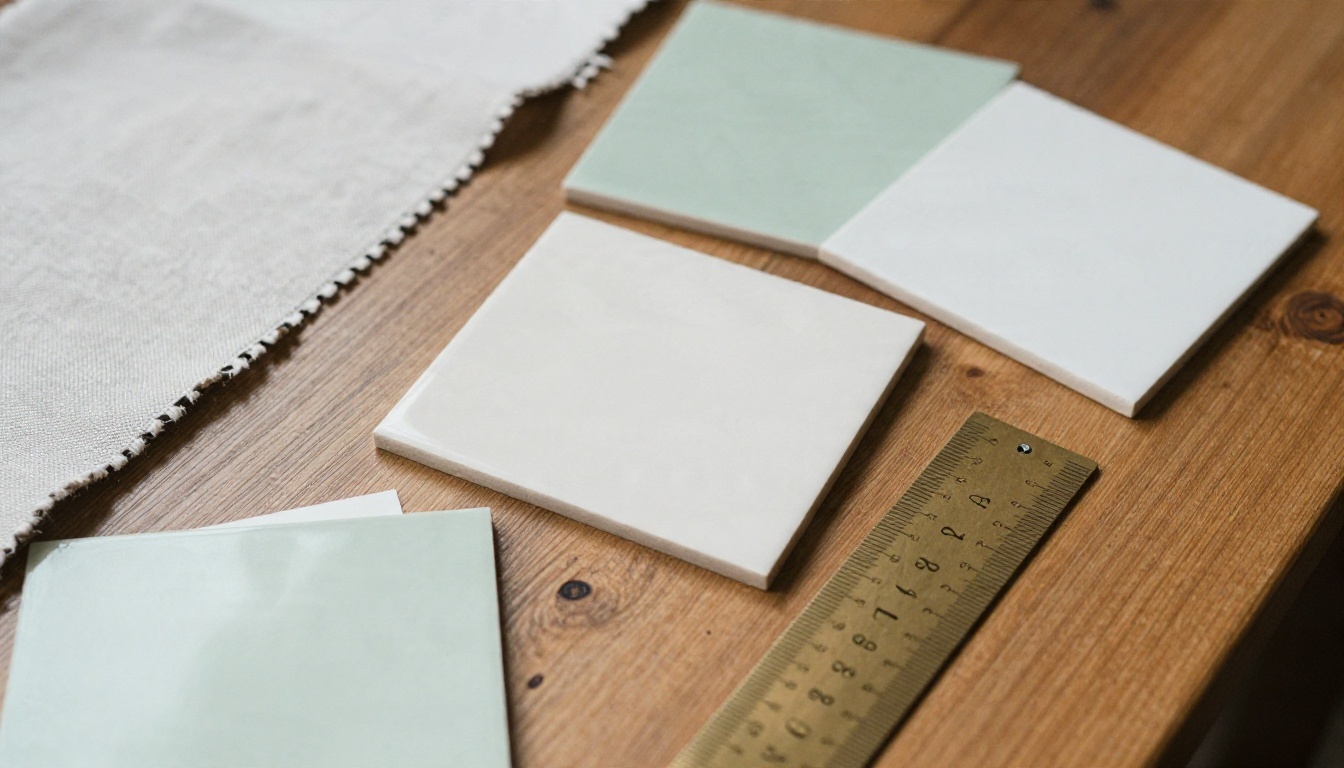
A good interior prompt has four parts: what to change, the material or style, the light, and what to keep. Copy these and adjust the details to your room.
The universal template
"In this photo, replace [object] with [new object, material, color]. Keep the walls, floor, windows and camera angle exactly the same. Soft natural daylight, realistic shadows, photorealistic."
That single structure handles about 80 percent of requests. The rest of this section is variations.
Whole-room style prompts
- Japandi: "Restyle this room in Japandi style: pale oak, low linen sofa, paper lamp, muted sand and sage palette. Keep the layout and window unchanged."
- Mid-century: "Restyle in mid-century modern style with walnut furniture, a rust velvet armchair and a vintage rug. Warm lamp light, same room layout."
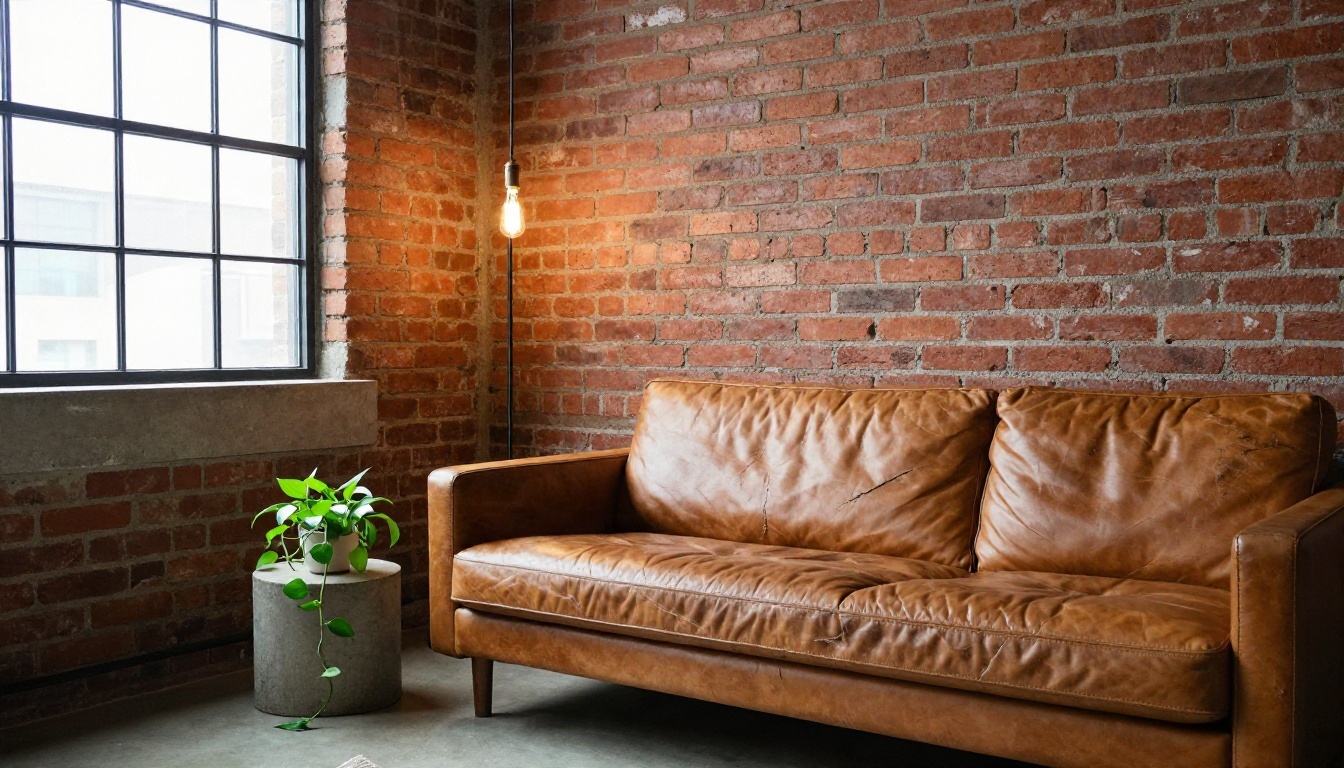
- Industrial loft: "Give the room an industrial loft look with an exposed brick accent wall, black steel window frame and a worn leather sofa. Keep the floor plan."
- Coastal: "Restyle as a relaxed coastal room: whitewashed wood, light blue accents, woven baskets, bright airy daylight."
Single-change prompts
- "Repaint the walls in warm white with a slight cream tint. Keep all furniture."
- "Change the floor to wide-plank natural oak. Keep rugs and furniture."
- "Add a large linen pendant lamp above the dining table. Keep everything else."
- "Remove the TV stand and place a low walnut sideboard in the same spot."
Staging prompts for empty rooms
For listings, try: "Furnish this empty living room with a neutral three-seat sofa, a round coffee table, a wool rug and one floor lamp. Realistic scale, soft daylight." Staying minimal is more convincing than filling every corner.
💡 Pro habit: Keep a text file of prompts that worked. A reusable "keep the layout" sentence saves time and keeps results consistent.
Room by Room Prompt Ideas
Different rooms respond to different instructions. Here is what tends to work in each.
Kitchen
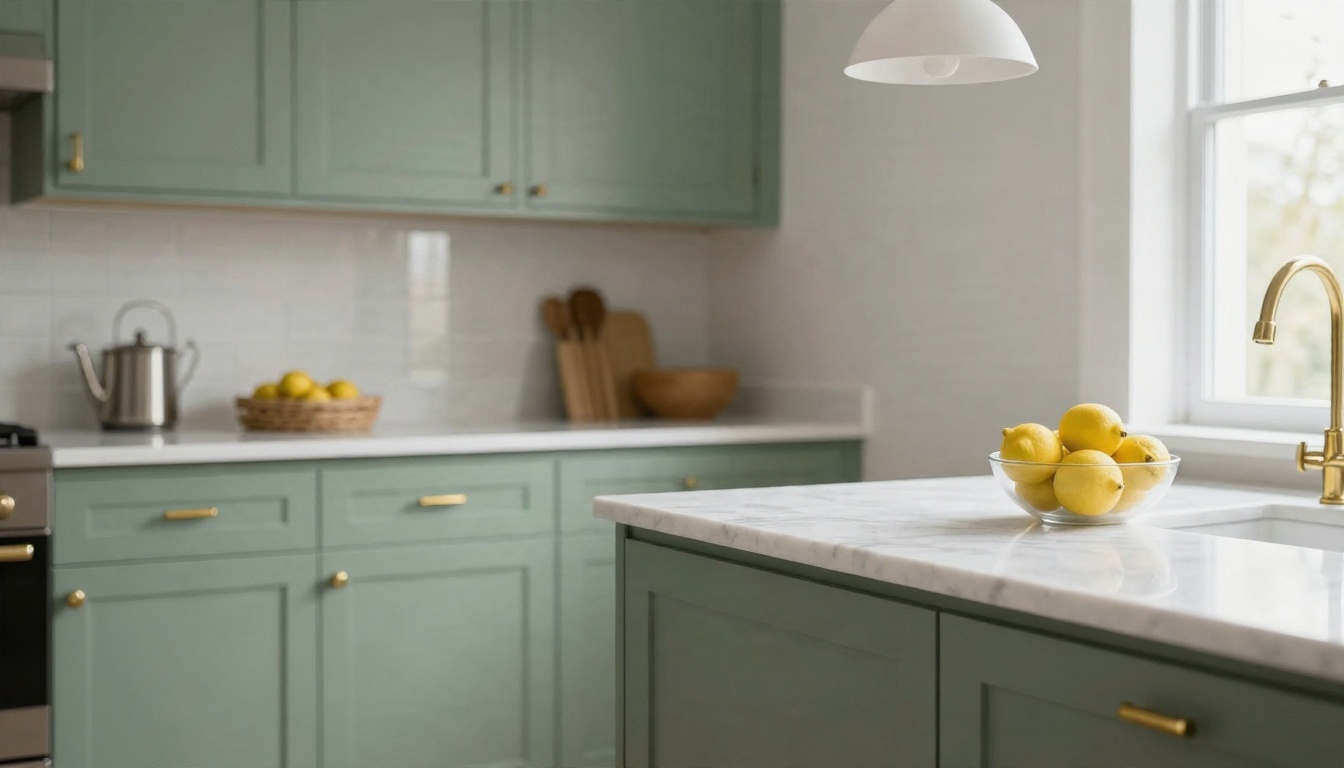
Cabinet color is the highest-impact kitchen edit. Try "repaint the lower cabinets in matte sage green with brass handles, keep the countertop and appliances." Add "marble island" only if the island already exists, otherwise the model may invent a footprint your kitchen does not have.
Bedroom
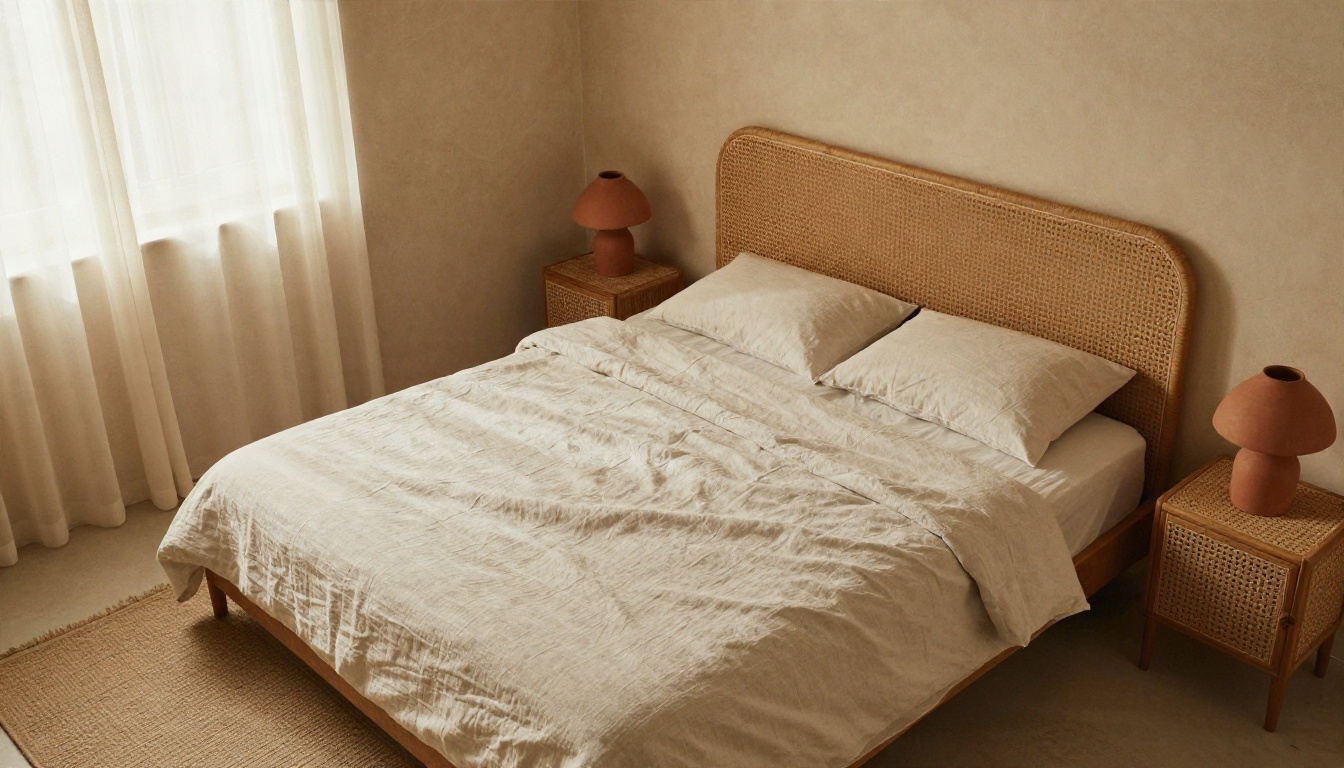
Bedrooms are about softness. Ask for linen bedding, a rattan headboard, terracotta lamps and warm plaster walls. Mentioning the texture (crumpled linen, woven rattan) pushes the model toward a lived-in look rather than a showroom sheen.
Bathroom
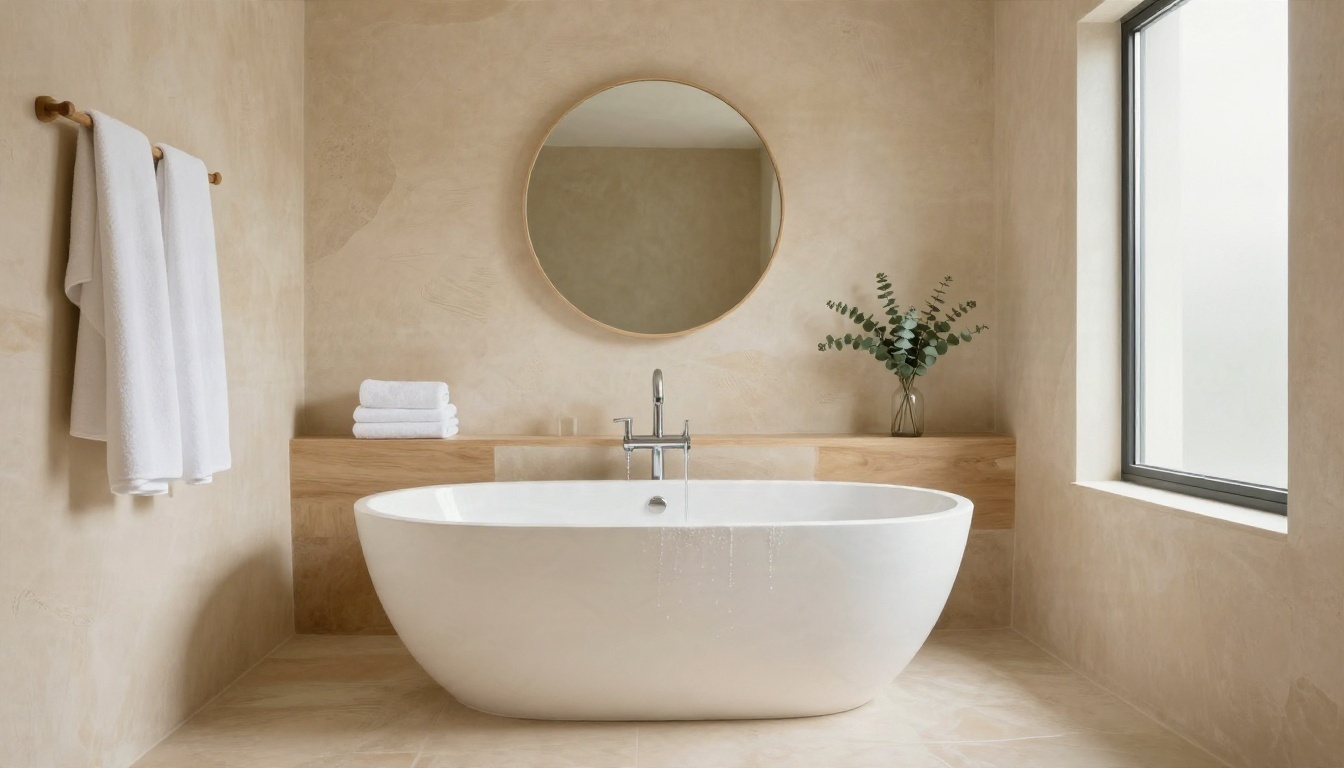
Bathrooms are tricky because of reflections and tile. Keep edits specific: "replace the wall tiles with warm beige plaster finish, add a freestanding white stone tub, keep the window and layout." Avoid asking for plumbing changes that would not fit the real space.
Dining room
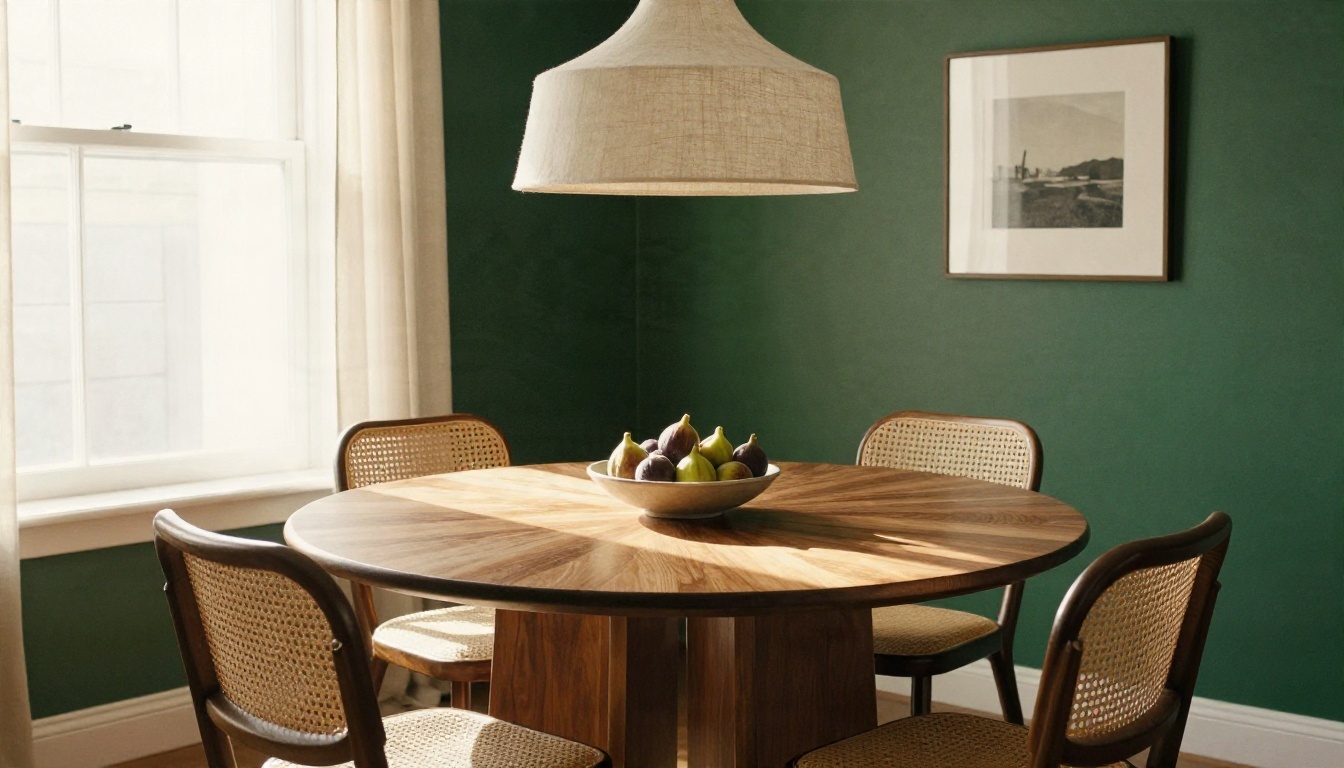
An accent wall is the fastest way to test bold color. "Paint the wall behind the table deep forest green, matte finish, keep the table, chairs and window." Compare it to a softer green and a warm terracotta in separate runs.
Home office
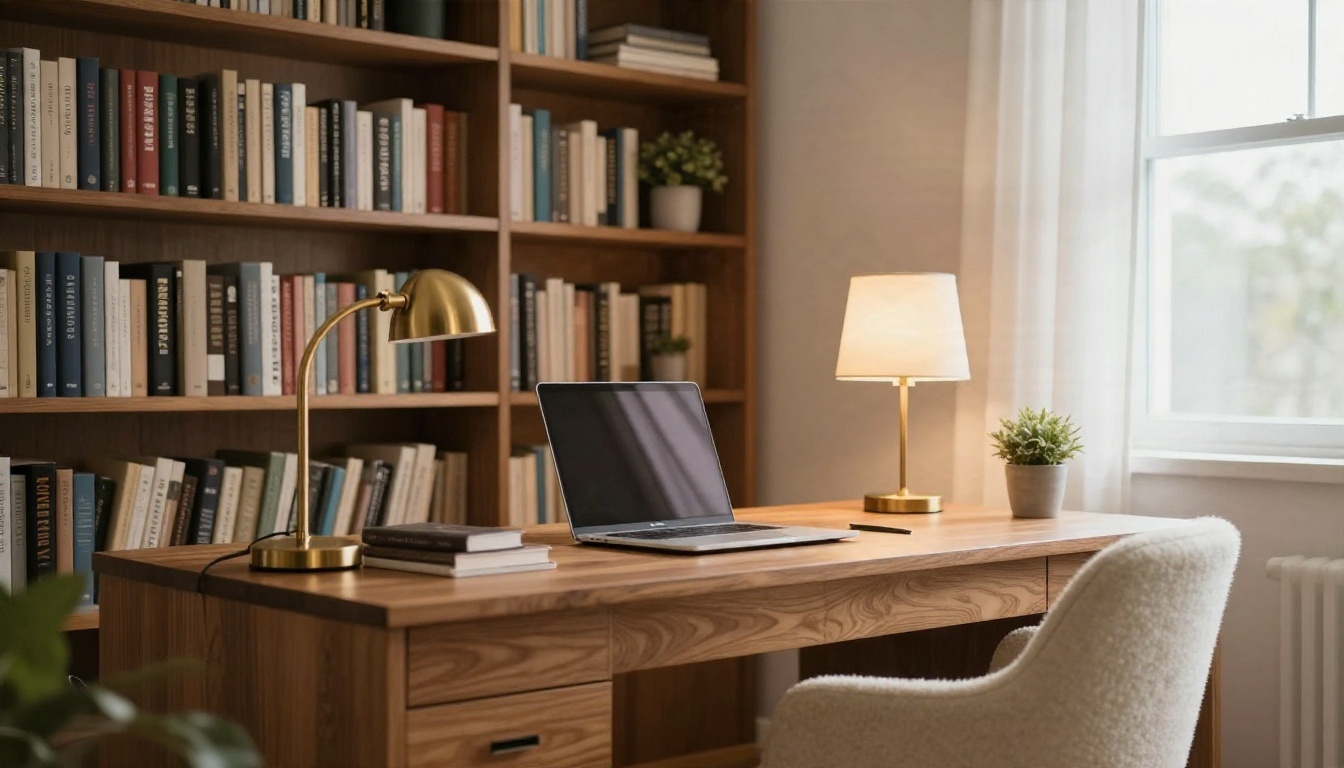
For a workspace, ask for built-in shelving, a warm desk lamp and natural wood. "Add floor-to-ceiling oak bookshelves along the left wall with books and small plants, keep the desk and chair."
Free Options and Their Limits
Free is possible, but it always comes with a trade-off. It helps to know what you are actually getting before you spend an evening on a tool.
What free usually means
Most room-redesign apps give a small number of free generations, often with a watermark, lower resolution, or a daily cap. Names that come up often in 2026 roundups include RoomsGPT, GenRoom, Interior AI and RoomFlip. Their free tiers differ and change frequently, and some reviews of the same tool contradict each other on the exact quota, so check the current terms on each site before you rely on them.
Many of these apps are also built around redesigning a whole room in a preset style. That is fine for inspiration, but it gives you less control than a general photo editor where you type your own instructions.
Where PicassoIA fits
A general editing model gives you freedom: any room, any instruction, any style. PicassoIA Image Editor Pro is the one to try first because of its unlimited generations, so you are not counting credits while you test paint colors. For faster variations, P Image Edit responds quickly, and P Image Edit LoRA adds style control.
Free tools comparison
| Factor | Preset room apps | General AI editor |
|---|
| Ease of use | Very easy, pick a style | Needs a written prompt |
| Control over details | Low to medium | High |
| Single-object edits | Often limited or paid | Core feature |
| Free generations | Capped, varies by app | Depends on model, some unlimited |
| Watermarks | Common on free plans | Check each model |
| Best for | Quick inspiration | Planning real changes |
💡 Smart approach: Use a preset app for a quick mood check, then take your favorite direction into a general editor to refine the exact furniture, color and light.
Mistakes That Ruin Results
Most failed edits come from the same handful of problems. Fix these and your success rate climbs fast.
Asking for too much at once
"Change the sofa, rug, walls, floor, curtains, lamp and art" is a recipe for a messy result. Break it into steps. Edit the biggest element first, save that version, then use it as the new source for the next edit.
Forgetting scale and proportion
AI can place a sofa that is far too big for the room. Add phrases like "realistic scale for a small apartment" or "three-seat sofa, standard size." If a piece looks oversized, say so in the next prompt.
Ignoring the light direction
If your window is on the left, a prompt that mentions "sunlight from the right" will create conflicting shadows. Describe the light that is actually in your photo, or leave light out and let the model read it.
Trusting the render as a purchase spec
Treat the result as a visual direction, not a shopping list. Textures, exact tones and proportions are approximations. Before buying furniture or ordering paint, check real samples in your own light. Order a swatch, tape it to the wall, and look at it at breakfast and at night.
Using a poor source image
Blurry, dark or tilted photos produce blurry, warped output. Retake the photo rather than trying to fix it with prompts.
Start Restyling Your Own Room
You do not need a design degree or a big budget to test a new look. Take a photo of the room you see every day, pick one change, and write one clear sentence. Try sage cabinets in the kitchen, an oak slat wall behind the sofa, or a deep green dining wall, and compare three versions side by side before you touch a paintbrush.
Open PicassoIA Image Editor Pro and run your first edit today. If you want a faster pass, Nano Banana and Flux Kontext Fast are worth testing on the same photo so you can see how each one reads your instructions. When you want inspiration for a style you have never tried, generate a few ideas with Seedream 4.5, then bring the best one back into the editor.
You can browse every model available at picassoia.com/en/all-models. Pick a room, write your prompt, and see what your space could look like by tonight.


