You typed a perfectly normal prompt, a woman on a beach at golden hour in a swimsuit, and the tool answered with a grey box and a warning. Sound familiar? That moment is exactly why people search for an AI image generator with no filter and no restrictions. They are not looking for chaos. They want a tool that treats an adult like an adult, follows the prompt, and hands back a clean photorealistic result without three rounds of rewording.
This article sorts the marketing from the reality. You will see what "no filter" really means, how online tools compare with local setups, what free plans hide in the fine print, which settings change your output the most, and which alternatives on PicassoIA are worth your time.

What "No Filter" Really Means
Let's be blunt: no tool on earth has zero rules. Every browser-based generator sits behind some combination of account terms, hosting policies, payment processor requirements and legal obligations. When a site says "no restrictions," it usually means "fewer prompt blocks than the big names." That is a useful difference, but it is a difference of degree, not of kind.
💡 Reality check: Search results for this topic are packed with listicles from the tools themselves. Treat any claim of "100% unrestricted" as advertising, and judge a tool by what it actually produces with your own test prompts.
Filters Come in Layers
A typical generator can filter at four different points:
- Prompt filter: scans your text for flagged words before anything is generated.
- Model training: the model itself was trained to avoid or blur certain content.
- Output filter: a classifier checks the finished image and hides it if it scores as risky.
- Account rules: moderation, bans and usage terms applied after the fact.
Most frustration comes from the first and third layers. A harmless prompt with a word like "bikini," "lingerie" or "boudoir" can trip a crude keyword list even though the image would be tasteful. Tools described as "no filter" generally relax those two layers.
Why Platforms Add Them
Platforms are not being difficult for fun. Hosting providers, app stores and card networks all push their own rules downhill. A small service that wants to stay online has to pick a line somewhere. Knowing that helps you set expectations: you are shopping for a line that sits where a reasonable adult creator needs it, not for the absence of one.
Online vs Local: Pick Your Route
There are two honest ways to get fewer restrictions. One is a hosted service in your browser. The other is running an open model on your own computer.
Browser Tools
Online generators win on convenience. You open a tab, type, and get a picture. There is no driver installation, no graphics card requirement and no waiting for a 10 GB download. The trade-off is that someone else's policies apply, and free tiers come with queues, watermarks or daily limits.
Running Models at Home
Local setups using open-source models such as Stable Diffusion or Flux give the most control. You choose the checkpoint, the sampler, the resolution and any LoRA add-on. Nothing is scanned because nothing leaves your machine. The cost is time and hardware: you need a capable GPU, patience for updates, and comfort with node-based workflows.
| Factor | Online generator | Local install |
|---|
| Setup time | Under a minute | Hours to days |
| Hardware needed | Any device with a browser | Strong GPU, lots of storage |
| Prompt blocking | Depends on the service | None by default |
| Cost | Free tier or credits | Hardware and electricity |
| Speed | Seconds per image | Depends on your GPU |
| Best for | Quick, repeatable results | Deep customisation |
💡 Rule of thumb: If you generate a handful of images a week, a good online tool saves you more time than a local rig ever will. If you generate hundreds and want total control over every parameter, local starts to pay off.
Free Options and Their Catch
Free is the most searched word next to "no filter," and for good reason. Nobody wants to pay before they know whether the output is any good. But free always has a price somewhere.
What Free Tiers Usually Look Like
Expect one of these patterns:
- Daily credits that refill every 24 hours.
- Lower resolution on free outputs, with full size behind a paywall.
- Slow queues during busy hours.
- Watermarks stamped across the corner.
- Sign-up walls after the first few images.
Some tools skip the account entirely, which is nice, but those tend to run older or smaller models, so faces and hands show more flaws.
Watermarks and Hidden Limits
Always read what happens to your output. Some services keep generated images public in a gallery by default. Others store prompts. If you are creating anything personal, check the privacy settings before the first click. A small amount of attention here saves a lot of regret later.
Settings That Change Everything
Whether a tool is strict or relaxed, your settings decide most of the quality. Two people with the same model can get wildly different pictures. Here is where to spend your attention.
Prompt Structure
Write prompts like a photographer briefing an assistant. A reliable order is:
- Subject and action: who is in the frame and what they are doing.
- Environment: location, props, background.
- Lighting: direction, time of day, softness.
- Camera: lens length, angle, distance, depth of field.
- Texture and mood: skin detail, fabric, film stock.
Vague prompts like "sexy woman" push a model toward generic stock-photo faces. Specific prompts like "woman in a white swimsuit walking on wet sand, low angle, 85mm lens, golden backlight" push it toward something that looks shot, not synthesised.

Aspect Ratio and Resolution
Match the frame to the purpose. 16:9 suits banners and wide scenes. 3:4 or 2:3 suits portraits. 1:1 suits profile pictures. Resolution matters because small outputs hide skin pores and fabric weave, and those are the details that make a photo feel real. When your tool offers 2K or 4K, use it for final versions and keep drafts small for speed.
Seeds and Reference Images
A seed is a number that locks the starting noise. Reuse it to compare small prompt changes fairly. A reference image goes further: it lets you steer pose, outfit or lighting with a picture instead of words. If a model supports editing, a reference photo of your own lighting setup often beats a paragraph of description.
| Setting | What it controls | Practical tip |
|---|
| Prompt | Content and mood | Name lens, light and texture |
| Negative prompt | What to avoid | Add "extra fingers, plastic skin" |
| Aspect ratio | Framing | Pick before generating, not after |
| Resolution | Detail level | Draft low, finish high |
| Seed | Repeatability | Save seeds of images you like |
| Reference image | Pose and style | Use for consistent characters |
Best Alternatives on PicassoIA
If your goal is photorealistic adult-themed imagery, glamour, swimwear, boudoir or artistic portraits, without constant prompt rejection, these are the models to try, in the order I would try them. For anything suggestive, aim for tasteful, attractive and non-explicit. That is where these tools do their best work.
Seedream 4.5 First
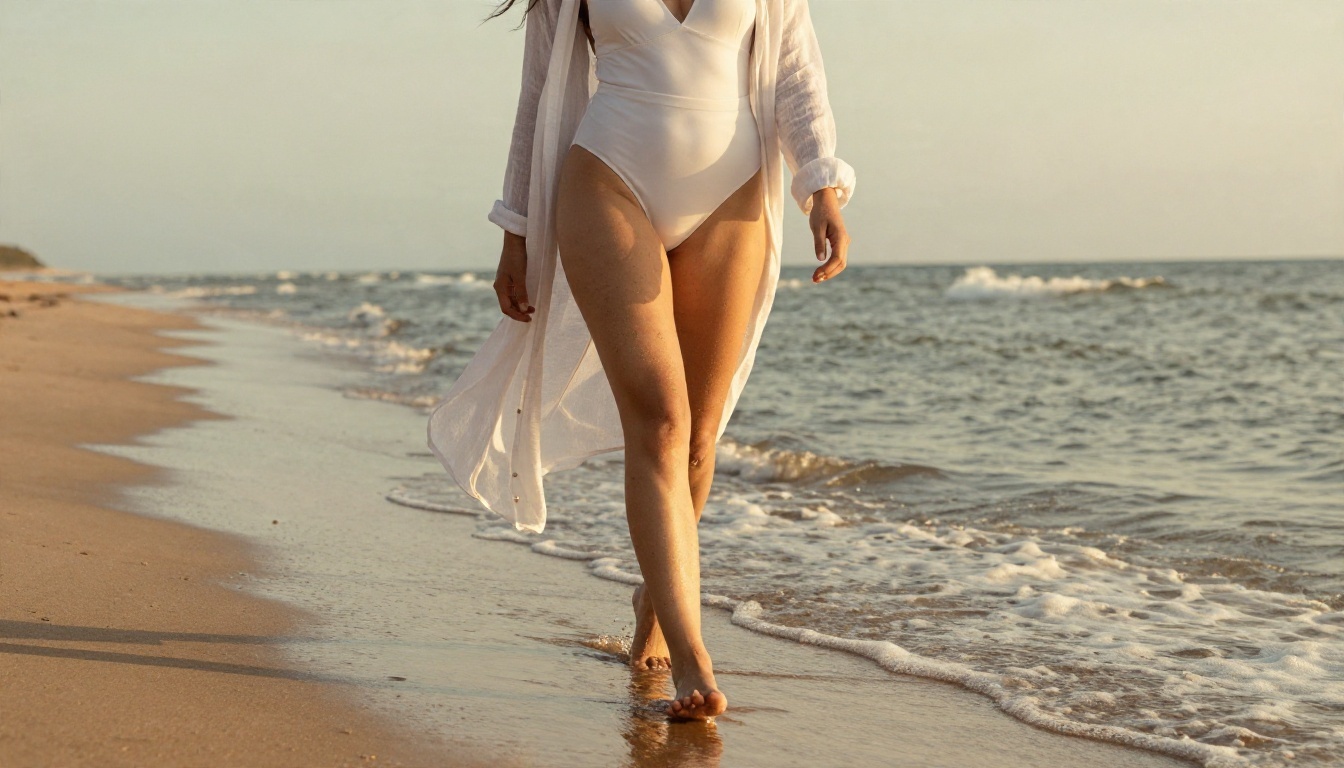
Seedream 4.5 is the first stop. It produces sharp, high-resolution photorealistic images with convincing skin texture, believable fabric and natural lighting. It follows long, detailed prompts well, which matters when you describe lens, angle and light the way the settings section suggested. For glamour and beach scenes, it is my default.
Image Editor Pro for Unlimited Runs
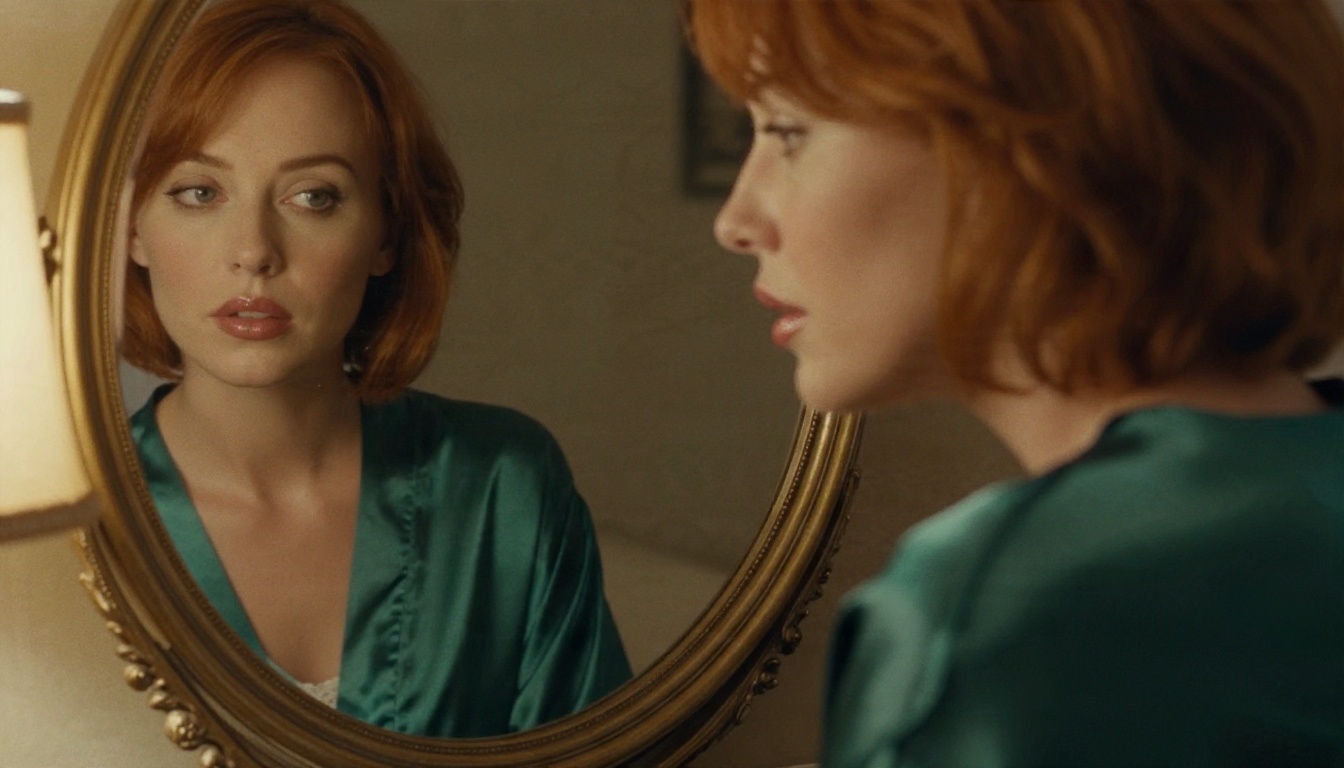
PicassoIA Image Editor Pro is built around unlimited generations, which changes how you work. Instead of rationing credits, you iterate freely: adjust a prompt, change the outfit, shift the lighting, try again. It also edits existing photos, so you can refine a result rather than starting from scratch. For people tired of counting credits, that freedom is the real draw.
Z Image Turbo for Speed
Z Image Turbo is the quick one. Images land in seconds, which makes it ideal for testing five prompt variations before settling on the winner. Use it for drafts, then move the best idea to Seedream 4.5 for the final render.
Flux 2 Klein 9B LoRA for Styling
Flux 2 Klein 9B Base LoRA supports LoRA styling, which means you can nudge the look toward a particular aesthetic such as film portraiture or fashion editorial. It is a good pick when you want a consistent visual identity across a batch of images.
Realistic Vision and Flux Schnell
Realistic Vision v5.1 has a long reputation for lifelike people and still holds up for portraits. Flux Schnell is a fast, lightweight option for quick concept sketches. Neither is the first choice for final glamour work, but both are worth keeping in the rotation.
Seedream 4.5 Setup in 6 Steps
Here is a simple workflow with Seedream 4.5 that puts the settings advice into practice.
- Open the model page and sign in so your results are saved to your account.
- Write the subject first. Example: "A woman in a white two-piece swimsuit walking along wet sand at golden hour."
- Add environment and light. Mention sea foam, low sun, warm backlight from behind.
- Name the camera. Add "low angle, 85mm lens, shallow depth of field, Kodak Portra 400 grain."
- Choose the aspect ratio that fits your use, 16:9 for banners, a tall ratio for portraits, and the highest resolution offered for the final image.
- Generate, compare, adjust one thing at a time. Change only the lighting, then only the outfit, so you can see what each change does.
💡 Quick win: Draft with Z Image Turbo until the composition feels right, then paste the same prompt into Seedream 4.5 for the polished version.
Fixing Common Problems
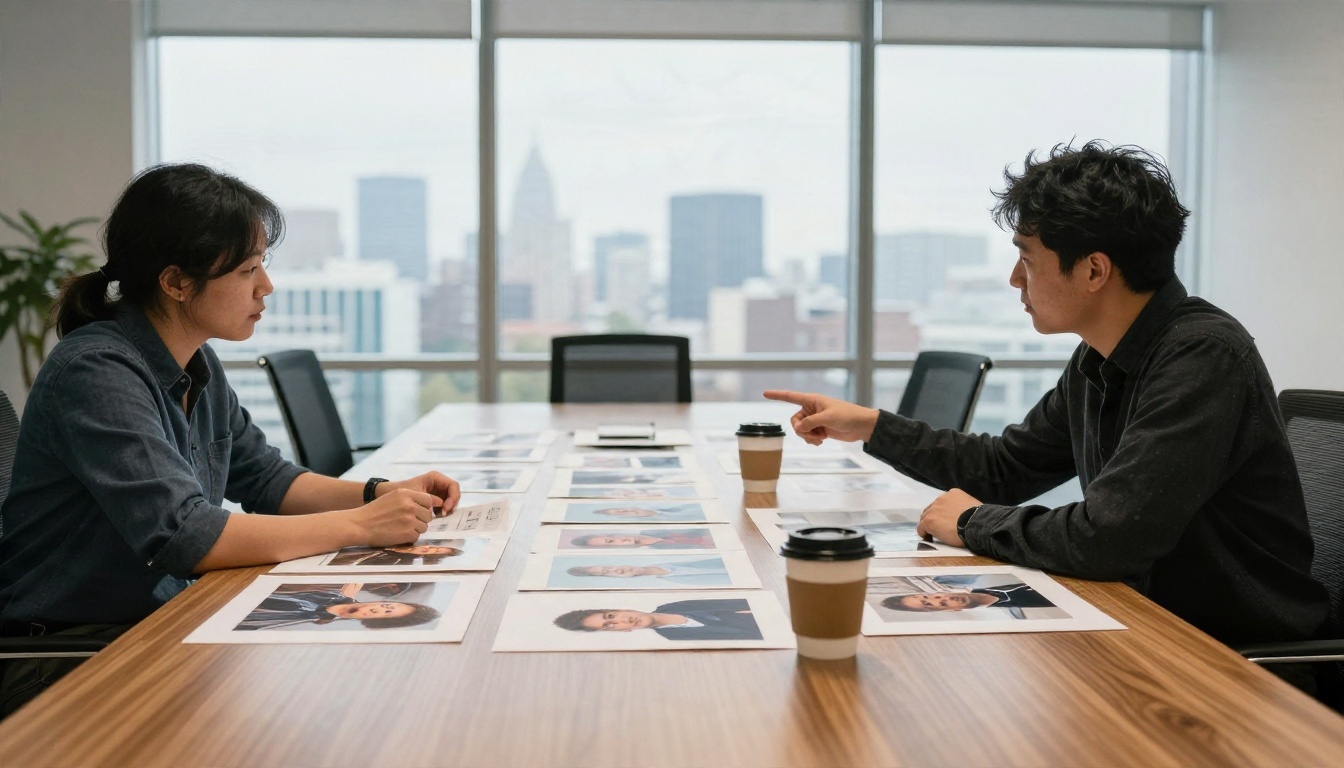
- Plastic skin: add "natural skin texture, visible pores, film grain."
- Flat lighting: specify a direction, such as "soft window light from the left."
- Odd hands: crop the frame so hands are out of view, or use the editor to regenerate that area.
- Generic faces: add age, hair detail and a distinctive expression.
Hard Limits That Stay
"No restrictions" never meant "no law." A few lines stay fixed no matter which tool you use, and you should know them before you start.
- Minors: sexual or suggestive imagery involving anyone under 18 is illegal and off the table everywhere.
- Real people without consent: generating intimate or misleading images of a real person, a classmate, a coworker, a celebrity, can break privacy, defamation and deepfake laws in many countries.
- Explicit content: this article, and the models above, point toward tasteful, attractive imagery. Pornographic output is a different category with different rules.
- Commercial use: check the terms of any tool before you sell or publish images, especially images that resemble a real person.
💡 Safe habit: Build characters from scratch with invented details. You get consistent results, no legal grey zones, and a look that belongs to you.
A Workflow That Actually Works
Here is a routine that saves hours.
Step one, draft fast. Run six to ten quick versions in a speedy model. Judge composition only. Ignore small flaws.
Step two, pick one. Choose the layout and lighting that feel closest to what you imagined.
Step three, render big. Re-run the winner in a high-detail model with the highest resolution available.
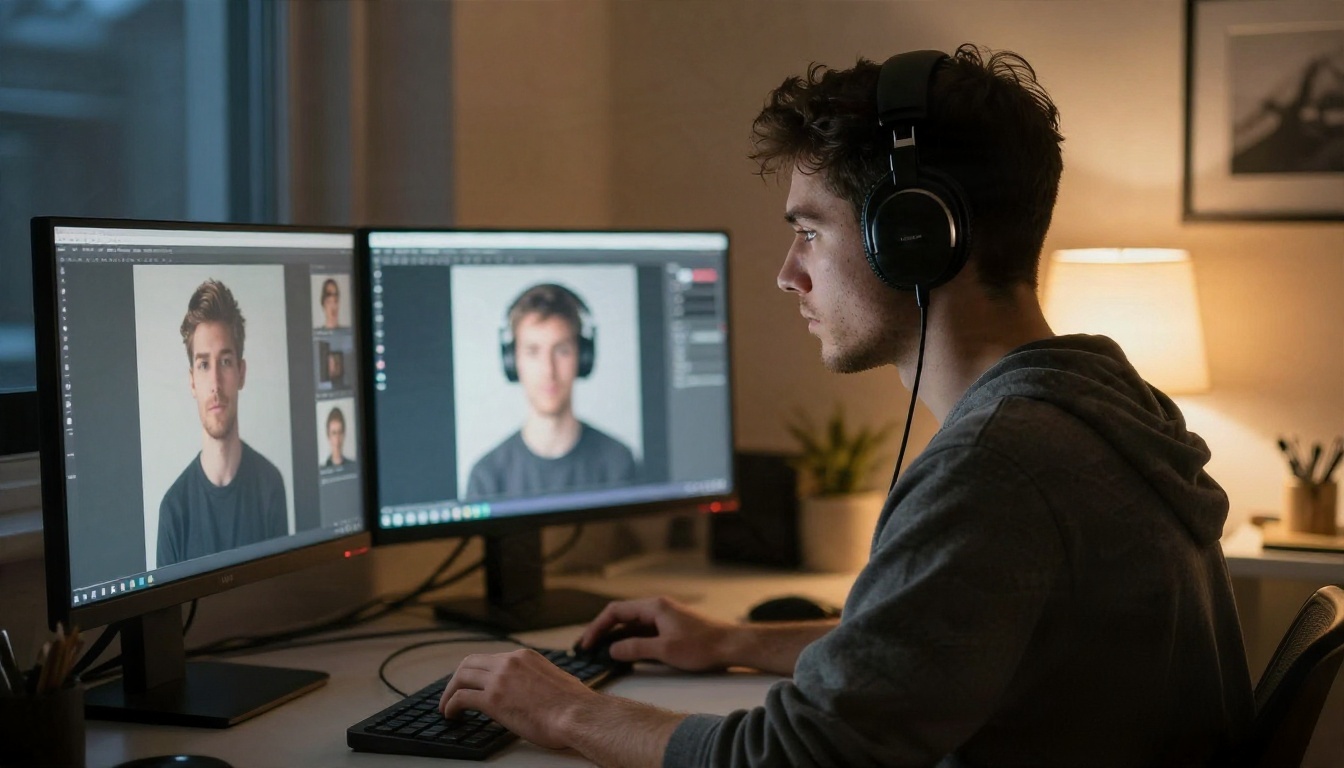
Step four, edit the leftovers. Use an editor to fix small things: a stray shadow, an outfit colour, a background object. Having unlimited generations in Image Editor Pro makes this stage painless because you can retry without cost anxiety.
Step five, save the recipe. Keep the prompt, seed and settings in a note. Next time you want the same mood, you start at 80 percent instead of zero.
Try It Yourself Today
The honest answer to "which generator has no filter?" is that the best one is the one whose line sits where you need it, produces sharp photorealistic results and does not make you pay before you can test it. For adult-themed glamour and portrait work, start with Seedream 4.5, then move to PicassoIA Image Editor Pro when you want unlimited generations and quick edits. Keep Z Image Turbo nearby for fast drafts.
Open a model, paste one of the prompts from this article, and change a single detail. Swap the lens, move the light, try a different location. Five minutes of play will tell you more than any comparison table. When you want to see everything on offer, browse the full lineup at picassoia.com/en/all-models and build your own photorealistic set today.


