Most people type a description, hit generate, and hope for the best. That is not how you get results worth sharing. The real power of any AI image generator sits inside features that never show up in the basic tutorials, buried in settings menus or hidden inside syntax that looks confusing at first glance. This article breaks down the tricks that separate forgettable outputs from images that stop people mid-scroll.
Negative Prompts Are Not Optional

Most users skip negative prompts entirely. That is a mistake. Negative prompts tell the model what to exclude, and used correctly, they cut out the most common AI artifacts before they have a chance to appear.
The Phrases That Actually Work
Generic negative prompts like "bad quality" do almost nothing. The prompts that work are specific. Here is a proven baseline:
💡 Copy this negative prompt: deformed hands, extra fingers, blurry face, oversaturated, flat lighting, cartoon, illustration, painting, low resolution, watermark, text overlay, noise, grain artifacts, overexposed
Different models respond differently. Flux 1.1 Pro handles negative prompts differently from Stable Diffusion 3.5 Large. With Flux-based models, the positive prompt carries most of the weight. With SDXL-derived models like SDXL, the negative prompt has far more influence on the final result. The practical rule: write shorter negative prompts for Flux, longer and more explicit ones for SDXL and Stable Diffusion.
Attention Syntax Changes Everything
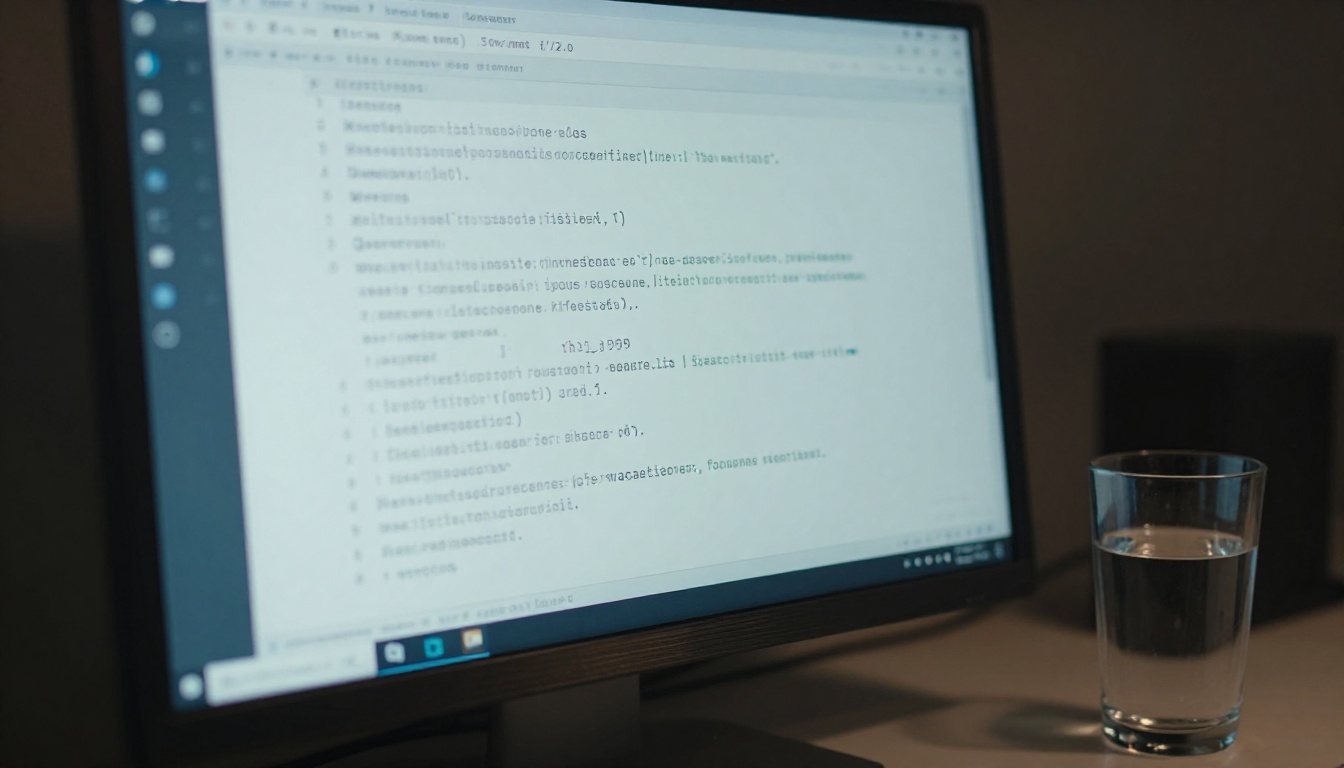
Most generators support a weighting syntax inside the prompt itself. Instead of writing "a woman with red hair", you write a woman with (red hair:1.5) to emphasize it, or (red hair:0.6) to de-emphasize it. The number scales the model's attention toward that phrase.
This is how professional prompters control lighting, facial features, and background details without rewriting the entire scene. A prompt like:
(cinematic lighting:1.4), a woman in a café, (blurred background:1.2), (sharp face detail:1.5), natural skin texture
produces consistently better results than the same sentence written flat, without any attention weighting at all. The model is not just reading your words, it is reading their relative importance.
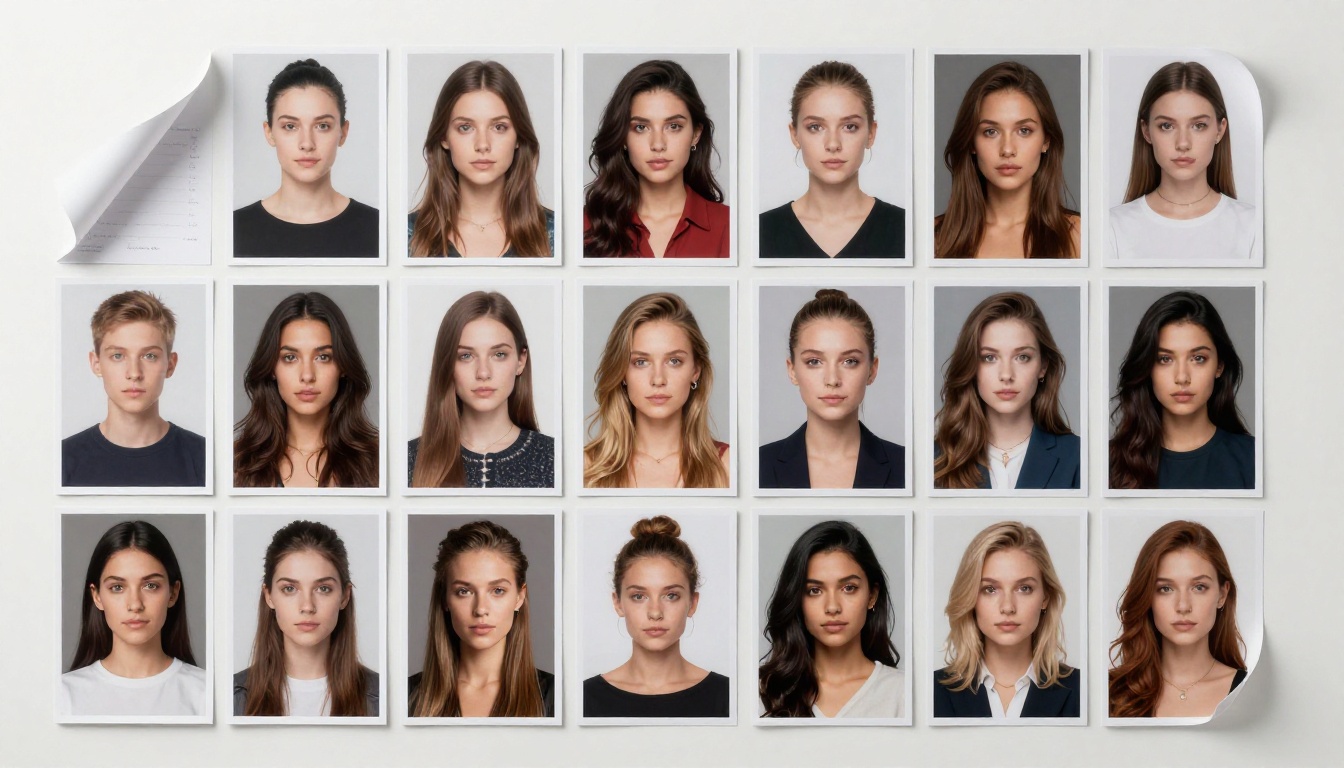
Every image generated has a seed: a number that controls the random noise pattern the model starts from. Change the seed, get a different image. Keep the same seed, change only one word in your prompt, and you get a controlled variation of the same composition.
Reuse Seeds for Consistent Characters
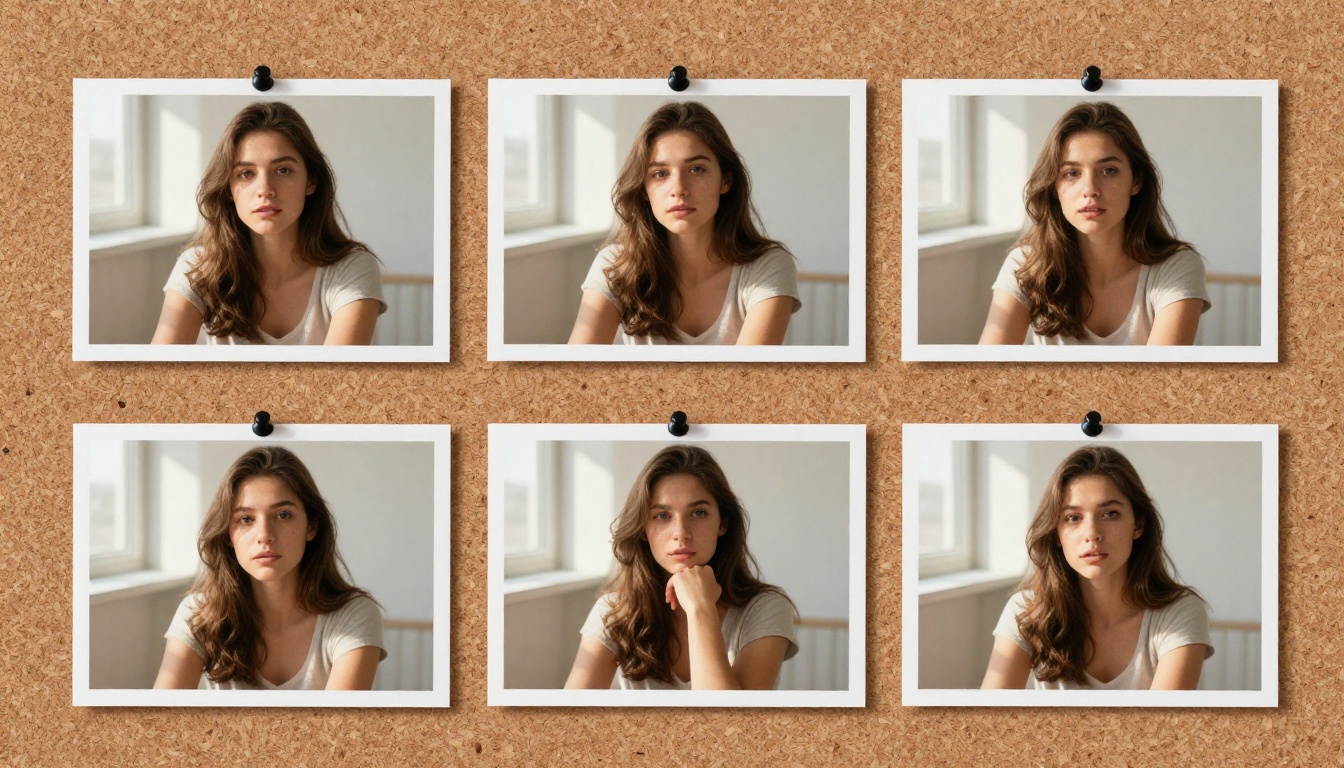
This is the trick behind most "character sheet" and "consistent persona" workflows. Here is how it works:
- Generate an image you like. Note the seed immediately.
- Use that same seed with a modified prompt: different background, different pose, same core character description.
- The model anchors many identity features to the seed, producing recognizable consistency across outputs.
It is not perfect, but combined with a locked character description, it brings output consistency close enough for sequential storytelling, product mockups, or brand visuals. Models like Flux 1.1 Pro Ultra and GPT Image 1.5 show particularly strong seed-consistency behavior compared to older architectures.
💡 Pro tip: Copy the seed from a great result immediately. Most interfaces only display it briefly. If you lose it, you cannot recreate the exact image.
Seed Variation: Finding New Styles Fast
Instead of rewriting your prompt repeatedly, keep it fixed and iterate through seeds in batches: 1, 2, 3, 1000, 2000. Each seed shows a different interpretation of the same description. This is faster than prompt rewriting and surfaces unexpected compositions, lighting treatments, and color palettes you would never think to describe manually.
Models like Flux 2 Pro and Imagen 4 respond strongly to seed variation, making the same prompt produce dramatically different moods and scenarios with zero extra effort.
ControlNet Changes What Is Possible
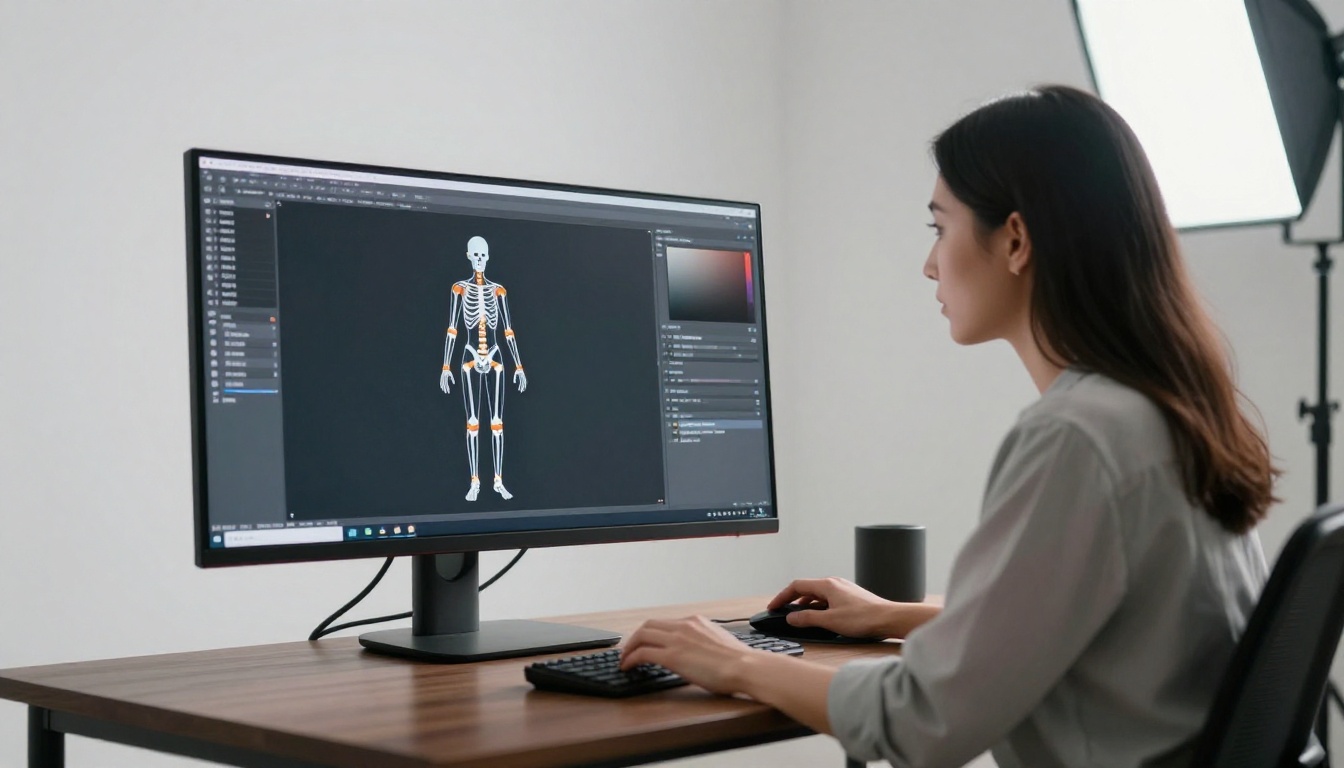
ControlNet is not just a feature. It is a fundamentally different way of generating. Instead of text being your only input, you add a structural guide: a pose skeleton, an edge map, a depth map, or a simple scribble. The model then generates within those constraints.
Pose Locking With Skeleton Maps
The most common use is pose control. You upload a reference image showing a body position, ControlNet extracts a skeleton, and your new generation inherits that exact pose while applying your text prompt on top. The result: full creative control over both appearance and body language simultaneously.
SDXL Multi ControlNet LoRA on PicassoIA supports stacking multiple ControlNet inputs at the same time. You can lock pose, depth, and edge detection all at once, which dramatically reduces the number of attempts needed to hit a specific composition. What previously took twenty generations to get right can land correctly on the second or third try.
Scribble to Structured Image
ControlNet Scribble is the most creative variant in the ControlNet family. You draw a rough shape with a mouse or stylus. The model interprets it as a structural blueprint and fills it with photorealistic detail according to your text prompt. A rough oval with two circles becomes a face. A horizontal line with irregular bumps becomes a mountain range.
This workflow is especially powerful for people who struggle to describe spatial compositions in words. Drawing is faster than explaining, and the results often surprise you in the best way.
Picking the Right Model
Not all models are equal, and more importantly, they are not good at the same things. Using the wrong model for a task is the single biggest reason people get disappointing results even with a well-written prompt.
Flux vs Stable Diffusion vs SDXL
When to Use Ultra vs Turbo Variants
Turbo and Schnell variants, like Flux Schnell and SDXL Lightning 4Step, sacrifice some detail quality for generation speed. Use them during the iteration phase, when you are testing a concept and do not need final output quality. Switch to the full model only once you have a seed, composition, and prompt that works.
Pro and Ultra variants, like Flux 1.1 Pro Ultra or Stable Diffusion 3.5 Large, are for final renders. The difference in output quality is visible in the fine detail: hair strands, fabric weave, skin texture, and background depth all resolve at a noticeably higher level.
Aspect Ratio and Resolution Are Not the Same Thing
A common mistake is treating image dimensions and aspect ratio as interchangeable settings. They are not, and confusing them leads to distorted results.
Aspect ratio determines the shape of the image (16:9, 1:1, 9:16). Models are trained on images at specific native ratios. Generating at a ratio far from that training distribution produces compositional distortions, stretched faces, or strange spatial proportions.
Resolution determines the pixel count at that ratio. Most models generate at a base resolution around 1024px wide. Generating far above native resolution causes tiling artifacts, because the model fills extra pixels by repeating or distorting existing patterns rather than creating new coherent detail.
The Right Workflow: Generate Small, Upscale After
Generate at the model's native resolution first. Get the composition, lighting, and details right at that base scale. Then use a dedicated Super Resolution upscaler to enlarge the output 2x or 4x. Upscalers are trained specifically for this enlargement task and produce sharper, more coherent results than trying to generate at maximum resolution in a single pass.
This workflow is faster, uses fewer credits, and consistently produces better final output quality.
LoRA Stacking and Style Mixing
LoRA (Low-Rank Adaptation) models are lightweight style or character fine-tunes that attach to a base model. Most users apply one LoRA at full strength and stop there. The trick is stacking multiple LoRAs at reduced weight values to blend their influences.
Stack LoRAs Without Breaking the Image
Instead of applying one LoRA at full strength (1.0), apply two or three at partial strength, typically 0.4 to 0.6 each. This blends their stylistic influences into the generation without letting any single one dominate or overwrite the base model's photorealism.
A practical example using p-image LoRA on PicassoIA:
- Cinematic lighting LoRA at 0.5 weight
- Skin texture detail LoRA at 0.4 weight
- Fashion photography LoRA at 0.6 weight
The combined output is a composite style that no single LoRA could produce alone. The cinematic quality shows through without the skin texture becoming artificial, and the fashion photography sharpness adds editorial crispness without making the image feel processed.
Img2Img as a Style Transfer Tool
Image-to-image generation takes an existing image as input and regenerates it with your prompt applied on top. At a denoising strength of 0.3 to 0.5, the output stays structurally close to the source while shifting the lighting, color palette, and texture toward your target description.
This is the fastest way to apply a photorealistic style to a rough concept sketch, a flat product photo, or even a screenshot. The rules are simple:
- Below 0.5 denoising: preserves original composition tightly
- 0.5 to 0.7 denoising: blends original structure with new prompt direction
- Above 0.7 denoising: model generates largely from scratch, treating input as loose reference only
Keep denoising below 0.6 when you want to retain spatial composition. Go above 0.7 only when you want the model to reinterpret the scene freely.
How to Use Flux 1.1 Pro on PicassoIA
Flux 1.1 Pro is one of the strongest text-to-image models available for photorealistic portrait and editorial work. Here is a step-by-step workflow that consistently produces high-quality results.
Step 1: Write a structured prompt in four parts
Break your prompt into subject, environment, lighting, and camera. For example:
"A woman with dark curly hair wearing a linen blazer, sitting at an outdoor café table, cobblestone street behind, soft overcast diffused light from above, 85mm portrait lens f/1.8 shallow depth of field"
Writing these four elements in sequence gives the model clear hierarchical context instead of a list of disconnected ideas.
Step 2: Set aspect ratio to match your intended crop
Use 2:3 or 9:16 for portrait-oriented close-up shots. Use 16:9 for wide establishing shots. Use 1:1 for editorial square format. Flux 1.1 Pro performs at its best when the aspect ratio matches the subject framing naturally.
Step 3: Add minimal, targeted negative prompts
For Flux models, keep negative prompts focused: cartoon, illustration, anime, low quality, deformed hands, extra fingers, blurry
Longer negative prompts used with SDXL-style models often reduce quality on Flux. Less is more.
Step 4: Lock a seed for your first iteration
Set seed to any number (e.g. 42) for your first generation. If you get a strong result, that seed becomes your base for all variations on the same subject or scene.
Step 5: Upscale the winner
Once you have a version you are satisfied with, run it through Super Resolution to get a clean 2x or 4x enlargement. Flux 1.1 Pro outputs at high enough quality that upscaling preserves rather than amplifies any imperfections.
💡 Tip: Flux 1.1 Pro responds strongly to photographic terminology. Terms like "volumetric lighting", "Kodak Portra 400", "film grain", "RAW photograph", and specific focal lengths give the model strong contextual anchors that push output toward true photorealism.
What Most People Never Try
The gap between average AI image results and professional-quality output is almost never about the model itself. It is about prompt precision, seed discipline, and knowing when to switch tools. Negative prompts alone improve output quality more than upgrading to a more expensive model tier. Seed reuse eliminates most of the inconsistency that makes character workflows frustrating. ControlNet turns spatial guesswork into exact composition control.
None of these require technical expertise. They require intentional use of features that are already built into the tools you are using today.
If you have been relying only on your prompt text to do all the work, you have been leaving most of the generator's capability unused. The models on PicassoIA, from Flux 2 Pro to Imagen 4 to Recraft V4, are built to handle far more nuance than a single line of text can convey. The prompt is where you start. Seed control, attention weighting, negative prompts, ControlNet, and resolution workflow are where you finish.
Start Creating on PicassoIA
PicassoIA gives you direct access to over 91 text-to-image models, including Flux 1.1 Pro Ultra, GPT Image 1.5, Stable Diffusion 3.5 Large, and Ideogram V3, all in one place. You can run every technique described in this article without switching platforms or paying per-model subscription fees.
Start with a prompt you have already used. Apply negative prompts. Lock the seed. Compare two models side by side using the same prompt and seed. The difference in results will be immediate and obvious.
The platform is built for exactly this kind of experimentation. That is the point.


