You type a perfectly reasonable request for a glamour shoot, a boudoir portrait or a swimwear campaign, and the generator answers with a polite refusal. If that sounds familiar, you are not alone. Most mainstream AI image tools filter anything that looks adult, and some of them filter things that are not even close. The good news is that a handful of models handle mature themes far better than the rest, and a few platforms let you generate without a daily cap.
This article sorts out which AI models allow explicit content (or come closest to it), what the free options really cost you, which prompts get through, where the limits sit, and what to do when a model says no. One honest note up front: the images in this article are suggestive, glamorous and non-explicit. That is the zone where the best photorealistic models perform well and where you are least likely to hit a wall.

What "Explicit" Really Means in AI
The word gets used loosely. In search results, "explicit content" can mean anything from a bikini photo to fully pornographic material, and the model you pick decides where that line falls. Before comparing tools, it helps to separate the layers.
Why Mainstream Tools Refuse
Midjourney, DALL-E and most big-brand assistants run strict moderation on both the prompt and the output. Their policies are written for the widest possible audience, so they block nudity, many swimwear requests and sometimes even innocent words that look suspicious to a classifier. That is a business decision, not a technical limit. The underlying image models are perfectly able to draw skin.
The Three Moderation Layers
When a generation fails, one of three things usually happened:
- Prompt filter: a keyword or intent classifier rejects your text before any image is made.
- Output filter: the image is generated, then scanned, and blocked if it scores too high on a sexual-content check.
- Model training: some models were simply never trained on much adult material, so they produce awkward or distorted results even without a filter.
💡 Tip: If you get a refusal, work out which layer caused it. A prompt filter means rewording helps. An output filter means changing the pose, clothing or framing. A training gap means switching models.
Models That Allow Adult Content
Here is where the practical advice starts. These are the models on PicassoIA that handle mature, glamour and artistic themes with fewer refusals, in the order I would try them.
Seedream 4.5 Is the First Pick
Seedream 4.5 is the model I would reach for first. It produces sharp, photorealistic skin, believable fabric and lighting that looks like it came from a real camera. It also follows long, descriptive prompts closely, which matters a lot when you are directing pose, wardrobe and mood. Its moderation is looser than most big-brand tools, so swimwear, boudoir and artistic nude themes are workable.
Strengths: 4K output, strong anatomy, excellent skin texture, reliable lighting control.
Weak spots: very explicit requests can still be refused, and vague prompts give generic faces.
PicassoIA Image Editor Pro
PicassoIA Image Editor Pro is the one to pick when you care about volume. It offers unlimited generations, so you can iterate on a look as many times as you want without watching a counter. It also works as an editor: upload a photo, change the outfit, the background or the lighting, and keep the rest of the image intact. For people who burn through dozens of attempts to get one great frame, that is the real value.
Other Models Worth Trying
When the first two do not give you the look you want, rotate through these. Each handles skin and lighting a bit differently.
💡 Tip: Run the same prompt through two or three models from this table. Differences in skin tone, lens feel and moderation tolerance show up immediately, and you will find your favorite in minutes.
Free Options and What They Cost
"Free" is the most abused word in this niche. It can mean free forever, free for five images, or free to sign up and pay to download. Here is how the main routes actually compare.
Free Tiers on Cloud Tools
Reviews of the cloud generators that advertise lenient rules, such as Mage.space and Venice.ai, tend to describe the same pattern: a free tier with a daily cap (figures around 15 prompts a day come up often), slower queues, and a paid plan that raises limits or unlocks more mature settings. Treat any specific number as a moving target, because plans change often. Also read the privacy policy, since many free services do not state clearly how long they keep your prompts and images.
Running Open Weights Locally
The route with the fewest restrictions is running open-weight image models on your own computer. There is no moderation layer except the one you choose. The cost is hardware and patience: you need a capable graphics card, storage for large model files and time to configure everything. For many people the setup is the real barrier, not the money.
Unlimited vs Capped
| Route | Cost | Daily limit | Setup effort | Moderation |
|---|
| Big-brand assistants | Free or paid | Yes | None | Very strict |
| Cloud free tiers | Free | Yes, often small | Low | Varies |
| Local open weights | Hardware | None | High | Self-managed |
| PicassoIA Image Editor Pro | Platform plan | Unlimited generations | None | Looser than mainstream |
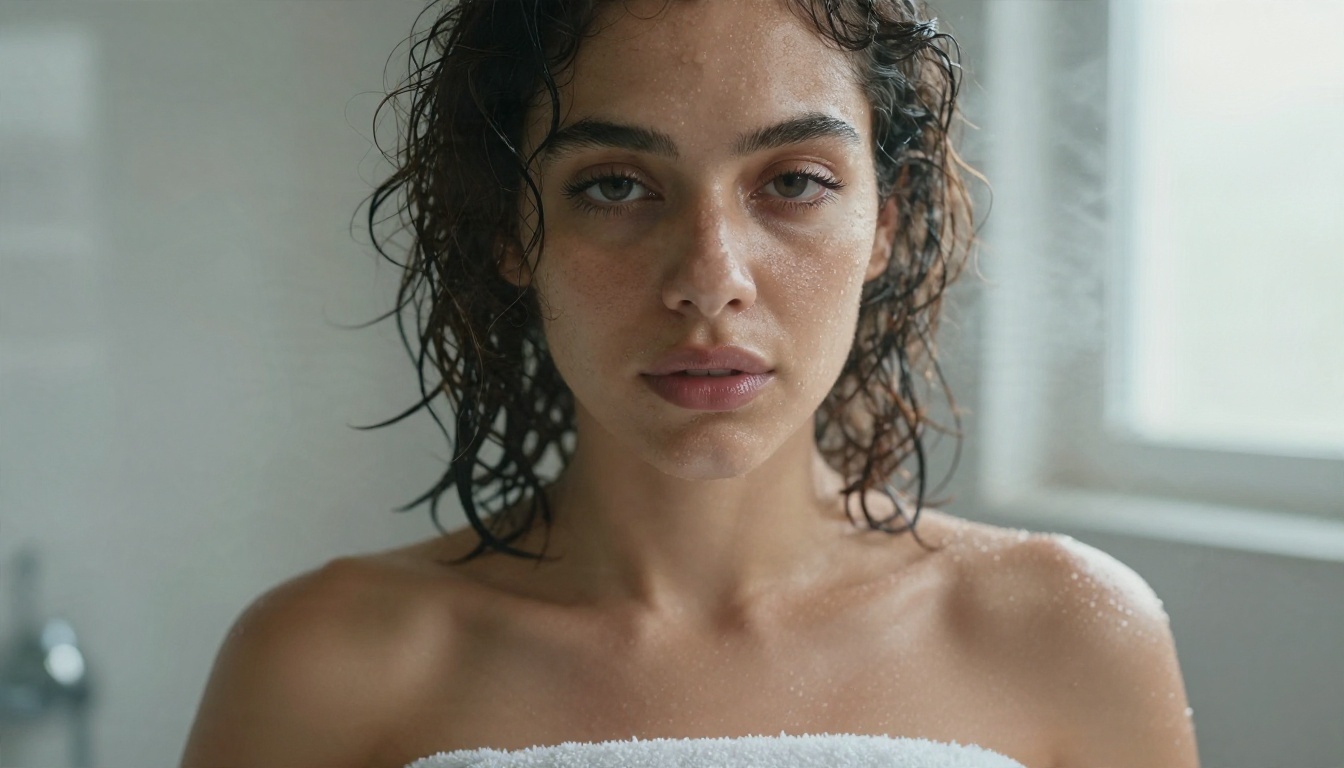
If you generate a lot, the hidden cost of a capped free tier is time: waiting for a reset, or paying for credits you burn on failed attempts. An unlimited tool pays for itself the first time you need thirty tries to nail one pose.
Prompts That Actually Work
Moderation is only half the story. A weak prompt gives you a plastic, generic result even when nothing gets blocked. The prompts below lean on photography language, which both improves realism and keeps classifiers calm.
A Simple Prompt Formula
Use this order: subject and pose, outfit, setting, light, camera, texture.
A woman in her late twenties reclining on white linen, champagne silk robe slipping off one shoulder, sunlit hotel suite, warm window light from the left, 85mm f/1.8, shallow depth of field, visible skin pores, Kodak Portra 400 grain.
Every part of that prompt does a job. The camera and film terms push the model toward photographic realism instead of airbrushed illustration. The light direction creates shape on the skin. The setting gives the image a story.
Five Example Prompts
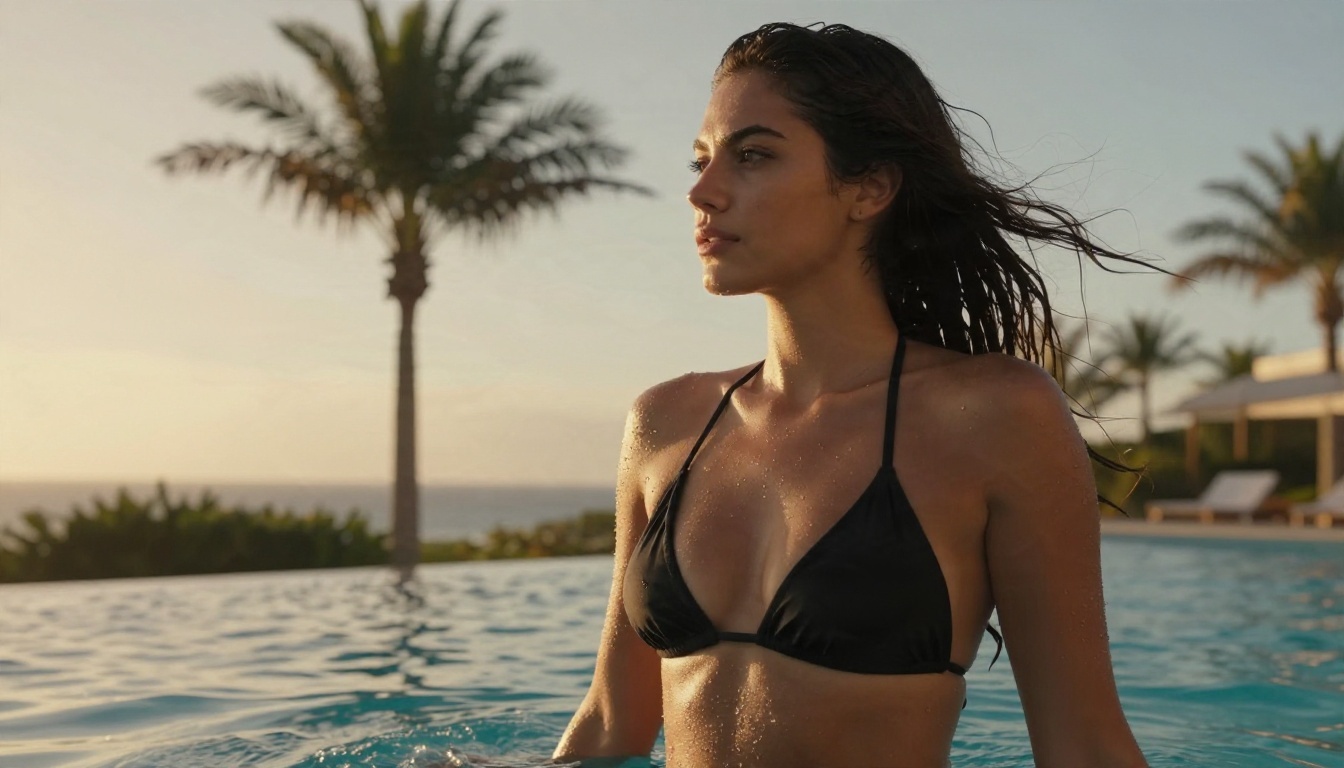
- Pool glamour: low-angle shot of a woman in a black halter bikini at the edge of an infinity pool, golden hour backlight, wet skin, 35mm f/2.
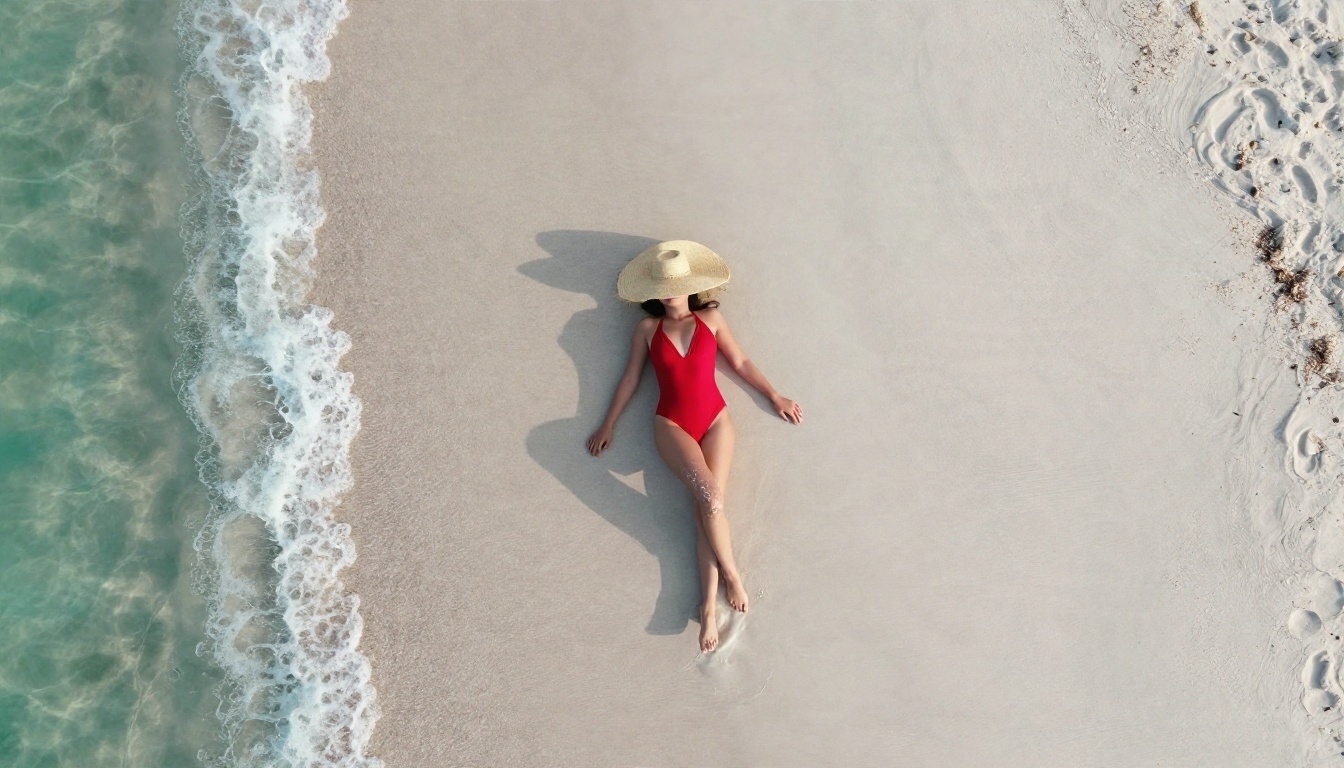
- Beach editorial: top-down aerial of a woman in a red swimsuit on white sand, straw hat beside her, long afternoon shadows, 24mm lens.
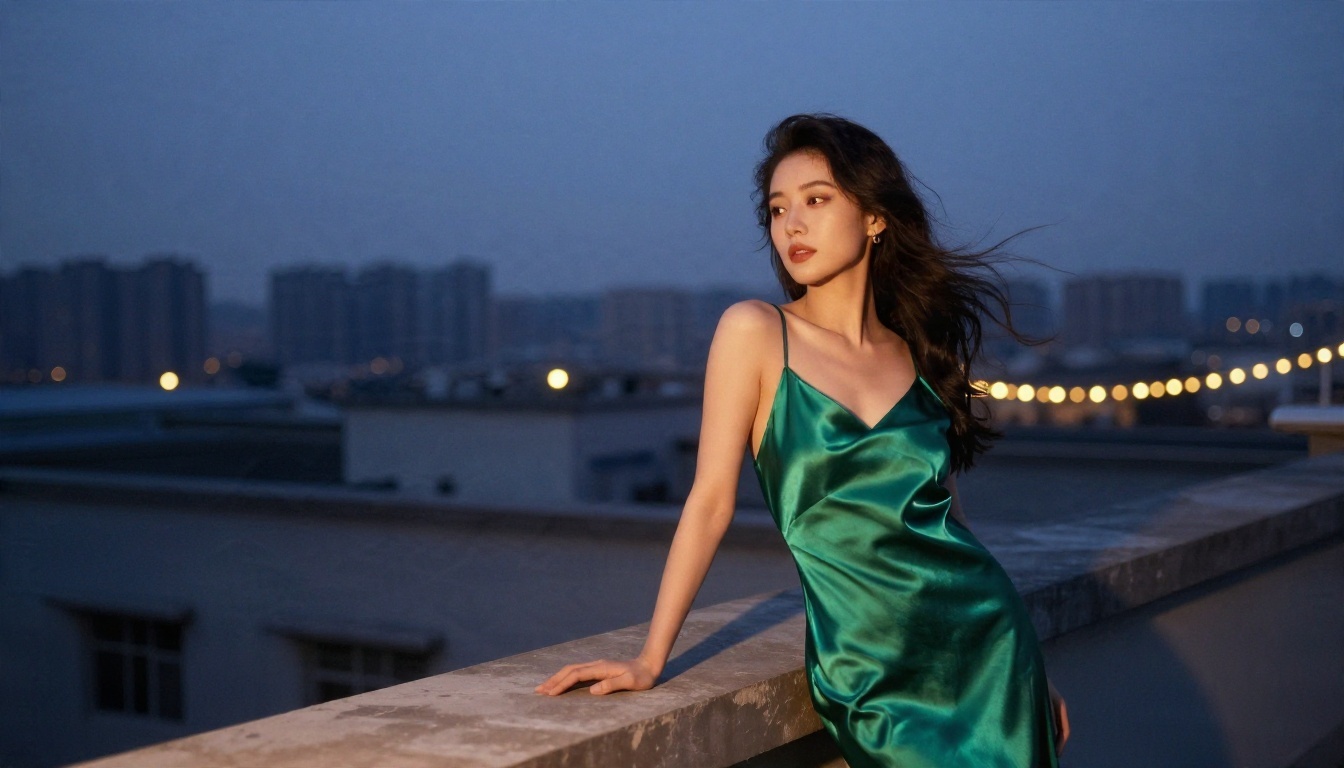
- Rooftop evening: woman in an emerald satin slip dress leaning on a railing at dusk, city lights blurred behind her, 35mm f/1.8.
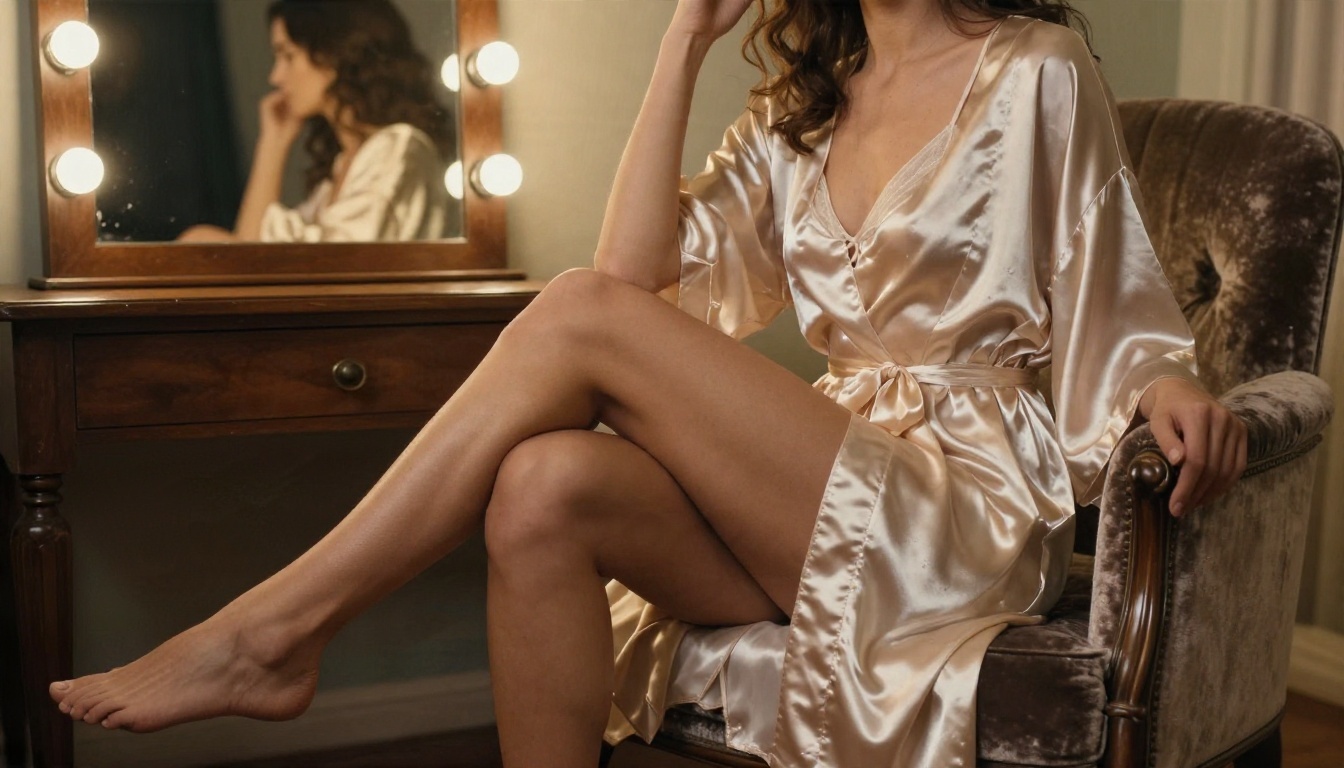
- Classic dressing room: woman in a satin robe seated on a velvet armchair, vanity mirror bulbs, side light, 85mm f/1.4.
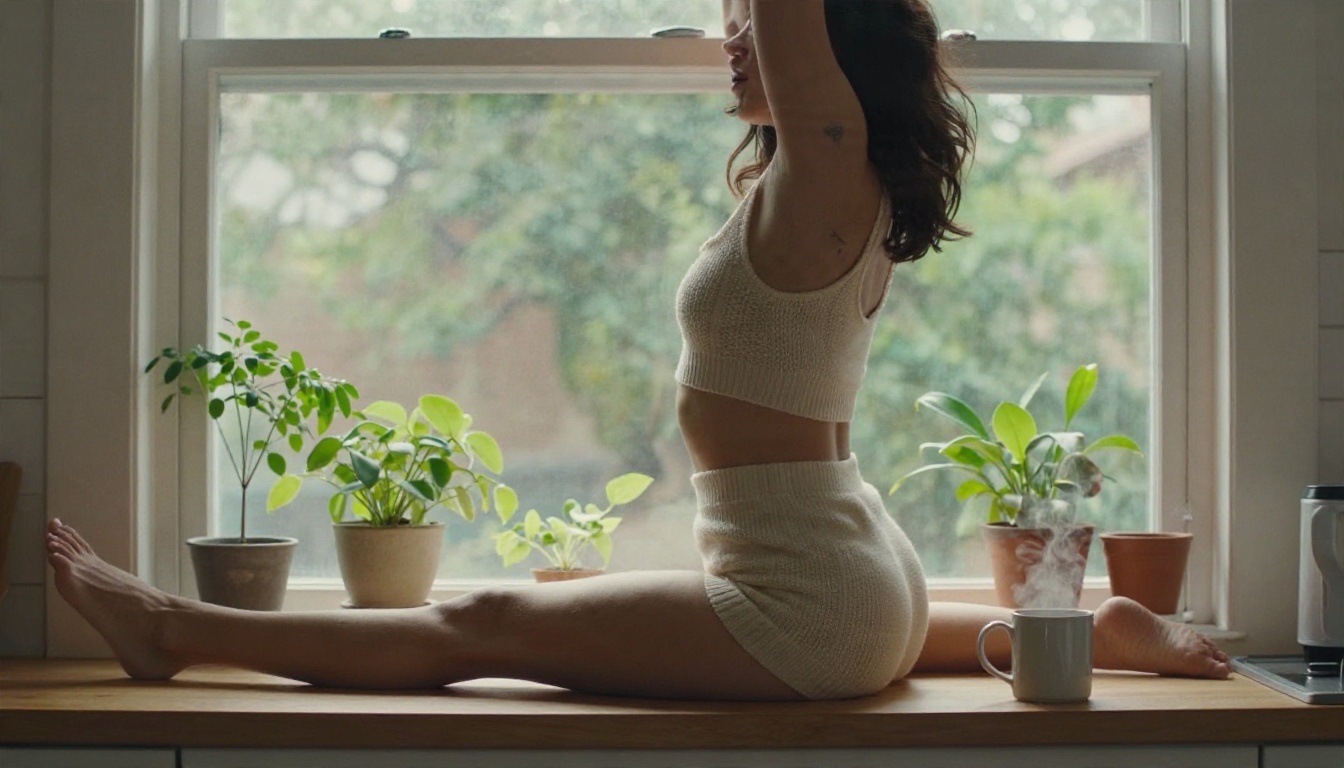
- Candid morning: woman stretching by a kitchen window in a knit top, steam from a mug, soft front light, 50mm f/2.
Words That Trigger Blocks
I tested wording on this very article. Two of my first-draft prompts were rejected outright, one that asked for lace lingerie in a dim, moody room and another that described a sheer bodysuit with "strategic shadow." Both failed on the output check. When I rewrote them with an evening robe and a fitted gown, with the same lighting and mood, they went through. A few habits help:
- Swap clinical or loaded terms for wardrobe and mood descriptions.
- Describe what is worn, not what is hidden.
- Avoid "sheer," "see-through" and "strategic" combined with bare skin.
- Keep the focus on lighting, lens and setting rather than on the body alone.
💡 Tip: If a prompt is blocked, change one variable at a time. Wardrobe first, then pose, then framing. You will find the exact trigger in two or three tries.
Limits You Will Hit
Even the most permissive model has edges. Knowing them saves you frustration and keeps you on the right side of the rules.
Hard Blocks Never Move
Some content is refused everywhere, on every legitimate platform, and no wording changes that. This includes anything involving minors, non-consensual scenarios, and real people who have not agreed to be depicted. A model that claims to allow all of it should make you suspicious of the platform, not impressed by it.
Quality Limits
Models trained with less adult material produce more errors: warped hands, odd proportions, repetitive faces. This is one reason a photorealistic model like Seedream 4.5 often beats a "less restricted" but weaker alternative. Permissive moderation means little if the output looks wrong.
Legal and Consent Lines
Laws on AI-generated adult content differ by country and change quickly. Check your local rules and each platform's terms before you publish anything. Some practical rules of thumb:
- Generate fictional adult characters, never a lookalike of a real person.
- Do not use face swap on someone without their consent.
- Keep private work private if you are unsure about the rules where you live.
- Label AI-generated images when you share them, as many platforms now require.
How to Use Seedream 4.5 on PicassoIA
Since Seedream 4.5 is the strongest starting point, here is a simple workflow that works well for glamour and mature themes.
Step by Step
- Open the Seedream 4.5 page on PicassoIA.
- Write your prompt using the formula above: subject, outfit, setting, light, camera, texture.
- Choose the 16:9 ratio for landscape scenes or a vertical ratio for full-length portraits.
- Generate, then compare results rather than accepting the first one.
- Send your favorite frame to PicassoIA Image Editor Pro to adjust clothing, background or lighting without starting over.
Parameter Tips
- Be specific about light. "Warm window light from the left" beats "good lighting" every time.
- Name a lens. 85mm for portraits, 35mm for environmental shots, 24mm for aerial angles.
- Ask for texture. "Visible pores, fabric weave, film grain" removes the plastic look.
- Keep prompts between 50 and 100 words. Shorter ones leave too much to chance, longer ones start to contradict themselves.
Alternatives When a Model Refuses
Sooner or later a prompt gets blocked no matter what you do. These approaches save the session.
Edit Instead of Regenerate
If a frame is nearly right, do not rewrite the whole prompt. Open it in PicassoIA Image Editor Pro and adjust only the part that failed. Because generations are unlimited, you can test small changes freely. This is much faster than rolling the dice with a new prompt each time.
Switch Models
Each model draws its own line. A prompt that Seedream 4.5 refuses may pass in Hunyuan Image 3 or Qwen Image 3, and the reverse is true too. For quick tests, Z Image Turbo returns results in seconds, so you can find out which model tolerates your idea before you spend time polishing.
Shift the Style of the Scene
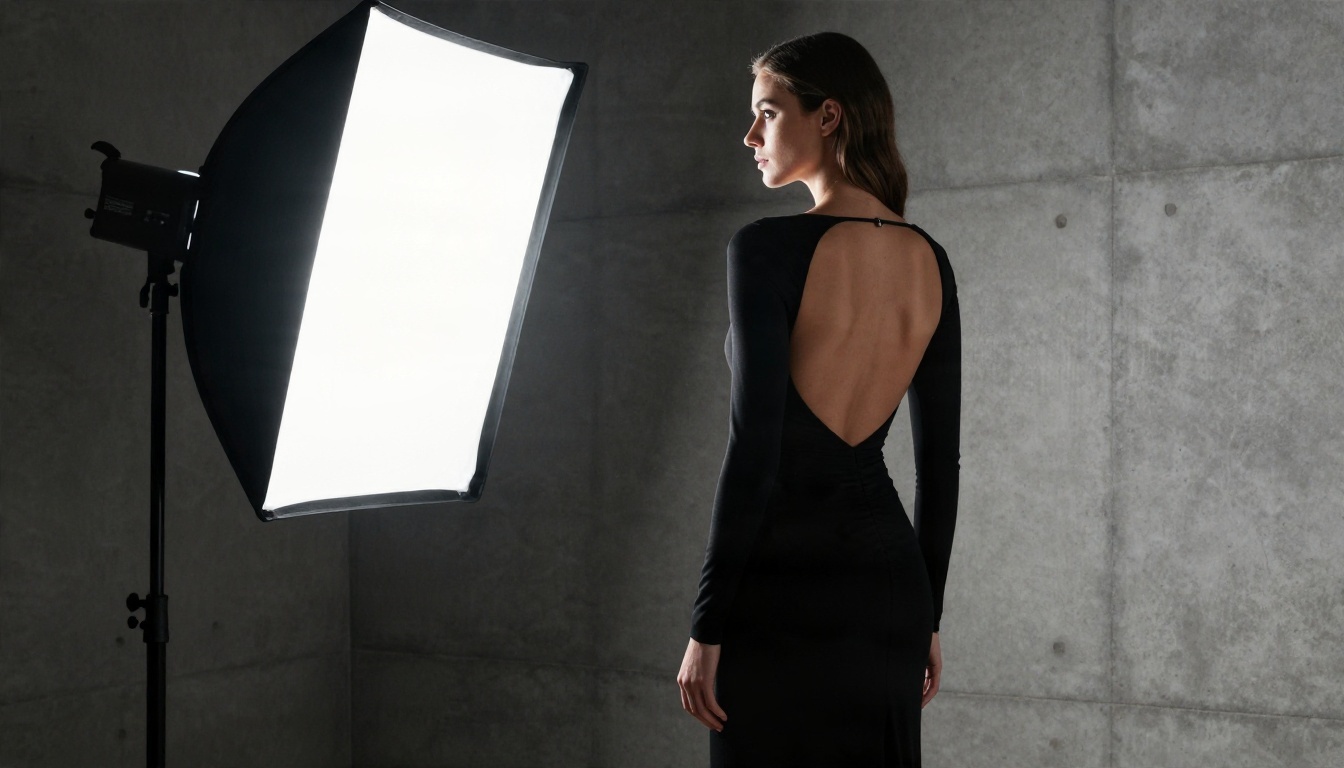
Sometimes the cleanest fix is a change of framing. Moody editorial lighting, a fitted gown with an open back, or a dramatic silhouette in a concrete studio can feel just as striking as something more revealing, and models accept them far more often.
Start Creating Your Own Images
The short version: Seedream 4.5 first, PicassoIA Image Editor Pro for unlimited iteration, then rotate through Z Image Turbo, the Flux 2 Klein models, Hunyuan Image 3, Qwen Image 3 and Realistic Vision v5.1 when you want a different look. Write prompts like a photographer, change one variable at a time when something is blocked, and keep everything fictional and consensual.
If you want somewhere to begin, open Seedream 4.5, paste the dressing room prompt from above and see what comes back. Then send the best frame to PicassoIA Image Editor Pro and push it further. Browse every model, compare them side by side and find the one that fits your style at picassoia.com/en/all-models.